Handling duplicate contacts in Viindoo
Search and Identify Duplicate Contacts
Search for duplicate contacts
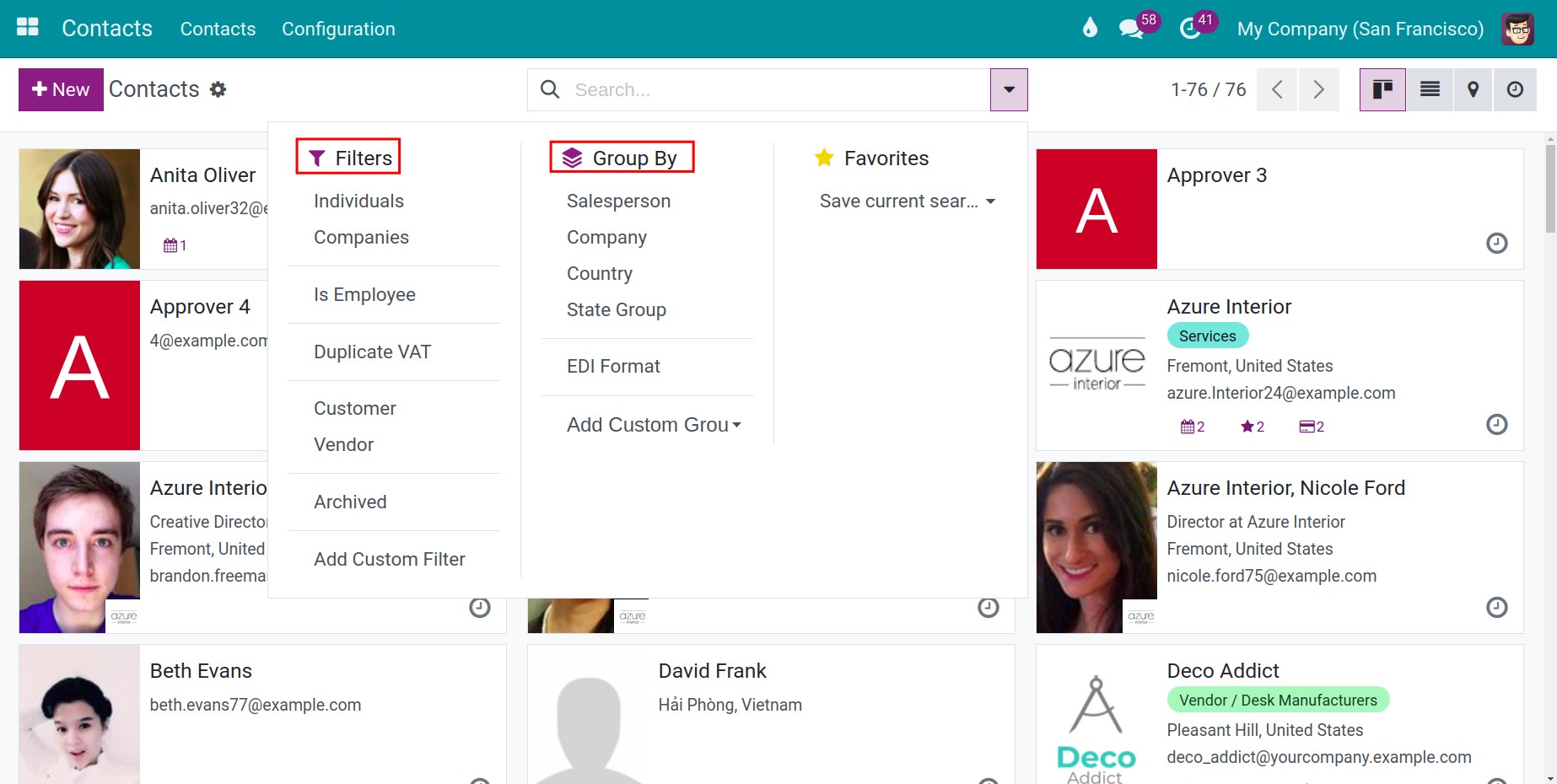
In the Viindoo software, you can use the features such as filter and grouping to search contacts.
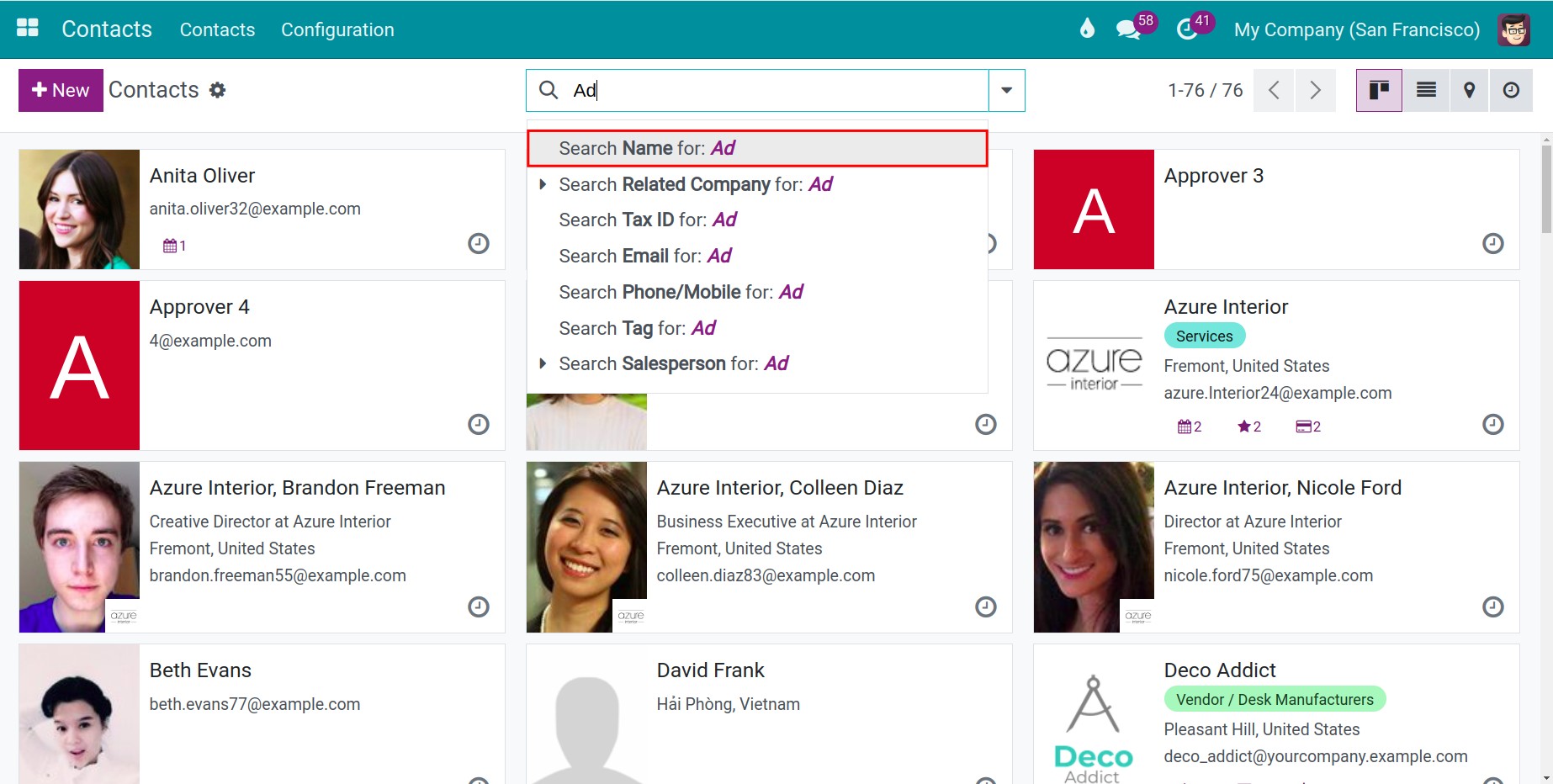
For instance, if you want to search for contacts whose names start with Ad, simply type Ad and choose the filter Search Name for: Ad.
Manual check and automation check for duplicate contacts
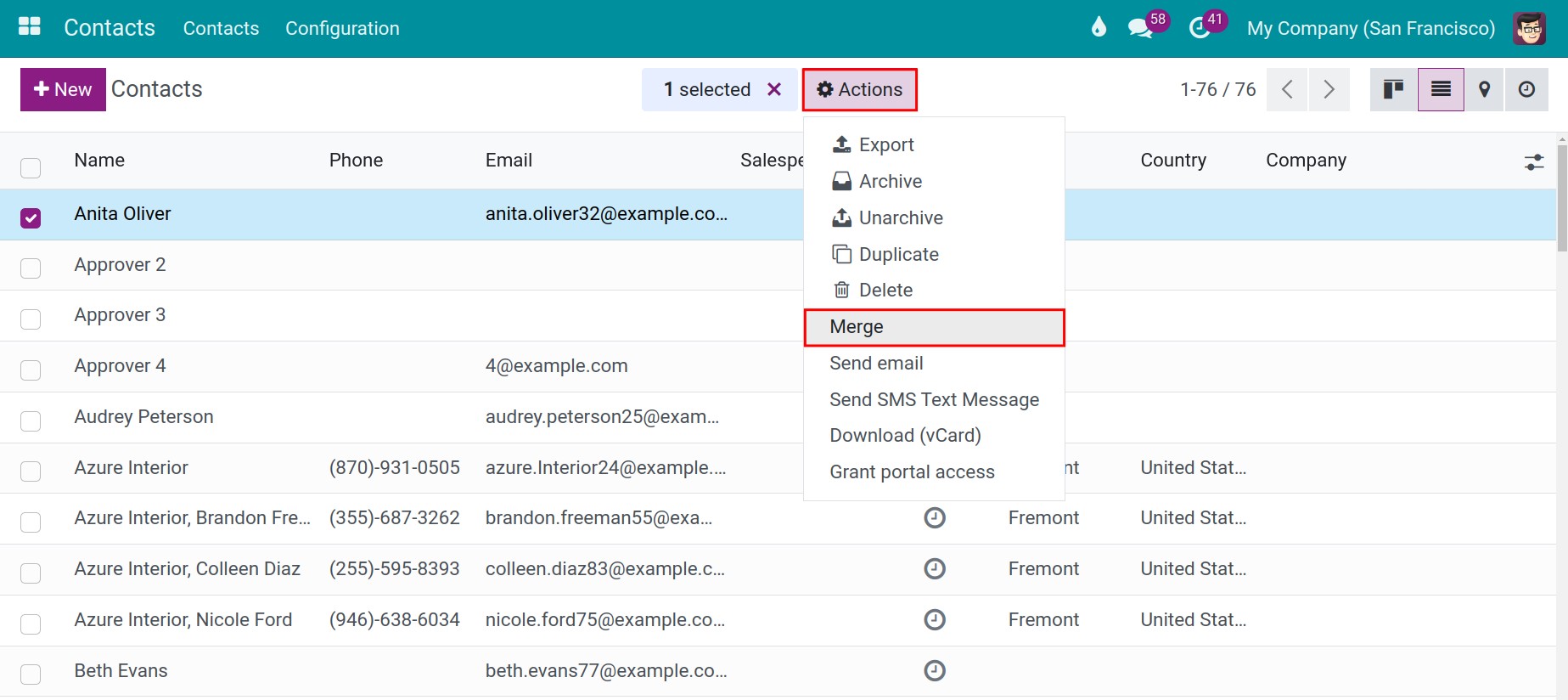
First, you need to display the interface for checking duplicate contacts. To do this, select any contact in list view and click Actions > Merge. Next, click on Skip these contacts > Duplicate the other contacts.
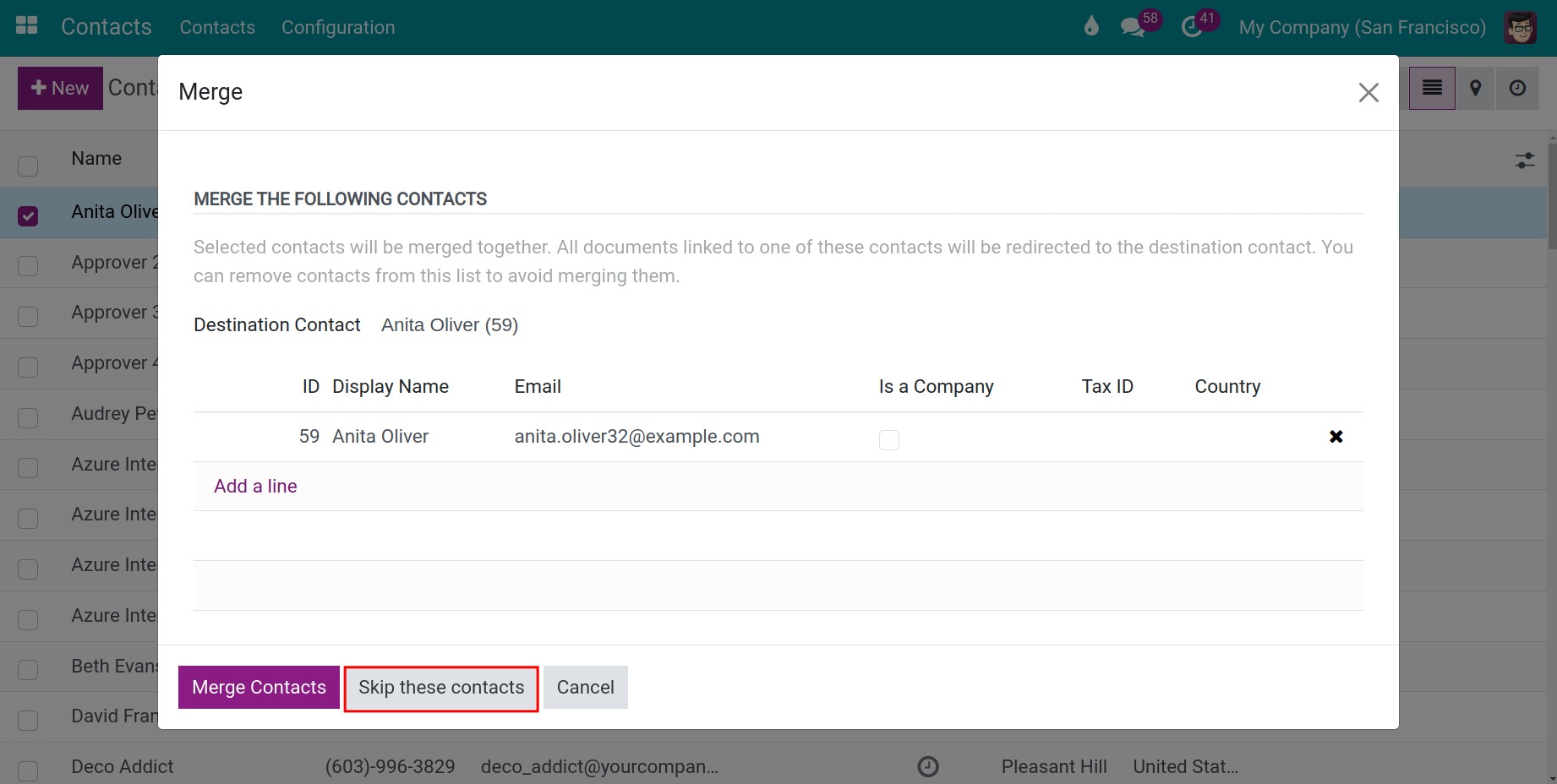
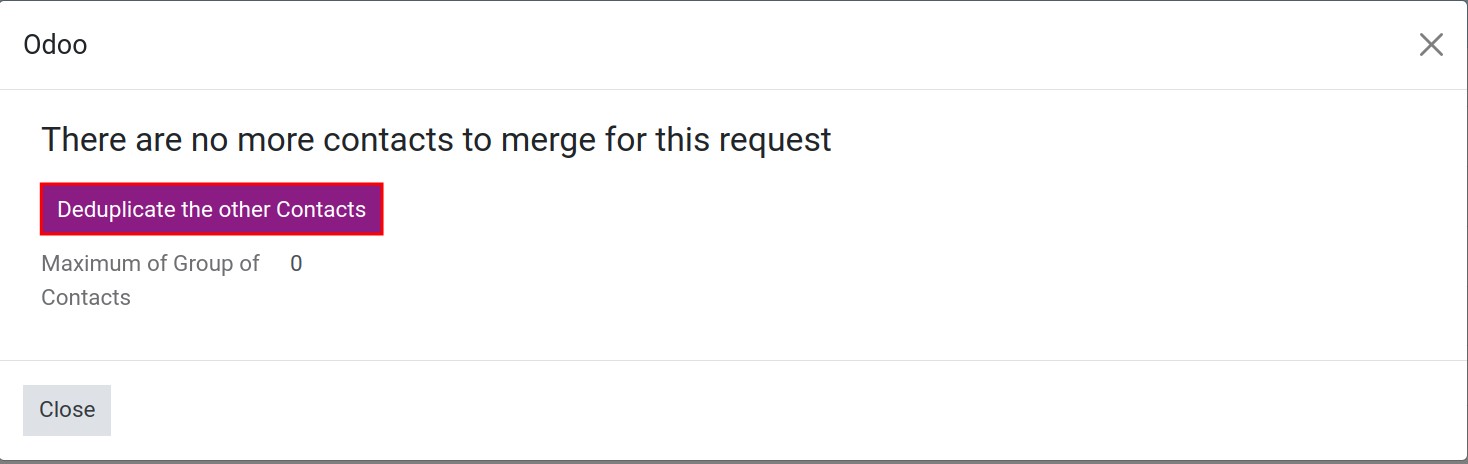
A pop-up window with fields will then appear. In which:
Search Duplicate Based On Duplicated Data In: The system allows you to choose fields to filter duplicate contacts, such as Email, Name, Is Company, VAT, and Parent Company
Exclude Contacts Having: You can exclude contacts based on criteria, including A user associated to the contact or Journal Items associated to the contact.
- A user associated with the contact: Exclude contacts associated with other contacts
- Journal Items associated to the contact: Exclude contacts that have journal items.
Options: You can set the filter for the number of duplicates to check at a time. For example, if your system has six pairs of duplicate contacts but you only want to review three pairs at a time, you can enter 3 in the Maximum Group of Contacts field.
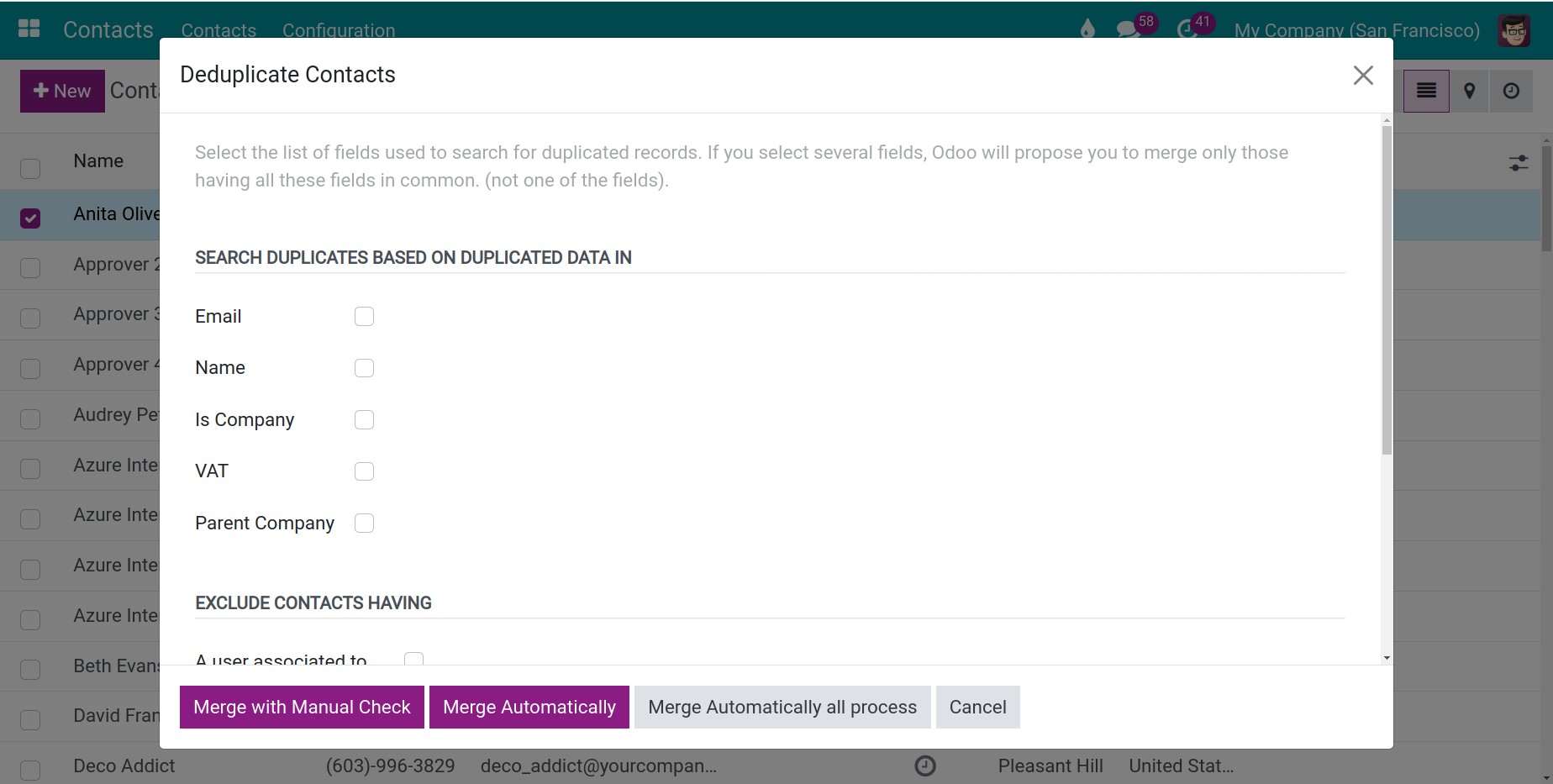
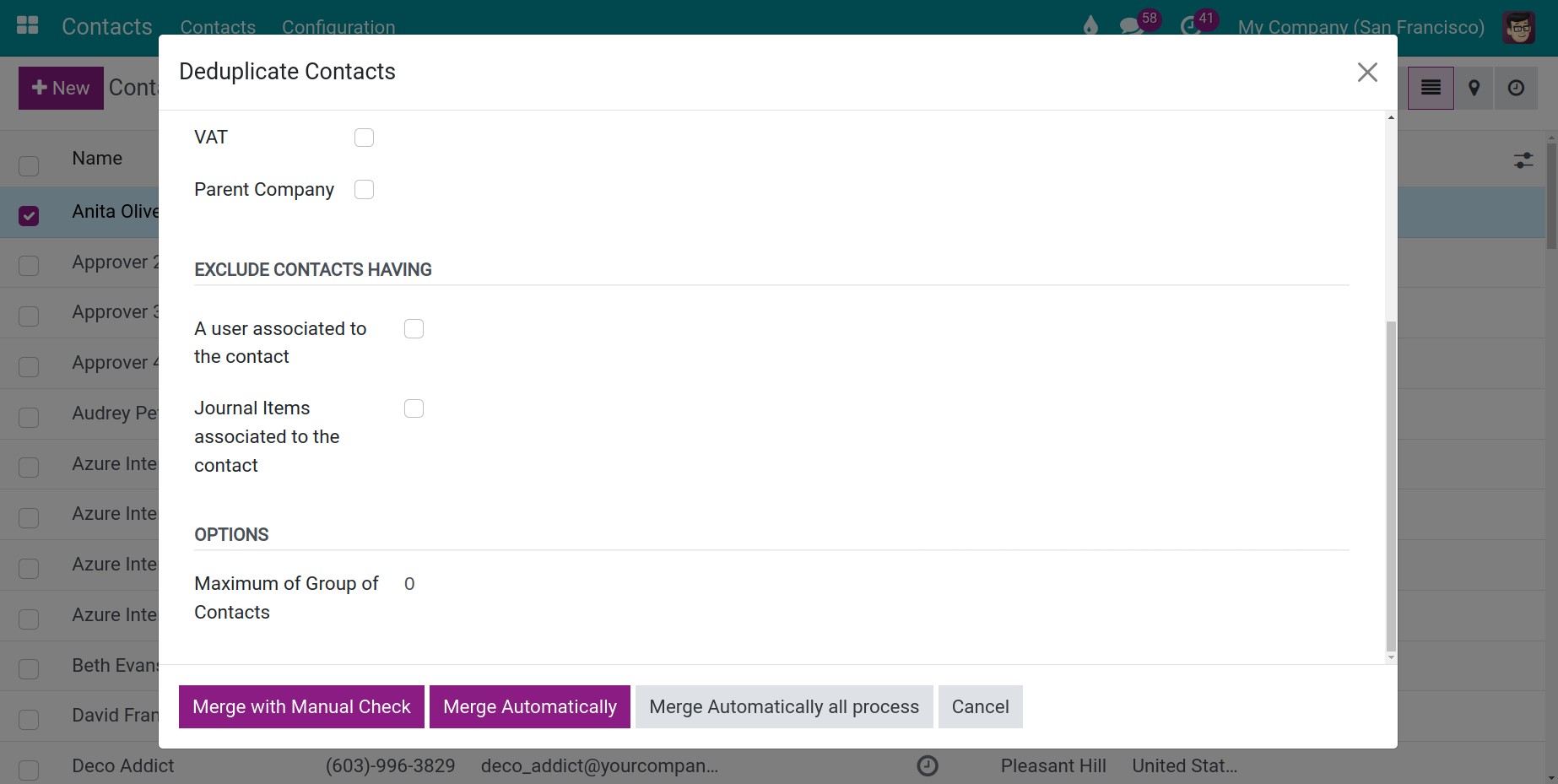
Next, you have three options after applying the filter as described above.
If you want to manually check duplicate contacts individually, choose Merge with Manual Check.
If you want to merge contacts immediately according to your criteria, choose Merge Automatically.
If you want to merge all duplicate contacts without selecting criteria or filtering, choose Merge Automatically all process.
On the other hand, you can choose the Cancel button if you want to stop this process.
Note
After selecting Merge with Manual Check button mentioned above, the system will display the interface for merging contacts. This content is included below.
Methods to Resolve Duplicate Contacts
Delete contacts
Delete a contact
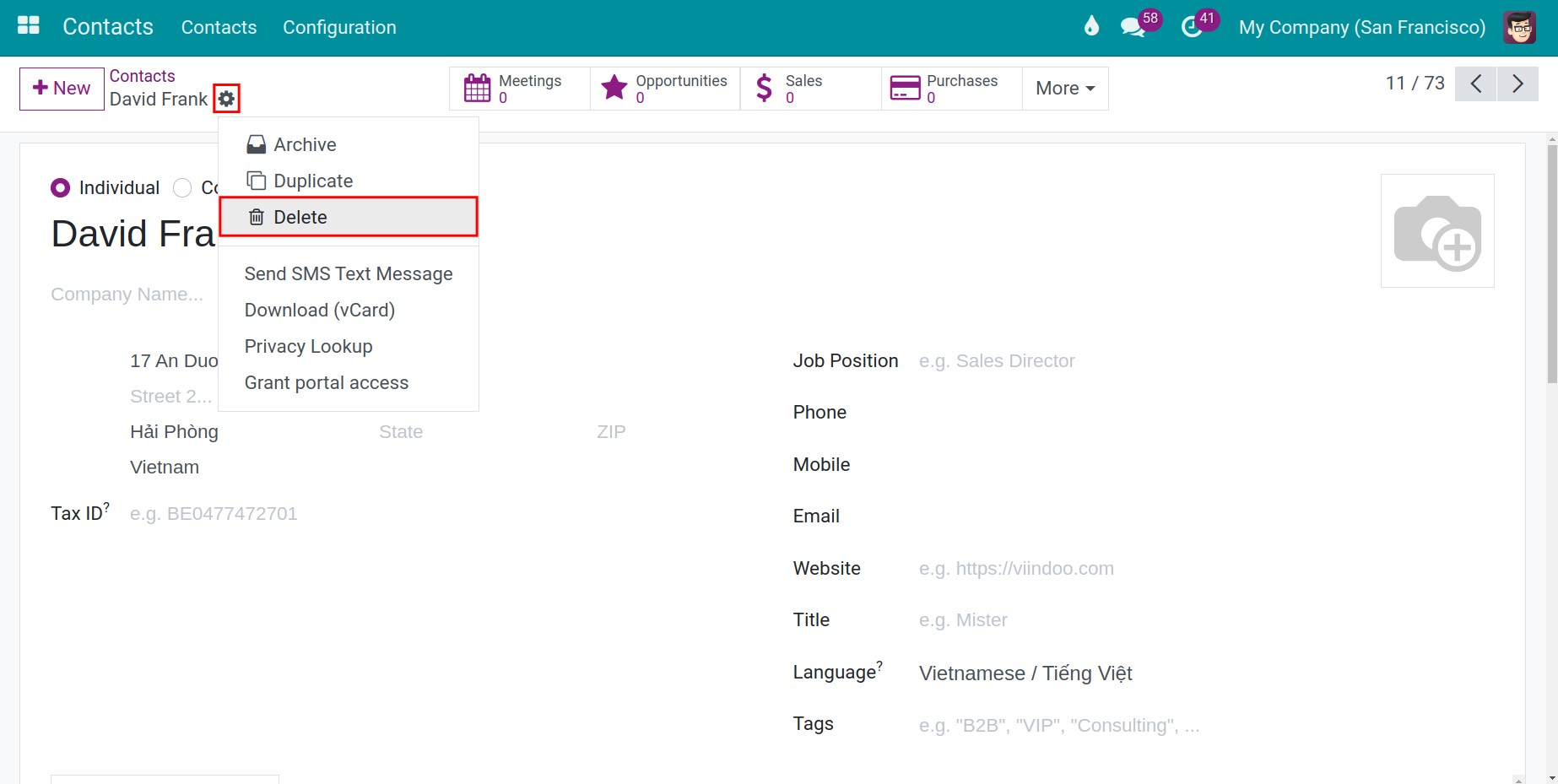
To delete a contact in Viindoo software, select the contact you wish to delete, then click on Actions > Delete.
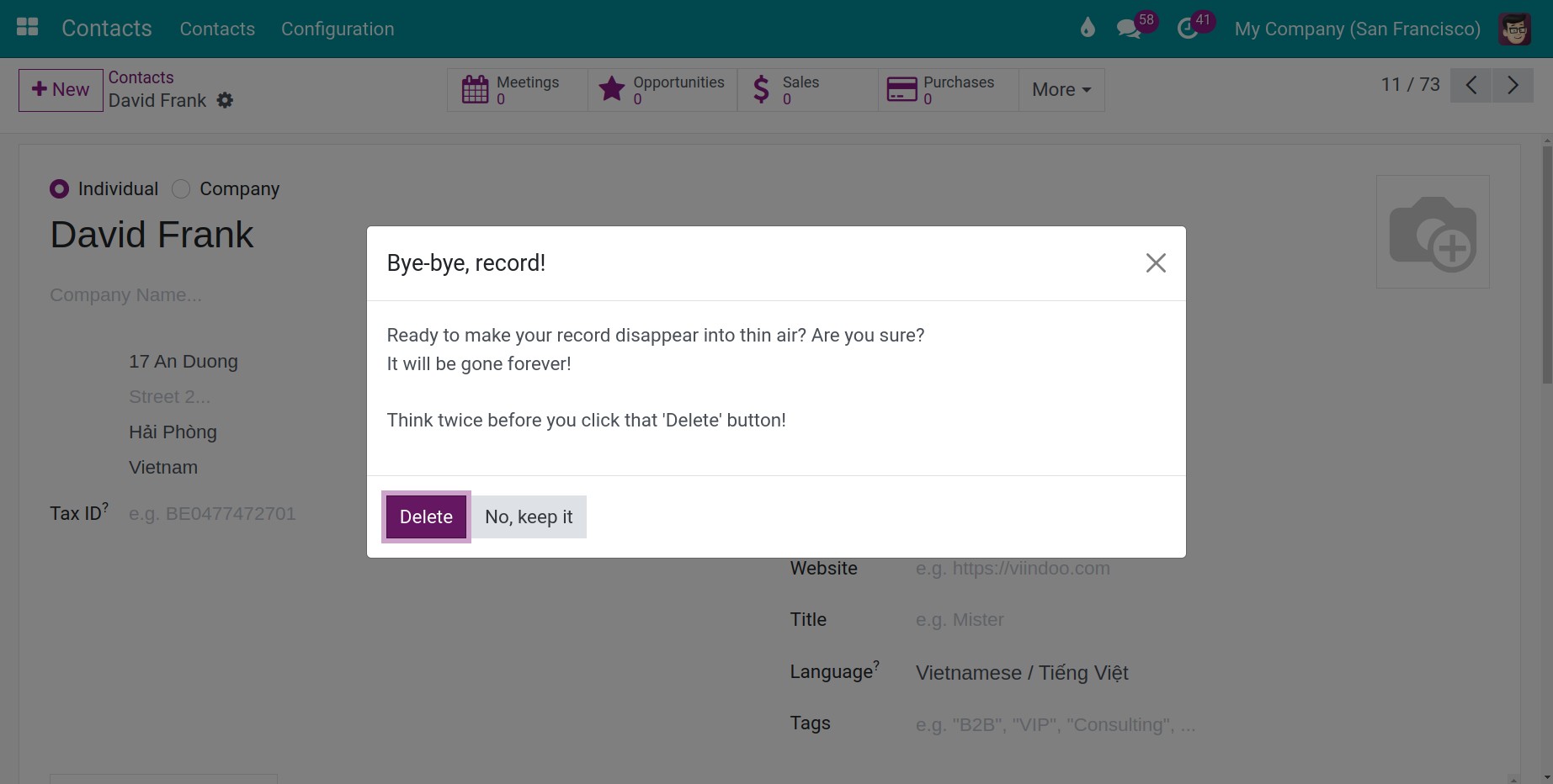
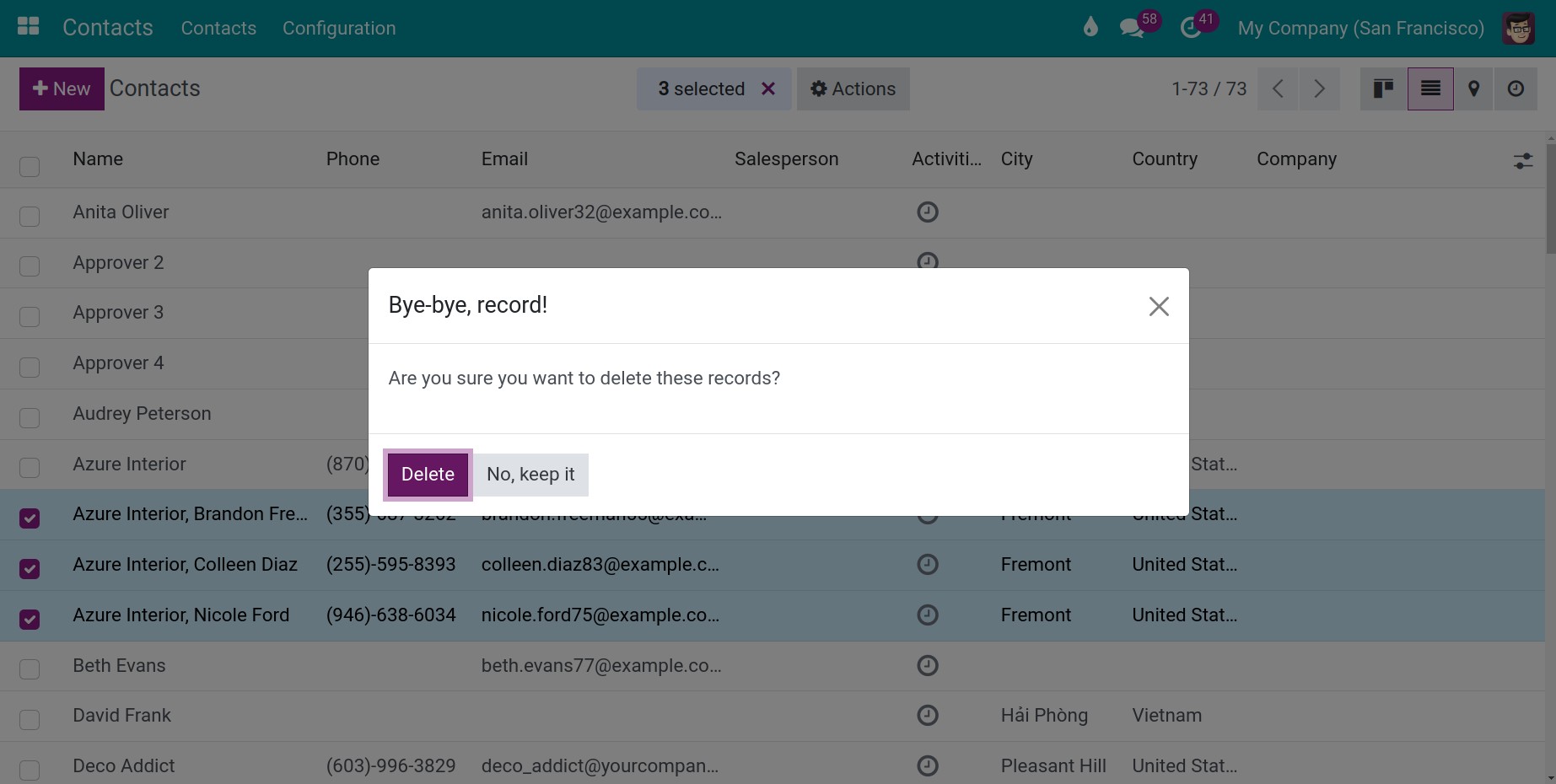
At this point, the software will ask you to confirm again. Simply click the Delete button to proceed with deletion. If you decide not to delete the contact, you can choose No, keep it
Delete multiple Contacts at once
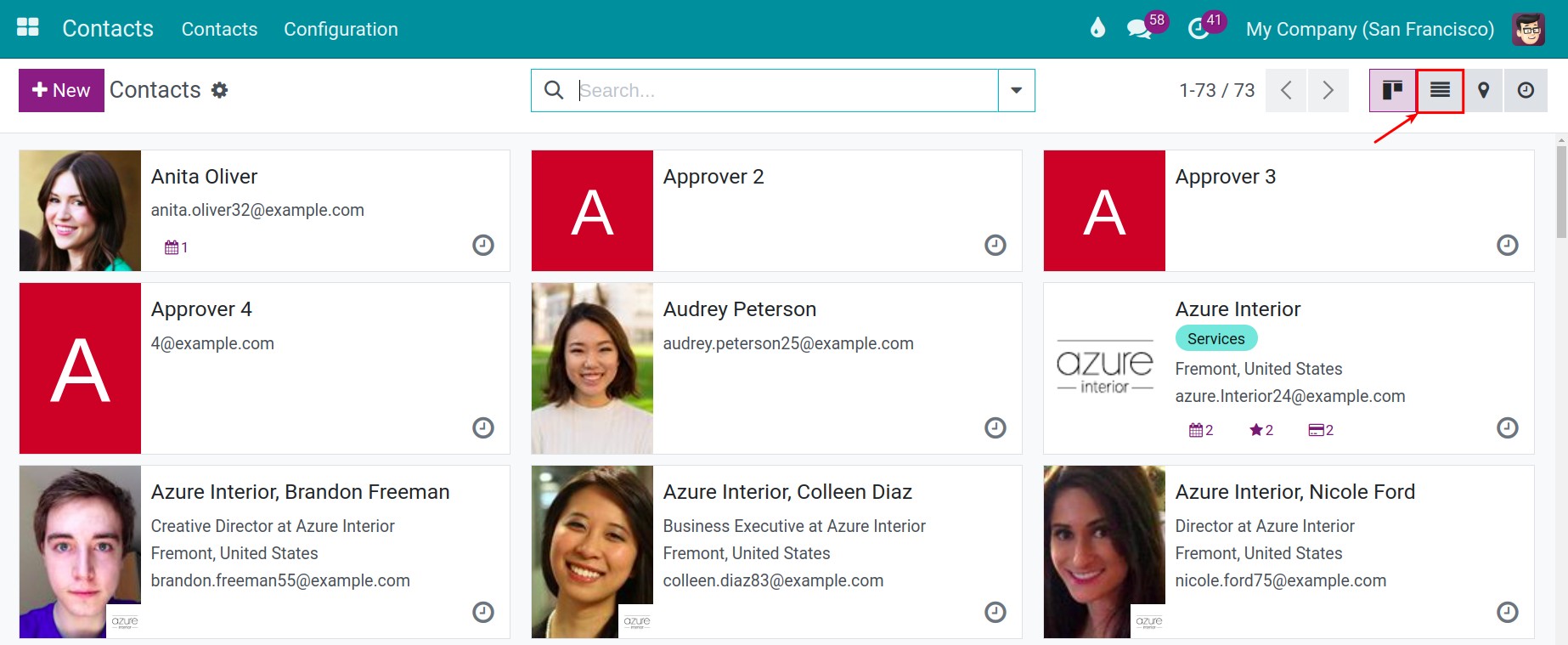
Navigate to the contacts interface, switch to the list view, and then select the contacts you wish to delete.
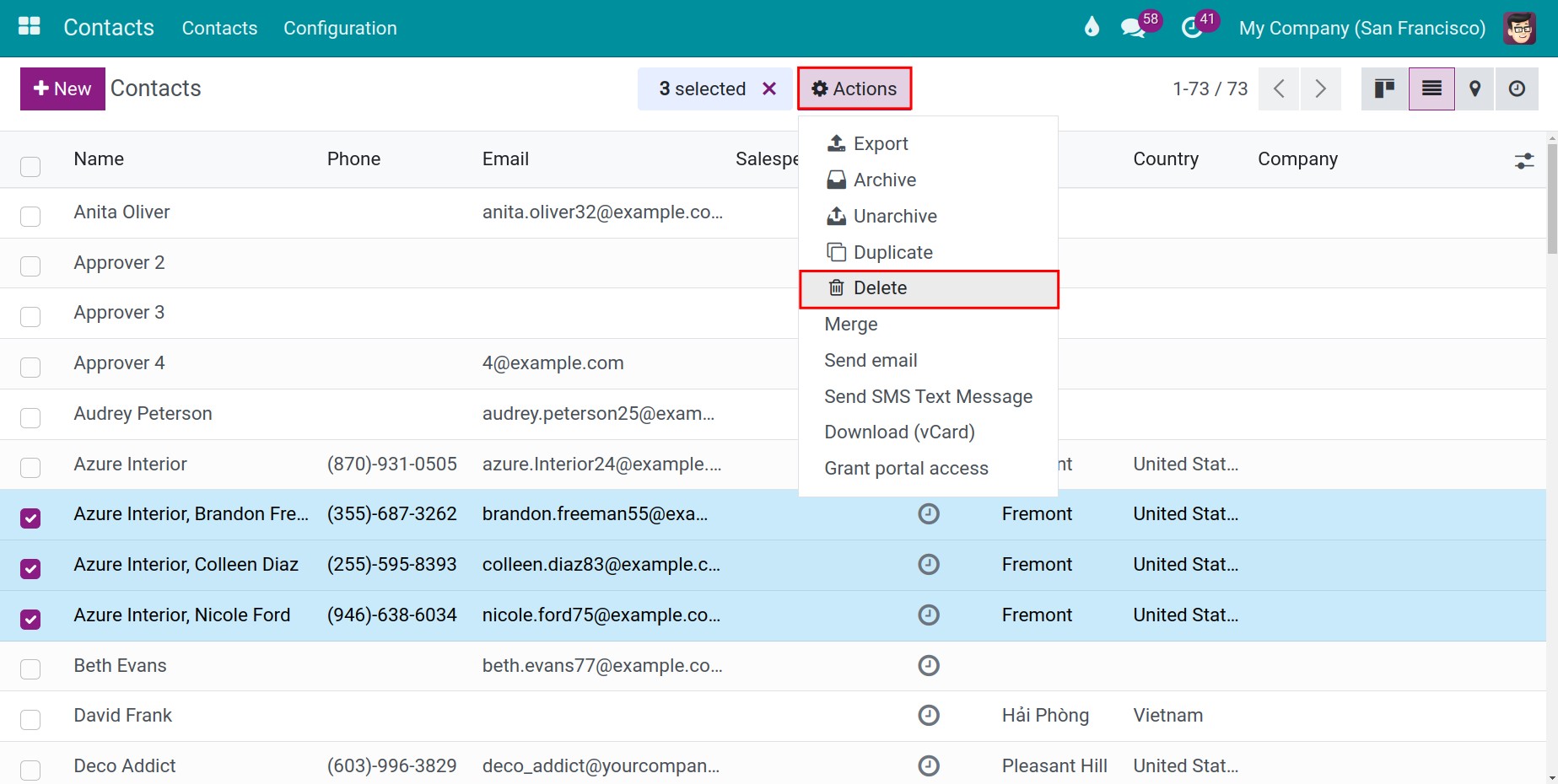
Next, you click on Actions button, and then select Delete
Merge contacts
For example, if you have three contacts named Duy and you identify them as duplicates, follow these steps to delete them:
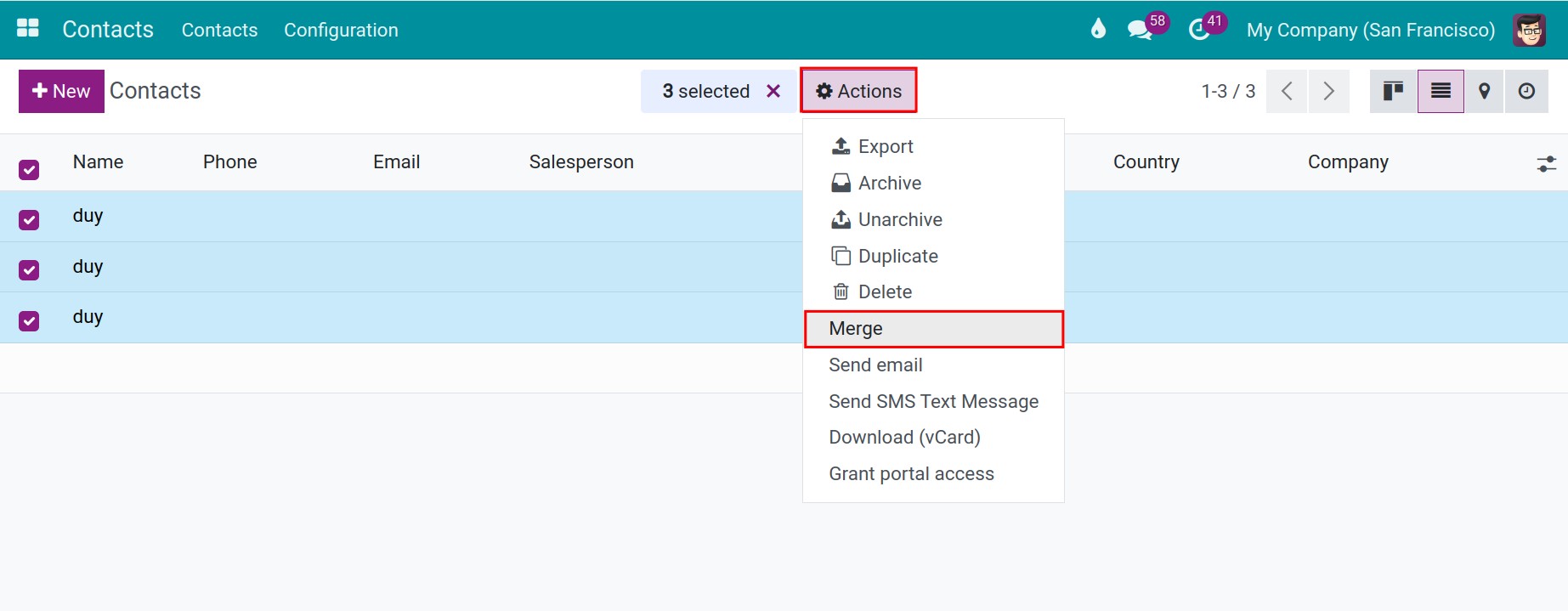
First, select the three contacts, then click on Actions > Merge.
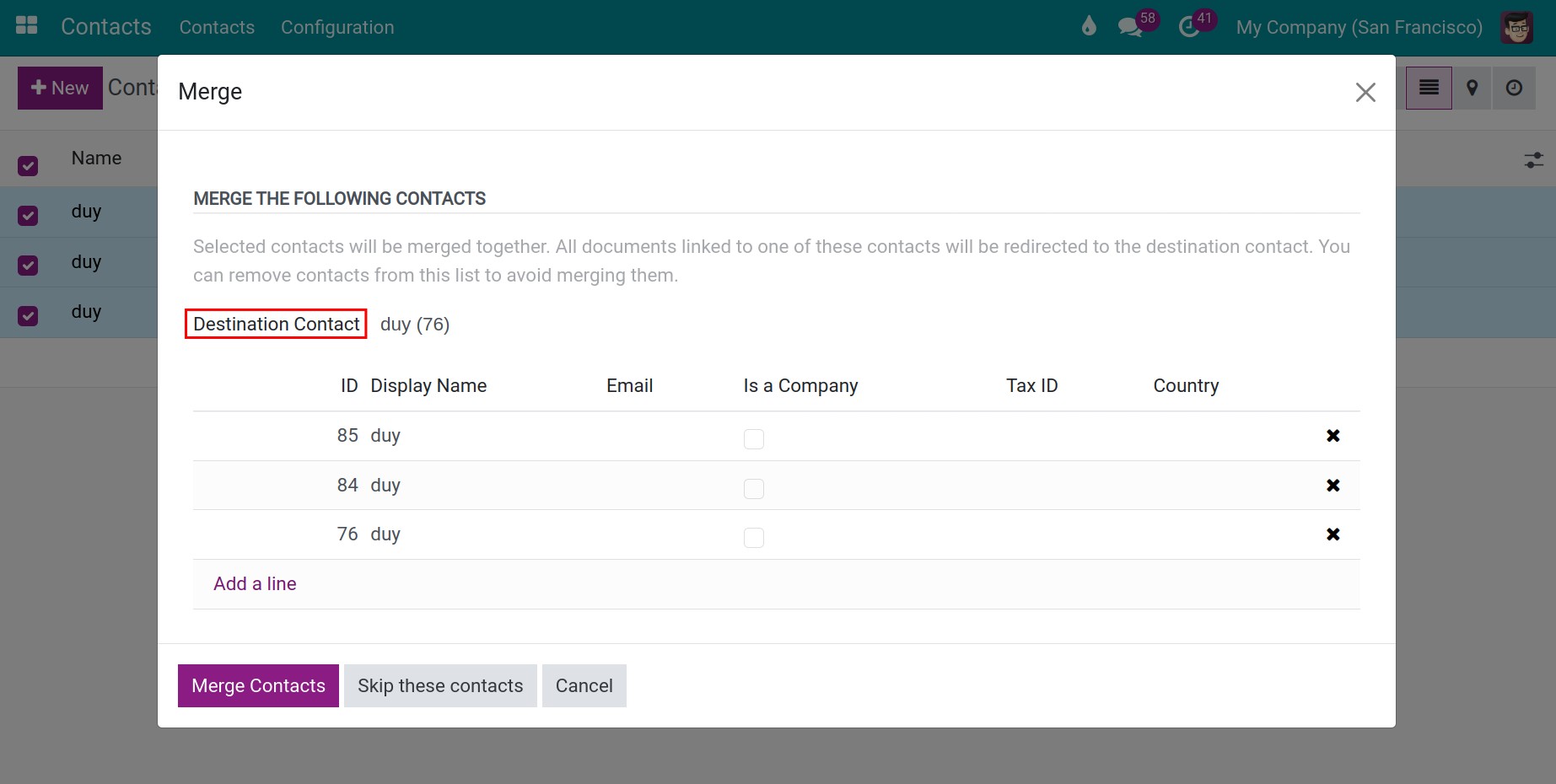
Secondly, a pop-up window will appear. Here, select a final contact in the Destination Contact field to merge the remaining contacts into. Additionally, you can click the Add a line button if you want to merge more contacts into the chosen contact.
Note
You can only merge a maximum of three contacts at a time.
Finally, you click Merge Contacts button
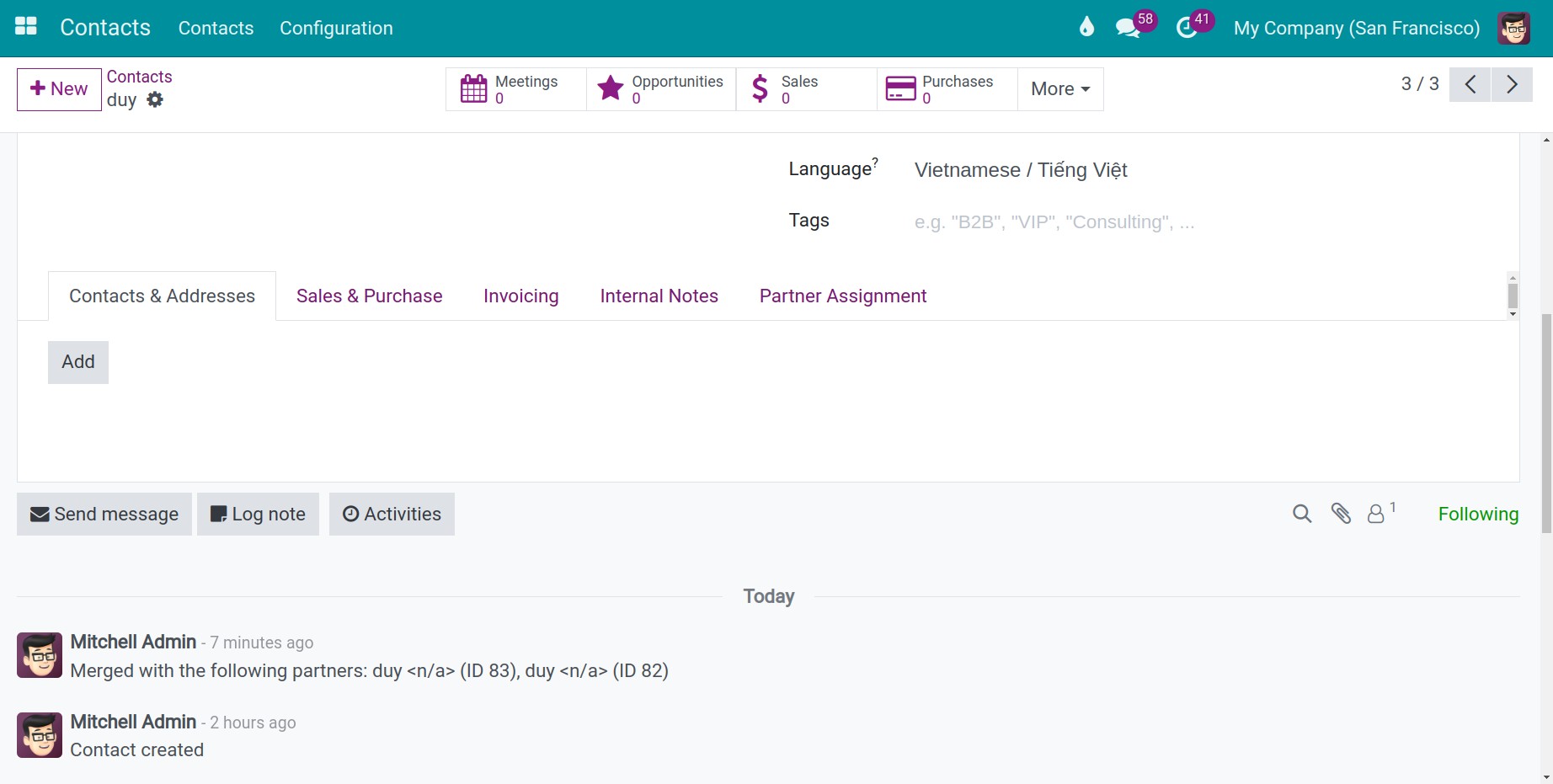
In the interface of the destination contact, the software will attach a log note to indicate that this contact was merged with other contacts.