
Generate cargo and packages from a cargo template
Guide information
Requirements
This tutorial requires the installation of the following applications/modules:
Every lot of a repeat customer that ships the same SKU in the same packing - the same carton size, the same weight, the same HS code - forces Operations to look up and re-type those same numbers on every shipment. A cargo template stores that one packing unit once; applying it with the confirmed quantity generates every package and cargo line in a single step, instead of 1,200 chances to mistype a weight or a HS code. If a term below is new to you, see the Freight forwarding glossary.
Running scenario: Hai Long Logistics builds one cargo template for the 60 x 40 x 35 cm, 18 kg carton of footwear that Nhat Long Footwear ships in every lot (HS 6404.19.90). The next FCL lot contains 1,200 cartons; Step 2 explains the current limitation that prevents generating them from this template.
Before you start
The Logistics Cargo Template feature is turned on: go to and tick Logistics Cargo Template in the Extensions block.
A Package Type matching the real carton already exists - see Configure shipment stages, types, tags, package and truck types. The default catalog only ships with a Carton at 60 x 40 x 40 cm / 30 kg (0.096 CBM), not the 60 x 40 x 35 cm / 20 kg (0.084 CBM) carton used in this guide - create your own Package Type there first if yours does not match.
The confirmed carton count for this lot is already in hand (from the customer’s purchase order or sales confirmation) - the wizard’s Quantity field always starts at 1 and never remembers a previous lot’s number.
This only works on a shipment whose Packing Input Mode is Package or Bulk - the FCL, RoRo, Direct, Charter and Express shipment types use Package; the Bulk shipment type uses Bulk. On an LCL, FTL, LTL, Loose, Break Bulk or Consol shipment (Packing Input Mode LCL), the button still opens the wizard, but the Cargo Template field is always empty - see Known limitations.
You are in the Administrator group to build or edit a template (Step 1); User: All Shipments to apply one on a shipment (Step 2-3). User: Own Shipments cannot open the Cargo Template Data menu or use the Generate Cargo wizard - both are read-only or unavailable to that group.
Step 1: Build a cargo template for one packing unit
Every lot of Nhat Long Footwear ships the same carton - saving its weight, volume and HS code once means Operations never has to look them up again for the next lot.
Go to and click New.
Fill in:
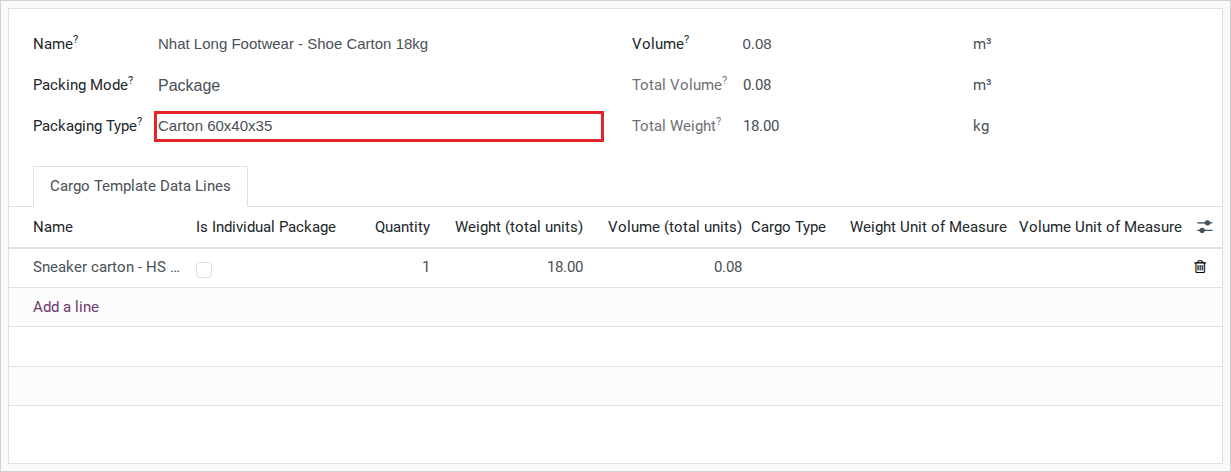
Name: Nhat Long Footwear - Shoe Carton 18kg.
Packing Mode: Package.
Packaging Type: Carton 60x40x35 - required in Package mode; leaving it blank lets Step 2 run without creating anything and without an error message (see Troubleshooting).
Click Add a line in the Cargo Template Data Lines tab. In the line that opens, fill in Name: Sneaker carton - HS 6404, Quantity: 1, Weight: 18 kg, Volume: 0.084 CBM, HS Code: 6404.19.90, Country of Origin (C/O): Vietnam, then save the line - leave Is Individual Package unticked.
After you save:
Total Weight reads 18 kg - the sum of the Cargo Template Data Lines tab (shown on the list as Weight (total units)).
Total Volume reads 0.084 CBM - read directly from the Packaging Type you picked, not the sum of the Lines tab. If the two ever disagree, the Packaging Type’s dimensions do not match the real carton.
Note
The header Volume field, next to Packing Mode, stays visible and editable in Package mode too, but it does nothing here - Total Volume in Package mode always reads from Packaging Type, never from this field or from the Lines tab. Leave it at 0.
Tip
Step 1 is done when:
The template carries the data of one carton only - the line’s Quantity reads 1, Weight reads 18 kg. No 1,200 appears anywhere on this record.
Total Weight reads 18 kg.
See also
Start a shipment from a template does the same for route legs, stages and charge lines. A shipment template does not carry cargo, so the two are applied separately.
Decide the packing mode
Option |
Use when |
What changes |
|---|---|---|
Package |
Cargo is packed into countable units - cartons, cases, pallets (Nhat Long Footwear’s cartons) |
Packaging Type becomes required; figures come from the Cargo Template Data Lines tab; applying the template creates one package plus one cargo line per unit, repeated for the quantity entered |
Bulk |
Cargo has no individual packing - minerals, grain, liquid shipped loose |
No Packaging Type needed; the header Weight and Volume are divided evenly across the quantity entered |
Choose Package for cargo prepared in countable packages and Bulk for unpackaged loose cargo. Use the shipper’s packing list or warehouse record to classify the cargo; if those sources disagree, confirm the physical packing before applying the template.
Step 2: Apply the template with the real lot quantity
The template only knows what one carton weighs; only Operations knows how many cartons this particular lot actually has. This step applies the template on a separate draft FCL export shipment for Nhat Long Footwear (Hai Phong Port -> Port of Los Angeles), the customer’s next order - not the shipment of Declare cargo, packages and containers, which declares its 1,200 cartons as one cargo line with one package per container; running this wizard there would add 1,200 more packages on top.
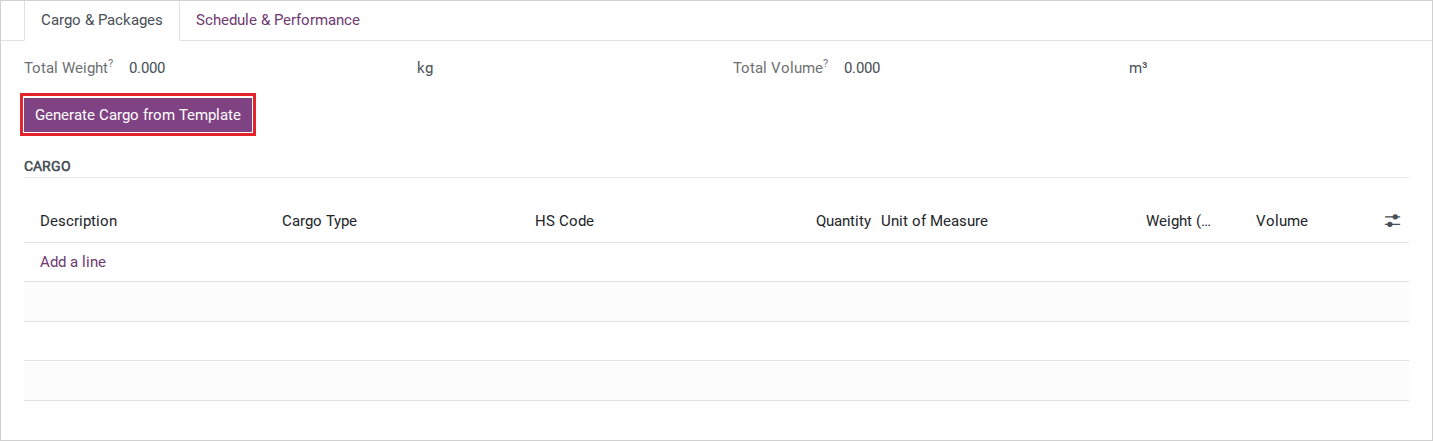
Open the shipment, then the Cargo & Packages tab.
Click Generate Cargo from Template, the green button above the Cargo group.
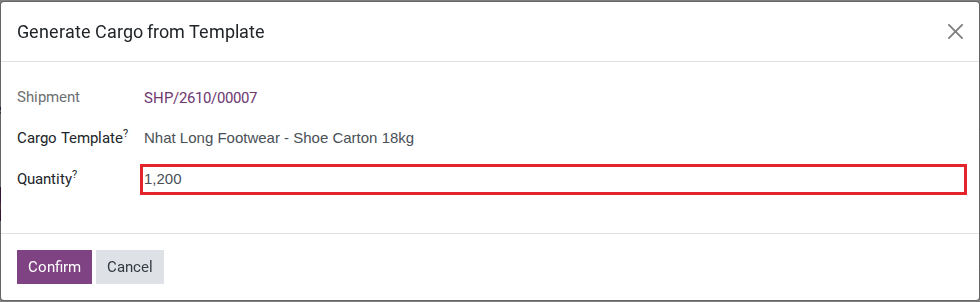
In the dialog, fill in:
Cargo Template: Nhat Long Footwear - Shoe Carton 18kg - the dropdown only lists Package-mode templates, because this shipment’s Packing Input Mode is Package.
Quantity: 1,200 - the carton count confirmed by the customer; always typed by hand, there is no other default than 1.
Warning
This carton template cannot currently be applied to the FCL shipment in this example. Clicking Confirm reports that Package mode only accepts container package types when no container is selected, and no cargo or packages are saved. Adding containers to the shipment first does not resolve this error. Keep the template for reuse, and enter the cargo and its container allocation using Declare cargo, packages and containers for this lot. Do not change the carton template to a container type just to bypass the error.
Once this limitation is resolved, check the result of Confirm against the following expected figures before using the generated records:
The dialog closes immediately - there is no screen change.
The Packages stat button on the header reads 1,200.
On the Cargo & Packages tab, Total Weight reads 21,600 kg and Total Volume reads 100.8 CBM.
If the shipment already has routes or legs, all 1,200 packages attach to every leg, not to one leg in particular.
Warning
Nothing warns you if 21.6 t is more than the container payload you booked. Compare the Total Weight and Total Volume you just generated against the Max Weight of the container type you booked (2 x Container 40FT HC in this guide) before sending the booking - Viindoo only displays the numbers, it does not compare or block them.
Tip
After the limitation is resolved, Step 2 is done when:
The Packages stat button reads exactly 1,200, matching the carton count the customer confirmed.
Total Weight (21,600 kg, about 10,800 kg per container) has been checked by hand against the carrier’s payload for 2 x Container 40FT HC, and is under it.
Step 3: Reconcile with the real packing list after stuffing
The template only estimates before stuffing; the figures used for the Shipping Instruction and the VGM have to match exactly what was actually loaded into the container.
Receive the actual packing list from the shipper after stuffing.
On the Cargo & Packages tab, edit the quantity, weight or volume of any package or cargo line directly where it differs from the packing list - the table is not locked by the shipment’s state.
Delete or add lines if the actual carton count differs from the 1,200 generated in Step 2.
Tip
Step 3 is done when: the package count and the Total Weight exactly match the signed packing list, with no line still carrying the estimated figures from Step 2.
Known limitations
Step |
What Viindoo does today |
What you do instead |
|---|---|---|
Applying a template to an LCL, FTL, LTL, Loose, Break Bulk or Consol shipment |
The Cargo Template field in the wizard is always empty - a template’s Packing Mode is only Package or Bulk, and neither matches these shipment types’ Packing Input Mode of LCL |
Enter cargo and packages by hand for these shipment types - see Declare cargo, packages and containers |
Leaving Packaging Type blank on a Package-mode template |
Clicking Confirm creates no package and no cargo line, and shows no error or warning |
Always set Packaging Type before Confirm; if the Packages count did not change afterward, check this field first |
The header Volume field on a Package-mode template |
Stays visible and editable, but Total Volume never reads it in Package mode - only the Packaging Type does |
Leave it at 0; check the Packaging Type’s dimensions instead if Total Volume looks wrong |
Comparing the generated weight against the container payload |
No field or check compares the Total Weight just generated with the Max Weight of the container type booked; the default container types also share one Max Weight of 30,480 kg whatever their size |
Compare the two numbers by hand before sending the booking, using the carrier’s real payload rather than the default Max Weight |
Reconciling with the real packing list (Step 3) |
No import or diff tool compares the generated cargo and packages with a packing list - only manual, line-by-line editing |
Compare by eye; if the mismatch is large, delete everything generated and run the wizard again with the corrected quantity |
Troubleshooting
Clicking Confirm changes nothing
Symptom: the dialog closes, but the Packages stat button keeps its old number and no cargo line is added.
Cause: the template picked has Packing Mode = Package, but its Packaging Type is left blank - the wizard stops before creating any record.
Fix: open the template, set Packaging Type, then run Generate Cargo from Template again.
The Cargo Template field is always empty
Symptom: the wizard opens on a shipment, but the Cargo Template dropdown never lists anything, even though templates exist in the system.
Cause: the wizard only lists templates whose Packing Mode matches this shipment’s Packing Input Mode. On an LCL, FTL or LTL shipment, that mode is LCL - a value no template can have.
Fix: do not use Cargo Template for this shipment; enter cargo and packages by hand instead (see Declare cargo, packages and containers).
Saving the wizard reports a quantity error
Symptom: “Quantity must be greater than 0.”
Cause: the Quantity field on the dialog is 0 or negative.
Fix: enter the real carton count for this lot; it must be a positive number.
Saving a template line reports a negative dimension
Symptom: “Volume of Cargo Commodity Sneaker carton - HS 6404 cannot be negative” (the same message starts with Weight or Quantity when that field is the negative one).
Cause: the line’s Weight, Volume or Quantity on the Cargo Template Data Lines tab was entered as a negative number.
Fix: enter a positive number - 0 is a valid value, only a negative one is blocked.