
Send ZBS Message Templates from Sales Orders
Guide Info
Note
Out of scope for this guide:
Create or submit new ZBS message templates: see Create and Manage ZBS Message Templates (Admin/IT)
Reply to customer care conversations in Discuss: see Reply to Zalo OA Messages
Create quotations directly from Zalo conversations: see Create Quotations Directly from Zalo Chat
—
When to Use This Guide
Use this guide when sales staff already has a quotation or sales order and needs to send a structured notification via Zalo to the correct customer — for example, to send a quote, order confirmation, payment received notice, or cancellation.
Example used throughout this guide: Sales staff Khánh opens order S00024 for customer Gemini Furniture and clicks Send by Zalo to send the “ZBS Quote” template. The template auto-fills the order code, total amount, and portal link — replacing a manual message that would otherwise need to be typed in the Zalo OA app. Sending from the document instead of composing manually removes the risk of misquoting the order code or amount, which typically causes at least one correction follow-up per mis-sent message.
Sending from a document ensures the message pulls the correct order code, amount, and portal link, reducing the risk of sending incorrect information compared to composing manually. ZBS template administration (approving templates, syncing status, monitoring quality, and quota management) is handled by Admin in the template management guide.
—
Step 1 — Check Prerequisites Before Sending
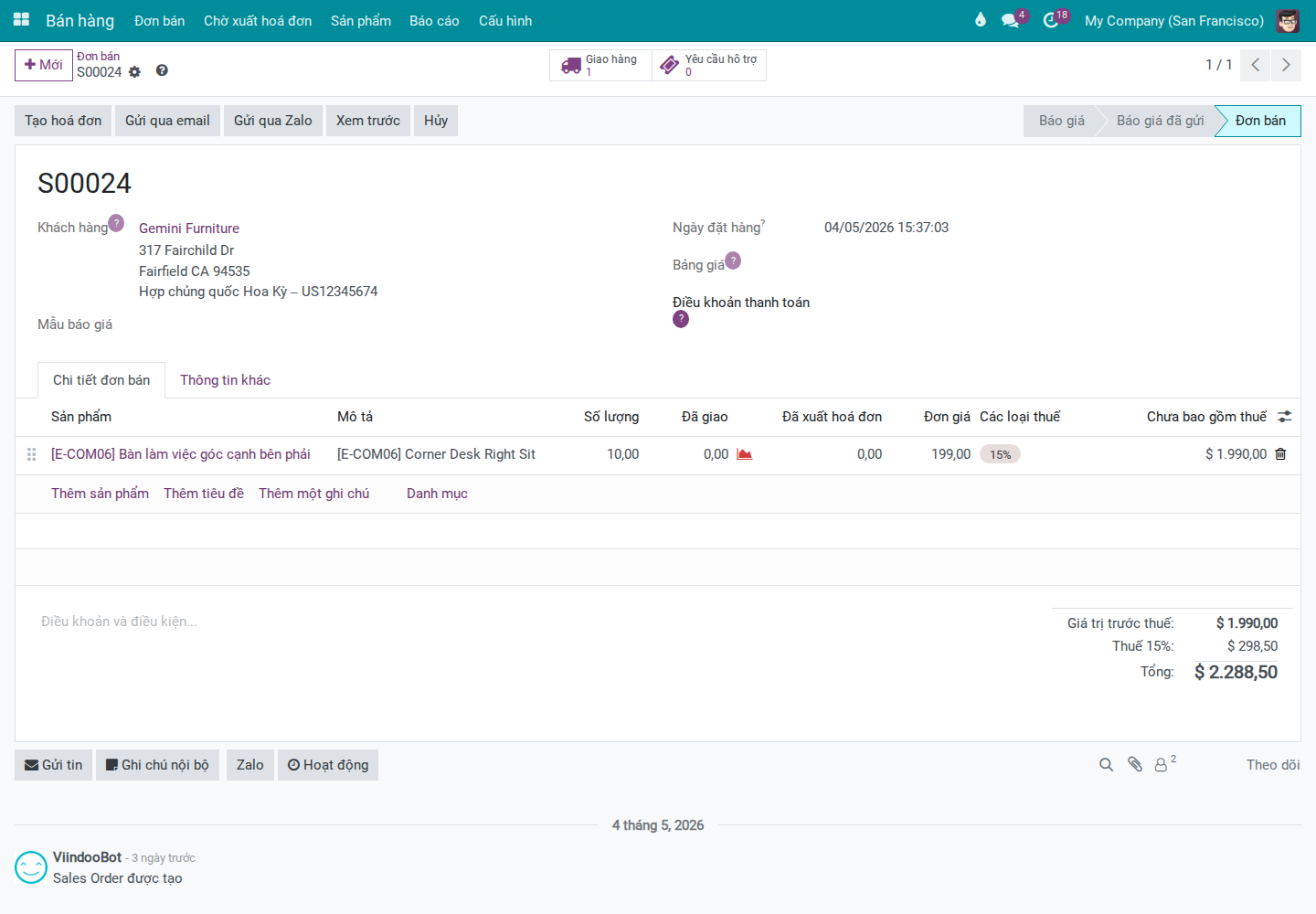
The Send by Zalo button appears when the sales order has a customer and the customer record has at least one send channel: a Zalo link, mobile number, or phone number.
Go to or and open the order to send.
Note
If you don’t see the Send by Zalo button, check the customer record on the order:
Is Zalo linked?
Does the customer have a phone number?
—
Step 2 — Open the Send Dialog and Select Recipient
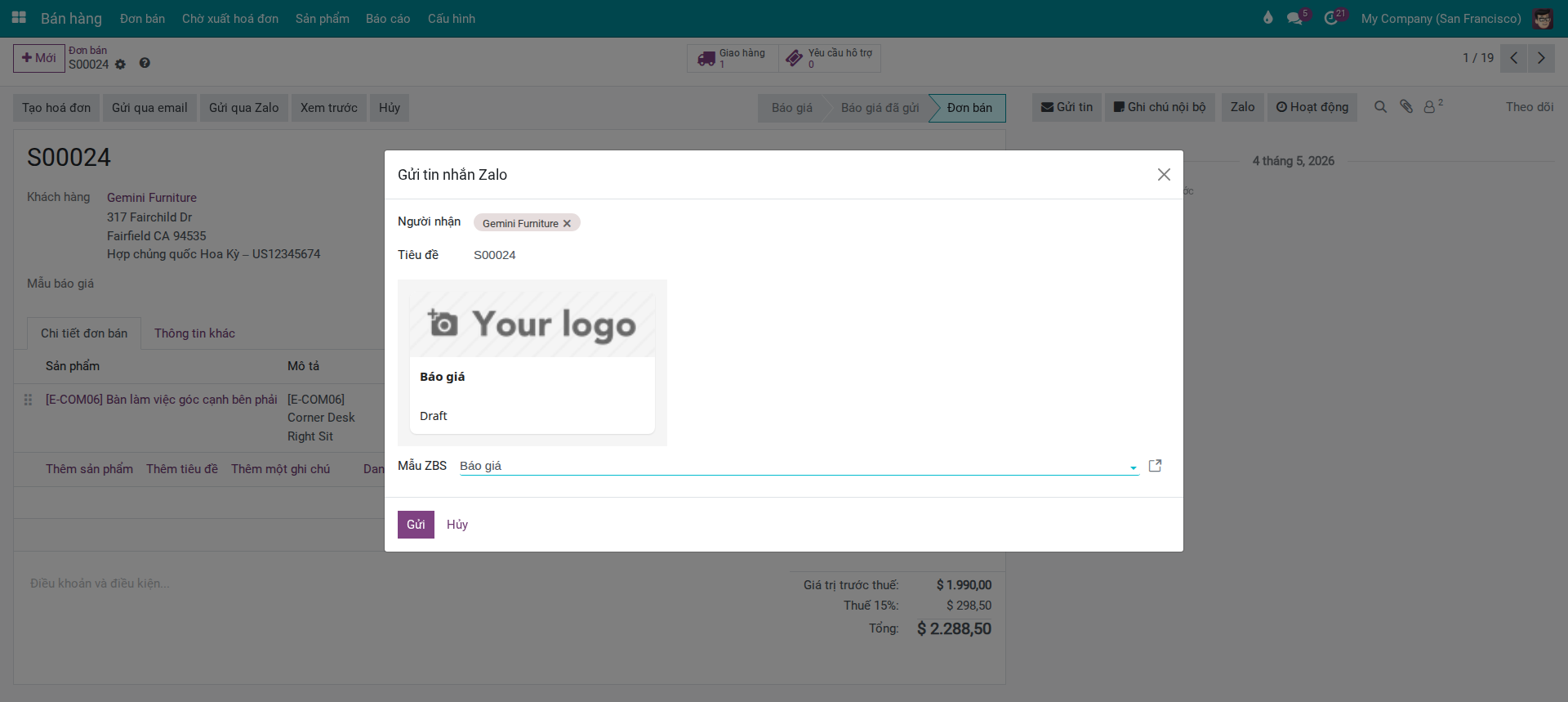
Click Send by Zalo to open the Send Zalo Message dialog.
In the send dialog:
The Recipients field auto-fills from the customer on the document if found.
The Recipients field only suggests contacts who can be reached via Zalo (those with a Zalo link or phone number).
The ZBS Template field lets you select an approved template to preview its content in the dialog.
—
Step 3 — Select an Appropriate ZBS Template
The ZBS Template field only shows templates that meet these conditions:
Template status is Approved.
You have permission to use the template.
The template applies to Quotations/Sales Orders or does not lock document type.
The template belongs to an OA you are authorized to send from.
If you don’t see any templates, it’s usually because the template hasn’t been approved yet or you lack permission on the template or OA.
—
Step 4 — Check Preview and Send
After selecting a ZBS template, the send dialog shows a content preview.
Before clicking Send, verify:
The recipient is correct.
The preview has no empty variables or unreplaced placeholders.
The template suits the business context of the order.
Click Send to dispatch the message.
The send dialog closes after a successful send.
—
Step 5 — Verify Send Result
Tip
Verify the send completed correctly before continuing with the order:
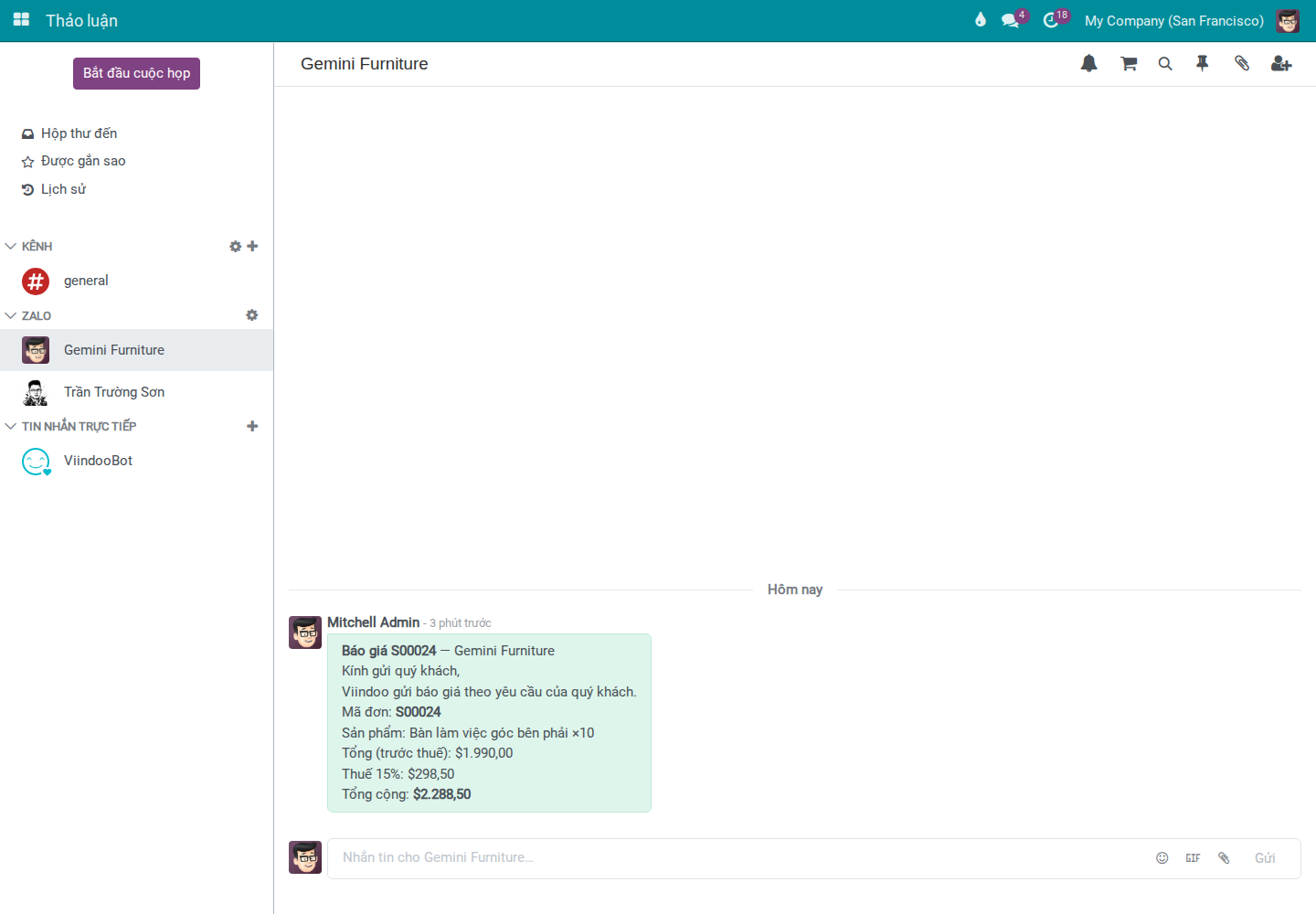
The Zalo tab on the order or the Discuss channel both show a record of the message just sent.
The sent message displays content that matches the customer, order code, and selected template.
No empty variables or unreplaced placeholder text remains.
If the system reports an error, don’t resend multiple times before checking the cause — this avoids the customer receiving duplicate messages.
If the send failed, the system displays an error message in the send dialog, such as “template not approved” or “recipient lacks valid send data.”
—
Handling Common Issues
Template Does Not Appear in the Send Dialog
Common causes:
The template is not in Approved status.
The template does not apply to Quotations/Sales Orders.
You lack permission on the template or don’t belong to the template’s OA.
Solutions:
Report to Admin to check at Create and Manage ZBS Message Templates (Admin/IT).
Verify your user permissions on the OA and template.
—
Send Fails With Error “Only Approved Templates Can Be Sent”
Cause:
The selected template was not approved or has changed status.
Solutions:
Select a different template that is currently approved.
Report to Admin to reprocess the template approval.
—
Send Fails: Recipient Lacks Valid Send Information
Causes:
The customer has no Zalo UID and also lacks a valid phone number.
The template requires sending via phone number, but the customer record has no phone number.
Solutions:
Update the customer’s phone number.
Resync the customer—Zalo link if needed.
Retry after ensuring the recipient has valid send data.
—
Preview Shows Empty or Incorrect Data
Causes:
Data on the order is incomplete.
Template parameter configuration is incorrect.
Solutions:
Review the data on the document.
If the document data is correct but the preview is still wrong, report to Admin to verify the parameter configuration in the ZBS template.
—
Recipient Name Does Not Match the Correct Customer
Symptoms:
The customer name in the send dialog or Zalo conversation doesn’t match the customer on the order.
The customer record shows signs of duplication or incorrect linking to the person messaging via Zalo.
Solutions:
Stop sending to avoid sharing order information with the wrong person.
Ask Admin or CS Lead to verify the link at Manage Zalo Partner Links.
Resend after confirming the correct customer is linked.
See also
Reply to Zalo OA Messages — Reply to Advisory Messages and switch to ZBS after the 7-day window closes
Create Quotations Directly from Zalo Chat — Create quotations directly from Zalo conversations instead of from sales orders
Create and Manage ZBS Message Templates (Admin/IT) — Check template status, submit for approval, and enable