
When to use this guide
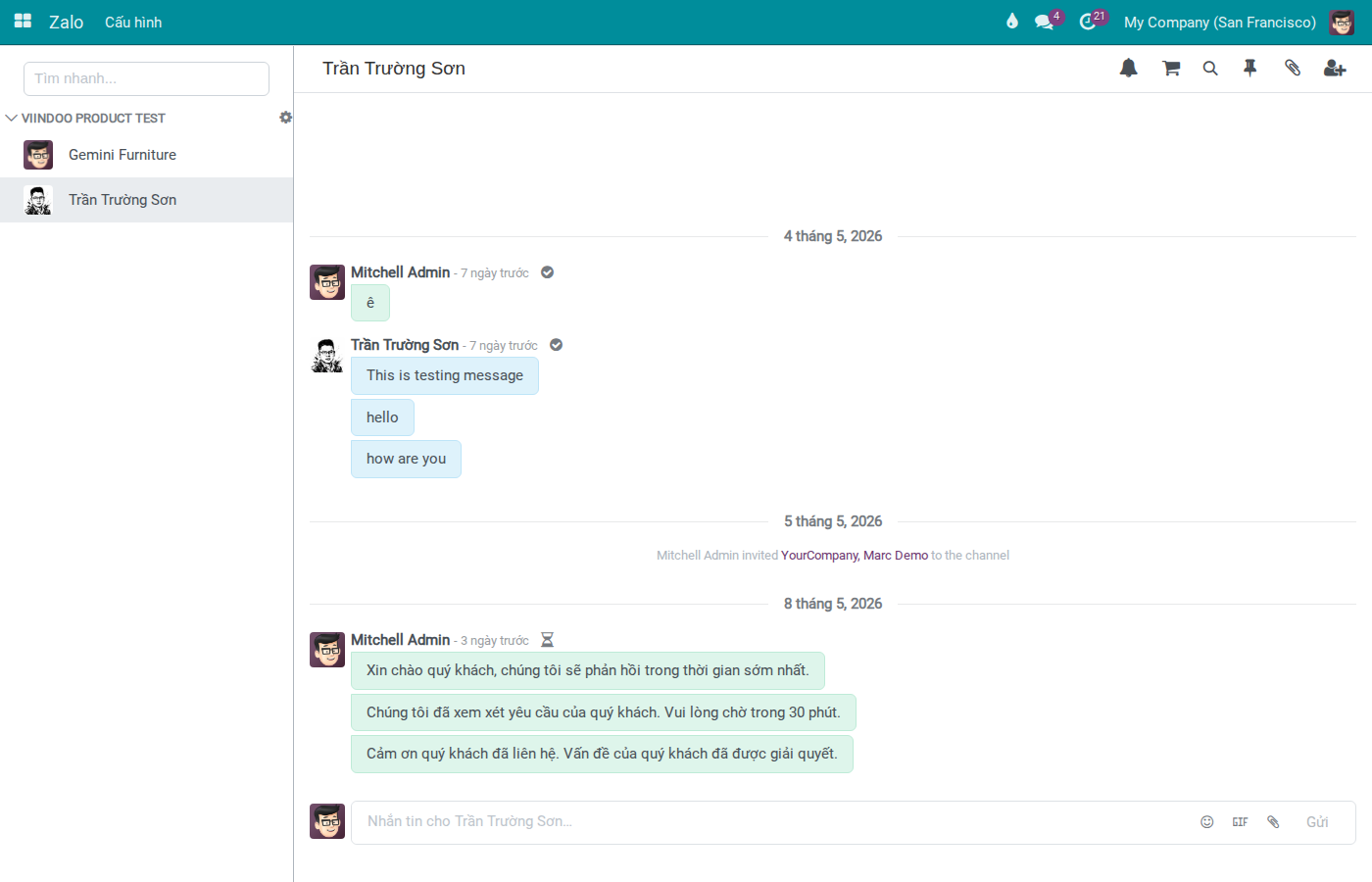
Use this when CS staff need to reply to customers directly from the menu in Viindoo.
Example used throughout this guide: Mr. Sơn — a customer who messaged the company’s Zalo OA — asks about delivery timing. CS staff Lan handles the reply from Discuss without switching to the external Zalo OA app. Staying in one place saves the handover note that would otherwise need to be copied manually between apps, and keeps the team inside the 7-day Advisory Message window — a missed window means the reply can no longer be sent as a free-form message at all.
Note
This guide focuses on the reply workflow only.
If the OA is not yet connected or has no conversation data, see Configure Zalo OA.
Supported content and limits
Supported content types:
Text
Image
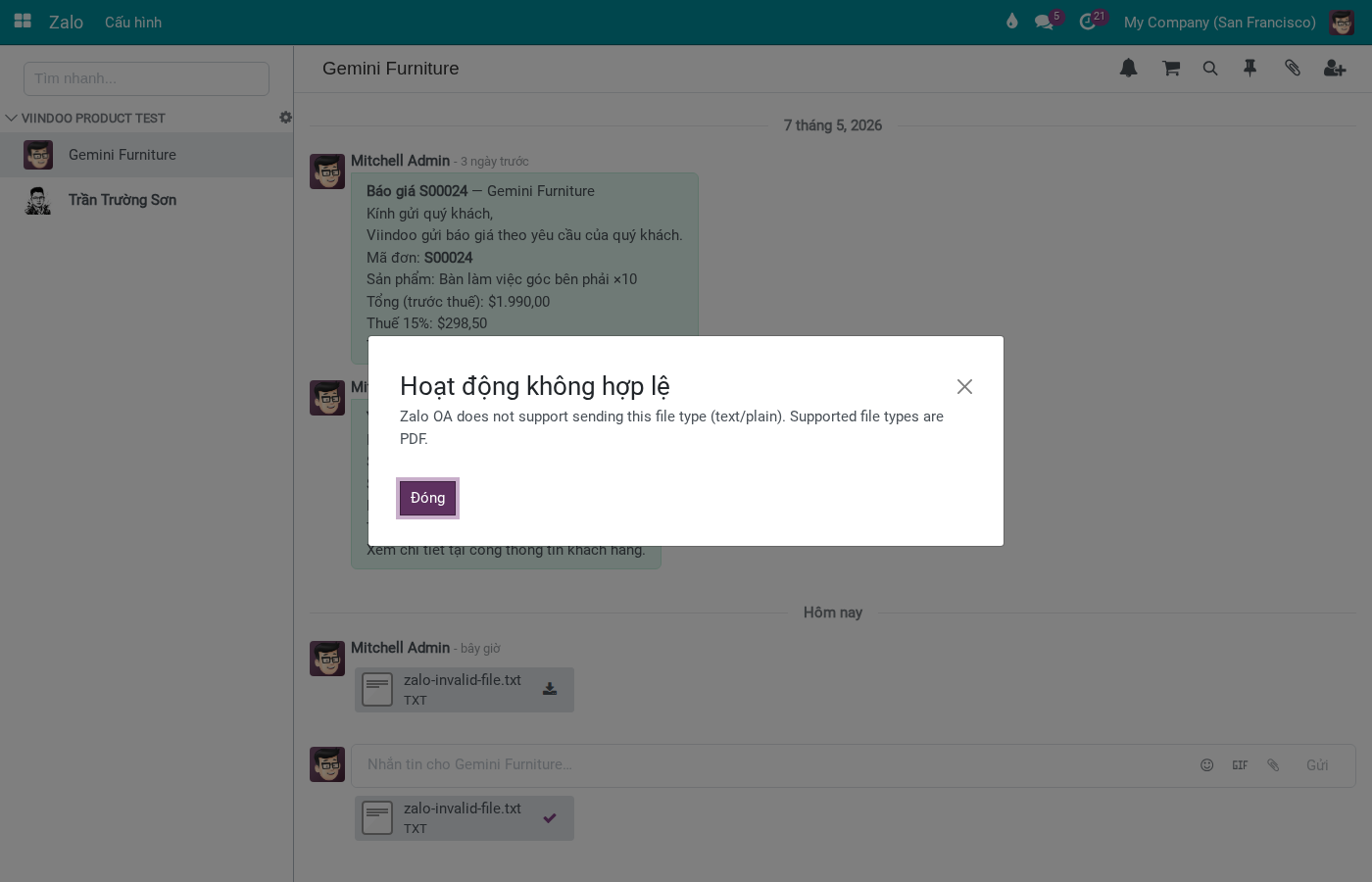
PDF file (max 5 MB)
Important limits:
Non-PDF files will be rejected.
Zalo channel composer does not support sending voice directly.
Understanding send status
Each message carries one of these statuses (hover the icon to see the tooltip):
Pending on Zalo — queued, not yet sent (hourglass icon)
Sent on Zalo — handed to Zalo (check icon)
Delivered on Zalo — delivered to the recipient’s device (check-circle icon)
Read on Zalo — the recipient opened it (eye icon)
Failed to send on Zalo — Zalo rejected delivery (times icon)
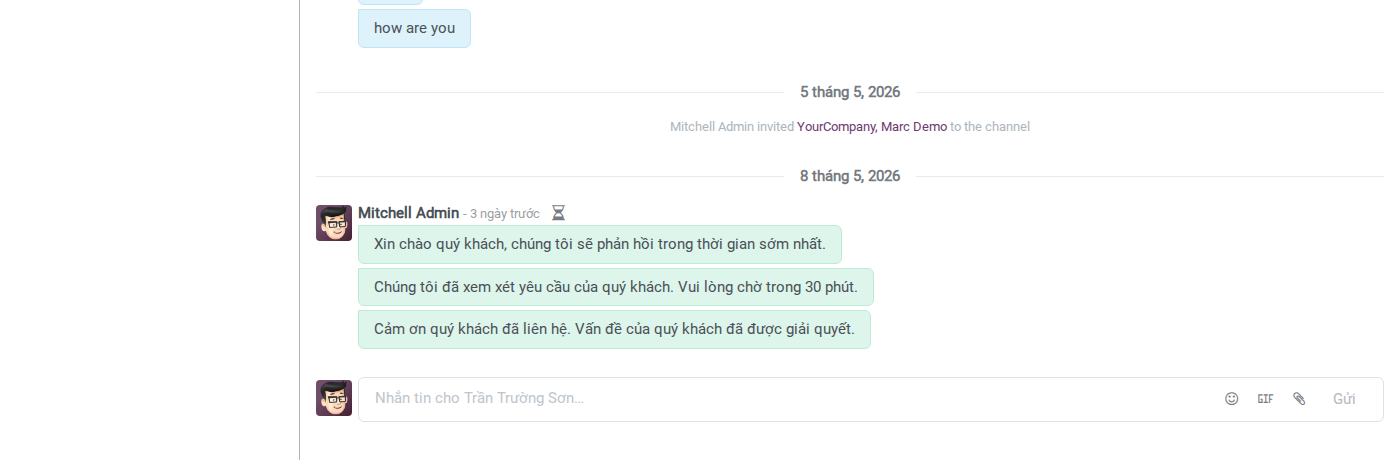
When multiple consecutive messages from the same person are grouped, Discuss displays one shared status icon for the entire group (example: hourglass = pending send, checkmark = sent) instead of per-message status. To check a specific message, send it individually or look at the icon closest after it.
When to switch to ZBS templates
Example: Mr. Sơn (customer from Business OA) is waiting for a response. Based on the actual situation, choose the right sending method:
Situation |
Right method |
Action |
|---|---|---|
Customer is actively messaging for discussion |
Advisory Message |
Reply immediately in Discuss |
Reply fails due to send policy or you need to send proactively after a delay |
ZBS Template |
|
Send notification from a sales order |
ZBS Template |
Use the sales sidebar in Zalo Discuss — see Create Quotations Directly from Zalo Chat |
Note
Currently, ZBS template sending in the Discuss screen only works for templates linked to sales orders via the sales sidebar. Other ZBS templates linked to different documents are not yet available in this workflow.
See also
Send ZBS Message Templates from Sales Orders — Send ZBS templates from sales orders
Create Quotations Directly from Zalo Chat — Create a quote directly from a Zalo conversation
Manage Zalo Partner Links — Check and fix partner links when you cannot identify the correct customer
Monitor and Troubleshoot Zalo — Diagnose send errors and Zalo channel issues
Common exceptions
Message shows “Failed to send on Zalo”: Review the content/file being sent, then consider switching to ZBS if it’s a send policy issue.
Cannot see conversation in Zalo menu: Ask Admin to check OA status at Configure Zalo OA.
Cannot identify the correct customer to reply to: Escalate to Admin/CS Lead to check partner links at Manage Zalo Partner Links.
Team already replied from external OA app: Reopen the conversation in Discuss to check if messages synced, then continue handling in one place.