
Overview of Stringee VoIP in Viindoo
Requirements
This tutorial requires the installation of the following applications/modules:
What is Stringee?
Stringee is a cloud communications platform (CPaaS – Communication Platform as a Service) that enables businesses to embed real-time channels—voice calls, video calls, chat, and SMS—into their applications, websites, or back-office systems via APIs/SDKs. On this platform, a system can deliver features such as making/receiving calls over the Internet, online conferencing/meetings, live chat on web or mobile apps, sending/receiving SMS/OTP/notifications, and integrating with omnichannel contact-center solutions—without having to build complex telecommunications infrastructure.
When discussing PBX/contact-center systems, several foundational concepts are commonly used. Below are brief explanations of key terms:
Interactive Voice Response (IVR): An automated voice system that interacts with callers via the phone keypad or voice input (if speech recognition is supported). In simple terms, IVR is a configurable virtual Private Branch Exchange (PBX) feature that lets you design complex call flows.
Queue: In PBX platforms (e.g., Stringee, Asterisk), queue is the call waiting line where inbound calls are held until an agent becomes available.
Agent: The call-center operator who answers, places, and handles calls through the system.
Group: A collection of agents, typically organized by function or department, used to structure teams and distribute calls by group.
Group routing: A routing mechanism that directs calls to agent groups based on a defined strategy to ensure calls are distributed appropriately, efficiently, and to the right handlers.
Practical example: When a customer calls the company hotline:
Step 1: The IVR prompts: “Press 1 to reach Customer Care.”
Step 2: Press 1 ‣ The call is routed to the Customer Care_Team 1 queue.
Step 3: Agent A (a call-center operator) is available ‣ Receives the call.
Installation
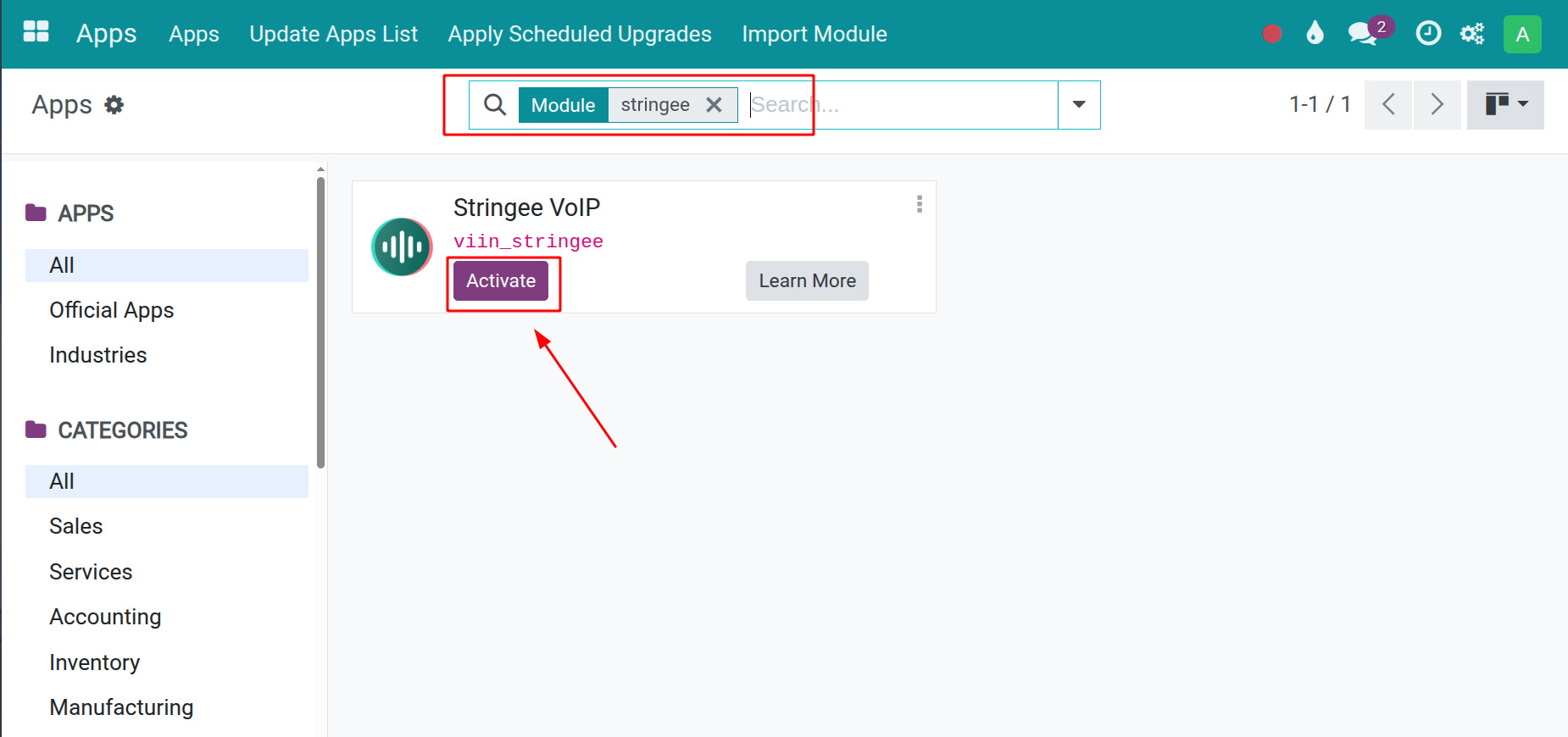
To install the Stringee VoIP application, go to Apps, use the search bar with the keyword “stringee” or the technical name “viin_stringee”, then click Activate.
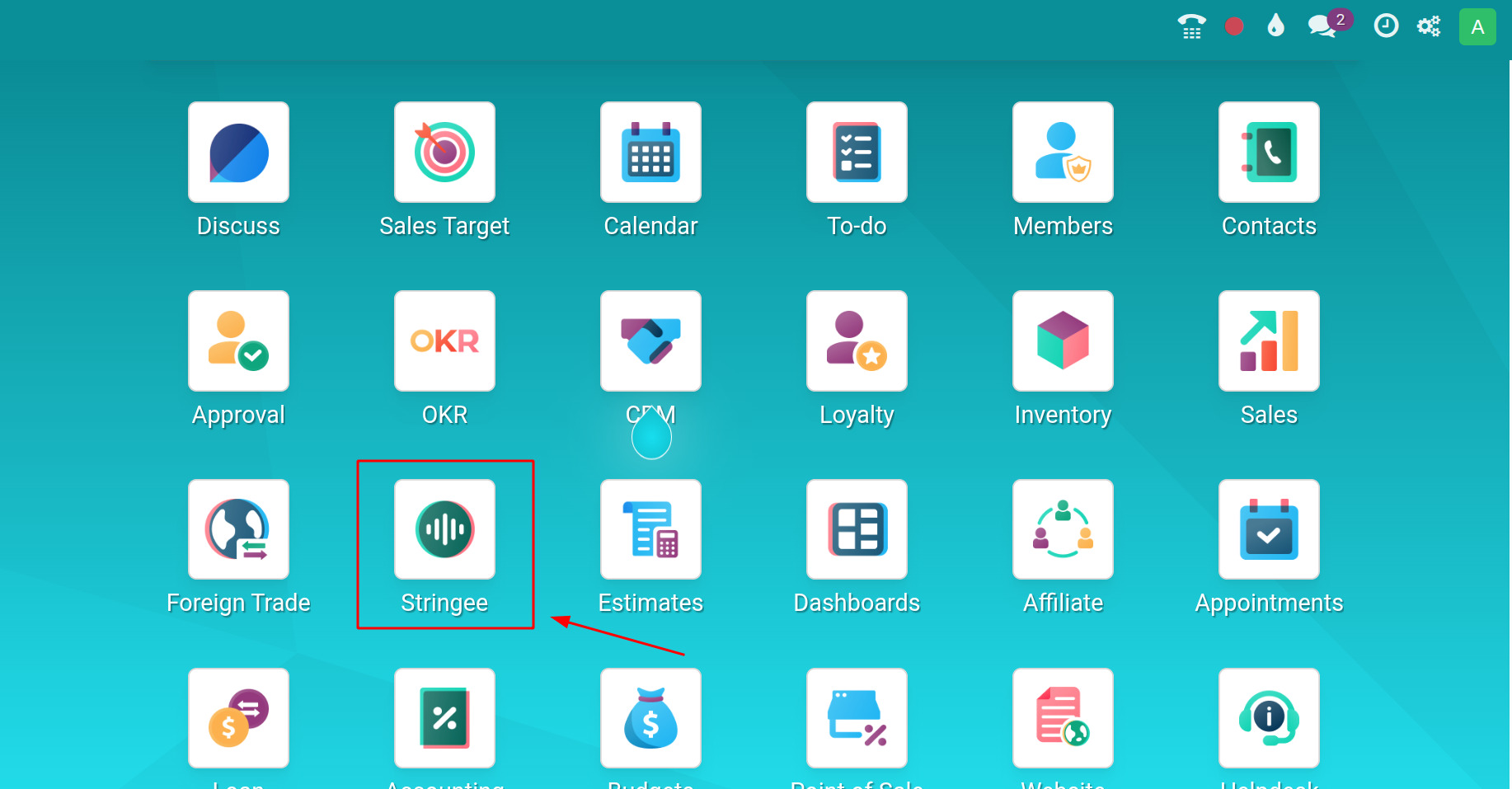
After installation, you will see the Stringee VoIP application on the main dashboard. Click to open the app.
Access Rights
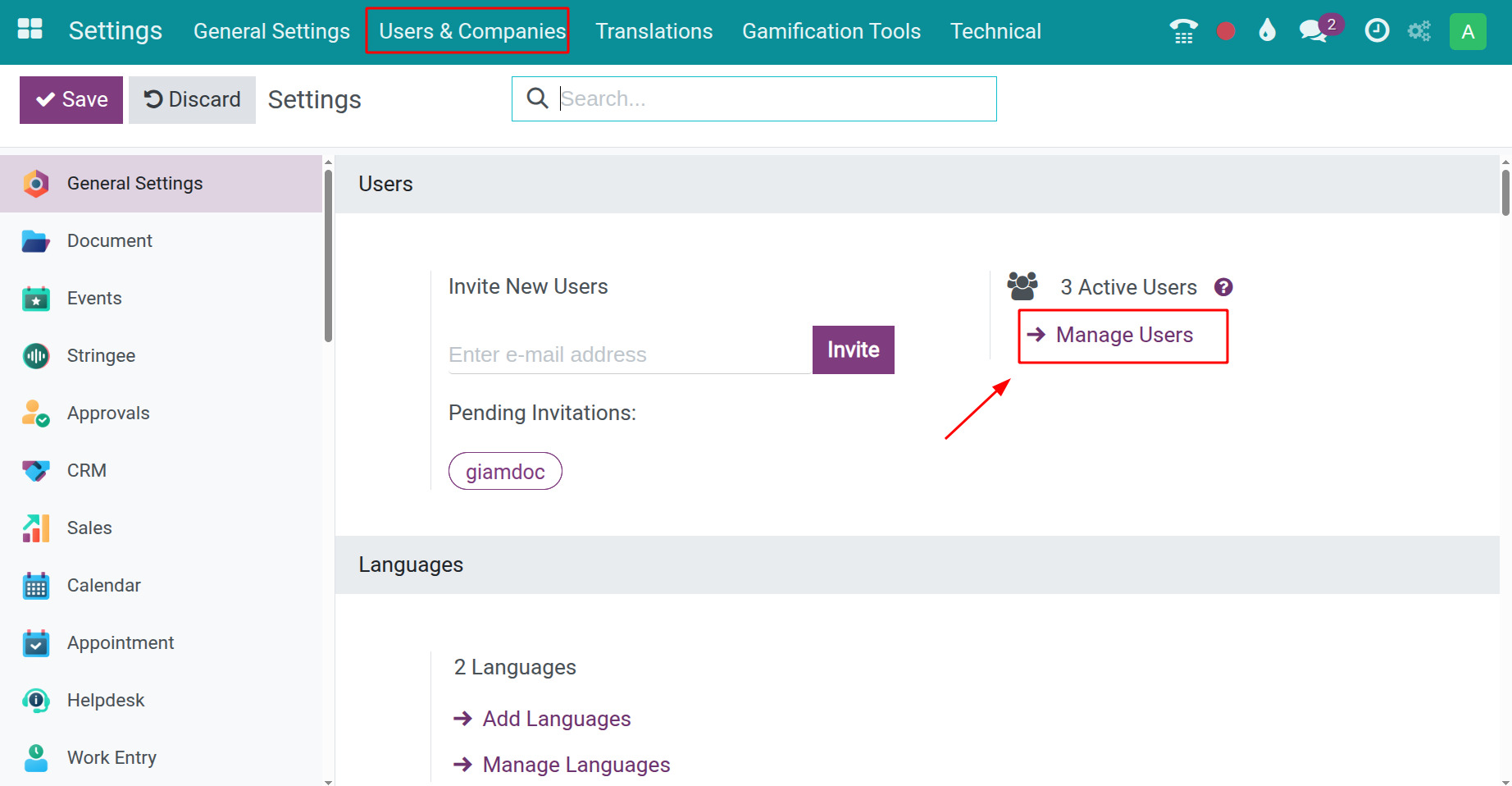
To set up access rights for user in the Stringee VoIP application, go to Settings ‣ Manage Users, or go to Users & Companies ‣ Users.
Find and click the user account you want to edit.
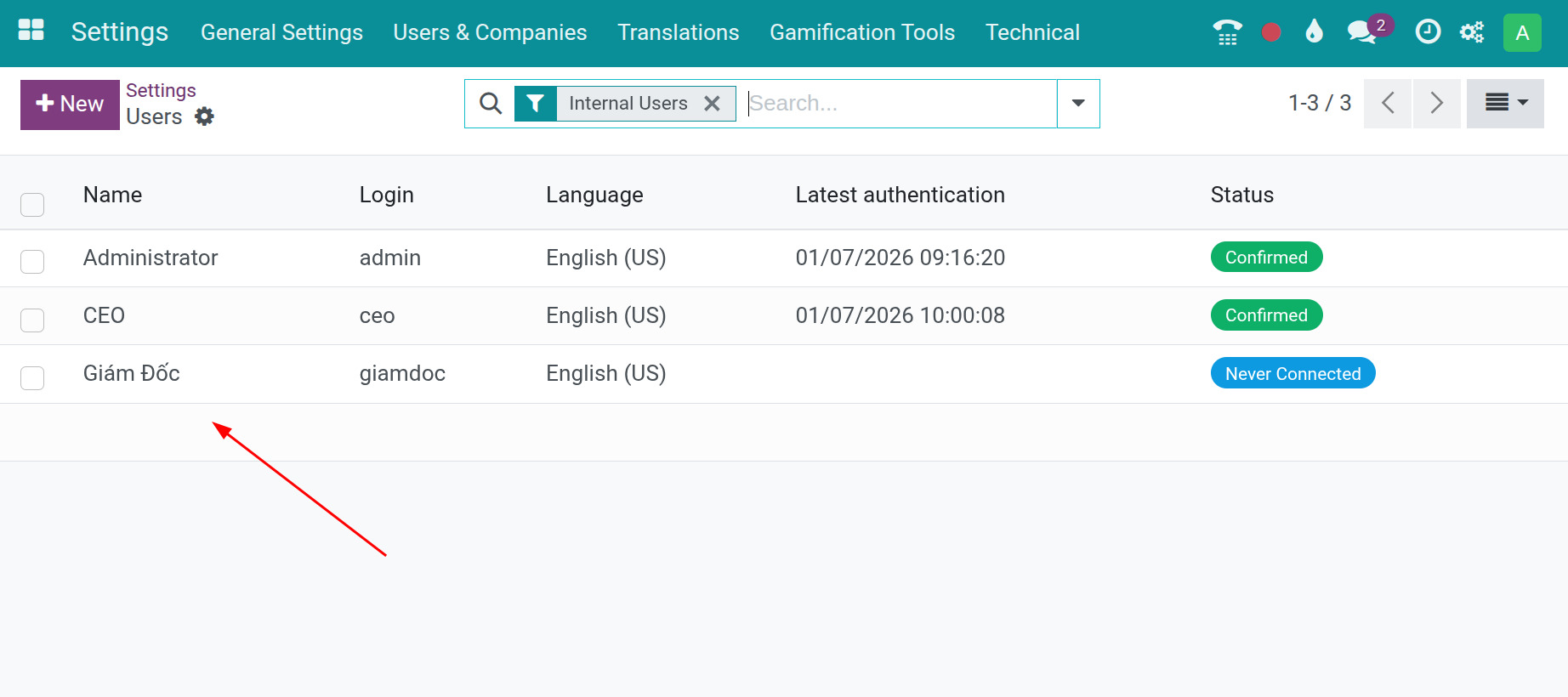
For Stringee VoIP, the access rights are divided into 3 options:
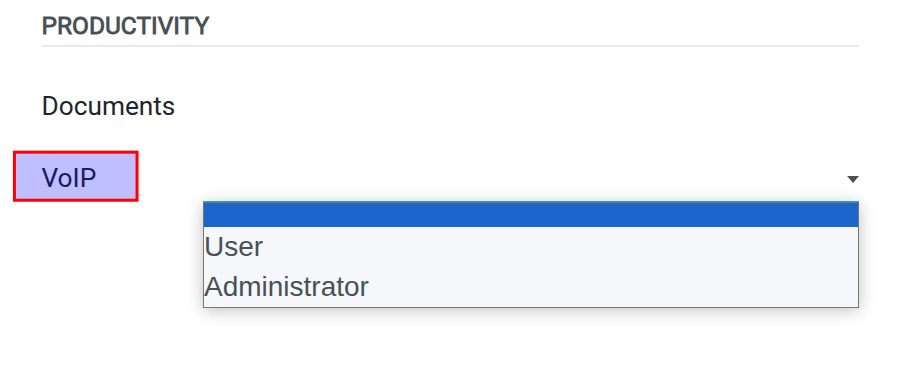
Blank: Can view call history in the Stringee application.
User: Can view and create Dashboard, Call History, and Reports.
Administrator: Inherits all User permissions and can access the Configuration menu to set up the system.
Note
To perform the actions described in this guide, users must have the Access Rights / Settings for Administration access.
See also
Related article
Optional modules