
Create an article
Navigate to .

You need to fill the following required fields:


Title: The article title, supports the management of user posts. This title won’t show on the post once it’s made public.
Post on: List of social media pages integrated with Viindoo. Select every page(s) you want to publish this article. Please check on the right side to preview your post about to be published on social pages.
Body: The content of the article.
Attachment Type:
None: Select this option when you do not want to attach an illustration;
Attach Files: Hit Attach Images/Videos to add the images/videos to the article. The files each network accepts are listed in Files each network accepts.
Attach Link: Attach a link to drive clicks from your article to a destination URL. Viindoo reads the title and the picture of the link once, when you type it, and keeps them with the article: opening the article later does not wait for the website of the link. When the website cannot be reached, the preview shows no link card. On LinkedIn, the image of the link card is sent with the post when the linked page offers a png, jpeg or gif image of at most 5 MB on a public address; otherwise the post goes out without an image. A link post with no typed title carries the link card title, or the link address when the card has no title.
Created On: The time the system record the article creation.
Author: The person who created the article.
Assign to: By default, this field will automatically be filled with the author. However, you can still assign this article to another employee who is granted Social Marketing access to view and edit the assigned post content.
Schedule later: select if you want to post in the future. Please fill in your preferred scheduled date and time in the “Scheduled Post Date” field. The accepted range is explained in Schedule a post for later.
Hit Save manually to record the information. At this time, the article is still in the Draft status. In this state, the editor can customize the article content before confirming.
Find your articles
shows each article as a card with its state (Draft, Confirmed or Cancelled). An article that carries a video shows a video icon on its card. An article that carries images shows up to three thumbnails, followed by More+ when there are more.
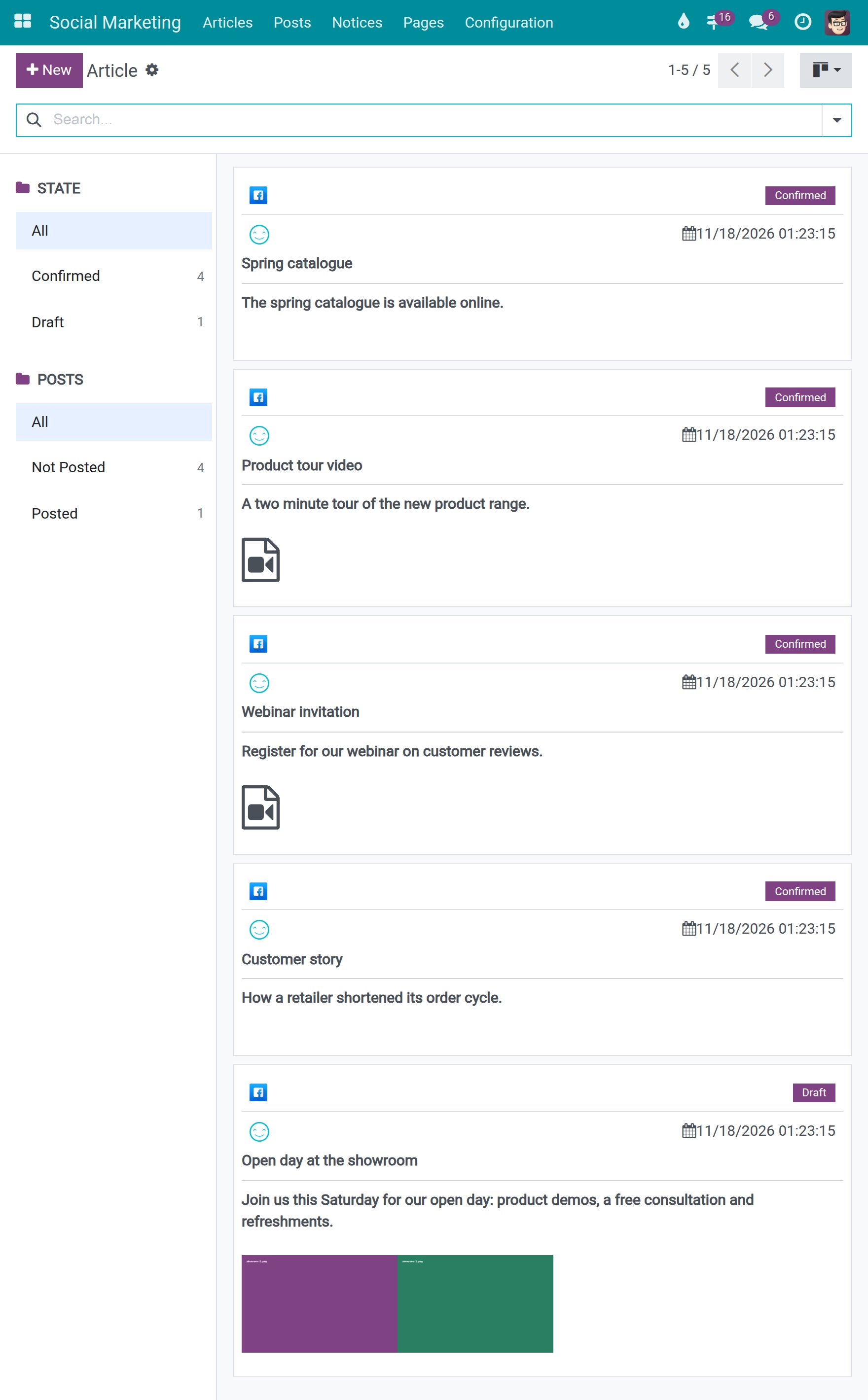
Files each network accepts
When Attachment Type is Attach Files and at least one page is ticked in Post on, the article form shows, under the files, one line for each network of the chosen pages and a Setup guide button that opens this section.
Facebook: one mp4 video on its own, or png / jpeg images.
LinkedIn: one mp4 video on its own, or png / jpeg images.
The file limits line of the article shows the largest video and image each network can receive from this database. A larger file is refused when you attach it.
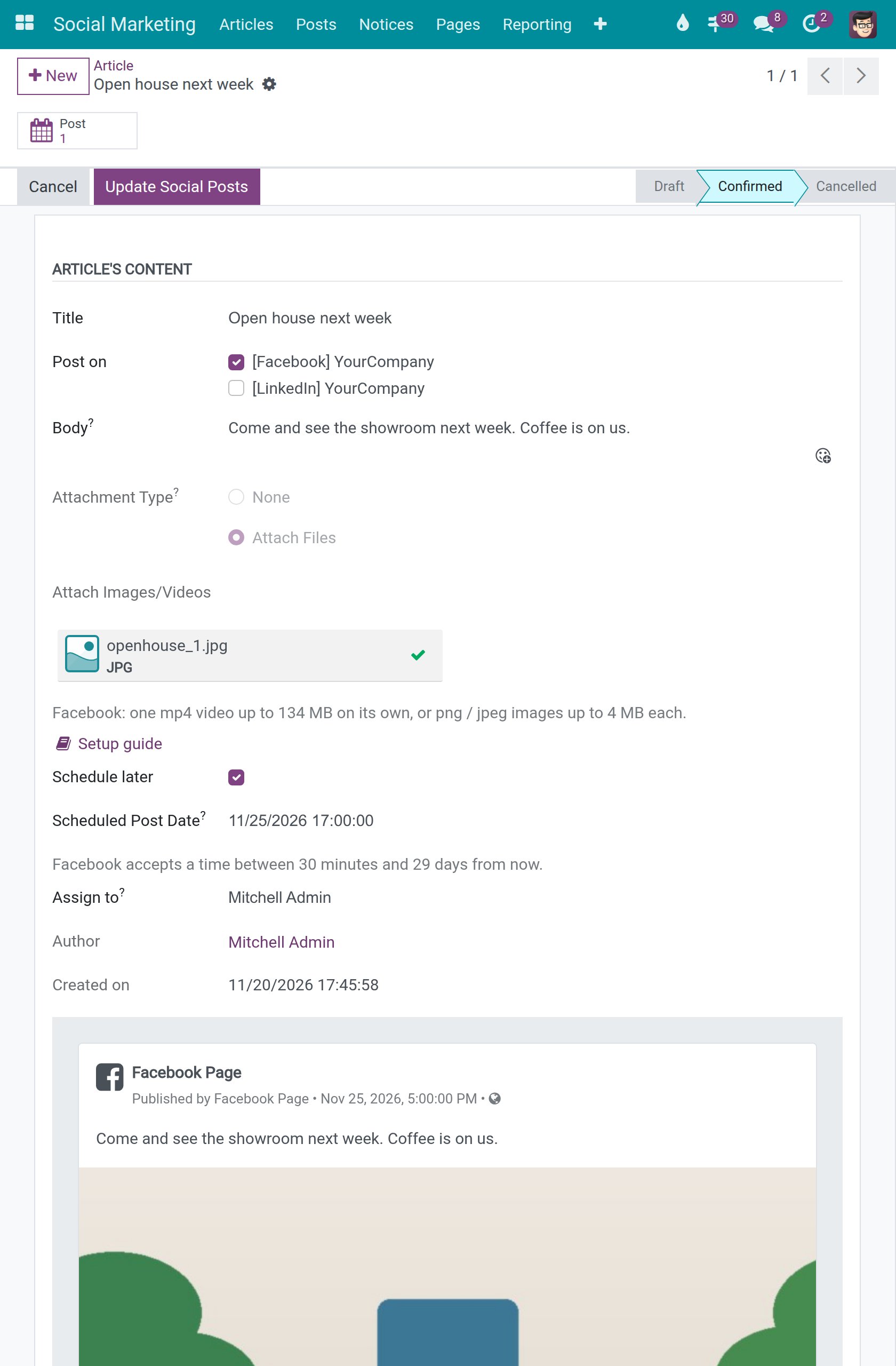
A video must be the only file of the article. When you press Confirm, an article for a Facebook or a LinkedIn page is refused if it holds another format, a second file next to a video, or a file over the limit (a video over the limit is refused with a message that names the video and tells to select a smaller one). The message says which file is wrong and why: remove or replace it, then confirm again.
For the system administrator
The largest size each network accepts is set in , as the settings Largest Facebook Video, Largest Facebook Image and Largest LinkedIn Video, each with its value in MB (for example 2000 MB). Change them when a network changes its limits; no update of the software is needed.
The largest file this database accepts in an upload is the system parameter web.max_file_upload_size, in bytes (128 MiB when it is not set). To attach larger videos, a system administrator raises it together with the memory limits of the workers and the request size limit of the web server in front of the database. The help of each setting says that this limit also applies, and the article shows the lower of the network limit and this limit.
While a file is being attached, the server process holds about the size of the file in extra memory for a few seconds; the background upload reads the video in parts and needs no more memory for a larger video. In one measurement, attaching a video of about 287 MB raised the memory of the server process from about 222 MiB to about 496 MiB for a few seconds, and the upload of the same video did not raise it. Keep the memory limits of the workers above the largest file you allow plus their usual use.
Schedule a post for later
Tick Schedule later and fill Scheduled Post Date to publish at a given time. When a Facebook Page is chosen, the line under the date gives the accepted range:
Facebook accepts a time between 30 minutes and 29 days from now. for a text post, a photo post or a Reel, and Facebook accepts a time between 30 minutes and 70 days from now. for a video that is not published as a Reel (see Publish a video as a Reel). Turning on Schedule later or typing the date never shows an error box. The preview on the right shows the current time until you type a date, then the scheduled date. A date outside the range is refused with the sentence of the range, and the article is not confirmed. The range is checked again when the approver presses Post Now: a date that has come closer than 30 minutes by then is refused. To choose another date, cancel the article and set it to draft (see below), then change the date and confirm the article again.
Publish a video as a Reel
A Reel is the short vertical video format of Facebook. When the article has one video and at least one Facebook Page is ticked in Post on, the form shows the box Publish as Reel. Tick it to publish the video of the article on its Facebook Pages as a Reel instead of a regular video. Other networks chosen for the same article publish the video as usual.
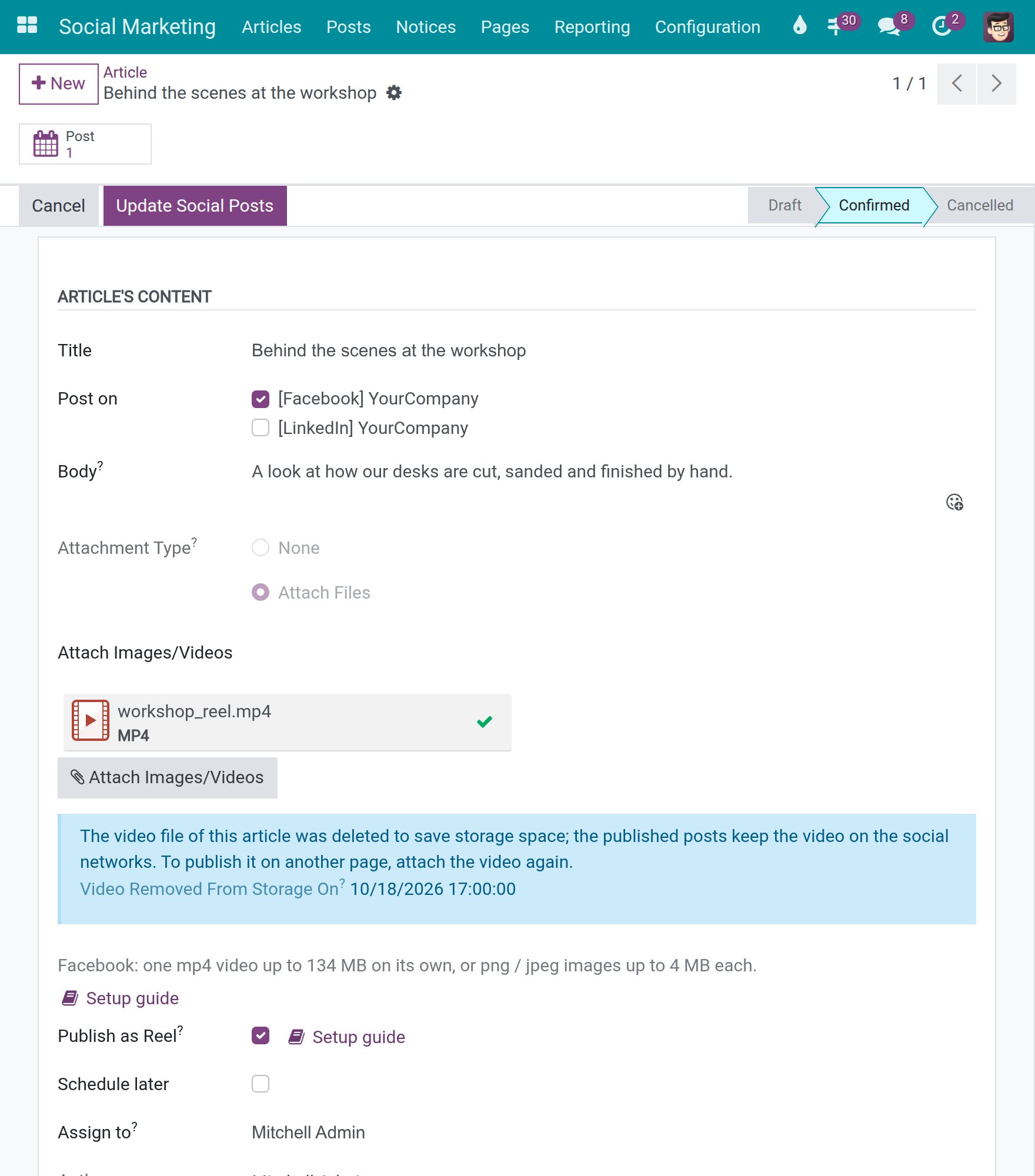
When to use it: for a short, vertical video meant to be seen in the Reels of Facebook. Meta’s guide for Reels asks for a vertical mp4 video of 3 to 90 seconds. Facebook allows 30 Reels a day through its programming interface for one Page.
Schedule: with Schedule later, a Reel accepts a time between 30 minutes and 29 days from now, and the line under the date reads Facebook accepts a time between 30 minutes and 29 days from now. A time outside this range is refused with the same sentence when you confirm the article. A Reel scheduled this way is published by Facebook at its time, and its post turns Posted at the next run of the 5-minute scheduled action that follows. Choose a time inside the range, or untick Publish as Reel to publish a regular video, which can be scheduled up to 70 days ahead.
States: a Reel goes through the same states as a video (Uploading, Publishing, then Posted or Failed, see States of a post) and the post carries the mark Reel.
When it fails: Facebook does not tell why it cannot process a file, so the post is Failed with the sentence Facebook could not process the video of this Reel. Check that the file is a valid mp4 video, then retry. Replace the file if it is not a valid mp4 video, then press Retry; when Facebook refuses for another reason, the post is Failed with the words of Facebook. If Facebook does not act on the end of the upload, Viindoo sends it again a limited number of times. An upload that is interrupted continues from the byte that Facebook reports and does not restart from the beginning.
The Setup guide button below the box opens this section.
The video of a published article
The social networks keep the video of a published post. To save space, the video file leaves the storage of Viindoo 7 days after every post of the article reached a final state, through the scheduled action Social: Remove Published Videos From Storage, which runs daily. The article and its posts keep their video icon, their links and their windows; images are never removed. The form of the article then shows an alert that says the video file was deleted to save storage space, that the published posts keep the video on the social networks and that it must be attached again to publish it on another page, and the field Video Removed From Storage On gives the date.
To publish the article on another page, to confirm a copy of it or to retry one of its posts, the video is needed again; otherwise Viindoo refuses and the message names the video, says that it has no content and asks you to remove it from the article and attach the video again. In the files of the article (the field can be edited once the video has left the storage), remove the emptied video, attach the video again, save, then publish. A new clip attached beside the emptied one does not publish: Facebook accepts a video only as the only file of the article. A video attached again is kept for at least 7 days from the day it was attached, even if no post is made with it.
Article confirmation
After checking the complete article content, the editor hit Confirm to confirm the article.

The system will automatically generate a draft post and the article will be updated to Confirmed.

Post Confirmation
After the editor confirmed the article, the approver accesses . At the State column on the left side of the screen, select Confirmed to filter the ready-to-post articles.

At the article, hit Post Now for posting confirmation.

With the option to schedule a post, the scheduled post information will be displayed in the article view. The post status will also be changed to Scheduled. Facebook publishes the post at the chosen time. Once that time has passed, the scheduled action Social: Announce the scheduled post has been posted, which runs every 5 minutes, changes the status to Posted and tells the author, the assignee and the members of the page; it does not ask Facebook, so the change follows the scheduled time and not an answer of Facebook.


In case all posts of an article are unqualified, the approver the article is assigned to, or the Social Marketing administrator, can hit the Cancel button of the article. After a confirmation, all posts of the article are deleted, also on the social network when they are already posted or scheduled. Then hit Set to Draft to proceed with the editing.


Note
With the option not to schedule a post, a text, link or image post is published at once and its status changes to Posted. A video goes through the states Uploading and Publishing first, in the background: see States of a post.
List of Posts
To view the published posts, go to . In the right column, you use the system’s default filters by post status or by social media pages. What each status means, and what to do when a post fails, is explained in Manage post on social media.

See also
Related article
Optional module