
Configure charts of accounts and depreciation method for Assets Category
Assets of a business are both tangible and intangible resources owned, controlled, and distributed by that business, to create economic value.
Viindoo brings to customers different ways to create an asset:
Create assets directly at the Assets menu;
Create assets from Vendor bills;
Create assets from Stock receipts - Stock deliveries.
Whatever the approach you choose, you still need to create an Asset Category first. This is the place to classify and track an asset. An asset belonging to this Asset Category will inherit all configurations of that category. Each asset might have its own characteristics that need to be configured differently from the settings of the asset category. This topic will be explored in other articles. In this article, we will focus on how to set up an Asset Category.
Requirements
This tutorial requires the installation of the following applications/modules:
Module Installation
To begin the installation, navigate to the Viindoo Apps in the main menu.

You can install the module by typing the keyword Assets Management on the search bar and clicking on the Activate button.

Configure Asset Category
To reduce time in creating a new asset, you can create an asset category beforehand. Having a dedicated asset category is very useful when your company frequently uses one asset type or assets have similarities such as: being used by one department, having similar depreciation period, etc. Normally, the person that can create a new asset category in the system is the Administrator of the Accounting app.
Ready-made asset categories
A company that uses the Vietnamese chart of accounts already has ready-made asset categories, one for each asset nature. Each one is set with the accounts of the circular that the chart follows, so you can use it as it is or adapt it to your accounting policy. Their names appear in the language of the company.
With the chart of accounts of Circular No. 99/2025/TT-BTC: Tangible fixed assets, Intangible fixed assets, Finance-leased fixed assets, Investment property held to lease, Investment property held for capital appreciation, Mature livestock for periodic produce, Short-term deferred expenses and Long-term deferred expenses.
With the chart of accounts of Circular No. 133/2016/TT-BTC: Tangible fixed assets, Intangible fixed assets, Finance-leased fixed assets, Investment property held to lease, Investment property held for capital appreciation and Prepaid expenses.
To review them, navigate to Accounting > Configuration > Management > Asset Categories. The deferred expense categories are in Accounting > Configuration > Management > Deferred Expense Category.
Create a new category from a ready-made one
The quickest way to create a new asset category is to start from the ready-made category of the same nature, so that every account is already set:
Navigate to Accounting > Configuration > Management > Asset Categories.
Select the ready-made category of the same nature as your new category, for example Tangible fixed assets for a group of machines.
Click Actions > Duplicate. The copy keeps every account of the original and its name ends with (copy).
Open the copy, then change its name, the depreciation method and the accounts that your accounting policy requires.
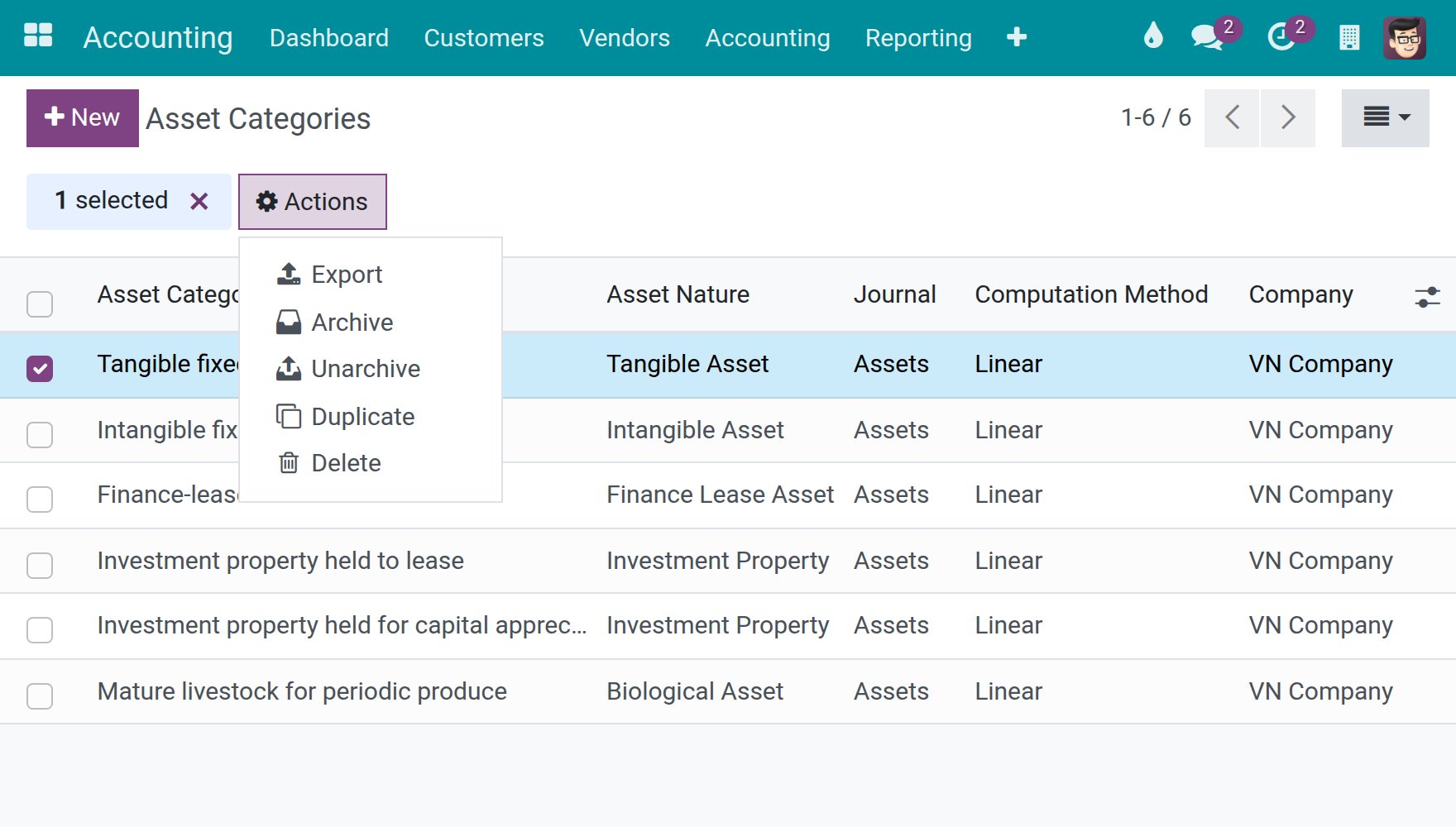
If you create a category with New instead, no account is set at the start. When you choose the Asset Account, the form copies it into some of the other accounts, and the remaining accounts are empty. Check every account before using the category, because these values are only a starting point.
Note
The application never changes an account that you set on an asset category, not even when the chart of accounts is reloaded.
Set up the category form
To create a new asset category from scratch, navigate to Accounting > Configuration > Management > Asset Categories and click New.

Then, you need to configure information for this asset category. The example below is the ready-made category Tangible fixed assets.

Asset Category
In this field, you have to put a suitable asset category name for management and monitoring purposes.
Asset Nature
Select the main accounting nature of the assets in this category: Tangible Asset, Intangible Asset, Finance Lease Asset, Investment Property, Biological Asset, Deferred Expense or Other Asset. For an Investment Property, you also choose its strategy: Rental Yield, Capital Appreciation or Mixed Strategy.
Depreciation asset accounting
In this section, you need to add the following required information:
Journal: Choose the appropriate journal which will be used to record the entries.
Asset Account: An account to record the purchase or use of the asset at its original price.
Depreciation Account: An account that holds the depreciation amount of the asset.
Expense Account: An account to record depreciation amount as expense periodically.
Other asset accounting
Disposal Account: The expense or loss account used when the asset leaves the books without ordinary depreciation, for example on disposal or scrapping.
Derecognition Income Account: The income account used when the asset leaves the books and the company receives proceeds, such as a sale or a compensation.
Impairment Loss Account: The expense account used when the recoverable amount of the asset falls below its carrying amount.
Impairment Reversal Account: The income account used when an impairment loss is reversed.
Decrease Asset Account: An account to record the decreasing value in the revaluation of the asset.
Increase Asset Account: An account to record the increasing value in the revaluation of the asset.
Note
This information can be adjusted for each Asset to suit different purposes.
See also
Periodicity
In this section, you need to add the following information:
Depreciation Policy: Select Depreciable when the assets of this category generate periodic depreciation entries, or Non-depreciable when their carrying amount is not reduced periodically. A Non-depreciable category hides the other periodicity and depreciation method fields.
Time Method Based On: Select one of the two options to depreciate an asset by the Number of entries or Ending date.
Number of Entries:
Number of Entries: Enter the number of depreciation times needed to depreciate an asset.
One Entry Every: The time measured by month(s) between two periods of depreciation.
Ending date:
One Entry Every: Similar to the Number of Entries, it’s the time measured by month(s) between two periods of depreciation.
Ending date: Enter the day that the depreciation stops.
Depreciation Methods
Viindoo provides 3 depreciation methods:
Linear method;
Degressive method;
Accelerated degressive method.
Degressive Factor: Appears with the Degressive and Accelerated Degressive methods.
Prorata Temporis:
Enabled: Indicates that the first depreciation entry for the assets belonging to this asset category is calculated from the asset date instead of the first day of January or the start date of the Fiscal Year.
Disabled: Indicates that the first depreciation entry for the assets belonging to this Asset Category is calculated by dividing evenly according to the number of depreciation, starting on the first day of January/Start date of the Fiscal Year.
See also
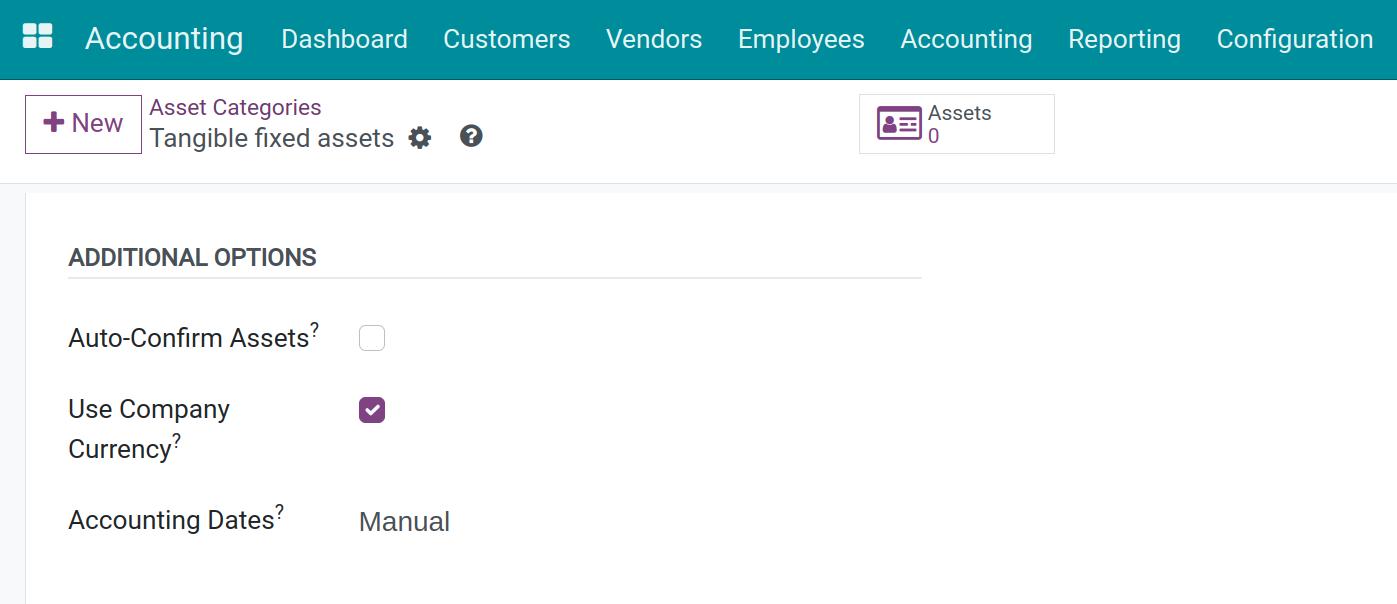
Additional Options
Company: The company that owns the category. This field is shown when you work with several companies.
Auto-Confirm Assets: If enabled, the system will automatically confirm the assets of this category when created by invoices.
Use Company Currency: If enabled, the value of assets generated from invoices for this category will always be converted to the company’s currency.
Accounting Dates:
Based on the last day of the month: The depreciation entry will be colligated and displayed on the last days of the month.
Manual: Depreciation entry will be displayed depending on the manually configured date of the accountant.
![Additional Options]()
The system will automatically process after you complete entering the information. However, you can also choose to save manually.
Furthermore, you can manage groups of assets related to instruments, tools, and prepaid expenses with the ready-made deferred expense categories, found in Accounting > Configuration > Management > Deferred Expense Category.
See also
Related article
Optional module