
Find your way around Brain
Guide Overview
Every internal user can open the Brain app. What you find inside depends on your role in each Space: the Spaces you may not read are not listed.
Before You Start
You need |
Why |
|---|---|
An internal user account |
Every internal user can open the Brain app. |
A role in a Space (Viewer, Commenter, Editor or Space admin) |
Home lists only the Spaces you may read. A Space admin sets the roles in the Space settings. |
Open Home
Go to .
Home opens. It answers three questions: where do I look, what changed and where do I start.
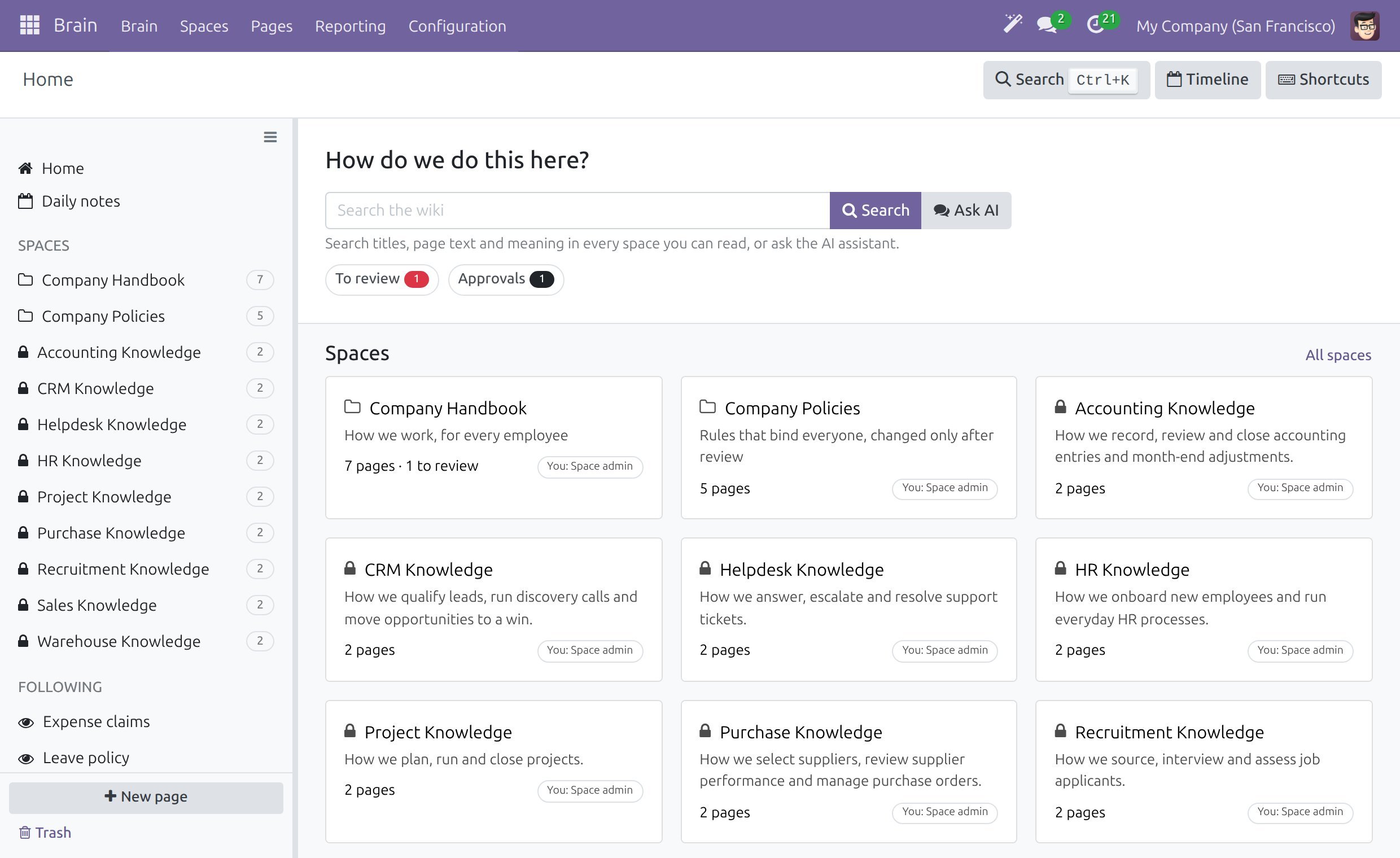
Use the search box at the top to look for a page (see Search the wiki). When the Viindoo AI - Brain Bridge add-on is installed, Ask AI sits beside Search.
Look under the search box for what waits for you: the counter To review (pages you own that are due for review) and Approvals (drafts waiting for your approval). My drafts and Comments to moderate appear when you have some. Click a counter to open its list. Nothing shows when nothing waits.
Look at the Spaces cards. Each card shows the Space name, its description, the number of pages, how many need review and your role in it, for example You: Space admin. A lock icon marks a Space that is not open to every internal user: hover it to read “Restricted to members”. Click All spaces to list them all.
Scroll down to Recently updated for the latest edited pages, Start here for the pages a Space admin pinned for newcomers and Following for the pages you follow. A page that is due for review carries a Needs review mark, and a small magic-wand icon shows that an assistant edited the page.
Open a Space
On Home, click a Space card, or click the Space name in the sidebar.
The Space screen has one header: the Space name with your role, for example You: Space admin, its description, and one line with the Admins, the number of pages and the number to review. Under it come a search box limited to this Space (with Ask AI when the add-on is installed), the counters of what waits, Recently updated, Start here and Following.
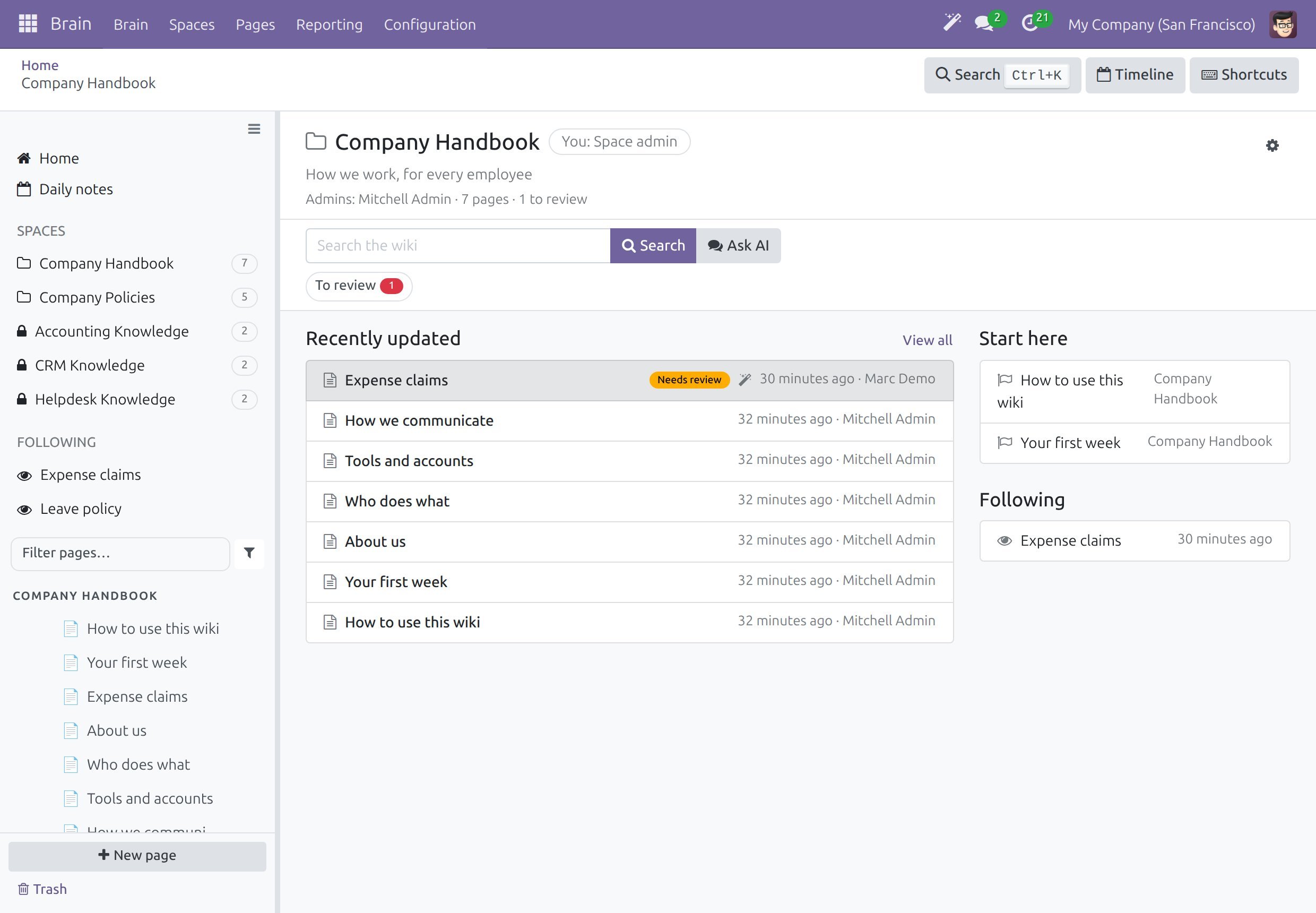
Click the gear button at the right of the header to open the Space settings. The button is for Space admins (see Set up Spaces, templates and access).
Click a page in the sidebar tree, or in one of the lists, to open it (see Read, create and edit pages).
Jump Anywhere with Ctrl+K
Press Ctrl+K (Cmd+K on macOS), or click Search at the top right.
Start typing. The list shows the pages that match first, then Search the wiki for “…” and Create a page named “…”. A tip at the bottom lists the prefixes for other searches.
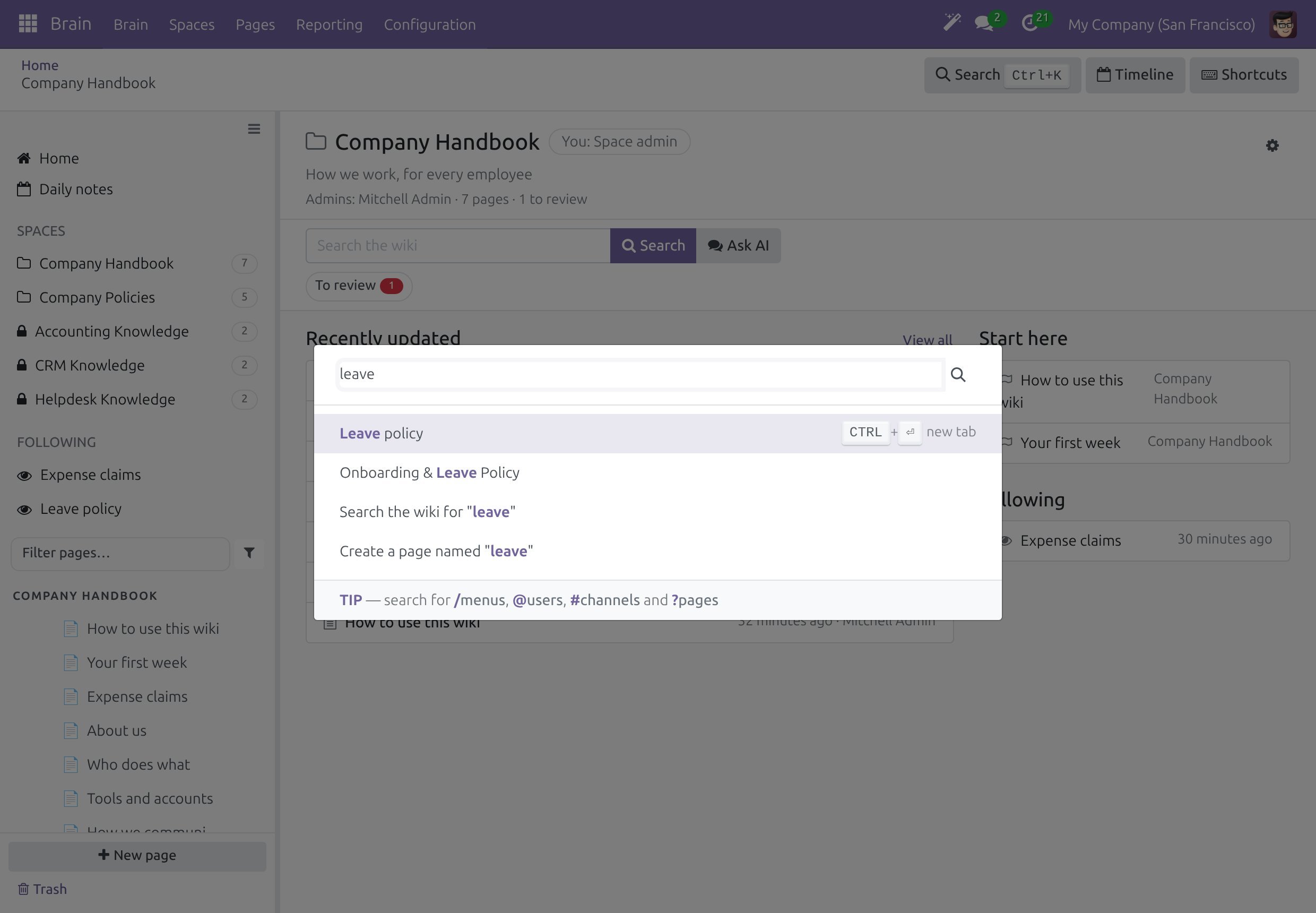
Press Enter to open the highlighted line, or Ctrl+Enter to open it in a new tab.
From any other screen of the system, type ? first to search the pages.
Use the Keyboard Shortcuts
Click Shortcuts at the top right to list the shortcuts.
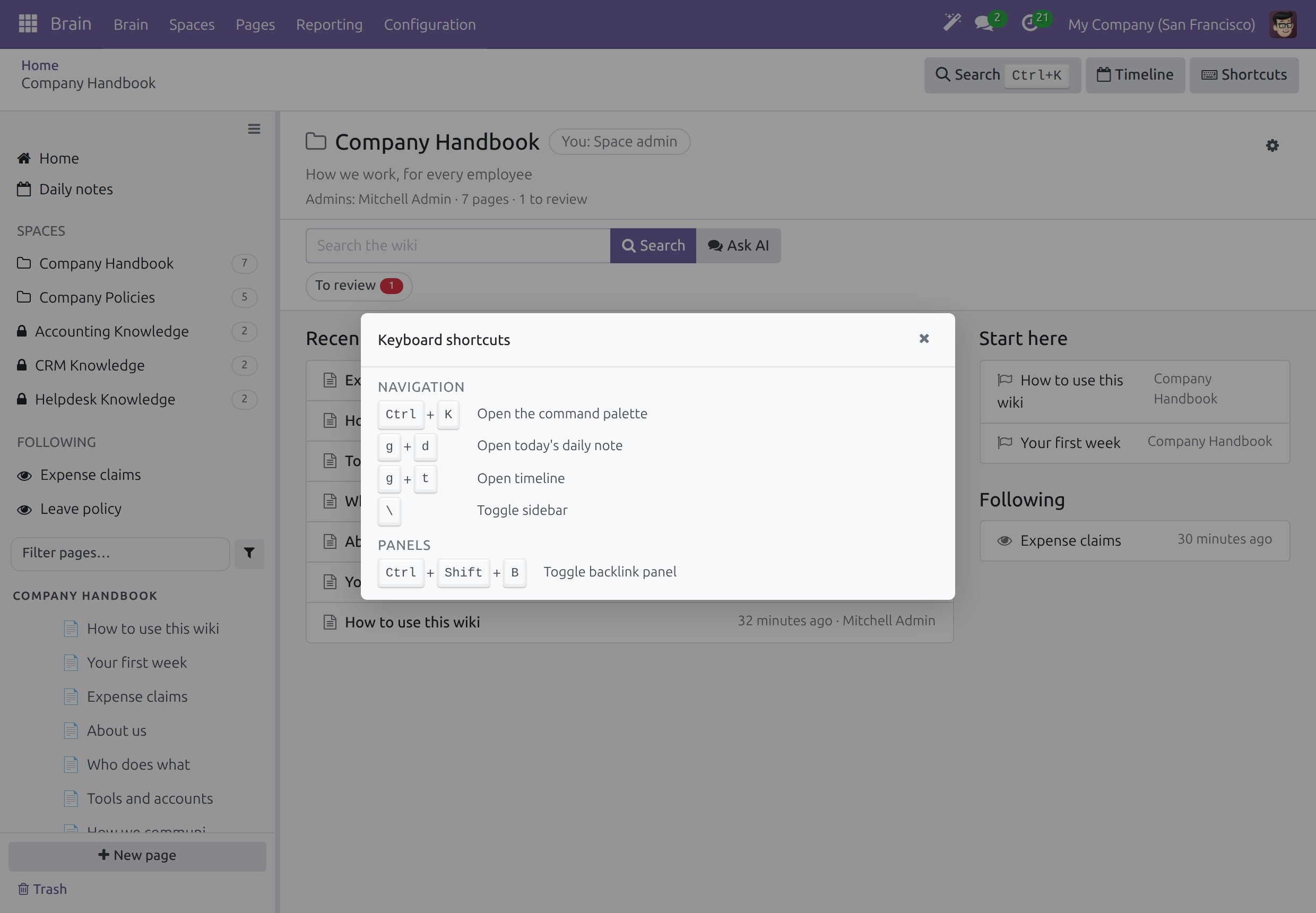
Keys |
What happens |
|---|---|
Ctrl+K |
Opens the command palette. |
g then d |
Opens today’s daily note. |
g then t |
Opens the timeline. |
Backslash |
Shows or hides the sidebar. |
Ctrl+Shift+B |
Shows or hides the backlink panel. |
Open Your Daily Note and the Timeline
A daily note is a page of your own for today.
Press g then d.
If nobody has chosen the Space that keeps daily notes yet, click Daily notes in the sidebar. The dialog Daily notes space lists the Spaces: click Use for daily notes on the Space that should keep them. A Space admin switches on Enable Daily Notes on the Space form so that every member gets a note each morning.
Click Timeline at the top right, or press g then t, to open the timeline. Choose Last 7 days, Last 14 days or Last 30 days. The timeline lists the pages edited in that range day by day.
Note
A daily note is private. No Space admin and no wiki admin can read someone else’s daily note.
Open the Brain Pages of a Business Record
When your database uses an application with a Brain connector (see Viindoo Brain), its records carry two buttons.
Open a record, for example an invoice. The button Brain Pages shows how many pages mention the record. The button Brain Note starts a new note about it.
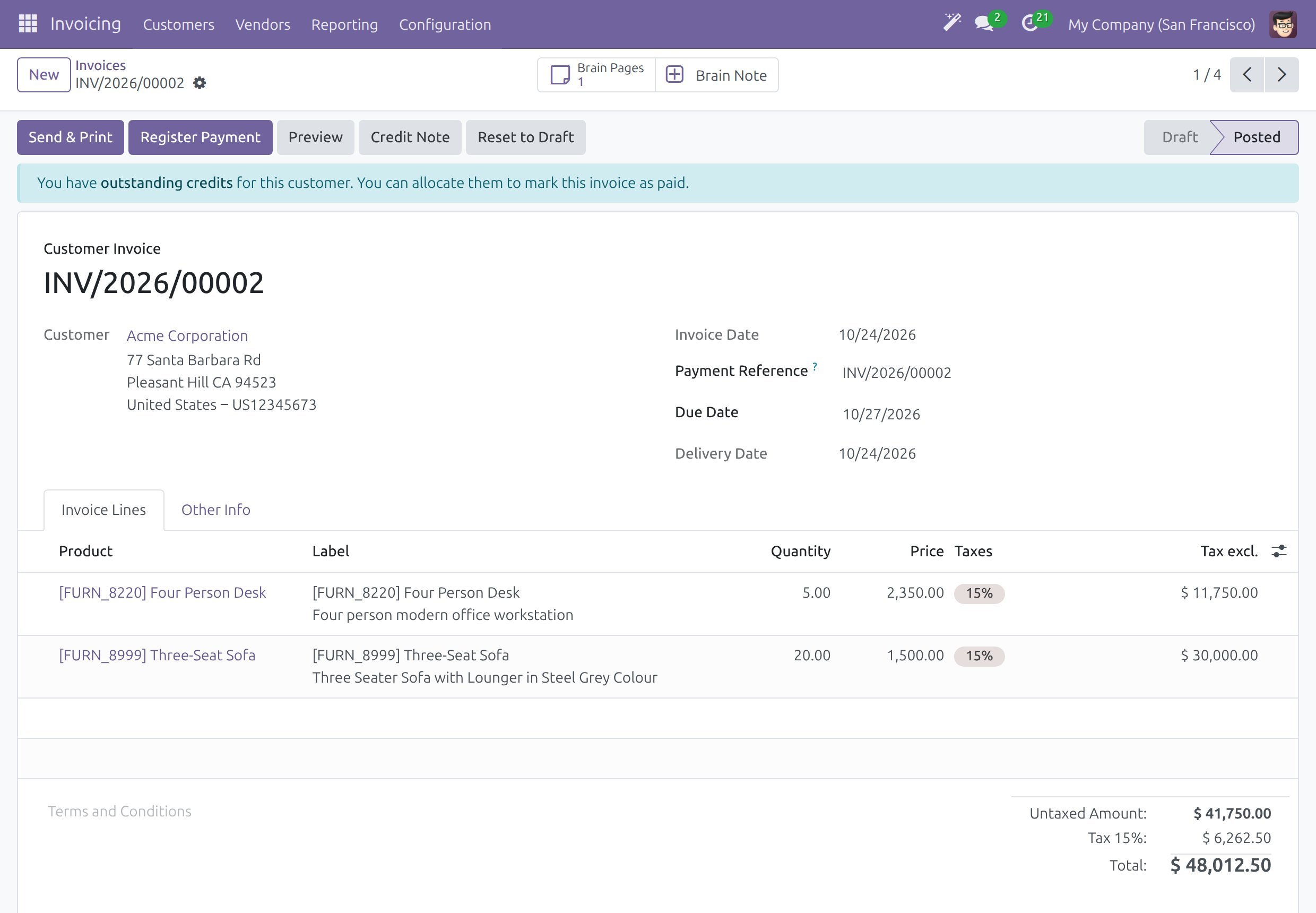
Click Brain Pages to list the pages that mention the record, and click a page to open it. Click Brain Note to open a new note that is already linked to the record.
Look at the breadcrumb at the top. It keeps the way back: click the name of the record to return to it.
A new note from Brain Note is created in your personal Space, named Personal - <your login>. The record appears in the Linked to line of the page.
On a Phone
Home and Trash fit a phone screen: the sidebar folds away and the cards stack in one column, without horizontal scrolling. On a page, the toolbar actions are in the gear menu and the Activity panel sits as a bar under the page.
Success Checkpoint
Home lists the Spaces you may read, with the counters of what waits for you and Recently updated.
Ctrl+K opens the command palette on every Brain screen.
g then d opens your daily note.
A record with a Brain connector shows Brain Pages and Brain Note, and the breadcrumb of the page leads back to the record.
Common Problems
Problem |
What to do |
|---|---|
A Space is missing on Home. |
You see the Spaces where you are a member or where a user type you belong to has access. Ask a Space admin to add you. |
Daily notes does not appear in the sidebar. |
Someone has already chosen the Space that keeps daily notes. Press g then d to open your note. |
The record has no Brain Pages and Brain Note buttons. |
The Brain connector of the application is not installed. Ask your administrator. |
The shortcut g then d does nothing. |
Press the keys one after the other, not together. |
Next Steps
Read, create and edit pages - read a page, create one and write it.
Search the wiki - search the wiki and narrow the results.