
Viindoo Brain
This guide is for employees who look things up, writers who keep the company’s knowledge, page owners, Space admins, wiki admins and the administrator who sets Brain up.
Viindoo Brain is the company wiki inside your Viindoo database. Procedures, policies and know-how are written as pages, kept in Spaces such as Company Handbook, and linked to the invoices, employees, tickets and other records they are about. A page follows the access rules of the rest of the system, so nobody keeps a second set of permissions in their head.
Every page has an owner, by default the person who created it. The owner confirms that the page is still correct, and readers see who owns a page and when it was last verified, so they know whether to trust it.
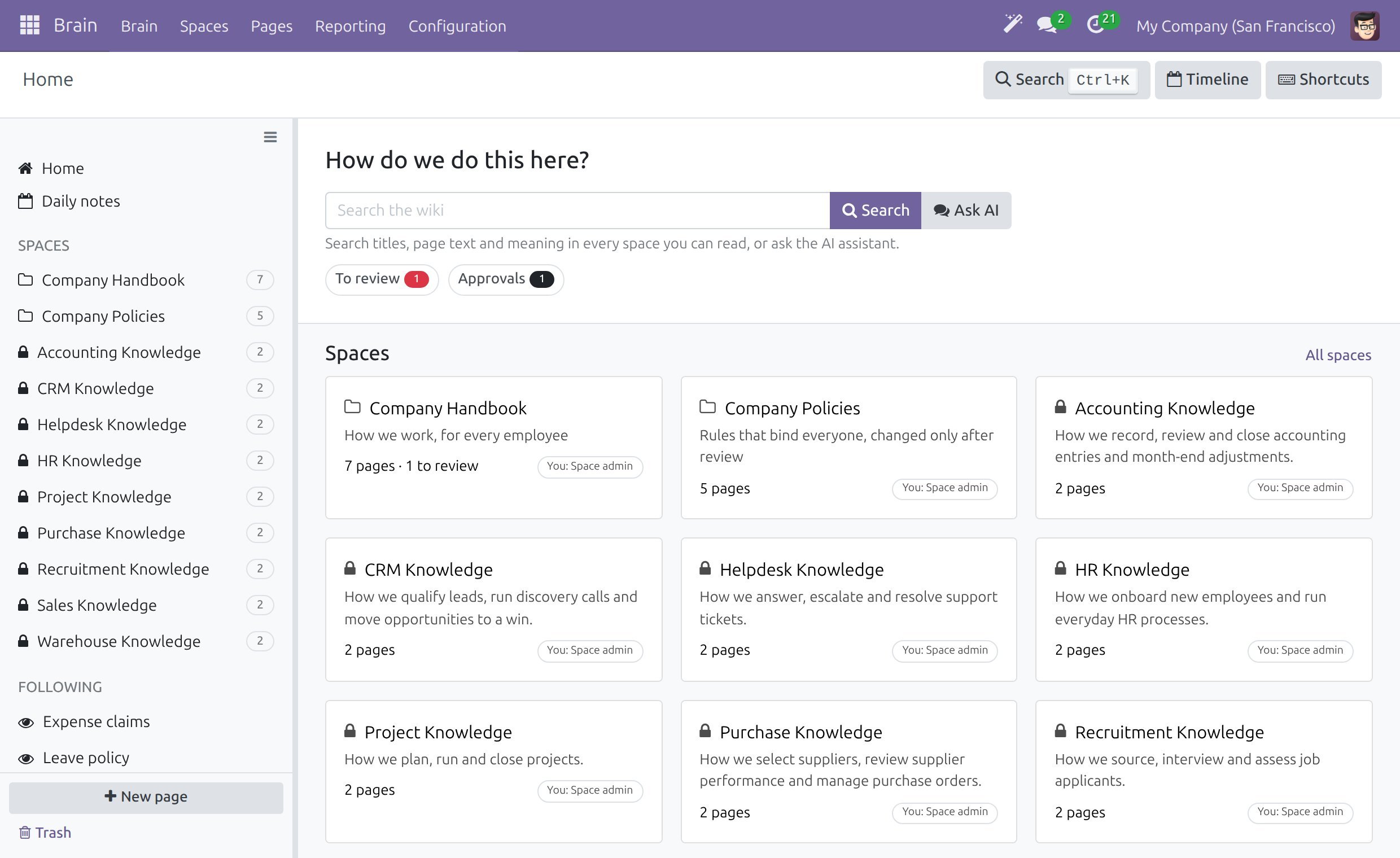
Every company starts with two Spaces that you adapt to your own way of working: Company Handbook (for example How to use this wiki, Your first week, Expense claims and Who does what) and Company Policies (for example Leave policy, Code of conduct and Information security). Their pages are outlines written in the language in which the company was created. Rewrite them, restrict a Space or delete what you do not need.
Brain is made of three modules.
Module |
What it adds |
Installs |
|---|---|---|
The wiki: Spaces, pages, the editor, search, drafts and approval, Trash, sharing and the reports of the wiki admin. |
On its own |
|
The AI assistant in the wiki: Ask AI, Write with AI, the Related by meaning search group and the review of pages an assistant changed. |
Together with Viindoo AI |
|
Viindoo Brain - Digest |
Two figures in the digest e-mail: pages edited and pages to review. |
Together with the Digest app |
An administrator switches the add-ons on and off in . The blocks AI Assistant, Reports and Digest and Integration list them with one switch each, named after the add-on. An add-on that your database does not include shows Purchase or Learn more in place of the switch (see Set up Spaces, templates and access).
Who Does What
Role |
What they do |
Access right to assign |
|---|---|---|
Employee |
Finds and reads pages, discusses them and follows the ones they care about. |
Role Viewer or Commenter in the Space, given person by person or to a whole user type. |
Writer |
Writes and edits pages, shares them, sends drafts for approval and moves pages to Trash. |
Role Editor in the Space. |
Page owner |
Keeps the page current: verifies it, archives it and approves drafts of it. |
None: the owner is named on the page. It is the creator unless changed. |
Space admin |
Runs one Space: members and roles, review rule and Start here pages. Restores and permanently deletes the Space’s trashed pages. |
Role Space admin in the Space. |
Wiki admin |
Watches the health of the whole wiki and looks after templates, public links and comments. |
Brain / Brain Admin on the user. |
Administrator |
Installs the app and sets the company options. |
Administration / Settings on the user. |
Note
A Space admin is a role inside one Space. It is not the same as the Brain Admin access right, which covers every Space.
Guides for Everyone Who Uses the Wiki
- Read, create and edit pages
- Search the wiki
- Submit and approve page changes
- Own and verify a page
- Delete, restore and archive pages
- Share a page with people inside and outside
- Print and use Markdown files
- Set up Spaces, templates and access
- Watch the health of the wiki
- Use the AI assistant in Brain
- Review AI changes and set up the wiki
Guide |
Use it to |
|---|---|
Find your way around Home, a Space, the sidebar, Ctrl+K, the keyboard shortcuts, daily notes and the Brain buttons on a business record. |
|
Read a page, talk about it, create a page and write it with the editor. |
|
Search the wiki, narrow the results and turn a missing answer into a new page. |
|
Send a change for approval and approve or send back a draft. |
|
Verify a page that needs review. |
|
Archive a page, restore a page from Trash or delete it for good. |
|
Share a page with colleagues, send it to people outside the company or publish it with a public link. |
|
Print a page, export it as Markdown or start a page from a Markdown file. |
|
For Space admins and administrators: Space settings, templates and the company options. |
|
For wiki admins: the wiki reports and the Brain figures of the digest e-mail. |
|
Ask the AI assistant, write with it and use search by meaning. |
|
Review what an assistant changed and make the wiki searchable by the assistant. |