
Set up master data in the right order
Guide information
Requirements
This tutorial requires the installation of the following applications/modules:
Logistics Shipment - Contacts, Locations, Cargo Information, Operations
Freight Forwarder Management - Products, Rates
Logistics Accounting (installed automatically with Freight Forwarder Management) - Incoterms
Logistics Cargo Template, optional - only needed for step 8 (Cargo Templates)
Most of this master data has no validation at all: leaving a field empty does not raise an error, it just quietly removes that record from every list where the next step needs it. Only two steps below are the exception and stop you outright with an error - everything else fails silently, so the order in this checklist is what prevents a record from being created wrong and then needing to be reopened later.
Example in this article: the checklist below, illustrated with the master data Hai Long Logistics needs before its first shipment, the FCL export for Nhat Long Footwear from Hai Phong Port to Port of Los Angeles.
The setup order
# |
Create |
Why it sits here |
Detailed guide |
|---|---|---|---|
0 |
Nothing yet - first check what is already installed: sea ports such as Hai Phong Port and Port of Los Angeles, carriers such as ONE Line, container types such as Container 40FT HC, and freight services and local charges such as Ocean Freight - FCL and Terminal Handling Charge (THC) |
Freight Forwarder Management installs these records. Creating them again gives two records with the same name, and quotes, bookings and rate cards may pick the wrong one. |
Set up carriers, agents, ports, airports and border crossings |
1 |
Contacts that are not installed yet (for Hai Long: the customer Nhat Long Footwear and the agent Pacific Coast Forwarding Agency, Inc.) |
Routes and rate cards reference a contact directly; creating one after a route means reopening every route to fix it. |
Set up carriers, agents, ports, airports and border crossings |
2 |
Location Type on each port/airport contact |
The POL/POD field on a shipment or rate card only lists contacts whose Location Type is set - see the warning below. |
Set up carriers, agents, ports, airports and border crossings |
3 |
Cargo Information (DG Class before UN Number, HS Code, Cargo Type) |
DG Class is a required field on UN Number - creating a UN Number first is blocked outright, not silently skipped. |
|
4 |
Operations (Shipment Types with a valid Transport Mode / Load Mode pair, package and container types) |
A freight product references a Shipment Type; creating the product first means reopening it later to fix the reference. |
Configure shipment stages, types, tags, package and truck types |
5 |
Products (freight services, local charges) |
A rate card line references a product, and the product must already carry the right Shipment Type and Load Mode. |
Set up freight services and local charges |
6 |
Rates (product, carrier, POL, POD, container type) |
A rate card line must match all four of these at once - missing one and the price is never suggested on a quote. |
|
7 |
Confirm the Incoterms you trade under exist in the standard list |
Incoterms are shared with Accounting, not created per shipment - see the note below. |
|
8 |
Shipment Templates, Cargo Templates (optional) |
A template built before the other 7 steps are stable saves empty references, and every shipment generated from it needs a manual fix. |
Start a shipment from a template and Generate cargo and packages from a cargo template |
Warning
Steps 1-2 and 5-6 use fields that filter hard on another field being set correctly, with no error message when nothing matches. A Sea Port contact without Location Type set does not appear in POL/POD at all - it still exists in Contacts, it is simply invisible where you need it. If a search field comes back empty, check the master data it depends on before assuming the record was never created.
Two Configuration menus, one system
Sea Ports, Airports and Incoterms are not different lists in the two apps - they are the same records, reachable from two Configuration menus. Creating a port once, from either app, makes it appear immediately in the other; there is no separate registry to keep in sync.
Note
Incoterms has its own menu in two places: (the same Incoterms list Accounting uses) and . Both open the exact same list - confirm the Incoterm you trade under (Hai Long: CFR, FOB) is already in it before you quote; do not create a new one.
Tip
The setup is correct when:
Typing “Hai Phong” into the POL field of a new shipment returns exactly one result - Hai Phong Port.
On a draft quotation for the Nhat Long Footwear lane, opening the Select Sailing Schedule (FCL) wizard shows ONE Line at USD 1,850 in the comparison table, without typing the price in by hand.

Known limitations
What Viindoo does today |
What you do instead |
|---|---|
The POL/POD and container-type fields filter hard on Location Type or Is Container, with no message when the search returns nothing. |
If a search field comes back empty, check Location Type on the Contact, or Is Container on the Package Type, before concluding the record does not exist. |
Troubleshooting
Ports are created, but POL/POD cannot find them
Symptom: You type the port name correctly into POL or POD, and the suggestion list is empty.
Cause: The contact has not been assigned a Location Type of Sea Port or Airport. The POL/POD field filters hard on this value, so the contact still exists and can be found in the Contacts app, but never appears here.
Fix:
Open the contact and set the correct Location Type.
Check that no duplicate contact with the same name already has the correct Location Type set - if one does, merge or archive the duplicate before continuing.
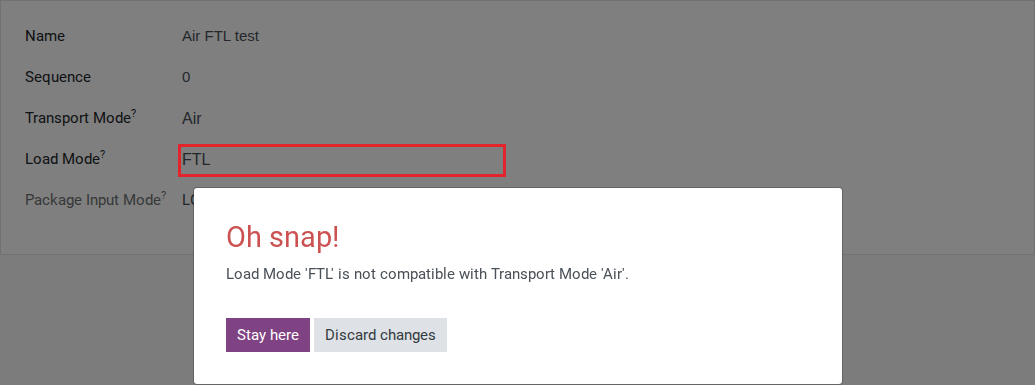
Saving a Shipment Type raises an error immediately
Symptom: You set Transport Mode to Air and Load Mode to FTL, then click Save.
Cause: This combination is not in the list of allowed pairs, and the system blocks the save with:
Load Mode 'FTL' is not compatible with Transport Mode 'Air'.
Fix:
For Transport Mode Air, choose a Load Mode from {Loose, Full ULD} only.
For Sea, use FCL or LCL; for Road, use FTL or LTL. Keep the transport and load modes consistent.
A new UN Number cannot be saved
Symptom: Saving a new UN Number raises a required-field error.
Cause: DG Class is a required field on UN Number - it must be created first.
Fix:
Go to and create the DG Class you need.
Return to the UN Number and select the DG Class you just created.
See also
Related articles