
Delete, restore and archive pages
Guide Overview
Before You Start
You need |
Why |
|---|---|
Role Editor in the Space |
To delete, restore and archive pages of the Space. |
Role Space admin in the Space, or Brain / Brain Admin on your user |
To delete a page permanently. |
Administration / Settings on your user |
To change how many days Trash keeps pages. |
Trash or Archive?
Trash |
Archive |
|
|---|---|---|
What it is for |
A page nobody needs any more. |
A page you keep for reference. |
Who can still read it |
Nobody finds it in the Space. It is listed only in Trash. |
Everyone who may read the Space, by its address or the Archived filter. |
Sub-pages |
They go to Trash with the page. |
Each page is archived on its own. |
How long |
The retention period, then it is removed for good. |
Until someone unarchives it. |
Delete a Page
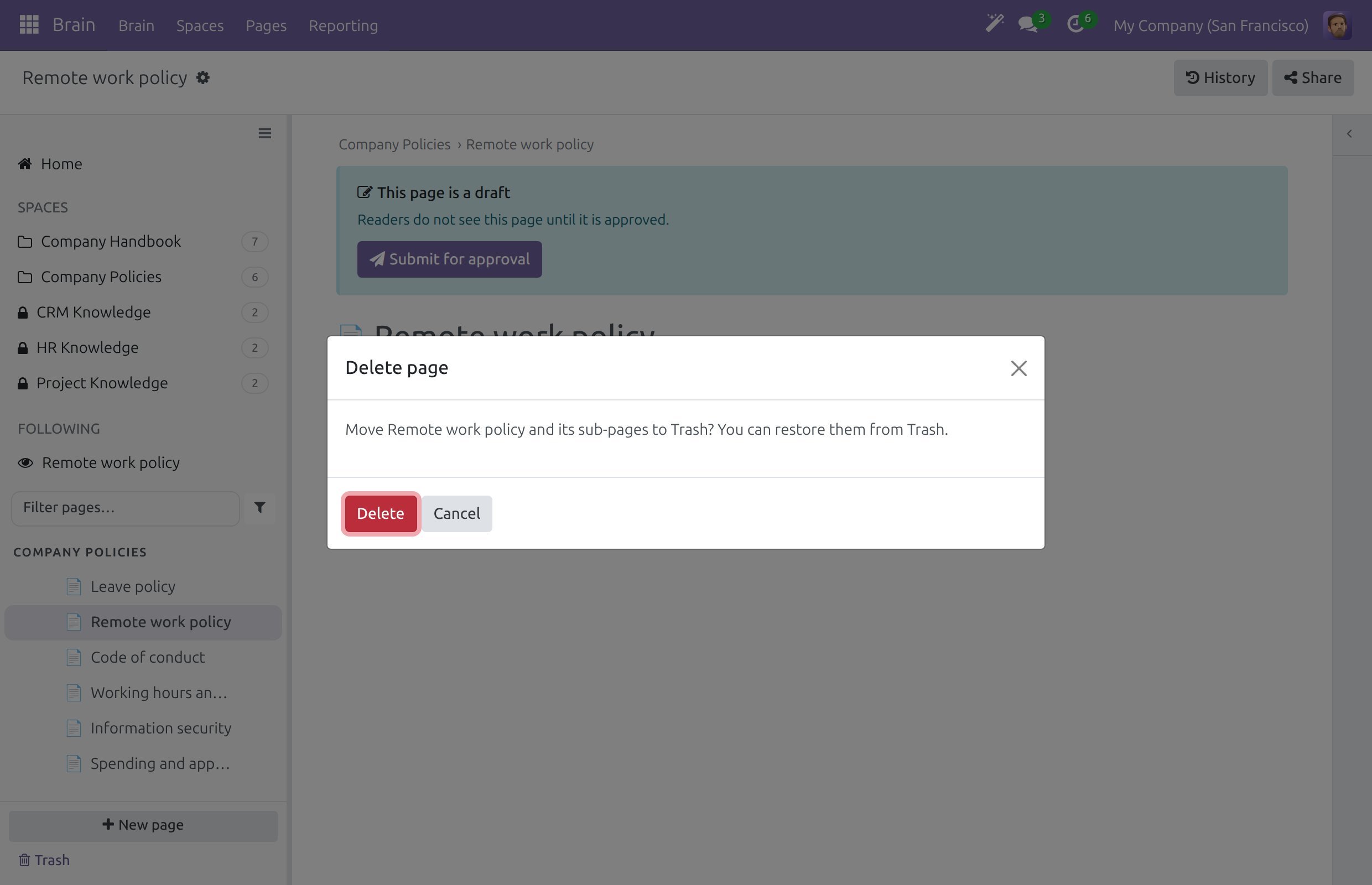
Open the page, click the gear button next to the title and choose Delete.
A dialog asks to move the page and its sub-pages to Trash. You can restore them from Trash. Click Delete.
A message says the page moved to Trash. Click Undo in that message to bring it back at once.
Links to a deleted page stay as they are and work again when the page is restored.
Restore a Page From Trash
Open , or click Trash at the bottom of the sidebar.
The list shows the deleted pages of the Spaces where you are an Editor or Space admin: the page, its number of sub-pages, the Space, who deleted it, when, and how many days are left.
Click Restore on a row. To restore several pages, tick them and click Restore selected.
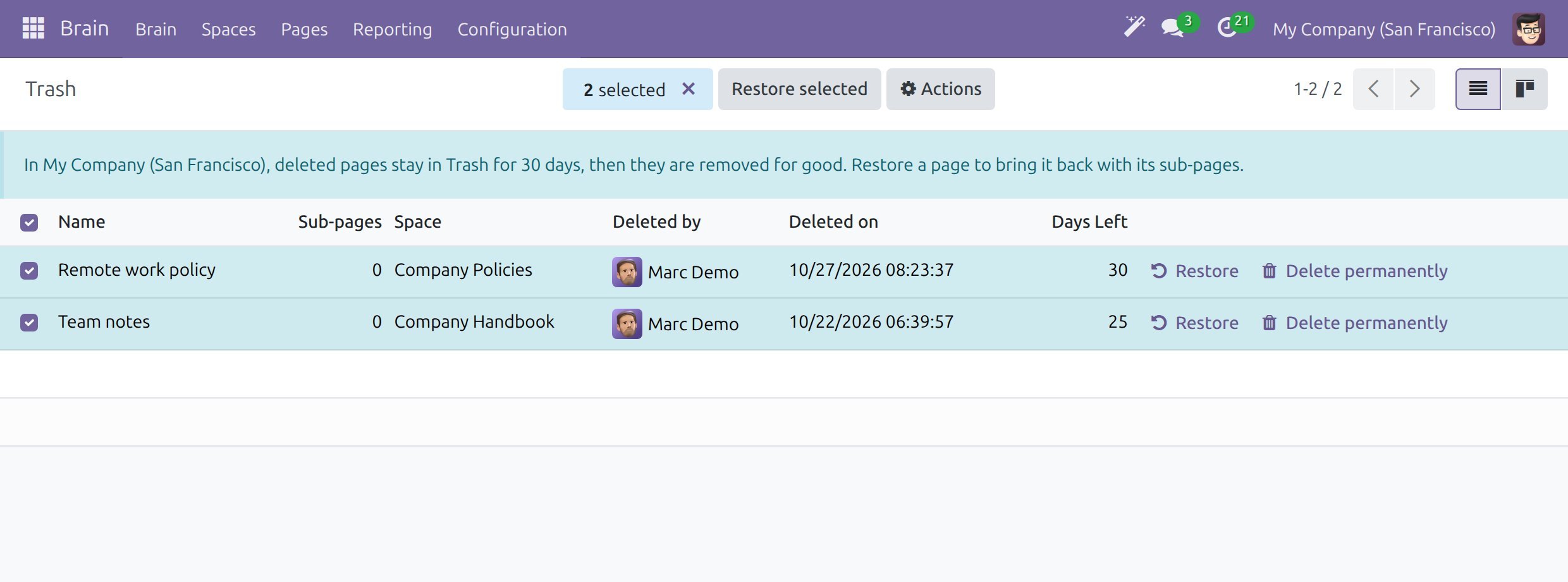
The page comes back with the sub-pages that were deleted with it, under its former parent. When that parent is no longer there, the page comes back at the top level of its Space.
Delete a Page Permanently
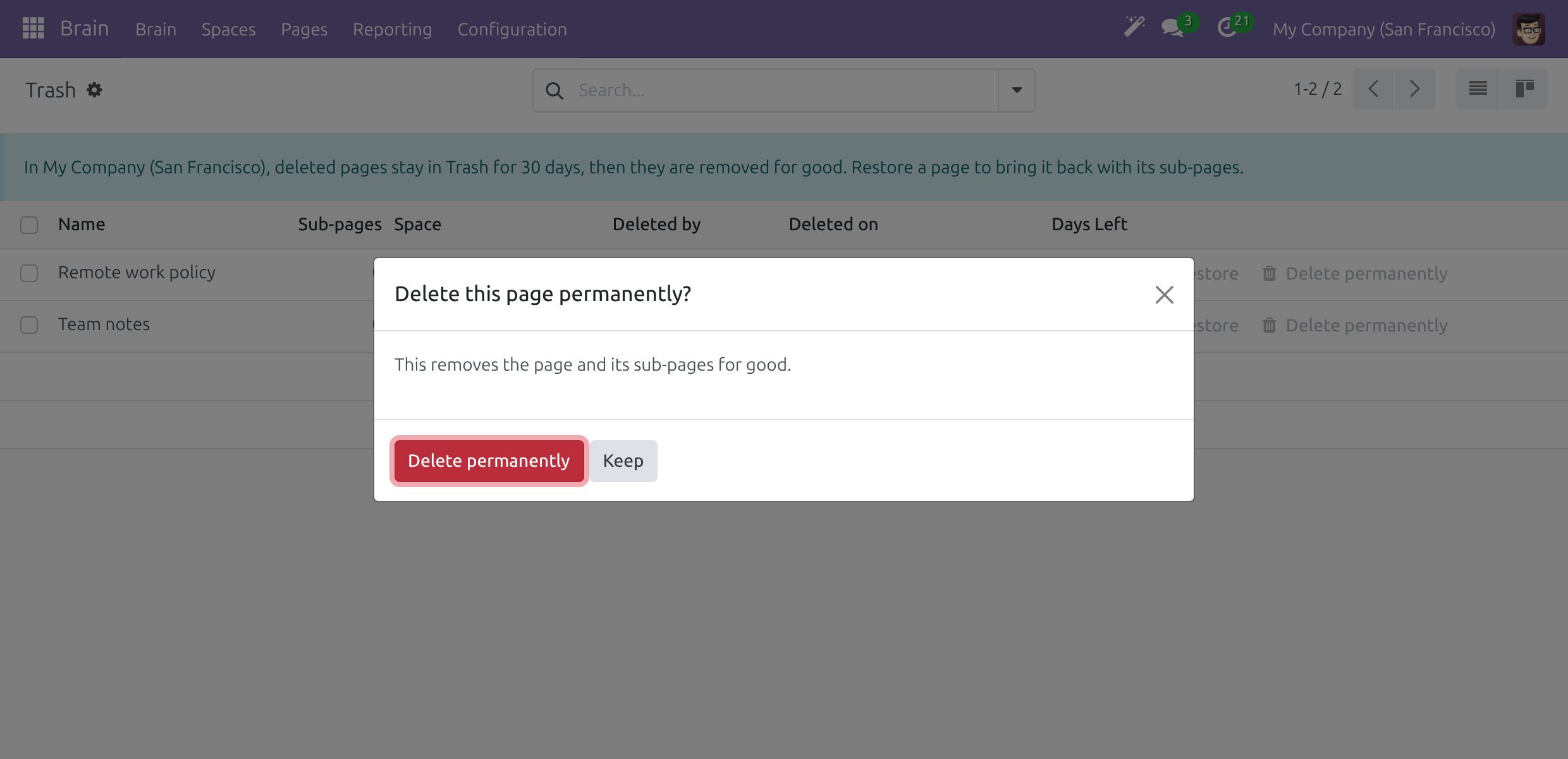
In , click Delete permanently on the row of the page.
Read the confirmation, “This removes the page and its sub-pages for good.”, and click Delete permanently.
Warning
A page deleted permanently cannot be recovered.
Only Space admins of the Space and wiki admins see and can use Delete permanently. Editors can delete and restore, but not remove a page for good.
Set How Long Trash Keeps Pages
Open . The Brain tab opens.
In the Trash section, type the number of days in Keep deleted pages for (days). The default is 30 and the minimum is 1.
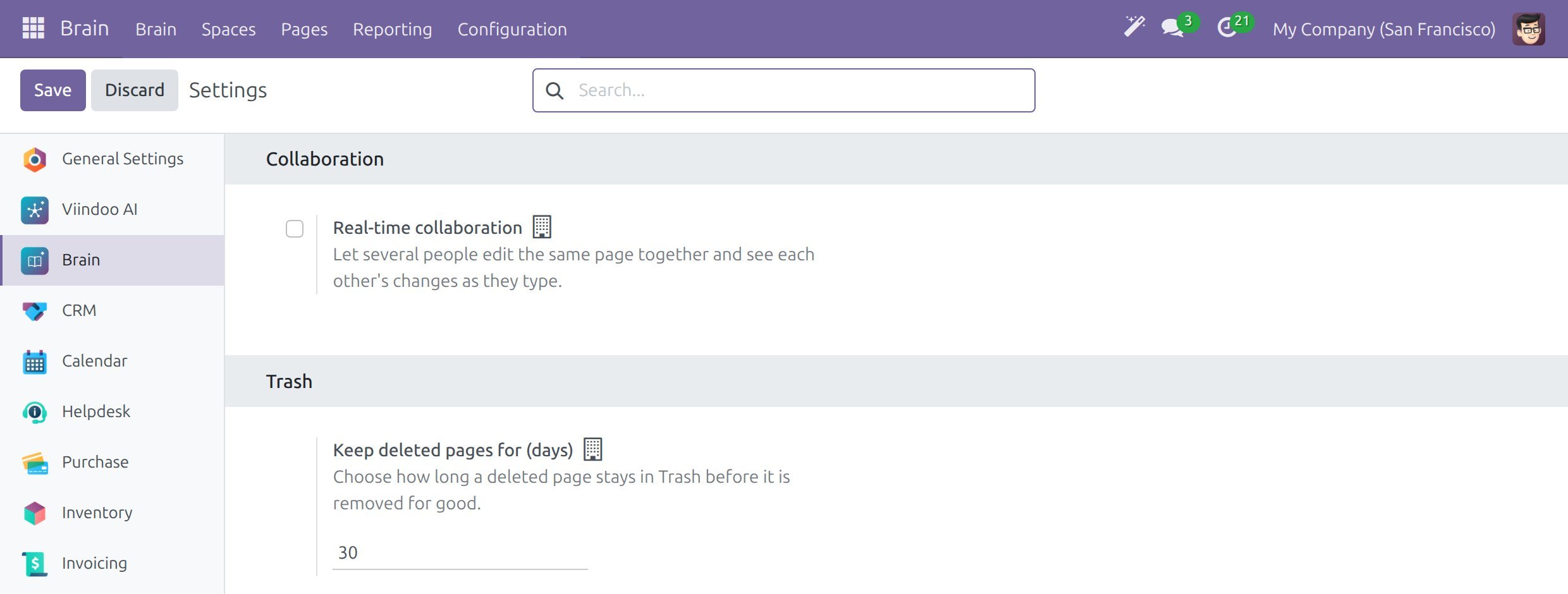
Click Save.
The value is kept per company. The notice at the top of Trash names the company and the number of days, and a page older than that is removed for good.
Archive a Page
Open the page, click the gear button next to the title and choose Archive.
The page keeps its content and stays readable, but it leaves the page tree, the lists and the search. An Archived badge appears next to its title.
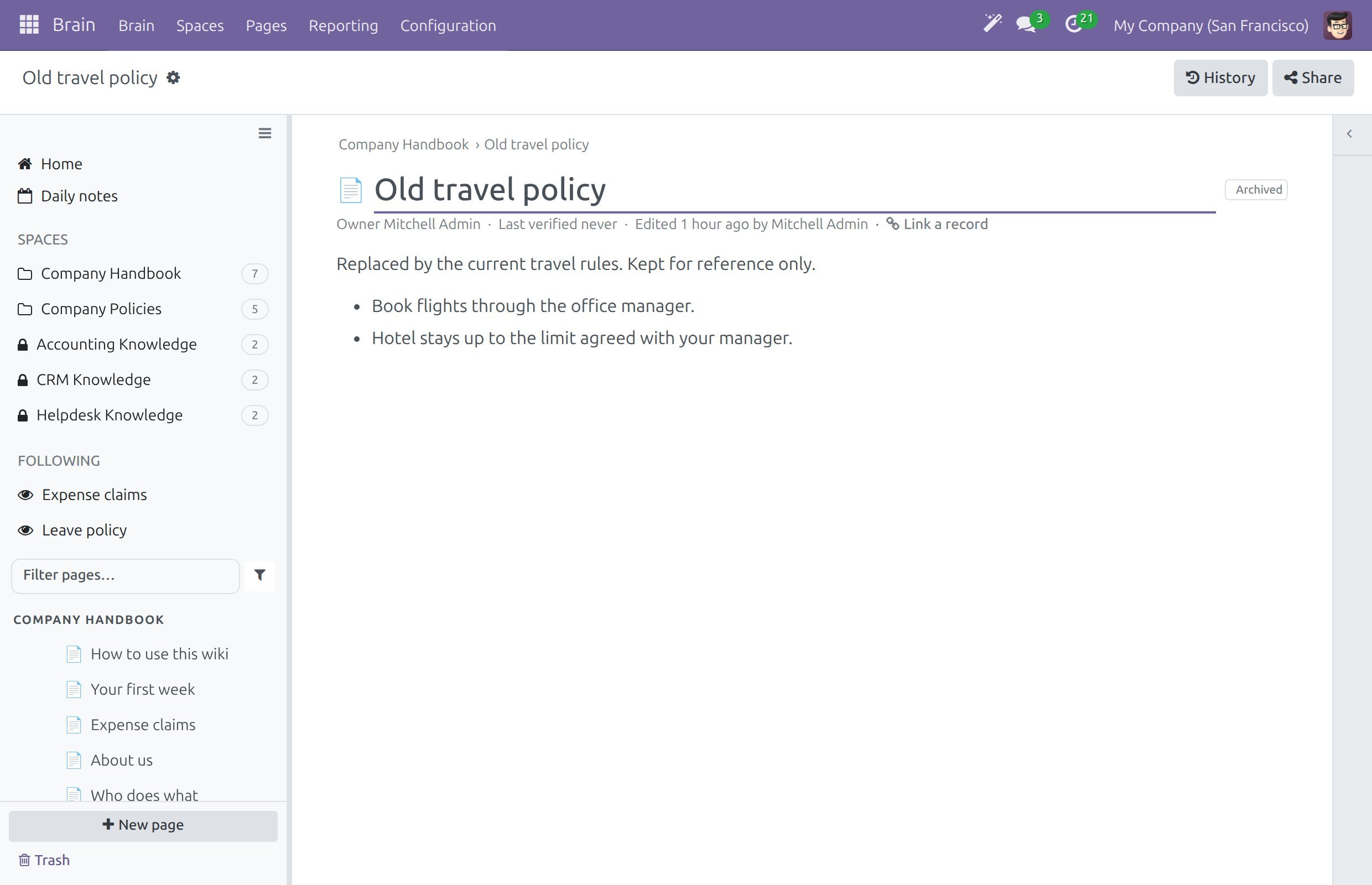
To find an archived page, open the funnel menu next to Filter pages… in the sidebar and choose Archived. In a search, tick Include archived (see Search the wiki).
To bring the page back, open it and choose Unarchive in the gear menu.
The More menu of the Needs review banner also offers Archive for a page that is out of date (see Own and verify a page).
Success Checkpoint
A deleted page leaves the page tree and appears in with its days left.
Restore puts the page and its sub-pages back.
A page deleted permanently is no longer in Trash.
An archived page appears under the sidebar filter Archived and carries the Archived badge.
Common Problems
Problem |
What to do |
|---|---|
Trash is empty, but I deleted a page. |
Trash lists the pages of the Spaces where you are an Editor or Space admin. A page older than the retention period is removed for good. |
I do not see Delete permanently. |
Only Space admins of the Space and wiki admins can delete permanently. |
Archive says the page is a draft. |
A page that waits for approval cannot be archived. Submit it for approval, or delete it (see Submit and approve page changes). |
A search does not find an archived page. |
Tick Include archived in the search filters. |
The page I restored is at the top level. |
Its former parent was deleted or is still in Trash. Move the page under another page with the gear menu. |
Next Steps
Read, create and edit pages - the Page actions menu.
Set up Spaces, templates and access - the settings of a Space and of the company.