
Subcontract Booking
About this guide
Subcontracting describes the situation where the forwarder sells a service to the customer but hires an outside vendor to perform part of that service — for example: trucking, airport handling, warehousing, or local delivery.
Because the forwarder is billing the customer for the full service (including the subcontracted portion), the buy cost from the vendor must reach the shipment’s Charges tab for Gross Profit to be meaningful. A common mistake is confirming the sales order, notifying the vendor by phone, and never creating a purchase order — the service gets delivered, but the cost never enters the system, making the shipment look far more profitable than it actually is.
Scenario thread: Hai Long Logistics sells a sea FCL export to Saigon Tech. Hai Long handles the sea freight itself but subcontracts the container pickup to Phuong Nam Transport — pulling the container from Saigon Tech’s warehouse in District 9 to Cat Lai port.
Prerequisites
Required setup |
Where to check |
Why it matters |
|---|---|---|
Trucking product is marked as a subcontract service |
Product → Purchase tab → Subcontract Service |
So that confirming the SO automatically creates a vendor RFQ/PO |
Vendor has an agreed price on the product |
Product → Purchase tab → Vendors |
So the PO contains the correct vendor and expected buy cost |
The SO line has the vendor assigned |
SO → Order Lines tab |
So the system knows who to purchase from before confirmation |
The shipment has a charge with Cost Price |
Shipment → Charges tab |
So Gross Profit is not artificially high |
Warning
Viindoo does not automatically block a sale that would result in a loss. If the vendor’s buy price exceeds the selling price on the SO line, the system will still create the PO — but Gross Profit on the shipment will be negative. Sales/Ops must check the margin before confirming, or verify it on the shipment after the SO/PO are created.
Quick process reference
Step |
Action |
Expected result |
Typical owner |
|---|---|---|---|
1 |
Configure the Trucking product |
Subcontract Service enabled; Phuong Nam vendor has a buy price |
Admin / Sales Manager |
2 |
Create SO for Saigon Tech |
Trucking line has Vendor = Phuong Nam Transport |
Sales |
3 |
Confirm SO |
SO shows Purchase Orders smart button = 1 |
Sales |
4 |
Verify booking and PO |
Booking shows Purchase Orders smart button pointing to the correct PO |
Operations |
5 |
Confirm PO and notify vendor |
PO status is Purchase Order; vendor receives the order |
Purchasing / Ops |
6 |
Create Vendor Bill from PO |
Vendor Bill matches PO; Gross Profit reflects full cost |
Accounting |
Step 1: Configure the subcontract service product
Go to and open the Trucking Service product.
Check the following:
General Information tab: Product Type = Service.
Purchase tab → Reordering: the Subcontract Service checkbox is ticked.
Purchase tab → Vendors: Phuong Nam Transport is listed with Price = 2,800,000 VND.
Tip
Step 1 is complete when:
Product Type is Service.
Subcontract Service is enabled in the Purchase tab.
The Vendors table shows Phuong Nam Transport with a buy price of 2,800,000 VND.
If the Purchase tab is not visible, or Subcontract Service does not appear, verify that Product Type is set to Service — this option only applies to service products.
Step 2: Create the sales order with a subcontract line
Go to and create a quotation for Saigon Tech.
In the Order Lines tab, add two lines:
Product |
Vendor |
Selling price |
Meaning |
|---|---|---|---|
FCL Sea Freight 20GP |
Blank or COSCO |
USD 850 |
Hai Long handles sea freight directly |
Trucking Service |
Phuong Nam Transport |
VND 3,500,000 |
Subcontracted service — will generate a vendor PO |
Before confirming, verify the Trucking line:
Vendor is not blank.
Selling price 3,500,000 VND is greater than buy price 2,800,000 VND.
The Sea Freight line is not accidentally marked as a subcontract service if Hai Long performs the sea leg itself.
Tip
Step 2 is complete when:
The SO has exactly 2 service lines for this scenario: FCL Sea Freight 20GP and Trucking Service.
The Trucking Service line has Vendor = Phuong Nam Transport.
Trucking selling price = 3,500,000 VND; buy price = 2,800,000 VND; expected margin approximately 700,000 VND before other charges.
The FCL Sea Freight 20GP line will not generate a subcontract PO because Hai Long handles that portion in-house.
Step 3: Confirm the sales order and check the PO
Click Confirm on the SO.
After confirmation:
The SO status becomes Sales Order.
The Purchase Orders smart button appears on the SO.
A PO/RFQ is created for Phuong Nam Transport.
A linked shipment is created if the product is configured with the appropriate logistics settings.
Tip
Step 3 is complete when:
SO status is Sales Order.
The Purchase Orders smart button shows 1.
If logistics is configured, the Shipments smart button also appears.
Opening Purchase Orders from the SO shows a PO with Vendor = Phuong Nam Transport, Origin = SO reference, line item Trucking Service, Unit Price = 2,800,000 VND.
Step 4: Verify the PO on the booking
Operations needs to know which PO is linked to which booking so they can track the vendor.
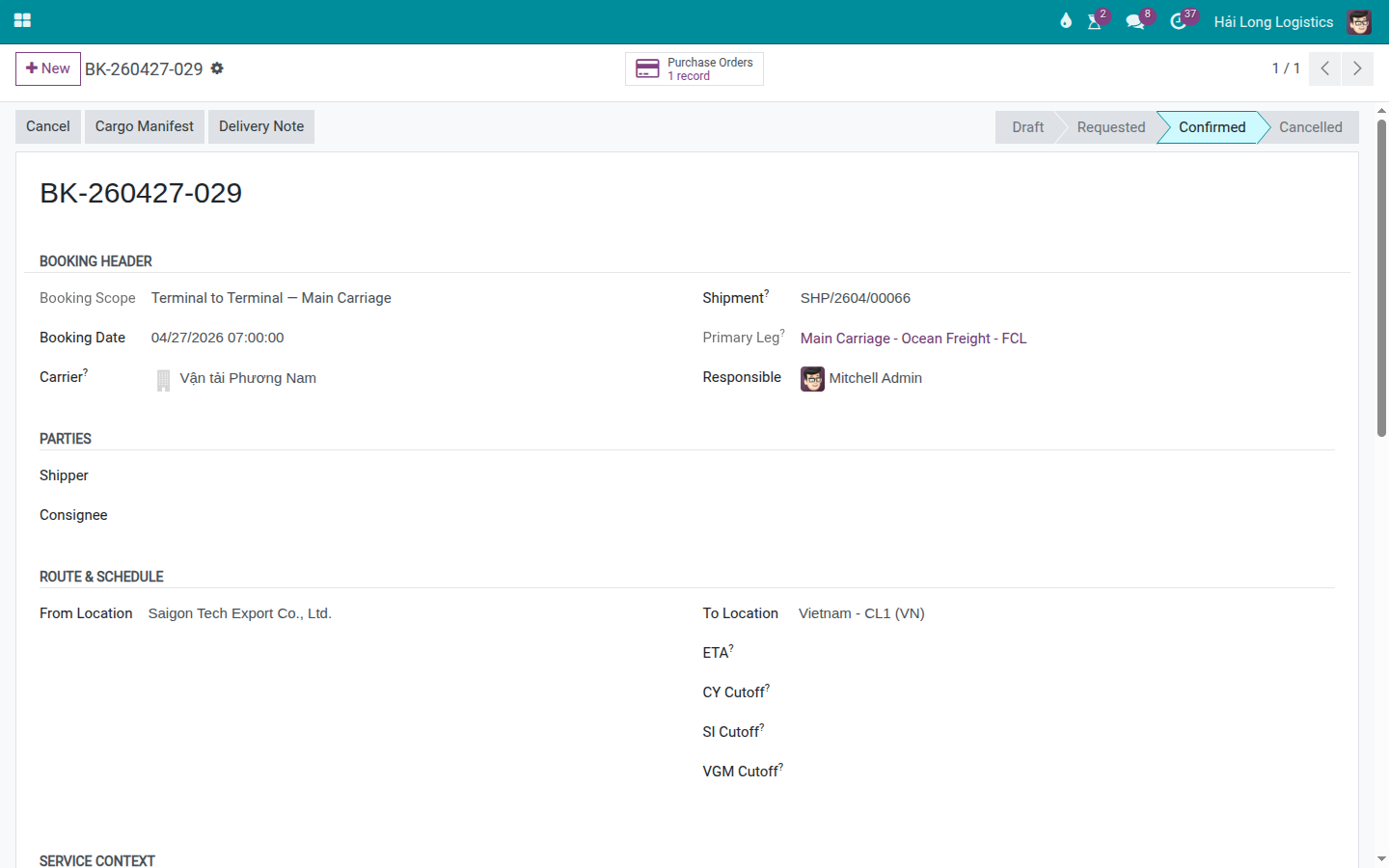
Open the Shipment → Bookings smart button → open the trucking booking.
If the booking already shows a Purchase Orders smart button, open it to confirm the PO links to the correct vendor.
If the booking does not yet have a PO:
Open the Shipment → Charges tab.
Verify the Trucking line has Vendor = Phuong Nam Transport and Cost Price = 2,800,000 VND.
Return to the trucking booking and click Generate PO.
Tip
Step 4 is complete when: the booking shows Purchase Orders = 1; opening the PO from the booking shows Phuong Nam Transport as the vendor; the Charges tab on the Shipment still shows the correct Cost Price.
Step 5: Confirm PO and send to vendor
Open the PO from the Purchase Orders smart button.
Verify before confirming:
Vendor = Phuong Nam Transport.
Expected Arrival is the date the truck is needed at the warehouse.
Unit Price matches the agreed buy price.
Click Confirm Order.
Once the PO is in Purchase Order status, use Send PO by Email if you need to formally notify the vendor.
Confirming the PO is a binding purchase commitment. If the customer cancels after the vendor has already dispatched the truck, a cancellation fee of 20–50% of the trucking price typically applies, depending on the vendor agreement.
Warning
Confirm the PO only when you are certain the vendor will be engaged. Do not confirm as a preliminary step and cancel later — the vendor has already planned their resources.
Tip
Step 5 is complete when:
PO status is Purchase Order.
Vendor is Phuong Nam Transport.
The PO line is Trucking Service, Unit Price = 2,800,000 VND.
Send PO by Email is available if formal notification is required.
If the PO was created from the booking, the Bookings smart button on the PO traces back to the originating booking.
Step 6: Create the vendor bill from the PO
When Phuong Nam Transport submits their invoice, Accounting processes it from the PO.
Open the PO.
Click Create Bill.
Verify the draft Vendor Bill shows the correct vendor, service line, and price.
Post the bill per your accounting process.
Tip
Step 6 is complete when:
Vendor Bill has Vendor = Phuong Nam Transport.
The bill line is Trucking Service and the price matches the PO, unless Accounting has a documented reason for an adjustment.
The PO shows a Vendor Bills smart button after the bill is created.
No duplicate vendor bill for the same trucking line exists on the shipment.
Do not create a manual vendor bill from the Shipment for a charge that already has a PO-based bill. If a bill was created from the PO, the Create Vendor Bill button on the Shipment should only be used for charge lines that do not yet have a bill.
Audit trail
Checkpoint |
What the user should see |
|---|---|
SO → PO |
SO has a Purchase Orders smart button; PO has Origin = SO reference. |
Booking → PO |
Booking has a Purchase Orders smart button; PO has a Bookings smart button back to the booking. |
Shipment → Cost |
Charges tab has correct Vendor, Cost Price, and Cost Amount. |
PO → Vendor Bill |
PO has a Vendor Bills smart button after the bill is created. |
Profit |
Gross Profit on the Shipment matches expected margin — trucking profit approximately 700,000 VND. |
When to use Generate PO manually
Not every subcontracted service should have Subcontract Service enabled on the product. Choose the right approach for each situation:
Situation |
Recommended approach |
Reason |
|---|---|---|
Recurring trucking with one fixed vendor |
SO auto-creates PO |
Fast, minimal clicks, appropriate for repeating services |
Airport handling where vendor changes per shipment |
Generate PO from the booking |
Ops selects the vendor per shipment — more flexible |
Charge arises after the SO is already confirmed |
Generate PO from the booking |
PO is created after the fact, based on the actual charge |
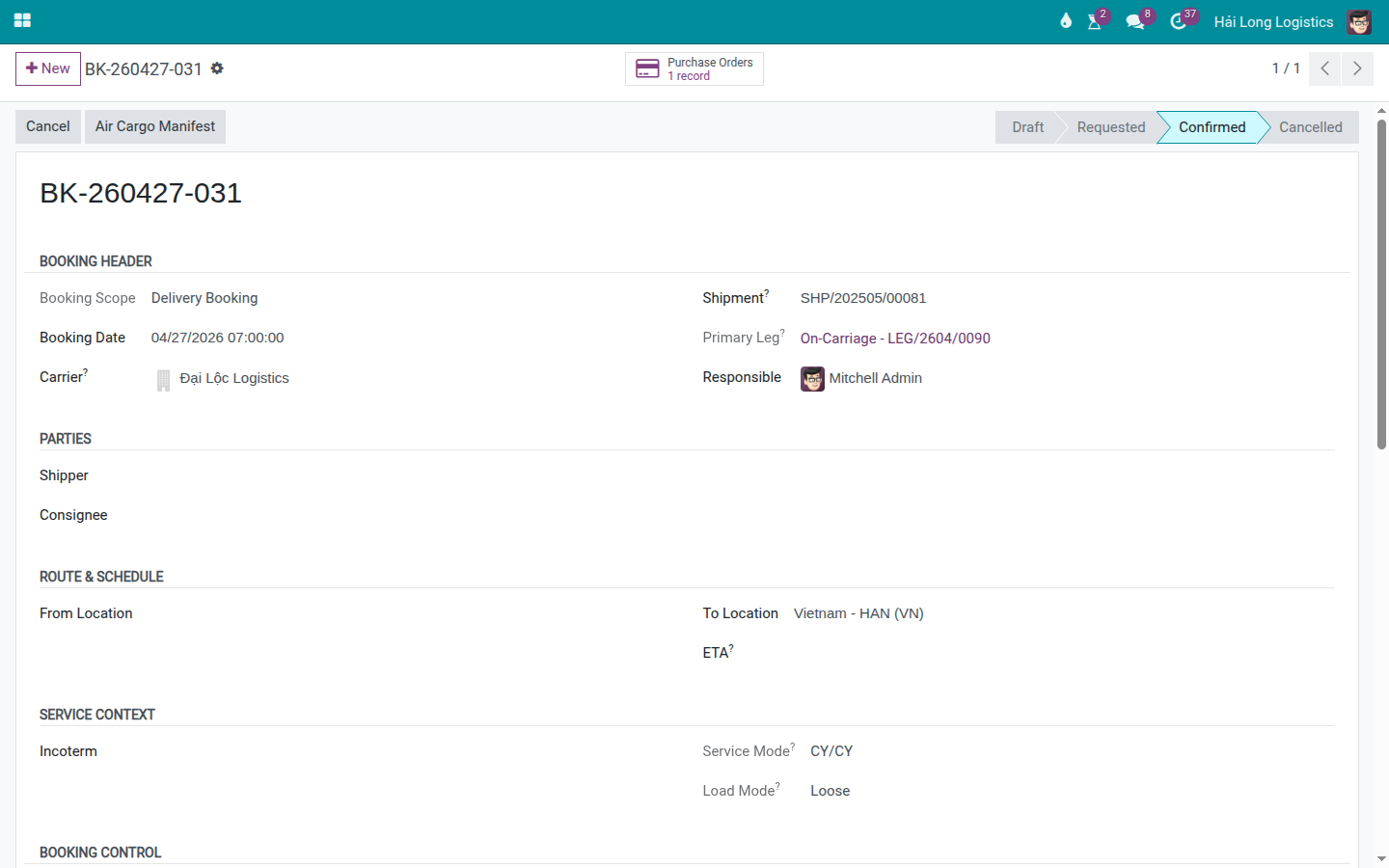
Example — air handling: Ops creates a handling booking for Dai Loc Logistics, adds an Air Handling Fee charge with Vendor and Cost Price on the Charges tab, and then clicks Generate PO on the booking.
Troubleshooting common situations
Vendor Bill price differs from PO
Symptom: Phuong Nam Transport submits an invoice for VND 3,200,000 but the PO is VND 2,800,000.
Resolution: Do not confirm the bill without understanding the discrepancy. Investigate the reason with the vendor. If the difference is justified, update the PO/charge per your internal process and document the reason. If it is an error on the vendor’s side, note it in the PO Chatter and request a corrected bill.
Gross Profit is lower than expected
Common cause: Cost Price entered incorrectly, surcharges missing from the SO, or vendor increased price after the quotation was issued.
Resolution: Review the Charges tab line by line. Any line with a blank or unexpectedly high Cost Price should be updated, and Sales should be notified if the shipment is at risk of negative margin.
See also