
Consolidate LCL export shipments under a master
Guide information
Requirements
This tutorial requires the installation of the following applications/modules:
Freight Consolidation (required for LCL consolidation - depends on Freight Forwarder Management)
A Less than Container Load (LCL) shipper rarely has enough cargo to fill a whole container alone. Viindoo lets the forwarder collect several shippers’ house shipments and group them under one Master (Consol) shipment, so only one container is booked, stuffed and shipped instead of several partial ones. Each house keeps its own shipper, consignee and House Bill of Lading (HBL); only the container, the carrier booking and the Verified Gross Mass (VGM) live on the master - mixing up the two levels is the single most common source of a wrong HBL later. If a term below is new to you, see the Freight forwarding glossary.
Running scenario: Hai Long Logistics consolidates three LCL export house shipments that all deliver to the same Dinh Vu CFS - Hai Phong, into one Container 20FT for carrier Wan Hai Lines: Song Hong Handicraft Co., Ltd. (5 CBM / 850 kg), Long Bien Ceramics Export Co., Ltd. (8 CBM / 3,600 kg) and Tay Nguyen Coffee Export Co., Ltd. (12 CBM / 7,200 kg) - 25 CBM in total, all routing Hai Phong Port to Port of Singapore (PSA), consigned through the Singapore agent Marina Bay Consol Agency Pte. Ltd.
Before you start
The three house shipments already exist (created from a quotation or by hand), each with Shipment Role: House LCL, Shipment Type: LCL, sharing the same Origin CFS (Dinh Vu CFS - Hai Phong) and Destination CFS (Marina Bay Consol Agency Pte. Ltd.): see LCL quotation wizard and ask your freight Administrator to create the required carrier, agent and port or CFS records before starting.
The carrier Wan Hai Lines and both CFS partners already exist: ask your freight Administrator to create the required carrier, agent and port or CFS records before starting.
You are in the User: All Shipments group (ask your freight Administrator to grant this access before starting). User: Own Shipments can only view a shipment - it cannot click Create Master Shipment, Confirm, Booking or any milestone button used in this guide.
opens in Kanban by default - switch to the list view first, since only the list view lets you select several houses at once.
Decide when to consolidate
Option |
Use when |
What changes |
|---|---|---|
Consolidate all houses at once |
Every house has already delivered, or is confirmed to deliver, before the CFS Cutoff |
One master, one carrier booking, done in this guide |
Consolidate in batches |
A shipper is likely to run late and you do not want to hold up the houses that are ready |
Create the master with the houses that are ready; add the late house afterwards by setting Master Shipment (Consol) on that house - running the wizard again would create a second master, not extend this one |
Include only the houses confirmed for this sailing and ready before the carrier/CFS cutoff. Use a later batch for a house that will miss the cutoff only after Operations confirms the carrier can accept it and the customer accepts the revised plan; otherwise hold the consolidation and confirm the next step with the booking lead.
Step 1: Consolidate the three houses into a master
Booking each house separately would mean three separate negotiations with Wan Hai Lines for space that ends up in the very same container - consolidating first lets Operations see the total CBM before anyone talks to the carrier.
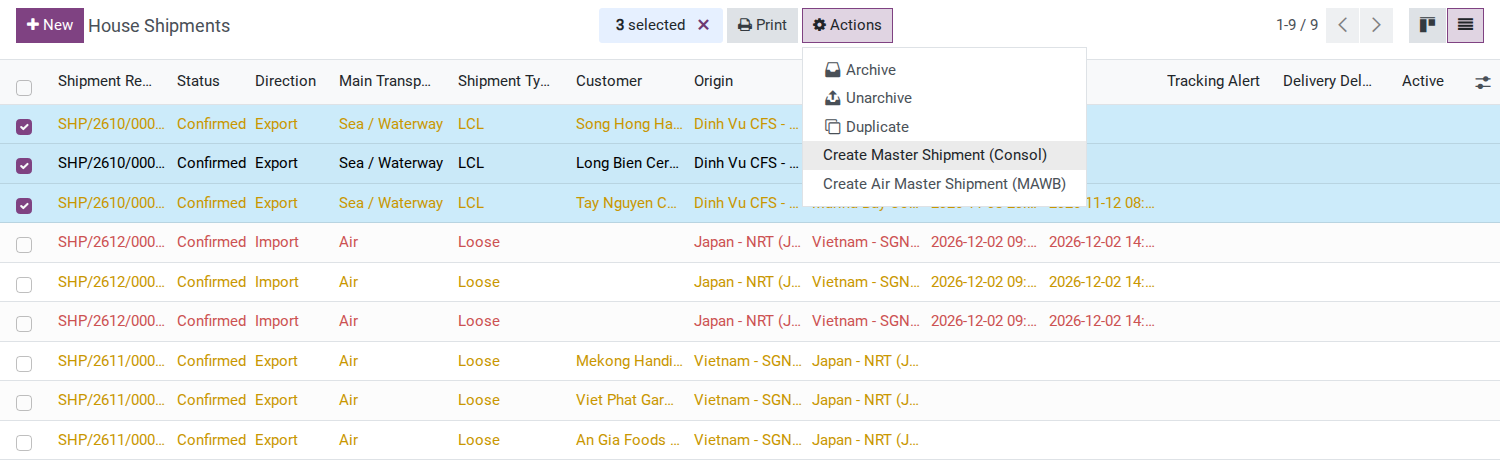
On the House Shipments list, select Song Hong Handicraft Co., Ltd., Long Bien Ceramics Export Co., Ltd. and Tay Nguyen Coffee Export Co., Ltd., then open the Action (gear icon) menu above the list and click Create Master Shipment (Consol).
The Create Master Shipment (Consol) window opens with Origin CFS and Destination CFS already filled from the three houses (read-only). Enter:
Carrier: Wan Hai Lines.
CFS Cutoff: 2026-11-06 17:00.
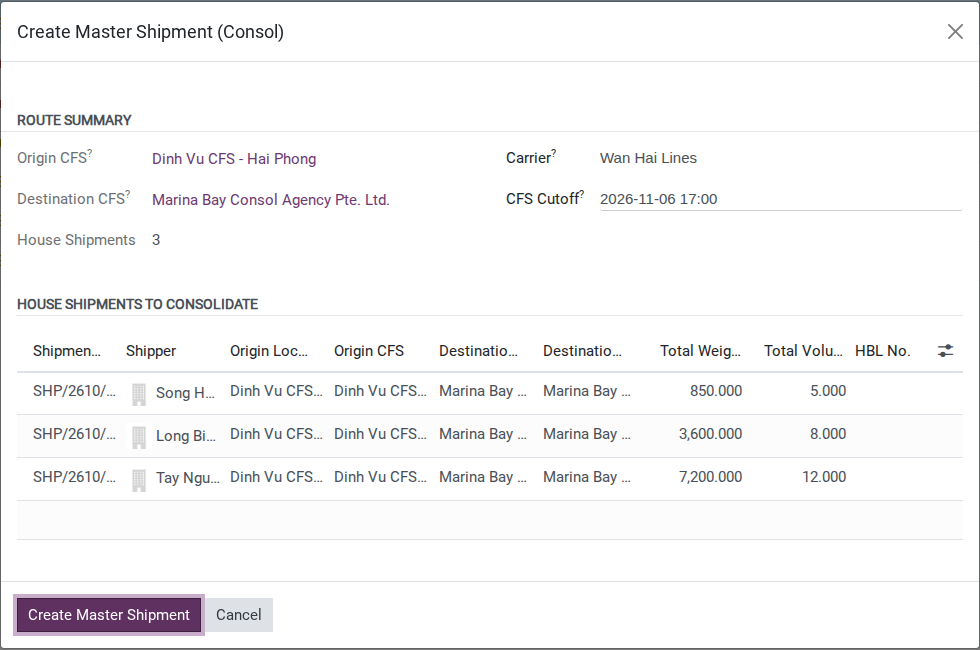
Click Create Master Shipment. After you click it: a new master shipment opens in Draft, Shipment Role reads Master (Consol), and all three houses now show this master under Master Shipment (Consol).
Note
The new master’s Shipment Type reads FCL, not LCL - Viindoo books the whole container with the carrier the same way it books a full container load; only the three houses inside it keep Shipment Type: LCL.
Warning
If the selected houses do not share both Origin CFS and Destination CFS, the window shows a red “Multiple Origin CFS values are selected.” (or Destination CFS) message and the footer button changes to Create Anyway - but clicking it runs the exact same check and raises the same error again, it does not force the merge. Deselect the house on the wrong CFS and rerun the wizard for each CFS group instead (see Troubleshooting).
Tip
Step 1 is done when: the master’s Houses smart button shows 3, Origin CFS reads Dinh Vu CFS - Hai Phong and Destination CFS reads Marina Bay Consol Agency Pte. Ltd. for all three houses, and their weight and volume still add up to 25 CBM (5 + 8 + 12) - no house was dropped in the process.
Step 2: Confirm the master and book Wan Hai Lines
The booking is what actually turns the Ocean Freight cost and revenue into charge lines on each house - a master left unconfirmed and unbooked has no cost recorded anywhere yet.
On the master, set POL to Hai Phong Port, POD to Port of Singapore (PSA) and Consignee to Marina Bay Consol Agency Pte. Ltd., the destination consolidation agent. Check ETD/ETA against the agreed sailing: 2026-11-08 20:00 / 2026-11-12 08:00 (ICT). Click Confirm, then Booking in the header. In Create Booking, check the carrier is Wan Hai Lines, the shipper is Hai Long Logistics and the consignee is the destination agent. Set Coverage to Main Only and Incoterm to FCA for this illustrative CFS handover scenario, then click Create. Use the agreed Incoterm for an actual booking; see Book carrier space for a shipment leg.
On the booking form that opens, enter Booking Reference: WHLCBK224567, Main Vessel: WAN HAI 611 and Main Voyage: S123, then click Mark as Requested and Mark as Confirmed. Back on the master shipment, enter MBL No.: WHLC330456712 in the Bill of Lading group, now visible since the master is out of Draft.
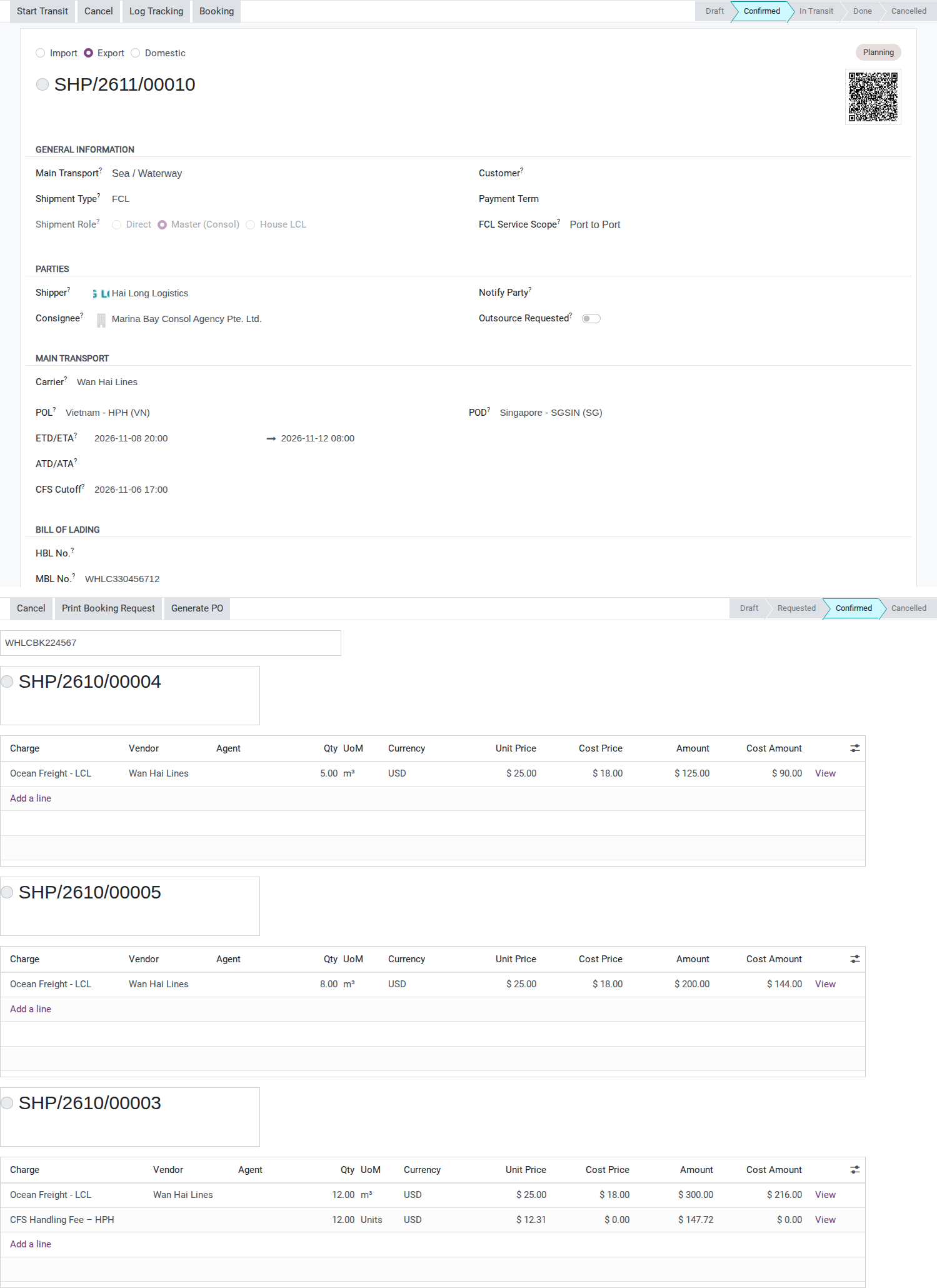
After you click Mark as Confirmed, Viindoo creates one Ocean Freight - LCL sell charge on each house automatically: Quantity equals that house’s own Revenue Ton - the greater of its weight in tons or its CBM (see Freight forwarding glossary) - so 5, 8 and 12 for Song Hong, Long Bien and Tay Nguyen. Cost Price is looked up from Wan Hai Lines’s LCL rate card for Hai Phong Port -> Port of Singapore (PSA): USD 18 per CBM. Unit Price depends on where the house came from: a house created from the LCL quotation wizard keeps the USD 25 per CBM it already quoted; a house created by hand instead gets the Ocean Freight - LCL product’s own list price, which is seeded at USD 0.00 - enter USD 25 on that house’s charge line yourself right after Mark as Confirmed.
Warning
If no LCL rate card exists for Wan Hai Lines on this route - or POL/POD were left empty on the master, which makes the lookup miss a port-specific rate card - Viindoo still creates the three sell charges, but with Cost Price = 0 and a Chatter note on the booking. Confirming is never blocked by a missing rate - add the rate card or fix the Cost Price by hand before invoicing (see Troubleshooting).
Tip
Step 2 is done when: all three houses show exactly one Ocean Freight - LCL line each - Quantity 5 / 8 / 12, Unit Price USD 25, Cost Price USD 18 - with no line left at Unit Price 0.00 or Cost Price 0.00.
See also
Book carrier space for a shipment leg for the full booking mechanics and coverage options, and Maintain carrier rates and vessel schedules for maintaining the LCL rate card.
Step 3: Receive cargo at the CFS
Marking cargo received is what tells everyone downstream - the stuffing plan, Accounting, the shipper - that the CFS physically has the load, ahead of loading it into the shared container.
On each house, click Cargo Received at CFS once the shipper’s truck has delivered the cargo. After you click it: the timestamp is recorded on the house and cannot be changed by clicking the button again - it disappears once set.
Tip
Step 3 is done when: all three houses - Song Hong, Long Bien and Tay Nguyen - show a Cargo Received at CFS timestamp before the CFS Cutoff, 2026-11-06 17:00.
Note
Viindoo does not compare this timestamp to the CFS Cutoff and does not warn if a house is received late - the CFS Cutoff on the master is informational only. Operations has to check the date itself; see Known limitations.
Step 4: Add the container and load the three houses’ packages
The HBL later prints the exact package count and weight loaded into the container, so a package Viindoo does not know is in the container is a package missing from that shipper’s HBL.
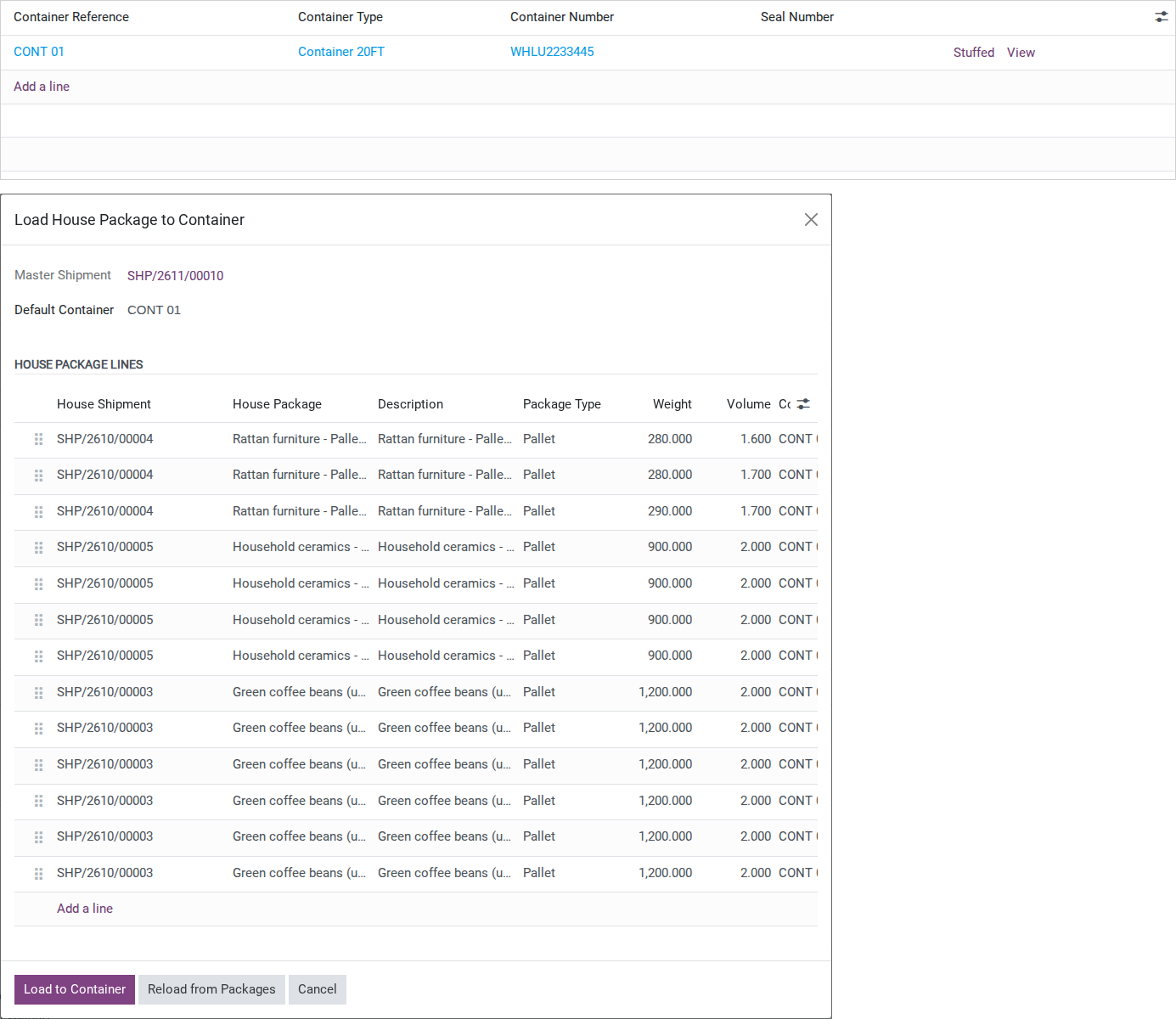
On the master’s Cargo & Packages tab, the Containers group appears now that the master is Confirmed. Add a line: Container Type: Container 20FT, Container Number: WHLU2233445, then click its inline Empty Picked button once the empty container has been picked up and is on its way to Dinh Vu CFS.
Click Load House Package in the header. In the wizard, Default Container shows the internal container reference, such as CONT 01. First match that reference to physical Container Number WHLU2233445 in the master’s Containers table. Every unloaded package from all three houses is listed, each assigned to that same reference. Click Load to Container.
Note
Each package is loaded whole into one container - Viindoo blocks the same house package from being split across two containers. If a package will not fit, split it into smaller packages on the house shipment first, before running this wizard.
Tip
Step 4 is done when: the House Packages tab of container WHLU2233445 lists every package of the three houses - 25 CBM and 11,650 kg in total - and none is left in the wizard’s unloaded list.
Step 5: Submit VGM and move the container to the vessel
A container without a submitted VGM is refused by the carrier under the SOLAS convention - it never boards the vessel, no matter how well it was stuffed.
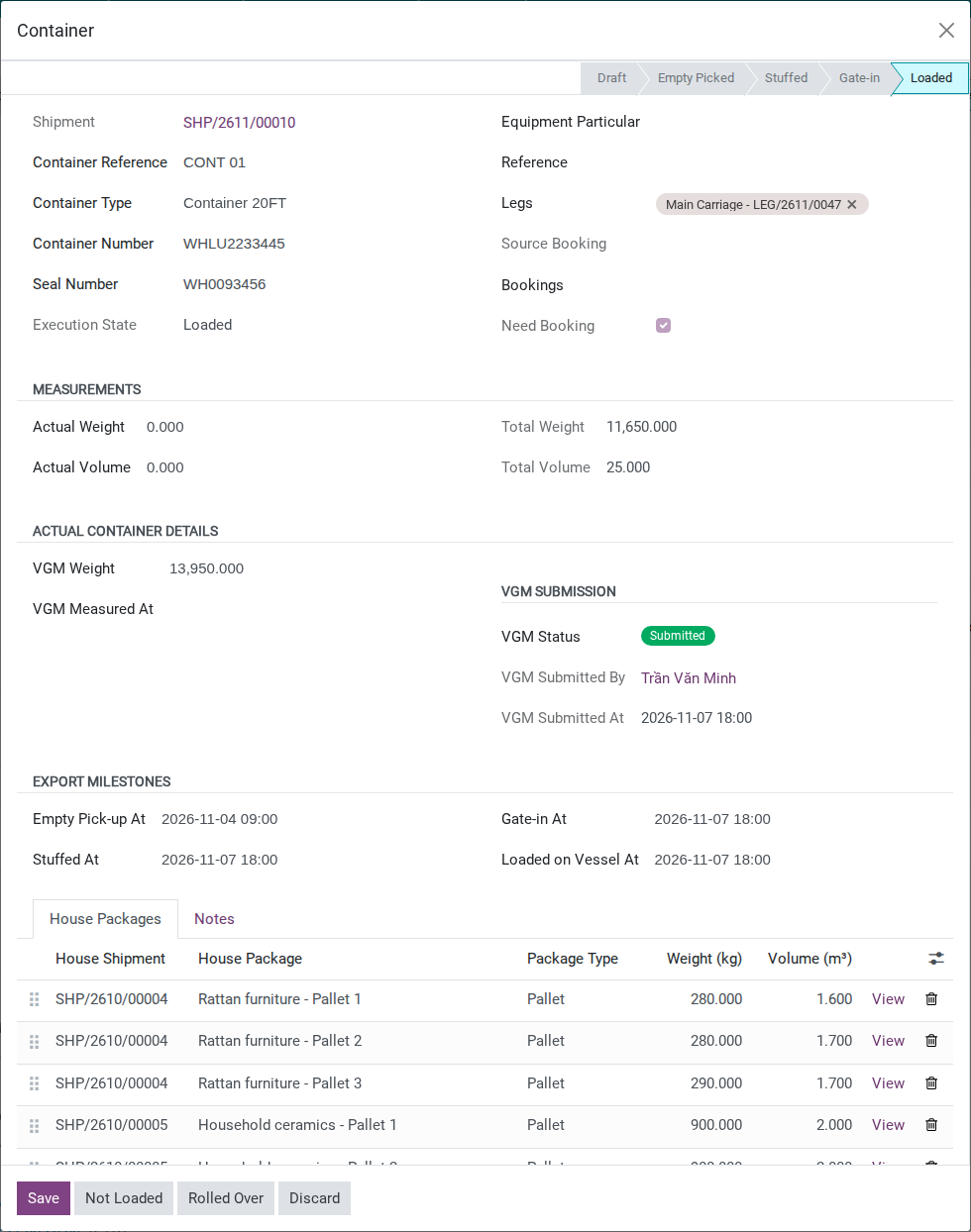
Once stuffing at the CFS is finished, open container WHLU2233445 (its View link on the Containers list), enter Seal Number: WH0093456, then click Mark Stuffed. Enter VGM Weight: 13,950 kg - calculated by Method 2 (SM2): the sum of the three houses’ cargo weight (850 + 3,600 + 7,200 = 11,650 kg) plus the Container 20FT’s own tare weight (2,200 kg) and 100 kg of dunnage (full method comparison in Submit the container’s Verified Gross Mass (VGM)). Click Submit VGM, then Mark Gate-in once the container reaches the port CY, and Mark Loaded once Wan Hai Lines confirms it is on board.
Warning
Clicking Submit VGM before VGM Weight is filled in, or before the container is Stuffed, is blocked with an error - see Troubleshooting.
Tip
Step 5 is done when: container WHLU2233445 shows VGM Status Submitted with VGM Weight 13,950 kg, and execution state Loaded before Wan Hai Lines’s stated ETD.
See also
Submit the container’s Verified Gross Mass (VGM) for the two VGM methods and what to do if the carrier rejects a figure, and Track container milestones from empty pickup to return for the full container milestone reference.
Step 6: Issue each house’s HBL
Each shipper needs its own HBL naming its own consignee - printing one shared document for all three would leave two shippers holding a bill of lading for cargo and a consignee that are not theirs.
Before printing, open each house’s Cargo & Packages tab and click Load Cargo to Packages to assign its cargo to the existing pallets. Review Distribute Evenly before Apply Loading Plan: use the packing list’s measurements for each pallet and check that their totals match the house. For Song Hong, the three pallets are 280 / 280 / 290 kg and 1.6 / 1.7 / 1.7 CBM, totaling 850 kg / 5 CBM. Equal thirds can round to a different total, which also affects cost allocation.
On each house, confirm its HBL No. (Song Hong: HLLHPHSIN2611-101, Long Bien: HLLHPHSIN2611-102, Tay Nguyen: HLLHPHSIN2611-103), then open the header’s gear (Action) menu and click Print HBL. Fill in Ex. Rate, Prepaid at, Payable at and confirm No. of Original B(s)/L (defaults to 3), then click Print.
Warning
Check the downloaded HBL before sending it to a customer. In this LCL scenario, the current report shows the house’s CFS names as Port of Loading/Port of Discharge, leaves Ocean Vessel/Voy.No. blank and omits the master container number. Place and date of issue uses the shipment creation date. The carrier booking and container data entered on the master do not fill these fields in the house’s PDF. Keep this output for review and use your approved document process to obtain a correct HBL; printing the PDF alone does not make it ready for issue or release.
Tip
Step 6 is done when: all three HBLs have been checked against the shipping instructions and carrier confirmation: shipper/consignee, HBL number, packages, weight, CBM and HS code are correct, and the ports, vessel/voyage and issue details are suitable for the agreed document process. Resolve any missing or incorrect fields before sending the documents.
Known limitations
Step |
What Viindoo does today |
What you do instead |
|---|---|---|
Selling price of the auto-created Ocean Freight - LCL line (Step 2) |
A house created by hand gets Unit Price = the product’s list price, seeded at USD 0.00; only a house created from the LCL quotation wizard keeps its already-quoted price |
Enter the sell price (USD 25/CBM in this scenario) on the charge line right after Mark as Confirmed |
Master created by the wizard (Step 2) |
The master carries the two CFS but no POL/POD, so the carrier rate lookup at booking misses a rate card set for specific ports |
Fill POL and POD on the master before Confirm and Booking |
Late CFS receipt (Step 3) |
Marking Cargo Received at CFS does not compare the timestamp to the CFS Cutoff and never warns if it is late |
Check the CFS Cutoff yourself before or right after recording the receipt |
Actual weight and volume measured at the CFS (Step 3) |
There is no CFS measurement record for an LCL export, and the Quantity of the Ocean Freight - LCL line is not recalculated when the measured figures change |
Correct Weight/Volume on the house’s cargo, then correct the Quantity of its Ocean Freight - LCL line by hand before invoicing |
B/L release method |
No field records whether the HBL was released as Telex Release, an original set or a Seaway Bill |
Log the release method in the house’s Chatter |
Container Rolled Over |
Marking the master’s container Rolled Over does not notify or flag any of the three houses |
Notify all three shippers yourself; see Handle rolled-over and not-loaded containers |
VGM rejected by the carrier |
VGM Status only has Not Submitted and Submitted - there is no Rejected state |
Record the rejection reason in the Chatter, correct VGM Weight, then submit again |
Troubleshooting
Houses on different CFS cannot be consolidated
Symptom: running Create Master Shipment (Consol) on houses with different Origin or Destination CFS shows a red “Multiple Origin CFS values are selected.” message and the button changes to Create Anyway; clicking it stops with “All selected house shipments must share the same Origin CFS.” (or Destination CFS). Cause: every selected house must share the same Origin CFS and the same Destination CFS - Create Anyway does not skip this check. Fix:
Deselect the house on the wrong CFS and run the wizard again for each CFS group separately.
Load House Package is blocked because there is no container yet
Symptom: clicking Load House Package on a master with no container shows “Add at least one container to the master shipment before loading house packages.” Cause: the wizard requires at least one container on the master. Fix:
Add container WHLU2233445 to the master’s Containers group first, then click Load House Package again.
VGM cannot be submitted
Symptom: “Cannot submit VGM for container “WHLU2233445”. Container must be Stuffed, Gate-in, or Loaded first.” or “Cannot submit VGM for container “WHLU2233445”. Please enter VGM Weight first.” Cause: the container has not been marked Stuffed yet, or VGM Weight is still empty. Fix:
Click Mark Stuffed first (with Container Number and Seal Number filled in), then enter VGM Weight before clicking Submit VGM.
The booking confirmed but Cost Price shows 0
Symptom: after Mark as Confirmed, Song Hong’s Ocean Freight - LCL line shows Cost Price 0.00 and the booking’s Chatter reads “No LCL rate card found for carrier Wan Hai Lines on route Hai Phong Port -> Port of Singapore (PSA). 3 house sell charge(s) were created with cost = 0. Add a rate card for this lane or set the cost manually on the affected charges.” - or the route reads N/A -> N/A. Cause: no LCL rate card exists for Wan Hai Lines on this route, or POL/POD were empty on the master (N/A). Fix:
Fill POL/POD on the master if they read N/A, add a rate card for the lane in Maintain carrier rates and vessel schedules if needed, then correct Cost Price by hand on each affected charge.
See also
Related articles
Deconsolidate an LCL import master into house shipments - the reverse operation, breaking an LCL master into house shipments at destination
LCL quotation wizard - quoting an LCL shipment by volume and weight before it becomes a house
check each house’s allocated share against the supplier bill before invoicing - dividing the master’s shared costs (for example the CFS terminal handling charge) across the three houses by CBM
Export a full container load by sea - the FCL equivalent, one customer per whole container instead of three per shared one