
Read, create and edit pages
Guide Overview
Before You Start
You need |
Why |
|---|---|
Role Viewer or Commenter in the Space |
To read a page. A Commenter can also talk about it in Activity. |
Role Editor or Space admin in the Space |
To create a page, edit it and use most of the Page actions menu. |
Note
In a Space where the Space admin set Changes Needing Review to All changes, your edits and your new pages are held as drafts until the page owner or a Space admin approves them (see Submit and approve page changes).
Read a Page
Click a page in the sidebar, in Recently updated on Home, or in a search result.
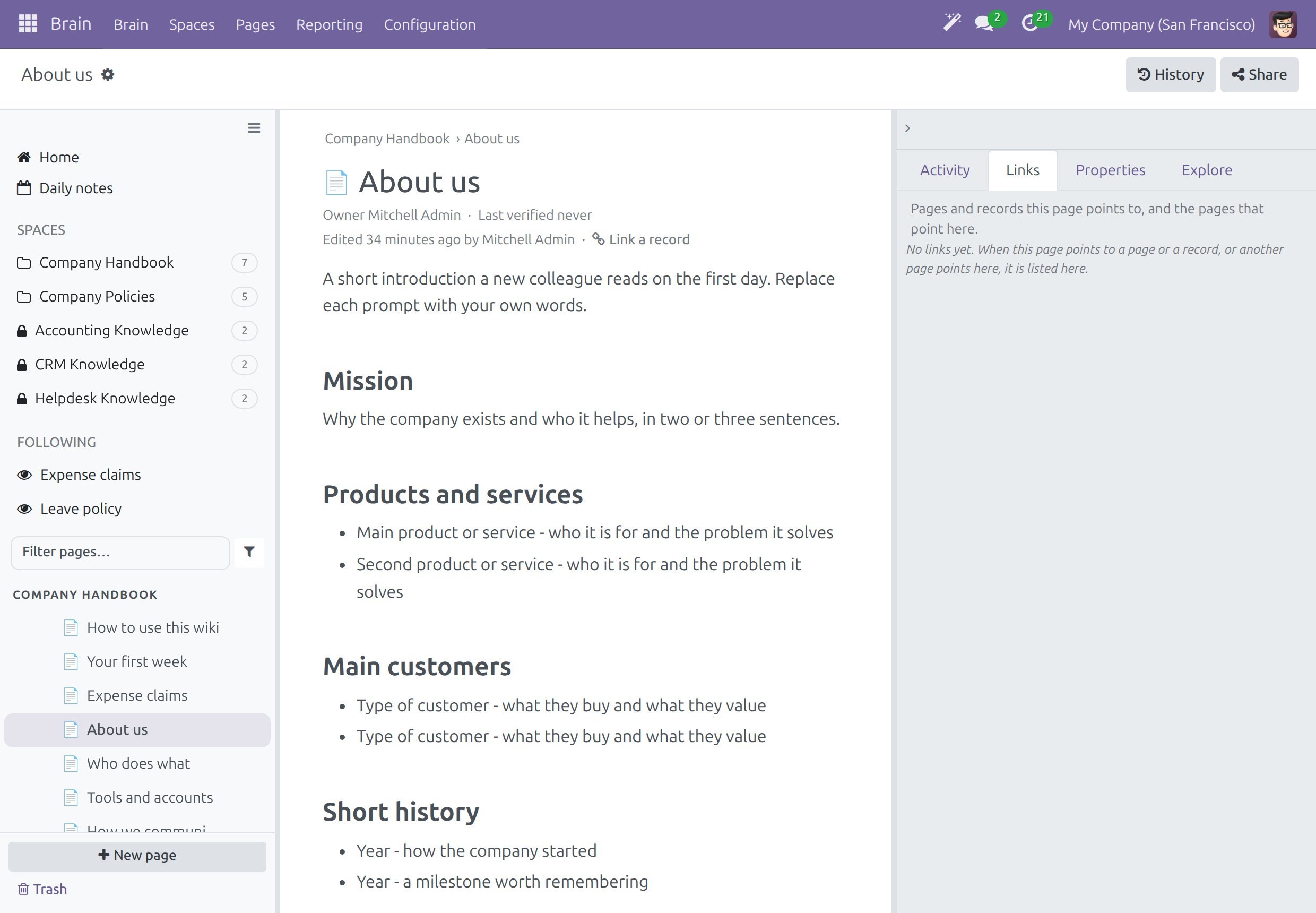
Read the line of details under the title:
Owner is the person who keeps the page correct.
Last verified shows the date and the person who last confirmed the page, or “never”.
Edited tells you when the page changed and who changed it. When an assistant wrote the page, its name follows, with a magic-wand icon. Click it to see in History what the assistant changed.
Link a record links the page to an invoice, an employee or another record. Click it, type part of the name in the dialog Link a document, pick the record and click Link. Once a page has links, Linked to lists them: click one to open it.
Look above the title for banners. They tell you when the page needs review or is held as a draft (see Own and verify a page and Submit and approve page changes).
Use the four tabs of the panel on the right. Each tab starts with one line that says what it is for. Click the arrow at the top of the panel to open or fold it.
Tab
What it shows
Activity
Messages, notes, activities, attachments and followers: follow the page, mention colleagues and see who changed what.
Links
The pages and records that link to this page and the ones it links to. It reads “No links yet.” when there are none.
Properties
The extra fields that the Space admin defined for the pages of the Space. It reads “No properties defined.” until some exist.
Explore
A menu with Embeds, Graph and Related pages.
The panel opens by itself only on a page where something waits for you, for example an open activity. Brain remembers your choice for the next pages. Folded, the panel is a bare rail at the right edge of the screen.
Talk About a Page and Follow It
Open the Activity tab.
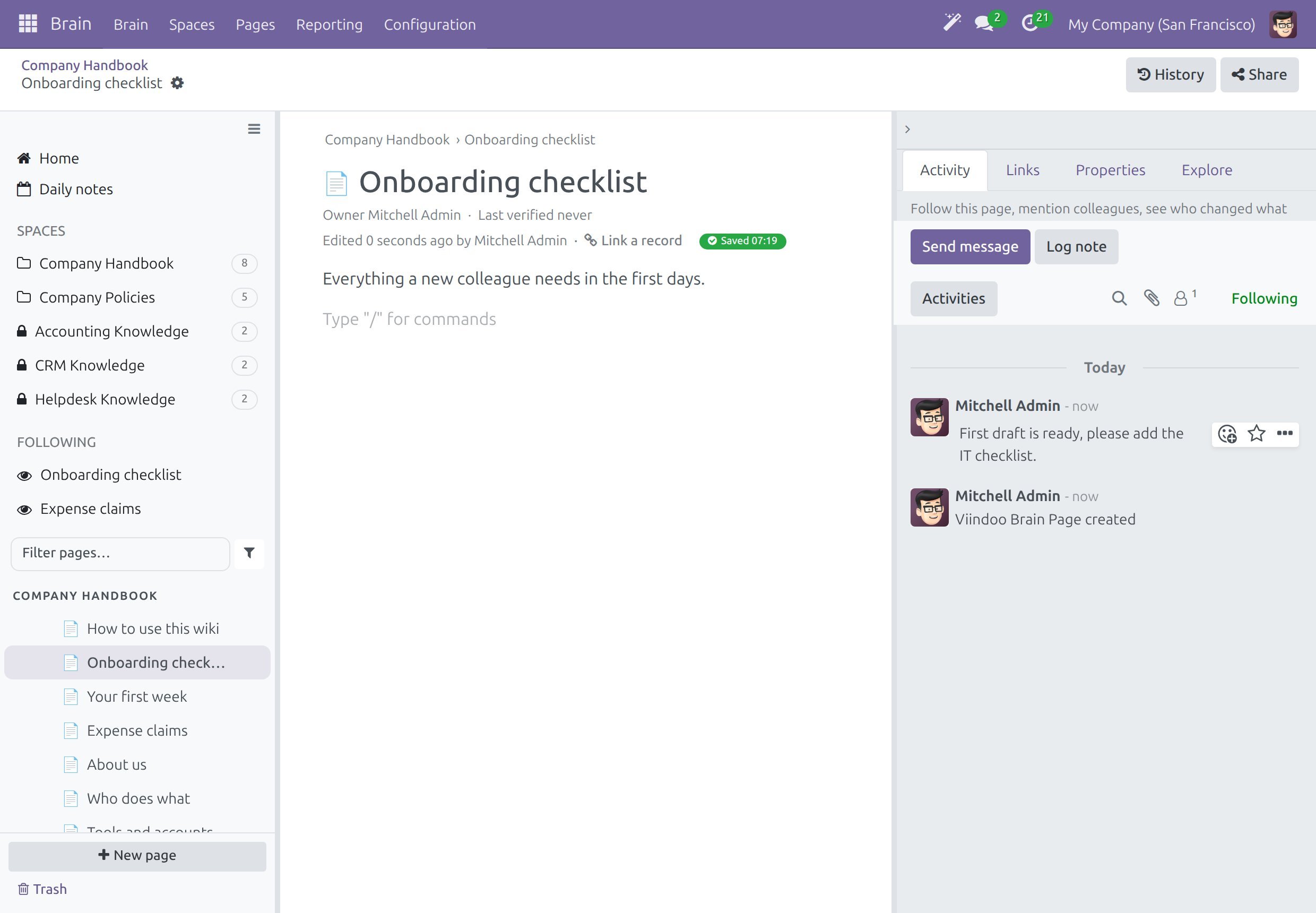
Click Send message to write to the followers, or Log note for an internal note. Type
@to mention a colleague.Click Follow to be told when the page changes. The button reads Following once you follow the page, and the creator of a page follows it from the start. The pages you follow appear in Following on Home and in the sidebar.
Note
You can also follow a whole Space: open , open the Space and click Follow in its chatter. You are then told about every page of the Space, including pages created later.
See Earlier Versions
Click History at the top right of the page. A page that was never saved after its creation says “No history yet”.
Select a revision in the list. It shows its date and its author. Content shows the page as it read before that change and Comparison shows what that change did compared with the text before.
To go back to an old text, click Restore this version. Restoring adds a new revision, so nothing is lost and the restore can itself be undone. A reader who may not edit the page can read the history, but restoring needs the editor role.
Create a Page
Click New page in the sidebar, or on Home.
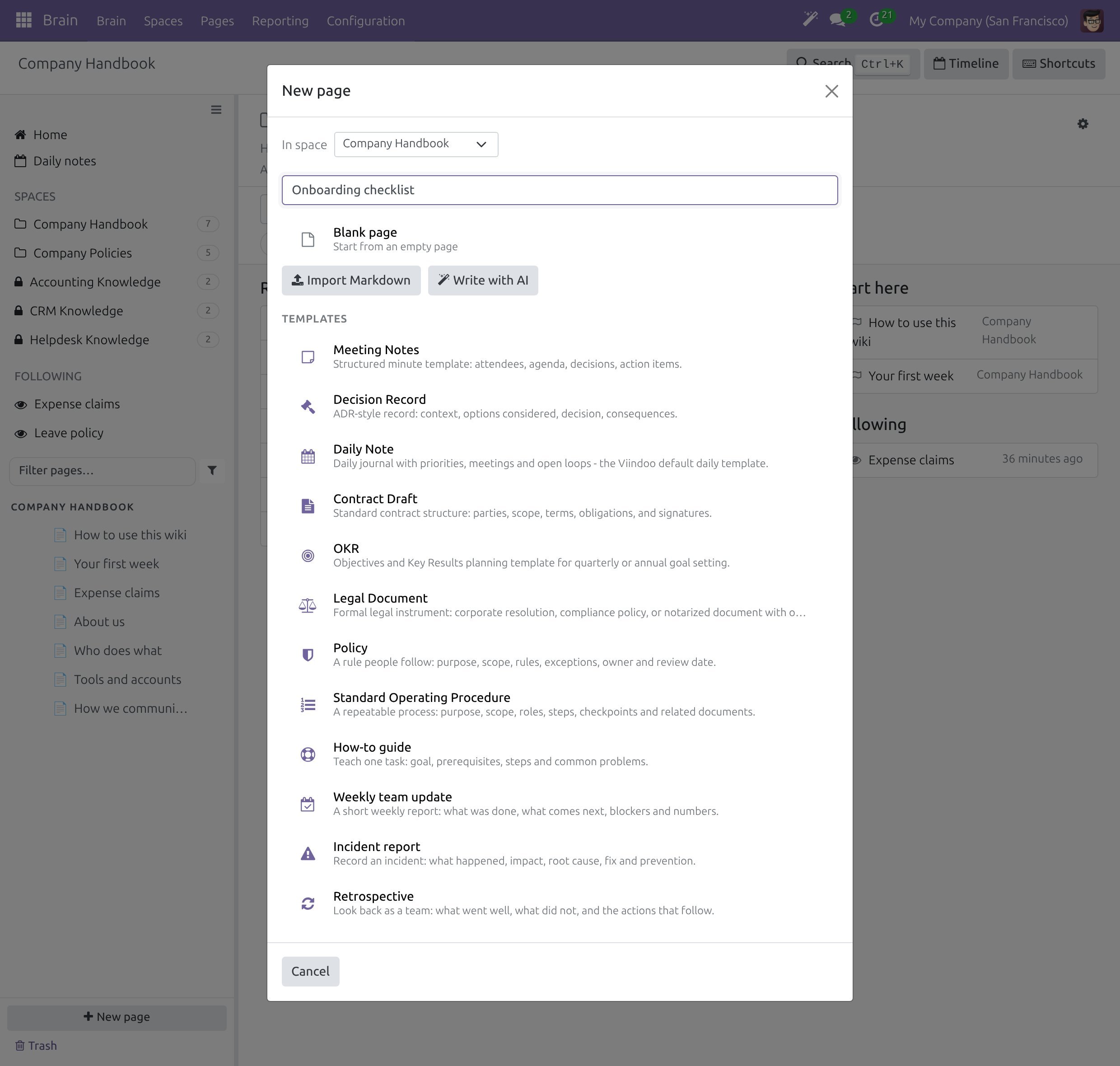
In In space, pick the Space. The list shows the Spaces where you may write, and the dialog starts with the Space you are in.
Type the page title in the field of the dialog.
Choose how to start:
Blank page starts from an empty page.
A template starts from a prepared structure. Each template shows a one-line description. The templates are Meeting Notes, Decision Record, Daily Note, Contract Draft, OKR, Legal Document, Policy, Standard Operating Procedure, How-to guide, Weekly team update, Incident report and Retrospective. The text of a template is written in your language. Wiki admins maintain the templates (see Set up Spaces, templates and access).
Import Markdown starts from a Markdown file (see Print and use Markdown files).
Write with AI asks the AI assistant for a first text. It appears when the Viindoo AI - Brain Bridge add-on is installed (see Use the AI assistant in Brain).
The page opens in the editor, in the Space you chose. In a Space where all changes need review, a new page is a draft: readers do not see it until it is approved.
Write in the Editor
The editor saves as you type. The state next to the details line reads Saving… and then Saved with the time. An empty page shows the hint “Type / for blocks, [[ to link a page, @@ to mention someone”.
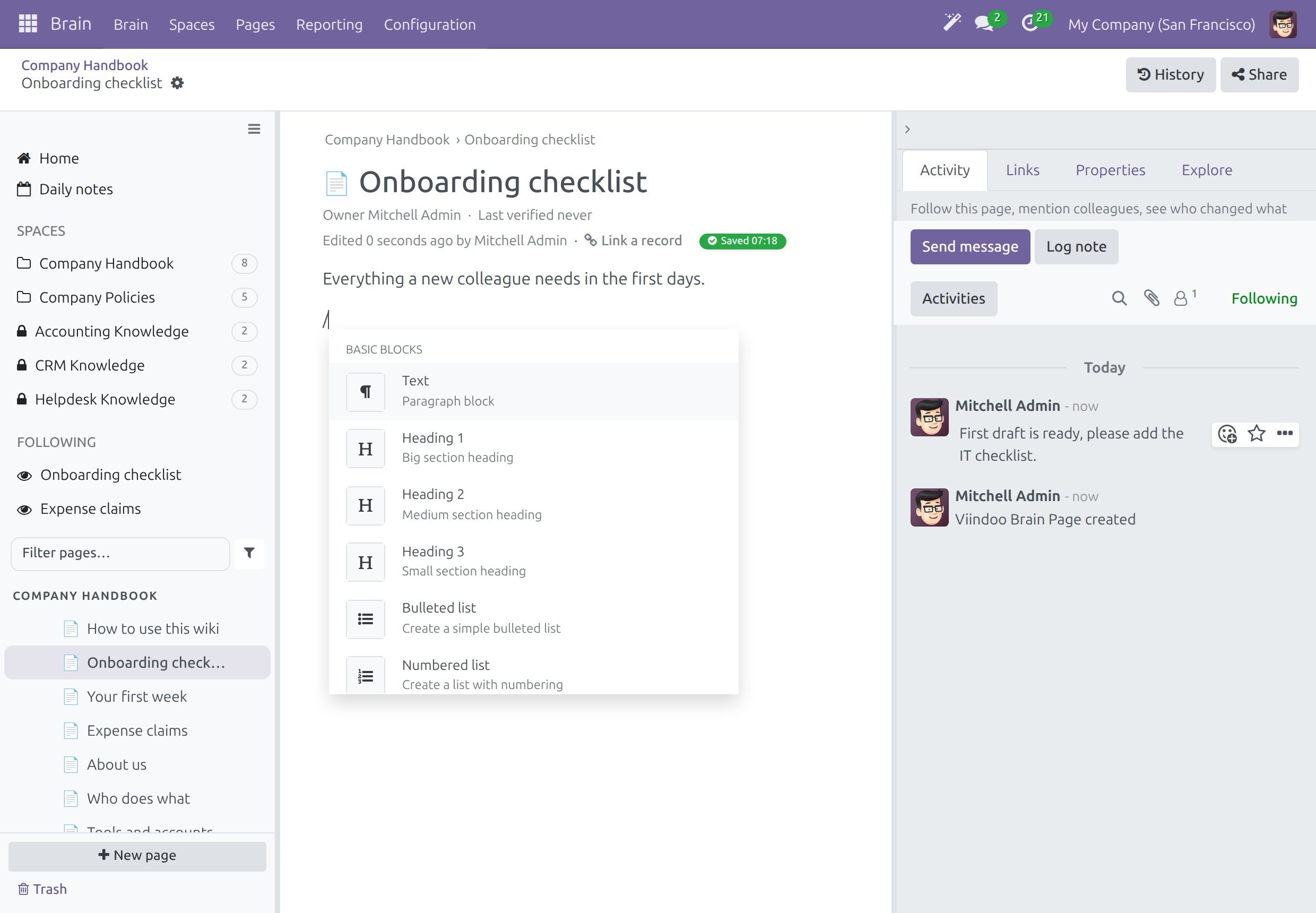
Type
/on an empty line to open the block menu, then type to filter it or pick a block.The menu offers, among others:
Text, three levels of heading, a bulleted list, a numbered list and a checklist.
A table, a separator, a quote, code and columns.
Four banners: Banner Info, Banner Success, Banner Warning and Banner Danger.
The Brain blocks: Link to a page, Mention a record, Web link, Embed a record, Embed a list of records, Embed a page and Insert a table of pages. When the Viindoo Brain - Account Reports Bridge module is installed, Embed Report adds a financial report.
Type
[[to link to something. One list offers the Pages of the Space, with a Create row that makes the page and links it in one step, and the Documents you may open: filter the document types, then pick the record. If you may read a document, you may link it.
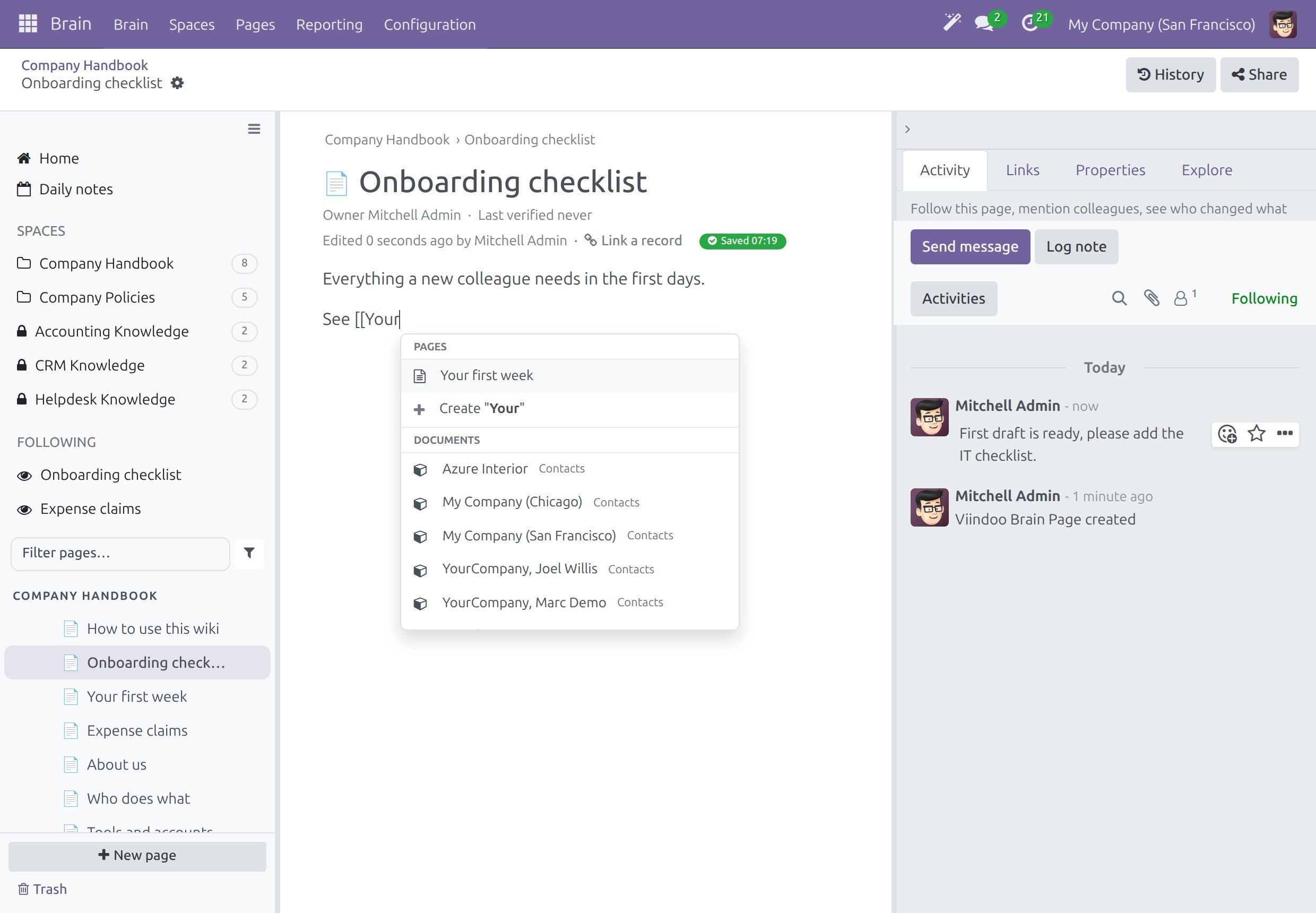
Type
@@to mention a colleague.
A linked document shows its current name: rename a customer and every page that mentions them reads correctly the next time it is opened. A document you may not open still shows its name, marked as not accessible, instead of becoming a dead link.
Use the Page Actions Menu
Click the gear button next to the title. The menu is the Page actions menu of the page.
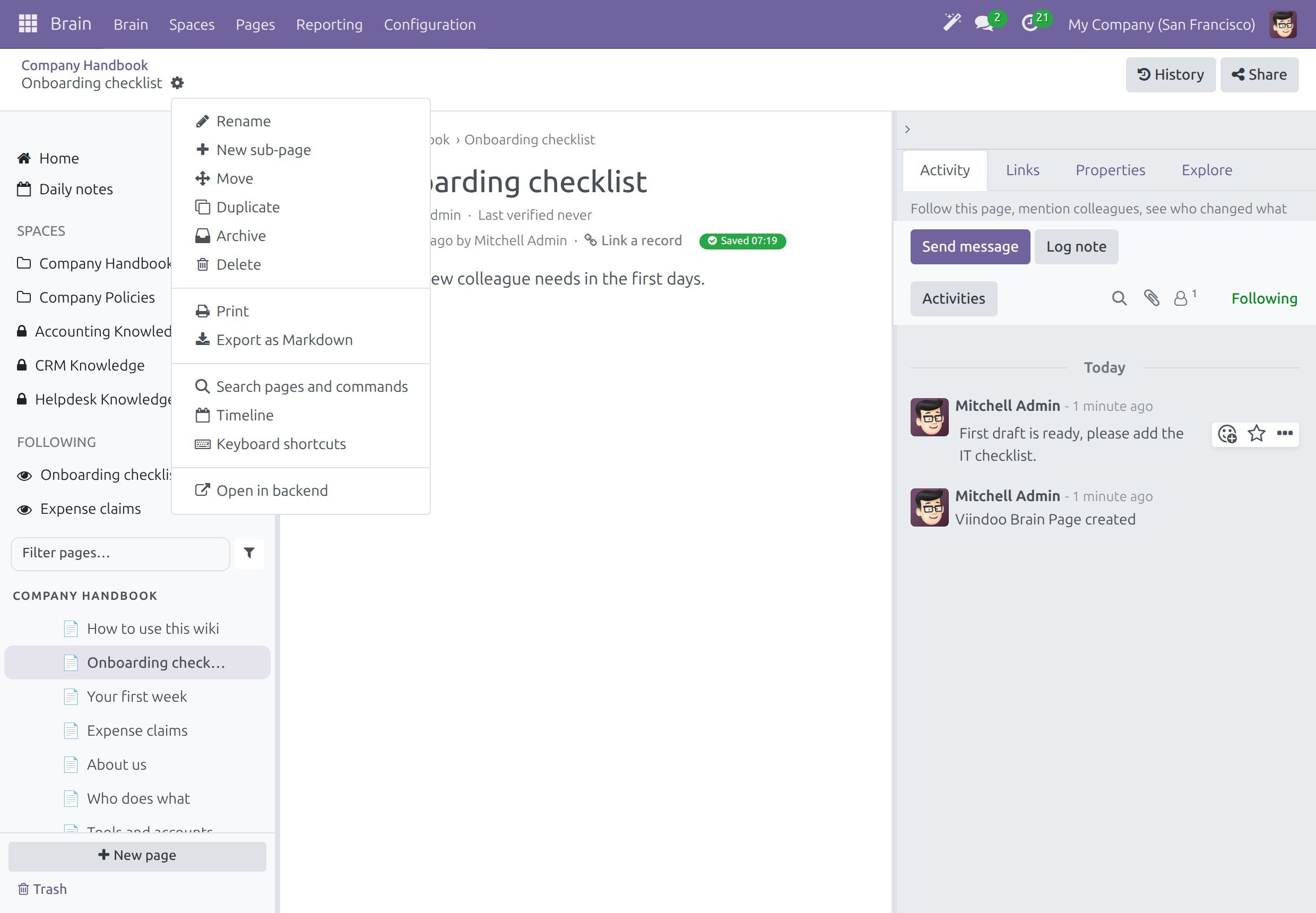
Action |
What it does |
|---|---|
Rename |
Changes the title of the page. |
New sub-page |
Creates a page under this one. |
Move |
Moves the page under another page of the same Space. |
Duplicate |
Copies the page. |
Archive |
Keeps the page readable but takes it out of lists and search (see Delete, restore and archive pages). |
Delete |
Moves the page and its sub-pages to Trash after a confirmation. A message offers Undo. |
Print and Export as Markdown |
Download the page (see Print and use Markdown files). |
Search pages and commands, Timeline and Keyboard shortcuts |
Open the tools described in Find your way around Brain. |
Open in backend |
Opens the page as a standard form, where the Owner can be changed. |
On a Phone
On a phone the toolbar actions of the page are in the gear menu, the editor toolbar appears only while you edit, the block menu stays inside the screen and the Activity panel sits as a bar under the page.
Success Checkpoint
You can read who owns a page and when it was last verified.
You can follow a page and find it under Following.
A new page opens in the Space you chose and saves as you type.
/,[[and@@open their lists in the editor.
Common Problems
Problem |
What to do |
|---|---|
I changed a page but readers still see the old text. |
The Space asks for review of all changes, so your edit is a draft. Click Submit for approval (see Submit and approve page changes). |
The Space I need is not in In space. |
The list shows only the Spaces where you are an Editor or a Space admin. Ask a Space admin for the role. |
I deleted a page by mistake. |
Click Undo in the message, or restore the page from Trash (see Delete, restore and archive pages). |
A linked document is marked as not accessible. |
You may not open that document. Its name stays visible, and the real permission still applies when you click. |
Next Steps
Search the wiki - find a page by its title or its text.
Submit and approve page changes - what happens when a Space asks for review.
Share a page with people inside and outside - share a page with colleagues or people outside the company.