
Track container milestones from empty pickup to return
Guide information
Requirements
This tutorial requires the installation of the following applications/modules:
Freight Forwarder Management (installs Logistics Accounting automatically)
Container milestones are the system of record for where a container physically is between
booking and delivery. They drive the Verified Gross Mass (VGM) window before loading, the
free time clock that decides when demurrage starts, and the on-board date printed on the House
Bill of Lading. Export containers follow one strictly sequential path, Empty Picked ->
Stuffed -> Gate-in -> Loaded; import containers follow a different one, Arrived -> Customs
Cleared -> Gate Out -> [Unstuffed] -> Empty Returned, where Unstuffed only applies to cargo
that is unloaded at a CFS. Clicking a milestone out of order, or days after it actually
happened, breaks the free time calculation and the paper trail a bank checks against the B/L.
If a term here is new to you, see the Freight forwarding glossary.
Running scenario: Minh (Booking Officer, acting as field Operations) records container ONEU4567895 (40HC, seal OL2604187) on the Hai Long Logistics export booking for Nhat Long Footwear (Hai Phong Port to Port of Los Angeles, carrier ONE), and container CSNU8123450 (40HC, seal CS1178342) on the import shipment for Minh Phat Engineering (Shanghai to Hai Phong Port, carrier COSCO SHIPPING LINES, 7 days free time).
Before you start
The shipment is Confirmed or later - the Containers group is hidden while the shipment is in Draft.
At least one container already exists on the shipment, created by hand or through Declare cargo, packages and containers.
You are in the User: All Shipments group. User: Own Shipments can only read shipments, containers, bookings and charges - it cannot click any milestone button.
Step 1: Open the container list on the shipment
Every milestone button lives on the shipment itself, next to the cargo it belongs to - there is no separate “container execution” screen to search for.
Go to , open the Nhat Long Footwear shipment, and stay on the Cargo & Packages tab (this tab holds the Containers group for FCL shipments - it is not under a tab called “Requested Details”).

Tip
Step 1 is done when: the Containers group lists both ONEU4567895 and ONEU4568124, each showing Execution State Draft.
Step 2: Record Empty Picked and Stuffed
Empty Picked records when the truck leaves the depot with the empty container; Stuffed locks in the Container Number and Seal Number that every later document (HBL, SI) has to match.
On the row for the container:
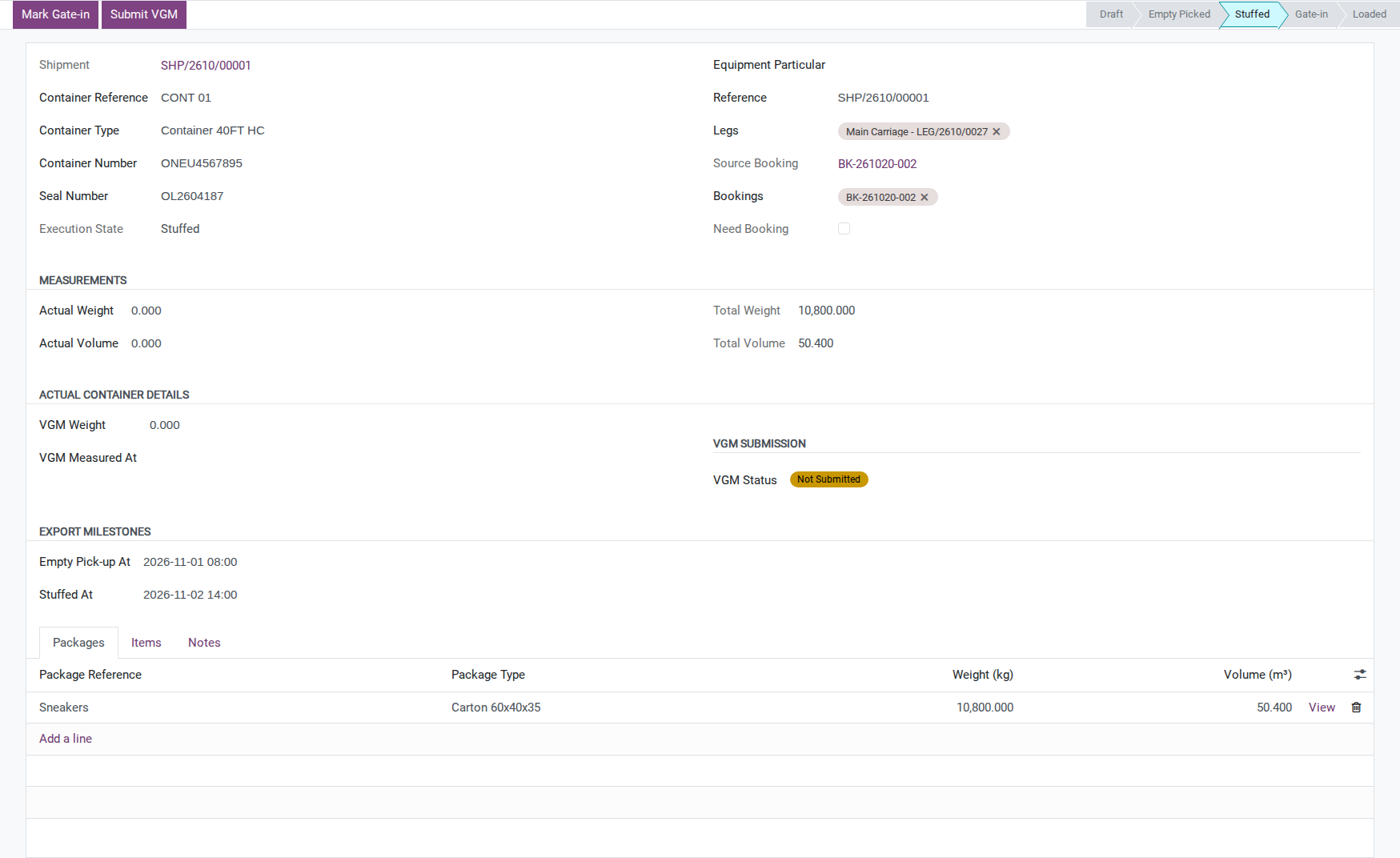
Enter Container Number: ONEU4567895.
Once Phuong Nam Transport Co., Ltd. pulls the empty container out on 2026-11-01 08:00, click Empty Picked.
Enter Seal Number: OL2604187 once the 600 cartons are loaded.
Once the container is sealed on 2026-11-02 14:00, click Stuffed.
Warning
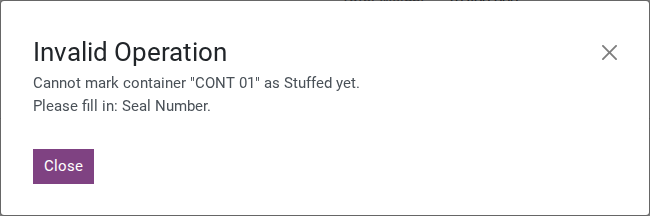
Clicking Empty Picked without a Container Number, or Stuffed without a Container Number and a Seal Number, is blocked (names filled in):
Cannot mark container "<container>" as <milestone> yet.
Please fill in: <fields>.
Tip
Step 2 is done when: Execution State reads Stuffed and the row shows Container Number ONEU4567895 and Seal Number OL2604187.
Container ONEU4568124 (seal OL2604188) follows the same steps: Empty Picked at 2026-11-01 09:30, Stuffed at 2026-11-02 16:00, Submit VGM at 2026-11-02 18:00 and Gate-in at 2026-11-04 10:00.
Step 3: Enter and submit VGM
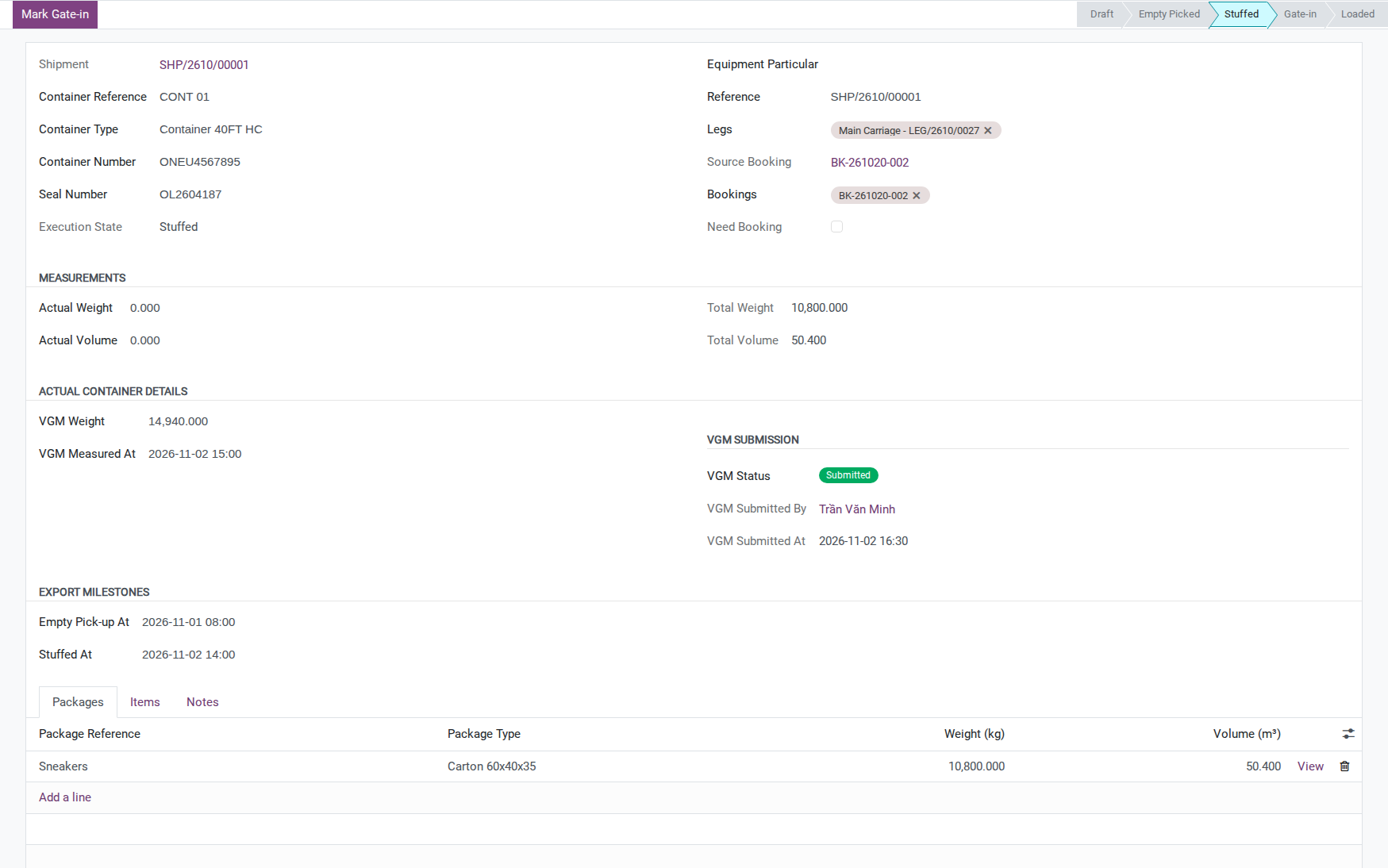
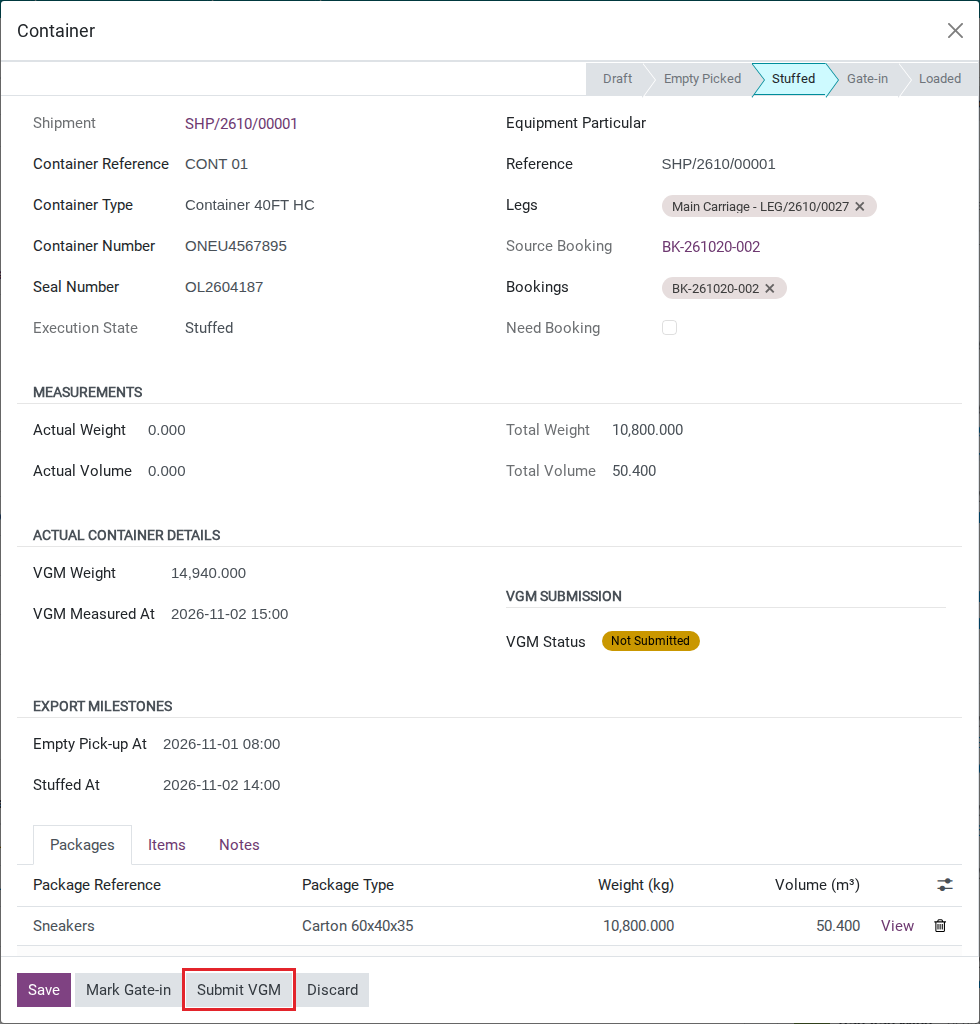
SOLAS requires a Verified Gross Mass before a container can be loaded - this is a safety gate, not paperwork. Click View on the row to open the container in a popup: the popup hides the header buttons, but its footer still has Submit VGM, Not Loaded and Rolled Over (only Clear Exception is missing there - open the shipment header’s Containers smart button instead if you need that one).
VGM Weight: 14,940 kg (weighbridge method SM1: tare 3,940 kg + cargo 10,800 kg + dunnage 200 kg).
Click Submit VGM at 2026-11-02 16:30, ahead of the 17:00 VGM Cutoff.
After Submit VGM, the VGM Submission badge changes to Submitted and records who submitted it and when.
Warning
Clicking Submit VGM with VGM Weight still at zero is blocked:
Cannot submit VGM for container "<container>".
Please enter VGM Weight first.
Tip
Step 3 is done when: VGM Status reads Submitted, VGM Weight reads 14,940 kg, and the submission time (16:30) is before the 17:00 VGM Cutoff.
See also
Submit the container’s Verified Gross Mass (VGM) for the SM1/SM2 weighing methods and what to do if VGM is rejected.
Step 4: Move through Gate-in and Loaded
Gate-in confirms the container is inside the port’s container yard; Loaded confirms it is on the vessel - the last two clicks Operations makes before the container is out of their hands.
Click Gate-in at 2026-11-04 09:00, ahead of the 12:00 CY Cutoff.
Note
Before the original ETD, ONE rolled the whole booking - both containers - from ONE COMMITMENT 026W onto ONE COMPETENCE, voyage 027W (“Space Optimization”, the carrier’s own decision). Recording that exception and rebooking is covered in Handle rolled-over and not-loaded containers and is not repeated here - both containers stay at Gate-in through the change and end up Loaded on the new sailing instead of the original one.
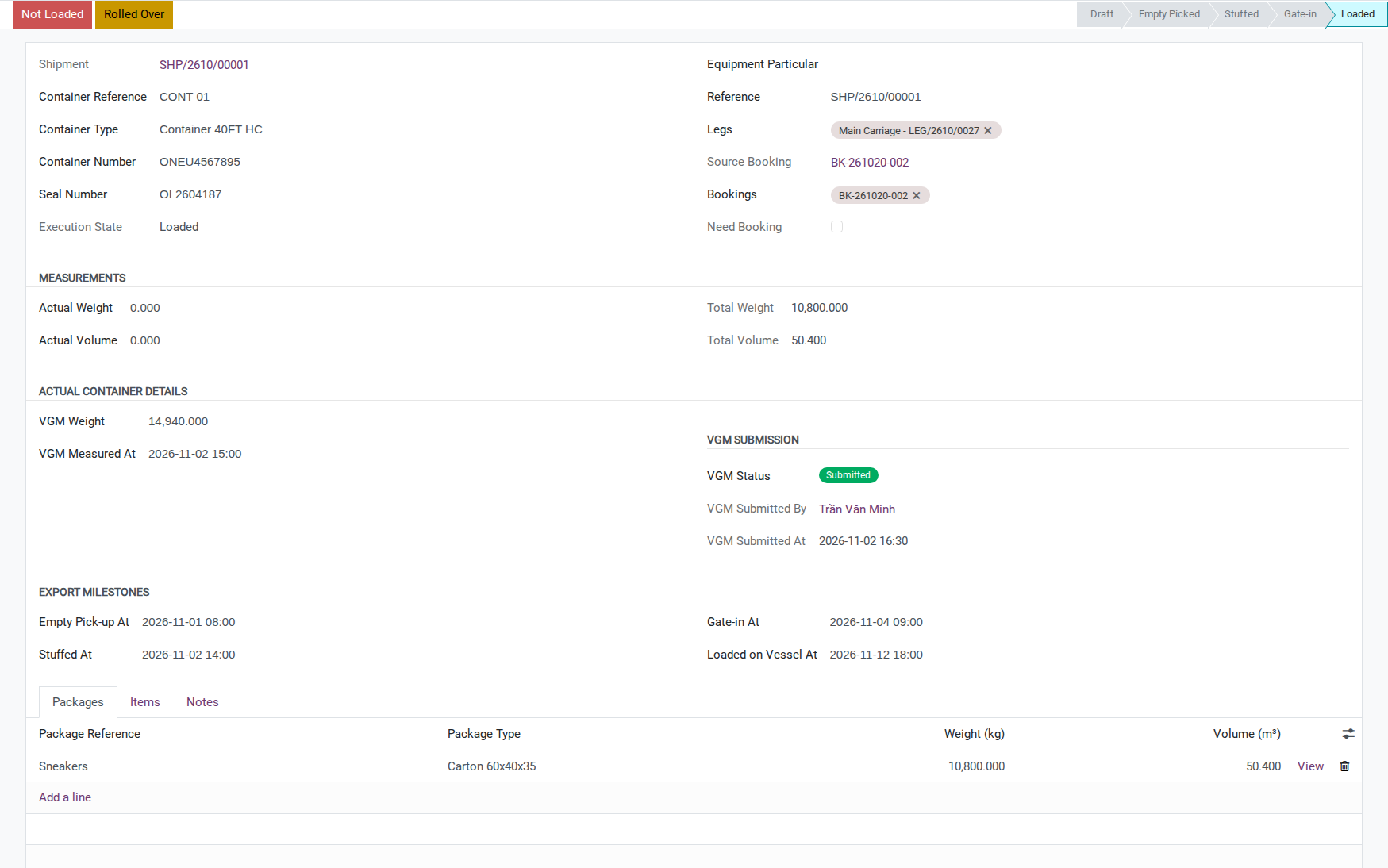
Once the containers are physically on board the new sailing, click Loaded: ONEU4567895 at 2026-11-12 18:00, ONEU4568124 at 2026-11-12 18:30.
Warning
Viindoo does not block Loaded when VGM is still Not Submitted. The milestone check only looks at the previous milestone, never at VGM Status. Under SOLAS, a container without a submitted VGM must not be loaded, so treat “Submit VGM before Loaded” as a mandatory step in your own process, not a system safeguard (see Known limitations).
Tip
Step 4 is done when: Execution State reads Loaded and VGM Status reads Submitted - check both by eye, since Viindoo will let Loaded through either way.
Step 5: Move the import container from Arrival to Empty Return
The import sequence is not the export sequence read backwards - Arrived starts the free time clock, and Empty Returned can be reached straight from Gate Out without an Unstuffed step for a container delivered directly to the consignee.
On the Cargo & Packages tab of the Minh Phat Engineering import shipment, on the row for container CSNU8123450:
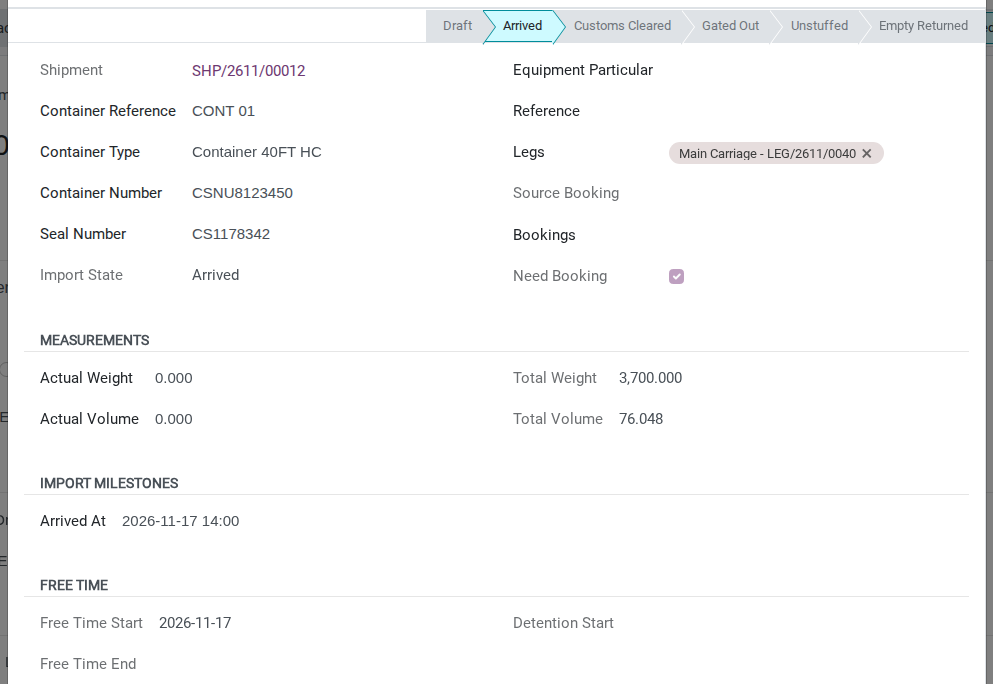
When COSCO SHIPPING LEO berths at Hai Phong Port on 2026-11-17 14:00, click Arrived.
Also enter that same date and time as the arrival (end) date of the shipment’s ATD/ATA field, next to ETD/ETA under POL and POD - Free Time is calculated from this field, not from the container’s own Arrived timestamp.
Once customs clears the container outside Viindoo, click Customs Cleared at 2026-11-18 16:00.
Once Phuong Nam Transport Co., Ltd. pulls the container out, click Gate Out at 2026-11-20 09:00.
Once the empty container is returned to the carrier, click Empty Returned at 2026-11-22 15:00 - no Unstuffed step is needed for this direct delivery.
Note
Arrived (container) and ATD/ATA (shipment) are two separate entries. Clicking Arrived only stamps the container’s own timestamp; Free Time Start comes from the shipment’s ATA. Skipping the ATD/ATA entry leaves the Free Time group empty even though the container already shows Arrived. Free Time End and Detention Start stay blank either way, because no screen lets you enter the number of free days: work out the last free day by hand - ATA 2026-11-17 plus COSCO’s 7 days = 2026-11-24 - and note it in the shipment’s Chatter.
Tip
Step 5 is done when: Import State reads Empty Returned, Free Time Start reads 2026-11-17, and Gate Out (2026-11-20 09:00) falls before the last free day worked out by hand (2026-11-24).
Known limitations
Step |
What Viindoo does today |
What you do instead |
|---|---|---|
Step 4 (Loaded) |
Loaded can be clicked while VGM Status is still Not Submitted - the milestone guard never
reads |
Make Submit VGM before Loaded a mandatory checkpoint in your own process; do not rely on the system to block it |
Step 5 (free time) |
The free time clock is anchored to the shipment’s ATA field, not to each container’s own Arrived date; the number of free days cannot be entered on any screen, so Free Time End and Detention Start stay blank; there is no separate Demurrage clock for time spent at the port before Gate Out |
Enter the vessel’s real arrival time in ATD/ATA as soon as it is known, work out the last free day by hand from the carrier’s free time, and compare Gate Out against it yourself |
Troubleshooting
Stuffed is blocked
Symptom: clicking a milestone shows (names filled in):
Cannot mark container "<container>" as <milestone> yet.
Please fill in: <fields>.
Cause: Container Number or Seal Number is still empty for the milestone you clicked.
Fix: Enter the missing field on the row, then click the milestone button again.
Submit VGM is blocked
Symptom: clicking Submit VGM shows:
Cannot submit VGM for container "<container>".
Please enter VGM Weight first.
Cause: VGM Weight is still zero.
Fix: Enter VGM Weight in kilograms, then click Submit VGM again.
Free Time group is empty after Arrived
Symptom: The container shows Arrived, but the Free Time group does not appear at all.
Cause: The shipment’s ATD/ATA field is still blank - Free Time only computes once that field has a value, regardless of the container’s own Arrived timestamp.
Fix: Enter the actual arrival date and time in the shipment’s ATD/ATA field (Step 5).