
Container Execution Milestones
Guide information
Required modules
Container execution milestones are the system of record for where each container physically is at any point in its journey. Accurate milestone timestamps are not just an audit requirement — they are the basis for free time calculation, detention billing, and the VGM submission window. Missing a milestone (especially Gate-in or Empty Return) directly causes either a missed vessel loading or an undetected detention charge.
Export scenario (Part A): Nguyen Van C (Operations) tracks container COSU1234567 on shipment SHP/202505/00042 (Viet Nam Textile JSC, 2 × 40HC, VNHPH → CNSHA, carrier COSCO, ETD 15/05/2025).
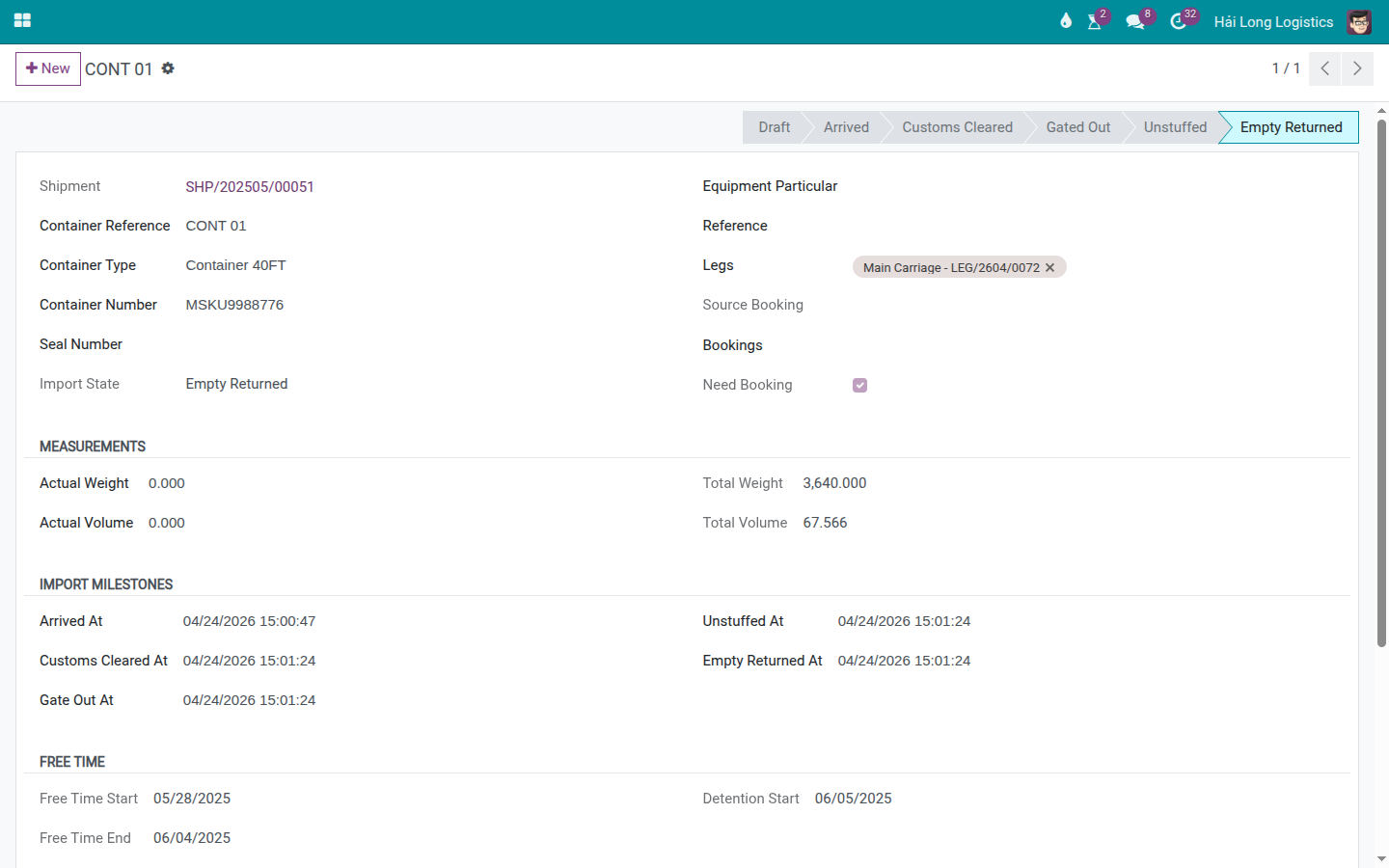
Import scenario (Part B): Tran Thi D (Operations) tracks container MSKU9988776 on shipment SHP/202505/00051 (inbound from Shanghai, carrier Maersk, ATA 28/05/2025, free time 7 days).
Xem thêm
Freight terminology (Empty Pickup, Stuffing, Gate-in, Loaded, Gated Out, Empty Return, Demurrage, Detention, EIR, Free Time): Industry Glossary.
Understanding the two state machines
Containers follow different milestone sequences depending on direction.
Export state sequence:
Draft → Empty Picked → Stuffed → Gate-in → Loaded
Import state sequence:
Draft → Arrived → Customs Cleared → Gated Out → Unstuffed → Empty Returned
Note: for FCL direct delivery (where the consignee unloads at their own warehouse without going through a CFS), the Unstuffed step can be skipped: the transition from Gated Out directly to Empty Returned is valid.
Transitions are strictly sequential on the export side — no shortcuts. On the import side, only the Unstuffed → Empty Returned shortcut (via Gated Out) is permitted.
Milestone |
Direction |
Business significance |
|---|---|---|
Empty Picked |
Export |
Truck has collected the empty container from the depot/port. The container is at the shipper's warehouse ready for loading. Container Number is required before marking this step. |
Stuffed |
Export |
Cargo has been loaded and the container is sealed. Seal Number is required. VGM can now be submitted. This is the last point to correct cargo discrepancies without unsealing. |
Gate-in |
Export |
Container has entered the container yard (CY) at the port. Must happen before CY Cutoff. Container Exceptions (Rolled Over, Not Loaded) can only be recorded after Gate-in. |
Loaded |
Export |
Container is on the vessel. This milestone date becomes the On Board date on the B/L. |
Arrived |
Import |
Vessel has arrived at the destination port. Free time demurrage clock starts from the shipment's ATA field — not from this container milestone. |
Customs Cleared |
Import |
Customs authority has cleared the container for release. Mark immediately on notification — late recording does not help the fee computation. |
Gated Out |
Import |
Container has left the port. Demurrage ends; detention clock starts. EIR (Equipment Interchange Receipt) is issued. |
Unstuffed |
Import |
Cargo has been unloaded from the container at the consignee's warehouse or CFS. Optional for FCL direct delivery. |
Empty Returned |
Import |
Empty container has been returned to the carrier's depot. Detention ends. |
Part A — Export container milestones
Step A1: Open the container and mark Empty Picked
Tracking starts when the truck collects the empty container. This step requires the physical container number — the system blocks the transition if the Container Number field is blank because an unnamed container cannot be tracked or billed.
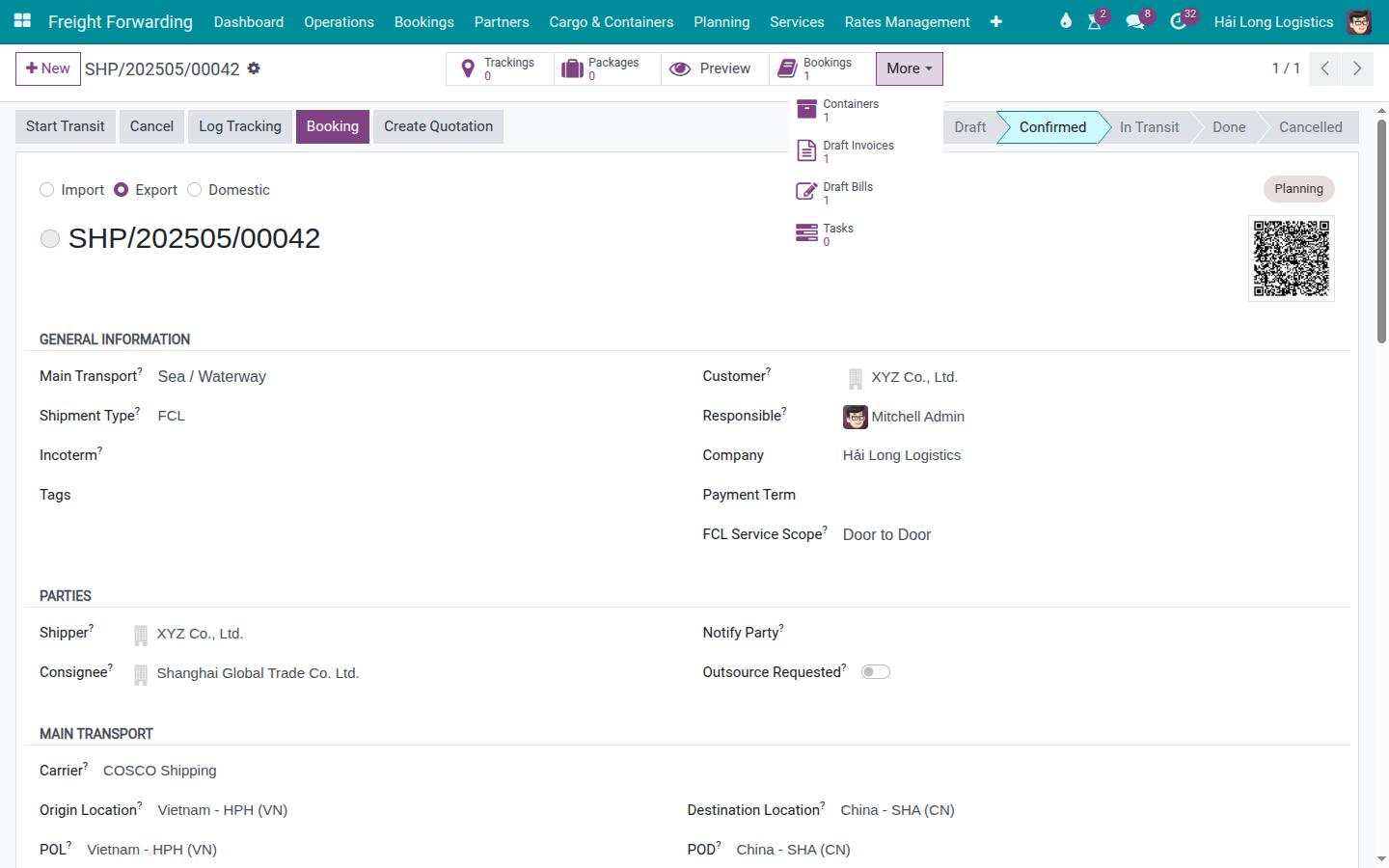
From the shipment SHP/202505/00042, open the Containers smart button to see all containers on this shipment. Open the container record for COSU1234567 (or the first 40HC if the container number is not yet known).
On the container form header, click Mark Empty Picked.
The system requires:
Container Number (e.g., COSU1234567) — must be filled before this step.
If blank, the button raises:
Cannot mark container "..." as empty_picked yet. Please fill in: Container Number.
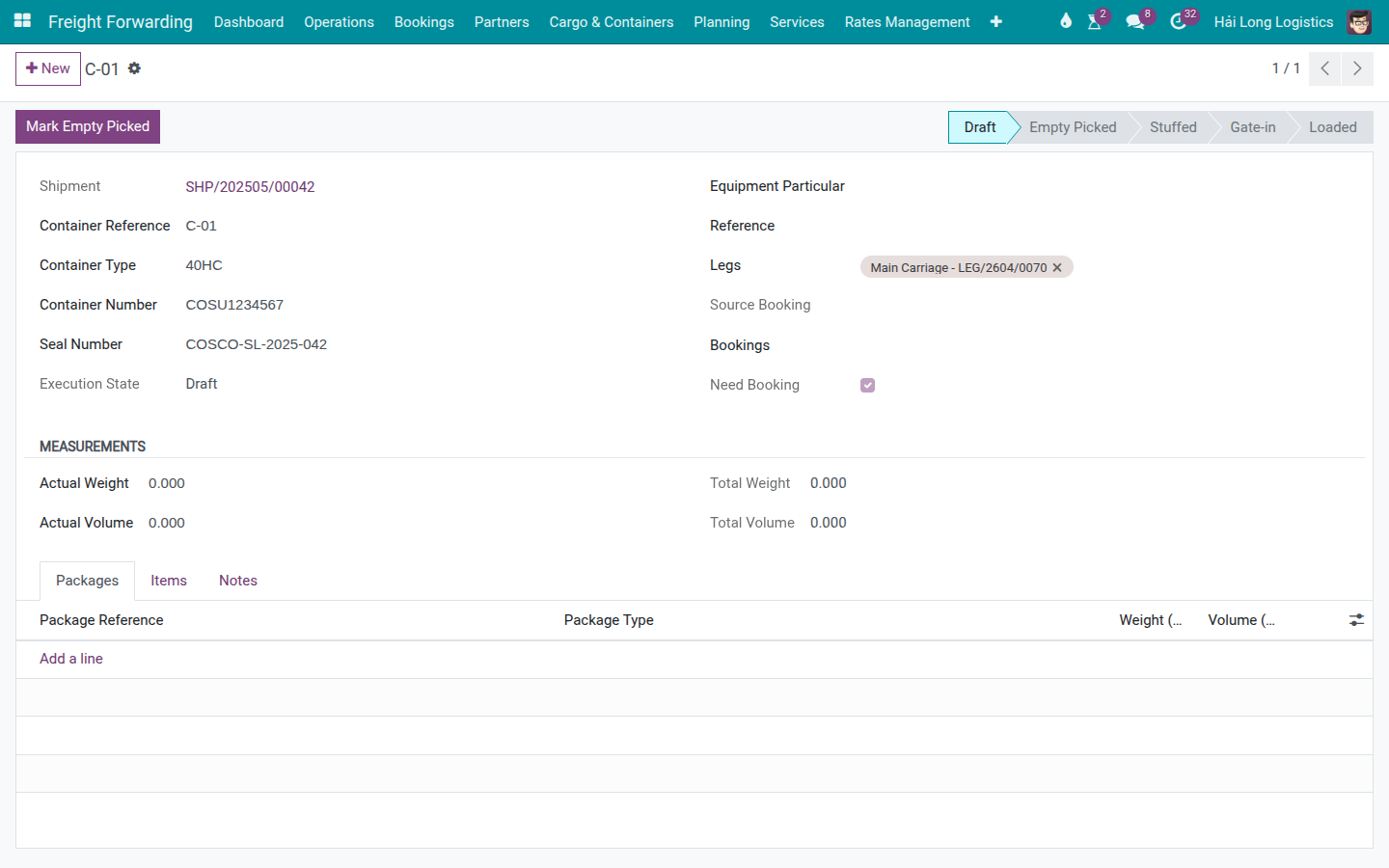
After marking Empty Picked:
Container status changes to Empty Picked (blue status bar).
Timestamp Empty Picked At is recorded automatically.
The next button (Mark Stuffed) becomes active.
Mẹo
Step A1 complete when:
Status bar shows Empty Picked.
Container Number is filled in (COSU1234567).
The Empty Picked At timestamp is reasonable — matches the actual truck departure time. If the physical event happened hours ago, edit the timestamp in the Milestones section to reflect the actual time rather than the system click time.
Step A2: Mark Stuffed after cargo is loaded
Stuffing is the point of no return for cargo — once the container is sealed, opening it to correct errors (wrong cargo, wrong quantity) requires customs coordination and carrier notification. The system enforces Seal Number at this step to ensure the container is physically sealed before the milestone is recorded.
After the cargo has been loaded and the container sealed, click Mark Stuffed on the container form header.
The system requires:
Seal Number — must be filled before this step (in addition to Container Number).
If absent:
Cannot mark container "COSU1234567" as stuffed yet. Please fill in: Seal Number.
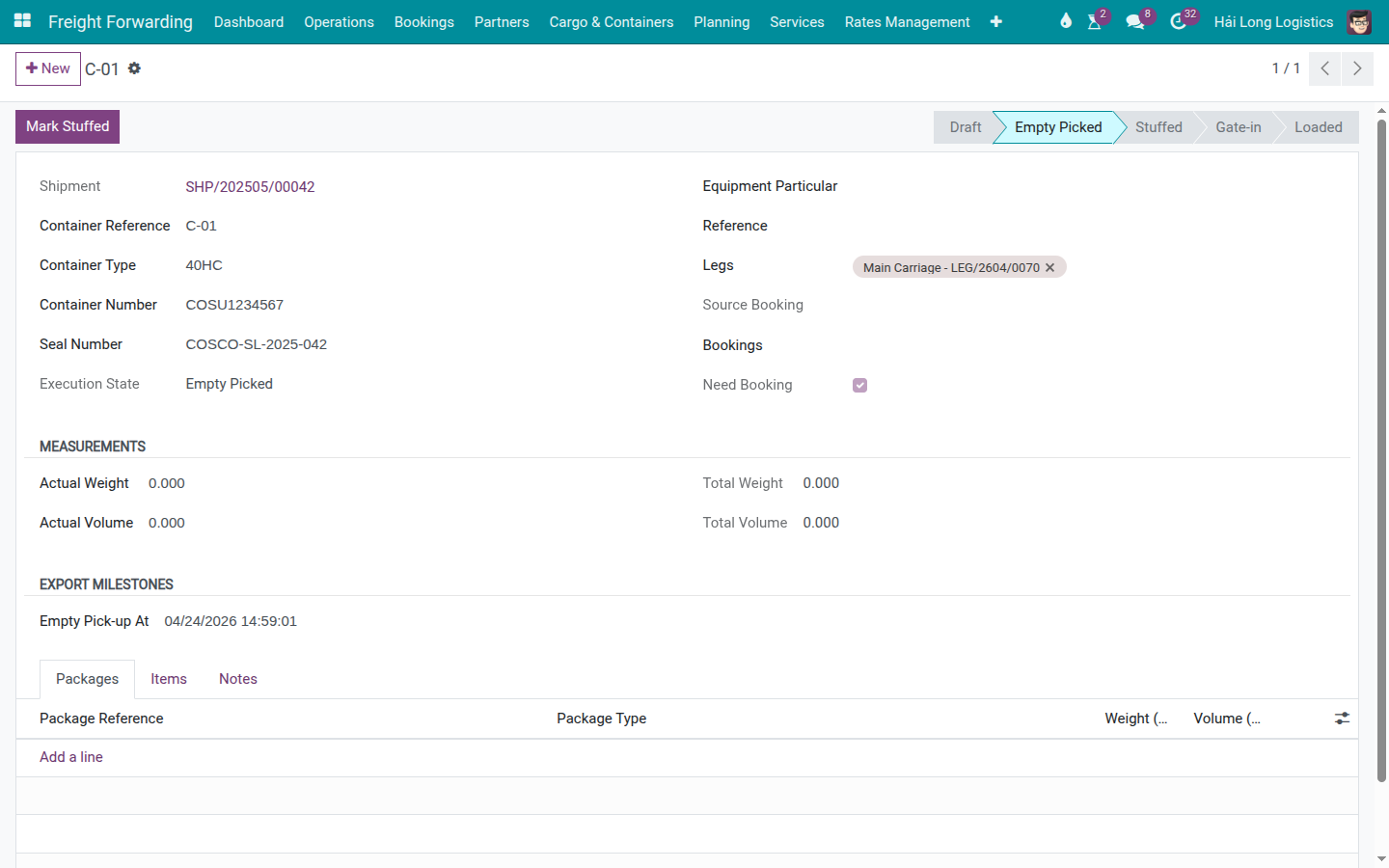
After marking Stuffed:
Container status changes to Stuffed (yellow row in the list view — VGM not yet submitted).
Timestamp Stuffed At is recorded.
The Submit VGM button becomes available.
The container is now in the VGM submission window (allowed states: Stuffed, Gate-in, Loaded).
Cảnh báo
Do not gate in the container before submitting VGM — the VGM Cutoff is 11/05/2025 09:00.
For SHP/202505/00042, the VGM must be submitted before 09:00 on 11 May. If the container is gate-in but VGM is not submitted before the VGM Cutoff, the carrier may reject the container loading (and it becomes a Rollover with detention costs of USD 15–30/day).
See VGM Entry (Verified Gross Mass) for VGM submission steps.
Mẹo
Step A2 complete when:
Status bar shows Stuffed.
Seal Number is filled in.
Container list row is yellow (VGM not yet submitted) — this is correct at this stage.
Step A3: Mark Gate-in before the CY Cutoff
Gate-in records that the container has physically entered the CY. This step must happen before the CY Cutoff (12/05/2025 for SHP/202505/00042). Gate-in is also the trigger that makes Container Exception recording (Rolled Over / Not Loaded) possible — exceptions can only be recorded on containers that are Gate-in or Loaded.
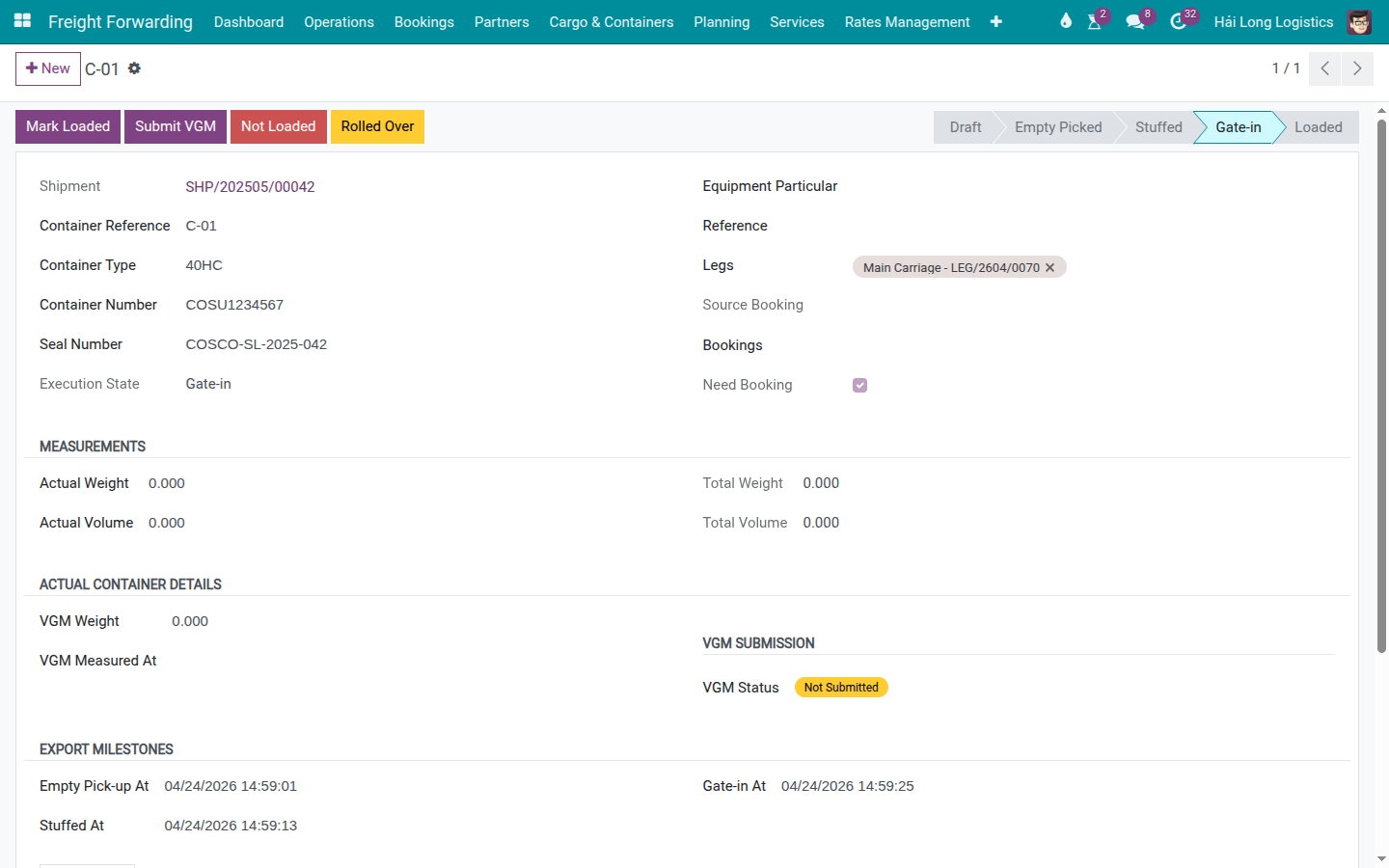
After the trucker confirms gate-in at the terminal, click Mark Gate-in.
After marking Gate-in:
Container status changes to Gate-in.
Timestamp Gate-in At is recorded.
If VGM was already submitted (status = Submitted): the row turns green in the list view.
If VGM is not yet submitted: the row stays yellow — submit VGM immediately.
The Rolled Over and Not Loaded exception buttons become visible on the header.
Cảnh báo
Container arriving at the CY after the CY Cutoff cannot board the vessel.
CY Cutoff for SHP/202505/00042 is 12/05/2025. A container arriving the following day is rejected by the terminal. Result: the container is rolled over to voyage 027E (ETD 17/05/2025), with 3–5 days of port storage at USD 15–30/container/day. For 2 containers over 5 days: USD 150–300 plus a new booking fee and customer notification.
Step A4: Mark Loaded when the vessel departs
The Loaded milestone is the final export step. The date on this milestone becomes the On Board date that appears on the Bill of Lading. It is therefore critical that this date is accurate — carriers and customers use it for payment terms, insurance and customs.
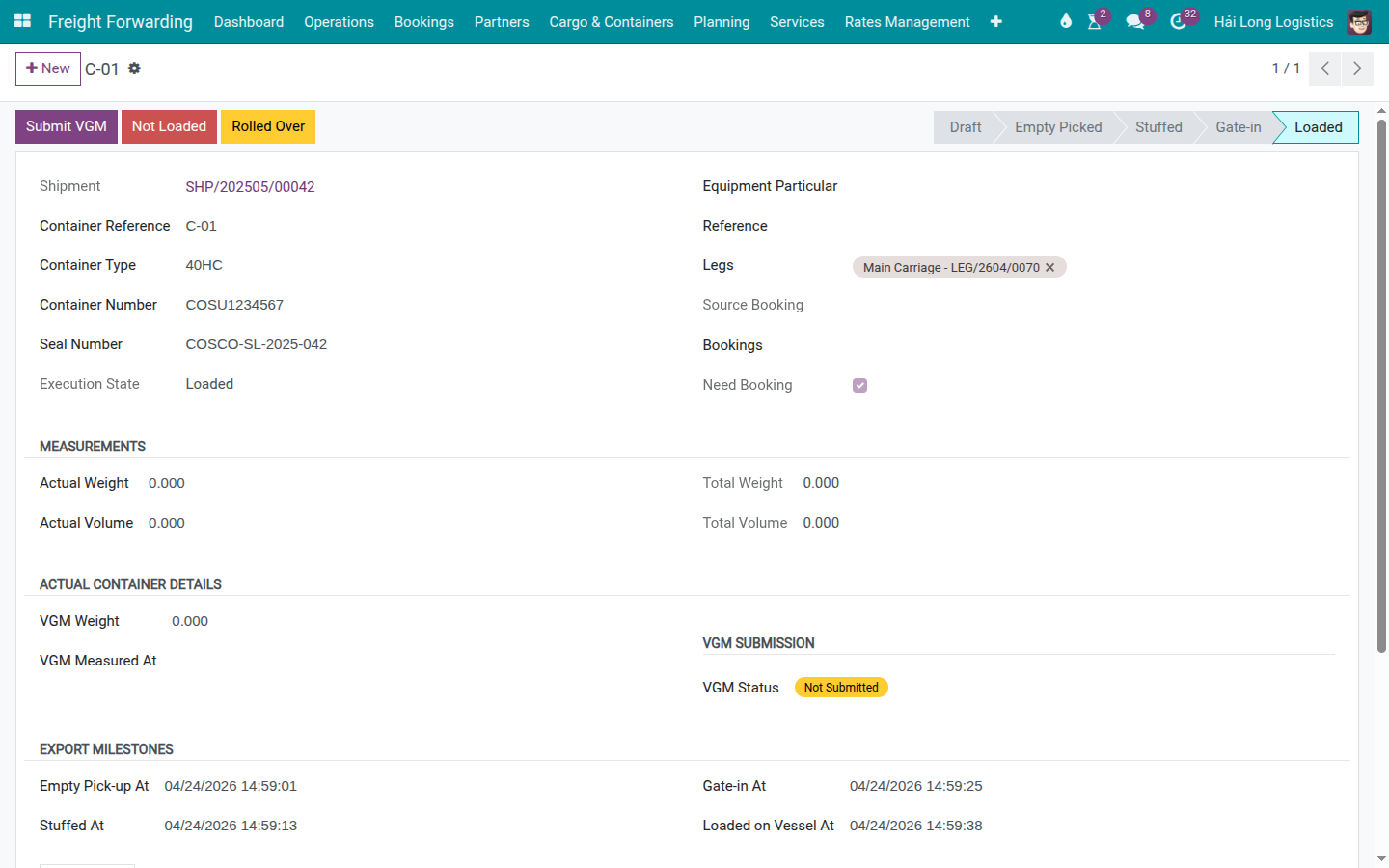
After receiving confirmation from the terminal or carrier that the container has been loaded, click Mark Loaded.
If you need to record a container exception before loading (e.g., the carrier notifies you that the container was rolled over or not loaded), use the Rolled Over or Not Loaded buttons instead. See Rollover and Not Loaded (Container Exception).
After marking Loaded:
Container status changes to Loaded.
Timestamp Loaded At is recorded — this is the On Board date for the B/L.
The export state machine is complete for this container.
The row turns green in the list view (if VGM was submitted and no exception is active).
Mẹo
Step A4 complete when:
Status bar shows Loaded with all four milestones visible.
Loaded At timestamp matches the vessel departure time (not the time you clicked the button).
Container list row is green (VGM submitted, no exception).
The On Board date on the B/L matches Loaded At.
Part B — Import container milestones
Step B1: Mark Arrived when the vessel reaches the port
The Arrived milestone records that the vessel has docked and cargo is accessible for clearance. However, note that the free time demurrage clock is calculated from the shipment's ATA (Actual Time of Arrival) field — not from this container milestone. Always fill in the ATA on the shipment first.
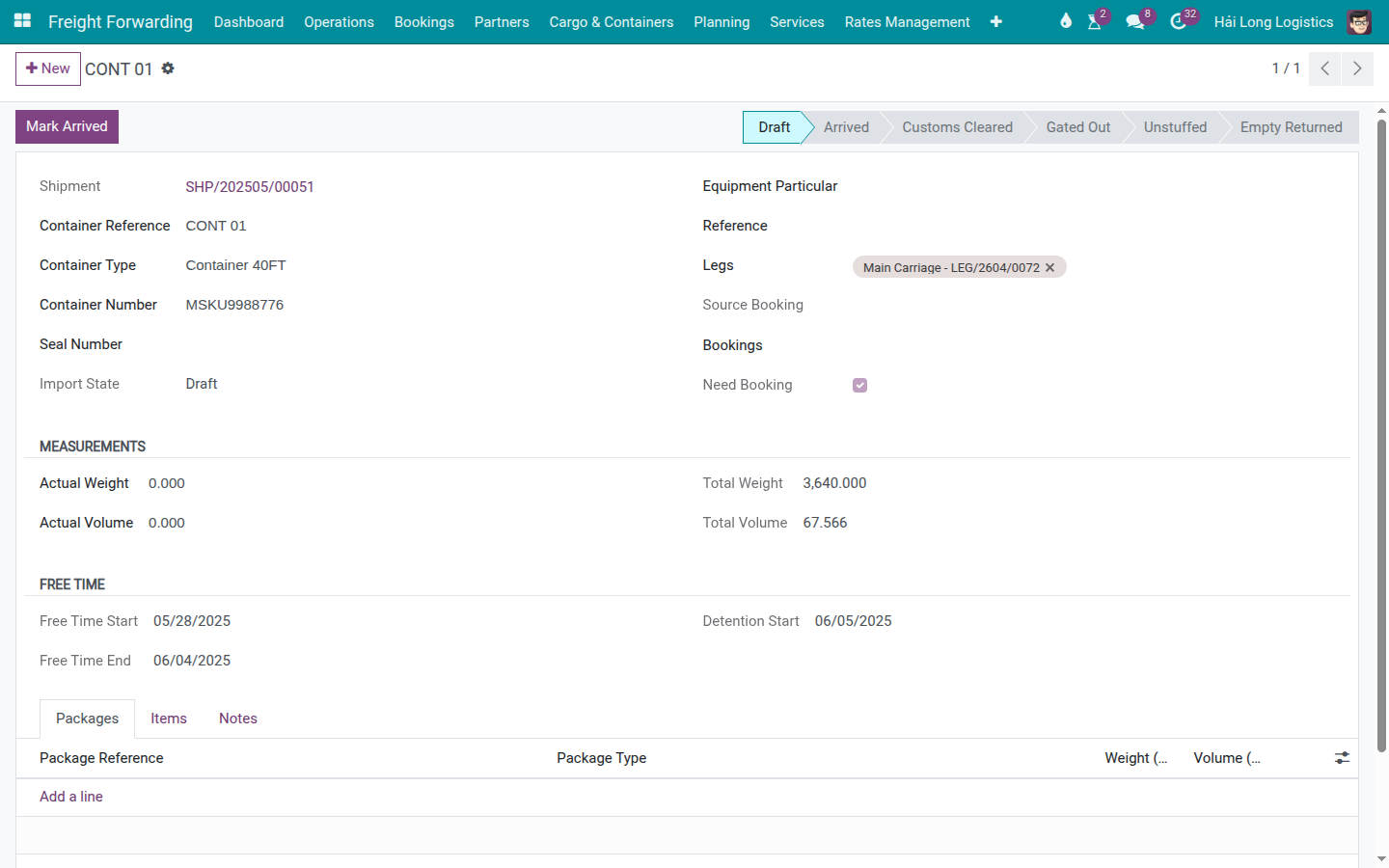
For this import scenario, the vessel carrying MSKU9988776 arrives at VNSGN on 28/05/2025. Free time from Maersk: 7 days → free time ends 04/06/2025; detention starts 05/06/2025.
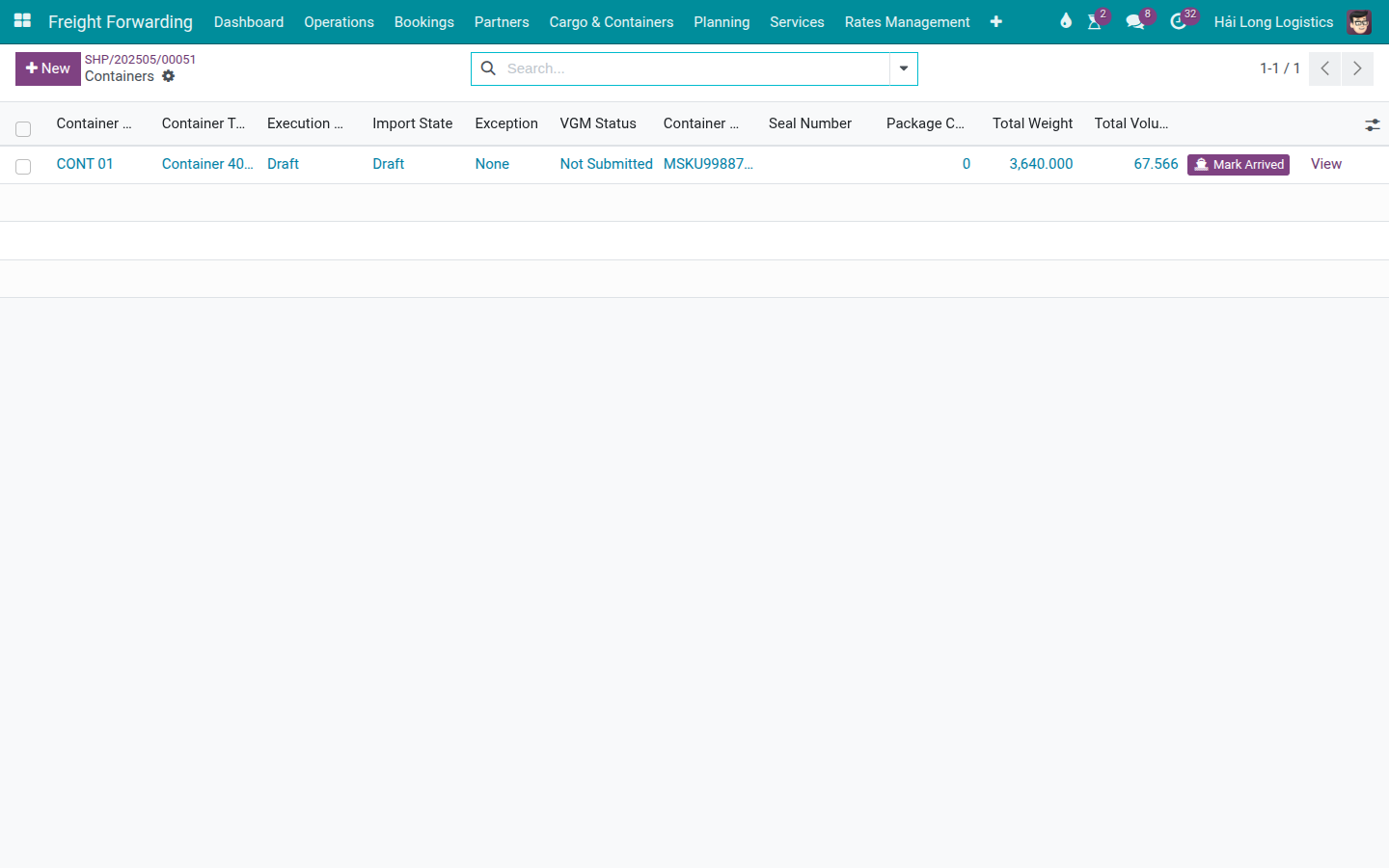
In the container list on the shipment, click Mark Arrived inline (the button is visible in the list). Or open the container form and click Mark Arrived on the header.
After marking Arrived:
Container import status changes to Arrived.
Timestamp Arrived At is recorded.
Step B2: Mark Customs Cleared immediately upon notification
Customs Cleared is the prerequisite for the consignee to collect the cargo. Mark this milestone the moment customs grants clearance — not when the truck arrives at the port to collect. Delayed recording creates a misleading gap in the audit trail and can cause confusion when the consignee asks about the clearance status.
Click Customs Cleared on the container list (inline) or on the container form header.
After marking Customs Cleared:
Container import status changes to Customs Cleared.
Timestamp Customs Cleared At is recorded.
The next step (Gated Out) becomes available.
Step B3: Mark Gated Out when the container leaves the terminal
Gated Out records the container leaving the terminal. This is the point where:
Demurrage ends — the container is no longer inside the terminal.
Detention begins — the container is now outside the terminal in the consignee's custody. The detention clock runs until Empty Return.
After the trucker presents the EIR (Equipment Interchange Receipt) confirming gate-out, click Mark Gate Out on the container form header (or Gate Out in the list view).
After marking Gated Out:
Container import status changes to Gated Out.
Timestamp Gated Out At is recorded.
Cảnh báo
Detention starts immediately after Gated Out. The clock does not pause.
For MSKU9988776 with Maersk free time of 7 days (ending 04/06/2025): if the container is gated out on 01/06/2025, there are only 3 days of free time left. Detention after 04/06/2025: USD 20–60/day for the first 7 days, USD 80–120/day from day 8 onward (rates vary by carrier — confirm with Maersk contract). Ten days over free time = approximately USD 400–800 for one container.
Step B4: Mark Unstuffed (or skip for FCL direct delivery)
Unstuffed records that the cargo has been unloaded at the consignee's warehouse or CFS. For FCL direct delivery (consignee unloads at their own facility), this step can be skipped — the transition from Gated Out directly to Empty Returned is valid in the system.
To mark Unstuffed: click Mark Unstuffed on the container form header.
After marking Unstuffed:
Container import status changes to Unstuffed.
Timestamp Unstuffed At is recorded.
The Mark Unstuffed button disappears; Empty Returned button appears on the form header.
When to skip Unstuffed: If the consignee unloads the container at their own premises and returns the empty directly to the carrier depot without going through a CFS, skip this step and mark Empty Returned directly from Gated Out using the container list view (the list allows Empty Return from both Gated Out and Unstuffed states). The form header button for Empty Return is only visible when the container is in Unstuffed state.
Step B5: Mark Empty Returned to close the container cycle
Empty Return is the final import milestone. When this is marked, the detention clock stops. Unrecorded Empty Returns mean the system continues to show an open detention exposure even after the physical container has been returned, causing confusion when billing is reviewed.
From Unstuffed state: click Empty Returned on the container form header.
From Gated Out state (FCL direct delivery — skipping Unstuffed): use the container list view inline button Empty Returned (visible for both Gated Out and Unstuffed states in the list, but the form header button only shows from Unstuffed).
After marking Empty Returned:
Container import status changes to Empty Returned.
Timestamp Empty Returned At is recorded.
The import milestones section shows all applicable timestamps.
The Free Time section on the container shows: - Free Time End: 04/06/2025 (ATA 28/05 + 7 days) - Detention Start: 05/06/2025
Mẹo
Step B5 complete when:
Status bar shows Empty Returned with all applicable import milestones visible.
Empty Returned At matches the timestamp on the EIR from the carrier depot.
Free Time End and Detention Start are correctly calculated in the Free Time section.
Known system gaps
No automatic Chatter log for milestone transitions. The
execution_stateand all timestamp fields do not havetracking=Truein the model. The Chatter does not auto-record milestone changes. To maintain an audit trail, post a manual Chatter note after each significant milestone: "Gate-in confirmed by terminal — COSU1234567, 12/05 08:30."Timestamps reflect the time you clicked the button — not the physical event time. If you are recording a milestone retroactively (e.g., the trucker confirmed gate-in 3 hours ago), edit the timestamp directly in the Milestones section of the container form before notifying downstream teams.
Free time is calculated from the shipment ATA field, not from the container's Arrived milestone. If ATA is not filled on the shipment, the Free Time section on the container will be empty even if the Arrived milestone is marked.
No SLA alert or automatic reminder for free time end or detention start. Monitor these dates manually or set a calendar reminder.
Troubleshooting
System refuses to mark next state — "Cannot move container from X to Y"
Symptom: Clicking a milestone button raises an error like
Cannot move container "COSU1234567" from stuffed to gated_in.
Cause: The state transition is not allowed. Export transitions are strictly sequential.
Resolution: Verify the current state in the status bar. If a step was skipped (e.g., never marked Stuffed), mark it first. You cannot jump from Empty Picked directly to Gate-in.
Container is at Gate-in but VGM was not submitted before the cutoff
Symptom: CY Cutoff has passed; VGM status is still "Not Submitted."
Resolution:
Check if the carrier still accepts late VGM (some carriers have a grace window of 1–2 hours).
If accepted: go to the container form, fill in VGM Weight, click Submit VGM.
If too late: contact the carrier to discuss whether the container can still be loaded with a VGM amendment. Expect an amendment fee of USD 25–50.
If the container cannot be loaded: record the Rolled Over exception and create a new booking for the next sailing.
Empty Return not recorded — system shows ongoing detention
Symptom: The container was physically returned to the depot days ago, but the system shows Gated Out with an open detention clock.
Resolution:
Get the EIR (Equipment Interchange Receipt) from the carrier depot — it shows the exact return date and time.
Open the container record and mark Empty Returned.
Edit the Empty Returned At timestamp to match the EIR date/time.
Post a Chatter note: "Empty Return backdated to [date] per EIR from [carrier] depot."
If demurrage/detention was incorrectly billed, present the EIR to the carrier for adjustment.
Xem thêm
VGM Entry (Verified Gross Mass) — Submitting VGM weight before the cutoff
Rollover and Not Loaded (Container Exception) — Handling Rolled Over and Not Loaded exceptions
Charges and Profitability — Recording demurrage and detention as cost charges on the shipment