
Rollover and Not Loaded (Container Exception)
Guide information
Required modules
A Container Exception is a critical deviation from the planned export route — the container was either bumped from the vessel by the carrier (Rolled Over) or could not board due to a problem with the container or documents (Not Loaded). Either way, the result is the same operationally: the container is still at the origin port, the vessel has departed, and a replacement booking must be made immediately.
Scenario used throughout this guide: Nguyen Van C (Hai Long Logistics) receives a notification on 14/05/2025 that container COSU1234567 on shipment SHP/202505/00042 (Viet Nam Textile JSC, VNHPH → CNSHA) could not board vessel COSCO SHIPPING UNIVERSE voyage 025E (ETD 15/05/2025). Nguyen Van C must determine whether this is a Rollover or a Not Loaded situation, record the exception, and create a replacement booking on voyage 027E (ETD 17/05/2025).
Understanding Rolled Over vs Not Loaded
These are two types of Container Exception — do not use them interchangeably.
Exception |
What it means |
What to do next |
|---|---|---|
Rolled Over |
The carrier bumped the container to the next sailing — the container and cargo are intact. Cause is on the carrier's side (overbooking, vessel space issue) or a missed cutoff. |
Create a new booking on the next sailing. No cargo intervention needed. |
Not Loaded |
The container could not board due to a problem with the container or documents: broken seal, overweight, hazardous material misdeclaration, or document error. |
Fix the root cause FIRST (repair seal, reweigh cargo, correct documents). Then create a new booking. |
Shut Out (carrier term) |
The carrier's umbrella term for both situations. May be a Rollover (carrier decision) or a Not Loaded (container issue). |
Investigate: if the cause is the carrier → Rolled Over. If the cause is the container/cargo → Not Loaded. |
Fallback guidance: If you have not yet received confirmation of the cause, mark Rolled Over initially (it is less severe and does not require cargo intervention). Update to Not Loaded if the investigation confirms a container/cargo problem.
Cost impact reference:
Cost item |
Typical range |
|---|---|
Port storage (per container, per day) |
USD 15–30 |
B/L amendment fee (if booking reference changes) |
USD 25–50 |
Replacement booking fee |
USD 50–150 |
Consignee slot rebooking at destination (CNSHA) |
USD 100–300 |
Total for 2-day delay, 1 container |
USD 200–500 |
Step 1: Record the Container Exception
Container Exceptions can only be recorded when the container is in Gate-in or Loaded state. If the container is not yet at Gate-in, it cannot have an exception recorded. Exceptions also only apply to Export direction shipments (and Domestic) — they do not apply to Import.
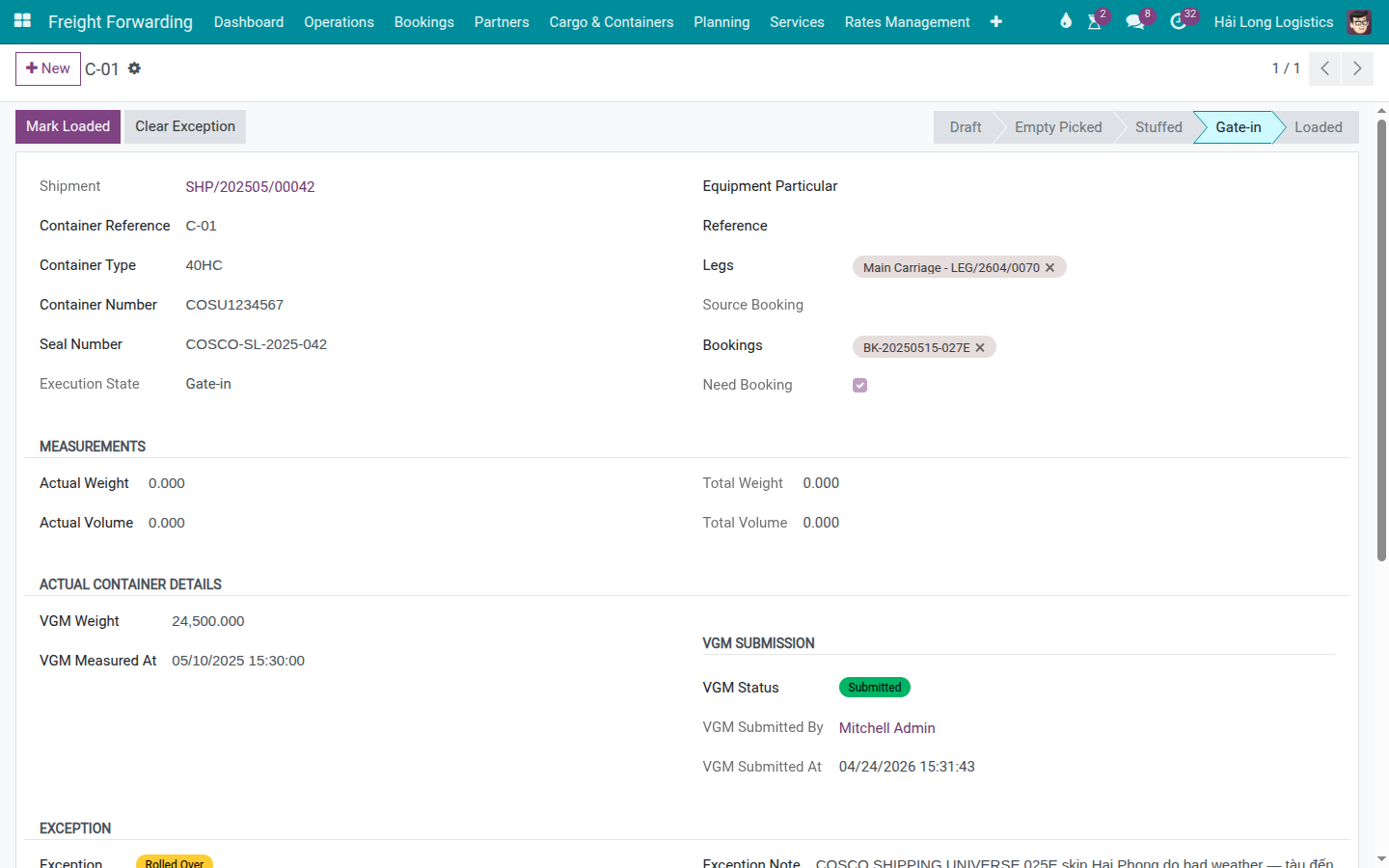
From the shipment SHP/202505/00042, open the Containers smart button and open the form for COSU1234567. Verify the container is at Gate-in status.
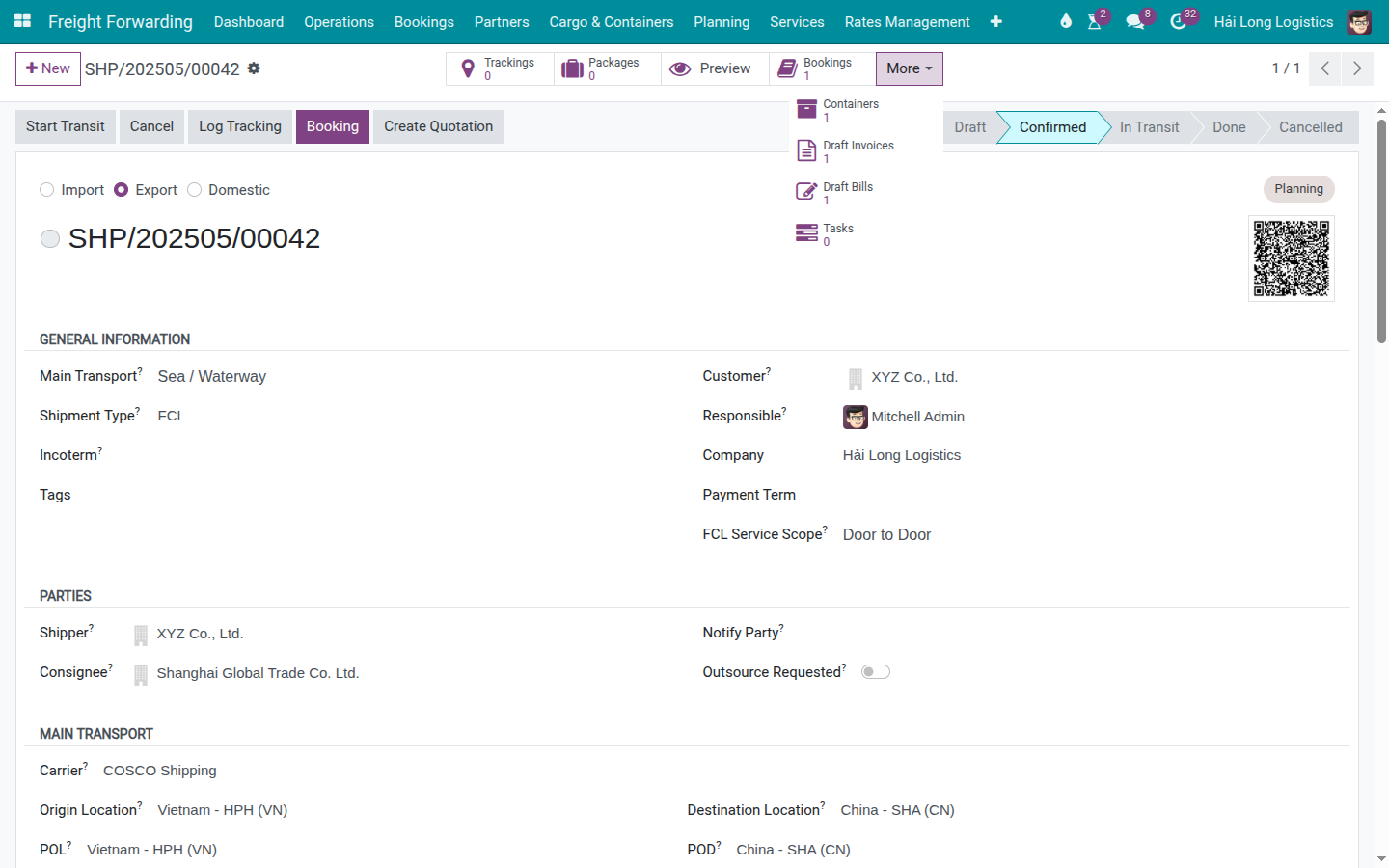
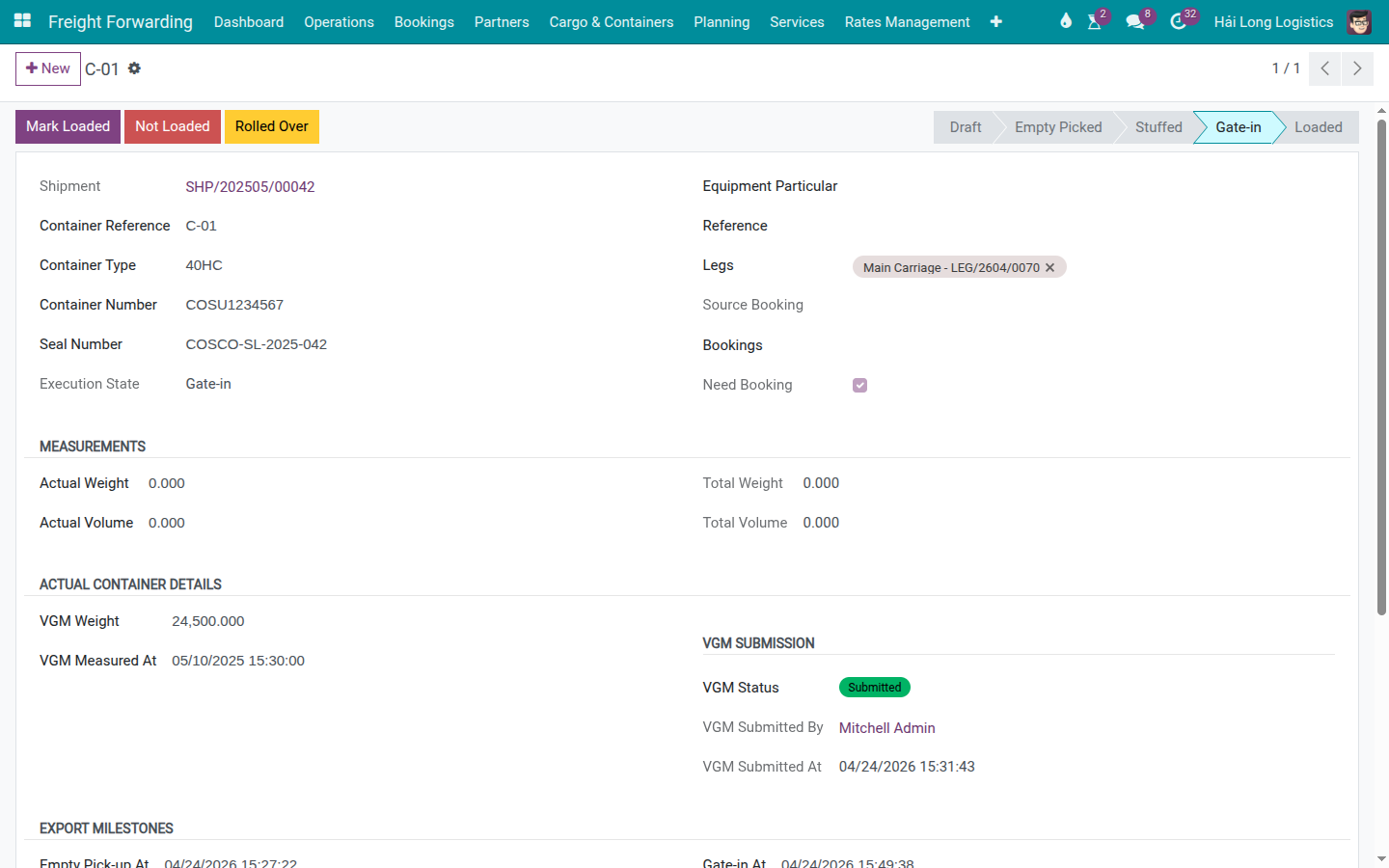
On the container form header, click the appropriate exception button:
Rolled Over (yellow button) — for carrier-initiated bumping.
Not Loaded (red button) — for container/document-caused loading failure.
For this scenario: COSCO was overbooked on voyage 025E → click Rolled Over.
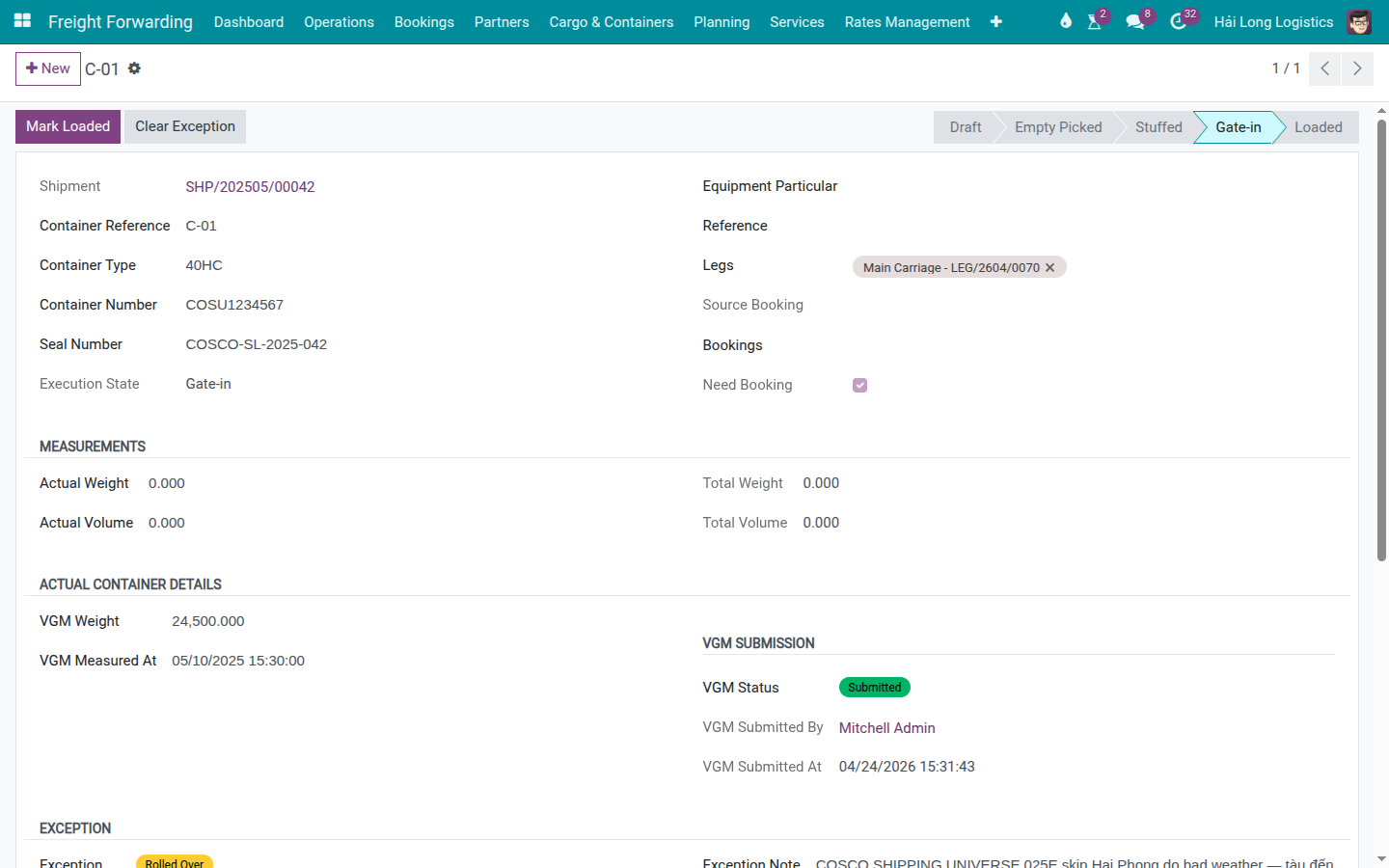
After clicking Rolled Over:
The container_exception field is set to Rolled Over.
Exception At timestamp is recorded automatically (read-only — cannot be cleared without using the Clear Exception button).
The Exception group becomes visible, showing a yellow badge, the exception type, the timestamp, and the Exception Note field.
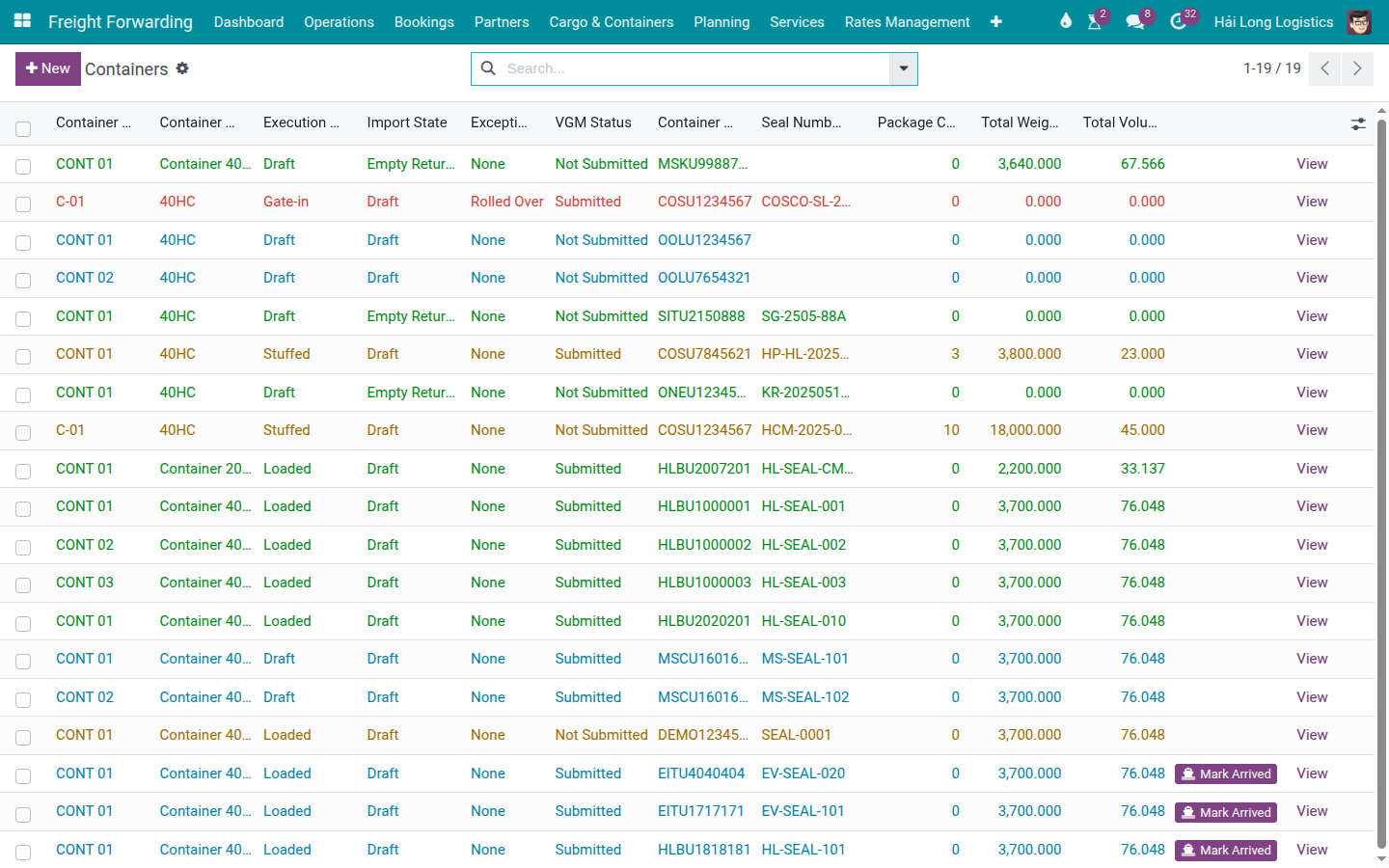
The container row in the list turns red (
decoration-danger).
Fill in the Exception Note: "COSCO 025E overbooked — vessel departed 15/05 without COSU1234567. Replacement booking requested on voyage 027E (ETD 17/05/2025). Viet Nam Textile JSC notified at 14:30 on 14/05."
Cảnh báo
Exception Note is not mandatory in the system but is mandatory in practice.
The system does not block saving if Exception Note is blank. However, the note is the only audit record of what happened and why. Without it, there is no way to answer the question "Why did COSU1234567 not load on 025E?" when reviewing the shipment 3 months later. Write the note immediately — do not defer it.
Also note: Clear Exception permanently deletes the Exception At timestamp. If you accidentally clear an exception, the timestamp is gone. There is no undo. Write the relevant details in the Chatter before clearing, if a clear is needed.
Mẹo
Step 1 complete when:
Exception type is Rolled Over (yellow badge on the container form).
Exception Note is filled with: cause, date of exception, replacement sailing, and when the customer was notified.
The container row is red in the Containers list on the shipment.
Operations Manager has been informed of the exception.
Step 2: Create a replacement booking on the next sailing
The replacement booking must be created on the same shipment — the cargo and customer do not change. Only the sailing changes (025E → 027E).
From the shipment header, click Booking (or go to the Bookings tab and click New) to open the Create Booking wizard.
For the replacement booking:
Booking Type: Ocean Booking
Carrier: COSCO
Coverage: Main Only
POL / POD: VNHPH / CNSHA
ETD: 17/05/2025 (voyage 027E)
Create → Mark as Requested → receive COSCO confirmation → fill in the new booking reference, vessel and cutoff → Mark as Confirmed.
The old booking (025E) should be cancelled to avoid confusion. On the 025E booking form:
Click Cancel if the booking is in Requested status.
If the booking was already Confirmed: the Cancel button may require additional confirmation. A confirmed booking can be cancelled — this does not affect the shipment record itself.
After creating the replacement booking:
The shipment now shows 2 bookings: one Cancelled (025E) and one Confirmed (027E).
Update the ETD and ETA on the shipment to reflect voyage 027E.
Mẹo
Step 2 complete when:
A new booking for voyage 027E (ETD 17/05/2025) is Confirmed with the new COSCO booking reference.
The 025E booking is Cancelled.
Shipment ETD/ETA updated to reflect the new sailing.
Cutoff dates on the new booking are updated from COSCO's new confirmation.
Step 3: Notify the customer and update documents
Viet Nam Textile JSC must be told about the revised ETD. The MBL and HBL details may also need updating if the voyage number changes on the B/L.
Contact Viet Nam Textile JSC: revised ETD 17/05/2025, new COSCO booking reference, new ETA at CNSHA.
If the SI was already submitted to COSCO for voyage 025E, submit a new SI for 027E with the updated voyage number. This may incur a B/L amendment fee (USD 25–50).
If the HBL has already been issued, update the Main Voyage field on the shipment from 025E to 027E and re-issue the HBL document.
Post a Chatter note: "Exception Rolled Over on 025E resolved. Replacement booking confirmed on 027E (ETD 17/05/2025). Customer notified. SI amendment submitted to COSCO."
After the exception is resolved (container loaded on voyage 027E), click Clear Exception on the container form to reset the exception status. Before clearing, take a screenshot or note the exception details for your records — the Exception At timestamp is deleted when cleared.
Troubleshooting
Not Loaded exception — what to fix before rebooking
Symptom: The Not Loaded exception is raised because of a container/cargo issue.
Common causes and resolutions:
Cause |
Resolution |
|---|---|
Broken or missing seal |
Replace seal at the CY before the next gate-in. Update Seal Number on the container record. |
Container overweight |
Reduce cargo weight. Re-weigh and submit a corrected VGM before the new CY Cutoff. |
Hazardous material misdeclaration |
Contact the shipper and customs. A correct DGD (Dangerous Goods Declaration) may be required. Depending on severity, may require re-packing. |
Document error on SI |
Submit a corrected SI to the carrier before the new SI Cutoff. |
In all Not Loaded cases: fix the root cause before creating the replacement booking. A container that boards the next voyage with the same unresolved problem will be Not Loaded again.
Clear Exception clicked by mistake
Symptom: Clear Exception was clicked accidentally; the exception is now gone including the timestamp.
Cause: The system does not prompt for confirmation before clearing.
Resolution:
The Exception At timestamp is permanently deleted — it cannot be recovered from the system.
If a screenshot was taken before clearing, use it to reconstruct the timeline.
Post a Chatter note explaining what happened and when the exception occurred (based on team recollection or email records).
This is a known limitation — the system has no undo for Clear Exception.
Xem thêm
Container Execution Milestones — Container milestones and state machine
VGM Entry (Verified Gross Mass) — VGM submission (a missed VGM is a common cause of Rollover)
Carrier Booking (Sea) — Creating a replacement booking on the next sailing