
Freight Quotation
About this guide
Installation requirements
An active rate card for the relevant lane, carrier, and container/cargo type.
A freight quotation is the commercial step that precedes operations. Sales agrees on the selling price, Pricing verifies the buy rate and margin, and only then does Operations use the confirmed information to book the carrier, track the container, manage documents, and record charges on the shipment.
Skipping the margin check before sending a quotation is the most common way a shipment that looks profitable ends up breaking even — or losing money. One missing surcharge or a currency mix-up at the quotation stage ripples through to the final invoice.
Scenario thread: Hai Long Logistics has received a quotation request from Viet Nam Textile JSC for a sea export shipment of 2 × 40HC containers of woven fabric, lane VNHPH (Hai Phong) → USLAX (Los Angeles), requested ETD within the next 15 days. Pricing has the carrier rate loaded in the system. Sales needs to select an appropriate sailing schedule, check the margin, send the quotation, and confirm once the customer agrees.
Xem thêm
Freight terminology (POL, POD, FCL, LCL, ETD, ETA, W/M, THC): Industry Glossary.
When to use this guide
Use this guide when a customer asks for a price before a shipment is created or confirmed. If the shipment is already in operations and you only need to update actual charges, switch to the Charges management guide instead.
Role |
Task |
Verification needed |
|---|---|---|
Sales Executive |
Create the quotation, select sailing schedule and rate, send to customer, and confirm when customer agrees. |
Quotation shows selling price, carrier/sailing schedule, and clear service scope. |
Pricing Staff |
Verify buy rate, markup, surcharges, and margin. |
Selling price is not below the company's profit policy. |
Operations Coordinator |
Receive the shipment after SO confirmation and continue with booking. |
Shipment has lane, customer, carrier/sailing schedule, and basic charges. |
Process overview
# |
Step |
Purpose |
Owner |
|---|---|---|---|
1 |
Create the quotation and add a freight service line. |
Identify the customer, lane, and service type to quote. |
Sales |
2 |
Select sailing schedule and rate. |
Compare carriers, ETD/ETA, and buy rates. |
Sales / Pricing |
3 |
Apply the selected quote to the sales order. |
Write carrier, schedule, and price lines onto the order. |
Sales |
4 |
Check margin before sending to the customer. |
Avoid sending a quotation with insufficient markup or missing surcharges. |
Pricing / Sales |
5 |
Confirm the quotation when the customer agrees. |
Create the sales order and linked shipment for Ops to process. |
Sales |
6 |
Hand off to Operations. |
Give Ops the information committed to the customer. |
Sales / Ops |
Step 1: Create the quotation and add a freight service line
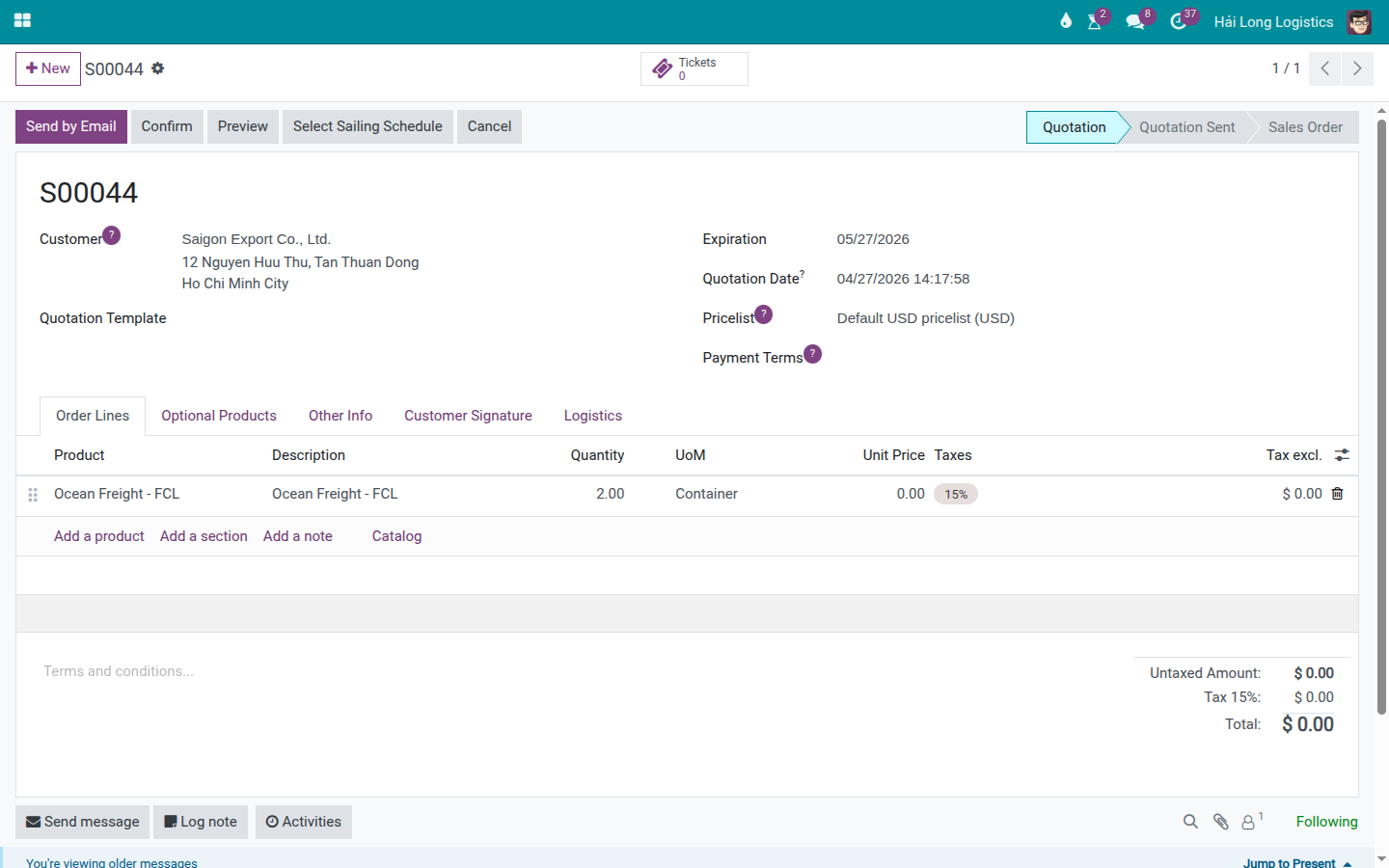
Go to and click New.
Fill in the key fields:
Customer: Viet Nam Textile JSC.
Validity: the quotation expiry date.
Order Lines: add the product Ocean Freight - FCL or the appropriate freight product.
Quantity: 2 for the two 40HC containers in this scenario.
After the freight line is added, the Select Sailing Schedule button appears on the quotation so Sales can look up the carrier, sailing, and rate.
Mẹo
Step 1 is complete when:
The quotation has the correct customer.
The freight line matches the service type being quoted — for example Ocean Freight - FCL.
Quantity matches the customer's requirement — for example 2 containers.
The Select Sailing Schedule button is visible on the quotation.
Step 2: Select sailing schedule and rate
Click Select Sailing Schedule. In the selection window, enter or verify:
POL: VNHPH.
POD: USLAX.
Container Type: 40HC.
Containers: 2.
ETD From / ETD To: the customer's requested date range, if you want to filter the results.
The results table shows matching carriers, sailings, and rates. Sales compares options using:
Criterion |
How to choose |
Note |
|---|---|---|
ETD/ETA |
Select the sailing closest to the customer's request. |
Do not commit to a date if the carrier has not confirmed the slot. |
Carrier |
Choose the carrier the customer prefers, or the carrier with the best service profile. |
If the customer has no preference, balance price against reliability. |
Price |
Use the buy rate as the input for calculating the selling price. |
The rate may not include all surcharges or markup depending on your setup. |
Transit time |
Prioritize shorter transit for time-sensitive cargo. |
The lowest price is not always the best choice. |
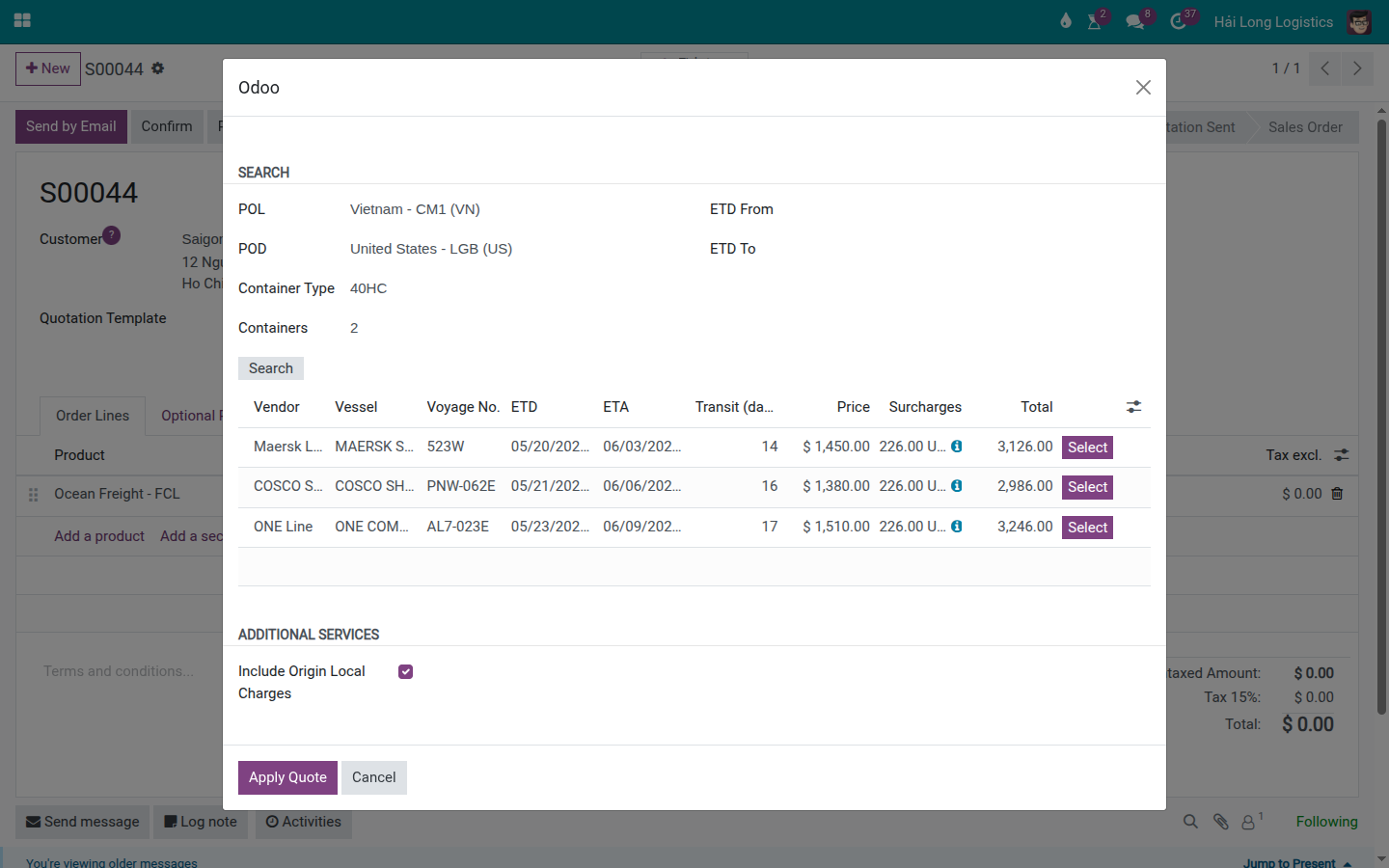
Select the carrier and sailing that best fits the customer's ETD requirement while keeping the margin within policy.
Cảnh báo
If no carrier lines appear in the results, do not enter a made-up rate. Check the rate card, verify the lane, container type, or rate validity period, or contact Pricing/the carrier to obtain a fresh rate before committing to the customer.
Step 3: Apply the selected quote to the sales order
After selecting the sailing, click Apply Quote. The quotation is updated with the chosen carrier, sailing details, and associated price lines.
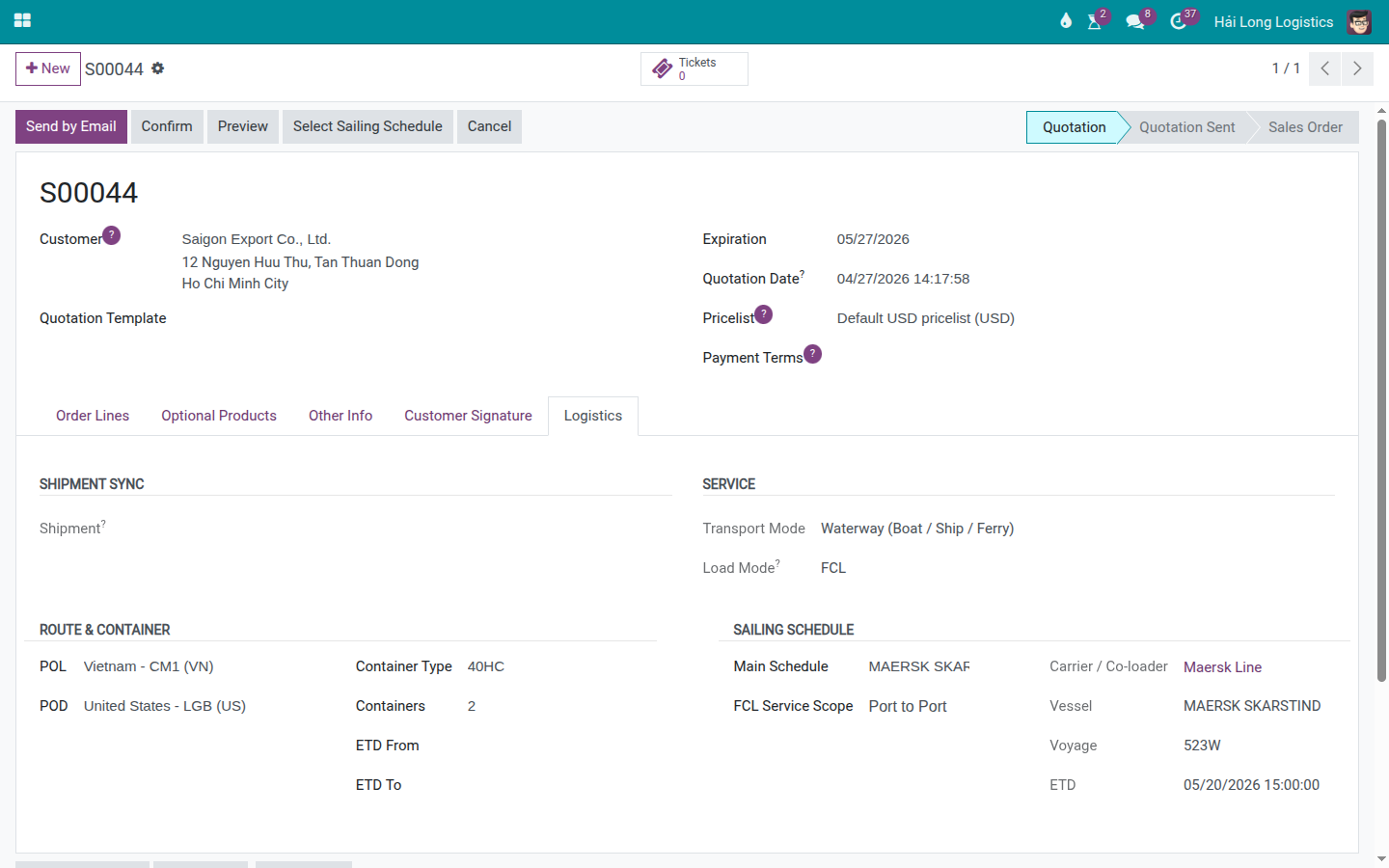
Review the quotation:
The selected carrier and sailing schedule are correct.
The freight line has the correct price and quantity.
Any required surcharges have been added: local charges, pickup, CFS fee, documentation fee, or other applicable charges.
The service scope is clear: port-to-port, door-to-port, CFS-to-CFS, or the applicable coverage.
Mẹo
Step 3 is complete when:
No freight line has a unit price of zero unless that is intentional.
Carrier, POL/POD, and ETD/ETA match the selection made in the wizard.
All charges the customer is expected to pay are listed on the quotation.
Step 4: Check margin before sending to the customer
Before sending the quotation, Sales and Pricing must verify the selling price, buy price, and margin. The carrier rate is the key input, but it does not automatically guarantee that the quotation has adequate markup.
Minimum margin checks:
Item |
Question to answer |
|---|---|
Ocean Freight |
Does the selling price include markup above the carrier buy rate? |
Local charges |
Does the quotation need to include THC, D/O fee, B/L fee, seal fee, VGM, or CFS charges separately? |
Pickup/Delivery |
If door service was quoted, does the trucking cost have a price? |
Currency |
Are selling price and buy price in the correct currencies, with the right exchange rate and payment terms? |
Validity |
Is the quotation being sent to the customer still within the carrier's rate validity period? |
Cảnh báo
Do not send a quotation if the margin is unclear. In freight, a single missing surcharge or a currency mismatch can result in a shipment that shows revenue but has no actual profit.
Step 5: Confirm the quotation and create the shipment
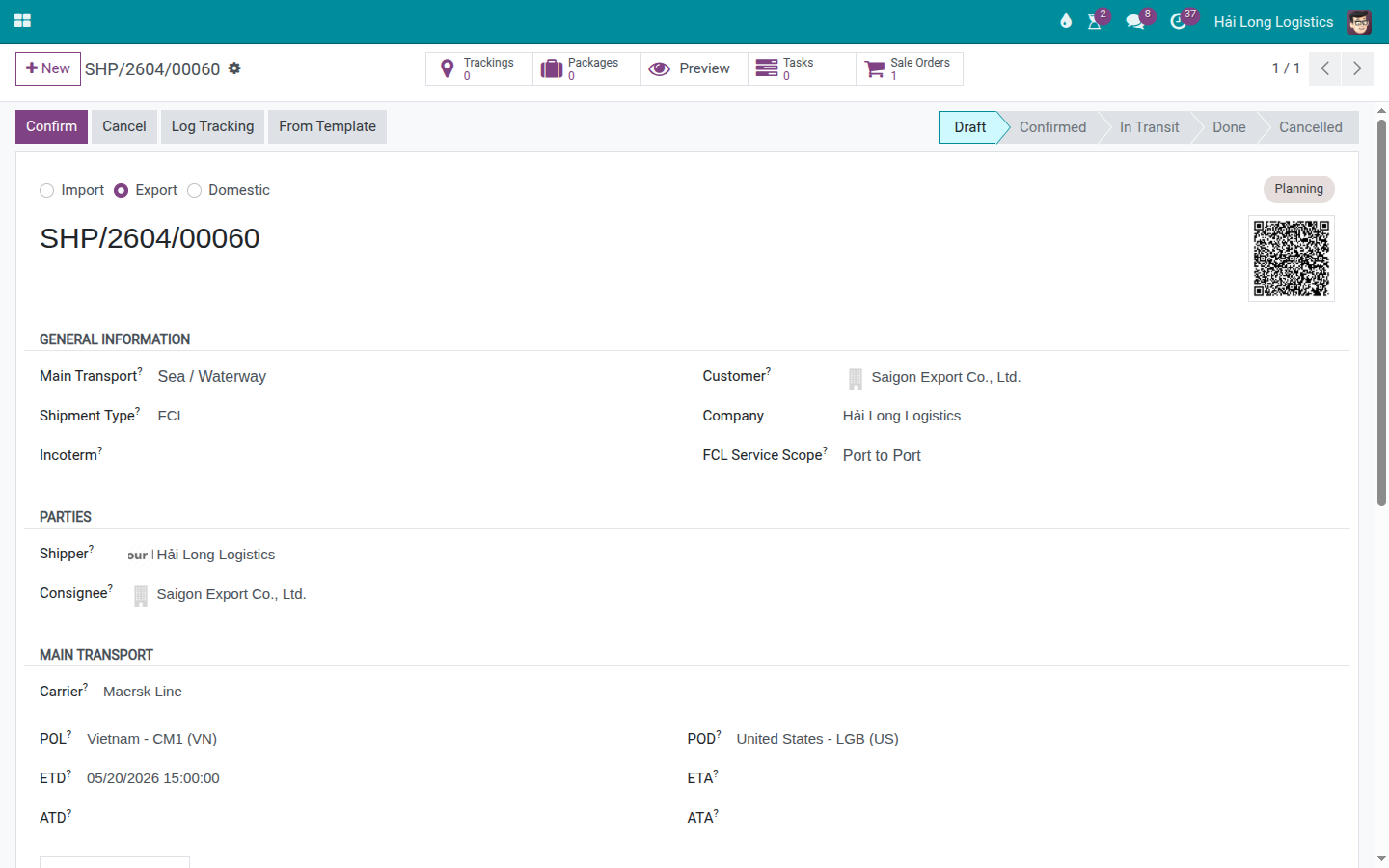
When the customer agrees, open the quotation and click Confirm. The quotation becomes a Sales Order. A linked shipment is automatically created for Operations to continue processing.
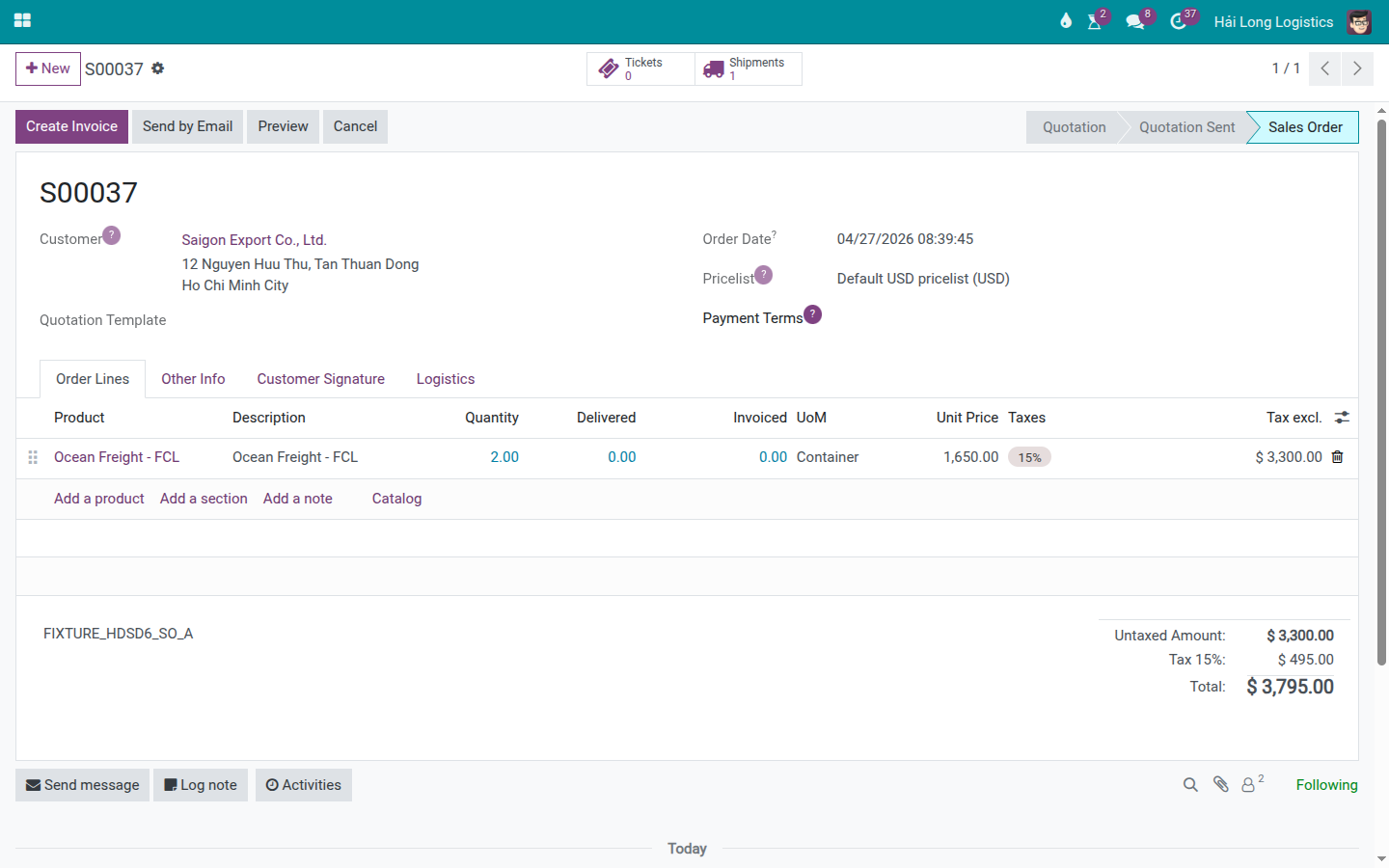
On the shipment, verify:
Customer and lane match the quotation.
Carrier and sailing schedule have been inherited if they were selected in the wizard.
Charges or revenue/cost information are available for Ops/Accounting to review.
The shipment is ready to continue through the sea FCL or LCL export flow.
Step 6: Hand off to Operations
After confirmation, Sales should not simply leave the auto-created shipment and move on. Ops needs the following information that was committed to the customer:
Carrier and sailing chosen, or preferred carrier.
ETD/ETA communicated to the customer.
Selling price and surcharges agreed.
Service scope: port-to-port, door-to-port, CFS-to-CFS, or door-to-door.
Payment terms, quotation validity, and any special customer instructions.
Ops continues from the shipment to create the carrier booking, update container milestones, manage documents, and record charges per the relevant sea freight guides.
Notes for LCL quotations
For LCL shipments, the quotation process is the same, but check the following additional items:
Enter the correct weight, volume, and piece count if the system requires it to calculate chargeable quantity.
Verify that the chargeable quantity (W/M — Weight or Measurement, whichever is greater) is not below the carrier's minimum charge.
For LCL export, the house shipment serves the customer. The container/master operations (consolidation) happen at the master level — do not enter container details on the house LCL shipment.
Troubleshooting common situations
Situation |
Common cause |
Resolution |
|---|---|---|
Select Sailing Schedule button does not appear. |
No suitable freight product line on the quotation, or the quotation has already been confirmed. |
Check the freight product on the order line; create a new quotation if the original was confirmed incorrectly. |
No carrier or rate appears in the sailing schedule results. |
No rate card exists, wrong lane, wrong container type, or rate has expired. |
Check the rate management guide or ask Pricing to update the rate. |
Quotation price has no markup. |
Sales used the buy rate directly as the selling price. |
Update the unit price or add a surcharge line per your pricing policy before sending to the customer. |
Customer changed ETD or carrier after the quote was applied. |
The original sailing is no longer suitable. |
Reopen Select Sailing Schedule, choose the new sailing, and verify the margin again before sending the revised quotation. |
Shipment is missing information after confirmation. |
The quotation had no sailing/rate selected or was missing logistics data. |
Supplement the shipment manually and include a handoff note for Ops; if necessary, cancel and re-issue the quotation per your internal process. |
Shipment has Charges but profit is incorrect. |
Missing cost lines, missing surcharges, wrong currency, or vendor bill not yet entered. |
Review the Charges tab per the charges and profitability guide. |
Final checkpoint
Before handing off to Operations, verify:
Quotation/Sales Order has the correct customer, lane, cargo, and service scope.
The selected carrier and sailing schedule are backed by a rate card or Pricing/carrier confirmation.
The selling price has been margin-checked.
The Sales Order is confirmed and the linked shipment has been created.
Ops has enough information to continue with the sea FCL or LCL booking.
Xem thêm
Related guides
Rate Card Management — Set up carrier rate cards.
Carrier Booking (Sea) — Place a carrier booking after the customer confirms.
Charges and Profitability — Review charges and shipment profitability.
FCL Export — Process sea FCL export after the shipment is created.
LCL Export (Consolidation) — Process sea LCL export after the shipment is created.