
Charges and Profitability
Guide information
Required modules
Freight Accounting (required for invoice and bill generation)
Every shipment has two financial sides: what you charge the customer (sell) and what you pay to vendors and agents (buy). Recording both correctly — before invoicing — is the only way to see the true gross profit on each shipment. A missing cost line discovered after invoicing requires a credit note, a new bill, and a reconciliation cycle that typically takes 2–5 business days.
Scenario used throughout this guide: Hai Long Logistics processes shipment SHP/202505/00042 for Viet Nam Textile JSC: 2 × 40HC containers, VNHPH → CNSHA, carrier COSCO. The agreed margin at quotation was approximately 8%. Charges in this scenario:
Charge |
Sell price |
Cost price |
Vendor |
Note |
|---|---|---|---|---|
Ocean Freight |
USD 2,100/cont × 2 |
USD 1,850/cont × 2 |
COSCO |
Buy + Sell |
THC (Terminal Handling Charge) |
USD 155/cont × 2 |
USD 120/cont × 2 |
Port VNHPH |
Buy + Sell |
D/O Fee (Delivery Order) |
— |
USD 30 flat |
COSCO |
Buy-only |
CFS (Container Freight Station) |
USD 80 flat |
— |
— |
Sell-only |
Xem thêm
Freight terminology (THC, DEM, DET, FOB/CIF, POL/POD): Industry Glossary.
When to use this guide
Use this guide after the shipment has been Confirmed and the booking is in place. The Charges tab is only visible after the shipment leaves Draft status. For the detailed carrier booking workflow that precedes this step, see Carrier Booking (Sea).
Role |
Task in this guide |
What to verify |
|---|---|---|
Operations / Pricing |
Add all charge lines (Ocean Freight, THC, surcharges, etc.) with sell and cost prices. |
Every charge has both a sell rate and a cost rate (or is correctly marked as sell-only or buy-only). |
Accounting |
Generate customer invoice draft and vendor bill draft from the Charges tab. |
Draft Invoice and Draft Bill appear in the system; gross profit is visible on the shipment. |
Finance / Manager |
Review gross profit against the expected margin. |
Gross profit margin ≥ agreed threshold (8% in this scenario). |
Understanding the four charge types
Before recording charges, choose the correct type for each line. The type determines which financial document the charge flows into.
Type |
Has sell price |
Has cost price |
Use when |
|---|---|---|---|
Buy + Sell |
Yes |
Yes |
Normal freight charge billed to customer AND paid to vendor (e.g., Ocean Freight, THC). |
Sell-only |
Yes |
No |
Revenue line with no vendor payment (e.g., documentation fee, admin surcharge). Goes to customer invoice only. |
Buy-only |
No |
Yes |
Cost line paid to vendor but not billed separately to customer (e.g., D/O fee absorbed into the overall price). Goes to vendor bill only. |
Agent-only |
No |
No (commission basis) |
Commission or forwarding fee paid to an agent. Does NOT generate a vendor bill — settled separately. Flag by setting Agent field instead of Vendor. |
If you are unsure, use Buy + Sell. You can always adjust the sell price to zero if the customer is not charged for that line. However, never leave the cost price blank on a Buy + Sell charge — the system's rate lookup fills the sell price from the rate card, but does NOT auto-fill cost price. A cost price of zero means the system reports zero cost and overstates gross profit.
Step 1: Open the Charges tab and review existing lines
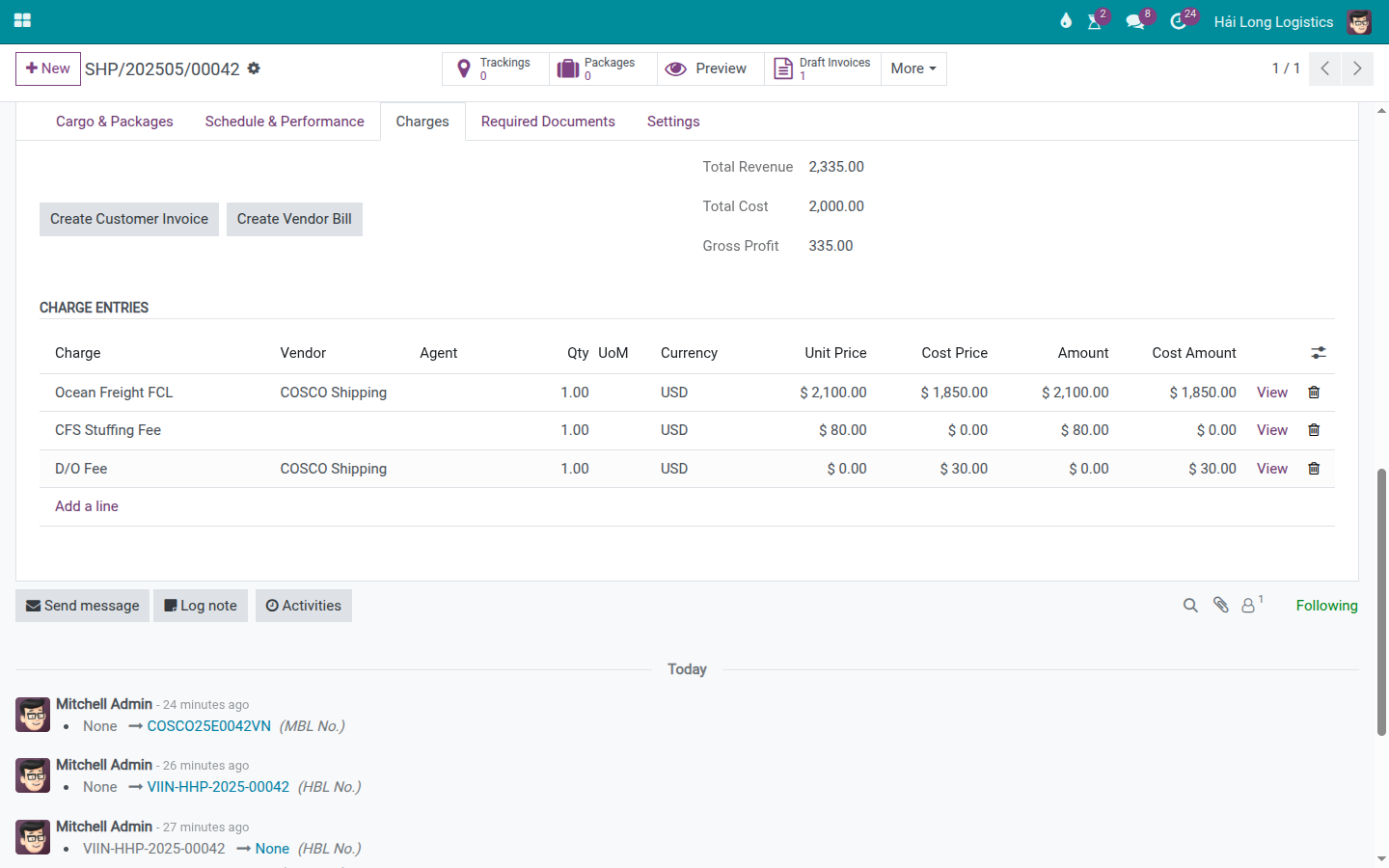
After booking confirmation, the Charges tab on the shipment may already contain an Ocean Freight line auto-generated from the rate card. This line has the sell rate filled in, but the cost rate may be blank — verify it immediately.
Go to the shipment form → open the Charges tab.
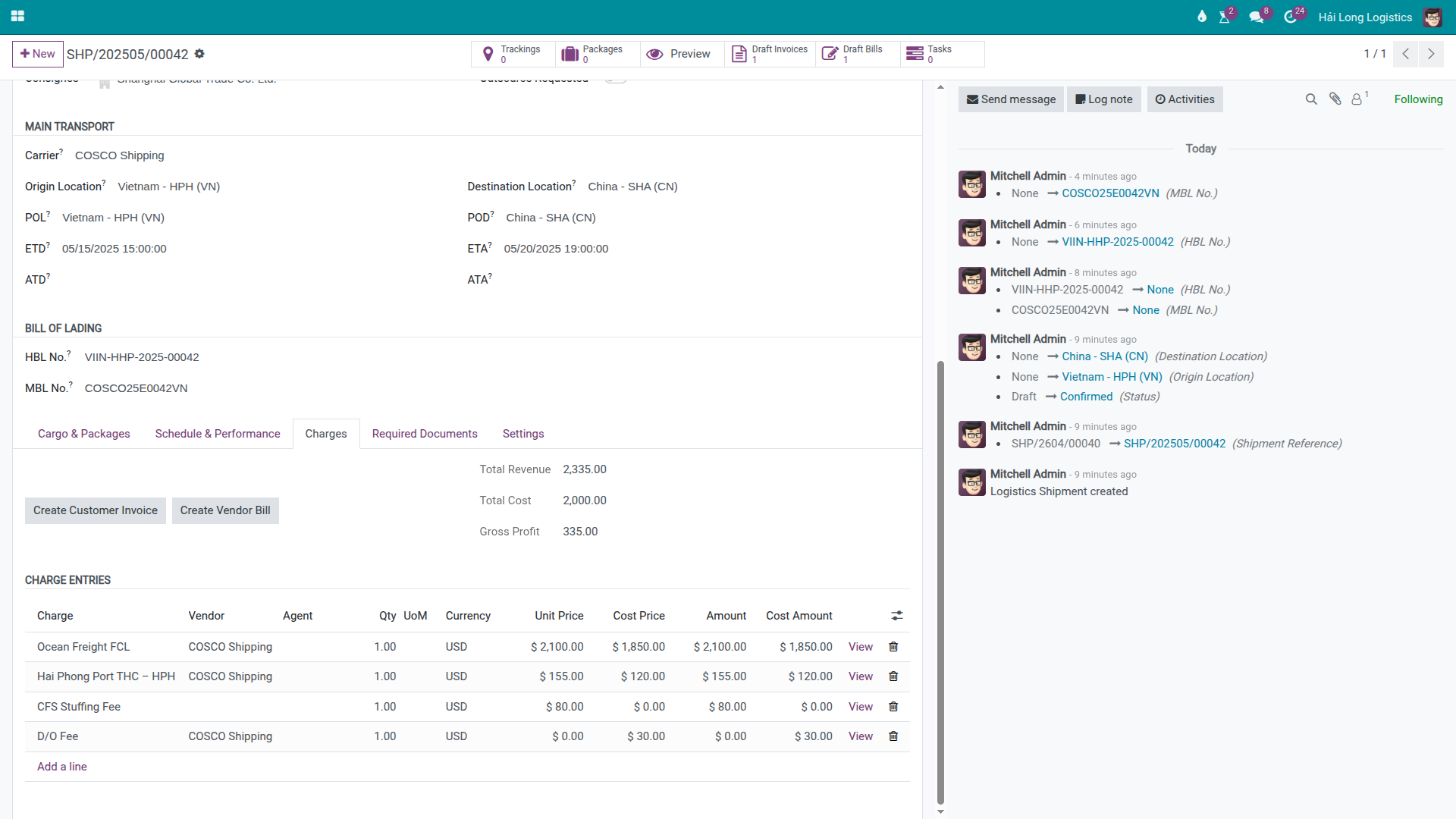
For the Ocean Freight line already present:
Confirm Unit Price (sell rate): USD 2,100. This was populated by the rate lookup.
Confirm Cost Price (buy rate): should be USD 1,850 from the COSCO rate card. If blank — fill it in now. A blank cost price reports USD 0 cost on this line, overstating gross profit by USD 3,700 (USD 1,850 × 2 containers).
Confirm Qty: 2.
Confirm Currency: USD.
Cảnh báo
A blank Cost Price silently corrupts your profitability report.
The rate lookup in Viindoo fills the sell price (Unit Price) from the rate card, but intentionally does NOT fill the cost price — because buy rates are often negotiated separately from sell rates. If you leave Cost Price empty, the Gross Profit on this shipment will be overstated by the full cost amount.
For this scenario: Cost Price blank on Ocean Freight → system reports Gross Profit USD 4,510 instead of the actual USD 810. Accounting will see a phantom margin. The discrepancy is discovered only when the vendor bill from COSCO arrives.
Mẹo
Step 1 complete when:
Ocean Freight line has Unit Price = USD 2,100, Cost Price = USD 1,850, Qty = 2.
Total Revenue shows USD 4,200 (2,100 × 2); Total Cost shows USD 3,700 (1,850 × 2).
Gross Profit = USD 500 for Ocean Freight alone — roughly consistent with a 12% margin before adding THC and other charges.
Step 2: Add remaining charge lines
The Ocean Freight line auto-generated from the rate card is only one of several charges. Add the others manually to complete the shipment's financial picture.
Click Add a line in the Charges tab for each of the following:
THC (Terminal Handling Charge — VNHPH):
Charge type (Product): Terminal Handling Charge
Vendor: Hai Phong Port Authority (or the relevant terminal operator)
Unit Price (sell): USD 155
Cost Price (buy): USD 120
Qty: 2
Currency: USD
Type: Buy + Sell
D/O Fee (Delivery Order Fee):
Charge type (Product): Delivery Order Fee
Vendor: COSCO
Unit Price (sell): leave blank (or 0 — not billed to customer)
Cost Price (buy): USD 30
Qty: 1
Type: Buy-only (because Vendor is set, Cost Price > 0, and no Unit Price)
CFS Fee (Container Freight Station — documentation surcharge):
Charge type (Product): CFS Fee
Customer: Viet Nam Textile JSC (auto-filled from shipment)
Unit Price (sell): USD 80
Cost Price (buy): leave blank
Qty: 1
Type: Sell-only
After adding all lines, the summary at the top of the Charges tab should show:
Total Revenue: USD 2,255 = (2,100 × 2) + (155 × 2) + 80
Total Cost: USD 4,070 = (1,850 × 2) + (120 × 2) + 30
Gross Profit: USD −1,815?
Wait — this looks wrong. The reason is unit counts: USD revenue is per container × 2, while cost also includes 2 containers. Let us recalculate correctly:
Revenue: Ocean (4,200) + THC (310) + CFS (80) = USD 4,590
Cost: Ocean (3,700) + THC (240) + D/O (30) = USD 3,970
Gross Profit: USD 620 → margin ~13.5%
The margin (approximately 13.5%) exceeds the minimum 8% threshold agreed at quotation.
Ghi chú
Gross Profit margin % is not a system field — calculate it manually.
The Charges tab shows Total Revenue, Total Cost and Gross Profit as currency amounts.
It does not compute a percentage margin. Calculate: Gross Profit ÷ Total Revenue × 100.
For this scenario: 620 ÷ 4,590 × 100 = 13.5%.
Mẹo
Step 2 complete when:
All expected charges appear in the Charges tab.
No charge line has both Unit Price and Cost Price blank.
Total Revenue = USD 4,590; Total Cost = USD 3,970; Gross Profit = USD 620.
Margin (~13.5%) is at or above the threshold agreed with the customer.
Step 3: Handle multi-currency charges
Freight invoices often mix currencies: ocean freight in USD, local charges in VND. Viindoo supports multiple currencies on the same shipment, but this increases reconciliation complexity.
Best practice: keep one shipment to one currency whenever possible.
If a charge must be in a different currency:
Set the correct Currency field on each charge line.
The system converts amounts using the exchange rate at the time of invoicing, not at the time of charge entry.
If the exchange rate changes between charge entry and invoice posting, the reported Gross Profit may differ from the charge-level calculation. Monitor this on shipments with large VND amounts.
Scenario |
Recommended approach |
Reason |
|---|---|---|
All charges USD |
Use USD throughout. Invoice in USD. |
Simplest. No FX reconciliation. |
Ocean in USD, THC in VND |
Convert THC to USD equivalent at time of entry; record in USD. |
Avoids multi-currency invoice complexity. |
Customer invoiced in VND |
Enter charges in USD, set invoice currency to VND on the invoice. |
Rate lock at invoice date. Easier audit trail. |
Step 4: Generate the customer invoice draft
Generating the customer invoice in Viindoo does not post it — it creates a draft account move that Accounting can review, adjust and post separately. The invoice groups all sell-side charge lines (Unit Price > 0) for the same customer into a single draft invoice.
The Create Customer Invoice and Create Vendor Bill buttons are only visible to users
with the Billing access right (account.group_account_invoice). If you do not see these
buttons, ask your Accounting team to proceed with this step.
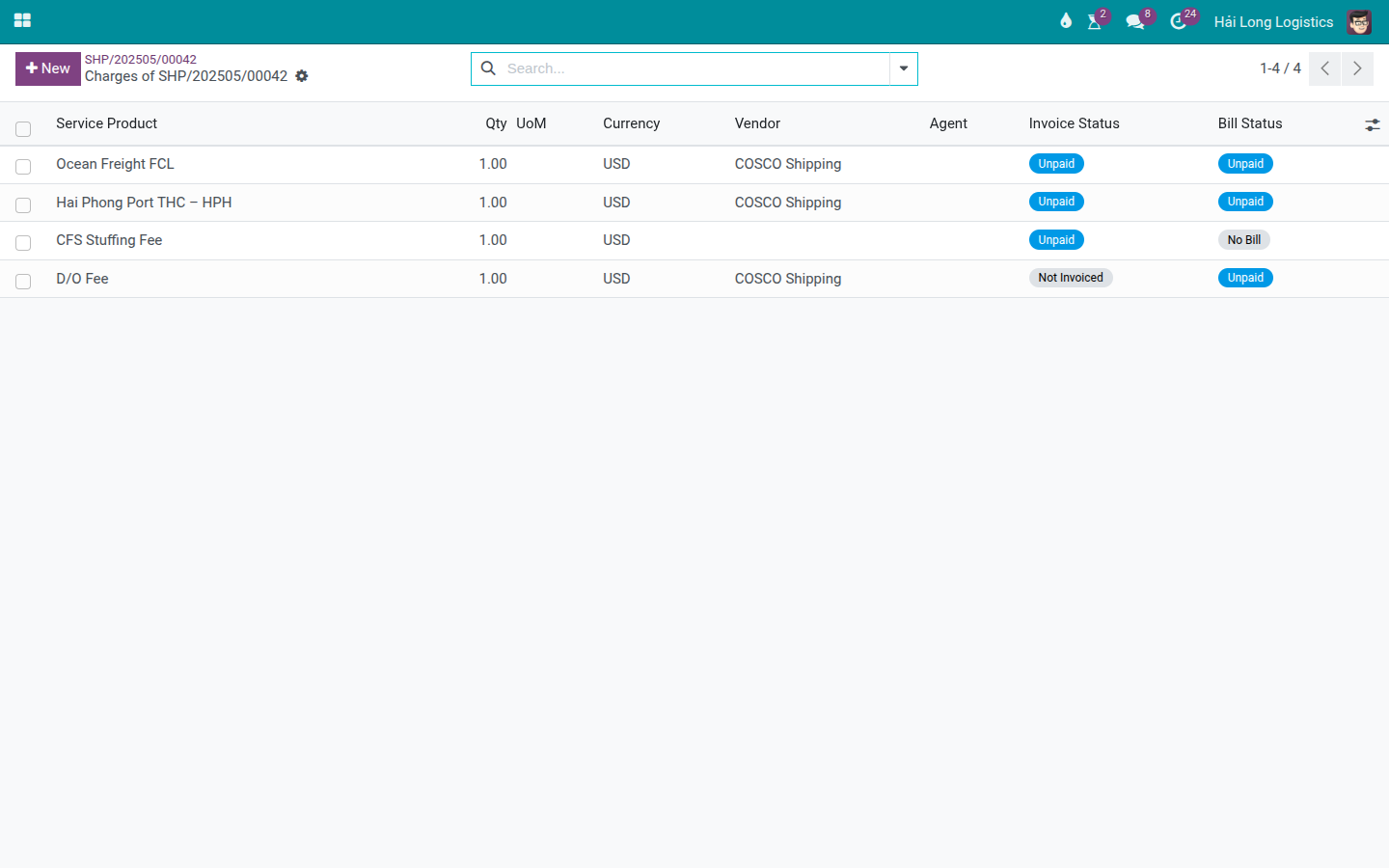
On the Charges tab, click Create Customer Invoice.
After this action:
A draft Customer Invoice is created in Accounting (account.move type = out_invoice).
The invoice includes all sell-side charge lines for Viet Nam Textile JSC: Ocean Freight (USD 4,200), THC (USD 310), CFS fee (USD 80) → total USD 4,590.
The D/O Fee (buy-only) does NOT appear on this invoice.
Each charge line on the Charges tab is now linked to the invoice line — the charge is considered invoiced and will not be included in a second invoice if you click Create Customer Invoice again.
The Draft Invoices smart button count on the shipment increases.
Mẹo
Step 4 complete when:
The Draft Invoices smart button shows count ≥ 1.
Opening the draft invoice shows: partner = Viet Nam Textile JSC, currency = USD, total = USD 4,590 (3 lines: Ocean Freight, THC, CFS Fee).
The D/O Fee line is NOT on the customer invoice.
Step 5: Generate the vendor bill draft
The vendor bill covers all cost-side charges (Cost Price > 0) with a vendor assigned. Bills are grouped by vendor and currency — each unique (vendor, currency) pair generates one draft bill.
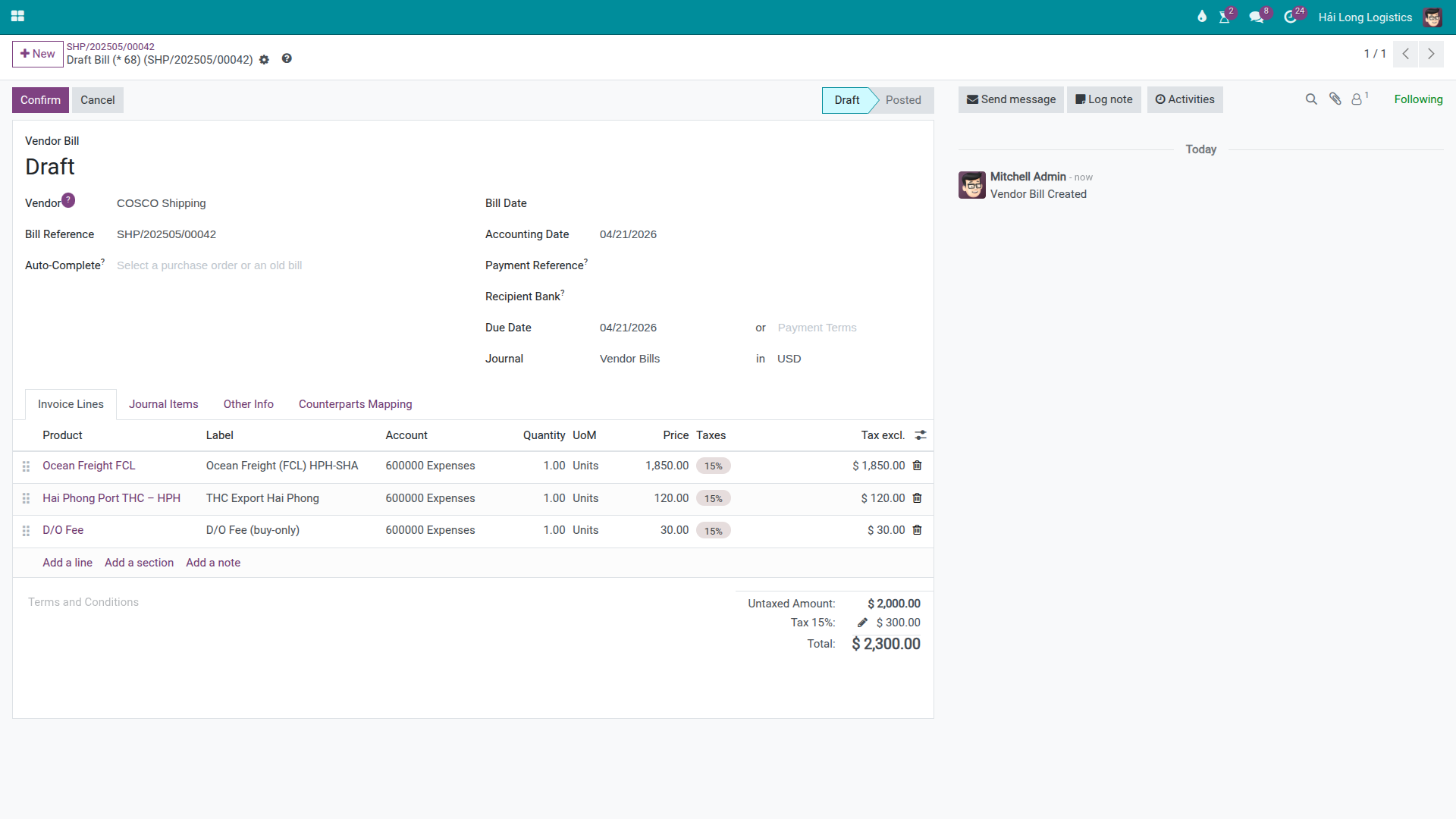
On the Charges tab, click Create Vendor Bill.
For this scenario, two draft bills are created:
Bill 1 — COSCO (USD): Ocean Freight USD 3,700 + D/O Fee USD 30 = USD 3,730.
Bill 2 — Hai Phong Port Authority (USD): THC USD 240.
Ghi chú
Agent-only charges are excluded from vendor bills.
If any charge line has only an Agent field set (no Vendor), it will NOT appear on the vendor bill. Agent commissions are settled outside the standard AP flow.
Mẹo
Step 5 complete when:
Draft Bills smart button count = 2 (one per vendor).
Opening each bill: partner matches the vendor, amounts match the cost prices.
Total of all bills = USD 3,970 (matching Total Cost on the Charges tab).
Step 6: Check payment status and invoice reconciliation
After invoices and bills are posted (by Accounting), monitor payment status to track what has been collected from the customer and what has been paid to vendors.
The Invoice Payment Status and Bill Payment Status fields are NOT visible in the inline charge list on the Charges tab. To check payment status:
Quan trọng
To see invoice and bill payment status per charge line, use one of these paths:
Click any charge line to open its form view — the form shows both Invoice Status and Bill Status fields directly.
Or go to for a list view that includes payment status columns for all charges across all shipments.
For a quick shipment-level check, the smart buttons on the shipment header show:
Invoices: number of invoices and their posting/payment state.
Bills: number of bills and their posting/payment state.
Step 7: Verify final gross profit
After all invoices and bills are posted, the gross profit figure on the Charges tab represents the confirmed operational result for this shipment.
Check the following on the Charges tab:
Total Revenue: USD 4,590 (matches the posted customer invoice).
Total Cost: USD 3,970 (matches the sum of posted vendor bills).
Gross Profit: USD 620 (13.5% margin).
Compare against the expected margin from the quotation: if the actual margin differs by more than 5% from the agreed margin, investigate before closing the shipment. Common causes: unrecorded cost lines, currency fluctuation, or a rate card mismatch.
Troubleshooting
Cost Price is blank after the rate lookup fills Unit Price
Symptom: The Ocean Freight line has a Unit Price (sell rate) filled in, but Cost Price is 0 or empty.
Cause: The rate lookup only fills the sell price from the rate card. Cost prices must be entered manually because buy rates and sell rates are negotiated separately.
Resolution: Open the charge line form, enter the correct Cost Price from the carrier confirmation or rate card agreement, and save.
Gross profit is significantly higher than expected
Symptom: The Charges tab shows a Gross Profit far above the margin agreed at quotation.
Cause: One or more buy-side charge lines have a blank or zero Cost Price. Common culprits: Ocean Freight (blank cost), THC (missing cost), or a D/O fee not recorded as buy-only.
Resolution: Review every charge line — verify that all lines with a Vendor have a non-zero Cost Price. Correct any blank cost prices before posting the vendor bills.
Vendor sends an invoice different from the recorded cost price
Symptom: The vendor bill from COSCO shows a different amount than the Cost Price entered on the charge line.
Cause: Rate fluctuation, surcharge adjustment, or an estimation error at the time of charge entry.
Resolution:
Update the Cost Price on the charge line to match the actual vendor invoice.
Regenerate the vendor bill (delete the draft, click Create Vendor Bill again) — or manually adjust the bill line in Accounting.
Post a Chatter note explaining the difference for audit purposes.
Review the impact on Gross Profit — if the final margin falls below the threshold, escalate to management.
Invoice already exists but new charges were added
Symptom: A customer invoice was generated earlier, but new charge lines have been added since then.
Cause: Charges added after the first invoice was created are not included in it.
Resolution: Click Create Customer Invoice again — the system generates a new draft invoice for the uninvoiced charges only. The original invoice is not modified. Accounting can then decide whether to post the second invoice separately or merge it via a credit note workflow.
Xem thêm
Carrier Booking (Sea) — Creating and confirming the carrier booking that generates the Ocean Freight charge
Document Management (SI, B/L, D/O) — SI, HBL and document management for the shipment
Rate Card Management — Configuring rate cards for automatic charge generation