
FCL Export
Guide information
Required modules
Freight Accounting (optional — required for invoicing and profit visibility)
Full Container Load (FCL) means a shipper rents an entire container. For an FCL export shipment, the forwarder must reserve a slot with the carrier, track the container from empty pickup through loaded on vessel, prepare shipping documents, and reconcile revenue and costs against the shipment.
Running scenario: Hai Long Transport Co., Ltd. handles an export shipment for Nhat Long Footwear Co., Ltd.: 1 × 40-foot High Cube (40HC) container of footwear, HS 6402, routing VNHPH (Hai Phong) → CNSHA (Shanghai), carrier COSCO Shipping, vessel COSCO SHIPPING UNIVERSE, voyage 025E, ETD 15 May 2025.
Xem thêm
Glossary (POL, POD, CY Cutoff, SI, VGM, HBL, MBL, Telex Release, and more): Industry Glossary.
When to use this guide
Use this guide when your company handles a Sea FCL Export shipment directly from the shipment record. If the shipment originates from a quotation or Sales Order, open the shipment generated by the sales flow and continue from Step 2 (booking).
Role |
Tasks in this guide |
What to verify |
|---|---|---|
Booking Officer |
Create the shipment, create the booking, enter the booking reference and cutoff dates. |
Booking is Confirmed, with CY, SI, and VGM cutoffs recorded. |
Operations Staff |
Declare containers and cargo, update Empty Pickup, Stuffed, VGM, Gate-in, and Loaded milestones. |
Container has a number, seal, actual weight, and all milestones within the cutoff schedule. |
Documentation |
Prepare the HBL and SI, submit SI before the cutoff, and record the B/L release. |
Chatter notes confirm SI submitted and HBL released. |
Accounting |
Review buy and sell charge lines, create draft invoices and bills, verify gross profit. |
Draft Invoice and Draft Bill exist; Gross Profit matches the expected margin. |
Process overview
An FCL export shipment passes through six main stages. Each stage has a checkpoint that must pass before moving forward.
# |
Stage |
Purpose |
Responsible |
|---|---|---|---|
1 |
Create and confirm the shipment. |
Create the central record that ties together booking, containers, documents, and charges. |
Booking Officer |
2 |
Create the carrier booking and record cutoffs. |
Reserve a slot with COSCO and bring all deadlines into the system. |
Booking Officer |
3 |
Add containers, cargo, and the loading plan. |
Define what cargo is shipped, in which container, and how it is distributed. |
Operations |
4 |
Update container milestones. |
Track the container from empty pickup through loaded on vessel. |
Operations |
5 |
Prepare HBL/SI and record the B/L release. |
Finalise shipping documents and maintain an audit trail. |
Documentation |
6 |
Review charges, invoices, bills, and gross profit. |
Confirm that revenue, costs, and per-shipment profit are correct. |
Accounting |
Step 1: Create and confirm the shipment
The shipment is the central record for the entire job. Entering the correct route and shipment type at the start means every downstream step — booking, container tracking, charges, and documents — inherits the right data automatically. For FCL export, changing the Port of Loading (POL), Port of Discharge (POD), or Shipment Type after the booking has been confirmed means cancelling that booking and starting over.
Go to and click New. Fill in the key fields:
Shipment Type: Sea FCL Export.
Customer: Nhat Long Footwear Co., Ltd..
POL: VNHPH.
POD: CNSHA.
ETD: 15/05/2025.
Shipper: Nhat Long Footwear Co., Ltd..
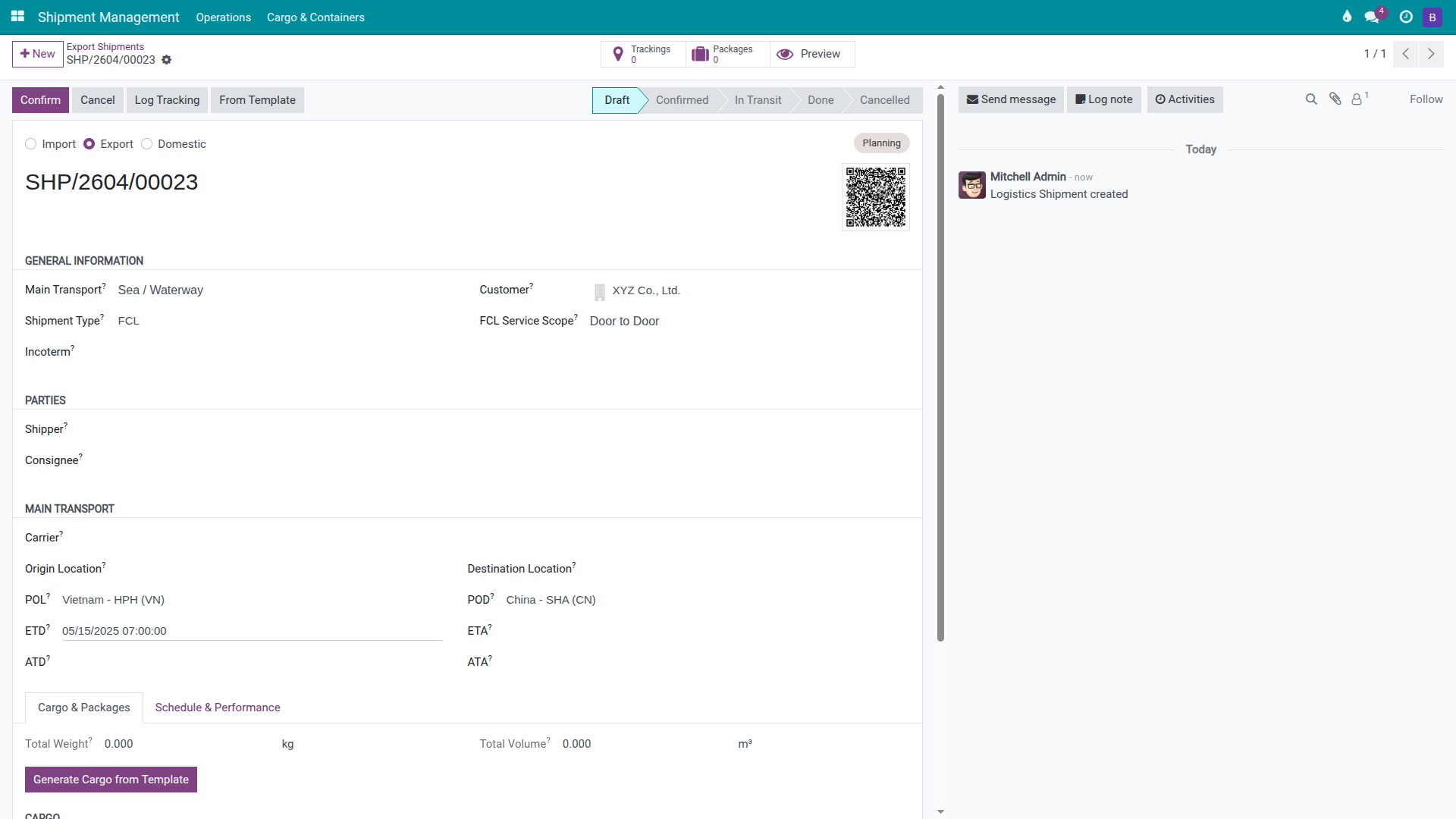
Once the route and shipment type are confirmed as correct, click Confirm.
After confirming:
The status bar shows Confirmed.
The Booking button appears in the shipment header.
All bookings, containers, charges, and documents are linked to this shipment.
Mẹo
How to know Step 1 is correct:
Customer is Nhat Long Footwear Co., Ltd.
POL = VNHPH, POD = CNSHA.
Shipment Type = Sea FCL Export.
The Booking button is now visible in the header.
Step 2: Create the carrier booking and record cutoffs
The booking is the formal slot reservation with COSCO for one 40HC on voyage 025E. Create it as early as possible: without a confirmed booking there is no guaranteed space on the vessel, and the cutoff dates that drive the entire operations schedule cannot be imported into the system.
On the shipment, click Booking. In the wizard, select:
Carrier: COSCO Shipping.
Coverage: Main Only for a port-to-port service.
POL/POD: pulled from the shipment automatically.
ETD/ETA: 15/05/2025 / 18/05/2025.
Incoterm: FOB.
In the Requested Details section, declare the container requirement so COSCO receives an accurate booking request:
If the shipment already has a container record: confirm the Selected Containers list shows the 40HC.
If no container exists yet, click Add New Containers and enter:
Container Type: 40HC.
Container Qty: 1.
Commodity: Footwear.
HS Code: HS 6402 if available.
This is a booking request only. The actual container number is issued by COSCO after confirmation and will be entered in Step 3 or 4.
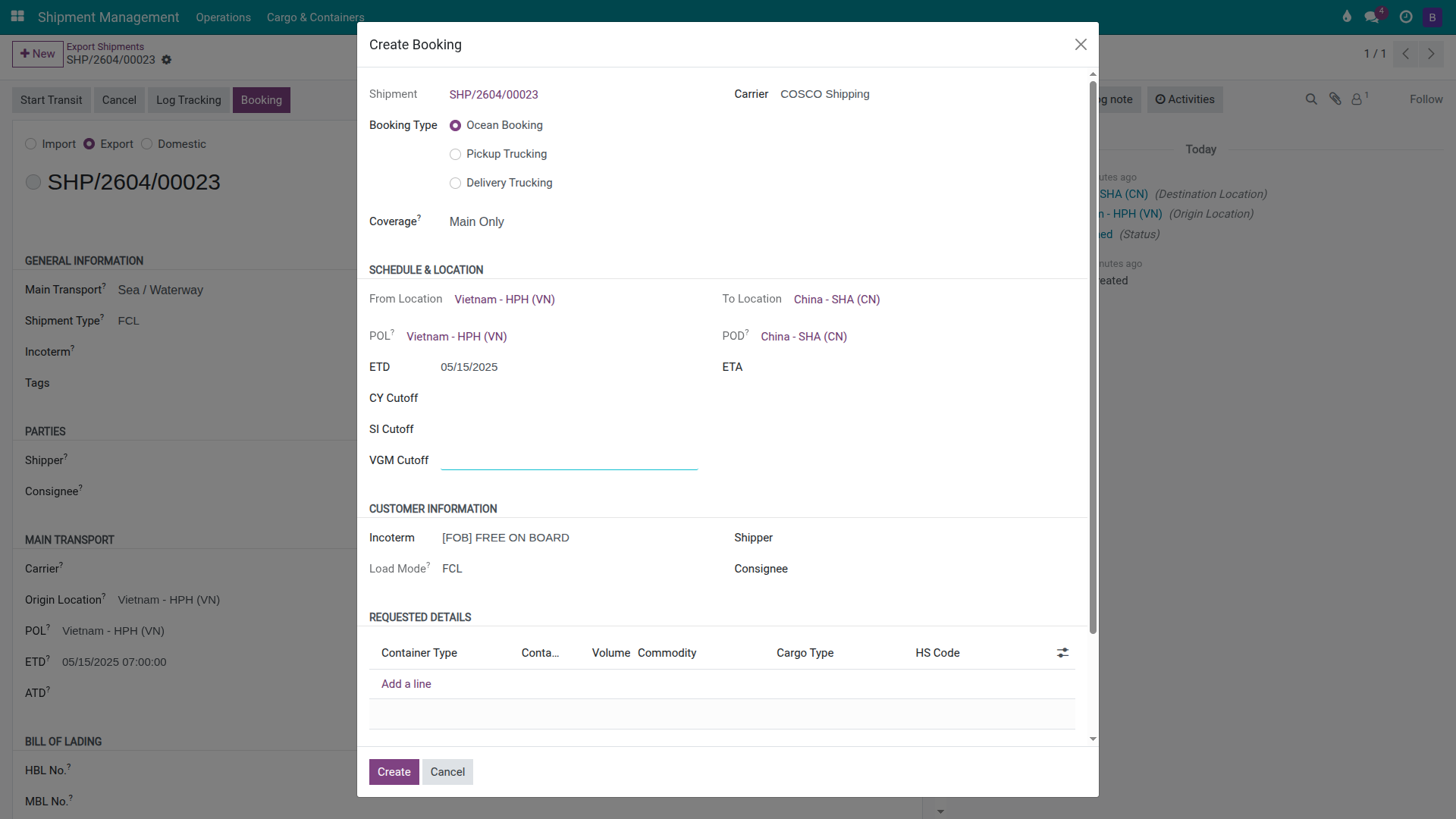
Click Create to generate the booking record. Open the new booking and click Mark as Requested. When COSCO confirms, enter the Carrier Booking Reference, vessel COSCO SHIPPING UNIVERSE, voyage 025E, and then click Mark as Confirmed.
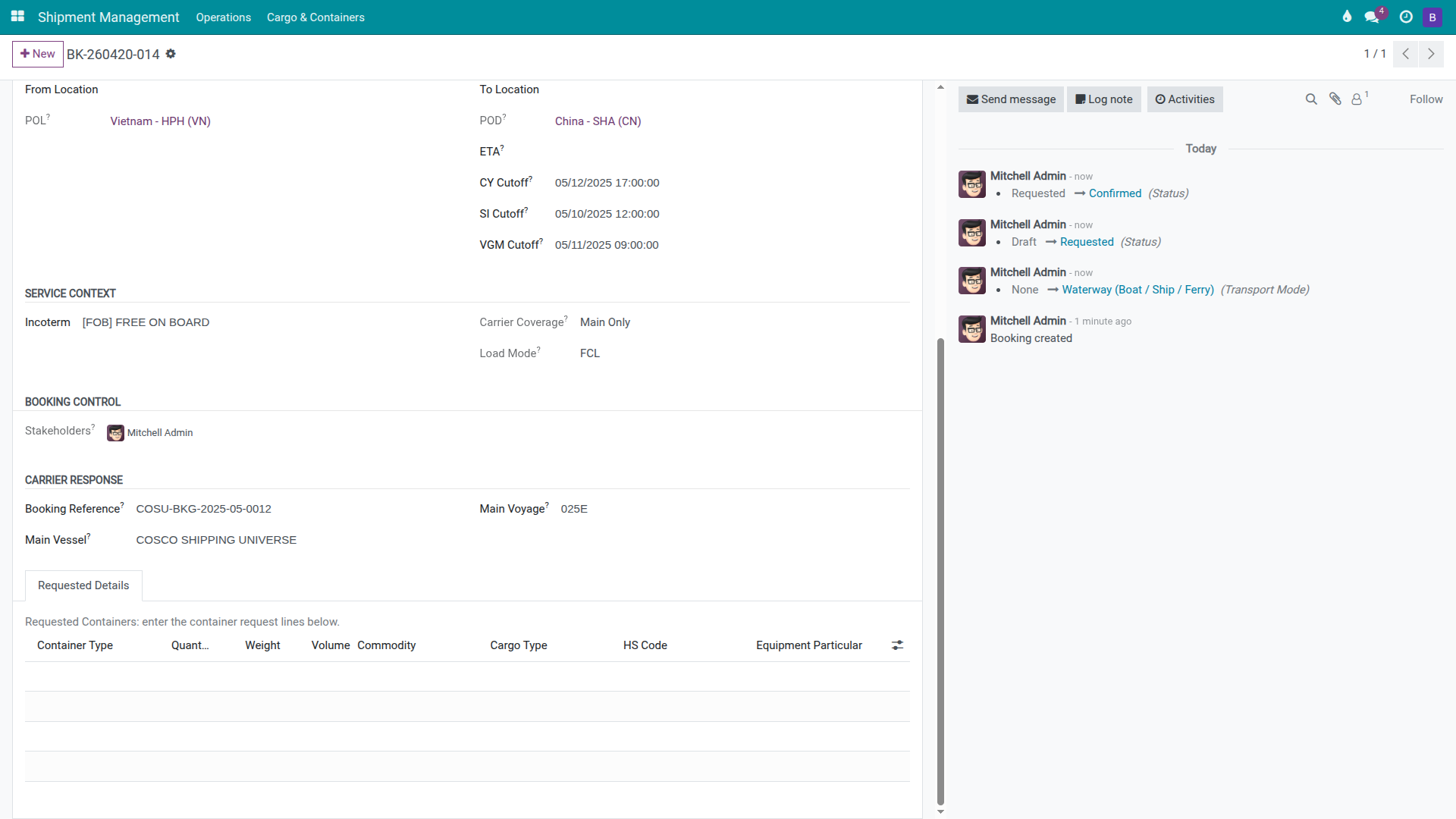
Record every deadline from the Booking Confirmation immediately:
Cutoff |
Deadline (this example) |
Operational meaning |
|---|---|---|
SI Cutoff |
10 May 2025, 12:00 |
Documentation must submit the Shipping Instruction (SI) by this time, even if container operations are still in progress. |
VGM Cutoff |
11 May 2025, 09:00 |
Without a Verified Gross Mass (VGM) submission, SOLAS regulations prevent the container from being loaded. |
CY Cutoff |
12 May 2025, 17:00 |
Containers arriving at the Container Yard (CY) after this deadline are refused for loading, resulting in a Roll Over. |
Cảnh báo
Cutoffs are hard operational deadlines. Build them into the team calendar the moment the Booking Confirmation arrives.
A Roll Over caused by missing the CY Cutoff on a single 40HC typically means a 3–7 day delay to the next sailing, storage costs of approximately USD 15–30 per container per day, rebooking work, and customer notification. The total impact on one shipment commonly reaches several million VND.
Mẹo
How to know Step 2 is correct:
The Bookings smart button shows 1 booking in Confirmed status.
The booking has a Carrier Booking Reference.
SI Cutoff, VGM Cutoff, and CY Cutoff are all recorded.
If a rate card is configured, the Charges tab contains an auto-generated Ocean Freight line.
Step 3: Add containers, cargo, and the loading plan
After the booking is confirmed, Operations verifies the container record and declares the cargo. This data is the foundation for the VGM submission, shipping documents, and portal tracking. Without declared cargo linked to the container, the system has no weight or volume data to work from.
In the Cargo & Packages tab:
Verify the 40HC container:
If Step 2 used Add New Containers in the booking wizard, the 40HC already exists on the shipment — open that container record to review it.
If Step 2 only selected the booking without adding a container request, click Add a line and add one 40HC container here.
When COSCO issues the actual container number, enter it in the Container Number field on the 40HC line.
Add cargo: Footwear, HS 6402, quantity 1,200 CARTONS, planned weight 18,000 kg, volume 45 CBM.
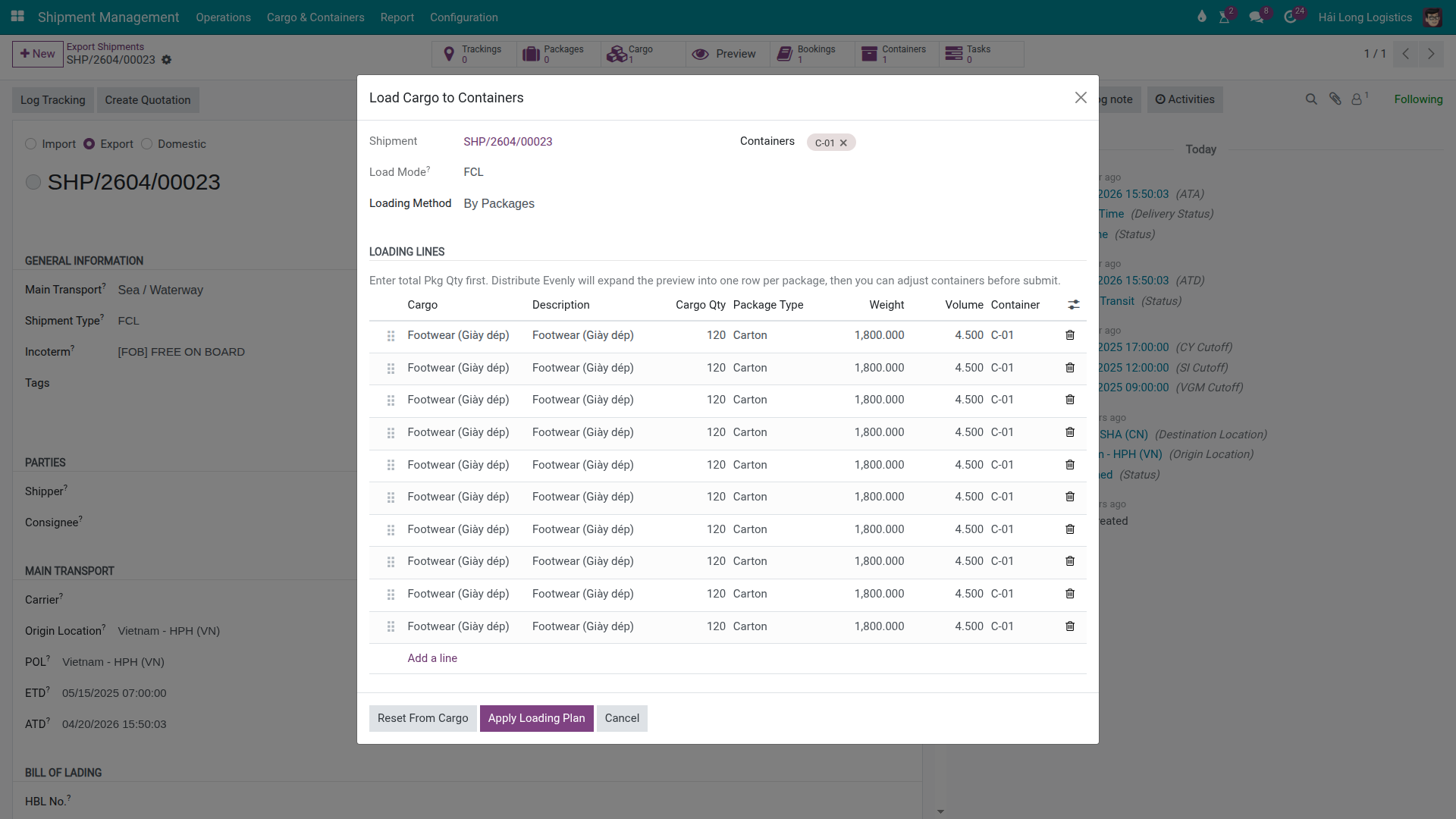
Click Load Cargo to Containers to open the loading wizard.
In the Load Cargo to Containers wizard, select Loading Method = By Packages, enter Package Type = Carton, Pkg Qty = 10, click Distribute Evenly, review the distribution, and click Apply Loading Plan.
Mẹo
How to know Step 3 is correct:
The shipment has one 40HC container.
Cargo Footwear HS 6402 shows quantity, weight, and volume.
The Items smart button count is greater than zero.
The loading plan has created package/item records — not just a manual note.
Step 4: Update container milestones
Container milestones give Operations a live view of where the container is and whether it is ready to be loaded. Each milestone should only be marked after the corresponding physical event has occurred — pre-dating milestones corrupts the audit trail and can mask missed cutoffs.
Milestone |
UI action |
Prerequisite |
What you should see |
|---|---|---|---|
Empty Pickup |
Empty Picked on the container list line, or Mark Empty Picked on the container form. |
Container Number received from COSCO. |
Container departs the depot toward the shipper's warehouse. |
Stuffed |
Stuffed / Mark Stuffed. |
Cargo loaded, Seal Number and actual weight available. |
Source data available for VGM submission. |
VGM Submitted |
Submit VGM. |
VGM weight matches the weighbridge ticket; must be before 11 May 2025, 09:00. |
VGM Status changes to Submitted. |
Gate-in |
Gate-in / Mark Gate-in. |
Container enters the CY before 12 May 2025, 17:00. |
Container cleared for vessel loading. |
Loaded |
Loaded / Mark Loaded. |
Carrier confirms container is on board. |
Start Transit becomes available on the shipment. |
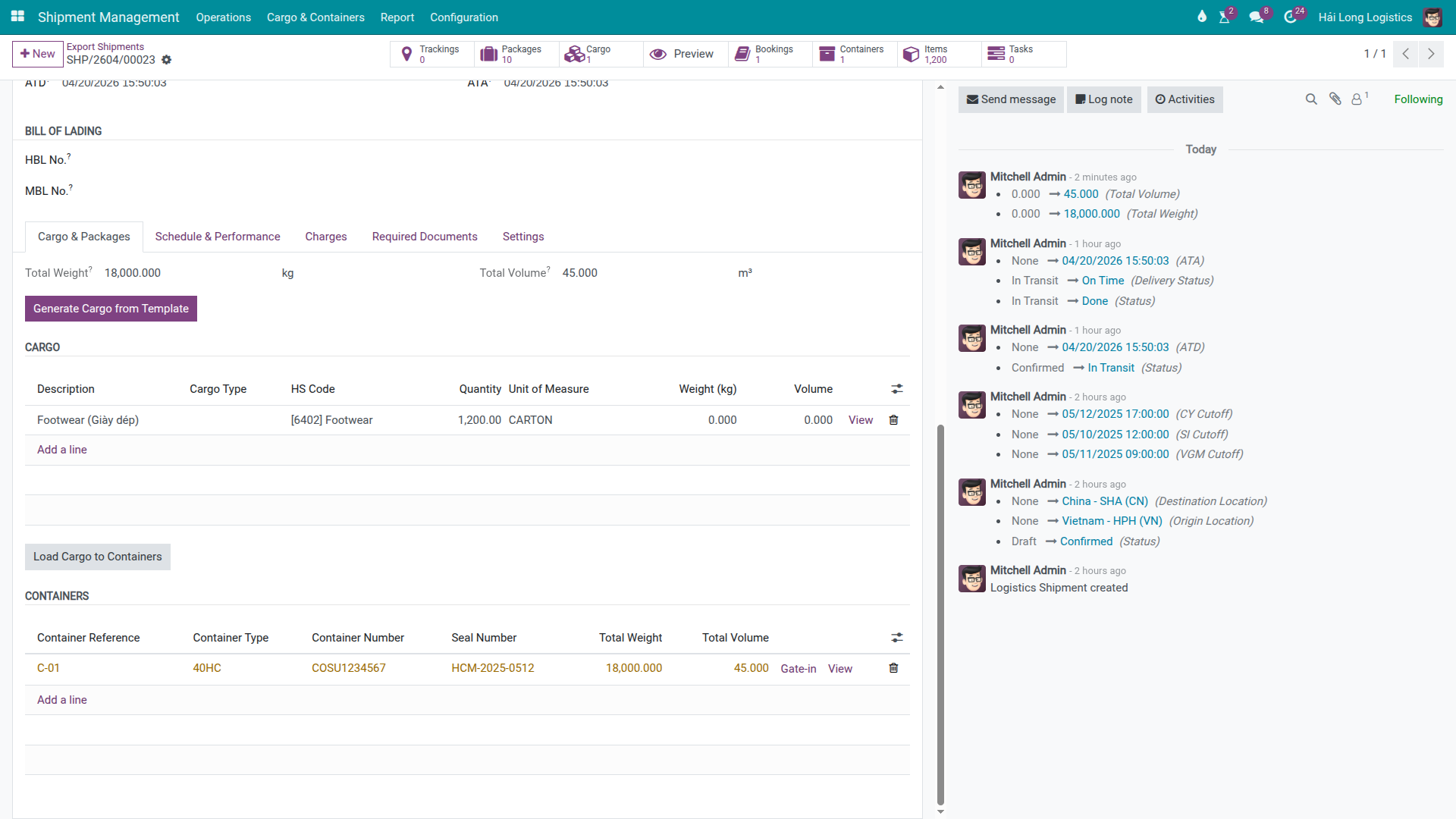
After the carrier confirms the container is on board, click Start Transit on the shipment.
Mẹo
How to know Step 4 is correct:
The container has a complete milestone chain: Empty Pickup → Stuffed → VGM Submitted → Gate-in → Loaded.
VGM was submitted before the VGM Cutoff.
Gate-in occurred before the CY Cutoff.
The shipment status has changed to In Transit after clicking Start Transit.
Step 5: Prepare the HBL/SI and record the B/L release
Documentation uses the data already on the shipment to prepare the Shipping Instruction (SI) and the House Bill of Lading (HBL) rather than re-entering information from emails or spreadsheets. Before submitting the SI, verify at minimum:
Shipper and Consignee.
POL and POD.
Cargo description: Footwear, HS 6402.
Container: 40HC, seal number, weight, and volume.
COSCO carrier booking reference.
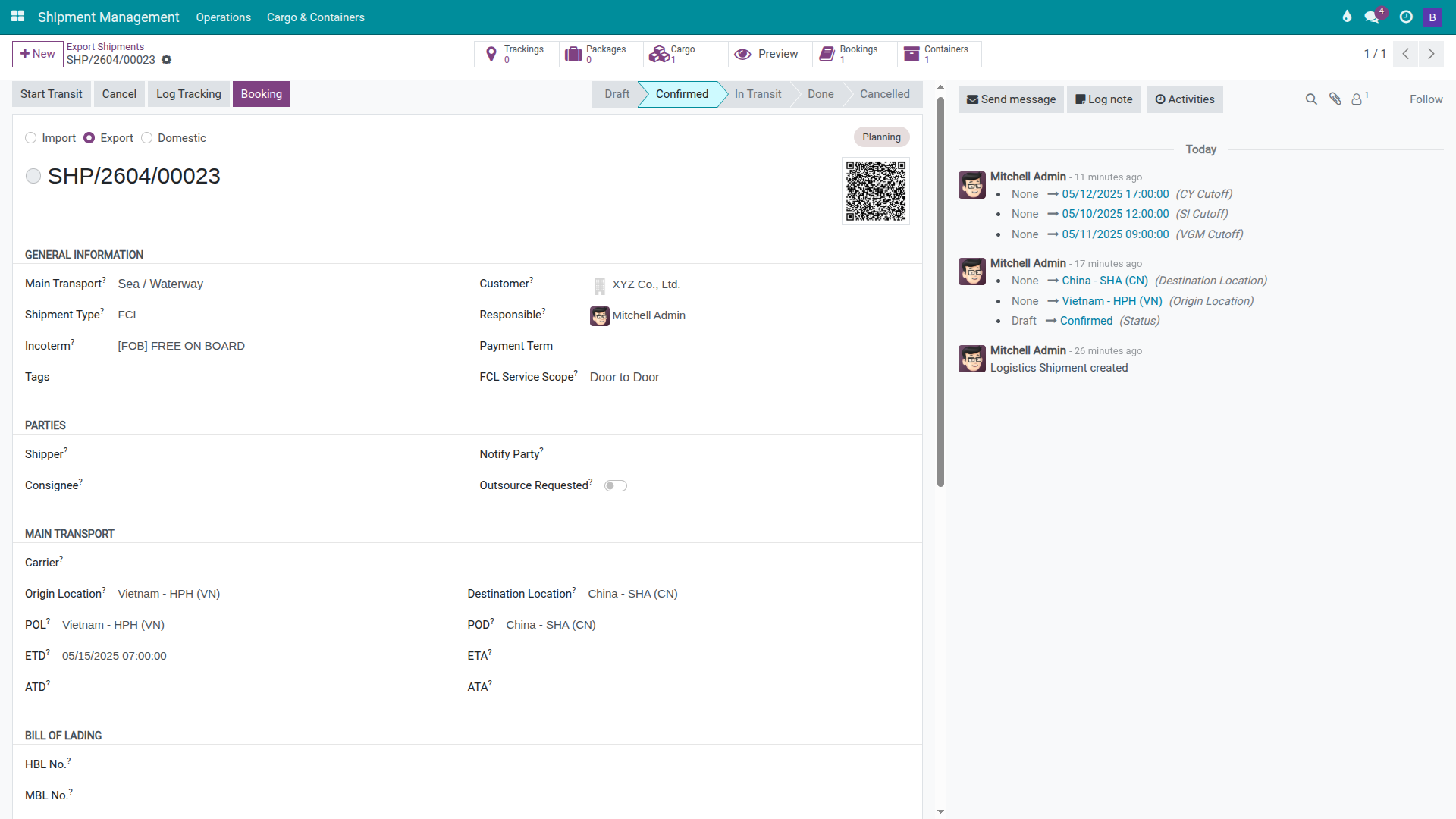
On the shipment, use the Print HBL action to open the HBL draft wizard. After submitting the SI to COSCO before 10 May 2025, 12:00, record it in the Chatter:
SI submitted to COSCO — 10/05/2025 11:45, booking ref COSCO-025E-HL.
When Nhat Long approves the Draft HBL and selects Telex Release, add a follow-up note:
HBL released — Telex Release, 17/05/2025, confirmed by Nhat Long.
Ghi chú
For document milestones that do not yet have dedicated status fields, use the Chatter as the audit log. Record the milestone name, timestamp, counterparty or recipient, and any reference number. This gives Operations, Documentation, and management a shared history on the same shipment record.
Mẹo
How to know Step 5 is correct:
The Chatter contains an SI submitted note recorded before the SI Cutoff.
The HBL draft was reviewed before being sent to the shipper.
The Chatter contains an HBL released note with the release method.
Step 6: Review charges, invoices, bills, and gross profit
Accounting reviews the per-shipment financials before issuing the customer invoice or posting vendor bills. Every charge line that the company both pays to a vendor and bills to a customer must have both a Cost Price and a Unit Price — missing one side produces a misleading gross profit figure.
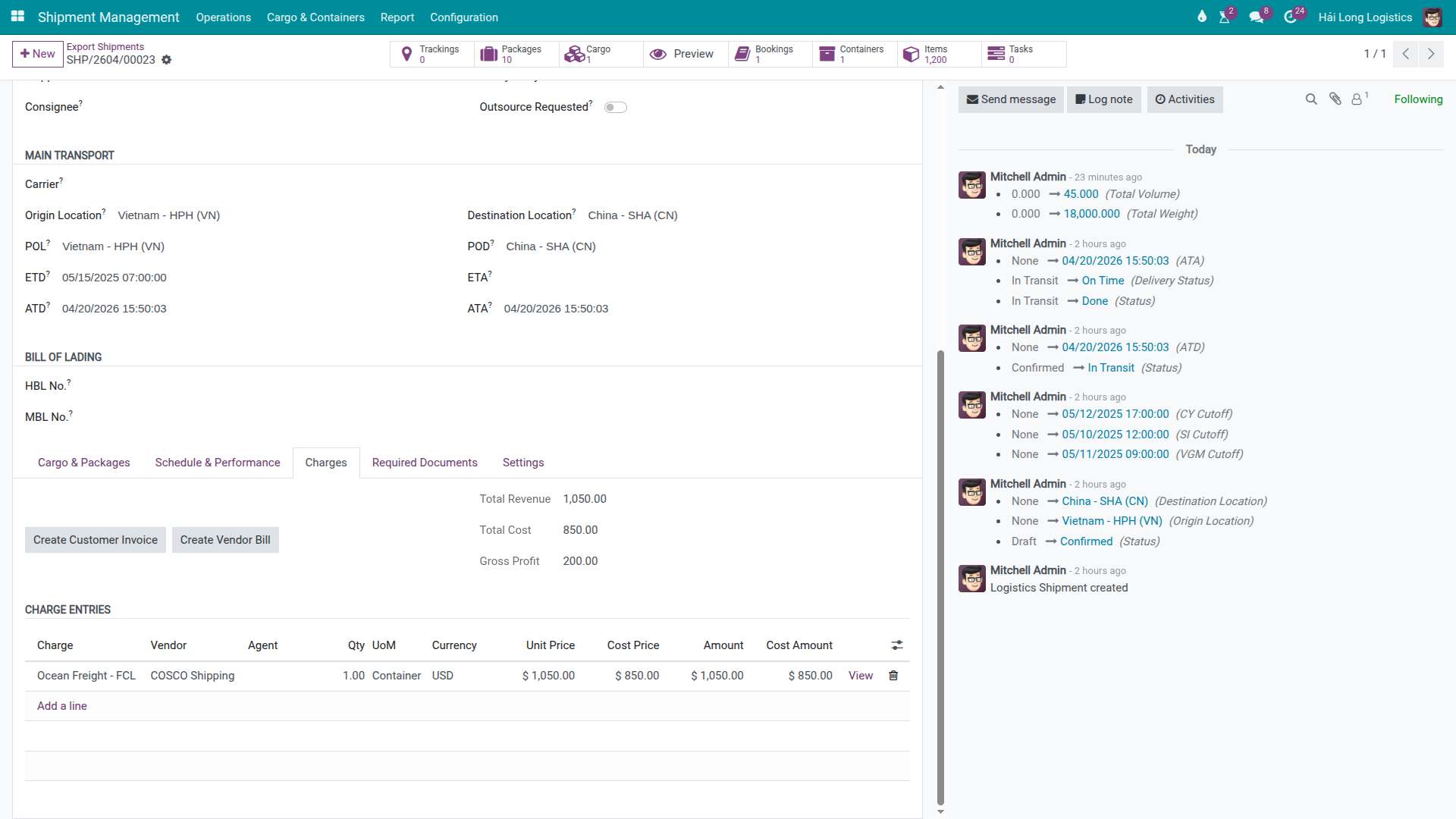
In the Charges tab, review the Ocean Freight line:
Vendor: COSCO Shipping.
Qty: 1 container.
Cost Price: USD 850.
Unit Price: USD 1,050.
Gross Profit from Ocean Freight alone: at least USD 200, before THC and other surcharges.
Add any additional charges that have arisen: THC Export, Documentation Fee, Telex Release Fee. For each line, enter both Cost Price and Unit Price to avoid inflated profit figures.
Click Create Customer Invoice to generate a draft invoice for Nhat Long. Click Create Vendor Bill to generate a draft vendor bill for each vendor that has a cost line.
Mẹo
How to know Step 6 is correct:
The Draft Invoices smart button is visible.
The Draft Bills smart button is visible if cost lines with vendors exist.
Gross Profit matches the expected margin. For Ocean Freight in this example: Hai Long buys from COSCO at USD 850 and bills Nhat Long at USD 1,050 — margin USD 200 per container.
Quick decision table
Use this table when you need to make a fast decision between common alternatives.
Question |
When to choose |
This guide's approach |
|---|---|---|
Create from Sales Order or directly in Ops? |
From a Sales Order when the company follows a quote-to-order process before operations. Directly in Ops when the job arrives by email or phone and needs to move quickly. |
This guide creates the shipment directly in Ops. If the shipment was generated from a Sales Order, open that shipment and continue from Step 2. |
Main Only, Pickup + Main, or Full Route? |
Main Only for port-to-port. Pickup + Main when the forwarder arranges inland pickup at origin. Full Route for door-to-door. |
Nhat Long uses Main Only because Hai Long only books the ocean leg with COSCO. |
Auto-generate charges from rate card or enter manually? |
Auto-generate when a stable rate card exists for the route, carrier, and container type. Enter manually for spot rates or special shipments. |
If Ocean Freight does not appear after booking confirmation, add it manually in the Charges tab and review the rate card configuration afterwards. |
Prepare HBL/SI in Viindoo or on the carrier portal? |
Viindoo holds shipment data, the HBL draft, and the audit trail. The carrier's portal or EDI channel may still be the formal submission path for the SI. |
Submit the SI through whatever channel the carrier requires, then record the submission as a Chatter note. |
End-of-shipment checklist
Before closing an FCL export shipment in the system, verify:
Shipment is Confirmed or In Transit depending on the operational stage.
COSCO booking is Confirmed, has a carrier booking reference, and all three cutoff dates.
The 40HC container has a complete milestone chain: Empty Pickup, Stuffed, VGM Submitted, Gate-in, Loaded.
The Chatter contains both an SI submitted note and an HBL released note.
The Charges tab contains all buy and sell lines, a draft invoice, a draft bill, and a gross profit figure that matches the expected margin.
Troubleshooting common issues
No Ocean Freight charge after booking is confirmed
Symptom: Booking is Confirmed but the Charges tab has no Ocean Freight line.
Common cause: No rate card is configured for the VNHPH → CNSHA route, COSCO carrier, and 40HC container type; or the rate is a spot price not covered by the rate card.
Resolution:
Click Add a line in the Charges tab.
Enter Ocean Freight, Vendor COSCO Shipping, Qty 1, Cost Price USD 850, Unit Price USD 1,050.
After processing this shipment, review the Rate Card configuration so future shipments auto-generate the charge.
Cannot mark a container milestone
Symptom: The Empty Picked, Stuffed, or Gate-in buttons cannot be clicked; the system reports missing container data.
Common cause: Container Number is missing, or Seal Number and actual weight have not been entered before attempting to mark Stuffed or submit VGM.
Resolution:
Open the 40HC container record.
Enter the Container Number once received from COSCO.
Before clicking Mark Stuffed, enter the Seal Number and actual weight.
Return to the milestone and try again.
Cutoff order confusion: SI, VGM, and CY
Symptom: Operations waited for stuffing data before submitting the SI, but the SI Cutoff passed before VGM and CY Cutoffs.
Common cause: The team assumed the SI always depends on post-stuffing data. In practice, carriers often require the SI before the container is at the CY.
Resolution:
Open the booking and confirm all three cutoffs are recorded.
Follow the order shown in this scenario: SI 10/05 12:00 → VGM 11/05 09:00 → CY 12/05 17:00.
Add a Chatter note immediately after submitting the SI so management can confirm that Documentation met the deadline.
Gross profit looks wrong
Symptom: Gross Profit equals the full revenue amount, or it is significantly lower than the quoted margin.
Common cause: A Cost Price is missing on a vendor charge line, a Unit Price is missing on a customer charge line, or invoices were created before all charges were entered.
Resolution:
Review every line in the Charges tab: lines billed to the customer must have a Unit Price; lines payable to a vendor must have a Vendor and a Cost Price.
If a draft invoice was created with incorrect data, cancel the draft, correct the charges, and re-create.
Verify the formula: Gross Profit = Revenue − Cost.
Xem thêm
Related guides
FCL Import — FCL Import.
LCL Export (Consolidation) — LCL Export (Consolidation).
Document Management (SI, B/L, D/O) — Shipment document management.
Charges and Profitability — Charges and profitability.