
Record charges, invoice the customer, and bill vendors
Guide information
Requirements
This tutorial requires the installation of the following applications/modules:
Freight Forwarder Management (installs Logistics Accounting automatically)
Freight Sale - required because the shipment in this guide comes from a sales order. It may install automatically when all its dependencies are present; check Installed Apps before starting.
Every shipment carries two financial sides: what Hai Long Logistics charges the customer (sell) and what it pays carriers, agents and terminals (buy). A missing cost line, or a cost left blank, does not just look wrong on screen - it lets a shipment close as profitable when it is not, and the gap only surfaces once a real vendor invoice arrives. Confirming the booking on Book carrier space for a shipment leg already filled in the main carriage cost; this guide adds the remaining charges, checks the resulting gross profit, and creates the draft documents Accounting posts. For terms such as THC or D/O, see the Freight forwarding glossary.
Running scenario: Hai Long Logistics has confirmed the booking for Nhat Long Footwear’s 2 x 40HC shipment, Hai Phong Port to Port of Los Angeles, carrier ONE Line, Incoterm CFR (Port of Los Angeles), Freight Prepaid. The Charges tab has one Ocean Freight - FCL line with both prices; Tuan (Accounting) adds the local charges, checks gross profit, and creates the customer invoice and vendor bills.
Role handoff in this example: Sales/Pricing confirms the agreed customer selling prices; Operations confirms supplier costs; Tuan (Accounting) records the approved charge amounts and prepares the draft invoice and bills. Your approval process may assign data entry differently.
Before you start
The shipment’s booking is Confirmed - the Charges tab only appears once the shipment has left Draft (see Book carrier space for a shipment leg).
You need the Accounting access right Billing (or higher) and User: All Shipments (Own Shipments is limited to the shipments it is responsible for, see Grant freight access by role) to click Create Customer Invoice / Create Vendor Bill and to see the Draft Invoices / Draft Bills buttons (see Settings –> Users & Companies –> Users (ask your administrator)). The Customer Invoices / Vendor Bills buttons only need read access to accounting.
Step 1: Check the Ocean Freight line the booking already filled in
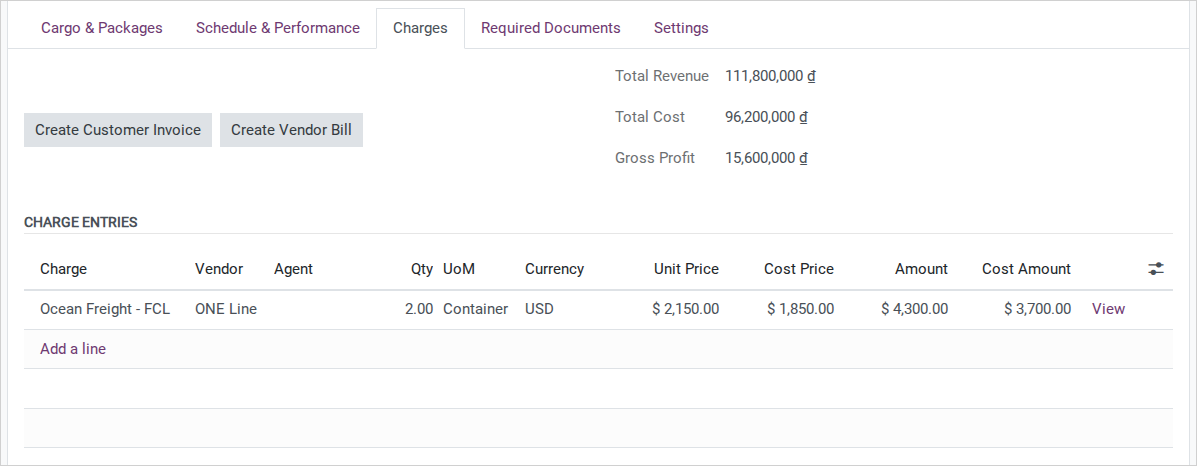
The Ocean Freight - FCL line came from the sales order and confirming the booking added its cost, so this step is a check, not data entry - a blank cost price here quietly overstates gross profit.
Go to and open the shipment for Nhat Long Footwear (SHP/26xx/000nn). Open the Charges tab.
On the Ocean Freight - FCL row, check:
Unit Price: 2,150 (USD) - the price sold to Nhat Long Footwear.
Cost Price: 1,850 (USD) - filled in from ONE Line’s rate card when the booking was confirmed.
Qty: 2.
Note
If this shipment had been created directly, without a sales order, this line would instead show Unit Price = 0.00 and you would have to enter the sell price yourself - see Known limitations.
Tip
Step 1 is done when: the Ocean Freight - FCL row shows Unit Price = 2,150 USD and Cost Price = 1,850 USD on the same row - not two separate rows.
Step 2: Add the local charges
Ocean freight is not the only cost on this shipment - a missing local charge makes gross profit look better than it really is.
Before adding a line, decide which price combination fits it:
Type |
Use when |
What changes |
|---|---|---|
Buy + Sell (both charges below) |
The customer is charged and a vendor or agent is paid for the same service |
Both Unit Price and Cost Price are set; the charge counts toward both Total Revenue and Total Cost |
Sell-only |
The customer is charged and no vendor is involved |
Vendor/Agent stay empty, only Unit Price is set |
Buy-only |
The supplier cost is known and Sales has approved that the customer will not be charged |
Set Vendor or Agent, Currency and Qty; enter the known Cost Price and explicitly set Unit Price to 0 after selecting the product |
For a known supplier cost, enter it in Cost Price and set Vendor or Agent and the currency. Use Unit Price = 0 only if the customer will not be charged, as agreed by Sales or under company pricing policy. Use Buy + Sell when Sales/Pricing has approved a customer price.
If the customer price is still awaiting approval, do not treat a price automatically filled from the product as agreed revenue. Ask Sales/Pricing to resolve the sell price before completing this charge and exclude the pending item from any customer invoice. A known cost with a positive Unit Price contributes revenue and can be invoiced; there is no approval hold on this charge.
See also
The buy and sell rate cards these prices come from are set up before any shipment exists - see Maintain carrier rates and vessel schedules.
On the Charges tab, click an empty row to add a new line, and fill in:
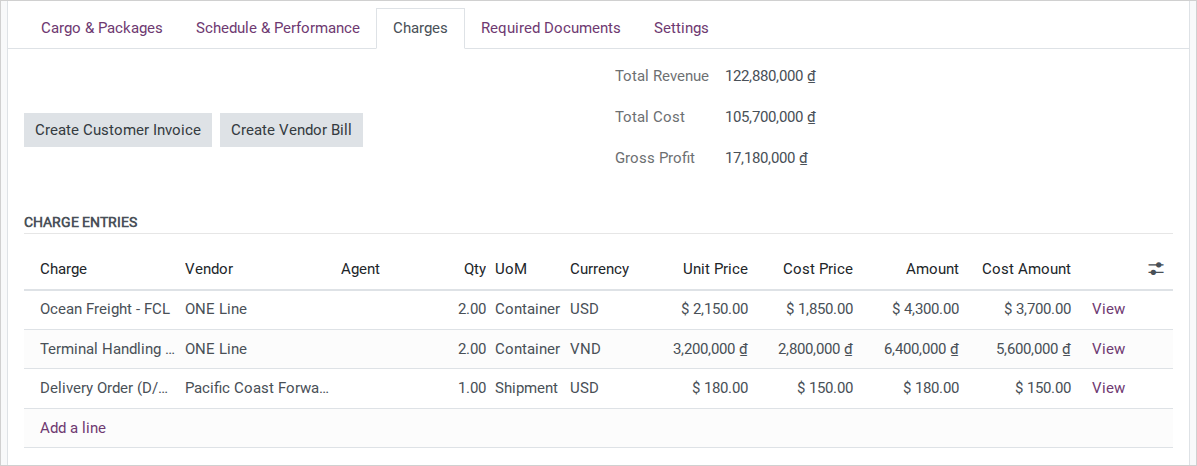
Charge: the THC at Hai Phong Port (Terminal Handling Charge (THC) with the port code HPH, set up in the freight service product catalog), Vendor: ONE Line (the carrier collects the origin THC at Hai Phong Port), Currency: VND, Qty: 2, Unit Price: 3,200,000, Cost Price: 2,800,000.
Charge: Delivery Order (D/O) Fee, Vendor: Pacific Coast Forwarding Agency, Inc., Currency: USD, Qty: 1, Unit Price: 180, Cost Price: 150.
Note
Each charge line has its own Currency field. A charge linked to a Sales Order defaults to that order’s currency; otherwise it defaults to the company currency. Check the line’s currency before entering a price; do not type a USD amount into a line still set to VND.
Tip
Step 2 is done when: the Charges tab has exactly 3 rows (Ocean Freight - FCL, THC, D/O Fee) and no row shows Amount = 0 that you did not intend.
Step 3: Read Total Revenue, Total Cost and Gross Profit
This is the number that decides whether the shipment is profitable - read it before generating any invoice or bill.
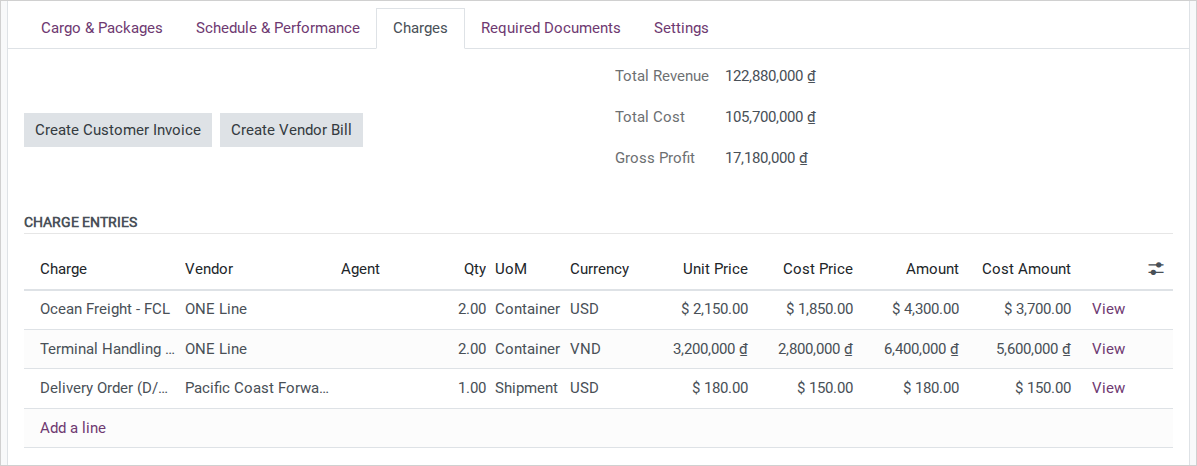
Above the charge table, Total Revenue, Total Cost and Gross Profit convert every line to the company currency (VND) at today’s exchange rate.
Warning
Two things to keep separate here. First, if the exchange rate configured on this instance is not 26,000 VND/USD, these three figures will not match this guide’s numbers - that is not a bug, only a different rate. Second, this reading is a snapshot at today’s date: when Accounting later posts the customer invoice or vendor bills, the amount is converted again at the posting date’s rate, which can differ from both today’s rate and the rate agreed when the quote was made. Treat this figure as a working estimate until the invoice and bills are posted.
Tip
Step 3 is done when: Gross Profit reads approximately 17,180,000 VND, positive, and consistent with the buy/sell spread agreed with Nhat Long Footwear.
Step 4: Handle the “ESTIMATED cost” warning, if it appears
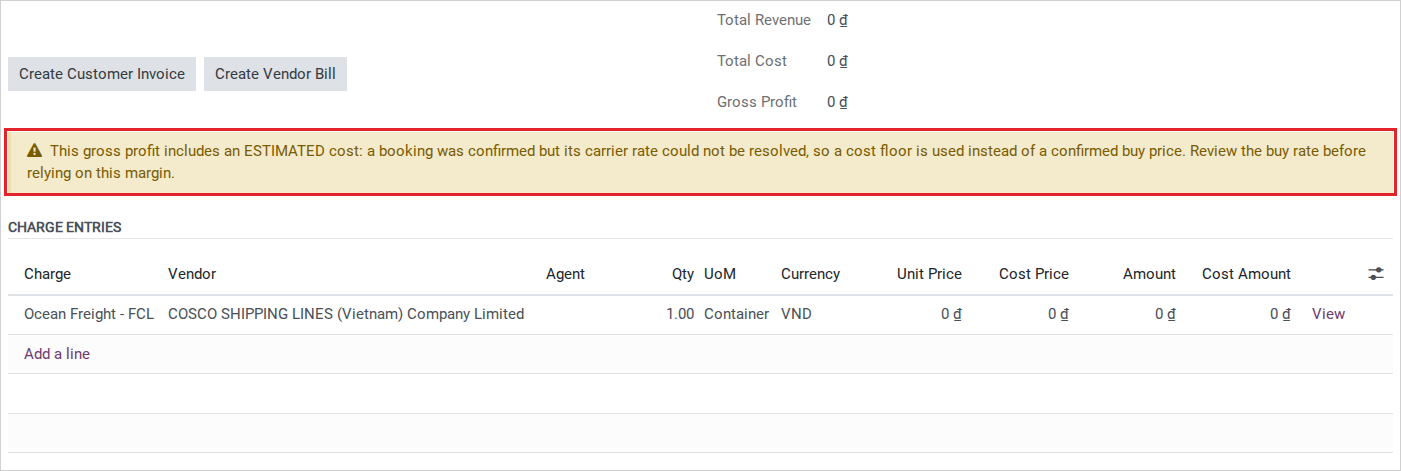
If a booking is confirmed but the carrier’s rate card cannot be resolved, Viindoo still needs a cost figure so gross profit is not inflated to the full sell price - but that figure is not yet a confirmed buy price. In that case a yellow banner above the charge table starts with “This gross profit includes an ESTIMATED cost” and asks you to review the buy rate.
A charge that was already sold keeps the buy price it has when the booking is confirmed, instead of being reset. A charge that an earlier version already set to 0 is not restored automatically: re-enter its Cost Price by hand.
Important
This estimated figure is used only for the Gross Profit display - it never flows into a vendor bill. Create Vendor Bill still requires a real Cost Price; enter it by hand if the rate card lookup could not find one.
Tip
Step 4 is done when: either the warning is gone (every booked charge has a real Cost Price), or you understand the current Gross Profit is a working estimate, not a confirmed number.
Step 5: Create the customer invoice
This creates a draft only - posting it and issuing the VAT e-invoice required under Vietnamese tax law happens afterward, in Accounting, outside the Freight app.
Click Create Customer Invoice.
Viindoo groups every sell-side charge that has a customer, an amount above zero, and no invoice yet, by (customer, currency). For this shipment, that is two draft invoices, not one:
Nhat Long Footwear, USD: Ocean Freight - FCL (4,300) + D/O Fee (180) = 4,480 USD.
Nhat Long Footwear, VND: THC = 6,400,000 VND.

Note
To get a single invoice instead, every charge line would need to share the same currency from Step 2 onward - Viindoo does not convert currencies when grouping charges into an invoice.
Tip
Step 5 is done when: exactly two draft invoices exist for Nhat Long Footwear - USD 4,480 (Ocean Freight + D/O Fee) and VND 6,400,000 (THC).
Step 6: Create the vendor bills
Click Create Vendor Bill.
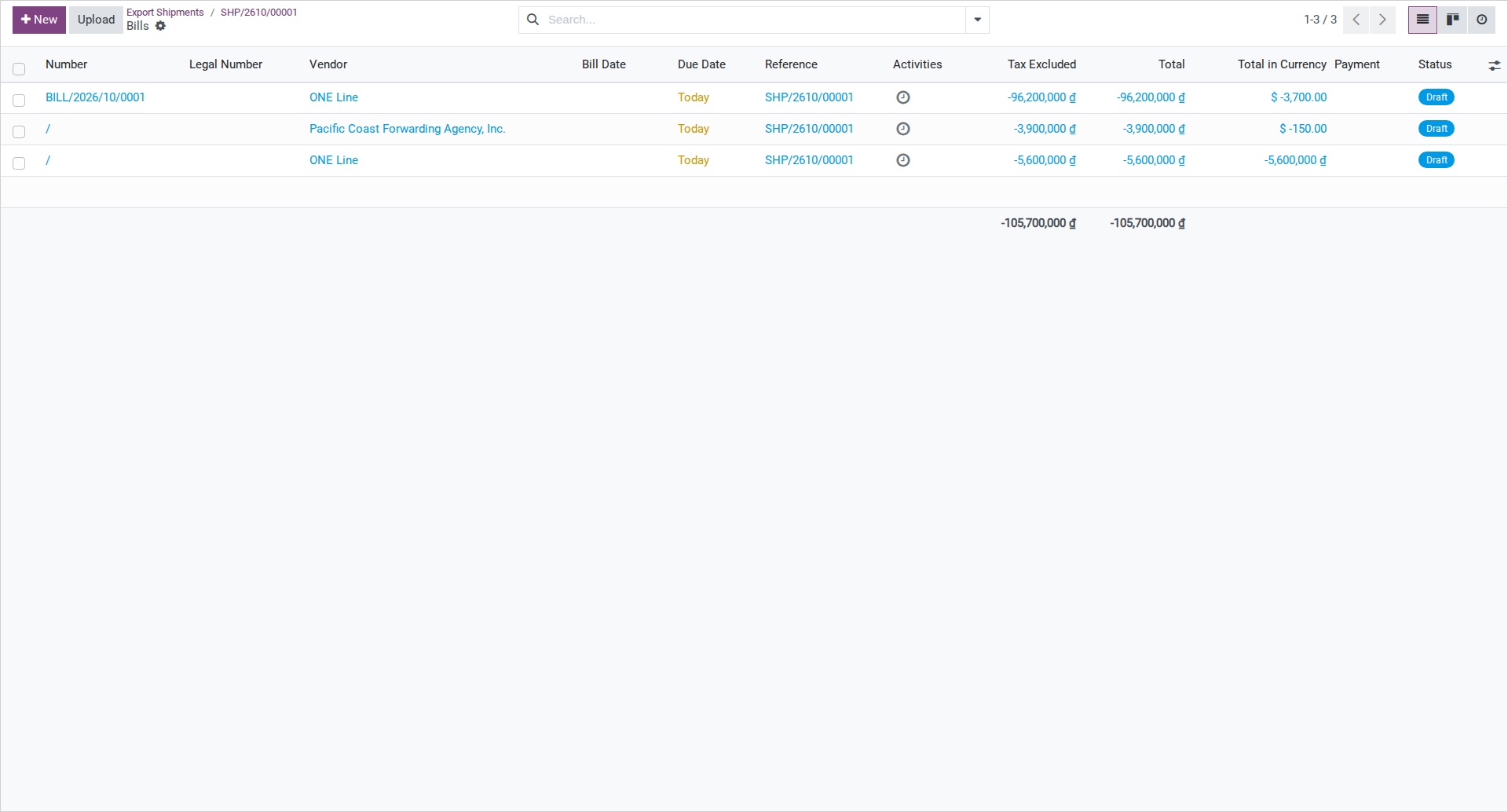
Viindoo groups cost-side charges that have a vendor, an amount above zero, and no bill yet, by (vendor, currency). ONE Line is the vendor on both the Ocean Freight - FCL line and the THC line, but in two different currencies, so this run creates three draft bills, not two:
ONE Line, USD: Ocean Freight - FCL cost = 3,700 USD.
ONE Line, VND: THC cost = 5,600,000 VND.
Pacific Coast Forwarding Agency, Inc., USD: D/O Fee cost = 150 USD.
Note
The Bills list displays signed accounting amounts, so these vendor bills appear as negative amounts. That sign alone does not mean they are refunds. Open the bill to check its document type and positive total; the profitability report records its posted cost as a positive amount.
Note
Three kinds of charge never reach the bill. On-behalf charges are not bought from a vendor, so they are left out (and an on-behalf line with no partner yet does not generate a purchase order). A charge already on a draft, posted or cancelled document is skipped, so the vendor is never paid twice for the same cost. Costs split from a consolidated master shipment (see Allocate shared master costs to house shipments) carry no vendor on the house: the carrier is billed once, on the master shipment, and Create Vendor Bill on a house reports “No unbilled charges with a vendor set found.”
Tip
Step 6 is done when: exactly three draft bills exist, as listed above - Ocean Freight - FCL and THC do NOT merge into one bill even though both name ONE Line as vendor, because their currencies differ.
Known limitations
Step |
What Viindoo does today |
What you do instead |
|---|---|---|
Step 1 (shipment created directly, no sales order) |
The auto-generated Ocean Freight line always has Unit Price = 0.00 |
Treat “enter the sell price” as a required step after opening the Charges tab |
After Step 5-6 (prices edited after posting) |
Prices stay editable after the linked move is Posted; the Charges tab Amount does not re-read the posted move, so the two can drift apart |
Correct a price after posting with a credit note/refund, not by editing the charge line |
Step 5-6 (VAT e-invoice) |
Create Customer Invoice/Create Vendor Bill only create a draft |
Post the draft, then issue the VAT e-invoice through your accounting software - outside the Freight app |
Step 6 (Master Air Consol houses) |
Confirming a booking under a Master Air Consol house also creates an incorrect “Ocean LCL” sell line |
Delete that line by hand before invoicing the house shipment |
Step 1 (auto-looked-up buy rate) |
A rate card with no container type is used only when no card of that container type exists; a card of the exact type, even priced at 0, wins over it |
Cross-check Cost Price against the real rate card before trusting Gross Profit |
Troubleshooting
Create Customer Invoice reports an error
Symptom: “No uninvoiced charges with a customer found.”
Cause: every charge on the shipment either has no customer set, already has an invoice, or has an effective sell amount of zero.
Fix: check that the shipment has a Customer set, and that the charge you want to invoice has a non-zero Unit Price.
Create Vendor Bill reports an error
Symptom: “No unbilled charges with a vendor set found.”
Cause: no charge satisfies Vendor set + no bill yet + Cost Price above zero, or every candidate charge is on-behalf, already on another document, or an allocated line from a Master consolidated shipment (those carry no vendor on the house).
Fix: check that the charge has a Vendor and a non-zero Cost Price. For an allocated line, bill the carrier once on the Master shipment instead.
Fewer charges appear on the bill than expected
Symptom: clicking Create Vendor Bill produces a draft bill with 1-2 fewer lines than expected.
Cause: the missing charge is on-behalf, or it already sits on a draft, posted or cancelled vendor bill or purchase order, so Viindoo leaves it out rather than pay the vendor twice for the same debt.
Fix: do not add the line back by hand. If it must be billed on a new document, release it on the document that carries it first (see “A charge cannot be deleted” below).
A charge cannot be deleted
Symptom: deleting a charge line shows an error that names a customer invoice, vendor bill or purchase order.
Cause: nobody can delete a charge that sits on an invoice, a bill or a purchase order, even a draft or an RFQ, and even an Administrator. A Master shipment’s ocean freight charge that was already allocated to house shipments cannot be deleted either.
Fix: follow the message: remove the line from the document that carries it (or delete the whole draft document), then delete the charge. To change an allocated Master charge, run Allocate Costs again with Replace Existing Allocation ticked (see Allocate shared master costs to house shipments).
A vendor’s real invoice does not match the recorded Cost Price
Symptom: ONE Line’s real invoice for the ocean freight differs from the 1,850 USD/container Cost Price on the charge line (a rate change, or a surcharge such as a GRI).
Cause: Cost Price is looked up from the rate card at booking confirmation and does not refresh later when the rate card changes or a surcharge is added.
Fix: correct Cost Price to match the vendor’s real invoice before clicking Create Vendor Bill; if a draft bill with the old amount already exists, delete it and click again.
Create Customer Invoice again looks like it did nothing
Symptom: after a new charge is added to a shipment that already has a draft customer invoice, clicking Create Customer Invoice again does not add a second invoice to the list.
Cause: a charge stays on its document when that document is reset to draft or cancelled, and Viindoo never creates a second document for a charge that already sits on one. The new charge is appended to the existing draft for the same customer, currency and shipment - this is by design, not an error.
Fix: open the existing draft through the Draft Invoices smart button; the new line is already there. To issue a cancelled invoice or bill again, use Reset to Draft, then Confirm. To replace a posted vendor bill, use Reverse and Create Invoice on it.
See also
Related articles
Book carrier space for a shipment leg - confirming the booking that fills in the Ocean Freight line used in this guide
Allocate shared master costs to house shipments - splitting a master consolidated shipment’s costs across its house shipments
Send a debit note for shipment charges - billing a charge added after the customer invoice was already created