
Monitor and Troubleshoot Zalo
Guide Info
Zalo channel failures often lack clear error messages — messages don’t reach customers, ZBS templates get rejected, or webhooks go silent. This guide helps Admin/IT pinpoint the exact error category from the start, avoiding wasted time escalating when you can handle it.
Error Categories
Error Group |
Symptom |
Where to Check |
|---|---|---|
Token / Authorization |
OA account status is Expired or Error; red warning icon |
|
Webhook not receiving |
Customer messages do not appear in Discuss |
Zalo OA Developer Console → Webhook settings |
Send failure |
Zalo State = Failed in the Zalo Events list |
Zalo Events list (Admin grants access) |
ZBS template rejected / disabled |
Template status is Rejected or Disabled |
→ ZBS Templates button |
Recipient not identified |
“no valid phone was found” error; message cannot send |
Contact form in Viindoo → check phone number |
Check Failed Messages
Access: Open the Zalo Events list — access is granted by Admin (this list has no default menu item; Admin makes it reachable). Then filter by customer/OA to check.
Two status columns on the list:
Processing State — Received / Queued / Processing / Processed / Error (Viindoo failed to process)
Zalo State — On Queue / Sent / Delivered / Received / Read / Failed (Zalo failed to deliver)
Quick filter: search bar → filter Errors (processing error) or Failed Deliveries (Zalo reported failure).
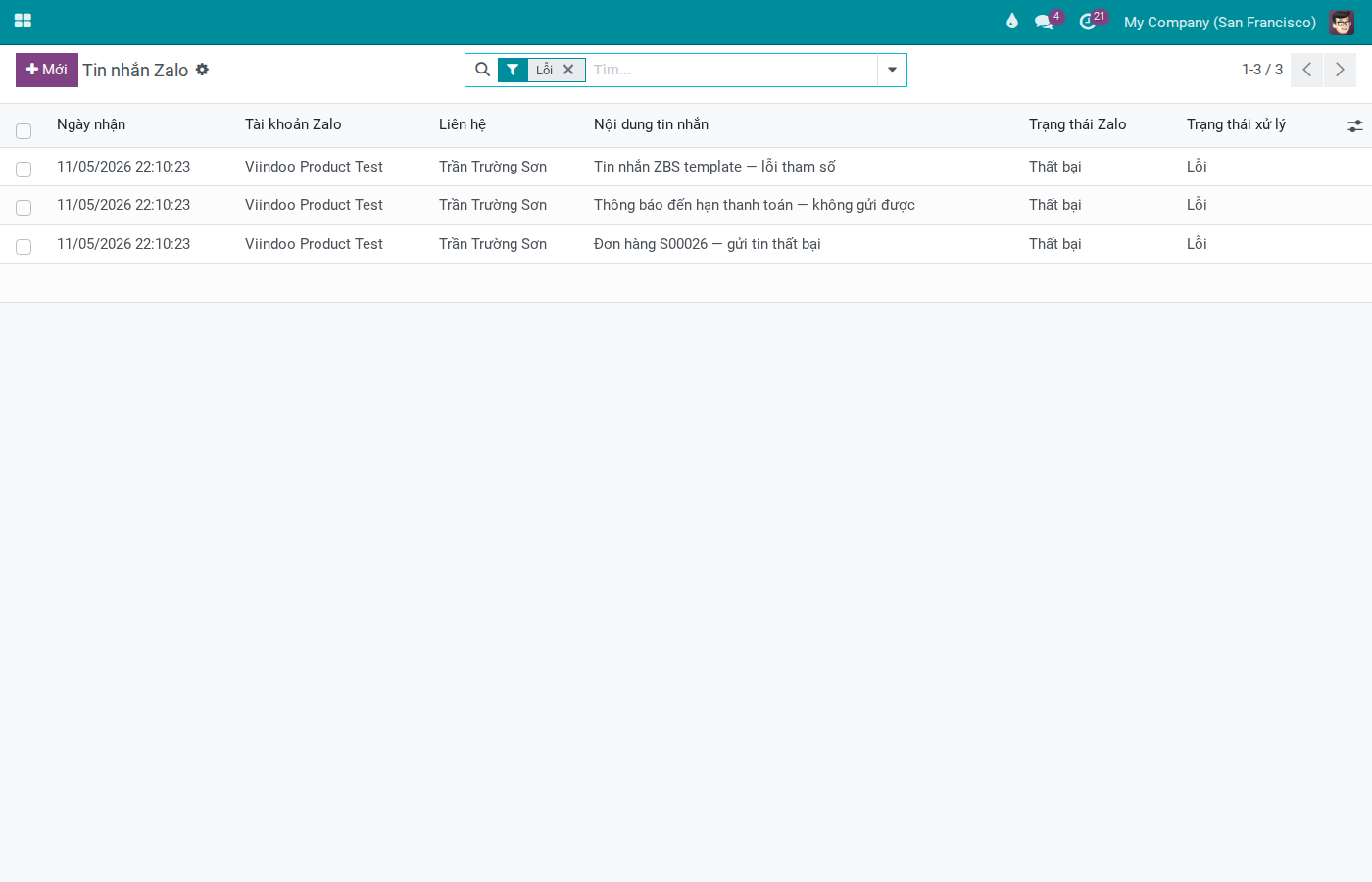
Recover from message form:
Open failed message → check Processing State and Zalo State.
If Processing State = Error → click “Retry Processing” to have Viindoo process again from the start.
If Zalo State = Failed (outbound message) → click “Resend” to resend to Zalo.
If message is stuck with unclear status → click “Mark Error” to manually flag it, then retry.
Check OA Token and Webhook
Menu:
Open the OA account record and check:
Field / Indicator |
Meaning |
|---|---|
Account status bar |
Draft / Connected / Expired / Error — needs re-authorization if not Connected |
Token expires at |
When token expires; if past this date → re-authorize immediately |
Token status icon |
Green checkmark = valid; red warning = expired or error |
OAuth Callback URL |
Read-only — must match exactly the URL registered in Zalo OA Developer Console |
Webhook URL |
Read-only — copy and paste into Webhook configuration in Zalo OA Developer Console |
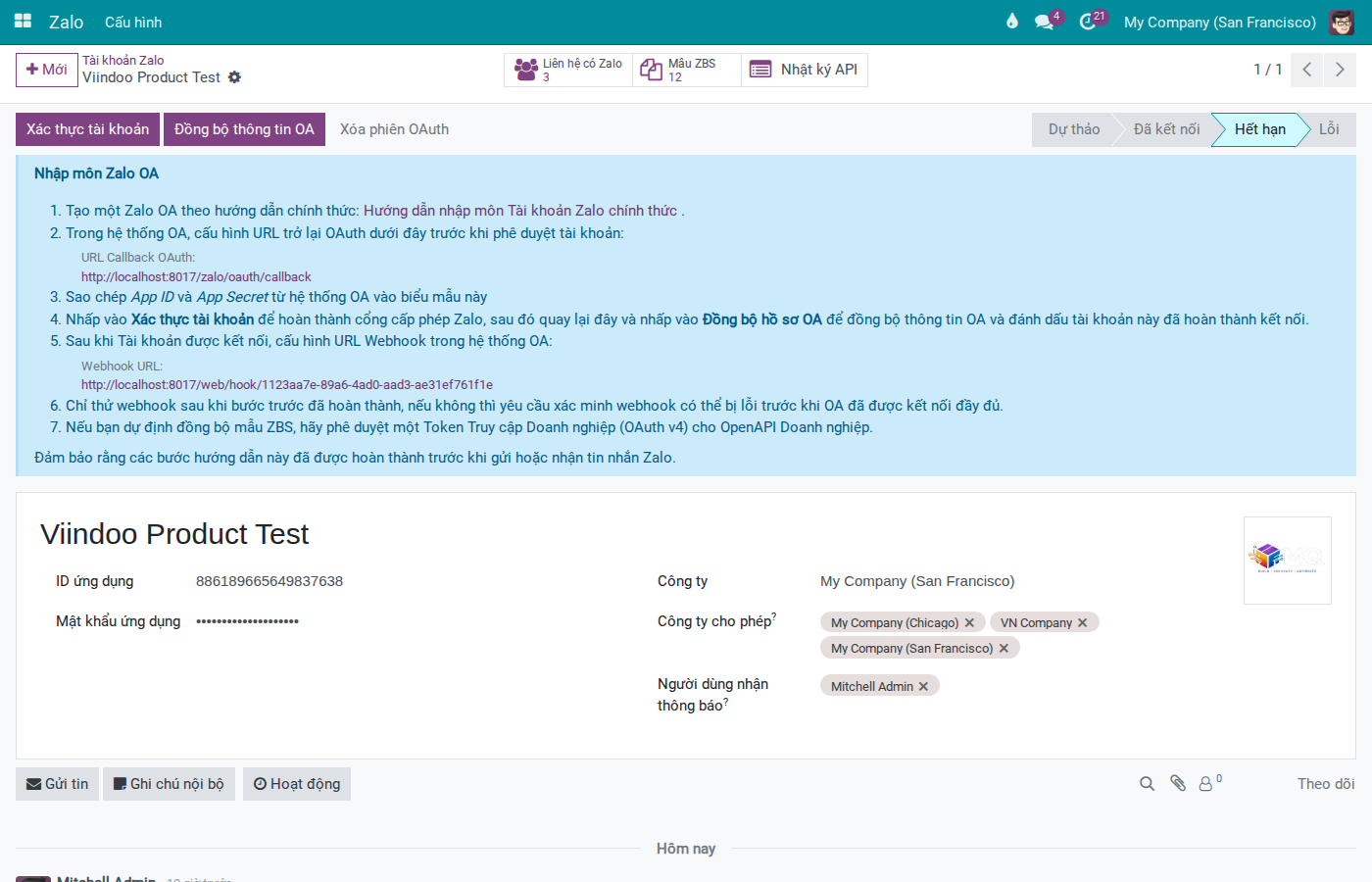
Recover token:
Account is in Expired or Error status → click “Authorize Account” to restart OAuth.
If “Authorize Account” is stuck or shows old session → click “Clear OAuth Session” first.
Warning
“Clear OAuth Session” deletes an incomplete OAuth session. Use only when authorization flow is stuck — do not click carelessly.
After authorization completes → click “Sync OA Profile” to confirm successful connection.
Webhook not receiving events:
Copy the Webhook URL field value → paste into Zalo OA Developer Console → Webhook settings.
Ensure you have enabled all necessary event groups: conversation (user_send_*), delivery status, follow/unfollow, ZBS status (change_template_status, change_template_quota, user_feedback).
Check ZBS Templates
Access: → select the OA account to check → click ZBS Templates button at top of form.
Template statuses: Draft → Pending → Approved / Rejected / Disabled
Rejected template:
Open template → read the Reject Reason field — Zalo states the reason clearly.
Edit template content per the feedback.
Click Reset to Draft → make changes → click Submit to Zalo to resubmit for approval.
Disabled template:
Disabled status = Zalo has deactivated the template due to quota exceeded or quality policy violation.
Template Quality field shows the quality score from Zalo (read-only).
Note
Detailed quota tracking and ZBS quality scoring inside Viindoo are still under development. For now, templates disabled because the quota was exceeded simply show Disabled status — check quota limits directly in the Zalo OA Developer Console.
Recipient not identified:
Symptom |
Cause |
Solution |
|---|---|---|
“no valid phone was found” |
Contact has no phone number or wrong format |
Update phone number in format 84xxxxxxxxx in contact record |
Send via UID does not arrive |
Partner has no Zalo UID link in Viindoo |
Change Route policy to Phone or UID + Phone; check partner’s Zalo link at Manage Zalo Partner Links |
View API Logs
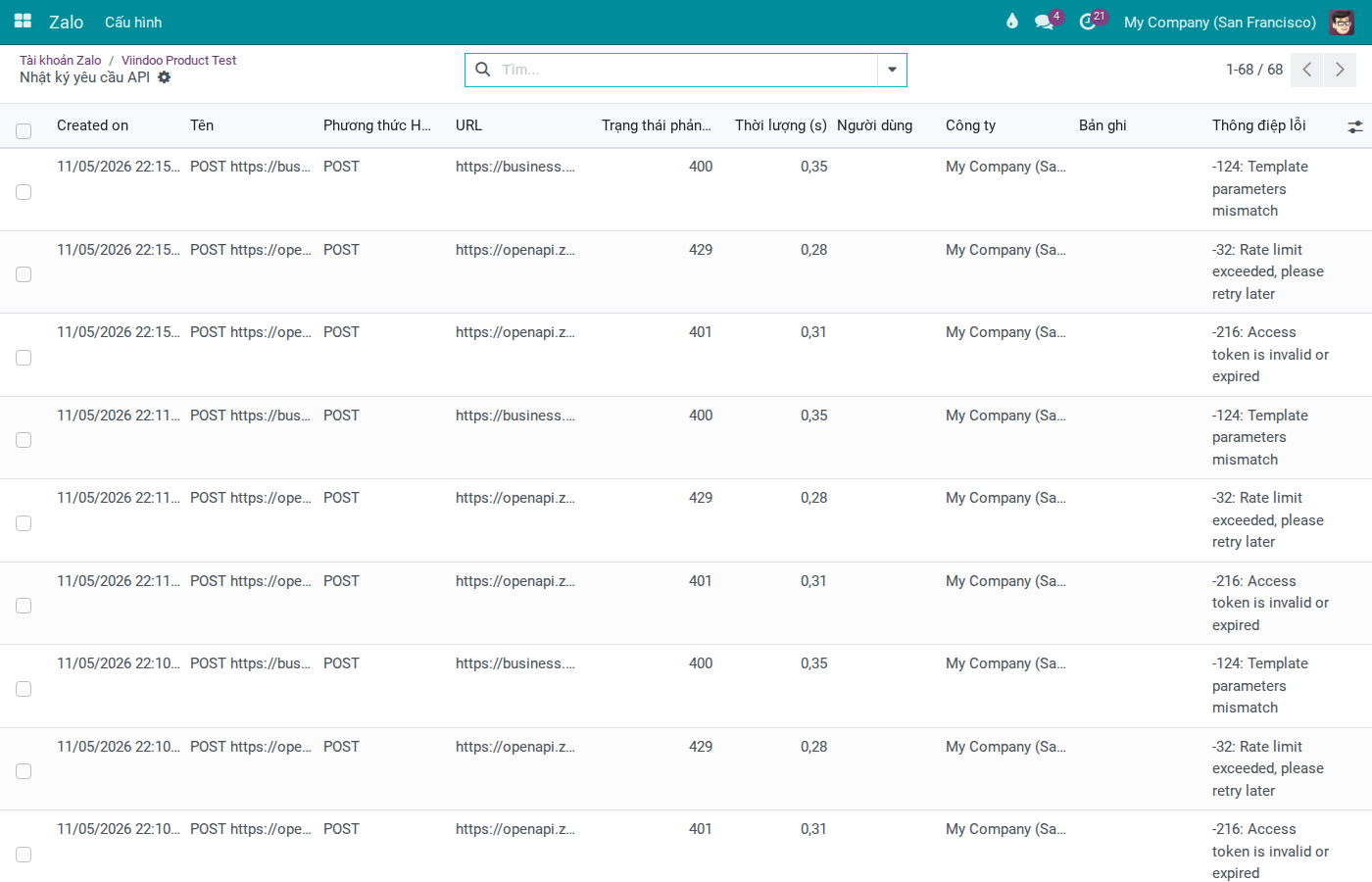
API logs record every request Viindoo sends to Zalo and every response Zalo returns — the most accurate source when you need to know the exact error code.
Three access points:
From OA account form → “API Logs” button
From message form in Zalo Events → “API Logs” button
From ZBS template form → “API Logs” button
Read a log entry:
HTTP status code — 200 = success; 401 = token expired; 429 = rate limit exceeded
Error message — description when request fails
Duration — processing time (seconds); unusually high = Zalo timeout
Open the log form to see complete request body and response data
Pre-Escalation Checklist
Complete all steps below before reporting to dev or contacting Zalo support:
Open API log of the failed action → note HTTP status code and error message.
Check OA account status and token icon → re-authorize if expired.
Go to Zalo Events → filter failed messages → note Processing State and Zalo State.
For ZBS templates: read the Reject Reason and Template Quality fields.
Check Zalo OA Developer Console: quota limits, webhook URL, OA account status.
Summarize for escalation: OA name, account status, error message timestamp, API log entry, error message content.