
Carrier Booking (Sea)
Guide information
Required modules
A booking (carrier booking) is the formal request to reserve space and containers on a vessel. Without a confirmed booking, Operations has no official sailing schedule, no CY/SI/VGM cutoff dates, no carrier booking number for the Shipping Instruction, and no rate basis for the Ocean Freight charge. Every sea export shipment must have at least one confirmed carrier booking before containers can be moved.
Scenario used throughout this guide: Hai Long Logistics is handling an export shipment for Viet Nam Textile JSC — 2 x 40-foot High Cube (40HC) containers, textile fabric, route VNHPH (Hai Phong) → USLAX (Los Angeles), carrier ONE (Ocean Network Express), ocean leg only (port-to-port), ETD target within 15 days. The Booking Officer needs to confirm the booking today so Operations can schedule container pick-up.
See also
Freight terminology (CY Cutoff, SI Cutoff, VGM, HBL, MBL, Roll Over, FCL, POL/POD): Industry Glossary.
When to use this guide
Use this guide when a shipment is already Confirmed and needs a carrier space reservation. For sea export, the most common booking type is Ocean Booking for the main ocean leg. If the contract includes pre-carriage (door-to-port) or on-carriage (port-to-door), create separate trucking bookings for those legs.
Role |
Task in this guide |
What to verify |
|---|---|---|
Booking Officer |
Create booking, submit request, enter confirmation details and cutoff dates. |
Booking status is Confirmed with carrier booking reference. |
Operations Staff |
Use cutoff dates and container request to plan container pick-up, stuffing, VGM and gate-in. |
CY/SI/VGM Cutoff dates are present; container request quantity is correct. |
Pricing / Accounting |
Verify the Ocean Freight charge after booking is confirmed. |
Sell price, cost price and gross profit match the expected margin. |
Process overview
# |
Step |
Purpose |
Responsible |
|---|---|---|---|
1 |
Create booking from shipment. |
Inherit route, ETD and container requirement from the shipment. |
Booking Officer |
2 |
Submit booking request to carrier. |
Mark booking as sent and wait for carrier response. |
Booking Officer |
3 |
Enter booking confirmation details. |
Record booking reference, vessel/voyage and official cutoff dates. |
Booking Officer |
4 |
Confirm booking in the system. |
Lock the booking, establish the basis for Operations and Charges. |
Booking Officer / Ops |
5 |
Verify booking and linked charges. |
Ensure shipment is ready for the next operational step. |
Ops / Pricing |
Step 1: Create a booking from the shipment
Creating the booking from a Confirmed shipment ensures the route, customer, POL/POD and ETD are inherited correctly and that the booking is linked to the right primary leg. A booking created outside of a shipment context cannot trigger container execution or charges automatically.
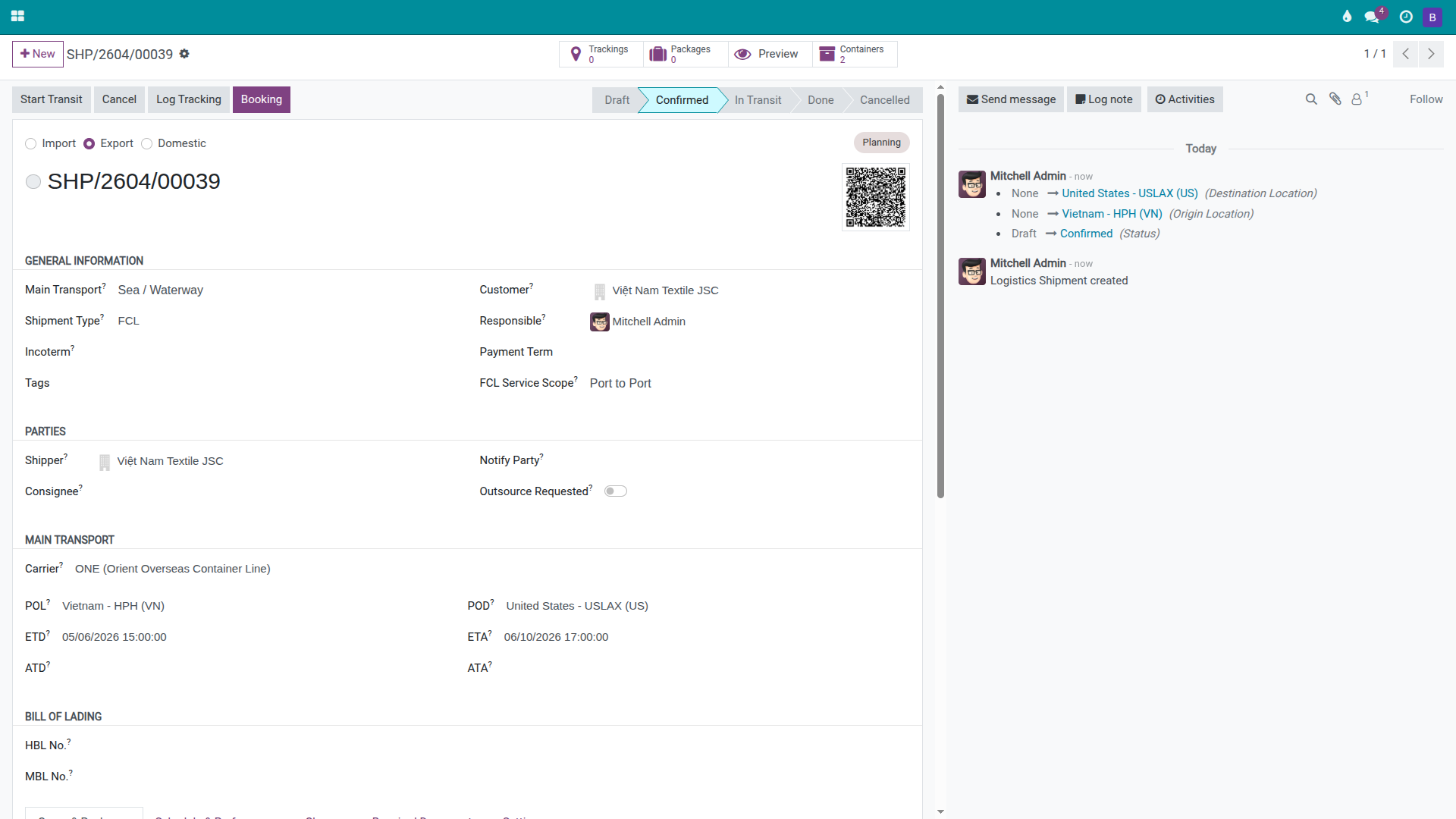
Open the Viet Nam Textile JSC shipment, then click Booking on the form header.
In the Create Booking dialog, fill in:
Booking Type: Ocean Booking
Carrier: ONE
Coverage: see the decision table below to choose the right option.
POL / POD: VNHPH / USLAX
ETD / ETA: verify against the expected sailing schedule.
Under Requested Details, enter the container requirement:
Container Type: 40HC
Container Qty: 2
Commodity: Textile fabric
HS Code: enter if already known from the customer.
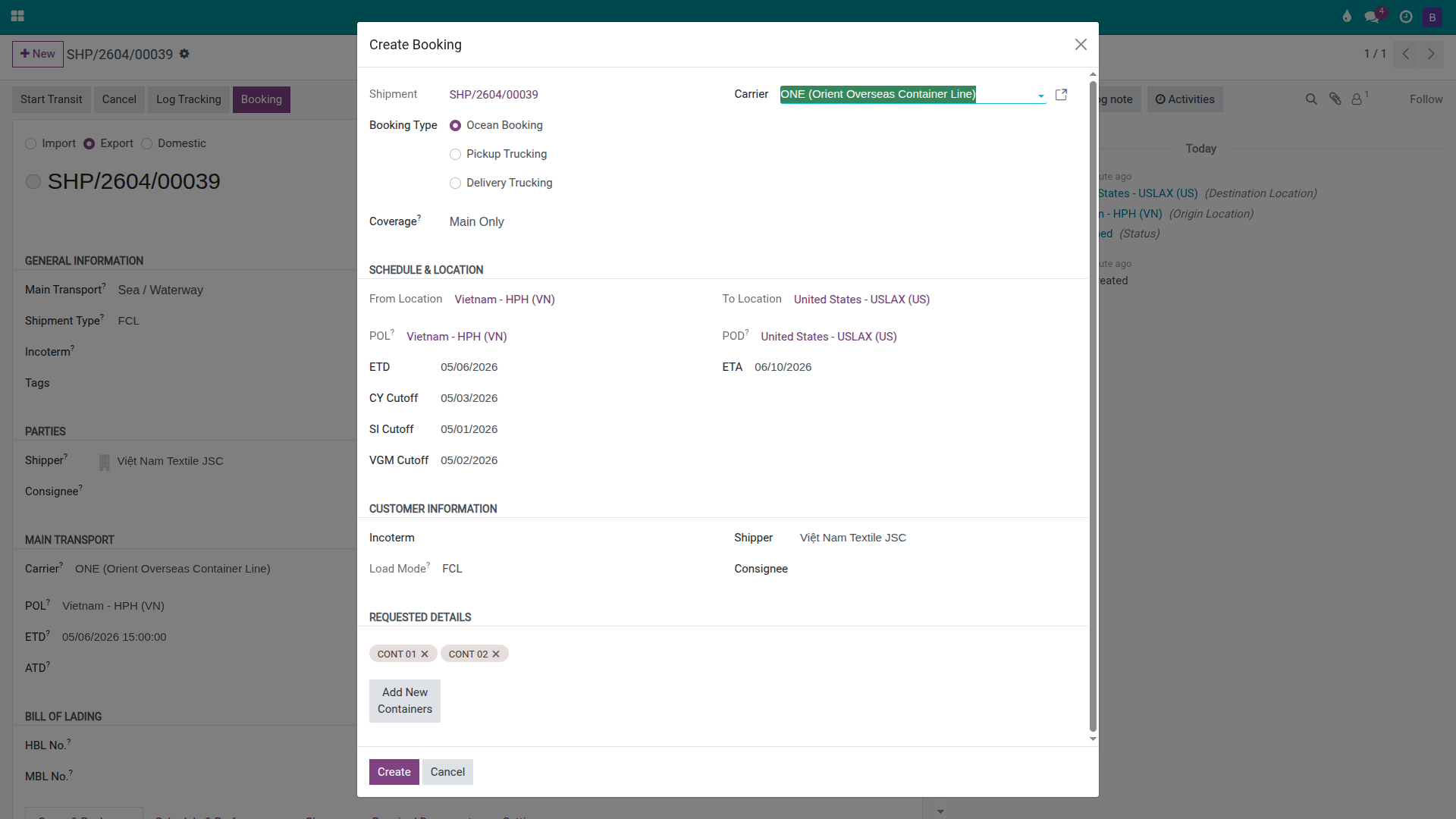
Click Create to generate the booking in Draft status.
Choose the correct Coverage for your service scope:
Coverage option |
Meaning |
Use when |
|---|---|---|
Main Only |
Ocean leg only (port to port). |
Customer arranges their own trucking at both ends. FOB at origin port. |
Pickup + Main |
Carrier covers pre-carriage (origin trucking) + ocean leg. |
Door-to-port contract. Forwarder books trucking through the carrier. |
Main + Delivery |
Ocean leg + on-carriage (destination trucking). |
Port-to-door contract at destination. |
Full Route |
Pre-carriage + ocean + on-carriage (door-to-door). |
DDP or end-to-end contract. Carrier handles all legs. |
If you are unsure, choose Main Only and create a separate trucking booking for the additional legs. This is the safest starting point for a port-to-port shipment.
Tip
Step 1 complete when:
The booking appears under the Bookings smart button on the shipment (count ≥ 1).
Booking status is Draft with Carrier = ONE, Coverage = Main Only, route VNHPH → USLAX.
The Requested Details tab shows 2 rows: 40HC × 2.
POL, POD and ETD match what was agreed with the customer.
Step 2: Submit the booking request to the carrier
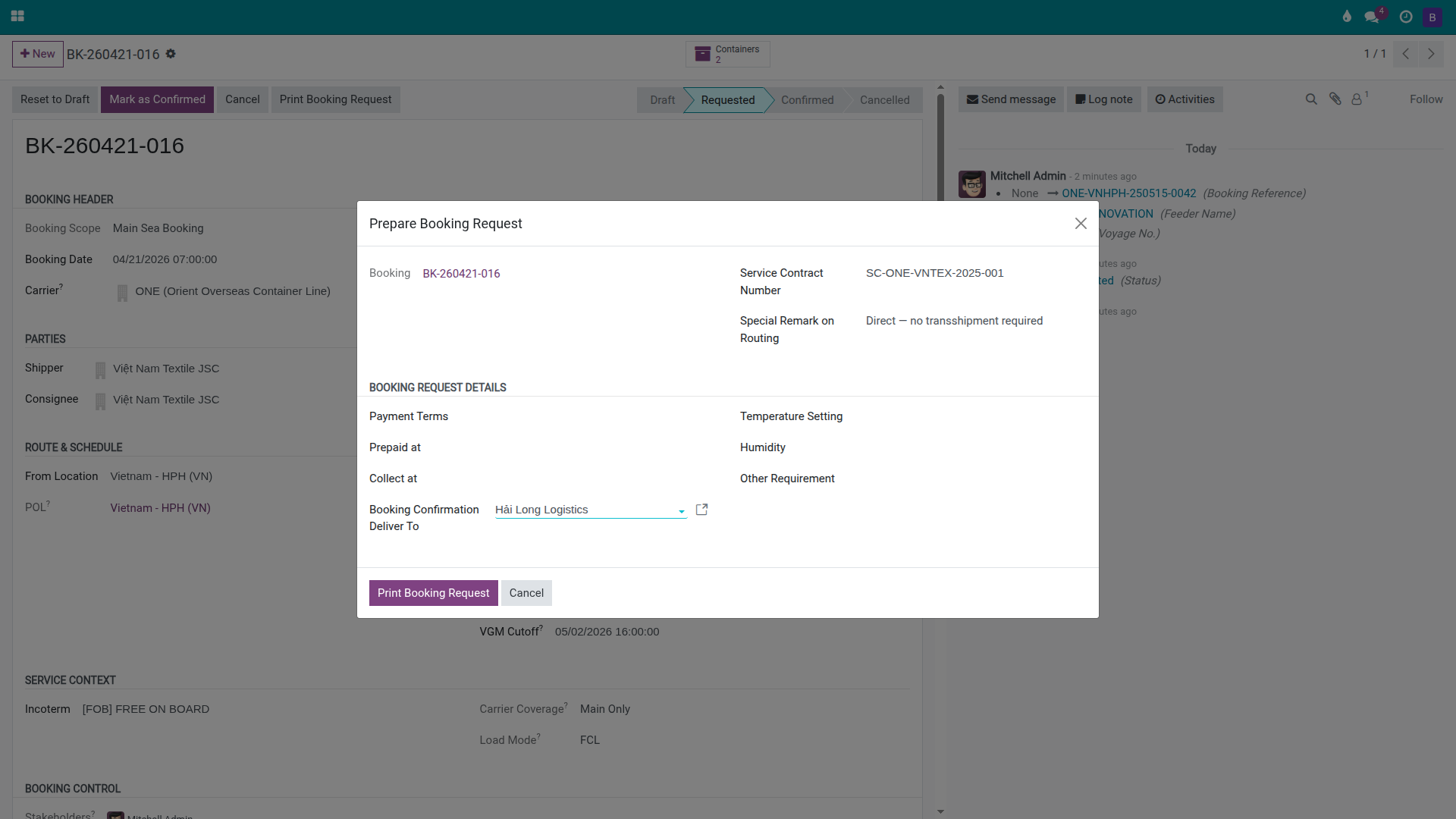
Submitting the request is the formal step that locks the booking intent before it is sent to the carrier (by email or EDI outside the system). Once submitted, the booking reference number, vessel and cutoff fields become visible in the Carrier Response section — ready to be filled when the carrier replies.
Open the booking form (accessible via the Bookings smart button), then click Mark as Requested.
If the system raises a validation error stating the booking must be linked to a shipment leg before it can be requested, it means the Primary Leg on the booking is missing. The primary leg identifies which leg of the journey this booking belongs to — without it, the system cannot create execution containers or assign charges. The wizard normally creates this leg automatically. If it is absent, go back to the shipment, verify the legs tab, and re-open the booking wizard.
If the tab Requested Details already contained container lines (40HC × 2), the system will automatically create the corresponding container execution records on the shipment at this point. For this scenario: 2 × 40HC → 2 container objects are created on the shipment.
Warning
Send the booking request to the carrier outside the system.
Clicking Mark as Requested only changes the status in Viindoo. The actual request email (or EDI message) to ONE must still be sent from your email client or carrier portal. Carriers typically confirm within 24–48 hours. If you exceed that window, follow up directly before the sailing date closes.
Tip
Step 2 complete when:
Booking status is Requested.
The Carrier Response section is visible on the booking form.
The external booking request has been sent to ONE (email or portal — outside Viindoo).
Step 3: Enter the carrier confirmation details
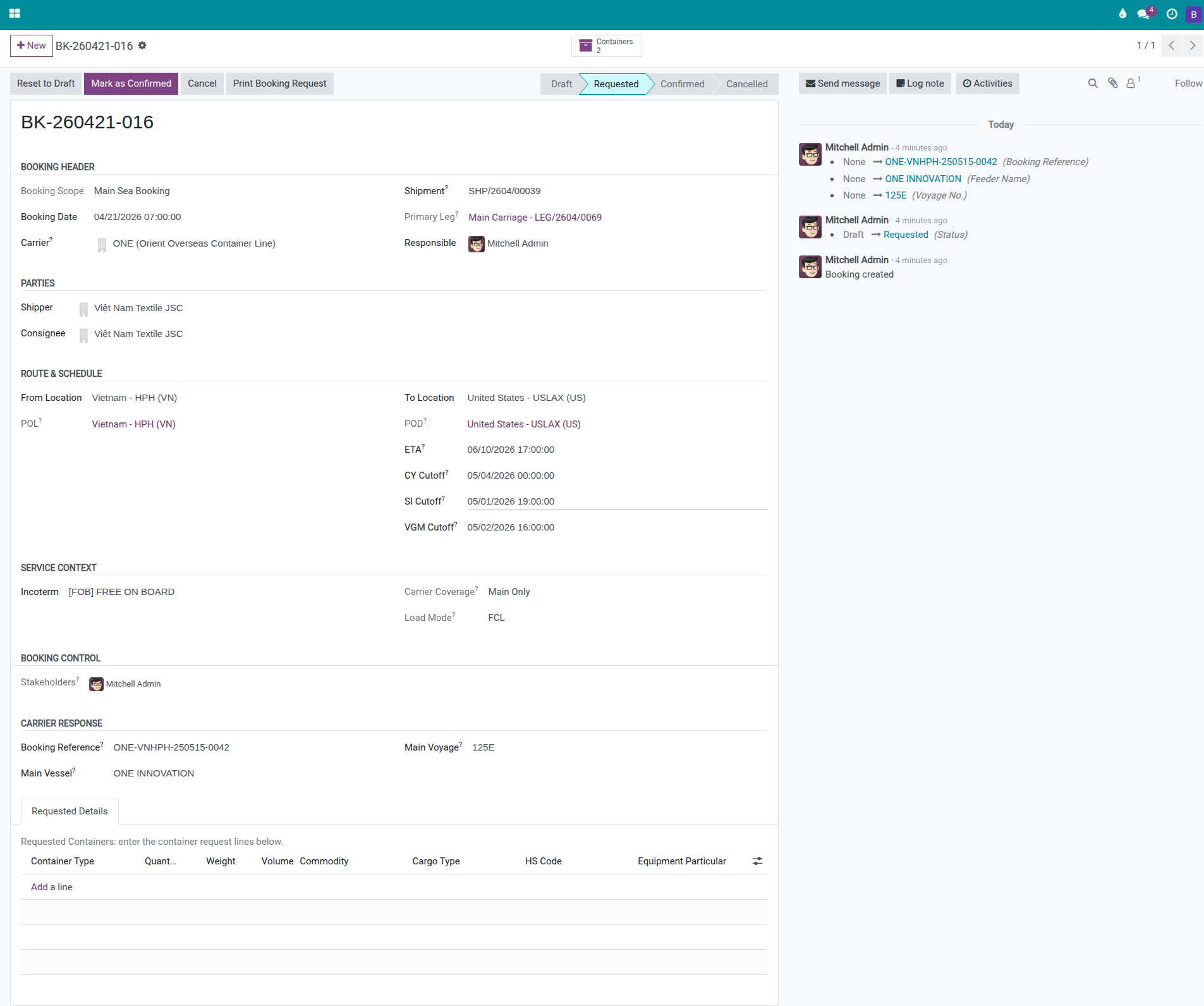
When ONE confirms the booking, they provide: a booking reference number, the vessel name, voyage number, and the three critical cutoff deadlines (CY, SI, VGM). These must be recorded in the system before Operations starts planning containers — the cutoffs drive the entire execution schedule.
In the Carrier Response section of the booking form, fill in:
Booking Reference: the official booking number from ONE’s confirmation email. Enter this exactly as it appears — not from memory. This number goes on the SI submitted to the carrier.
Main Vessel: ONE COMMITMENT (or the actual vessel name from the confirmation).
Main Voyage: 021W (or the actual voyage number).
CY Cutoff: the deadline for the container to physically enter the container yard.
SI Cutoff (Shipping Instruction): the deadline to submit the Shipping Instruction to ONE.
VGM Cutoff: the deadline to submit the Verified Gross Mass to the carrier.
Warning
CY Cutoff is a hard deadline — missing it means the container cannot board the vessel.
A container entering the yard after the CY Cutoff is rejected and the shipment rolls over to the next sailing. Cost impact: port storage at USD 15–30/container/day (3–7 days), new booking fee, and customer notification of revised ETD. For 2 containers, total exposure is typically USD 200–500 plus relationship damage.
Always copy the cutoff dates directly from the carrier confirmation — never estimate. If the vessel/voyage on the confirmation differs from what was expected, update both fields before notifying Operations.
Tip
Step 3 complete when:
All three cutoff fields (CY, SI, VGM) are filled with dates from the carrier confirmation.
Vessel and voyage number match the confirmation exactly — not the initial estimate.
Booking Reference is the exact string from ONE’s email or portal (not retyped from memory).
ETD on the booking is the actual sailing date, not the target date from Step 1.
Both 40HC containers are accounted for in the container execution list on the shipment.
Step 4: Confirm the booking in the system
Confirming the booking is the final lock before handing off to Operations. After this point, the booking is read-only — if changes are needed (carrier, vessel, cutoff), the booking must be cancelled and recreated. This step also triggers charge creation if a rate card for ONE is configured.
Click Mark as Confirmed.
After confirming:
Booking status changes to Confirmed — all fields become read-only.
The system looks up the rate card for ONE on this route and creates the Ocean Freight charge line on the shipment (if a rate is configured). Check the Charges tab on the shipment.
The Booking Reference is now available for the Documentation Officer to use when preparing the Shipping Instruction (SI) for ONE.
Operations can now see confirmed cutoff dates and plan container pick-up, stuffing, gate-in and VGM submission.
Note
Resolving booking confirmation (with notification modules):
In some configurations, clicking Mark as Confirmed opens a Resolve Booking Confirmation dialog. This appears only when an extension module is installed that requires stakeholder notification. Select Notify stakeholders about carrier decision, fill in the recipients, subject and message, then click Apply. Clicking Cancel aborts the confirmation. If you are using the base Freight module only, this dialog does not appear.
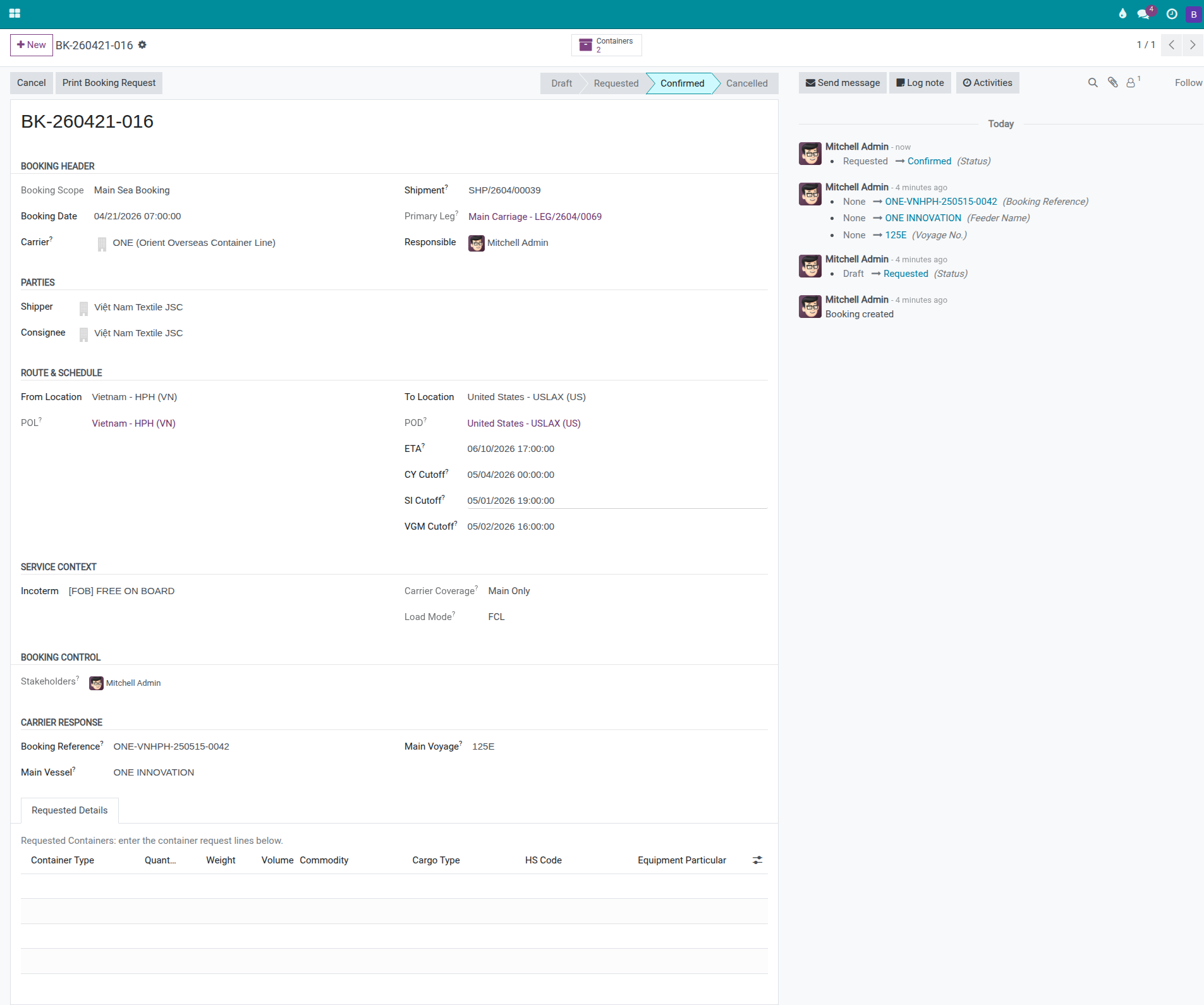
Tip
Step 4 complete when:
Booking status is Confirmed (status bar).
All carrier response fields are locked (read-only).
The Charges tab on the shipment shows an Ocean Freight line linked to ONE (if a rate card is configured).
Operations and Documentation can both see the confirmed cutoff dates.
Step 5: Verify booking and charges on the shipment
After confirming the booking, do a final check on the shipment before handing off to Operations.
On the shipment form:
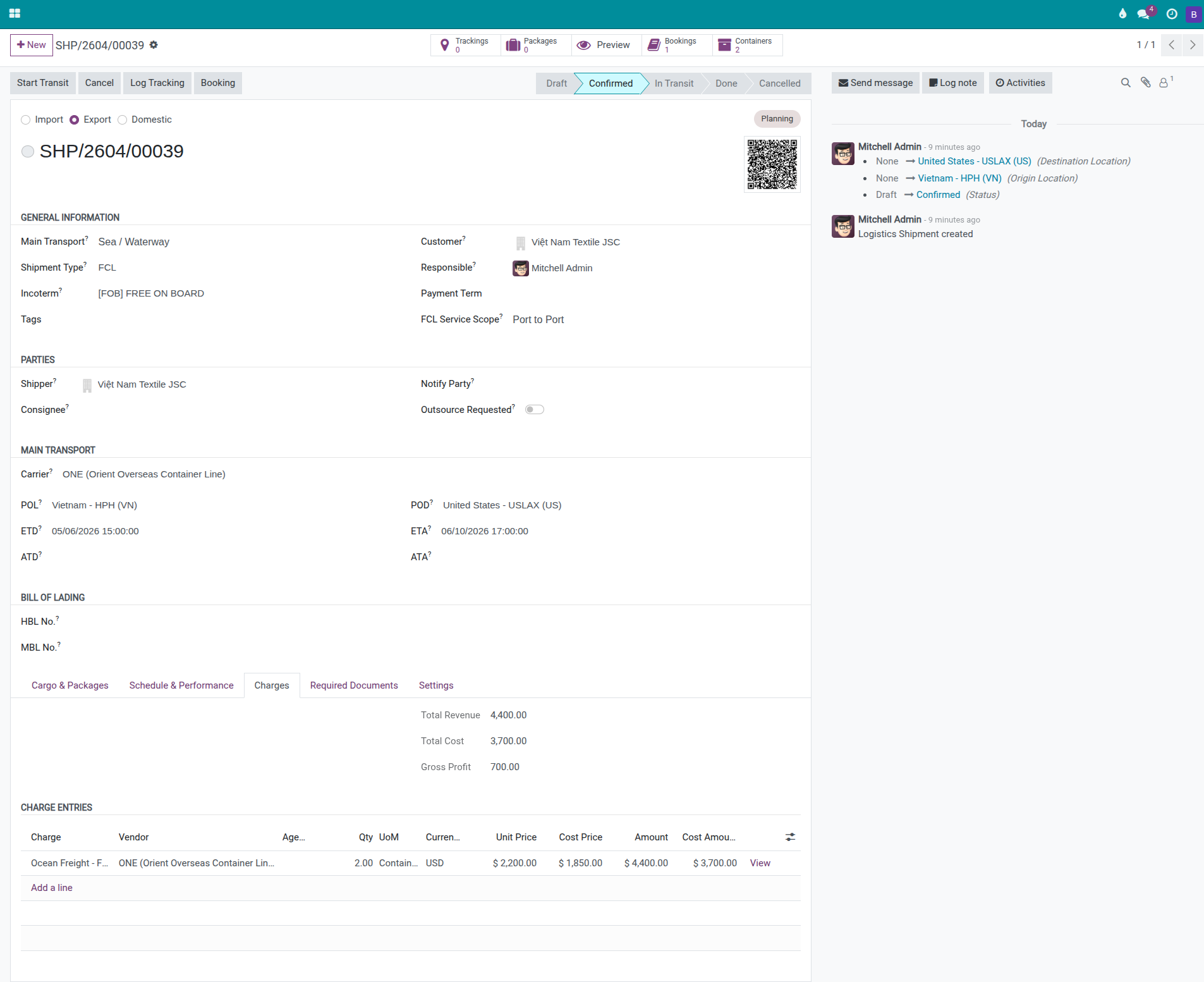
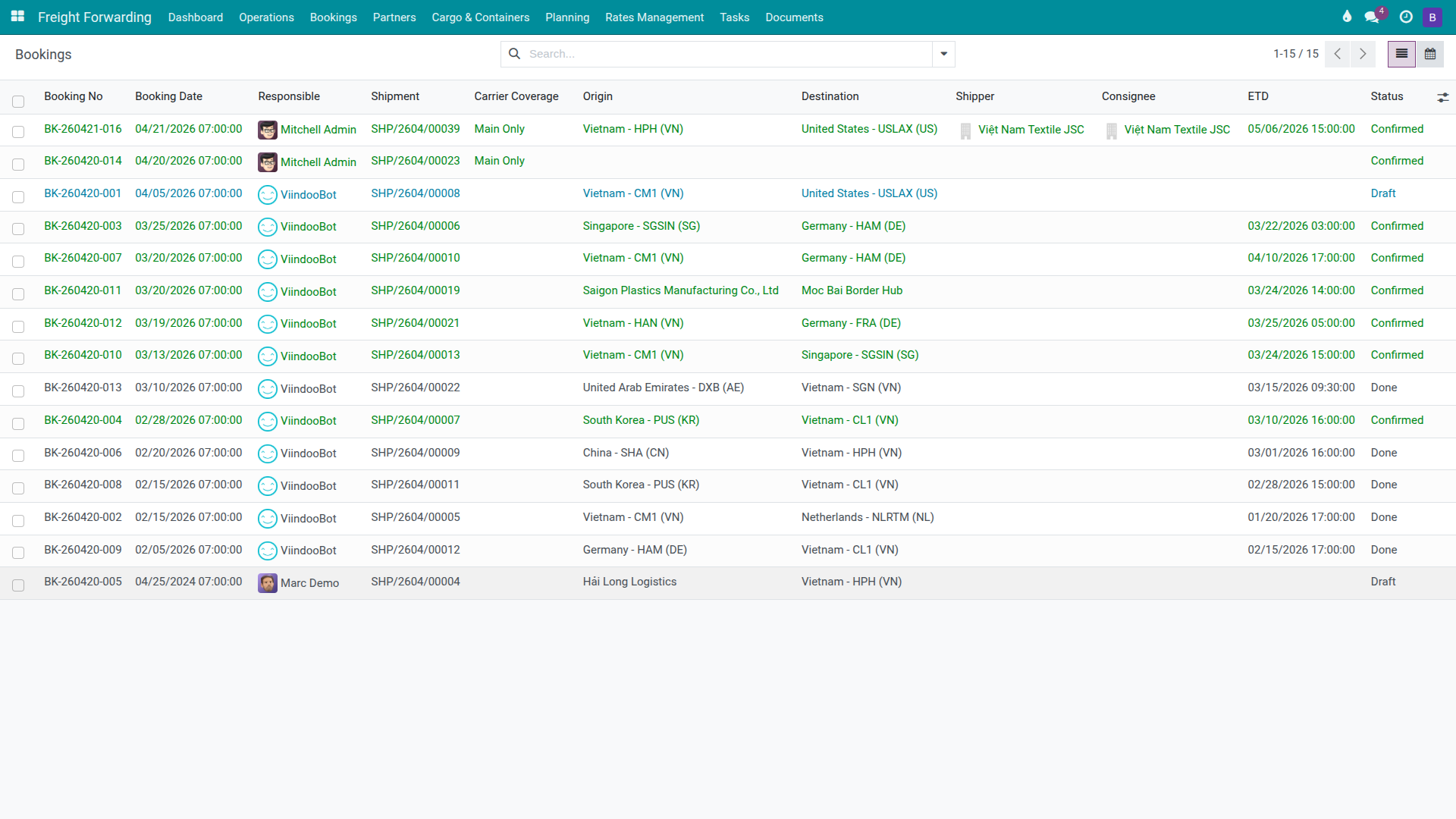
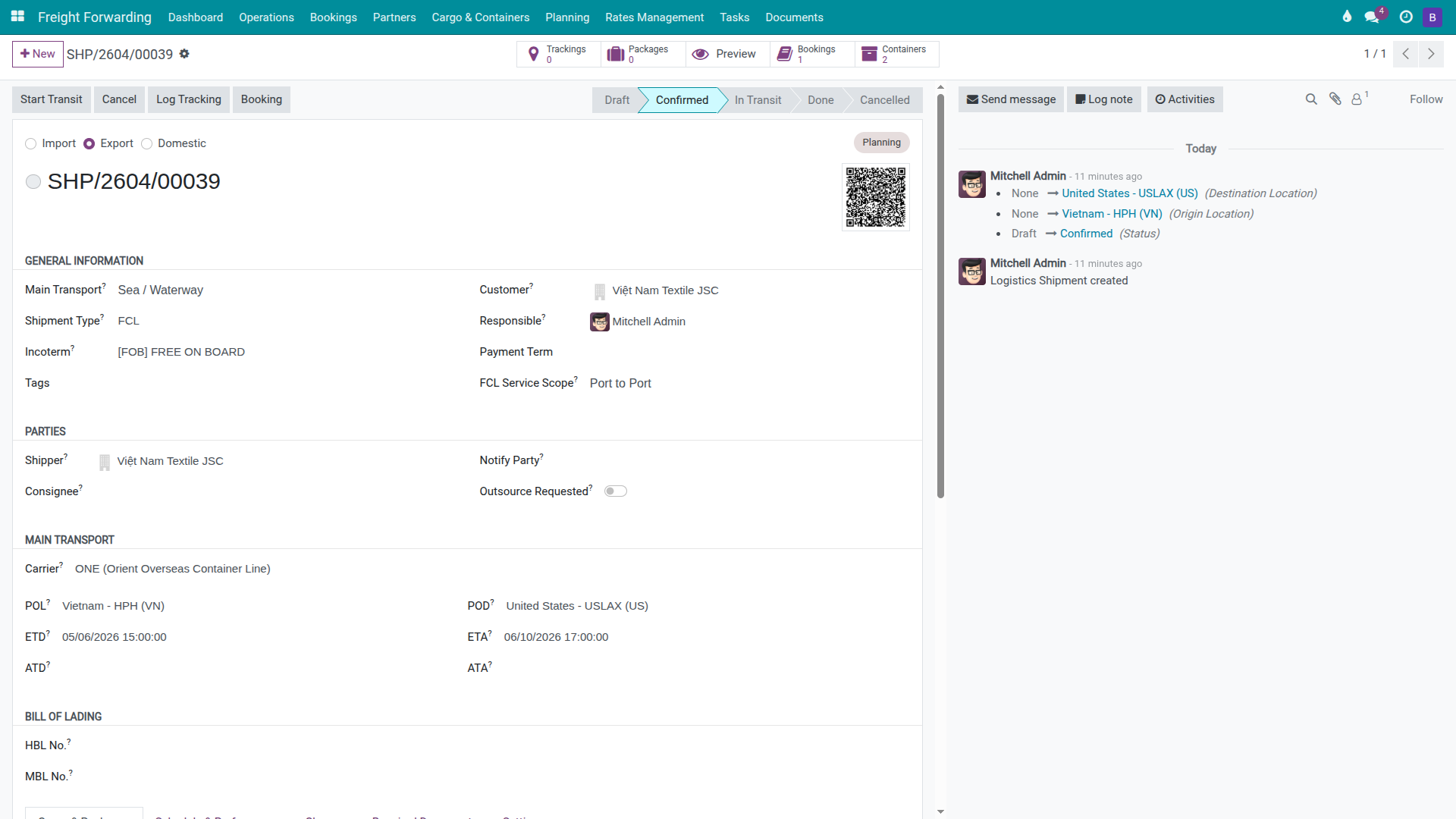
Open the Bookings smart button — it should now show at least 1 confirmed booking.
Open the Charges tab — verify the Ocean Freight line:
Unit Price (sell rate): should match the agreed sell rate with Viet Nam Textile JSC.
Cost Price (buy rate): should match the rate from ONE’s rate card (USD 1,850/40HC for VNHPH → USLAX on this example).
Qty: 2 (matching the 2 × 40HC containers).
Gross Profit: Total Revenue minus Total Cost. With sell at USD 2,200/cont and cost at USD 1,850/cont → Gross Profit = USD 700 for this shipment.
If the Ocean Freight line is missing: either no rate card is configured for ONE on this route, or the charge was not auto-created. Add the charge manually — see Charges and Profitability.
Choosing a carrier: how to compare options
Viindoo does not have an automatic carrier comparison module for the base booking flow. The standard process is:
Contact each carrier (ONE, COSCO, Evergreen, etc.) to request sailing schedules and rates.
Compare manually: ETD/ETA, transit time, ocean freight rate, surcharges and reliability.
Select the preferred carrier and create the booking in Viindoo.
If your configuration includes viin_freight_sale and the shipment originated from a Sales Order, the Select Sailing Schedule button may be available on the SO. This button is visible when the SO meets all of the following conditions:
SO status is Draft or Sent.
The SO has at least one freight service line (
is_freight = True).The freight transport mode is ocean and load mode is FCL.
Once the SO is confirmed, the button is no longer available.
Tip
Booking complete when the shipment shows:
Bookings smart button ≥ 1 (all Confirmed).
Charges tab: Ocean Freight line with sell and cost prices filled.
Gross Profit on the Charges tab ≥ the margin agreed with the customer at quotation.
CY, SI and VGM Cutoff dates are visible to Operations (accessible from the booking).
No outstanding items flagged in the Chatter.
Troubleshooting
Booking stays in Requested for more than 48 hours
Symptom: The booking was marked as Requested but the carrier has not replied.
Likely causes: Carrier inbox delay, incorrect booking email address, or no slot available on the requested sailing.
Resolution:
Contact ONE directly (phone or portal) to confirm receipt of the booking request.
If the sailing is full, ask for the next available date.
Update ETD and ETA on the booking once the carrier confirms a slot.
Notify the customer if the ETD changes.
ETD changes after booking is confirmed
Symptom: ONE notifies you that the sailing date has shifted (vessel schedule change).
Resolution:
Open the booking → update ETD and ETA.
Add a Chatter note explaining the reason (vessel schedule change, port congestion, etc.) for the audit trail.
Notify the customer and update the Arrival Notice if the shipment is in transit.
Coverage does not match the shipment service scope
Symptom: Clicking Mark as Requested raises a validation error about carrier coverage not being allowed for the shipment’s service scope.
Likely causes:
Group 1: Coverage is Main Only but the booking leg is not a main carriage leg. Fix: verify the leg type on the booking and select the correct leg.
Group 2: The selected Coverage (e.g., Pickup + Main) is not in the allowed list for the shipment’s service scope. Each service scope has an allowed coverage set. Align the Coverage with the scope, or update the shipment’s service scope first.
Group 3: Coverage requires pre-carriage or on-carriage legs that do not exist on the shipment. Create the missing legs on the shipment, then retry.
Booking confirmed but no Ocean Freight charge appears
Symptom: Booking is Confirmed, but the Charges tab shows no Ocean Freight line.
Likely causes: No rate card is configured for ONE on the VNHPH → USLAX route, or the rate card exists but does not match the container type (40HC) or date range.
Resolution:
Go to and verify that a sell rate and buy rate exist for ONE, 40HC, on this route for the current date.
If a rate card is missing, add it and then add the Ocean Freight charge manually on the Charges tab using Add a line.
Booking linked to the wrong shipment
Symptom: The booking appears under a different shipment than expected.
Resolution:
Cancel the mis-linked booking (Cancel button on the booking form — only available if not yet Confirmed).
If the booking is already Confirmed, cancel it first then recreate it from the correct shipment. Cancelling a confirmed booking does not affect the shipment record itself.
When recreating, open the correct shipment and use the Booking header button to ensure proper linking.
See also
FCL Export — Full FCL export workflow including container execution
Charges and Profitability — Recording and verifying charges and profitability
Document Management (SI, B/L, D/O) — Shipping Instruction, HBL and document management
VGM Entry (Verified Gross Mass) — Submitting VGM after stuffing