
Send Payment Request Messages via Zalo from Invoices
Guide Info
Note
Out of scope for this guide:
Create or submit new ZBS message templates: see Create and Manage ZBS Message Templates (Admin/IT)
Manage customer links with Zalo: see Manage Zalo Partner Links
Send ZBS templates from sales orders: see Send ZBS Message Templates from Sales Orders
—
When to Use This Guide
Use this guide when accounting staff needs to send a payment reminder from an invoice via Zalo.
Example used throughout this guide: Invoice INV/2026/00421 from Minh Chau Company carries an outstanding balance of 12,500,000 VND. AR staff Linh opens the invoice, clicks Zalo in the chatter, selects the Payment Request template, verifies the preview shows the correct invoice number, amount, and Payment Reference, then clicks Send. Sending directly from the document rather than composing a manual message eliminates transcription errors on the payment reference — each mismatch requires 15–30 minutes of manual reconciliation to resolve.
Important
The Payment Request template currently pulls the invoice total amount. For partially paid invoices, carefully review the preview before sending.
Quick Flow
Open the invoice needing a payment reminder.
Click Zalo in the chatter.
Open the Send Zalo Message dialog.
Select the Payment Request template.
Verify the preview, then click Send.
Open the conversation to confirm the message was sent correctly.
—
Step 1 — Check Invoice Before Sending
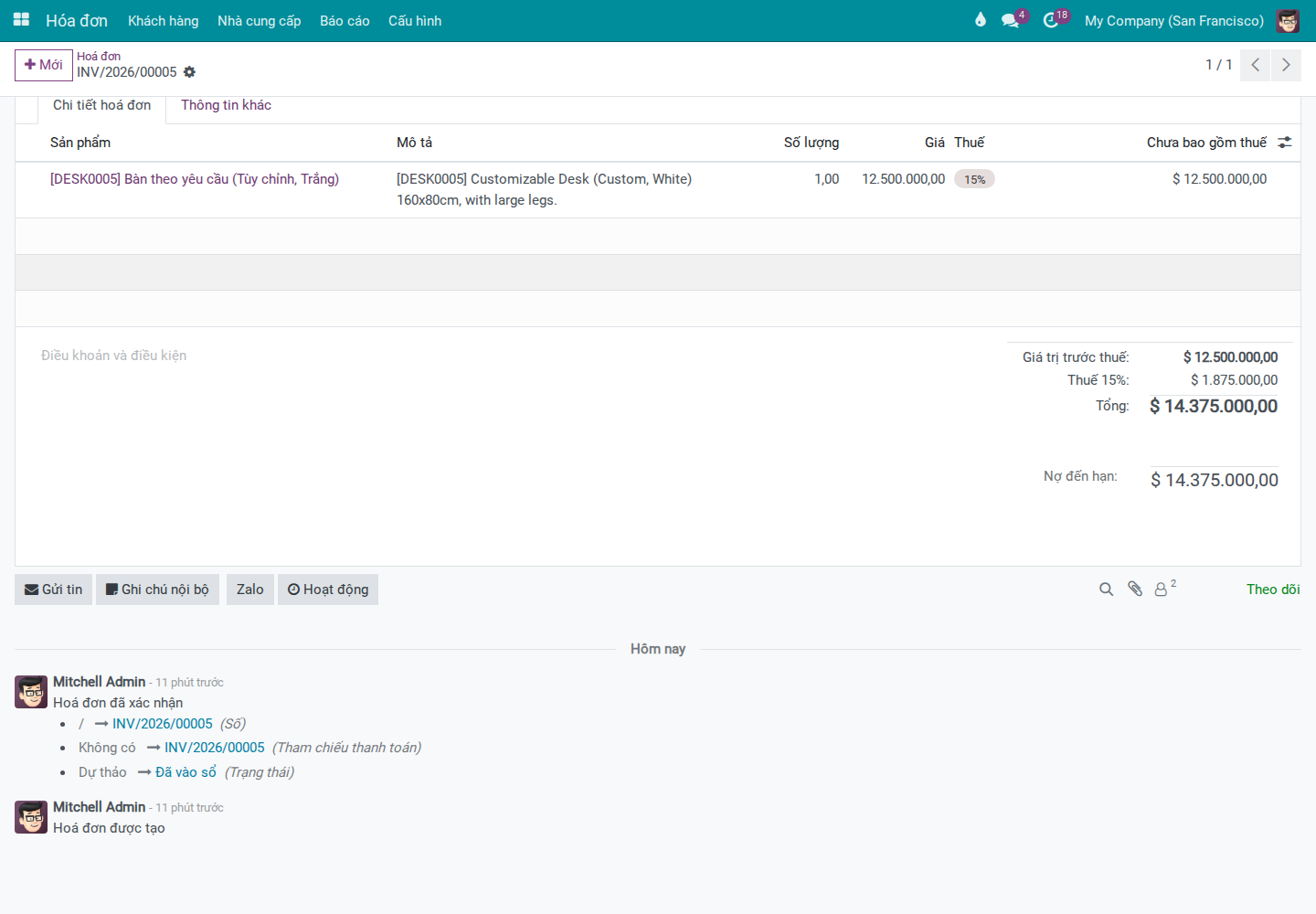
Go to and open the invoice needing a payment reminder.
Before sending, quickly verify:
The invoice has a customer assigned.
The invoice total is correct.
The Payment Reference field has content used for reconciliation when the customer makes payment.
The customer record has a Zalo link or phone number.
Warning
Do not send if Payment Reference is empty or incorrect. Without this field, accounting must manually reconcile each transaction — adding 15-30 minutes per case.
—
Step 2 — Open the Zalo Send Dialog from the Invoice
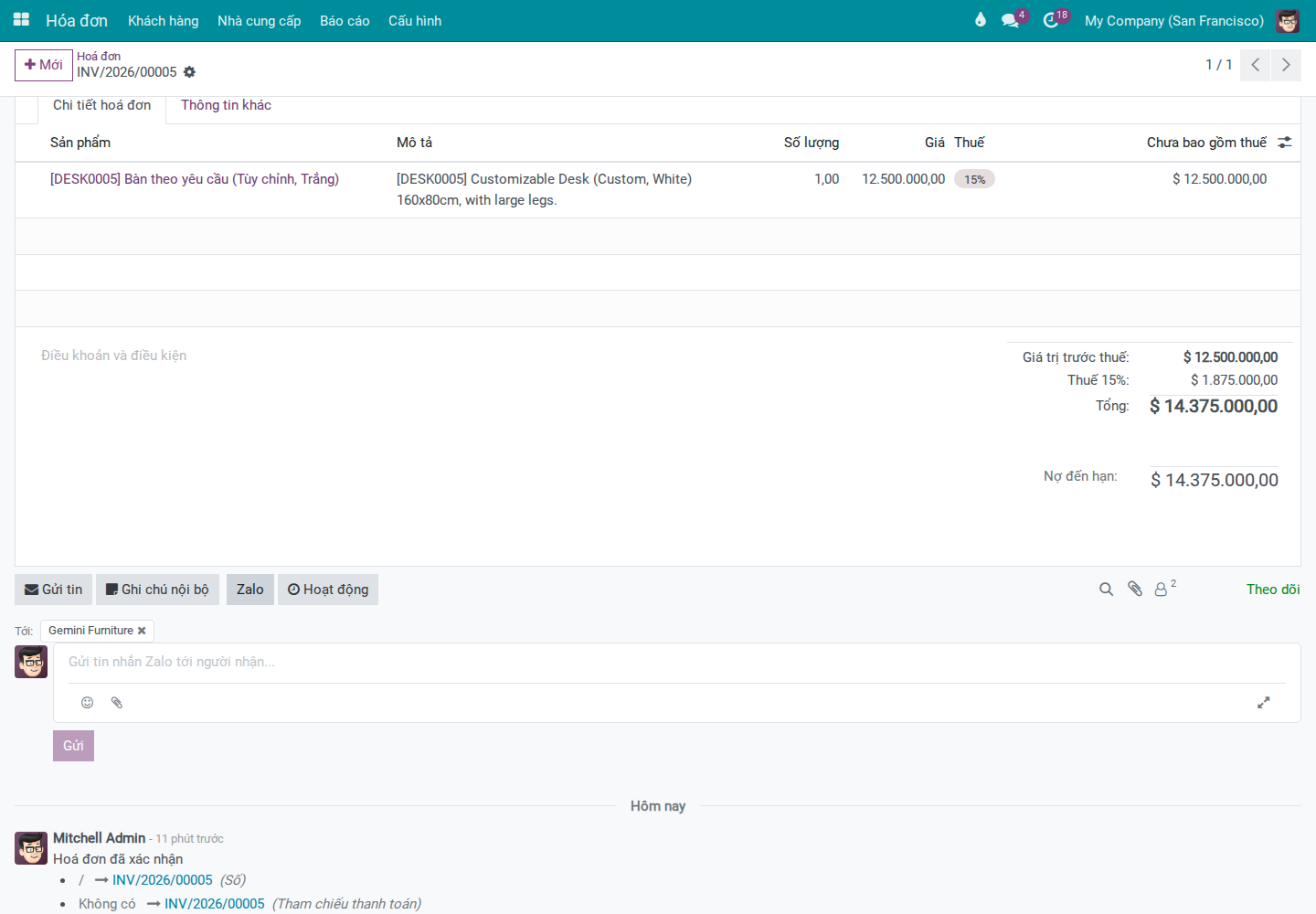
The Zalo button appears in the chatter area when the invoice has a suitable recipient — for example, if the customer has linked Zalo or has a phone number on their record.
Click Zalo in the chatter, then open the Send Zalo Message dialog.
—
Step 3 — Select the Payment Request Template
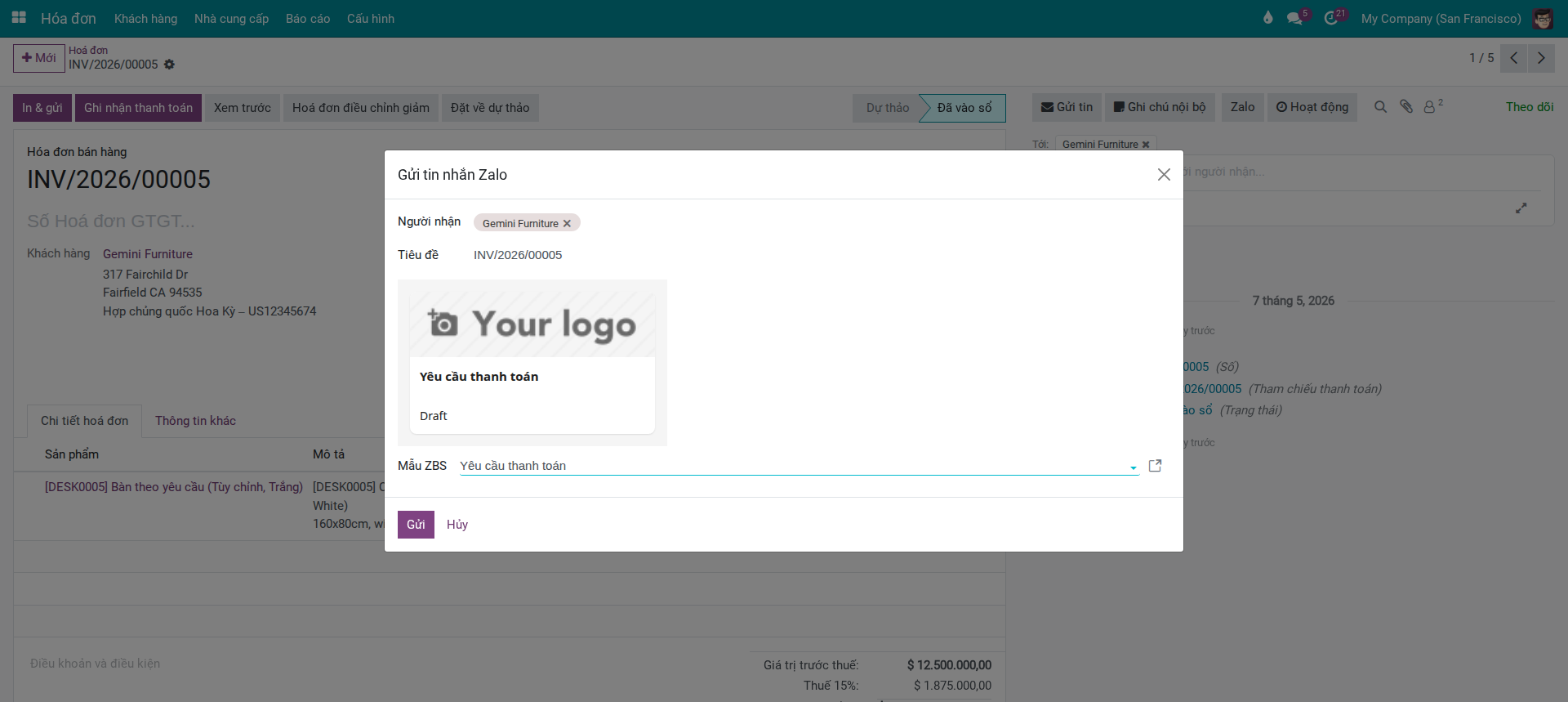
In Send Zalo Message, select the ZBS Template as Payment Request.
The template appears when:
Template status is Approved.
Template applies to Invoices.
You have permission to use the template or belong to the authorized OA.
The Payment Request template pulls data from the invoice:
Content on Message |
Data Source from Invoice |
|---|---|
Customer Name |
Customer on invoice |
Invoice Number |
Invoice code |
Amount |
Invoice total amount |
Payment Status |
Invoice payment status (Not Paid / In Payment / Paid) |
Payment Content |
Payment Reference |
Details Button |
Invoice portal link |
The Payment Reference field (payment content) must match the customer’s bank transfer memo — the system uses this string for automatic payment reconciliation, avoiding manual matching.
Note
The preview in the image above shows the template in Draft status (not yet approved by Zalo). Once Zalo approves the template (Approved status), variables like amount, invoice number, and Payment Reference will be fully populated from the actual invoice data — no unreplaced variable placeholders will show.
—
Step 4 — Check Preview and Send
Before clicking Send, verify:
Recipient is the correct customer on the invoice.
Invoice number matches the open document.
Amount and Payment Reference are correct for the payment request.
Details button links to the invoice on the portal.
No empty variables or unreplaced placeholder text remains.
Tip
Invoice not yet paid: send normally.
Invoice partially paid: double-check the amount in the preview.
Invoice fully paid: don’t resend the payment request.
Tip
Verify before clicking Send:
Preview shows the correct invoice number, amount, and Payment Reference for the open document.
Recipient is the correct customer on the invoice (not a temporary contact or wrong contact).
No placeholder text like
{{variable}}or empty fields remain in the preview.
Click Send to dispatch the message.
—
Step 5 — Verify Send Result
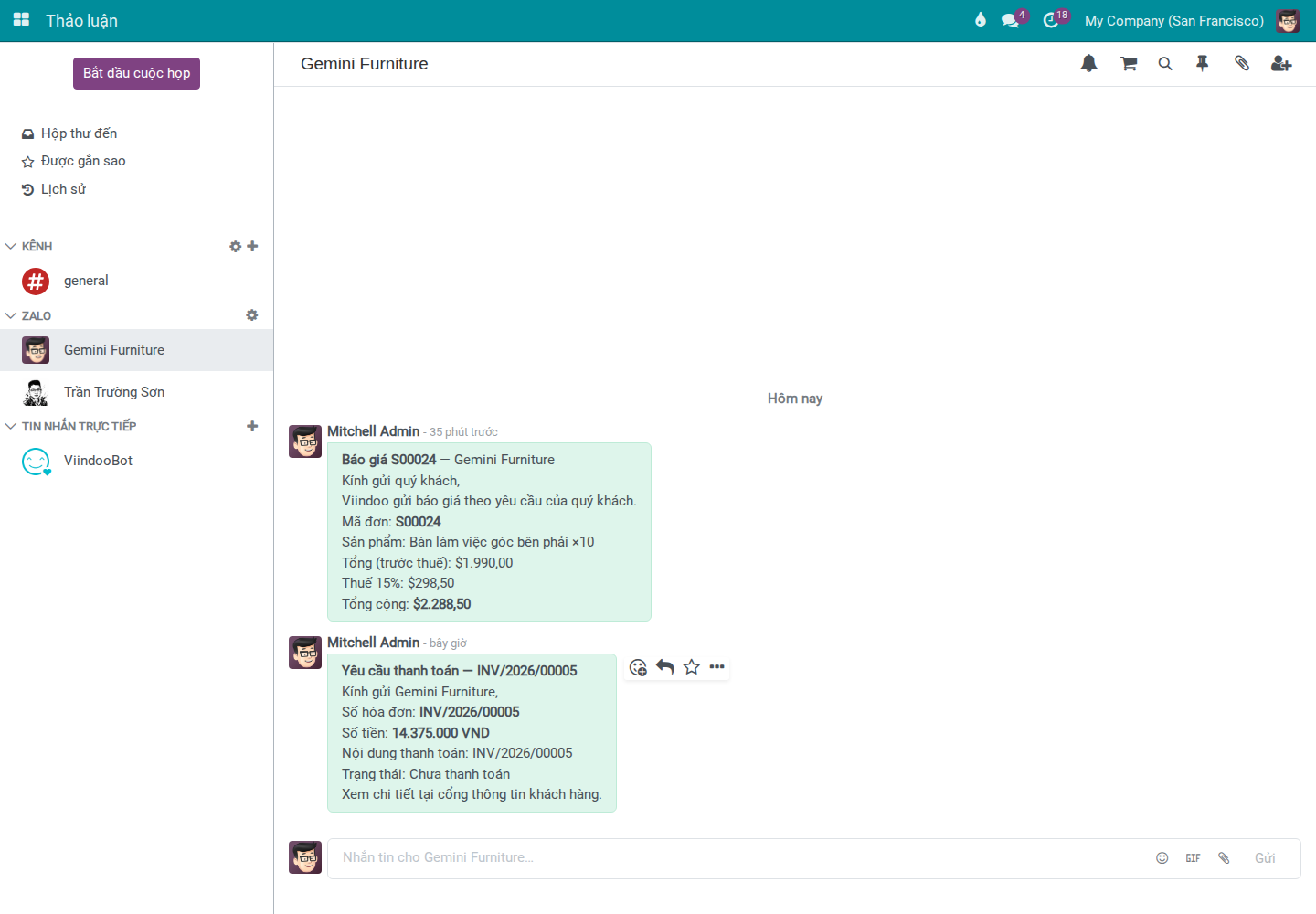
After sending, open the Zalo conversation to check the message just sent.
Tip
Verify the send completed correctly before continuing with receivables:
Zalo conversation opened shows the correct customer from the invoice.
Sent message displays the correct invoice number, amount, and payment content.
Customer can click the details button if the invoice has a suitable portal link.
If the system reports an error, don’t resend multiple times before checking the cause — this avoids the customer receiving duplicate payment requests.
—
Quick Issue Resolution
Symptom |
Quick Fix |
|---|---|
Zalo button not visible |
Check the invoice customer; update phone number or verify the link at Manage Zalo Partner Links. |
Payment Request template not visible |
Verify template is Approved, applies to Invoices, and you have OA/template permissions; if needed, report to Admin at Create and Manage ZBS Message Templates (Admin/IT). |
Preview missing amount or Payment Reference |
Update invoice data; if still wrong, ask Admin to verify template parameter configuration at Create and Manage ZBS Message Templates (Admin/IT). |
Send fails or OA reports token/quota error |
Check logs and OA status at Monitor and Troubleshoot Zalo. |
Customer already paid but still receives reminder |
Verify payment status and reconcile statement before sending another request. |
Recipient is not the correct customer |
Stop sending immediately; recheck the link at Manage Zalo Partner Links. |
See also
To understand the flow of recording customer payments and reconciling bank statements after the customer makes payment, see Process of customer invoicing, payment and reconciliation and Steps in the bank reconciliation process.