
Handle rolled-over and not-loaded containers
Guide information
Requirements
This tutorial requires the installation of the following applications/modules:
Freight Forwarder Management (installs Logistics Accounting automatically)
A vessel rollover or a Not Loaded container breaks a confirmed schedule without warning: the cargo is still on the quay while the booked vessel has already sailed. Recording the exception as soon as the carrier confirms it keeps anyone opening the shipment later - Sales, Accounting, the next Ops shift - from assuming it is moving on time. Updating the booking to the vessel that will actually carry the cargo keeps every cutoff and the customer’s delivery promise aligned to reality, not to a sailing that left without the containers.
Running scenario: on the export shipment for Nhat Long Footwear (HBL
HLLHPHLAX2611-001, Hai Phong Port to Port of Los Angeles), carrier ONE Line rolls both
containers of booking ONEYBK204581 - ONEU4567895 and ONEU4568124 - from ONE
COMMITMENT voyage 026W (ETD 2026-11-05) to ONE COMPETENCE voyage 027W (ETD
2026-11-12), citing Space Optimization.
Before you start
Both
ONEU4567895andONEU4568124have already reached Gate-in (Track container milestones from empty pickup to return) - a container’s exception can only be recorded once it is Gate-in or Loaded.This flow only applies to Export shipments. On Import shipments the exception buttons do not exist at all.
You are in the User: All Shipments group (ask your freight Administrator to grant this access before starting) - User: Own Shipments can only view a shipment, not click its buttons.
Decide: Rolled Over or Not Loaded
Option |
Use when |
What changes |
|---|---|---|
Rolled Over |
The carrier bumped the booking for its own reasons (overbooking, schedule optimization) - the containers and cargo are untouched |
Click the yellow button; the only follow-up is booking the new sailing in Step 2 |
Not Loaded |
A container itself is not fit to sail: broken seal, overweight, a document error, a customs hold |
Click the red button; fix the root cause before touching the booking - do not skip ahead to Step 2 |
If ONE has not confirmed the cause in writing yet, wait before clicking: once one type is set, both buttons disappear, so switching later means clearing the exception first.
Step 1: Record the container exception
WHY: Logging the exception on both containers as soon as the cause is known shows anyone who opens the shipment later that the containers missed their original sailing, and why.
Go to (or open a container from the shipment’s Containers smart button).
Open
ONEU4567895and click Rolled Over (the yellow button).Fill in Exception Note: “ONE COMMITMENT 026W skip Hai Phong - Space Optimization, whole booking rebooked to ONE COMPETENCE 027W”.
Repeat the same two actions on
ONEU4568124, using the same Exception Note.
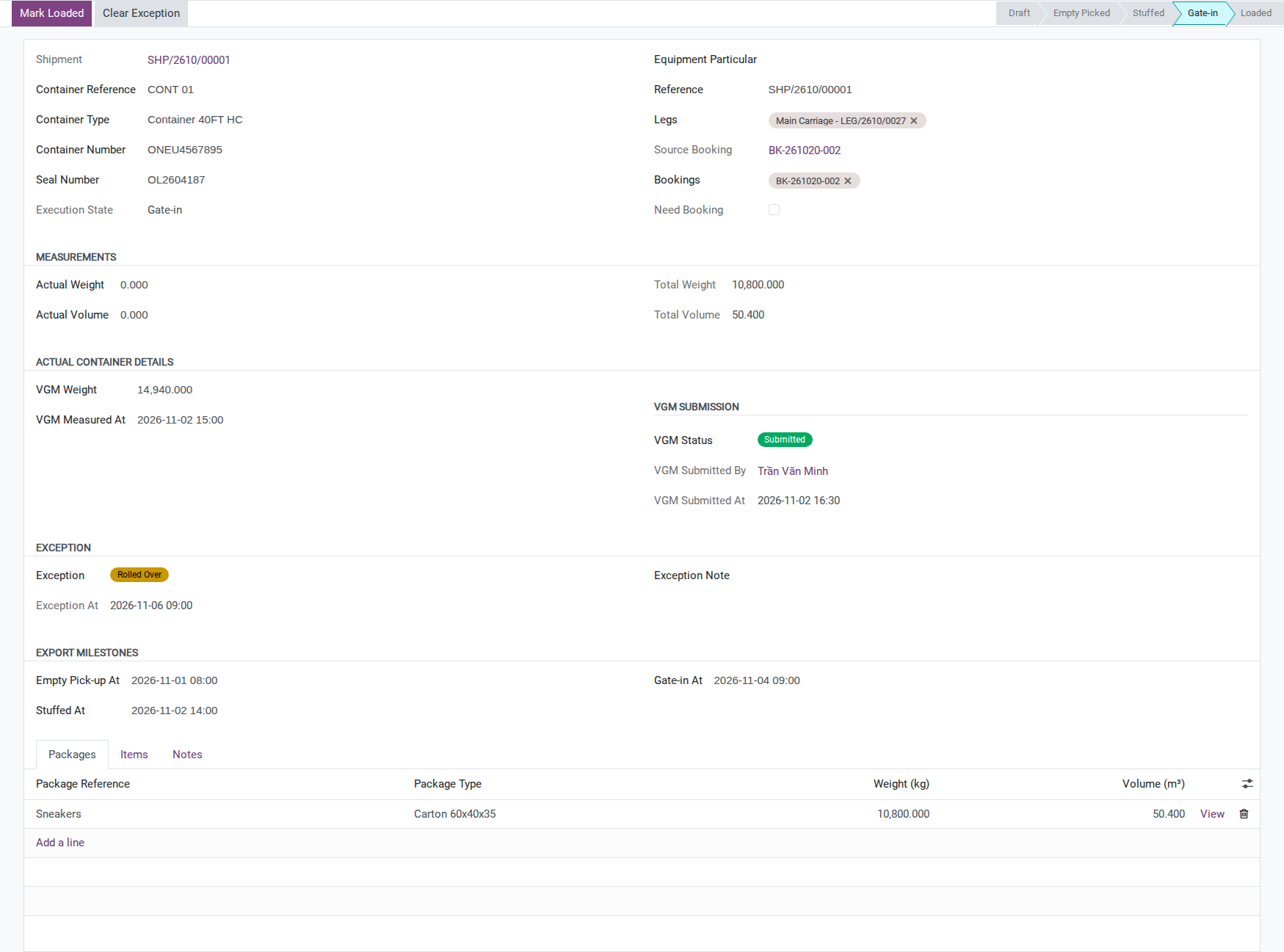
After you click Rolled Over on a container: the Exception group appears with a yellow Rolled Over badge and Exception At set to the current time, and the container’s row in the Containers list turns red, whatever its milestone.
Note
Recording the exception does not update the shipment’s Dashboard or its Tracking Status - both read only from a Tracking Update (Log tracking updates and notify the customer), never from a container’s Exception field. If this shipment needs to show as At Risk or Delayed on the dashboard, log a Tracking Update as well.

Tip
Step 1 is done when: both ONEU4567895 and ONEU4568124 show the yellow Rolled
Over badge and a red row in the Containers list, each has an Exception At timestamp,
and each Exception Note matches the cause ONE gave.
Decide: wait for ONE’s next sailing or move to another carrier
Option |
Use when |
What changes |
|---|---|---|
Wait for ONE (next sailing) |
The delay is not urgent and you want to keep the carrier already under contract |
Simplest: only the vessel, voyage, ETD and ETA change on the same booking (Step 2) - the Carrier stays ONE Line |
Move to another carrier |
Cargo must move urgently and ONE has no sailing soon enough |
Change Carrier on the booking too, and re-amend every carrier-facing document (SI, B/L - check cargo details against the shipper’s documents before preparing the SI or draft B/L); this usually adds cost |
Base this decision on the carrier-confirmed next sailing, the customer’s delivery commitment, and any added charges or document changes. In this example, the next ONE sailing still meets the agreed delivery window, so the shipment waits for ONE. If the new schedule misses that window or a carrier change is being considered, confirm the available options and any customer approval required with the booking lead before updating the booking.
Step 2: Update the booking with the new schedule
WHY: Booking ONEYBK204581 is still Confirmed - both containers travel under it, so correcting the vessel and voyage directly on this booking, rather than creating a second one, is what makes every charge, cutoff and document on the shipment read the vessel that will actually carry the cargo.
Go to and open
ONEYBK204581. In the Carrier Response section, change:Main Vessel: ONE COMPETENCE (was ONE COMMITMENT).
Main Voyage: 027W (was 026W).
The booking form shows ETA but not ETD, so change the dates on the leg itself: open the shipment, go to the Schedule & Performance tab and, on the Main Carriage leg, set ETD/ETA to 2026-11-12 20:00 - 2026-12-09.
Note
There is no dedicated “Rebook” action for a rollover - Main Vessel and Main Voyage can still be edited on a Confirmed booking (they only lock once Cancelled), and both fields are tracked, so every change lands in the Chatter automatically. Editing this one booking is correct here because ONE rolled the whole booking - both containers move to 027W together (a partial rollover would need a different approach - see Known limitations).
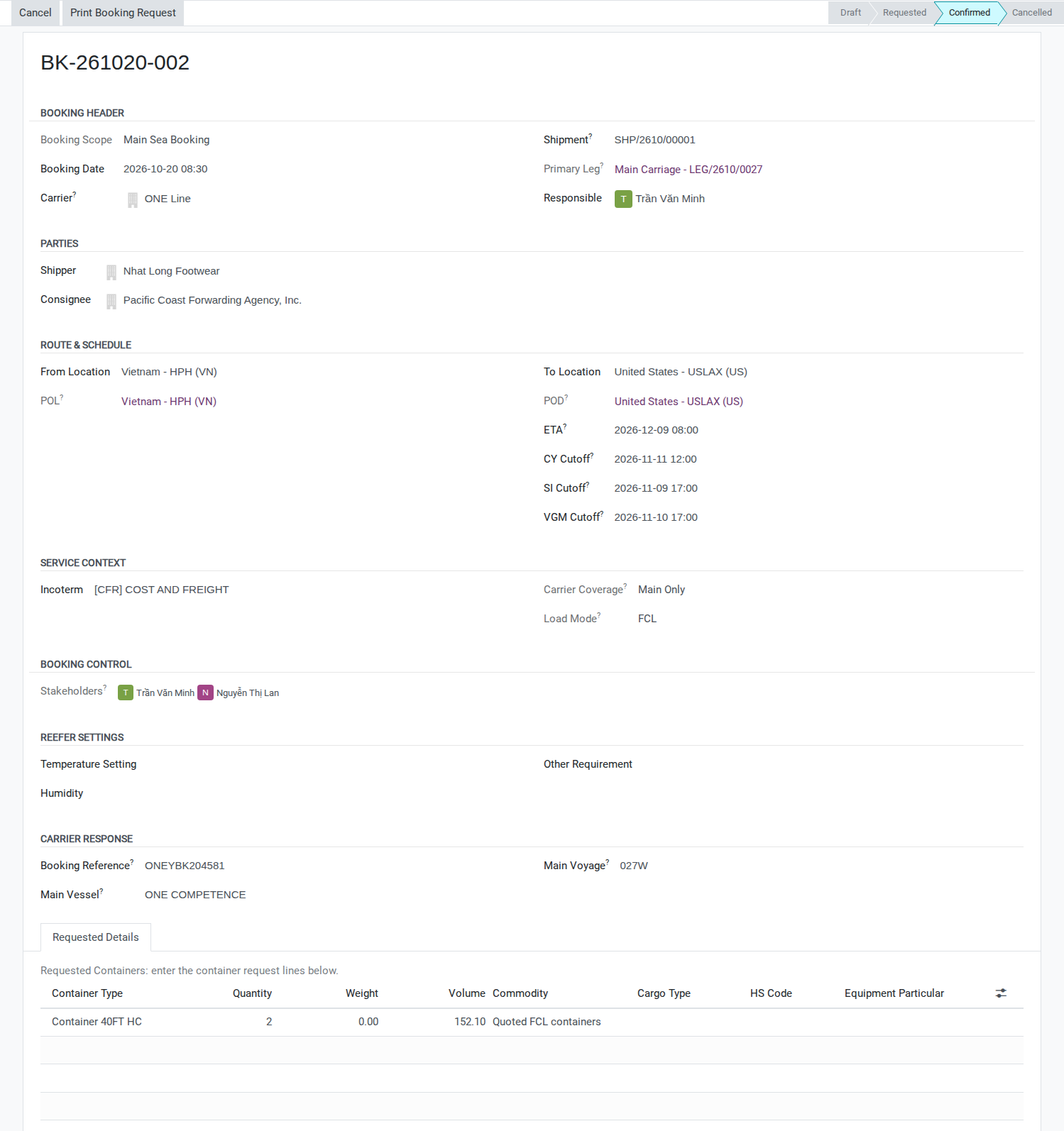
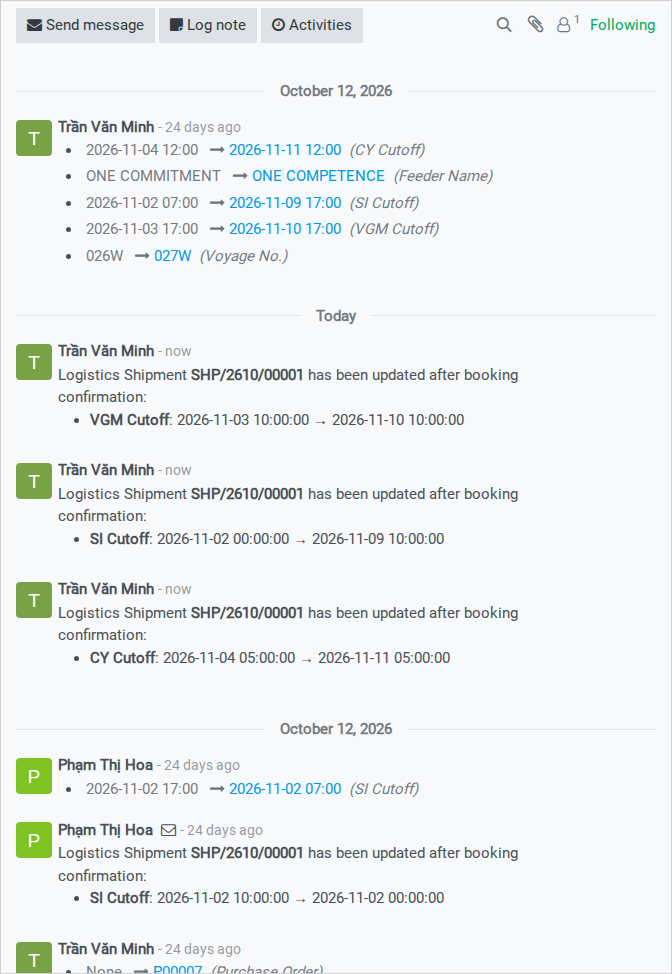
After you save: the booking’s and the shipment’s ETD/ETA follow the Main Carriage leg, and the booking’s Chatter logs the vessel change automatically - “Main Vessel: ONE COMMITMENT -> ONE COMPETENCE”, “Main Voyage: 026W -> 027W”.
Tip
Step 2 is done when: the booking shows ONE COMPETENCE / 027W and ETA 2026-12-09, the shipment’s ETD/ETA reads 2026-11-12 20:00 - 2026-12-09, and the booking’s Chatter carries a line recording the vessel and voyage change.
Step 3: Notify the customer and recheck every cutoff
WHY: Nhat Long Footwear needs the new date to pass on to its buyer at Los Angeles, and every cutoff that was set against the 026W sailing is now wrong - it must move before VGM and SI work starts again for 027W.
On the shipment’s Chatter, use Send message to tell Nhat Long Footwear: the reason for the rollover and the new schedule (ONE COMPETENCE 027W, ETD 2026-11-12, ETA 2026-12-09).
On the shipment, move each cutoff so it again falls before the new ETD:
CY Cutoff
SI Cutoff
VGM Cutoff
Note
Viindoo does not recalculate these cutoffs when ETD changes, and does not reopen VGM Status either - a container’s VGM already Submitted for 026W still reads Submitted after the schedule change, even if it may no longer be valid for 027W. Move all three cutoffs by hand and confirm with ONE whether the existing VGM still stands for 027W.
Important
Recheck the SI and draft B/L against the new vessel, voyage and dates. An Approved tag on a document for 026W does not approve it for 027W, and changing the booking does not reset that tag. If the file needs amendment, use Ask to Review in the document’s Actions, upload the revised version, and have the Operations lead review it before clicking Approve again. Replacing an attachment alone does not clear the earlier Approved tag.
If a cutoff is still after the new ETD/ETA when you save, the system rejects it (see Troubleshooting).
Tip
Step 3 is done when: CY, SI and VGM Cutoff all sit before the new ETD of 2026-11-12, and the Chatter carries a message to Nhat Long Footwear with the new schedule.
See also
Submit the container’s Verified Gross Mass (VGM) - how VGM is measured and submitted, if the carrier requires a fresh submission for the new sailing
Step 4: Keep containers off “Loaded” until they really sail
WHY: The new sailing has not left yet - marking a container Loaded too early tells everyone the cargo is moving while it is still on the quay.
Important
Mark Loaded can still be clicked while a container carries an open Rolled Over exception - Viindoo does not check the Exception field first. This is a known product gap, and there is no “Undo Mark Loaded” if clicked by mistake (see Troubleshooting). The only protection is checking the Exception badge yourself, on both containers, before every Mark Loaded click, until each exception is cleared.
Tip
Step 4 is done when: for as long as ONEU4567895 and ONEU4568124 still carry the
Rolled Over badge and the new sailing has not left, nobody has clicked Mark Loaded on
either of them.
Step 5: Clear the exception once the containers have actually sailed
WHY: Once ONE confirms both containers actually sailed on ONE COMPETENCE 027W, closing the exception stops reports and the Dashboard from treating this shipment as an ongoing exception.
Once you have real confirmation from the carrier or the port, click Mark Loaded on
ONEU4567895, then onONEU4568124.Click Clear Exception on each container.
Important
Clear Exception permanently deletes that container’s Exception At timestamp - no history, no undo. Copy the exception type, reason and dates into the Chatter before clicking Clear Exception on each container. Viindoo does not enforce the order either - it lets you click Clear Exception before Mark Loaded, so double-check the container really sailed first.
After you clear the exception on a container: its Exception field returns to None, Exception At is erased, and the red badge disappears from the Containers list.
Tip
Step 5 is done when: neither container shows an Exception badge, both read Loaded, and the Chatter still holds the rollover reason recorded in Step 1 and Step 3 - the only place it survives once the Exception fields are cleared.
Known limitations
Step |
What Viindoo does today |
What you do instead |
|---|---|---|
Record the exception (Step 1) |
A container’s Exception does not roll up to the shipment’s Dashboard or Tracking Status |
Log a Tracking Update as well if the shipment needs to show At Risk or Delayed |
Update the booking (Step 2) |
There is no dedicated “Rebook” action - you edit Main Vessel/Main Voyage/ETD directly on the Confirmed booking |
Rely on the Chatter’s automatic log as the audit trail for the schedule change |
Notify the customer (Step 3) |
There is no automatic notification or mail template for a container exception |
Send the update by hand through the shipment’s Chatter |
Recheck cutoffs (Step 3) |
CY/SI/VGM Cutoff are not recalculated when ETD changes; VGM Status is not reopened |
Move each cutoff by hand and manually re-confirm any already-submitted VGM with the carrier |
Keep containers off Loaded (Step 4) |
Mark Loaded stays clickable even while a container carries an open exception |
Check the Exception badge yourself before every Mark Loaded click, on every container |
Clear the exception (Step 5) |
Clear Exception deletes the Exception At timestamp permanently, with no history and no enforced order against Mark Loaded |
Copy the exception details into the Chatter before clearing; confirm the container really sailed before clearing |
Rollover of only one container in a multi-container shipment |
A booking holds a single Main Vessel/Main Voyage/ETD for the whole shipment - it cannot represent two containers sailing on two different vessels |
Do not edit this booking if only one container is bumped; split that container into its own shipment before booking it a new sailing (outside this page’s scope) |
Troubleshooting
The new cutoff is rejected because it is still after ETD
Symptom: saving a new CY, SI or VGM Cutoff shows:
VGM Cutoff of Shipment SHP/26xx/000nn must be before ETD.
Cause: the shipment compares every cutoff against the ETD of the Main Carriage leg. If you move a cutoff to its 027W date before the leg’s ETD has been changed in Step 2, the new cutoff falls after the old ETD (2026-11-05) and is rejected.
Fix:
Save the new ETD/ETA on the Main Carriage leg first (Step 2).
Then move CY, SI and VGM Cutoff (Step 3), each one ending up before the new ETD.
Mark Loaded was clicked while a container was still Rolled Over
Symptom: a container shows Loaded even though it still carries the Rolled Over badge - Viindoo raised no warning when Mark Loaded was clicked.
Cause: this is the known product gap in Step 4 - Mark Loaded does not check the Exception field before allowing the transition.
Fix:
Confirm with the carrier or the port whether the container genuinely sailed.
If it did sail (for example, Mark Loaded was clicked slightly out of order but the container is really on 027W), click Clear Exception to bring the record in line with reality.
If it did not sail, there is no “Undo Mark Loaded” action - correct the container’s loading date through the Chatter or a note, and continue tracking the exception until the container actually sails.