
Watch the health of the wiki
Guide Overview
Before You Start
You need |
Why |
|---|---|
Brain / Brain Admin on your user |
To open Page Health, To Review and Searches with No Result. |
Administration / Settings on your user |
To turn the Brain figures on in a digest and to choose who receives it. |
Your name in the Recipients tab of the digest |
To receive the e-mail. No access right is needed. |
Developer mode |
To see the Technical menu of Settings, where the digest is. |
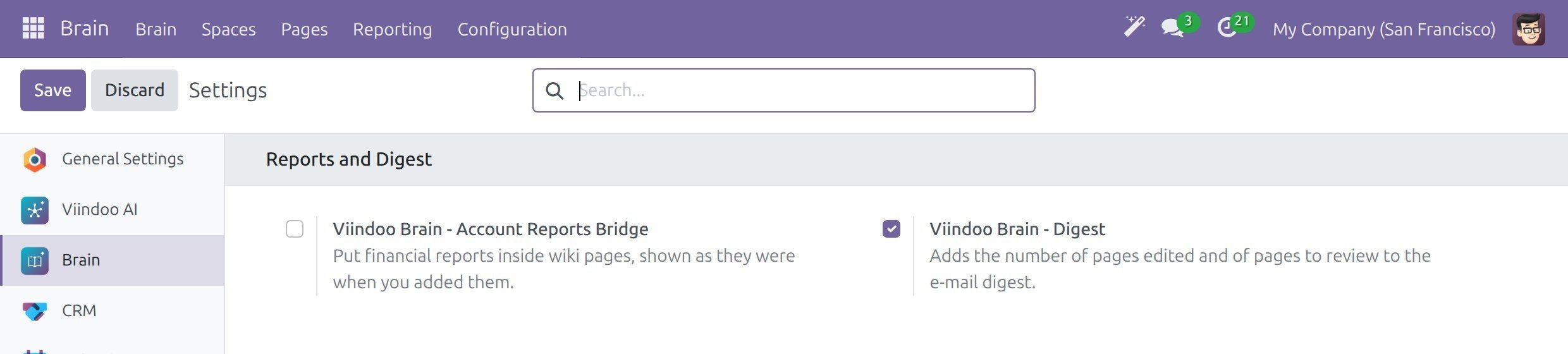
The Viindoo Brain - Digest add-on adds the two figures to the e-mail. It installs itself when Viindoo Brain and the digest app are both installed. You can also tick Viindoo Brain - Digest in the Reports and Digest block of and click Save.
Who Opens Which Report
All reports are in the Reporting menu of Brain. The lists hide their technical columns, explain themselves when they are empty and have no New button: they only show what the wiki holds.
Report |
Who opens it |
What it shows |
|---|---|---|
Pages by Space |
Every internal user |
The pages the person may read, grouped by Space. |
AI Contributions |
Every internal user |
The pages an assistant wrote or changed (see Review AI changes and set up the wiki). |
Page Health |
Wiki admins |
How many pages each Space has and in which review state. |
To Review |
Wiki admins |
The pages that need review, grouped by owner. |
Searches with No Result |
Wiki admins |
What people looked for and did not find. |
Every report shows only pages of the companies you may see. Pages you may not read are not listed.
Check the Health of the Wiki
Open .
The rows are the Spaces and the columns are the review states: Up to date, Needs review and Changed by an assistant. Each figure is a number of pages.
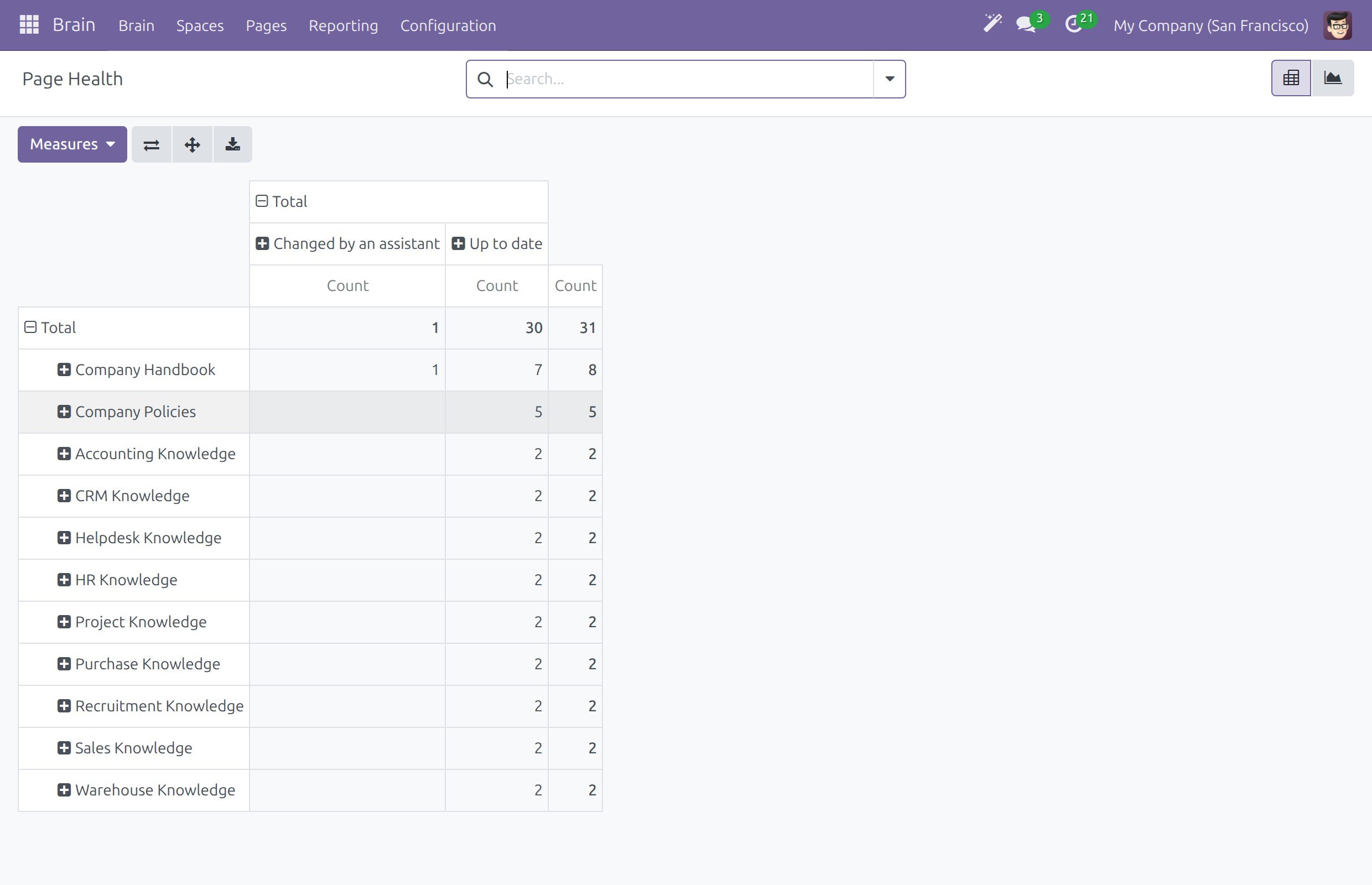
Click a figure to see the list of those pages. Click a row header or a column header to group by something else, and click the chart button at the top right for a graph.
A Space where many pages are Needs review has an owner who has not verified them. Ask the Space admin to look at it (see Own and verify a page).
Follow Up the Pages to Review
Open .
The list is already filtered on To Review and grouped by Owner, so you see who owes a check.
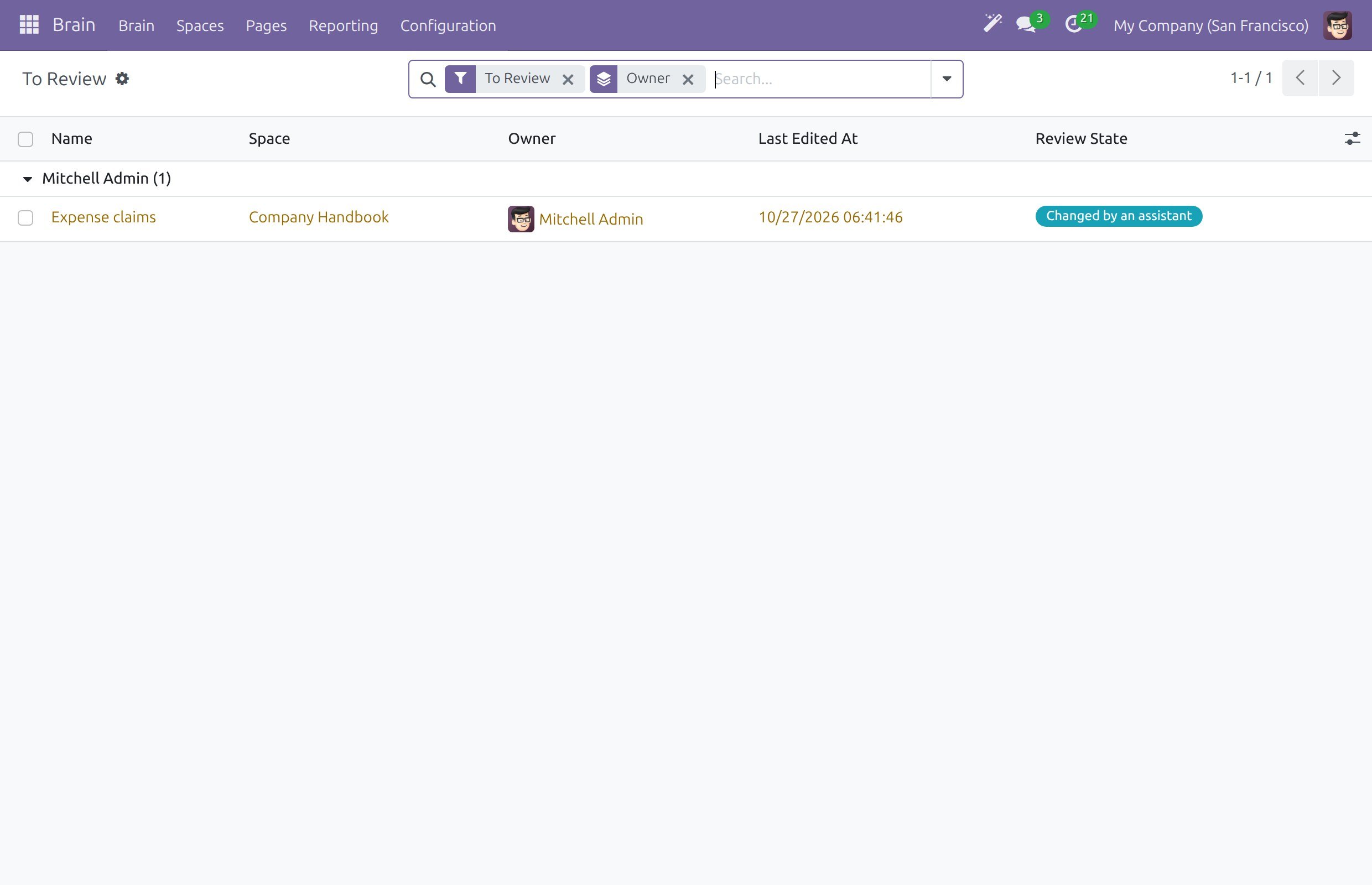
Click the page to open its form. The Review section shows the Owner, the Review State and the Review Due date. Change the Owner when the person has left, then save.
The owner verifies the page with Mark as verified in the Needs review banner of the page in Brain; a Space admin or a wiki admin can do it too (see Own and verify a page).
Each owner receives one Review page to-do for every page that needs review, so this list is for the wiki admin who chases the late ones.
Turn a Missing Answer Into a Page
When a search finds no page, Brain keeps a line for it. Writing the missing page is the best fix.
Open .
The list shows the searches of the last 30 days, one line per person, query and day, with the Space the search was limited to when there was one.
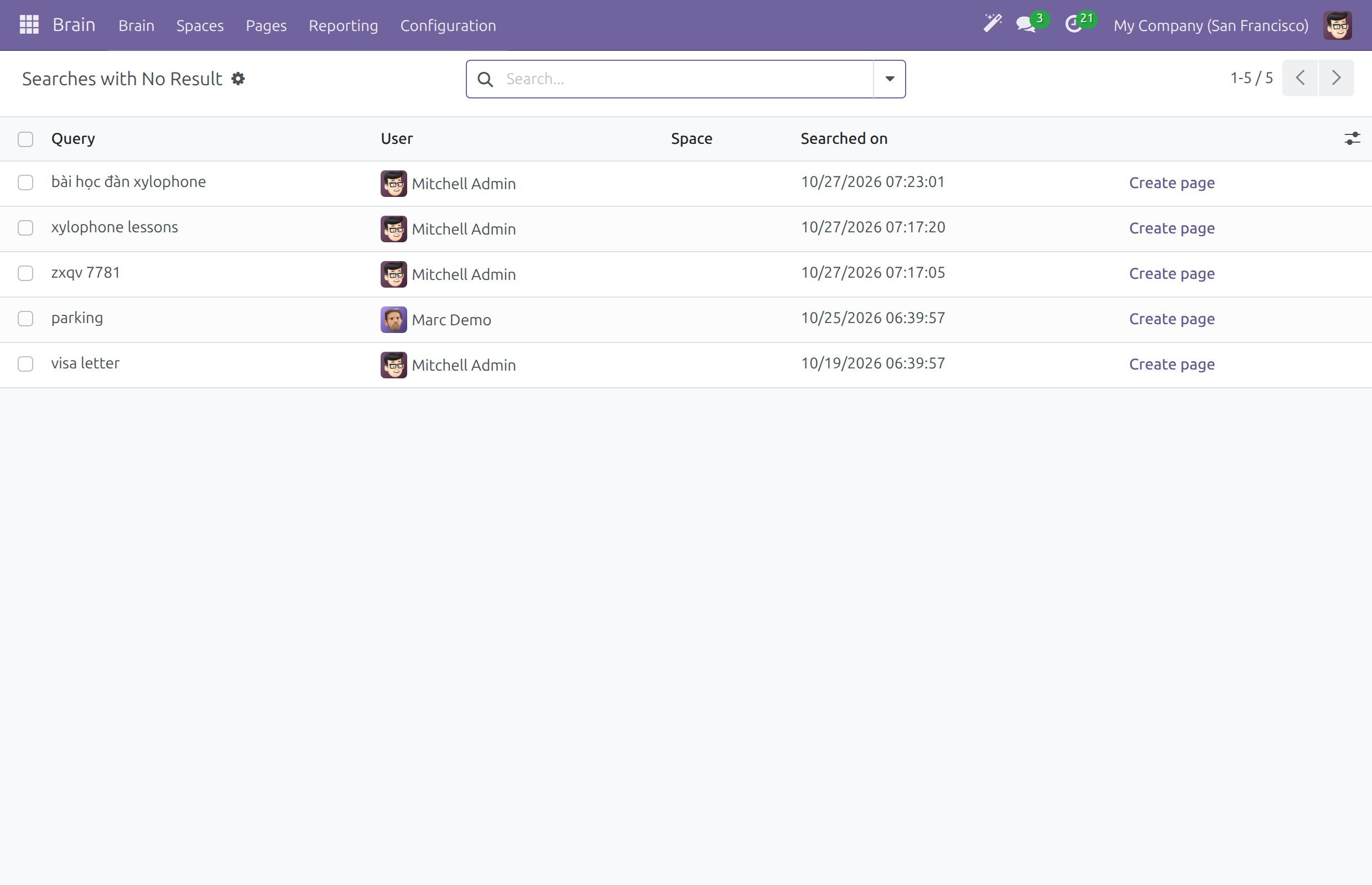
Click Create page on the line of a query that several people tried.
When the search was limited to a Space, Brain creates a page titled with the query in that Space and opens it.
When the search covered every Space, the New page dialog opens with the query as the title. Choose the Space in In space and the way to start.
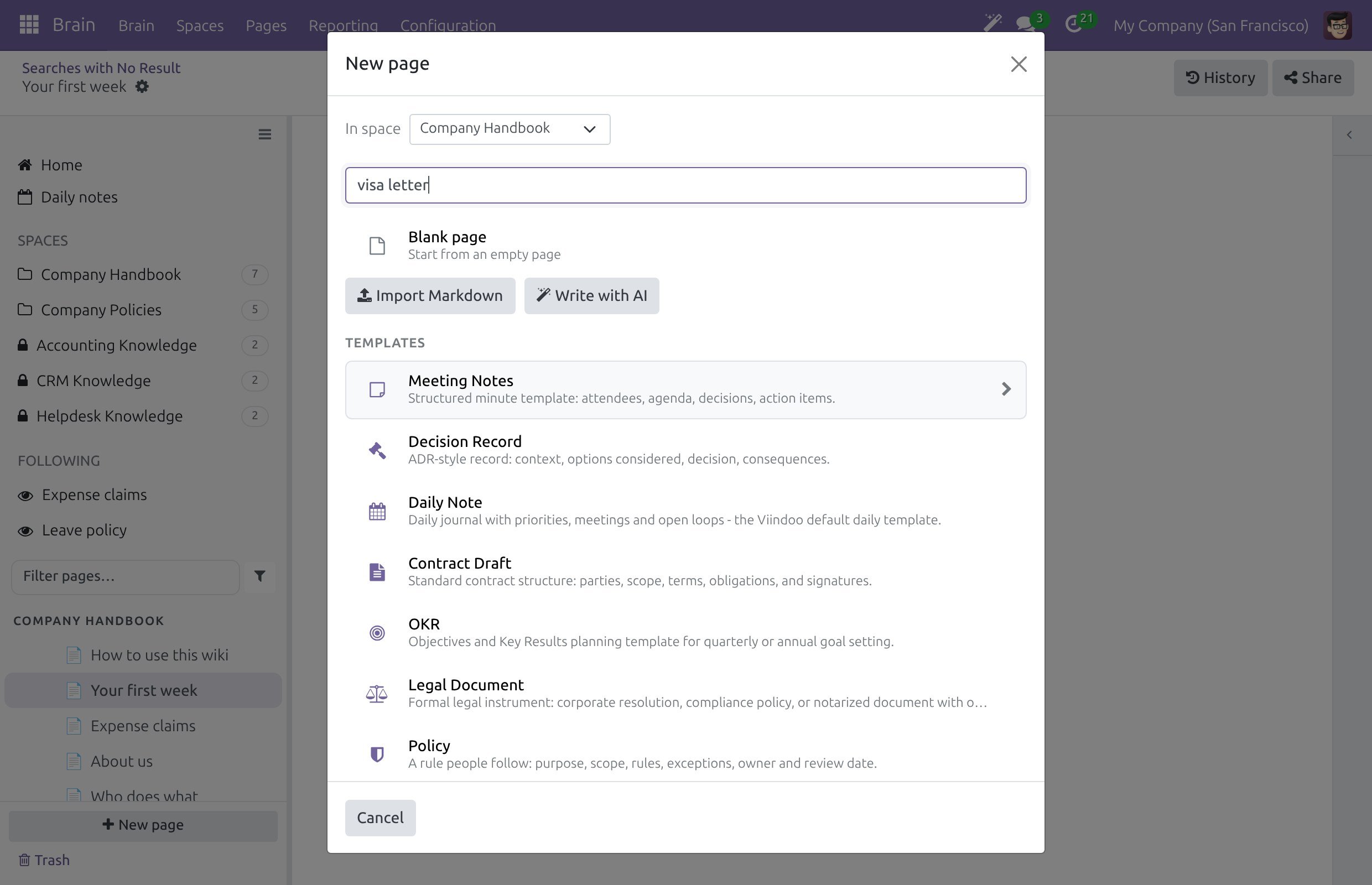
Write the page, or ask the Space admin to name an owner for it (see Read, create and edit pages).
The log keeps 90 days. The page you create is not linked to the line, which stays in the list until it is older than 30 days.
Send the Brain Figures in the E-mail Digest
The digest e-mail already goes to the managers of your company. The Brain figures are off until you switch them on, one digest at a time.
Activate the developer mode.
Open and open the digest.
In the KPIs tab, find the group Brain, tick Brain Pages Edited and Brain Pages to Review, and click Save. Each figure has its own tick box, so you can show only one.
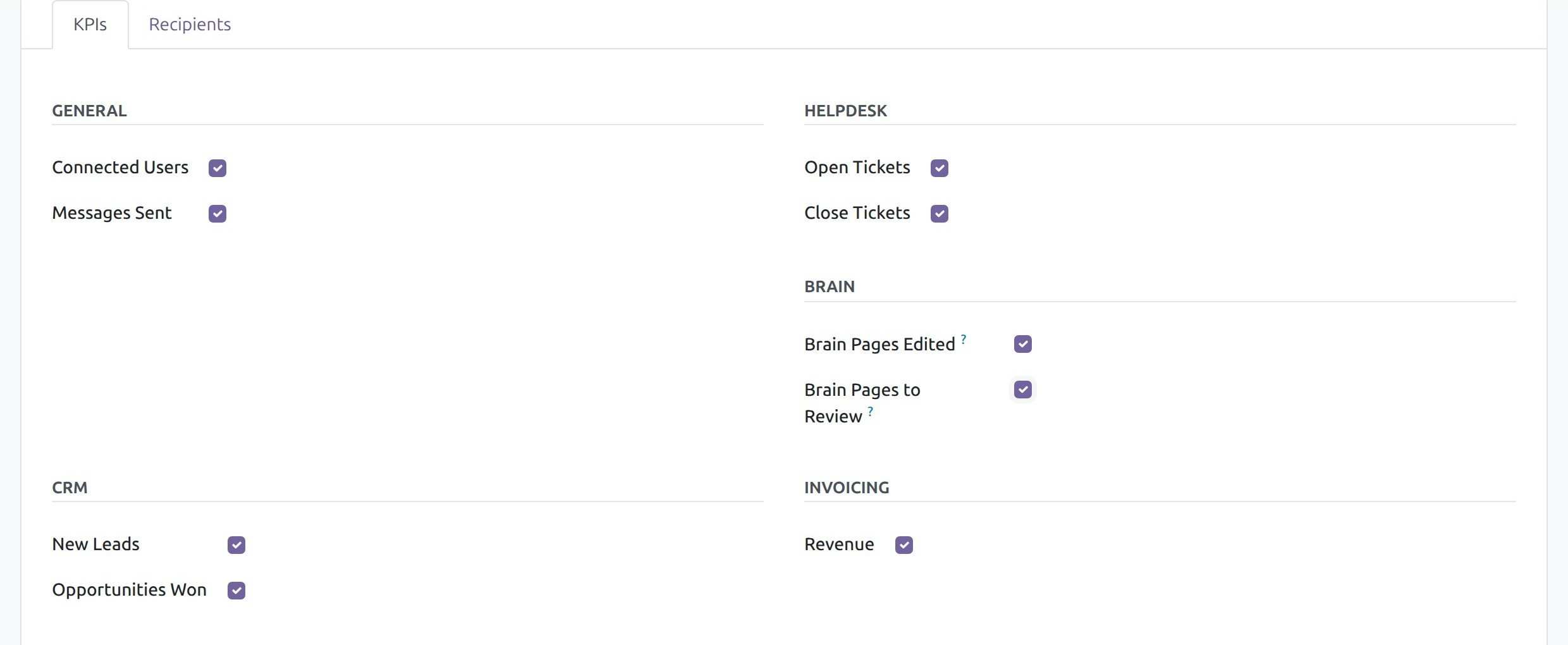
In the Recipients tab, add the managers who should read the figures.
Click Send Now to send the e-mail to every recipient at once and see the figures. It does not change the periodicity of the digest, so use it when the recipients expect the e-mail.
Each recipient gets the e-mail in their own language. A digest belongs to one company and counts the pages of that company; create one digest per company to give each company its own figures.
Read the Figures in the E-mail
Each Brain figure has a block with three columns: the last 24 hours, the last 7 days and the last 30 days, and a link Open Report.

Figure |
What it counts |
Open Report goes to |
|---|---|---|
Brain Pages Edited |
The pages whose last edit falls in the period. A page edited several times counts once. |
Page Health |
Brain Pages to Review |
The published pages that need review today, so the number is the same in the three columns. Archived pages, drafts waiting for approval and pages in Trash are not counted. |
To Review |
The figures cover the pages that each recipient may read. A wiki admin counts every Space; an employee counts the Spaces the person may read. Two recipients can therefore read different numbers in the same digest.
To check the layout of the e-mail without waiting for the recipients, click Send Now and look at the line in while the e-mail still waits in the outgoing queue.
Success Checkpoint
Page Health shows the number of pages of every Space by review state, and a click on a figure lists the pages.
To Review lists the owners who owe a check.
Create page on a line of Searches with No Result opens a page, or the New page dialog, titled with the query.
The digest e-mail shows Brain Pages Edited and Brain Pages to Review with an Open Report link on each.
Common Problems
Problem |
What to do |
|---|---|
There is no Page Health, To Review or Searches with No Result in the menu. |
These reports need Brain / Brain Admin. Pages by Space and AI Contributions are open to everyone. |
The Brain group is not in the KPIs tab. |
The digest module installs only when Viindoo Brain and the digest app are both installed. Check both in Apps. |
A recipient does not see the Brain figures in the e-mail. |
The e-mail was sent before the figures were ticked, or they are not ticked on that digest. Tick them and click Send Now to check. |
Two recipients see different numbers. |
This is expected: each person’s figures cover the pages that person may read. |
Searches with No Result is empty. |
No search of the last 30 days came back empty. A search is logged only when it finds no page. |
Next Steps
Own and verify a page - verify a page, change its owner.
Search the wiki - how people search the wiki.
Set up Spaces, templates and access - the review interval and rule of each Space.
Review AI changes and set up the wiki - the AI Contributions report and the review of assistant changes.