
Before you start
The master already has its three houses consolidated (5 / 8 / 12 CBM, 25 CBM total) and is booked with the carrier: see Consolidate LCL export shipments under a master.
The master carries one buy-only charge that is not yet allocated to any house and not yet committed to a vendor bill or purchase order: Terminal Handling Charge (THC), Vendor Wan Hai Lines, Cost Price 2,600,000 VND, Unit Price 0.00 - added on the Charges tab the same way as any other charge line (see Record charges, invoice the customer, and bill vendors).
You are in the User: All Shipments group. Allocate Costs stays hidden, with no error, for a User: Own Shipments user who owns the master but does not own every house consolidated under it - see Known limitations.
Step 1: Open the Allocate Costs wizard
The THC on the container was paid once, for the whole load - nothing on the master yet tells Accounting how much of it belongs to Song Hong, how much to Long Bien and how much to Tay Nguyen.
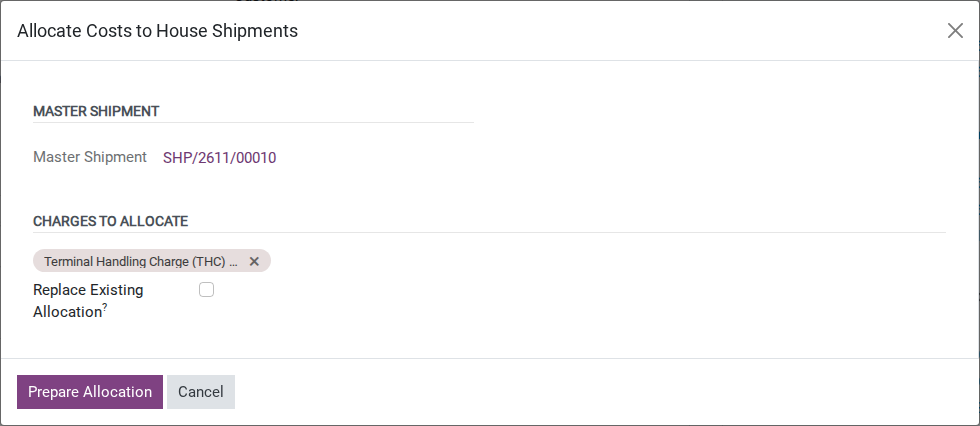
Go to and open the master shipment holding container WHLU2233445. In the header, click Allocate Costs.

After you click it, the Allocate Costs to House Shipments window opens in state Draft, with the Charges to Allocate field already carrying the Terminal Handling Charge (THC) line - Viindoo pre-selects every charge still eligible for allocation, not an empty list.
Note
Pre-selection is a default, not a lock: if the master had a second shared charge you did not want to split this round, it would appear ticked too, and you would remove it in Step 2, not here.
Tip
Step 1 is done when: the window opens with exactly one charge already ticked under Charges to Allocate - not a blank list.
Step 2: Review the charge, then click Prepare Allocation
Confirming which charge to split now avoids splitting the wrong one later - a charge that was already billed directly to one house, or already allocated once, cannot be selected here at all.
Keep Terminal Handling Charge (THC) ticked (untick any charge you do not want to split this round), then click Prepare Allocation.
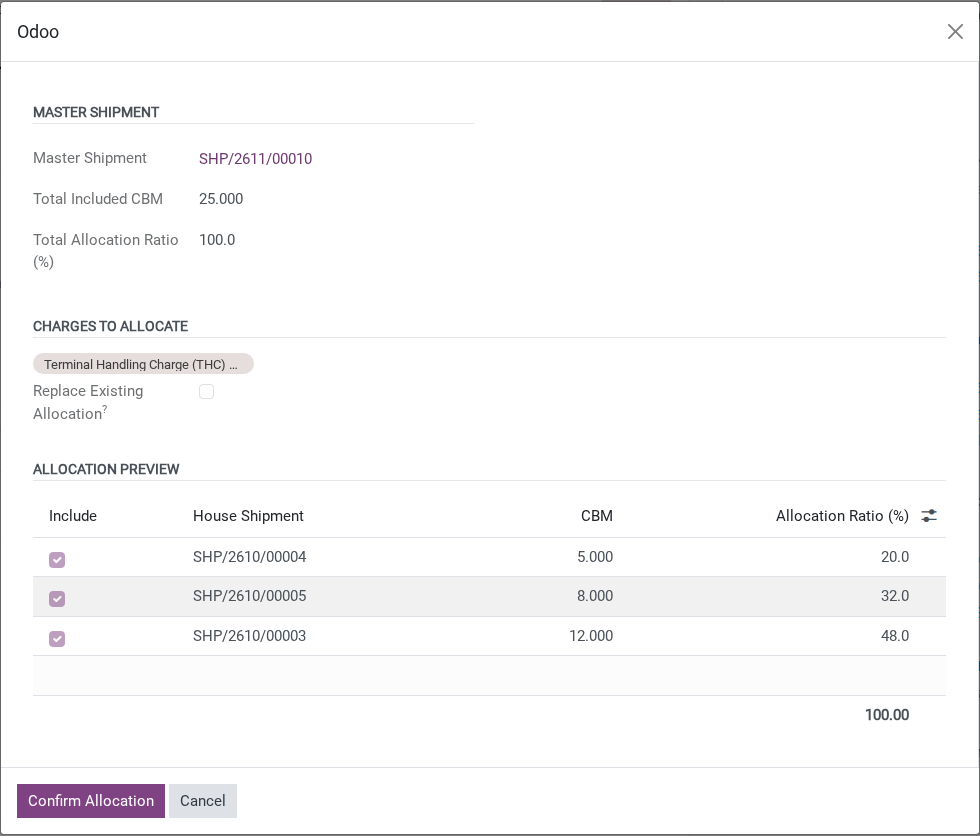
After you click it, an Allocation Preview table appears with one line per house: House Shipment, CBM and Allocation Ratio (%), computed from each house’s CBM against the total.
Note
If a house’s CBM is 0 - for example a shipper who never delivered - Viindoo excludes it from the split automatically and shows a warning naming it; see Decide how to handle a no-cargo house below.
Tip
Step 2 is done when: all three houses are listed - CBM reads 5 / 8 / 12 - and Total Allocation Ratio (%) at the top reads exactly 100.0.
Step 3: Confirm the allocation
Viindoo always computes the split from CBM here - there is no field on this screen to type a different ratio or amount for a house.
On the Allocation Preview, Allocation Ratio (%) reads 20.0 (Song Hong), 32.0 (Long Bien) and 48.0 (Tay Nguyen), read-only. Click Confirm Allocation.
Warning
There is no way to type a different amount or ratio on this screen. To split the cost by anything other than CBM - for example a commercial agreement to charge one house extra - stop and agree another allocation process with Accounting. Do not add independent house costs and bill the same underlying cost again from the master.
Note
The wizard uses a non-zero CFS volume, otherwise the booked volume. An empty or manually entered 0 CFS volume therefore falls back to booked volume. A confirmed outturn report with 0 CBM does not change this fallback in this version. For a no-show, untick Include and check the preview before confirming - see Known limitations.
Tip
Step 3 is done when: clicking Confirm Allocation closes the window without an error and Total Allocation Ratio (%) read 100.0 just before you clicked it.
Step 4: Check the allocated line on each house
The wizard writes straight to each house’s own Charges tab - checking here, not on the master, is what confirms the split actually landed where it should.
Open each house shipment and its Charges tab. Each now carries one additional Terminal Handling Charge (THC) line from the allocation, buy-only (Unit Price 0.00), with:
Song Hong Handicraft Co., Ltd.: Cost Price 520,000 VND.
Long Bien Ceramics Export Co., Ltd.: Cost Price 832,000 VND.
Tay Nguyen Coffee Export Co., Ltd.: Cost Price 1,248,000 VND.

Tip
Step 4 is done when: the three houses read 520,000 / 832,000 / 1,248,000 VND on their own Charges tab, adding back up to the master’s original 2,600,000 VND.
Tuan (Accounting) checks these three lines before billing the vendor on Record charges, invoice the customer, and bill vendors - each house now carries its own share of the THC instead of the master carrying the whole amount alone.
Decide how to handle a no-cargo house
Option |
Use when |
What changes |
|---|---|---|
Let Viindoo exclude it automatically |
The wizard’s CBM column actually shows 0, with no booked volume to fall back to |
That house takes no share of the cost; the other houses split 100% of it by their own CBM |
Untick Include by hand |
A no-show still has booked CBM, even if its confirmed outturn reports 0, or a commercial agreement excludes a house with cargo from this particular cost |
Same effect as above, applied on purpose rather than because CBM happens to be 0 |
Include the houses that the approved allocation policy says should share this cost. Viindoo excludes a house with zero CBM from a CBM-based allocation, but a house with cargo may still be excluded only when the commercial agreement permits it. Confirm the house list and allocation basis with Operations/Pricing before confirming the allocation.
Decide where to bill the allocated cost
Option |
Use when |
What changes |
|---|---|---|
Bill the original charge on the master |
Per-house profitability is not needed yet, only paying the vendor |
The allocated lines on the houses are blocked from being billed a second time |
Bill each allocated line on its house |
Each customer’s own gross profit must reflect its real share of the shared cost |
The original charge on the master is blocked from being billed a second time |
Choose where to bill the cost according to the approved customer billing and accounting process. Billing each allocated line to its house affects that house’s gross profit; billing the original master charge keeps the payable on the master. Confirm the billing owner and invoice treatment with Accounting before creating bills.
See also
Viindoo blocks the same underlying cost from being billed twice, on either side, once it is linked here - see Record charges, invoice the customer, and bill vendors for how Create Vendor Bill picks up (or skips) an allocated charge.
Known limitations
Step |
What Viindoo does today |
What you do instead |
|---|---|---|
Step 3 - allocation ratio |
The ratio is always computed straight from CBM; there is no field to type a different ratio or amount on screen |
Agree another allocation process with Accounting. Correct inaccurate CBM from verified cargo measurements, not to force a commercial percentage into this wizard |
Step 3 - a no-show house with unrecorded CBM |
Both an empty and a manually entered 0 CFS volume fall back to booked volume. A confirmed outturn report with 0 CBM does not override this, so a no-show may still receive a share |
Untick Include for the no-show on the preview and check that the remaining houses carry the full allocation before confirming |
Step 1 - button visibility |
Allocate Costs stays hidden, with no error, for a User: Own Shipments user who owns the master but does not own every house consolidated under it |
Run this wizard as a User: All Shipments user |
Troubleshooting
Allocate Costs does not appear on the master
Symptom: opening a master with three consolidated houses does not show Allocate Costs in the header.
Cause: no remaining charge on the master qualifies - each one is either already allocated, already billed to a vendor, or was charged directly to one house using the same product.
Fix:
Open the master’s Charges tab and check for a buy-side charge that is not yet allocated and not yet committed to a vendor bill or purchase order.
If every shared cost was already billed, there is nothing left to split - this is expected, not an error.
Confirm Allocation stops with a CBM error
Symptom: “The included houses have no CBM to allocate the cost against.”
Cause: every house was unticked under Include, or every included house shows CBM = 0.
Fix:
Tick Include for at least one house that genuinely has cargo, then click Confirm Allocation again.
Running the wizard again says the charge is already allocated
Symptom: “The following charges have already been allocated. Delete the existing allocated charges on house shipments before re-allocating, or tick ‘Replace Existing Allocation’:…”
Cause: this charge already went through Confirm Allocation once, and the resulting lines are still on the houses.
Fix:
Tick Replace Existing Allocation and click Prepare Allocation to preview the replacement. The earlier uncommitted lines are replaced only when you click Confirm Allocation; review the new CBM shares before confirming.
Replace Existing Allocation is still blocked
Symptom: “Cannot replace: the following allocated charges are already committed (invoice, vendor bill, or purchase order)…”
Cause: one or more of the earlier allocated lines is already linked to a vendor bill, customer invoice, or purchase order - even a Draft one counts as committed.
Fix: Ask Accounting to identify every linked document before changing the allocation. When Freight Sale is installed, resetting a customer invoice or vendor bill to Draft clears its charge links; this does not cover purchase receipts. Cancelling a PO alone does not clear its charge link either. Without Freight Sale, do not assume the reset clears invoice/bill links.
Accounting must handle each document through the approved correction process and verify that no invoice, bill or PO link remains on the affected allocated charges before retrying. A reset can leave an existing draft document behind: correct or remove its old lines through the normal accounting workflow before billing the replacement allocation, to avoid charging twice.
See also
Related articles
Consolidate LCL export shipments under a master - the consolidation step that creates the master and houses this guide splits costs across
Track on-behalf payments for customers - a different kind of shared cost, one that passes through the shipment without affecting gross profit