
Print and use Markdown files
Guide Overview
Before You Start
You need |
Why |
|---|---|
Role Viewer or higher in the Space |
To print a page or export it as Markdown. |
Role Editor or Space admin in the Space |
To create a page from a Markdown file. |
Print a Page
Open the page and click the gear button next to the title. On a phone, the same actions are in the gear menu.
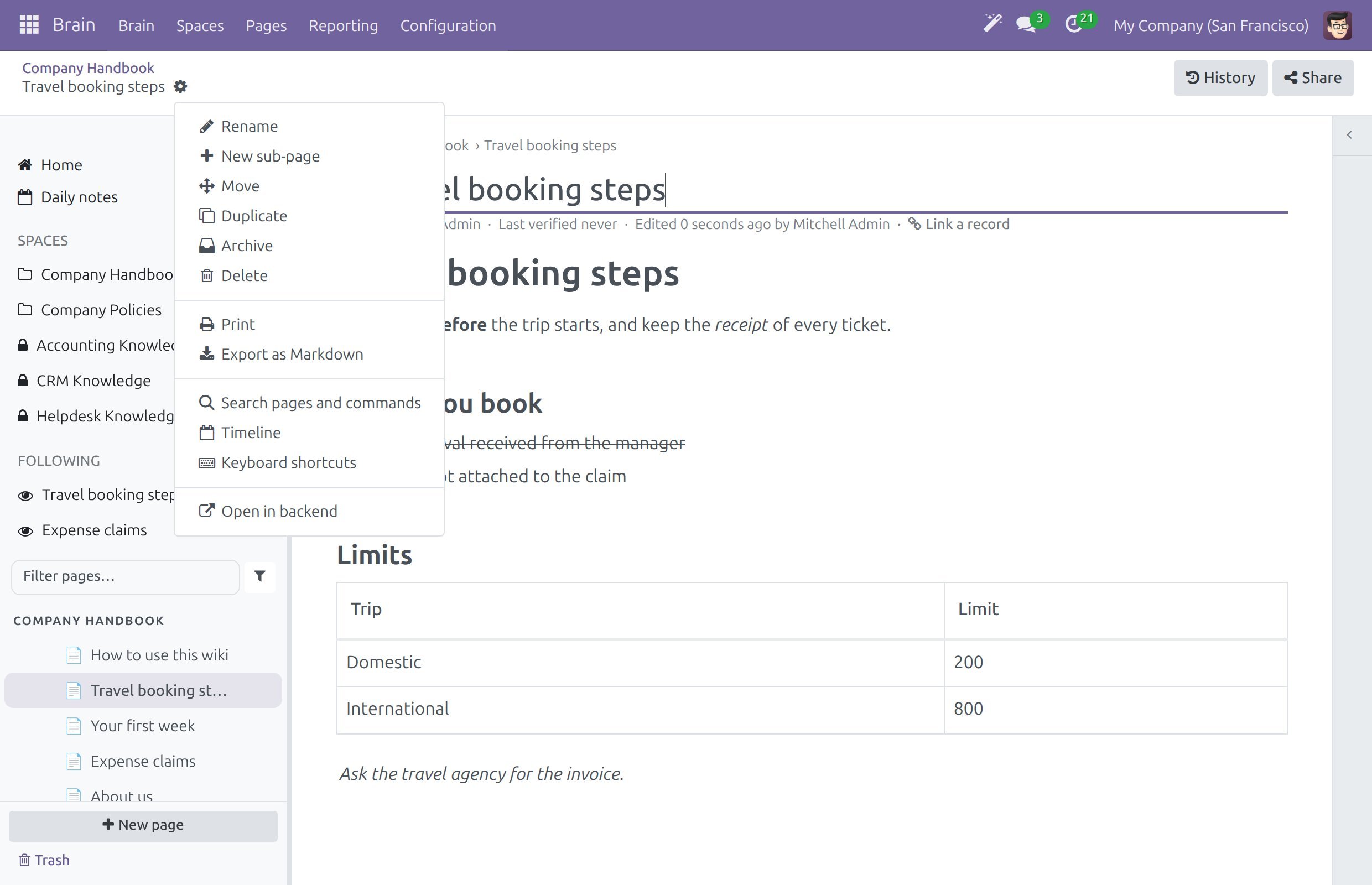
Choose Print. Your browser downloads a PDF.
The PDF starts with the title and a few lines about the page, then shows the text as readers see it:
Space - the Space that holds the page.
Owner - the page owner.
Last edited and Last edited by - the date of the last edit and the person who made it.
Last verified - the date of the last verification, or “Never”, and Verified by when the page was verified.
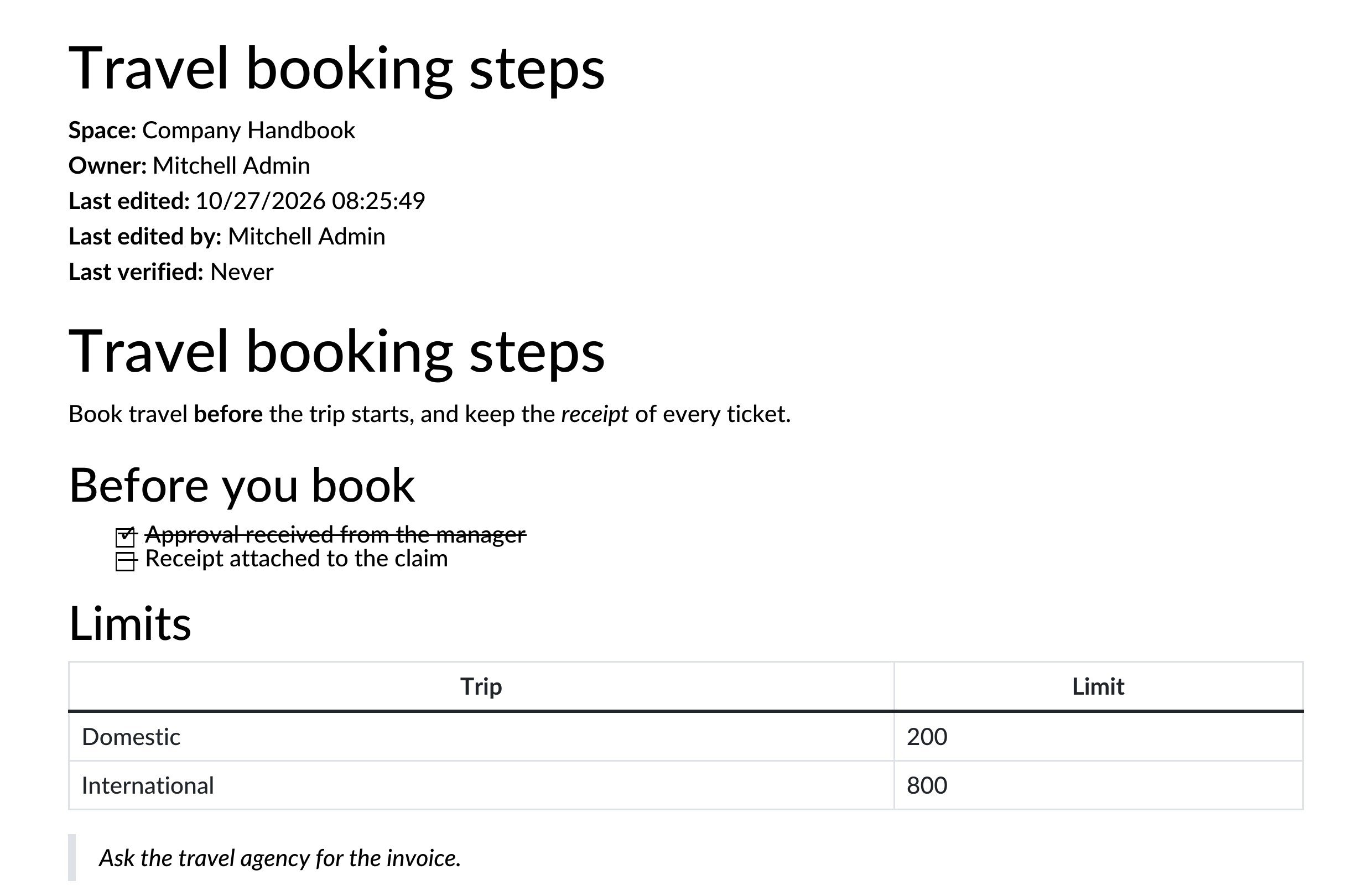
The labels follow the language of the person who prints.
Export a Page as Markdown
Open the page, click the gear button and choose Export as Markdown.
Your browser downloads a text file named after the page, for example
Travel booking steps.md. A message confirms the download.
Open the file in any text editor, or paste it into another tool that reads Markdown. For the page shown in the screenshots of this guide, the file reads:
# Travel booking steps

Book travel **before** the trip starts, and keep the *receipt* of every ticket.

## Before you book

- [x] Approval received from the manager
- [ ] Receipt attached to the claim

## Limits

| Trip | Limit |
| --- | --- |
| Domestic | 200 |
| International | 800 |

> Ask the travel agency for the invoice.
The file holds the text as you read it. A link or an embedded block points at, and names, only what you may read. An embedded block that cannot be written reads “Embedded content (open the page to see it)”.
Create a Page From a Markdown File
Click New page in the sidebar, or on Home.
In In space, pick the Space. The dialog starts with the Space you are in.
Click Import Markdown and choose the
.mdfile.
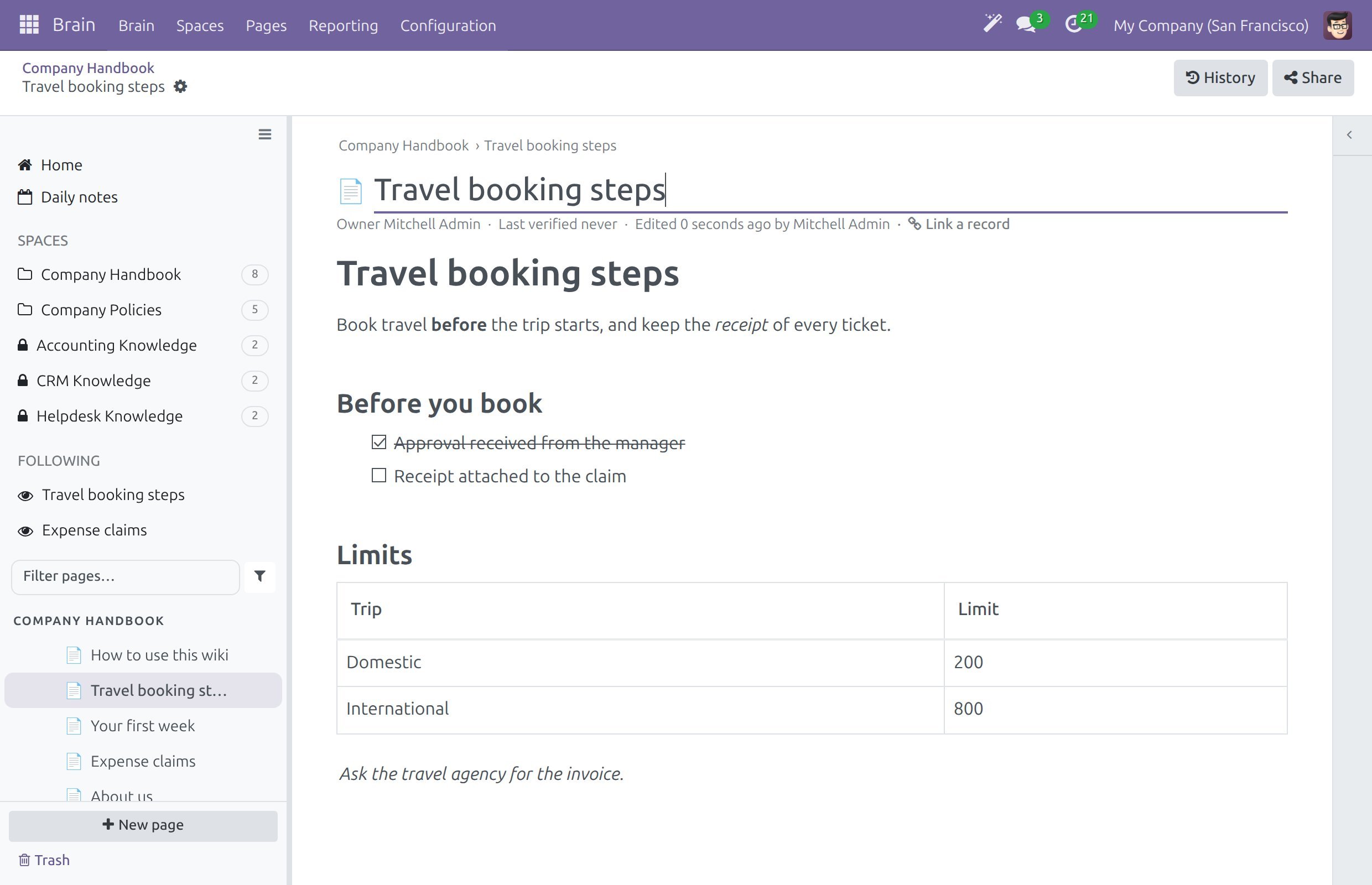
The page is created and opens in the editor, in the Space you picked. Its title is the first heading of the text. When the file has no heading, the title is the name of the file without its extension.
In a Space where all changes need review, the new page is a draft until it is approved (see Submit and approve page changes).
What Is Kept
Export and import use the same set of Markdown, so a page written with these elements comes back unchanged:
Element |
Kept as |
|---|---|
Headings |
Levels 1 to 3. |
Text |
Paragraphs with bold, italic, inline code, links and images. |
Lists |
Bulleted, numbered and check lists, including nested lists, with ticked boxes. |
Quotes and code |
Quotes and fenced code blocks with their language. |
Tables and dividers |
Tables and horizontal rules. |
Anything else is written as a paragraph of its text, so no text is lost.
The first heading of an imported file stays in the text of the page as well as being its title. A file can hold up to 1,000,000 characters.
Success Checkpoint
Print downloads a PDF with the title, the Space, the owner and the last verification.
Export as Markdown downloads a
.mdfile that opens in a text editor.Import Markdown creates a page titled with the first heading of the file, in the Space you picked.
Common Problems
Problem |
What to do |
|---|---|
The Space I need is not in In space. |
The list shows only the Spaces where you are an Editor or a Space admin. Ask a Space admin for the role. |
The import says the file is too long. |
A Markdown file can hold up to 1,000,000 characters. Split it into several files. |
The import says the file is not a text file. |
Choose a plain text |
A link in the exported file is missing. |
The page links to something you may not read. The file names and links only what you may read. |
The printed page has no Verified by line. |
The page was never verified (see Own and verify a page). |
Next Steps
Read, create and edit pages - create and edit pages with the editor.
Share a page with people inside and outside - share a page by a link instead of a file.