
Log tracking updates and notify the customer
Guide information
Requirements
This tutorial requires the installation of the following applications/modules:
Logistics Shipment (installs Tracking Location automatically - the module that stores every tracking update, with no screen of its own)
If Logistics Routes Integration is also installed (auto-installed together with Geo Routes Integration), the shipment form additionally shows a Refresh Map button on the Schedule & Performance tab; it is not needed for the steps below.
A customer who has to guess whether their cargo has sailed calls you to ask, which costs Ops time that a two-line email would have saved. Viindoo does not decide for you which milestones matter to a customer or when a delay is worth a proactive email - it only gives you the Log Tracking button, a catalog of milestone labels, and an email button next to each one. The choices you make here also feed the customer portal, where the same updates appear automatically. If a term below is new to you, see the Freight forwarding glossary.
Running scenario: Hai Long Logistics exports 2 x 40FT HC of footwear for Nhat Long Footwear (also the Shipper on this export), Hai Phong Port to Port of Los Angeles, carrier ONE Line, Incoterm CFR (Port of Los Angeles), Freight Prepaid. Booking ONEYBK204581 was confirmed for sailing ONE COMMITMENT / 026W, then the carrier rolled the whole booking over to ONE COMPETENCE / 027W (see Handle rolled-over and not-loaded containers) - the ETA slips from 2026-12-01 to 2026-12-09, 8 days later. Hoa (Documentation) logs each milestone and keeps Nhat Long Footwear informed.
Before you start
The shipment is already Confirmed, with booking ONEYBK204581 confirmed on it - see Book carrier space for a shipment leg.
You are in the User: All Shipments group or Administrator (ask your freight Administrator to grant this access before starting). User: Own Shipments can only read tracking updates - the access right that creates and writes them grants no permission to that group at all, even on a shipment the user is responsible for.
Before the first shipment goes out, agree internally which milestones are customer-facing and through which channel - Viindoo has no screen for that decision. For Hai Long Logistics that is: Booking Confirmed, Departed, an ETA change of 2 days or more, and Arrived.
Check the Email on each partner you will select in Notify To. An email on a child contact does not fill the company’s Email. In this example, Nhat Long Footwear uses nhatlong.customer@example.viindoo.com, the mailbox agreed with its contact Trần Văn Hải; Pacific Coast uses ops@pacificcoast.example.viindoo.com. If the company has no email, add its named contact to Notify To or update the company’s agreed notification address first.
Step 1: Log the booking confirmation and notify the customer
Nhat Long Footwear needs to know as soon as space is secured so it can plan the factory’s loading schedule - a day of silence after the booking is confirmed is a day the customer spends chasing you instead of preparing cargo.
Go to and open the shipment for Nhat Long Footwear (SHP/26xx/000nn). In the header, click Log Tracking.

In the window that opens, fill in:
Title Template: Booking Confirmed - this fills in Label with the same text.
Event Time: defaults to right now; change it to 2026-10-22 09:00, the time the booking confirmation actually arrived.
Notify To: auto-fills with Nhat Long Footwear and Pacific Coast Forwarding Agency, Inc. as soon as the shipment is selected - Nhat Long Footwear appears here because it is also the Shipper on this export, not because the field reads the shipment’s Customer.
Published on Portal: leave ticked (default) - the customer will see this on the portal immediately.
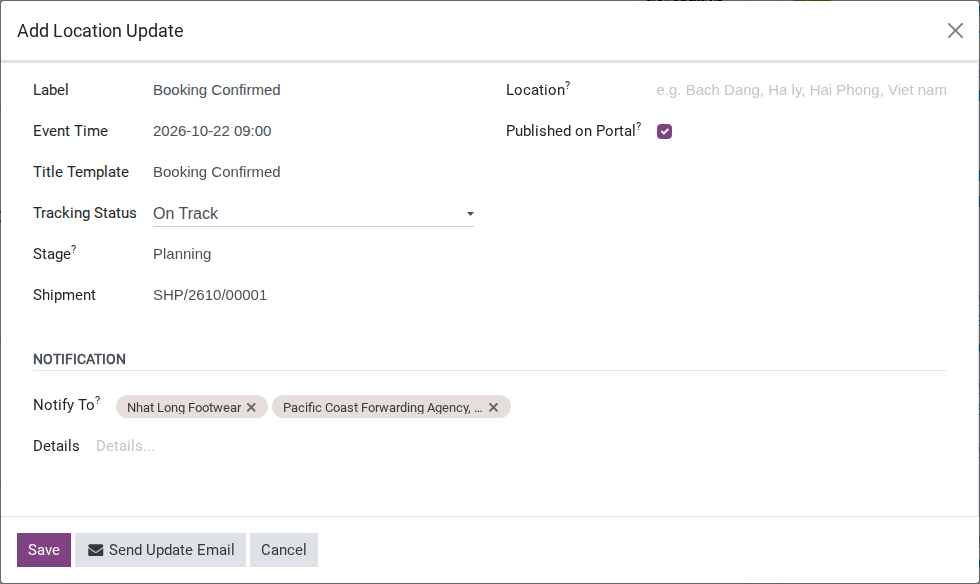
The Send Update Email button is already visible in the Log Tracking form. Check the recipients before sending; saving an update alone does not send an email.
Warning
Notify To only auto-fills from Shipper, Consignee, Notify Party and the legs’ agents - never from the shipment’s Customer field. It only already lists Nhat Long Footwear here because that company also happens to be the Shipper. On a shipment where the paying Customer is a different party from all four of those (a buyer who nominates its own supplier as Shipper, for example), Notify To comes back empty of the Customer and you have to add them by hand before sending.
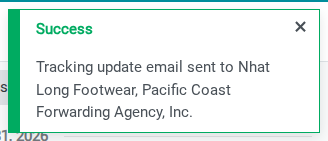
Before sending, check that every intended recipient has an email. Partners without an Email are skipped; Viindoo does not substitute a child contact’s email. Click Send Update Email. The success notification names the selected partners, so it does not by itself prove that each one had an email or that the message reached their mailbox.
Tip
Step 1 is done when: the Trackings smart button reads 1, the log shows Label Booking Confirmed and Event Time 2026-10-22 09:00, the intended customer and agent have valid notification emails, and the send action succeeds. Check delivery through your usual email process if confirmation is required.
Step 2: Record the departure and tell the customer
The departure date is what Nhat Long Footwear uses to finish its own paperwork with its bank - a day’s delay in telling them is a day’s delay on their side too.
On the shipment, open the Schedule & Performance tab. Under Routes, click the one row listed there to open the leg, then click Start Transit.
Note
The shipment header also shows a button of its own named Start Transit, visible while the status bar reads Confirmed. It moves the shipment’s own status bar and is covered in Export a full container load by sea - it is a different button from the one on the leg form used here, and it does not set the leg’s ATD, which is what the Departed log below and its email read from.
Important
ATD is set to the exact moment you click Start Transit, and cannot be typed in afterward - the field is read-only once set. If you only learn the vessel has sailed after the fact (as in this scenario, confirmed the next morning), the leg’s ATD will read the time you clicked the button, not the time the vessel actually left. Record the real time separately in the tracking log below.
Click Start Transit at 2026-11-13 09:00.
Back on the shipment header, click Log Tracking again and fill in:
Title Template: Departed.
Event Time: 2026-11-12 22:00 - the time ONE Line’s own tracking shows the vessel actually left, which can be earlier than the ATD you just set on the leg. Backdating is allowed; a future time is not.
Location: Hai Phong Port (optional, not required to save).
Click Send Update Email in the Log Tracking form to save the update and send the notification in one action. Use Save alone when you want to record the event without emailing anyone.
Note
The email template has no field for ETA. If you want the customer to see the new ETA in this email, type it into Details before sending - the template does not add it for you.
Tip
Step 2 is done when: the leg’s ATD reads 2026-11-13 09:00, the Departed log’s Event Time reads 2026-11-12 22:00 (the real departure time, not the ATD), and the update email has gone out.
Decide when to proactively notify vs. let the customer check the portal
Option |
Use when |
What changes |
|---|---|---|
Log + Send Update Email |
A major milestone (Booking Confirmed, Departed, Arrived), or an ETA change of 2 days or more |
The customer gets an email immediately |
Log only, no email |
A minor update that does not change the customer’s own plans |
It only appears on the portal - the customer sees it next time they check |
Use the customer’s communication preference and your team’s notification policy. In this example, Hai Long Logistics sends an update because the ETA change affects the customer’s warehouse and truck plans; the two-day threshold is this scenario’s rule, not a Viindoo-wide default. If the impact or recipient is unclear, confirm with Customer Service before sending.
Step 3: Update the customer when the ETA slips
Carriers reschedule sailings often; telling Nhat Long Footwear 5-7 days ahead lets them avoid booking a warehouse slot or a truck for a date the cargo will not actually make.
Viindoo has no cron or alert that watches for a schedule change - the rollover that pushed this booking from ONE COMMITMENT to ONE COMPETENCE was already recorded, with its own new ETD and ETA, in Handle rolled-over and not-loaded containers. Confirming that rollover already updated the leg’s ETD/ETA to 2026-11-12 / 2026-12-09 (Viindoo keeps a shipment’s own ETD/ETA in sync with the leg for you) - there is nothing left to edit here. This step is only about telling the customer.
On the shipment header, click Log Tracking and fill in:
Label: type ETA Updated by hand - there is no seeded title for an ETA change in the Title Template catalog, so leave Title Template empty and type directly into Label.
Event Time: 2026-11-13 08:00.
Status: At Risk.
Click Send Update Email in the Log Tracking form to save the update and send the notification in one action. Use Save alone when you want to record the event without emailing anyone.
Warning
The ETA moved from 2026-12-01 to 2026-12-09 - an 8-day slip, well past the 2-day threshold from Decide above. Always send this one; do not leave it for the customer to notice on the portal.
Tip
Step 3 is done when: the leg’s ETA already reads 2026-12-09 (from the rollover), the log shows Status At Risk, and Nhat Long Footwear has a dedicated email about the new date - not just a portal entry they might not open.
See also
The rollover itself - deciding Rolled Over vs. Not Loaded and moving the booking to a new sailing - is covered in Handle rolled-over and not-loaded containers.
Step 4: Log the arrival and close the tracking log
Nhat Long Footwear needs to know the cargo has actually landed, not just that it was due - otherwise they keep planning around an ETA that has already passed.
Open the leg again from the Routes list under Schedule & Performance and click Mark Done at 2026-12-09 09:00.
Back on the shipment header, click Log Tracking and fill in:
Title Template: Arrived.
Event Time: 2026-12-09 10:00.
Status: On Track (default).
Click Send Update Email in the Log Tracking form to save the update and send the notification in one action. Use Save alone when you want to record the event without emailing anyone.
Note
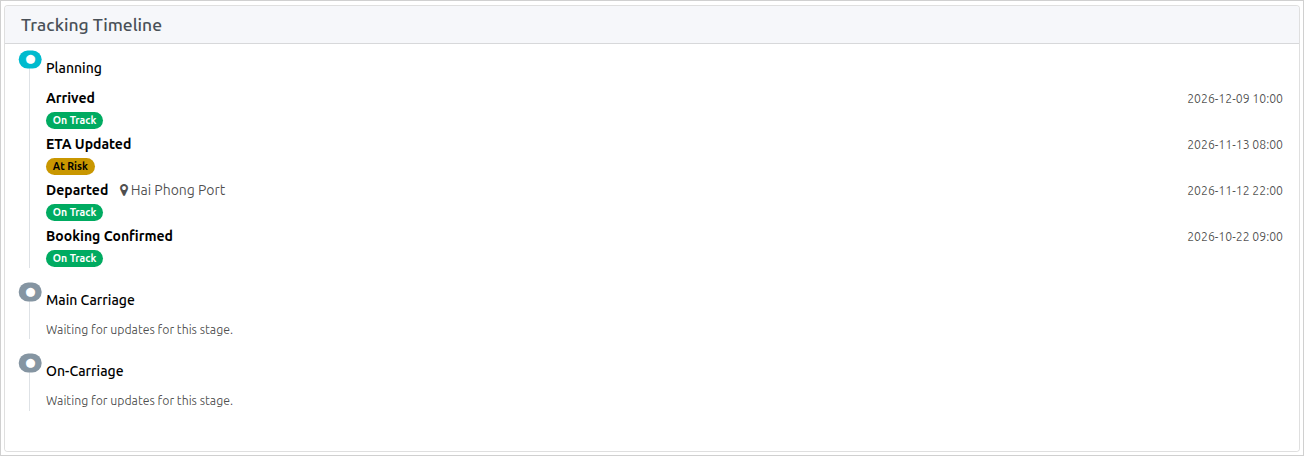
The portal’s Tracking Timeline groups entries by shipment stage, not by a single running list - each entry stays under the stage it was logged in. With no stage change made during this scenario, all 4 logs share one stage block, so Arrived shows as the newest entry inside it.
Tip
Step 4 is done when: the leg’s ATA reads 2026-12-09 09:00, and the portal’s Tracking Timeline shows Arrived as the newest entry - not still hanging on ETA Updated or Departed.
Known limitations
Warning
On the current 17.0 build, the Trackings list can raise a Sales Order access error for a Documentation Officer without Sales rights. Its side panel reads sales information even when the user only needs tracking updates. Log Tracking itself remains available. Report this error to your administrator; do not add Sales rights just to dismiss it.
Step |
What Viindoo does today |
What you do instead |
|---|---|---|
Notify To (Step 1) |
Auto-fills from Shipper, Consignee, Notify Party and leg agents only - never from the shipment’s Customer |
Check Notify To and add the Customer by hand before clicking Send Update Email |
Log Departed (Step 2) |
The leg’s ATD can only be the moment Start Transit is clicked - there is no way to type in the real departure time if you learn it later |
Record the real time in the Departed log’s Event Time instead (backdating is allowed) |
Send Update Email (Step 2) |
The email template has no field for ETA |
Type the ETA into Details before sending, if you want the customer to see it in that email |
Track ETA changes (Step 3) |
No cron or alert flags an ETA change - Viindoo only recolors the shipment list once it is already at risk |
Check the carrier’s own tracking regularly and log an update yourself when the schedule moves |
Roll only one container (Step 3, not used for L1) |
A booking holds a single ETD/ETA for the whole shipment - it cannot represent “container 1 rolled, container 2 did not” |
Split the affected container onto a separate booking first, then roll that one only |
Close the tracking log (Step 4) |
There is no “tracking closed” state - logging Arrived is the last entry, not a status change. It also does not sync with a container’s own Arrived milestone (Track container milestones from empty pickup to return) |
Always log Arrived here as the last step, even when the container milestone already shows arrived |
Troubleshooting
Save fails with an event time in the future
Symptom: Save shows Event time cannot be in the future.
Cause: the constraint on the tracking update rejects any Event Time later than the current moment.
Fix: enter the time the milestone actually happened - it can be in the past, just not the future.
Send Update Email does nothing
Symptom: clicking Send Update Email shows the toast “No notification recipients selected. Please add recipients first.”
Cause: Notify To is empty, or Published on Portal is unticked - either one blocks the email.
Fix: add at least one partner to Notify To and make sure Published on Portal stays ticked, then click Send Update Email again.
A User: Own Shipments account cannot log a tracking update
Symptom: the Log Tracking button is there, but saving the new update fails with a standard Odoo access error.
Cause: User: Own Shipments has read-only access to tracking updates - even on a shipment that user is responsible for, the access right that creates or edits them is not granted to that group.
Fix: only User: All Shipments or Administrator can log or send tracking updates; if the person on the shipment only has Own Shipments, have someone with All Shipments (such as Hoa) log it for them.
The customer says they never received the update
Symptom: the success toast names recipients, but the customer’s name is not one of them.
Cause: Notify To auto-fills from Shipper, Consignee, Notify Party and leg agents only - never from the shipment’s Customer field (see the warning in Step 1).
Fix: open the tracking update, check Notify To, and add the customer by hand if they are missing, before sending again.
See also
Related articles
Book carrier space for a shipment leg - confirming the booking this page’s Step 1 refers back to
Export a full container load by sea - the full export flow, including the shipment header’s own Start Transit / Set Done buttons mentioned in Step 2
Track container milestones from empty pickup to return - container-level milestones, tracked separately from the leg ATD/ATA used here
Optional modules