
Test and accept a Viindoo version upgrade (UAT)
When Viindoo upgrades your system to a new version, you check the result on isolated test environments before the live system is switched over. This article guides you through User Acceptance Testing (UAT): reconciling data, testing features, reporting issues, signing off and preparing the official cutover.
UAT process overview
The User Acceptance Testing (UAT) process consists of 6 key steps:
Receive the handover email: it includes the access links to the 3 testing environments and the data snapshot timestamp.
Reconcile data: compare the data between the current version environment and the new version environment; record and clarify any discrepancies.
Test features: test your business processes in the feature testing environment of the new version.
Submit support tickets: report issues by email to
support@viindoo.comor on the Helpdesk Center. Create 1 separate ticket for each issue.Re-test: re-check the resolved issues when the project hands over a new test round (if applicable).
Sign off UAT: sign off according to the project guidelines once no Blocking issues remain in the system.
The testing environments are completely isolated from the live system. You continue your daily operations on the current system throughout the UAT phase; the official system cutover is only executed according to the plan agreed upon by both parties.
Purpose and scope
This article guides you through the following activities:
Data reconciliation: verify that the data has been accurately converted within the committed scope; identify and handle discrepancies before the official system cutover;
Feature testing: test your business processes on the new version to ensure compatibility and stability;
Issue management and acceptance: report issues through Viindoo’s official support channels, track their resolution and sign off UAT according to the handover email instructions (using the Portal if it is configured for your project).
You proactively organize and assign authorized personnel with the appropriate expertise to test your active business workflows. This article is a standard guiding framework; the specific scope, data snapshot timestamps, environments and applicable contents are based on the handover email and the agreements of each project.
Testing environments
Environment roles
For each test round, Viindoo initializes 3 independent environments. All their data is extracted from the same backup of the live system, taken at the data snapshot timestamp:
Environment |
Version |
Intended use |
Data operation rights |
|---|---|---|---|
Environment (1): Data reconciliation - current version |
The version currently in use |
Provide the baseline figures as of the data snapshot timestamp |
No. View only, no editing |
Environment (2): Data reconciliation - new version |
The upgraded new version |
Compare the post-upgrade figures against environment (1) |
No. View only, no editing |
Environment (3): Feature testing - new version |
The upgraded new version |
Test operational processes and create sample transactions |
Yes. Free to operate and create data |
Operating principles:
Environments (1) and (2) work as a reconciliation pair: open the same report in both environments at the same time and apply identical filters to compare the figures side by side. To keep the reconciliation accurate and valid, never create, modify or delete any data in these two environments;
Environment (3) is for operational testing: all data created in this environment is completely independent and does not affect the reconciliation data in environments (1) and (2).
The access information for the 3 environments and the data snapshot timestamp are officially provided in the handover email of each test round. If your project is managed via the Portal, the access link for environment (3) is displayed under UAT instance.
Login rules
Use the username and password of the live system as of the data snapshot timestamp;
Accounts created or passwords changed after the data snapshot timestamp are not valid in the testing environments. In that case, log in with your old password or contact Viindoo for assistance.
Safety configuration and environment isolation
To ensure that testing does not affect live data and real-world operations, the testing environments are configured with the following safety measures:
Outgoing emails: real emails to customers, vendors or employees are not sent. Emails are still generated in the system so that you can check their content;
Scheduled actions: all automated background tasks are paused;
External integrations: connections to payment gateways, shipping carriers, calendar synchronization and automatic email fetching are paused;
Website (if applicable): search engine indexing is blocked.
If you need to test scheduled actions or external integrations, submit a ticket by email to support@viindoo.com or on the Helpdesk Center, specifying the environment and the scope. Viindoo evaluates and supports the request based on the service scope and the project agreements.
Overall testing process
Process flow diagram
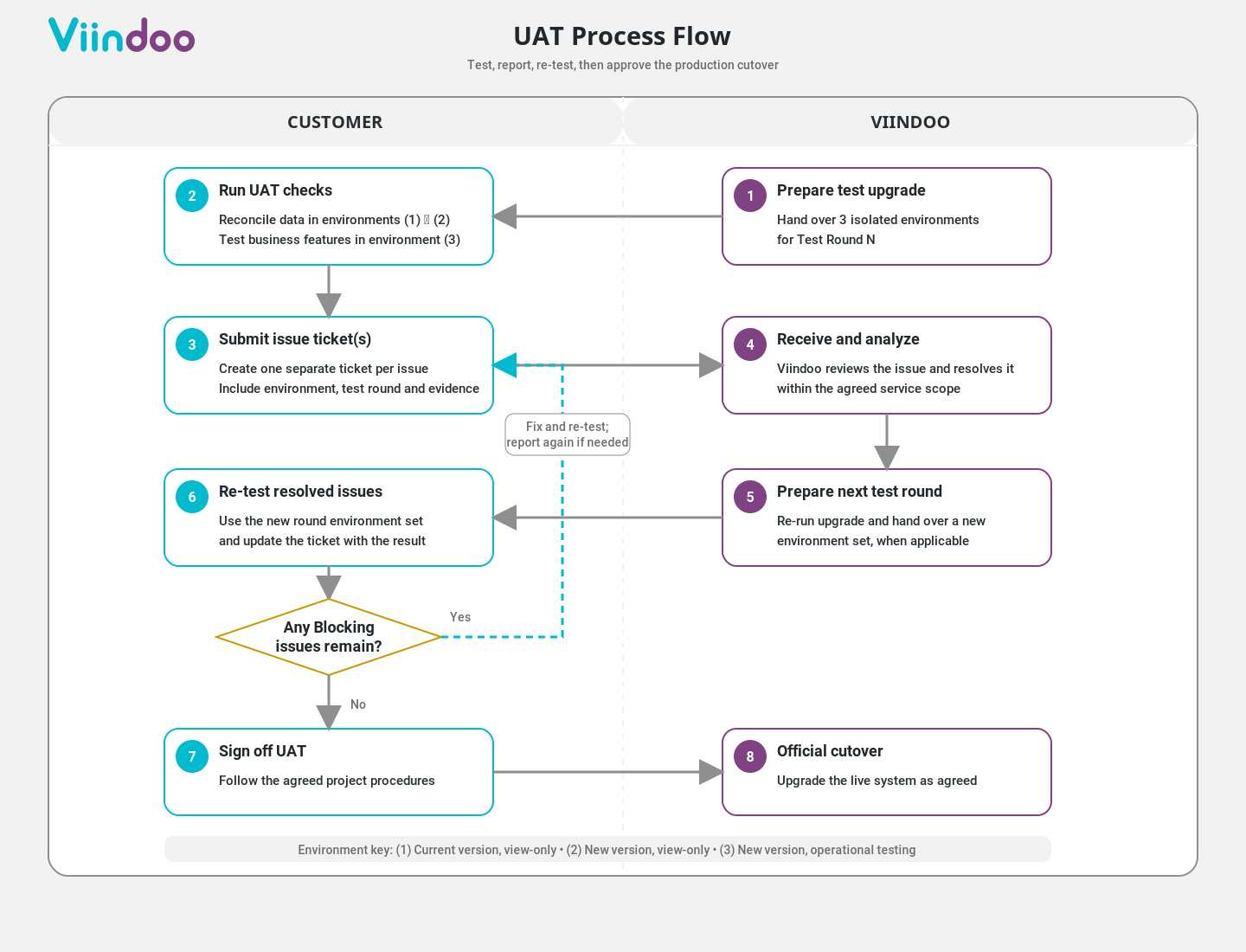
Detailed steps
Step |
Work content |
Executed by |
Output |
|---|---|---|---|
Step 1: Test upgrade |
Initialize and hand over the test environments according to the service scope |
Viindoo |
Handover email and test round details |
Step 2: Perform testing |
Data reconciliation (environments 1 and 2) and Feature testing (environment 3) |
Customer |
Data reconciliation sheet and checklist of tested items |
Step 3: Report issues |
Submit issue tickets following the Issue reporting guidelines |
Customer |
Ticket logged in the support system |
Step 4: Resolve issues |
Receive, analyze and resolve the tickets within the committed service scope |
Viindoo |
Resolution notification or workaround |
Step 5: Hand over a new round |
Prepare a new set of environments for the next test round (if applicable) |
Viindoo / project agreement |
Handover email for the new test round |
Step 6: Re-test |
Re-verify the fixed issues on the new environments and respond on the ticket |
Customer |
Fix confirmation on the ticket or the project channel |
Step 7: Sign off |
Sign off UAT following the agreed procedure (see Sign off the UAT results) |
Customer |
Official UAT sign-off document or confirmation |
Step 8: Official cutover |
Agree on the timeline and upgrade the live system |
Viindoo (confirmed by the customer) |
Live system running on the new version (see Official system cutover) |
Submit and track support tickets
During the UAT phase, submit all feedback and issue reports by email to support@viindoo.com or on the Helpdesk Center. Viindoo receives, triages and addresses the issues within the contracted service scope. The handover email is the reference for the environment links, the test round and the way results are recorded.
Access the upgrade management page on the Portal
If your project is managed via the Portal:
Log in to the Viindoo Portal with the account provided to you.
On the My Account dashboard, select Version Upgrades.
Click the upgrade request in the list.
The request page displays:
The system being upgraded, its current version and the target version;
The status of the request (see Processing statuses);
The current test round (for example “Test round 2 of 2”);
UAT instance: the access link to feature testing environment (3);
The automated validation results, the list of issue tickets and the action buttons.
Note
The Portal displays labels in the language set on your account. This article keeps the original English terms for easy reference.
Review the automated validation results
If the handover email provides automated reports, check the Automated validation section on the Portal:
all clear: no automated data discrepancy was detected;
error(s): structural or data discrepancies were detected and must be verified and clarified before the cutover;
warning(s): points recommended for review, typically record count changes caused by structural differences between the versions.
The automated validation checks:
The total record count of each data module;
The General Ledger entries and the Trial Balance account totals;
The total physical inventory and the detailed stock per product;
The Accounts Receivable and Accounts Payable reports; the total value of purchase and sales orders;
The document status statistics (Draft, Confirmed, Cancelled…);
The feature-level changes: replaced modules, removed fields, moved menus.
Note
Automated reports only assist you; you remain responsible for confirming the business accuracy of all tested data and features.
Issue reporting guidelines
Send an email to
support@viindoo.comor submit a ticket directly on the Helpdesk Center.Provide all the mandatory information:
Short title: concise and accurately reflecting the nature of the issue. For example: “AR account 131 balance mismatch for customer ABC Co by 2,500,000 VND”;
Detailed description: follow the Issue description template;
Severity: based on the Severity classification.
Submit the ticket and keep the ticket ID for tracking and reference.
Mandatory rules:
One ticket per issue: log each issue as 1 independent ticket. Do not merge unrelated issues into a single ticket;
Specify the environment: state whether the issue occurs in environment (1), (2) or (3);
Specify the test round: state the corresponding test round;
Attach evidence: attach screenshots or video recordings. For large files, store them in a shared folder and provide the access link in the ticket.
Processing statuses
The following statuses are used consistently on the Portal and in official communication.
Upgrade request statuses:
Status |
Meaning |
Your action |
|---|---|---|
Approved |
The request is approved; the environments are being prepared |
Wait for the official handover email |
In UAT |
The test environments are ready |
Test, report issues and sign off |
Signed Off |
You accepted the UAT results |
Agree on the official cutover schedule |
Cutover Scheduled |
The cutover date and time are set |
Prepare according to Official system cutover |
Done |
The live system has been upgraded successfully |
Start using the new system in daily operations |
Issue ticket statuses:
Status |
Meaning |
|---|---|
New |
Viindoo received the ticket; it is pending assignment |
Acknowledged |
Viindoo confirmed the issue and routed it into the processing workflow |
In Progress |
The technical team is analyzing or fixing the issue |
Fixed - awaiting re-test |
The issue is fixed and awaits your re-test on a new round |
Verified Fixed |
You tested and confirmed that the fix works |
Rejected / Not an issue |
The issue is identified as not a bug (with a technical explanation or the standard design rationale) |
Hold all further discussion about a ticket directly in that ticket, or in a new ticket referencing the original ticket ID, to keep the history in one place.
Verify the fixes
When a ticket is marked as resolved and Viindoo hands over a new test round, re-test only on the environments of the new test round:
Open the environment links of the latest test round.
Repeat exactly the steps recorded in the ticket.
If the issue is fixed: reply on the ticket to confirm the result.
If the issue persists: do not close the ticket; reply with the actual result on the ticket, or create a new ticket referencing the previous ticket ID.
Request another test round
If you need an additional test round to verify fixes, use the Request another test round button on the Portal or submit an official request ticket.
Important
A new round re-initializes all 3 environments. All test data entered in environment (3) of the previous round is permanently discarded;
If you have already signed off, opening a new round automatically cancels the previous sign-off. You must re-test and sign off again on the new round;
Submit a ticket to agree on the timeline and scope with Viindoo before starting a new round.
Sign off the UAT results
Sign off UAT using the method agreed for your project (on the Portal or with acceptance minutes).
The UAT sign-off triggers the official cutover plan.
Sign-off condition: no issue ticket with the Blocking severity may remain open. Issues with a lower severity may have an agreed resolution plan before the official cutover. If the contract requires written acceptance minutes, both parties sign them based on the agreed UAT results.
Data reconciliation (environments 1 and 2)
Reconciliation principles
Access mode: view only; never create, edit or delete data in environments (1) and (2).
Synchronized pair: only compare environment (1) with environment (2) of the same test round. Do not compare with the live system, since live data keeps changing.
Identical filters: apply exactly the same filters in both environments (same company, same date range, same document status, same currency).
Top-down method: compare the summary figures first, then sample the detailed data. When a summary figure differs, narrow it down by account, partner, product or warehouse to find the cause.
Keep evidence: record all reconciliation results in the Data reconciliation sheet template, with screenshots as evidence.
Tip
Open environment (1) and environment (2) side by side in two browser windows to compare them easily.
Reconciliation checklist
Reconcile the business contents listed below. If a menu path or report name differs because of structural changes in the new version, note it and contact Viindoo with a ticket.
No. |
Business content |
Reconciliation method |
Acceptance criteria |
|---|---|---|---|
D1 |
Trial Balance |
Filter the same period, up to the snapshot date, posted entries only. Compare the opening balance, debit and credit movements and closing balance of each account |
Exact match, or discrepancies fully explained with an agreed action plan |
D2 |
Profit and Loss, Balance Sheet |
Filter the same period and date range |
Exact match on each line |
D3 |
Accounts Receivable detail by customer |
Compare the balances up to the snapshot date; sample the top 5-10 customers by outstanding balance and check their invoice details |
Matching total balance and invoice details |
D4 |
Accounts Payable detail by vendor |
Apply the same method as D3 to vendors |
Matching total balance and invoice details |
D5 |
Inventory report by warehouse and product |
Check the stock quantity in each warehouse; sample high-value products and products tracked by lot or serial number |
Exact match on quantities and lot/serial information |
D6 |
Inventory valuation |
Compare the total inventory value and the details of sample products; reconcile with the inventory account |
Exact match |
D7 |
Open sales orders and purchase orders |
Count the orders by status; sample partially delivered, partially received or partially invoiced orders |
Matching order counts, delivered or received quantities and invoiced quantities |
D8 |
Customers and vendors |
Compare the total record counts; sample the tax ID, address, payment terms and pricelist |
Exact match on all details |
D9 |
Products |
Compare the total record counts; sample the unit of measure, sales price, cost, product category and accounts |
Exact match on all details |
D10 |
Fixed assets |
Compare the original cost, accumulated depreciation, book value and depreciation schedule |
Exact match on all details |
D11 |
Human resources |
Compare the employee records, active contracts and organization chart or departments |
Exact match on all details |
D12 |
Document attachments |
Randomly sample documents with attachments (vendor bills, contracts…) |
Attachments open normally with intact content |
D13 |
Printed documents |
Compare the PDF printouts of invoices, delivery slips and orders of the same document in both environments |
Complete information, correct layout and correct figures |
Handle data discrepancies
When you find a discrepancy between the two environments:
Re-check the filters in both environments (see the identical filters principle above).
Check the Review the automated validation results to see whether the discrepancy was already flagged.
Identify the records causing the discrepancy (document number, partner, product, account).
Submit an issue ticket following the Issue reporting guidelines, providing: the item checked, the value in environment (1), the value in environment (2), the difference and the filters used.
Feature testing (environment 3)
Focus your tests on daily operational workflows and on workflows that directly affect finance, accounting and inventory valuation.
No. |
Area |
Core test scenarios |
Evaluation criteria |
|---|---|---|---|
F1 |
Sales and CRM |
Quotation → Confirm order → Delivery → Create invoice → Register payment |
Prices, discounts and taxes are calculated correctly; PDF printouts are accurate; automatic emails are generated correctly (not sent externally) |
F2 |
Purchase |
Request for quotation → Purchase order → Approval → Receipt → Vendor bill → Payment |
Approval flows respect the spending limits and the assigned users |
F3 |
Inventory |
Receipts, deliveries, internal transfers, inventory adjustments |
Physical stock and stock value update correctly; inventory journal entries post to the correct accounts |
F4 |
Accounting and finance |
Invoices, payments, bank reconciliation, journal entries, period closing |
The Profit and Loss and the Balance Sheet correctly reflect the new transactions |
F5 |
Other applications |
Manufacturing, project management, HR and payroll… |
Complies with your internal business rules |
F6 |
Access rights |
Log in with sample accounts of each user group or role |
Correct menus and data scope are visible; data outside the allowed scope is blocked |
F7 |
Reports and printouts |
Generate the usual management reports and document printouts |
Accurate figures, correct layout and formatting |
F8 |
Scheduled actions and integrations |
Check background tasks and external integrations |
Submit a ticket request; controlled testing support is evaluated per project scope (see the safety configuration above) |
Note
The new version may change the user interface and the way you interact with it. Interface improvements are not system bugs. If you need clarification, submit a ticket for Viindoo guidance.
Issue description and severity
Issue description template
To help Viindoo process your ticket quickly, describe the issue with the following structure:
Test round: the round number, as stated in the handover email or on the Portal;
Environment: (1), (2) or (3);
Login account: the username that encountered the issue;
Screen or document: the menu path, URL or document reference;
Steps to reproduce: the numbered steps that lead to the issue;
Expected result: the correct business behavior, or the figure in environment (1);
Actual result: the actual behavior, the figure in environment (2) or the error message;
Attached evidence: links to screenshots or video recordings.
Severity classification
Severity |
Criteria |
Examples |
|---|---|---|
Blocking |
A critical issue that stops an entire workflow; a financial or inventory balance mismatch; data loss; a core process cannot proceed and no workaround exists |
Accounting balance mismatch; the system prevents confirming sales orders; invoice attachments are missing |
High |
Affects a large group of users; a feature works incorrectly but a workaround exists |
A management report calculates wrong totals, so they have to be calculated manually outside the system |
Medium |
Localized impact; a simple workaround exists |
A document print layout is misaligned; an advanced search filter does not work |
Low |
No impact on the business flow; a minor display issue or a usage question |
A label uses the wrong term; a question about how to use a new feature |
Note
The Blocking severity applies only to issues that directly prevent go-live. Blocking tickets hold the UAT sign-off until they are resolved or covered by an agreed plan.
Mandatory rules
Official support channels: submit all issue reports as tickets to
support@viindoo.comor on the Helpdesk Center.Environments (1) and (2): use them only for data reconciliation. Creating, editing or deleting data is prohibited.
Test data is temporary: the test transactions entered in environment (3) are not kept or carried over to the next test rounds.
No real transactions on UAT: continue your real business activities on the live system until the official cutover.
Test on the latest round: use the exact environment links of the latest handover email. The environments of previous rounds are decommissioned.
Data snapshot timestamp: the timestamp may change from one test round to the next and is stated in each handover email.
Sign-off prerequisite: all Blocking tickets must be resolved or have an agreed plan before sign-off.
A new round cancels the sign-off: requesting a new test round automatically cancels the previous UAT sign-off.
Information security: the test environments contain your real business data. Keep the access links secure and share them only with the members of your UAT team.
Official system cutover
Both parties agree on the cutover plan with a detailed timeline (preferably outside business hours or on a weekend).
At the start of the cutover, Viindoo pauses the live system, backs up the latest data and performs the official upgrade.
During the cutover, users must not access the system. The estimated downtime is announced in the cutover plan.
When Viindoo announces the completion, log in to the upgraded live system, quickly check the key figures (D1, D3, D4, D5) and create a few first sample transactions.
Your preparation checklist:
Inform your staff and stakeholders about the scheduled downtime;
Complete and post all pending transactions before the system is paused;
Assign staff to check the system right after the cutover.
Frequently asked questions
Does UAT affect the live system?
No. The UAT environments are completely isolated from the live system. You continue your daily work on the live system during UAT.
Why are there 2 environments for the new version?
Environment (2) keeps the post-upgrade data untouched for the side-by-side reconciliation with environment (1). Environment (3) is for active testing. This separation prevents test transactions from distorting the reconciliation figures.
Is the test data entered in round 1 carried over to round 2?
No. Each test round is a fresh set of environments restored from the backup. Keep your test scripts so that you can run them again on the new round.
What if the conditions for UAT sign-off are not met?
Review all tickets with the Blocking severity. Reply directly on the tickets or contact the Viindoo project lead to coordinate the resolution before signing off.
What if an issue marked as fixed still fails?
Make sure you are testing on the environments of the latest test round. If the issue persists, reply on the existing ticket or open a new ticket referencing the original ticket ID, as described in Verify the fixes.
Why do test emails not arrive in my mailbox?
This is a mandatory safety measure of UAT that prevents sending test emails to real customers or vendors. You can check the content of the generated emails in the chatter history of the document.
Does a different record count in the new version mean data loss?
Not necessarily. Record count differences often come from structural or data storage changes in the new version. Check the Review the automated validation results or submit a ticket for a technical explanation from Viindoo.
What is Viindoo’s official support channel?
Submit a ticket by email to support@viindoo.com or on the Helpdesk Center.
Data reconciliation sheet template
At the top of the sheet, record:
Test round: the round number;
Data snapshot timestamp: the date and time;
Reconciliation officer: the full name of the person doing the reconciliation.
Then record one row per reconciled item, with the following columns:
Column |
Example |
|---|---|
No. |
1 |
Reconciliation item (code from the reconciliation checklist) |
D1 - Account 131 |
Filters applied |
Up to [date], posted entries |
Environment (1) figure |
[value] |
Environment (2) figure |
[value] |
Difference |
[difference] |
Result |
Match or Mismatch |
Ticket ID (if mismatch) |
[ticket title or ID] |