
Before You Start
You need |
Why |
|---|---|
Role Viewer or higher in the Space |
To copy the address of a page for colleagues who are signed in. |
Role Editor or Space admin in the Space |
To send a page to people, to send it outside the company and to create or end a public link. |
Role Space admin in the Space |
To add a person who cannot read the page as a member of the Space. An Editor can ask the Space admins instead. |
Note
A page that is a draft, a daily note or a page restricted to some people cannot be sent by a link. See the limits at the end of this page.
Copy the Link of a Page
Open the page and click Share at the top right.
Click Copy link.
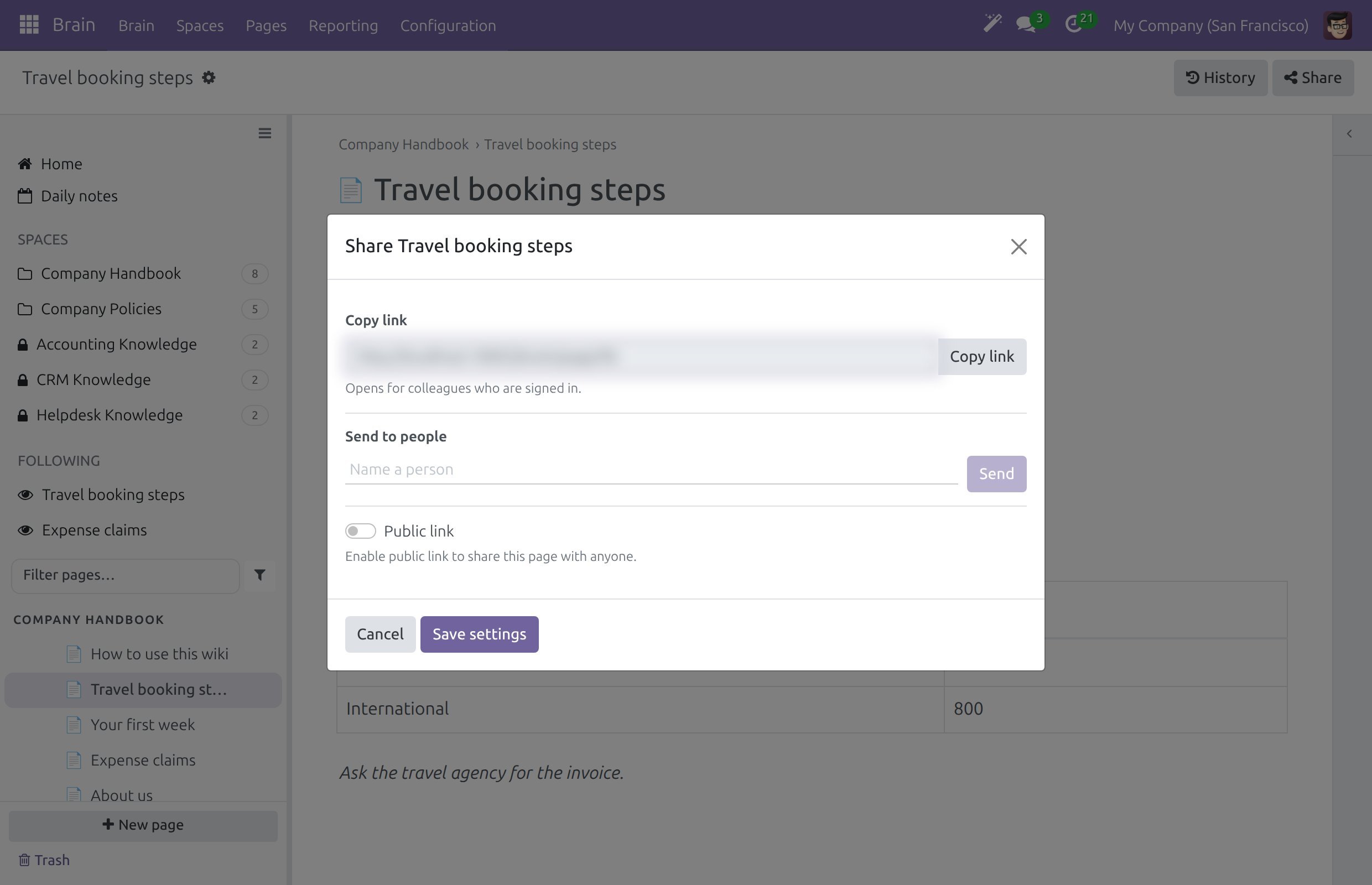
Paste the address in a message. It opens the page for colleagues who are signed in and who may read the Space.
Send a Page to People
In the Share dialog, type a name in Send to people and pick the person in the list.
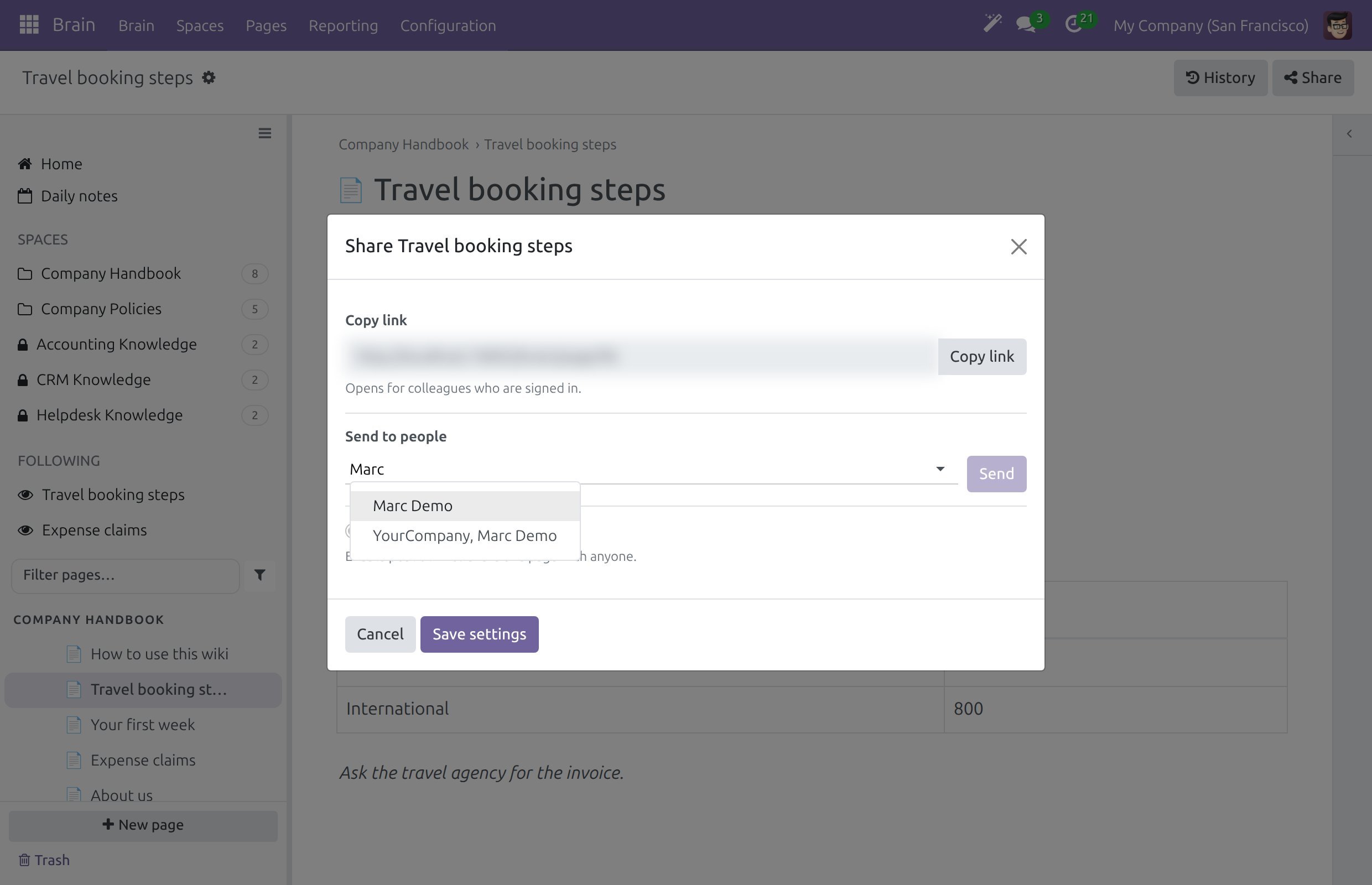
Pick as many people as you need, then click Send. A message says to how many people the page was sent.
What each person gets:
A colleague who may read the page receives a notification with the link that opens the page in Brain.
A contact outside the company receives a signed link by e-mail. It opens this page only, with no sign-in and without any other page of the Space. A contact with no e-mail address receives nothing, and a message names them.
Add a Person Who Cannot Read the Page
A colleague who has no access to the Space receives nothing. The dialog lists them: “These people cannot read this page yet:”.
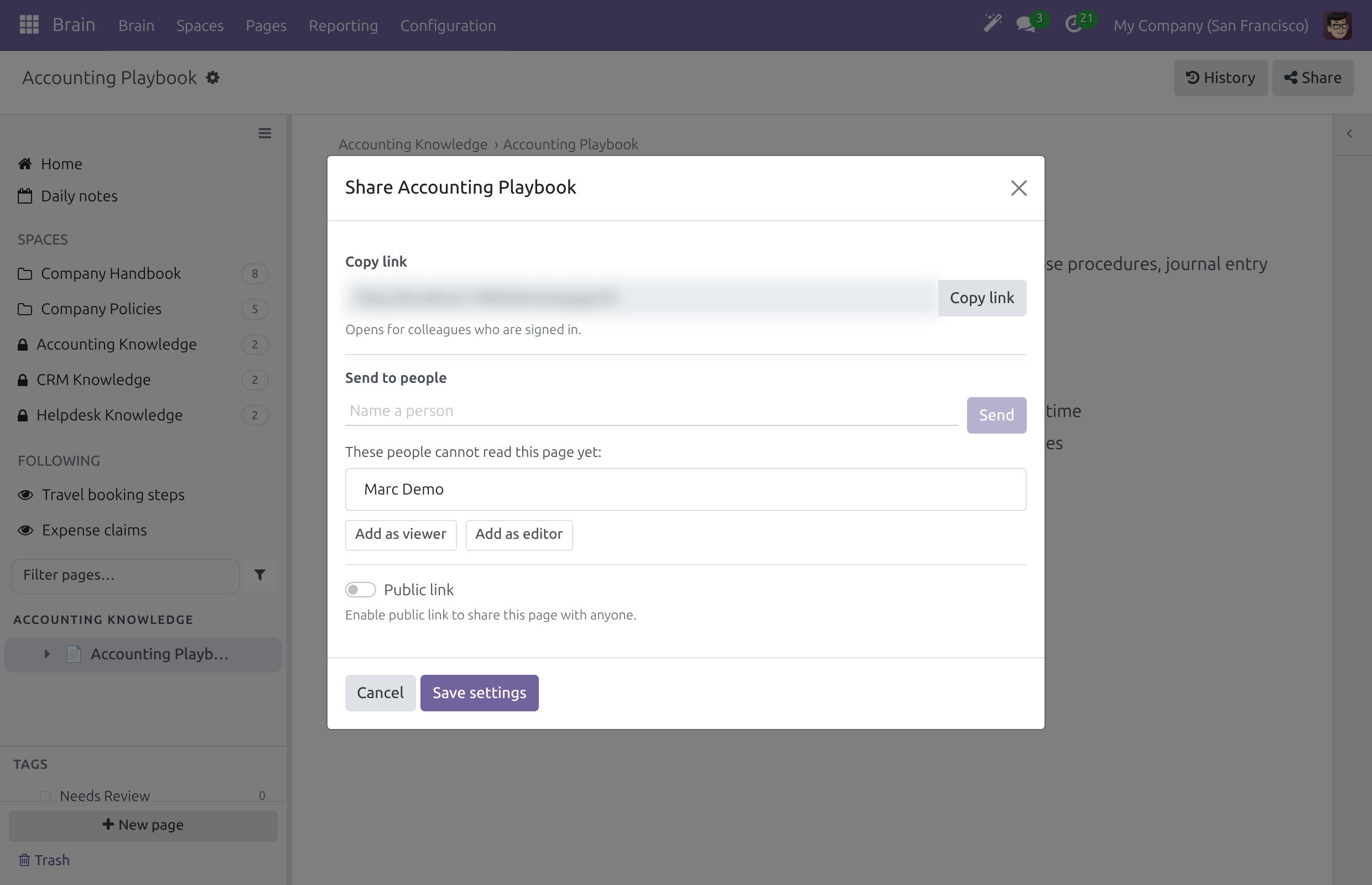
A Space admin clicks Add as viewer or Add as editor to make them a member of the Space, then sends the page again.
An Editor clicks Request access. An activity asks the Space admins to give the person access.
Cancel the Links Sent Outside
Once a signed link has been sent, the dialog offers Cancel the links sent outside the space.
Click Cancel the links sent outside the space.
Read the confirmation: the links already sent stop opening the page, and they cannot be brought back. Click Cancel the links.
A later Send to a contact outside the company creates a new link.
Publish a Public Link
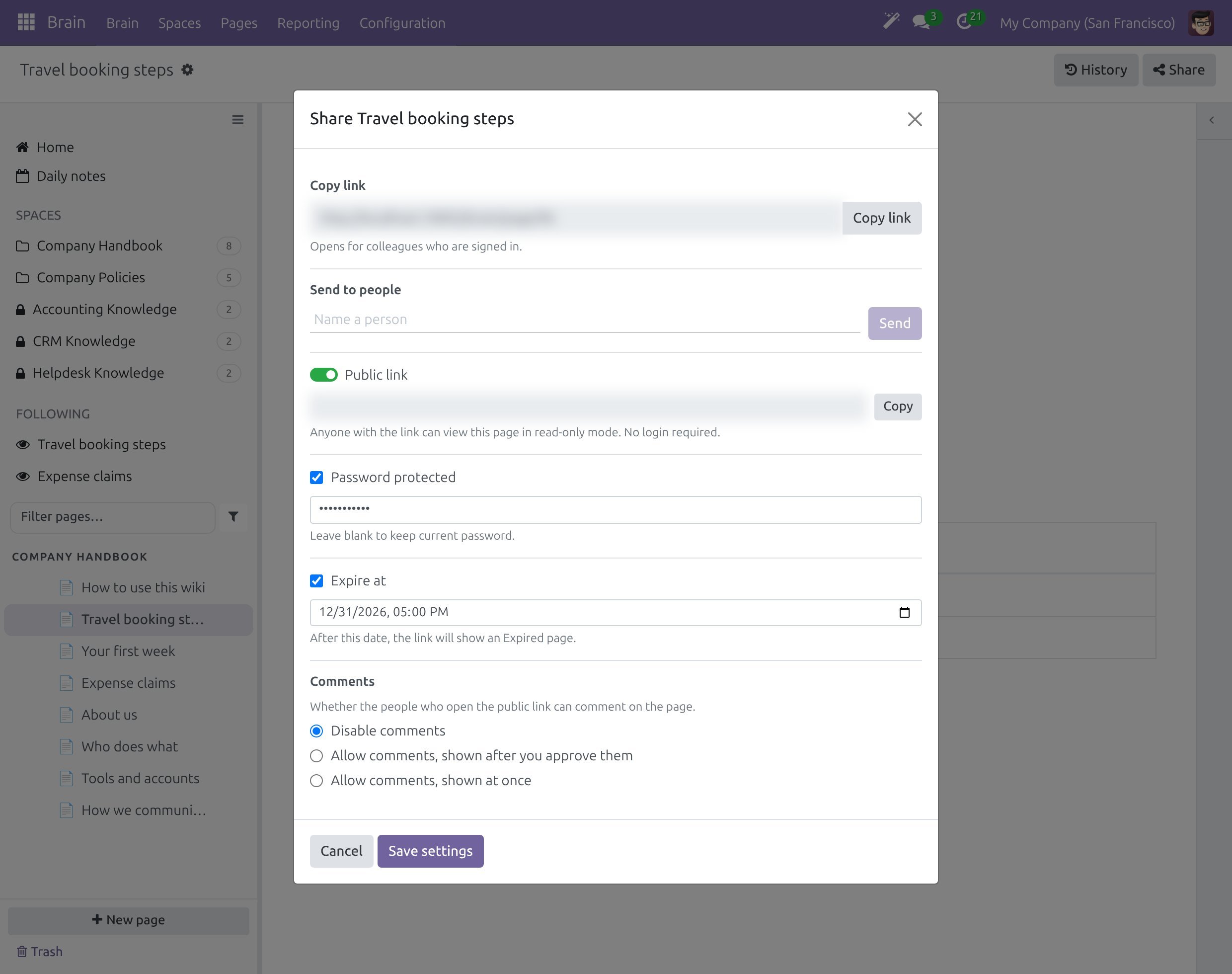
In the Share dialog, turn on Public link. Anyone with the address can read the page, in read-only mode, without signing in.
Choose the options you need:
Password protected: visitors must type the password. Type it in the password field. When you reopen the dialog, leave it blank to keep the current password.
Expire at: the date and time after which the link shows an Expired page.
Comments: Disable comments, Allow comments, shown after you approve them or Allow comments, shown at once. With moderation, a visitor’s comment waits in (a wiki admin menu) until it is approved.
Click Save settings. Copy the address with Copy.
To end the public link, click Revoke link… at the bottom left, then Confirm revoke. A revoked link stops working at once. Wiki admins find every link of the company in .
What Ends a Link
Revoke link… ends the public link of the page.
Cancel the links sent outside the space ends the signed links.
Marking the page as Restricted ends its public links and cancels the signed links.
Turning the page into a daily note does the same.
Warning
A restriction or a daily note ends the links for good, including the links already sent. Create a new link if the page may be shared again.
A signed link also stops opening a page that is deleted, restricted, a daily note or a draft.
Limits
A page that is a draft cannot be shared. Share answers that the page is a draft and can be shared once its owner approves it (see Submit and approve page changes).
A daily note and a restricted page cannot be sent by a link.
A reader who is not an Editor or Space admin only sees Copy link.
Success Checkpoint
Copy link opens the page for a colleague who is signed in.
A contact outside the company opens the page from the signed link and sees this page only.
A public link with a password asks for the password, and shows the page after it is typed.
After Revoke link… and Confirm revoke, the public address no longer opens the page.
Common Problems
Problem |
What to do |
|---|---|
Send says a person cannot read this page yet. |
The person has no access to the Space. A Space admin clicks Add as viewer or Add as editor; an Editor clicks Request access. |
Nothing was sent to a contact outside the company. |
The contact has no e-mail address. Add one on the contact and send again. |
Only editors and Space admins can send a page outside. |
Ask a Space admin of the Space to send it, or to give you the role Editor. |
Share says the page is a draft. |
Submit the page for approval first (see Submit and approve page changes). |
A link I sent stopped working. |
The page was restricted, turned into a daily note, deleted or cancelled. Create a new link. |
Next Steps
Submit and approve page changes - why a draft page cannot be shared yet.
Print and use Markdown files - send the content itself as a PDF or a Markdown file.
Set up Spaces, templates and access - roles and access of a Space.