
Quote an LCL shipment by volume and weight
Guide information
Requirements
This tutorial requires the installation of the following applications/modules:
Freight Sale - required for the FCL and LCL quotation wizards. Check Installed Apps before starting; it may install automatically when all its dependencies are present.
Supplier-Based Pricelist - installed as a dependency of Freight Sale.
An LCL shipment is billed by whichever is larger between its volume and its weight, not by the number entered on the order line - quoting on volume alone when the weight would actually charge more means the customer is under-quoted and the shipment loses margin the moment costs come in. Viindoo computes this billable weight-or-measure (W/M) for you the moment both numbers are entered, so this page exists to make sure Sales enters both, checks the result, and does not let a partial entry through. If a term such as POL, POD, CFS or W/M is new to you, see the Freight forwarding glossary.
Running scenario: Hai Long Logistics quotes Tay Nguyen Coffee Export Co., Ltd. for an LCL export of 12 CBM / 7,200 kg of unroasted green coffee beans, route Hai Phong Port to Port of Singapore (PSA), carrier Wan Hai Lines, service scope CFS to CFS. The ocean freight buy rate is USD 18 per CBM and the price agreed with the customer is USD 25 per CBM, plus a CFS handling charge at Hai Phong Port.
Before you start
A rate card for Wan Hai Lines, Hai Phong Port to Port of Singapore (PSA), load mode LCL exists and is still valid - see Maintain carrier rates and vessel schedules.
A CFS Handling Fee local charge for Hai Phong Port exists, with a List Price of VND 320,000 for the agreed pricing basis. This example charges the fee on 12 CBM; check the product unit and quotation currency before sending.
You are in the Sales group so you can create and edit quotations.
Step 1: Start the LCL quotation
The product on the order line decides which schedule wizard becomes available - add an FCL product here and the Select Sailing Schedule (LCL) button never appears in Step 2.
Go to and click New.
Customer: Tay Nguyen Coffee Export Co., Ltd.
Order Lines - Product: Ocean Freight - LCL.
After you add the line:
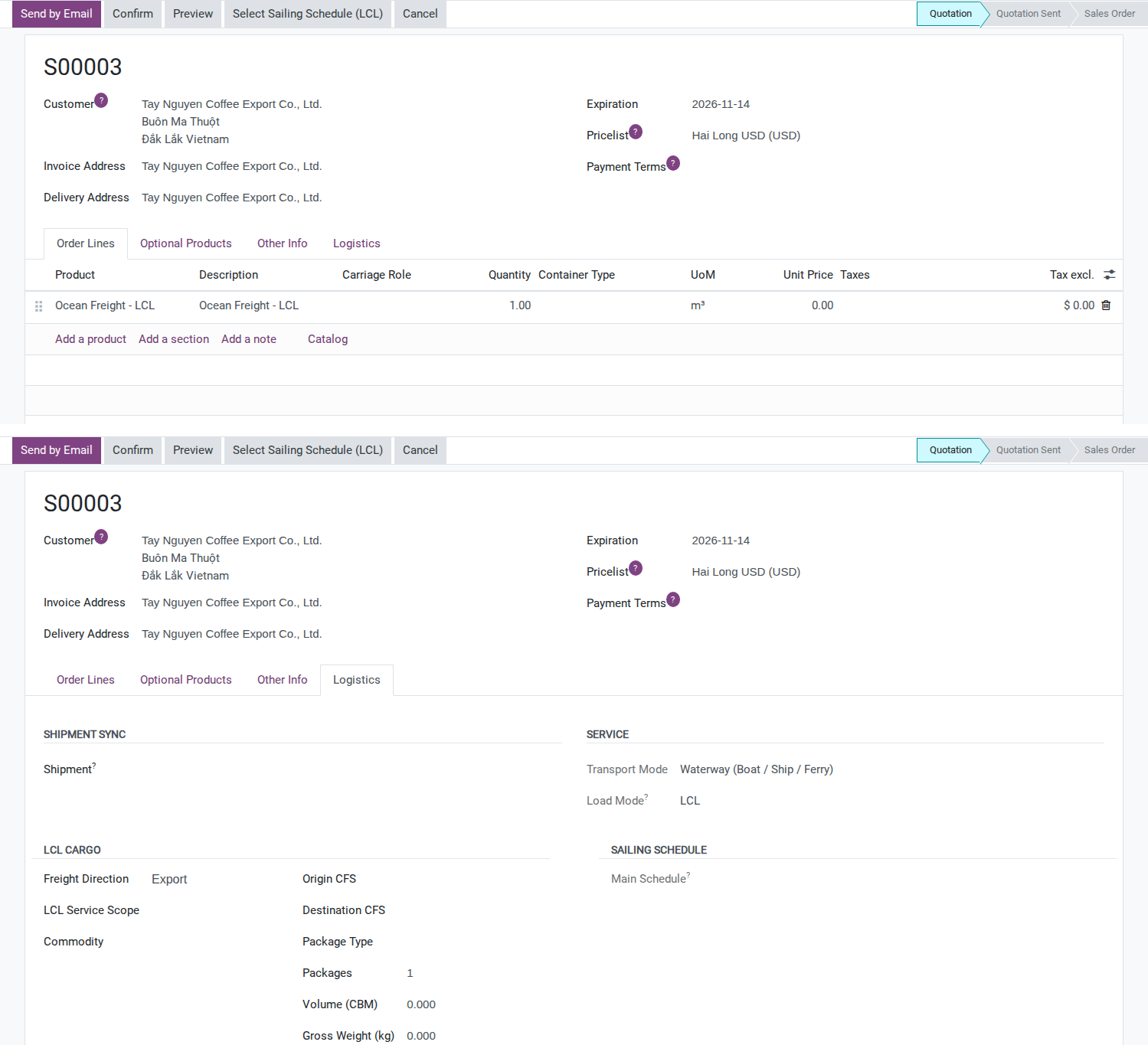
The LCL Cargo group appears in the order’s Logistics tab. Enter the cargo details in the wizard below; the initial package count defaults to 1 and volume and weight are zero.
The Select Sailing Schedule (LCL) button appears in the header.
Tip
Step 1 is done when:
The LCL Cargo group is visible in the Logistics tab.
The Select Sailing Schedule (LCL) button is visible on the header.
See also
A customer filling whole containers is quoted with the FCL wizard instead: Quote a full container load for sea export.
Step 2: Search and select a sailing rate
The lane entered here decides which rate cards the comparison table can find - a lane typed differently from the rate card (for example the wrong port) returns an empty table even when a valid rate card exists for this carrier.
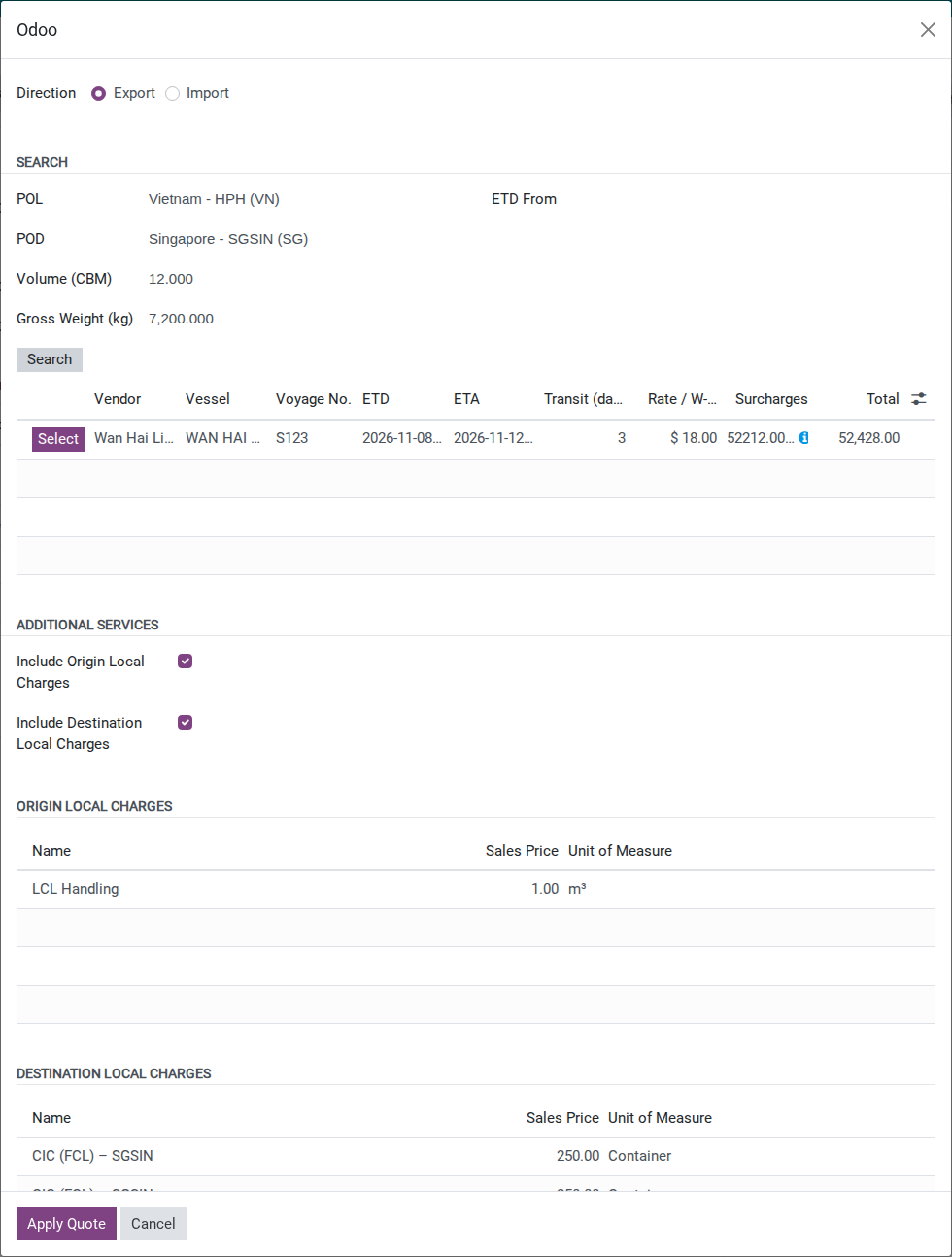
Click Select Sailing Schedule (LCL) and fill in:
Direction: Export.
POL: Vietnam - HPH (VN) (Hai Phong Port).
POD: Singapore - SGSIN (SG) (Port of Singapore).
Volume (CBM): 12.
Gross Weight (kg): 7,200.
Click Search. The comparison table lists every rate card configured for that lane, regardless of who operates it:
Warning
Surcharges and Total are comparison estimates, not the customer quotation total. The wizard combines product List Prices without converting their currency or respecting each surcharge’s billing unit. Check the included products, currency and quantity basis before using these estimates. For this scenario, clear both local-charge options and add the agreed CFS fee manually in Step 4.
Select the Wan Hai Lines row and click Select.
Warning
If the table is empty, do not type a price by hand. The wizard tells you exactly why - see Troubleshooting below - and the fix is always to add or fix a rate card, never to guess a number.
Tip
Step 2 is done when:
The Wan Hai Lines row has been selected.
The Selected Schedule group shows the carrier and the lane Hai Phong Port to Port of Singapore (PSA).
Step 3: Fill cargo basis and check the billable W/M
This is the step the system uses to compute the billable W/M for you - the point is to stop Sales from comparing CBM and tonnes by hand and getting it wrong.
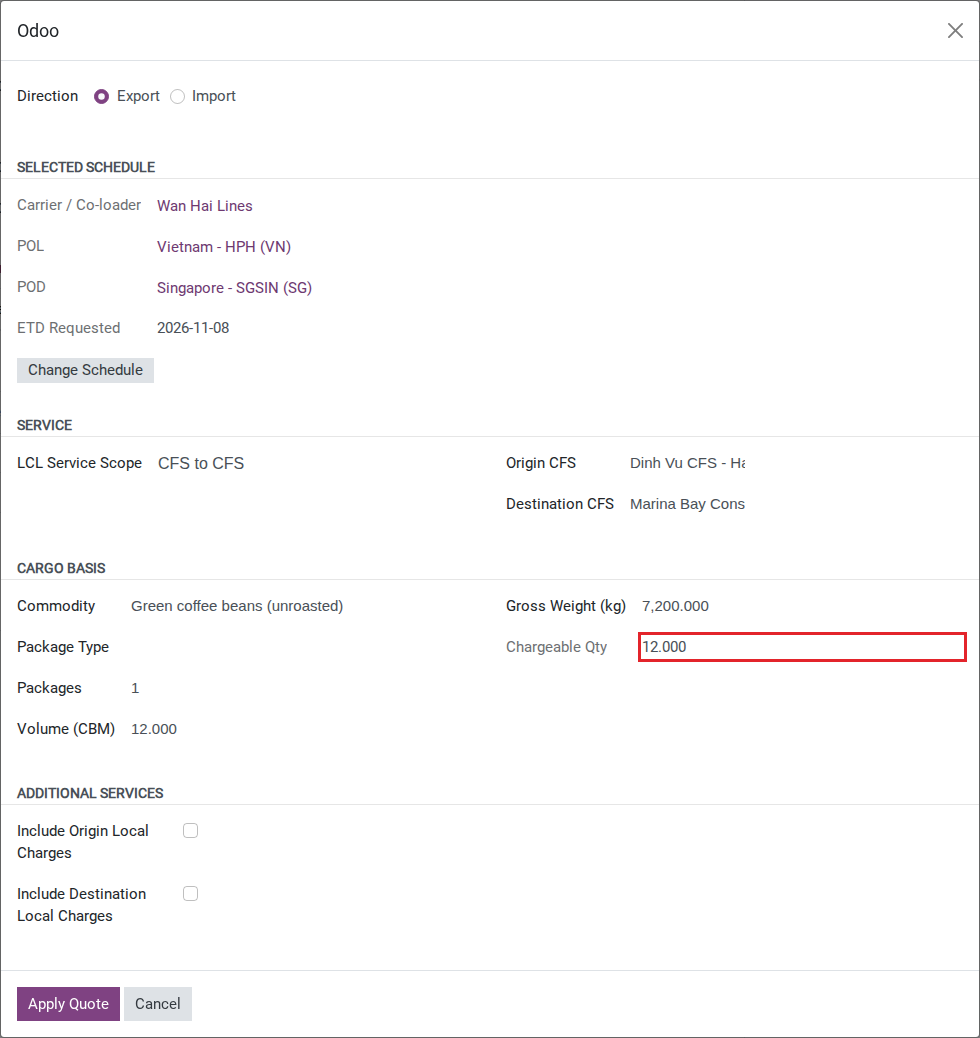
LCL Service Scope: CFS to CFS.
Origin CFS: Dinh Vu CFS - Hai Phong.
Destination CFS: Marina Bay Consol Agency Pte. Ltd.
Commodity: Green coffee beans (unroasted). Record HS 0901.11 on the shipment cargo when Operations creates it.
Chargeable Qty recomputes immediately to 12 (read-only) - the system takes the larger of 12 CBM and 7.2 tonnes, and 12 wins.
Tip
Step 3 is done when: Chargeable Qty reads 12, not 7.2. If it reads 7.2, the Volume (CBM) entered in Step 2 was lost or never saved - go back and re-check it before continuing.
Step 4: Apply the quote and review local charges
Applying the quote is when the selling price and the CFS charge are actually written to the order - get either one wrong here and the wrong figure goes to the customer.
Clear Include Origin Local Charges and Include Destination Local Charges before applying this quotation. The wizard initially suggests a generic LCL Handling product and destination charges available in the database. Those suggestions are not the agreed Hai Phong CFS fee: add that fee manually below. Marina Bay bills the consignee directly for destination CFS handling, so this quotation excludes destination charges.
Click Apply Quote.
After you click Apply Quote:
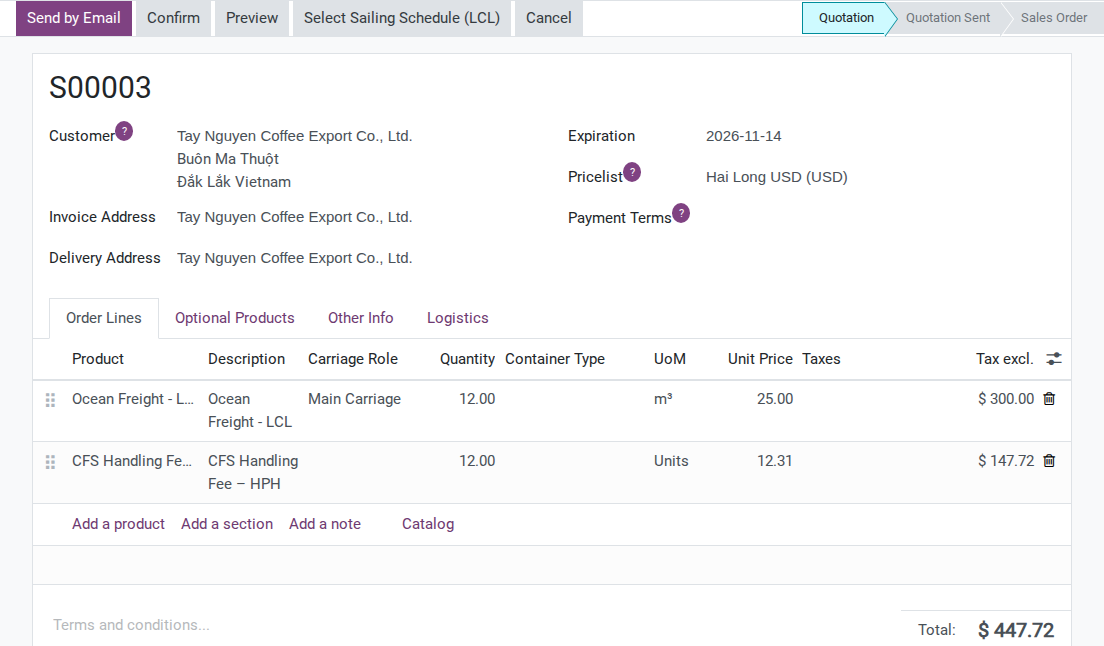
The Ocean Freight - LCL line reads Quantity 12, Unit Price USD 18.00 - the rate card’s buy price, copied as-is unless the customer’s pricelist has a “Supplier Price List” rule with a markup configured . Edit it by hand to USD 25.00, the price agreed with the customer.
With both local-charge options cleared, Apply Quote adds no local-charge lines. Add the agreed CFS fee by hand: Product: the CFS Handling Fee of Hai Phong Port (its name ends in HPH), Quantity: 12, Unit Price: USD 12.31. The order uses USD, so this line must use USD too: VND 320,000 / 26,000 VND per USD, rounded to two decimals. Check the converted price and enter 12.31 manually if the pricelist did not convert it.
Tip
Step 4 is done when:
Ocean Freight - LCL reads Quantity 12 x Unit Price USD 25.00 = USD 300.00 (not USD 18.00).
The CFS Handling Fee line reads Quantity 12 x Unit Price USD 12.31 = USD 147.72. The quotation total is USD 447.72.
Step 5: Send the quotation and confirm after acceptance
The printed quotation does not explain the W/M basis on its own - skip this step and the customer receives an invoice line reading “12” with no explanation of where it comes from.
Set Expiration (the standard Sales validity field) to 10 days from today.
Add a note to the order (Terms or an internal note) explaining the basis in the customer’s own numbers, for example: “Charged on W/M: the larger of CBM and tonnes. This shipment: 12 CBM versus 7.2 tonnes, so 12 revenue tons apply.”
Click Send by Email or Print to deliver the quotation, following the standard Odoo Sales flow.
When the customer accepts, click Confirm.
After you click Confirm:
The order moves to Sales Order.
A shipment is created automatically and its Commercial Handoff moves from Not Handed Off to Handed Off, with a timestamp.
Important
The new shipment’s Shipment Role defaults to Direct - it is not automatically a House under a Master. Operations must assign it into this week’s console at Consolidate LCL export shipments under a master; Sales cannot do this from here (see Known limitations).
Tip
Step 5 is done when:
The Shipments smart button on the order reads 1.
The new shipment shows Commercial Handoff Handed Off.
Decide the LCL service scope
Option |
Use when |
What changes |
|---|---|---|
CFS to CFS |
The customer delivers the cargo to the origin CFS itself and collects it from the destination CFS |
No pickup charge line is added by Apply Quote; this matches the scenario on this page |
Door to CFS |
Hai Long Logistics arranges pickup from the shipper’s warehouse to the origin CFS |
A Pickup Location becomes required, and ticking Include Pickup Charge adds a trucking line at the vendor’s price |
Choose CFS to CFS only when the customer delivers to the origin CFS and collects from the destination CFS. Use Door to CFS when the agreed service includes pickup from the shipper. If the quotation does not identify these endpoints, ask Sales/Pricing to confirm before applying it.
Known limitations
Step |
What Viindoo does today |
What you do instead |
|---|---|---|
Search for a sailing rate (Step 2) |
The table lists every rate card for the lane without labelling its source, and there is no concept anywhere of a weekly console plan or remaining space |
Decide which source to trust when the rate card is set up (Maintain carrier rates and vessel schedules), and confirm space with Operations before committing an ETD to the customer |
Apply the quote (Step 4) |
Sharing a console’s buy-side cost across its houses by CBM does not happen at quoting time - the sell price here only marks up the buy rate of the lane you selected. Splitting the Master’s actual costs by CBM only happens later, in Allocate Costs, once real costs exist |
Do not look for a cost-sharing step on this page; it runs after the fact, on the Master shipment |
Apply the quote (Step 4) |
The minimum charge (by default 1.0 revenue ton) is never shown or checked in this wizard - it is only applied, silently, on the House’s own sell charge when the Master’s booking is confirmed |
For a very small house (under 1 CBM or 1 tonne), ask Operations for the current minimum-charge parameter and compare it by hand before quoting the customer |
Apply the quote (Step 4) |
An origin local charge is added only when its name contains LCL Handling (or Origin CFS, on a product tied to the POL); even then its Quantity equals Chargeable Qty only when its Unit of Measure is the core cubic meter unit, and its Unit Price is the List Price |
Add the CFS charge line by hand, with Quantity = Chargeable Qty, and check its price before sending |
Send the quotation (Step 5) |
The standard Quotation PDF does not explain the W/M basis anywhere on the page |
Type the explanation into the order’s Terms/notes, or into the email sent with the PDF |
Confirm (Step 5) |
Sales cannot assign the new shipment into a console: Shipment Role and Master Shipment are not writable by the Own Shipments group, and are not on the list of fields Commercial Handoff is allowed to write |
Hand off and stop - Operations assigns the shipment into the week’s console at Consolidate LCL export shipments under a master |
Troubleshooting
The comparison table comes back empty after Search
Symptom: After clicking Search, the “Available Rates” table stays empty.
Cause: No rate card covers this exact lane.
Fix:
Read the message the wizard shows - it names the lane, for example “No carrier rate card covers Hai Phong Port -> Port of Singapore (PSA). Add a rate for this lane under Freight Forwarding > Rates Management > Buying Rates > Carrier Rates.”
Open Maintain carrier rates and vessel schedules, add or fix the rate card for this lane, then search again.
Do not type a price by hand.
Apply Quote is blocked with a list of missing fields
Symptom: Clicking Apply Quote shows “Please fill in the following required fields: Origin CFS, Destination CFS”.
Cause: One of Origin CFS, Destination CFS, Commodity is empty, or both Volume (CBM) and Gross Weight (kg) are 0.
Fix:
Fill in every field named in the message.
Click Apply Quote again.
See also
Related articles
Optional modules