
Use the AI assistant in Brain
Guide Overview
The AI assistant features of the wiki come from the Viindoo AI - Brain Bridge add-on. The assistant works with your own access: it reads only the pages you may read and writes only where you may write. You stay in control: text it writes into a page waits for review where the Space rule says so, and Ctrl+Z takes it back.
Note
The assistant answers through the company’s AI connection. The ready-made connection is a default that your administrator can change, so the quality and the speed of the answers follow the connection. Check an answer before you rely on it (see Connect AI vendors and choose data location).
Before You Start
You need |
Why |
|---|---|
Role Viewer or higher in a Space |
To search the wiki, ask the assistant and save its answers. |
Role Editor in the Space |
To write pages with the assistant. |
An AI connection set up by your administrator |
Without one, the assistant answers with a message instead of an answer (see Use the AI assistant). |
Ask the Assistant from the Search Box
Go to .
Type your question in Search the wiki.
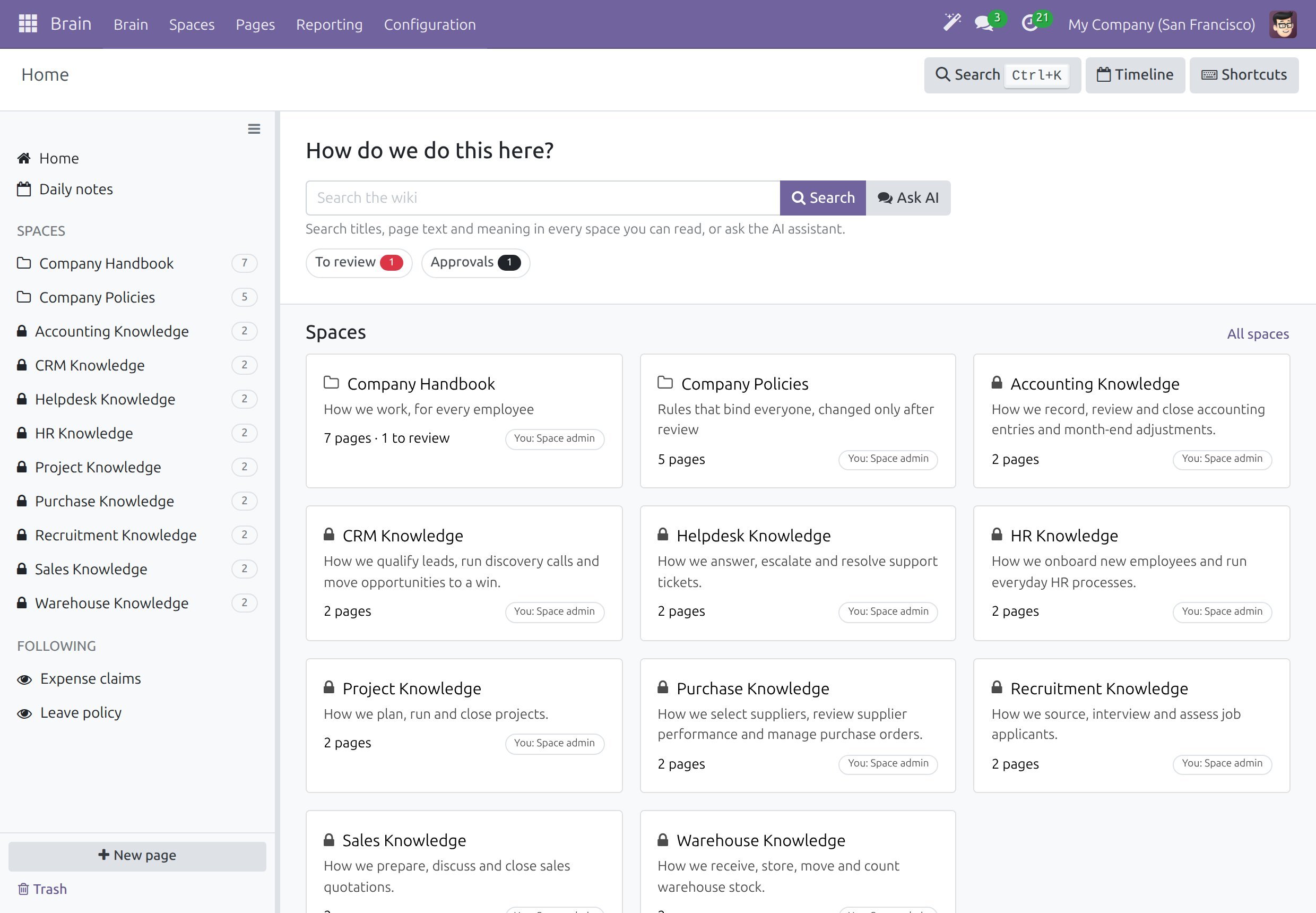
Click Search to look through the wiki, or Ask AI to hand the question to the assistant.
A chat window opens beside the page. Your question is posted as your own message, and the answer appears under it. A line below the answer names the assistant, the connection and the model that answered.
The Ask AI button is also on the results page, beside the search box of a Space, and under Not what you need? when a search finds nothing (see Search the wiki). With an empty search box, Ask AI only opens the assistant.
The conversation stays in the AI Assistant section of Discuss, where you continue it or start another (see Use the AI assistant).
Find Pages by Meaning
When the wiki is searchable by the assistant, the results page adds a group, Related by meaning. It lists pages that answer the same thing in other words, even in another language, among the pages you may read. A sentence that lives only in a bullet or a numbered item of a page counts as page text, so such a page is found as well.
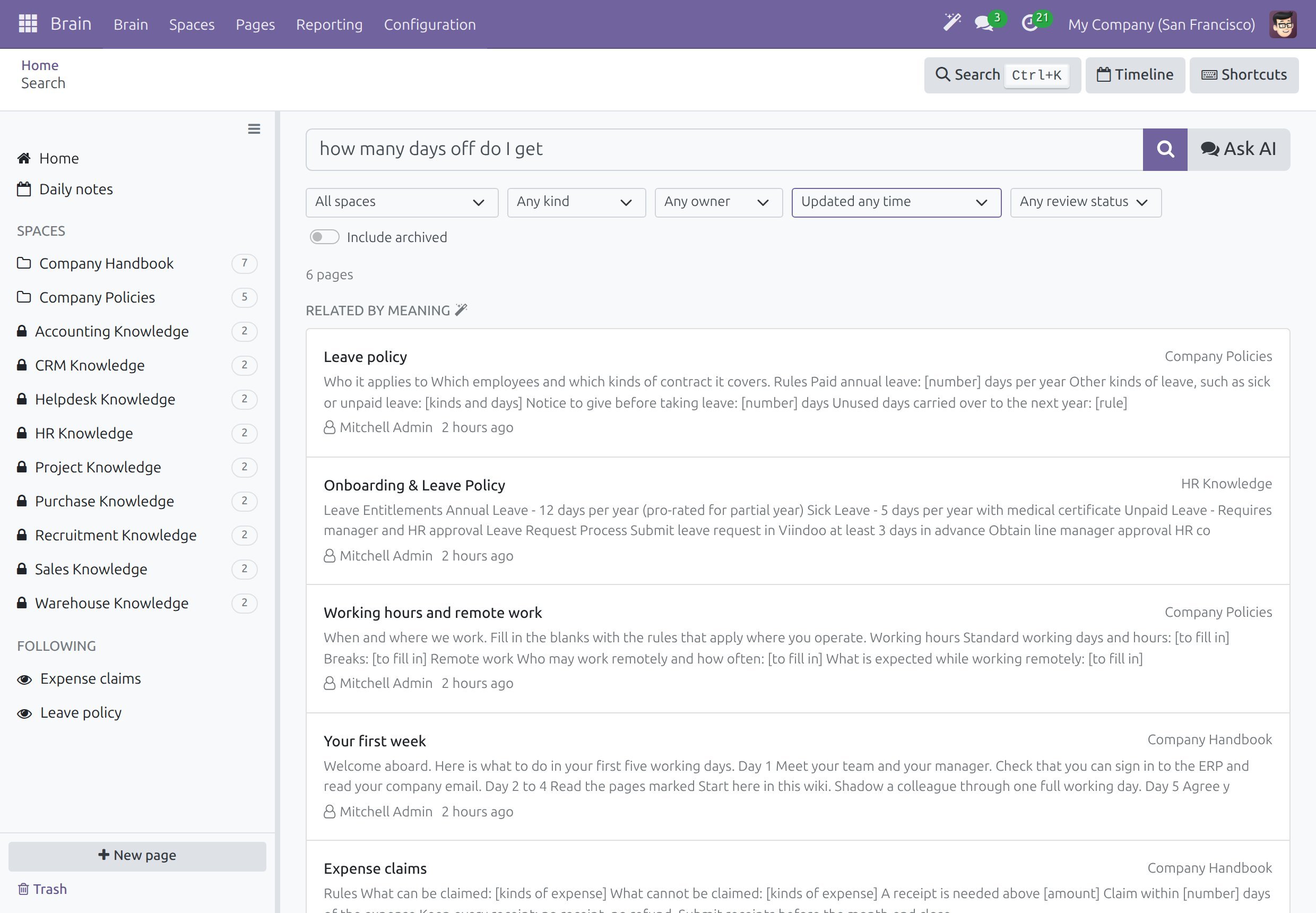
A page appears only when it is close enough to your question, so a question that means nothing to the wiki lists no page. When the group cannot run, the page says that the search by meaning is unavailable and still shows the title and text matches. A wiki admin makes the wiki searchable (see Review AI changes and set up the wiki).
Write with the Assistant
Start a New Page with Write with AI
Click New page.
Under In space, choose the Space, and type the page title.
Click Write with AI.
The page is created in that Space and opens with the Write with AI dialog on it.
Describe What You Want
The same dialog opens inside any page: type / and choose AI: Write.
Write what the assistant should write, or click a suggestion: Summarize this page, Extract action items, Translate to your language, Write a meeting agenda or Draft follow-up email.
Choose where the text goes:
Choice
What happens
Insert at cursor
The text goes where your cursor is.
Replace selection
The text takes the place of the text you selected.
Insert as AI block
The text goes into an AI block that you approve, edit or reject.
Draft the whole page
The assistant writes the text and adds views of the records you may read, as you. The review rule of the Space then applies to the change.
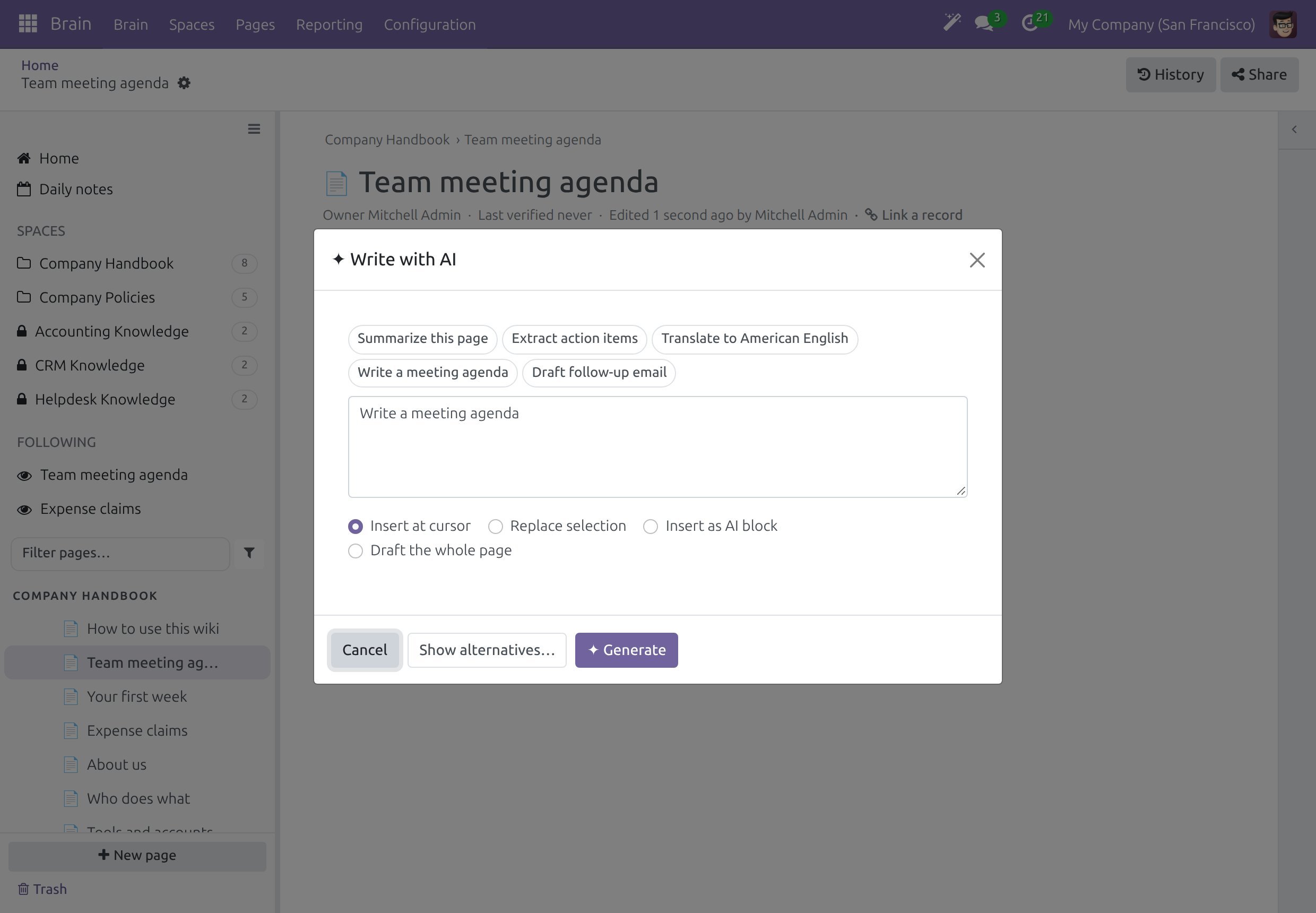
Click Generate. While the assistant works, the button reads Writing….
When the text is placed, a message reads Text added - press Ctrl+Z to undo it. and the dialog closes.
Show alternatives… asks the assistant to rephrase your prompt in several ways so that you pick one before you generate. When the text cannot be placed, for example because the cursor is not in the page, the dialog stays open, keeps the text and offers Copy text: nothing the assistant wrote is thrown away silently.
What You Control
Review. The line of details under the title of the page names the assistant, with a magic-wand icon. Where the Space rule is AI changes or All changes, the page owner is asked to verify it (see Review AI changes and set up the wiki).
Undo. Press Ctrl+Z right after the text arrives. Later, the More menu of the review banner offers Undo AI changes.
Your own edits. The text is yours to edit. Your own edit takes the assistant’s mark off the page.
Note
The text follows the model of the connection. A small model can answer with text that does not fit the page. Undo it and try again with a shorter, more precise prompt or the Insert at cursor choice, or ask your administrator for another model.
Use the AI Group of the Slash Menu
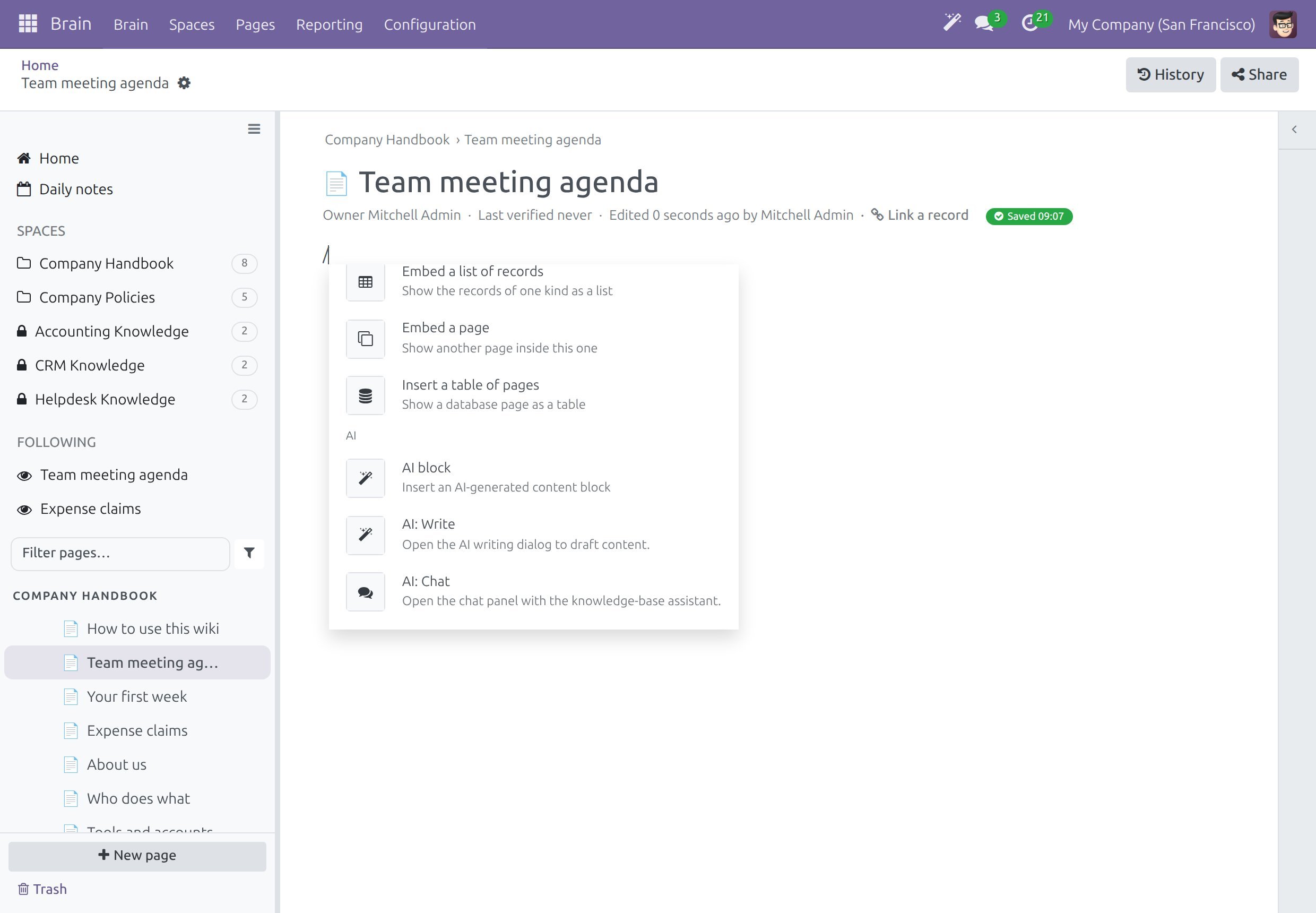
In a page, type / and scroll down to the group AI, which comes after the group BRAIN.
Entry |
What it does |
|---|---|
AI block |
Inserts a block with a prompt box. Write a prompt, or click Summarize, Extract action items or Draft follow-up email, then click Generate. The result waits for you: Approve it, Edit it or Reject it, which removes the block. After you approve, Re-open review goes back. A failed generation offers Retry. |
AI: Write |
Opens the Write with AI dialog described above. |
AI: Chat |
Opens the chat with the assistant beside the page you are writing. |
These entries exist only inside a Brain page.
Keep a Good Answer as a Page
An answer is lost when the conversation scrolls away. Save to Brain turns exactly that answer into a page of your wiki, with the question that led to it.
Open , and choose your conversation in the AI Assistant section.
Wait for the answer to finish, then point at it.
Click the book icon Save to Brain among the quick actions next to the answer.
A message reads Saved to your knowledge base: followed by the page title, with the button Open.
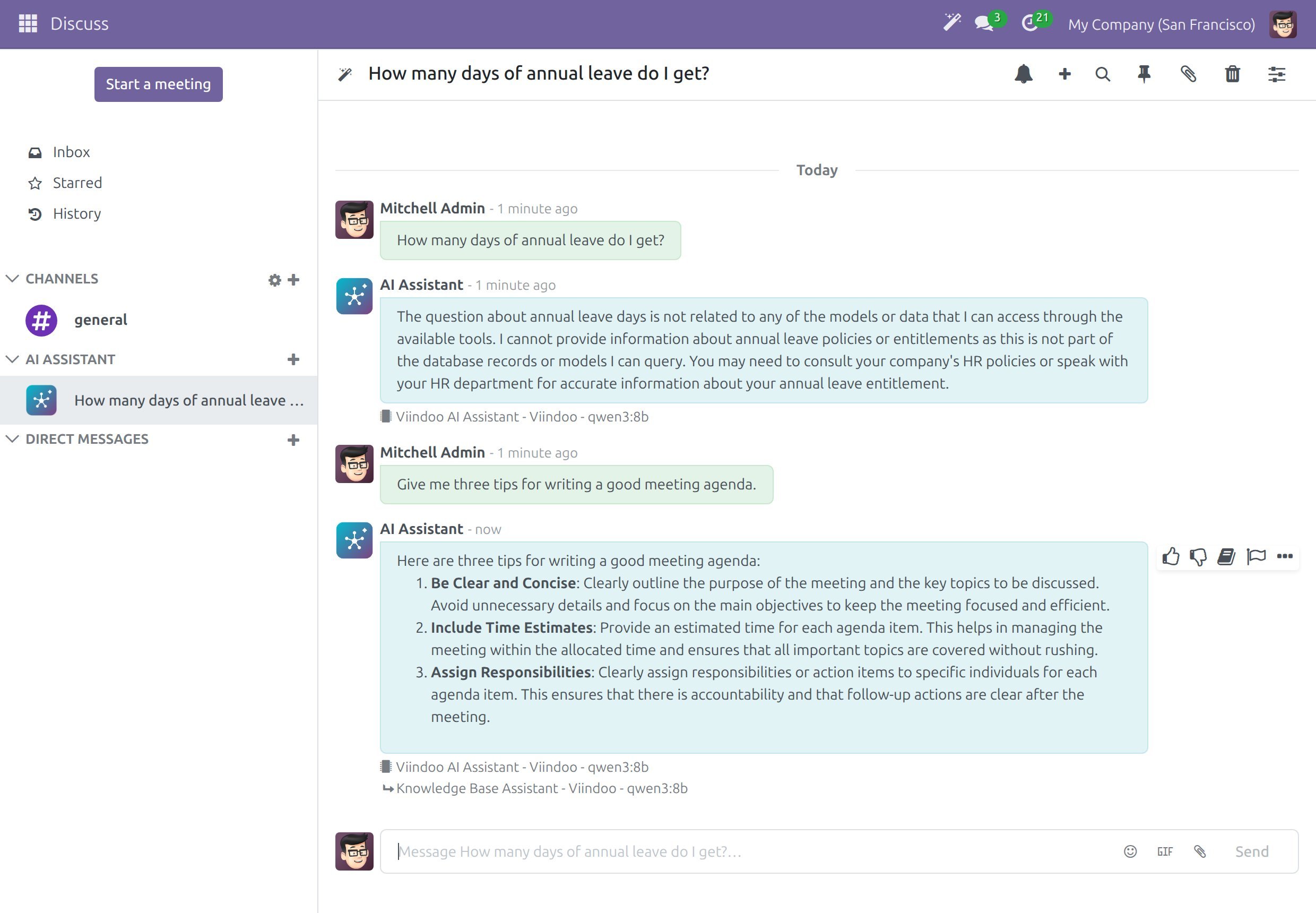
Click Open to see the page.
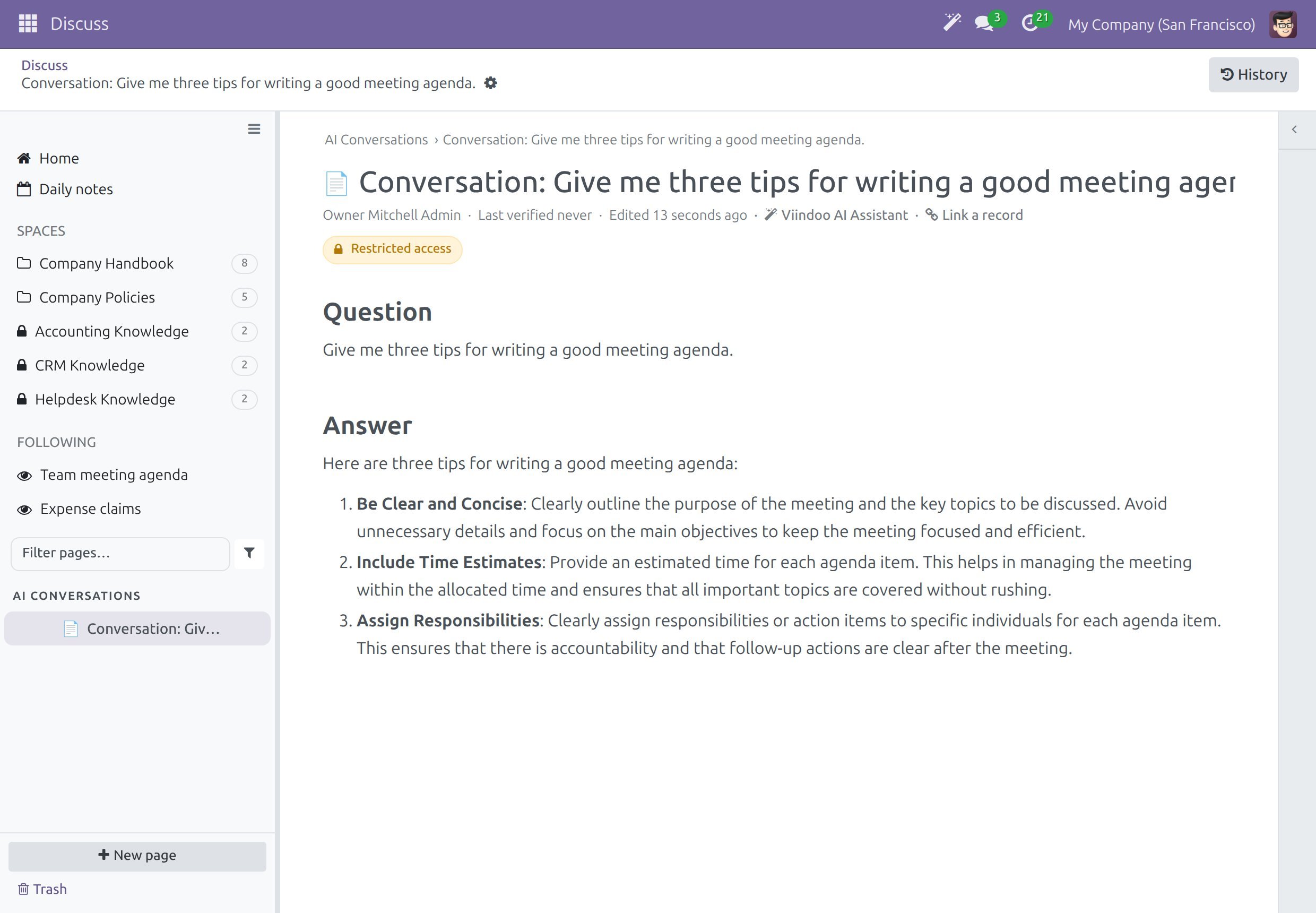
The page sits in the AI Conversations Space and carries Restricted access: only you read it until you share it (see Share a page with people inside and outside). It holds your question under Question, the answer under Answer and, under the title, the name of the assistant.
The action appears only on a finished answer of the assistant, never on your own questions, and an answer that failed cannot be saved. Ask again and save the answer that succeeds.
Nothing is saved by itself. Only your click writes a page.
Saving the same answer twice makes no second copy: the message says that the answer is already in your knowledge base and names the page.
What the Assistant Can Do in the Wiki
The assistant of the wiki searches by meaning, follows the links between pages, lists pages by edit time, reads a page, creates a page or a block, links a page or a record, sets a property, shows live views of your data and rebuilds a record as it was on a past date.
It uses your own access: a page you could not open yourself is not readable or writable through the assistant.
It asks you to confirm before it creates a page or a block, links a record or sets a property.
Everything it writes carries its name, so nothing it writes is anonymous.
See a Linked Record as It Was
When a page links a record of another application, you can see how that record looked on a past date.
Open the page, then in the right panel open the tab Explore and choose Linked record at a date.
Pick a date and click View.
The panel lists the tracked fields of the record as they were on that date. A field the panel cannot reconstruct reads (not tracked), and a record that did not exist yet says that there is no tracked history before the date. The tab appears only on a page that links a record.
Success Checkpoint
Ask AI opens a chat window with your question as your own message.
Write with AI puts text in the page, names the assistant under the title and lets you undo it.
Save to Brain creates a page in AI Conversations that only you read.
Common Problems
Problem |
What to do |
|---|---|
There is no Ask AI button or Write with AI button. |
The add-on is not installed. Ask your administrator. |
There is no Related by meaning group. |
No page is close enough to your question, or the wiki is not searchable by the assistant yet. Ask a wiki admin (see Review AI changes and set up the wiki). |
The answer has nothing to do with the wiki. |
The model of the connection may be too small to use the wiki tools well. Ask your administrator for another model. |
Save to Brain is missing. |
Point at the finished answer of the assistant, not at your own question. Ask again if the answer failed. |
AI block and AI: Write are missing from the slash menu. |
They appear only inside a Brain page, and only where you may write. |
Linked record at a date is missing under Explore. |
The page links no record. |
Next Steps
Review AI changes and set up the wiki - verify or undo what an assistant changed, and make the wiki searchable.
Search the wiki - the other ways to find a page.
Use the AI assistant - the AI assistant outside the wiki.