
Teach the AI assistant
Guide Overview
The assistant answers from the data a person may read. You extend what it can draw on with knowledge sources (documents, pages, recordings and typed text), keep websites up to date with website crawls, and shape how it works through skills and the assistant’s own settings.
Before You Start
You need |
Why |
|---|---|
The Settings access right (system administrator) |
Knowledge Sources is a system administrator menu, and only a system administrator can edit an assistant, a skill or a skill pack. An AI Administrator sees the skill and skill pack lists but cannot change them. |
An embedding connection |
Indexing turns the text into searchable passages through the Embedding Vendor of . The ready-made Viindoo connection covers this (see Connect AI vendors and choose data location). |
Add a Knowledge Source
A knowledge source is a document, page or recording the assistant may use to answer.
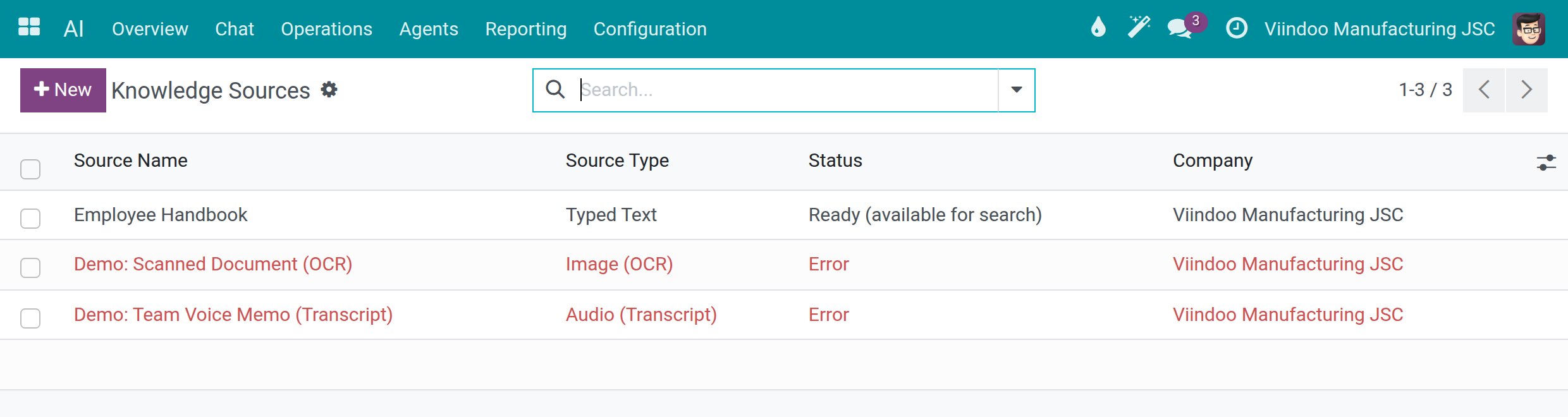
Go to . Each line shows the Source Name, the Source Type, the Status and the Company.
![The list of knowledge sources with one source ready and two in error]()
Click New and type the Source Name.
Choose the Source Type: PDF File, Web Page, Typed Text, Image (OCR), PDF (OCR) or Audio (Transcript). Then give the content: the file, the web page address or the Text Content.
Choose Text Cleaning: None (keep original) or Basic (clean). Set Restricted to User Groups when only some people may see answers drawn from the source.
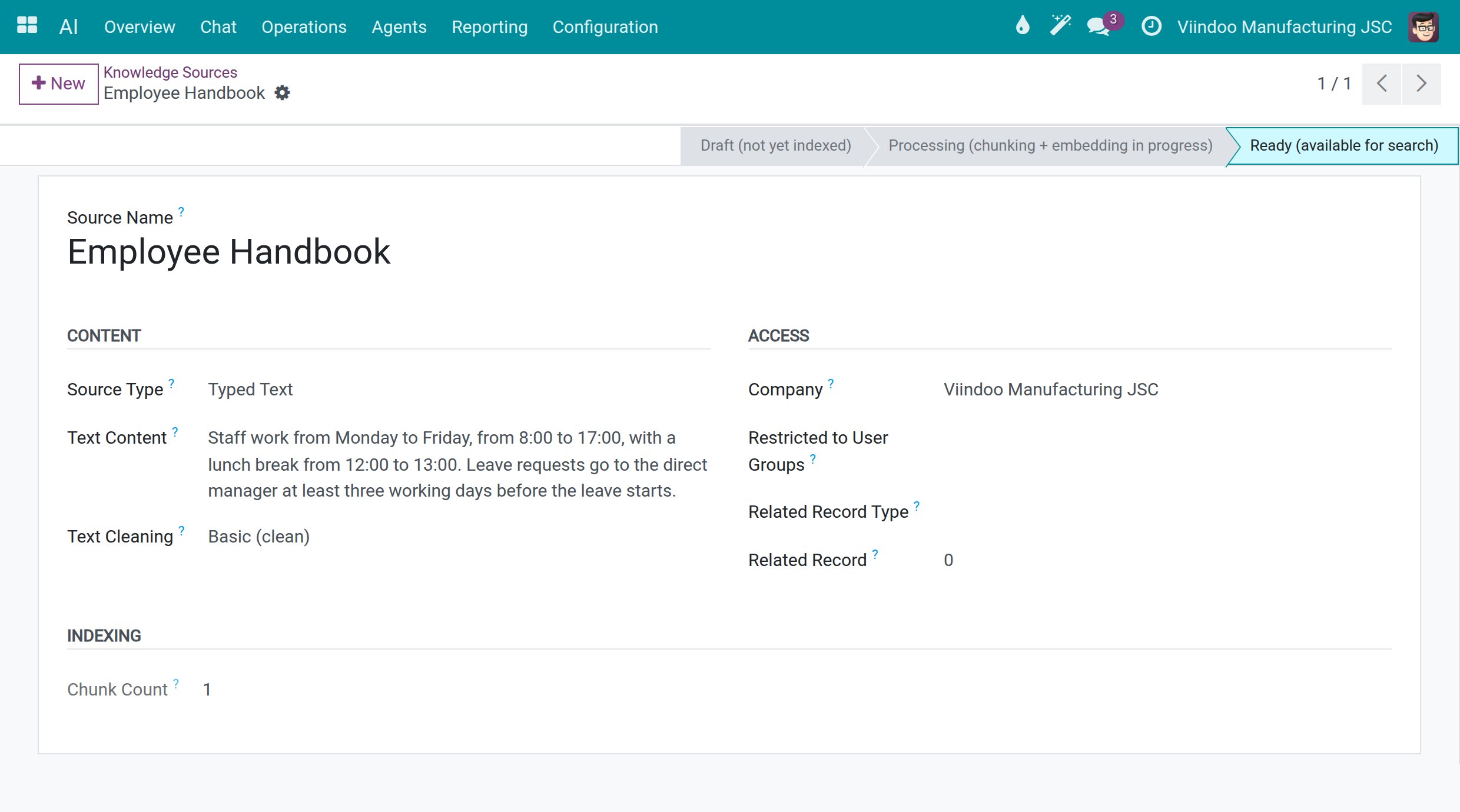
Click Save. The status bar starts at Draft (not yet indexed). A scheduled job named AI: Process Pending Sources picks the source up in the background (it runs every five minutes), moves it to Processing (chunking + embedding in progress) and then to Ready (available for search). Chunk Count shows how many passages were indexed.
![A knowledge source in the Ready state with its status bar and one indexed passage]()
When a source stops at Error, read the reason in the Error section and fix the cause, for example a corrected address or a readable file. Then open the assistant in , go to the Knowledge Sources tab and click Retry failed sources.
Keep a Website Up to Date
Go to and click New.
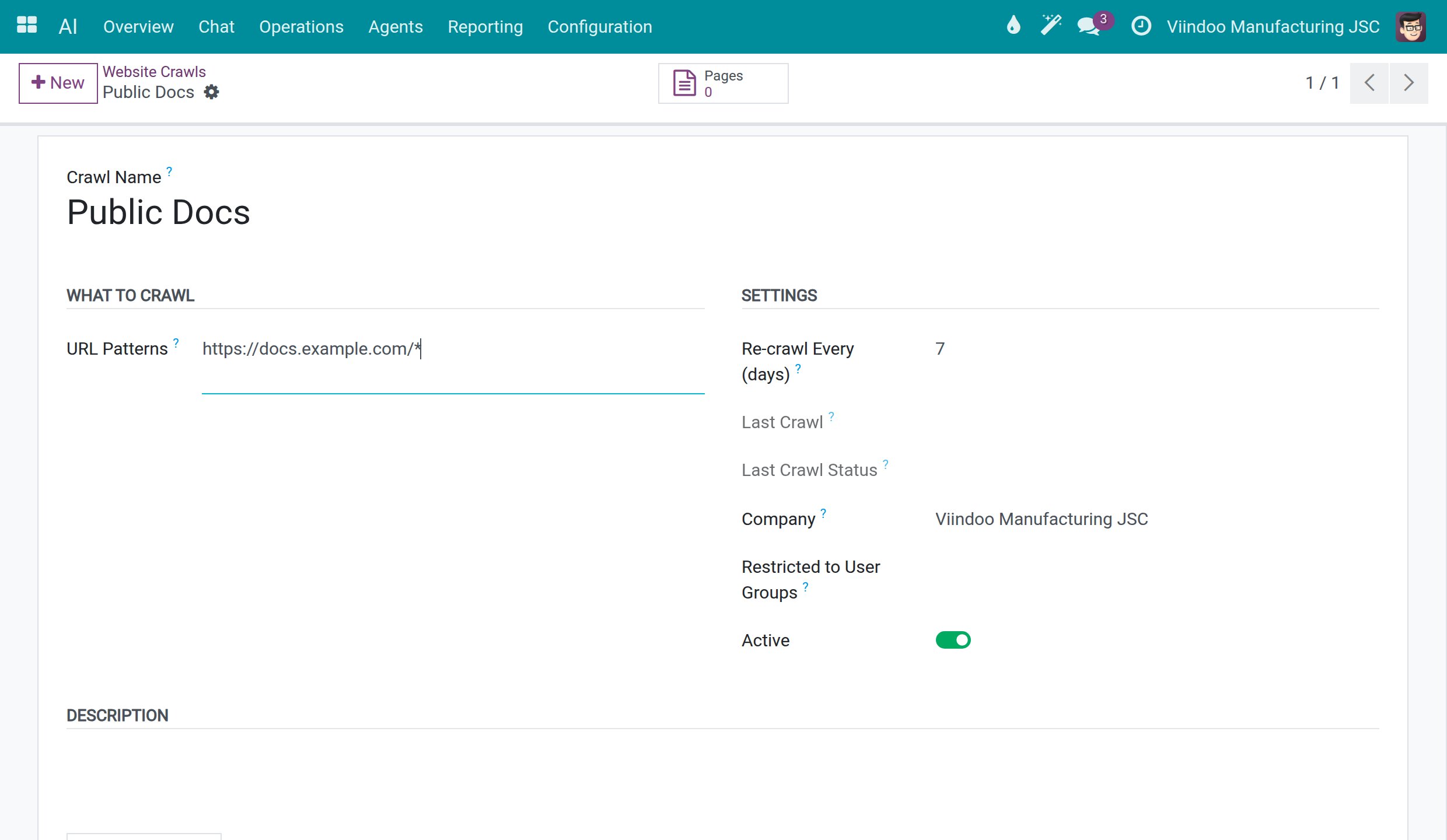
Type a Crawl Name and the URL Patterns, one per line. A
*matches any text, so one pattern covers a whole site; a plain address is fetched alone.Set Re-crawl Every (days) (7 by default), and Restricted to User Groups if needed. Leave Active on.
Click Save. Last Crawl and Last Crawl Status fill in once a crawl has run, and the pages found are listed under Crawled Pages.
![A website crawl rule with its URL pattern and re-crawl schedule]()
The web crawler itself is set in , section Knowledge: Firecrawl URL (leave it empty for the default) and Firecrawl API Key.
Note
Every internal user can open Website Crawls and read the rules. A system administrator or a user with the AI Content Manager right can edit them.
See and Manage Skills
A skill is a set of instructions the assistant loads when a task calls for it, such as a marketing brief or a month-end checklist. Skills come in packs.
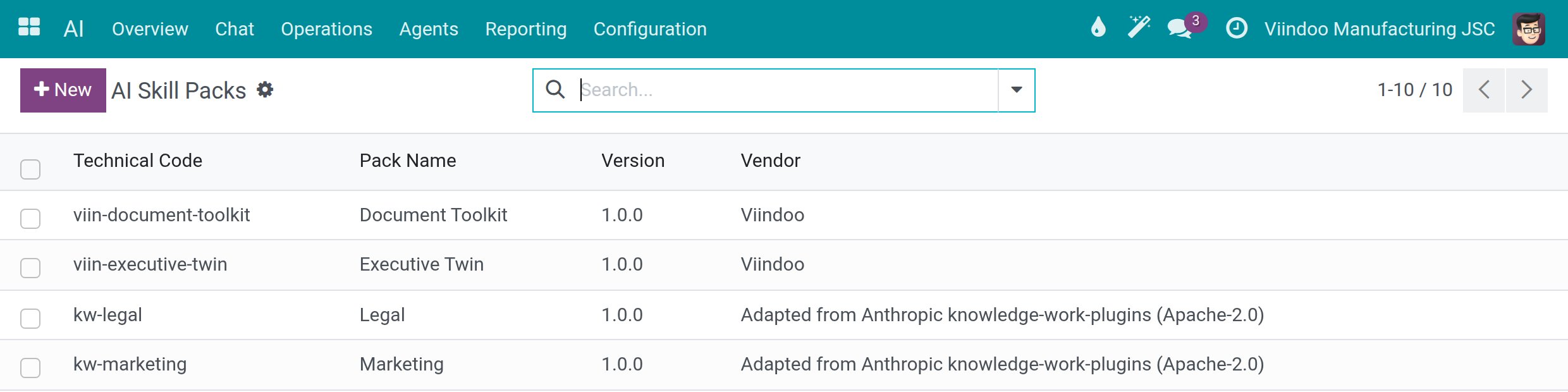
Go to . Each pack shows its Technical Code, Pack Name, Version and Vendor.
![The list of skill packs with their code, name, version and vendor]()
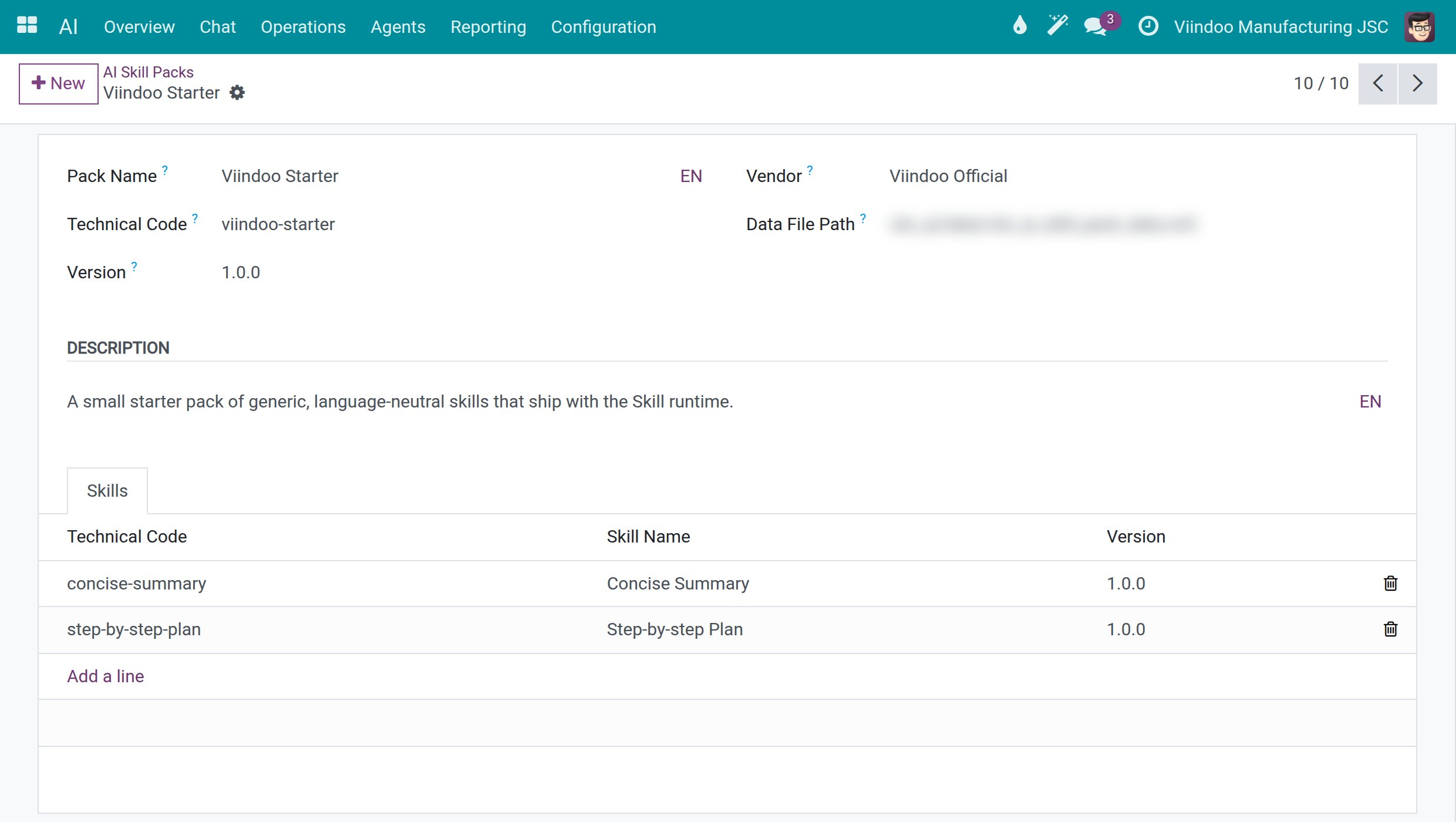
Open a pack to see the skills it carries under Skills.
![A skill pack with the skills it carries]()
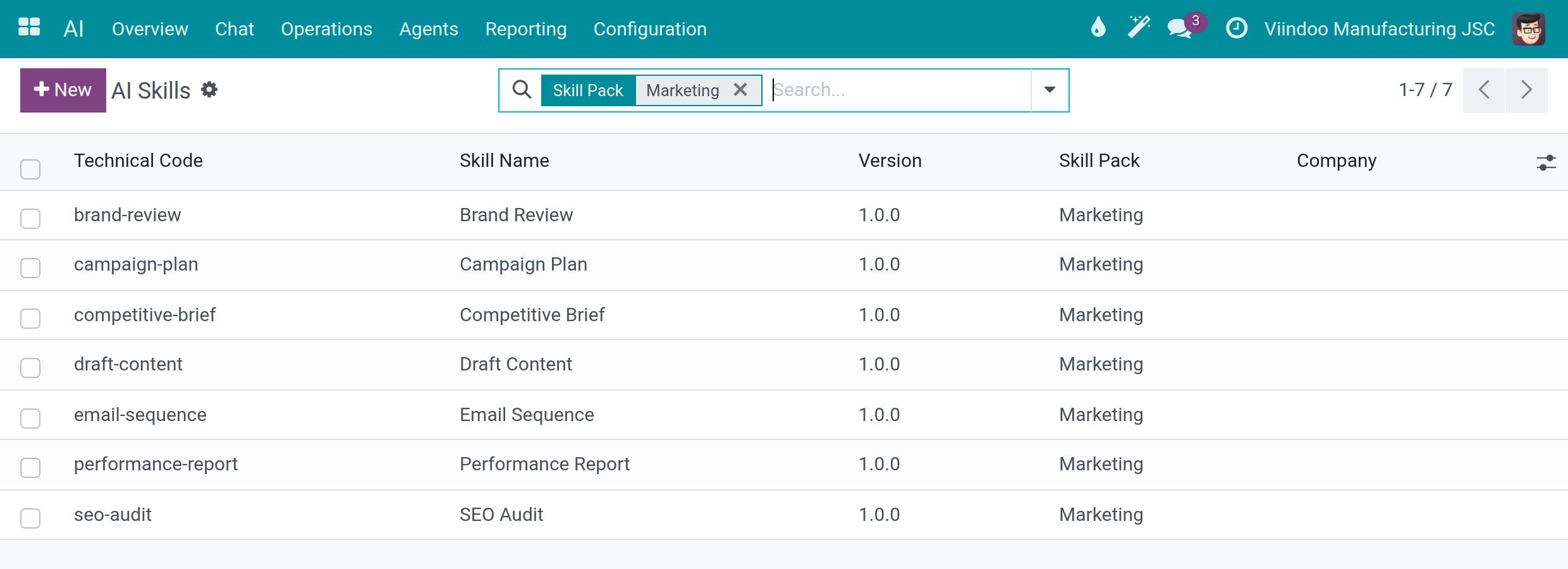
Go to to search every skill, with its Technical Code, Skill Name, Version, Skill Pack and Company. Use the Global and Archived filters and the grouping by pack to narrow the list.
![The list of AI skills filtered on one skill pack]()
Open a skill to read its instructions. Untick Active to retire a skill without deleting it.
Set Up an Assistant
Go to and open the assistant.
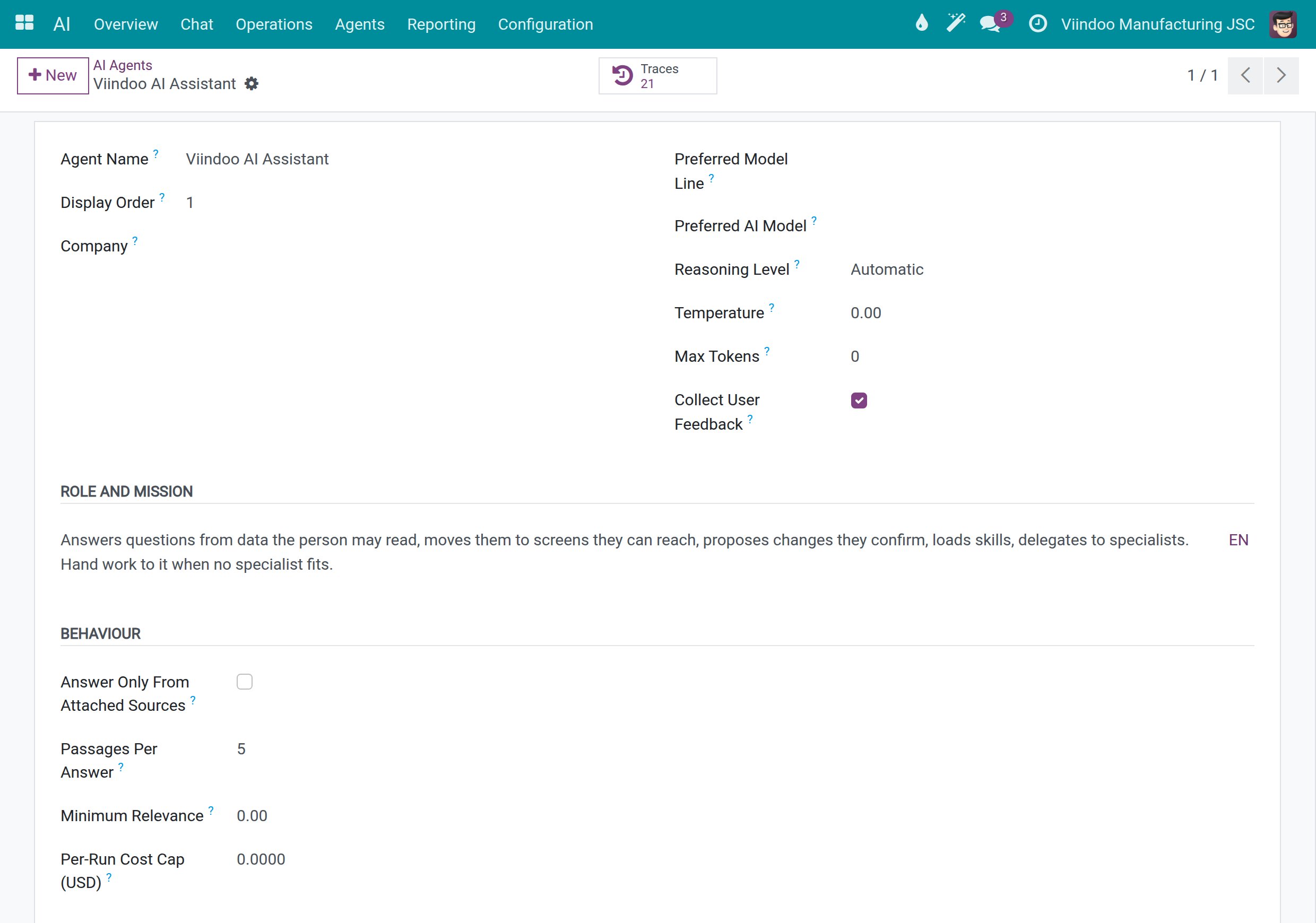
![The form of the Viindoo AI Assistant with its role, mission and behaviour settings]()
Write what it is for in Role and Mission, in a sentence or two. Other assistants read it to decide whether to hand work to this one. The system prompt further down the form says how it behaves.
Pick the Preferred Model Line or Preferred AI Model, the Reasoning Level, and untick Collect User Feedback if people should not see the thumbs up, thumbs down and flag buttons under its answers.
In Behaviour, tick Answer Only From Attached Sources for an assistant that must not mix in its general knowledge, then attach sources on the Knowledge Sources tab. Passages Per Answer and Minimum Relevance tune how many passages are pulled in and how closely related they must be. Per-Run Cost Cap (USD) stops one run when it reaches the limit.
Use the tabs Topics, Knowledge Sources, External Tools and Skills for the rest, then click Save. The Traces button lists the runs of this assistant.
Note
Everyone can read the list of assistants, but only a system administrator can change one. Leave the Temperature and Max Tokens settings at their defaults unless your AI vendor’s documentation tells you otherwise.
Success Checkpoint
A typed-text source shows Ready (available for search) and a Chunk Count above zero.
The website crawl rule is saved, active, and shows its schedule.
You can find the pack and skills you expect, and the assistant keeps its new mission after you save.
Common Problems
Problem |
What to do |
|---|---|
A source stays in Draft (not yet indexed) for a few minutes. |
The scheduled job runs every five minutes. Wait for the next run. |
A source stops at Error. |
Read the Error section, fix the cause, then click Retry failed sources on the assistant. |
You cannot see Knowledge Sources in the menu. |
It is reserved for system administrators. |
You cannot edit a skill or an assistant. |
Only a system administrator can. An AI Administrator can read these lists. |
Next Steps
External tools and feedback - connect external tool servers and review how people rate the answers.
Advanced configuration - the technical lists, and when to leave them alone.