
Define routes and generate freight products from them
Guide information
Requirements
This tutorial requires the installation of the following applications/modules:
Logistics Routes Integration installs itself automatically once Logistics Shipment and the geo-routing modules it depends on are already installed. Freight Forwarder Management is not required for this page, but it adds the menu used below; without it, use instead.
Typing every Freight Leg by hand each time you add a new lane is slow and easy to get wrong. Defining a route once - a fixed pair of endpoints and a transport mode - and generating a product from it in bulk saves that typing whenever Pricing opens several lanes at the same time. Skip this page and each freight service still has to be created and its legs filled in one by one, which is where legs are most often forgotten; a service with no Freight Leg cannot be priced by leg later on, which affects the subcontracted-leg pricing on Buy subcontracted services with purchase orders. If Freight Leg is new to you, see the Freight forwarding glossary.
Running scenario: Hai Long Logistics defines a Waterway route from Hai Phong Port to Port of Los Angeles, then runs the wizard once to generate a freight product from it. This generated product only illustrates the route-to-product shortcut - the quotation for Nhat Long Footwear’s shipment still uses the existing Ocean Freight - FCL service from Set up freight services and local charges.
Define a route
The route fixes one transport mode and an ordered list of waypoints; the wizard later reads both of these to build the freight product’s legs.
Note
Both Routes menus are visible only to the Administrator group of Logistics. The Generate Freight Products action on the list needs at least User: All Shipments.
Go to and click New.
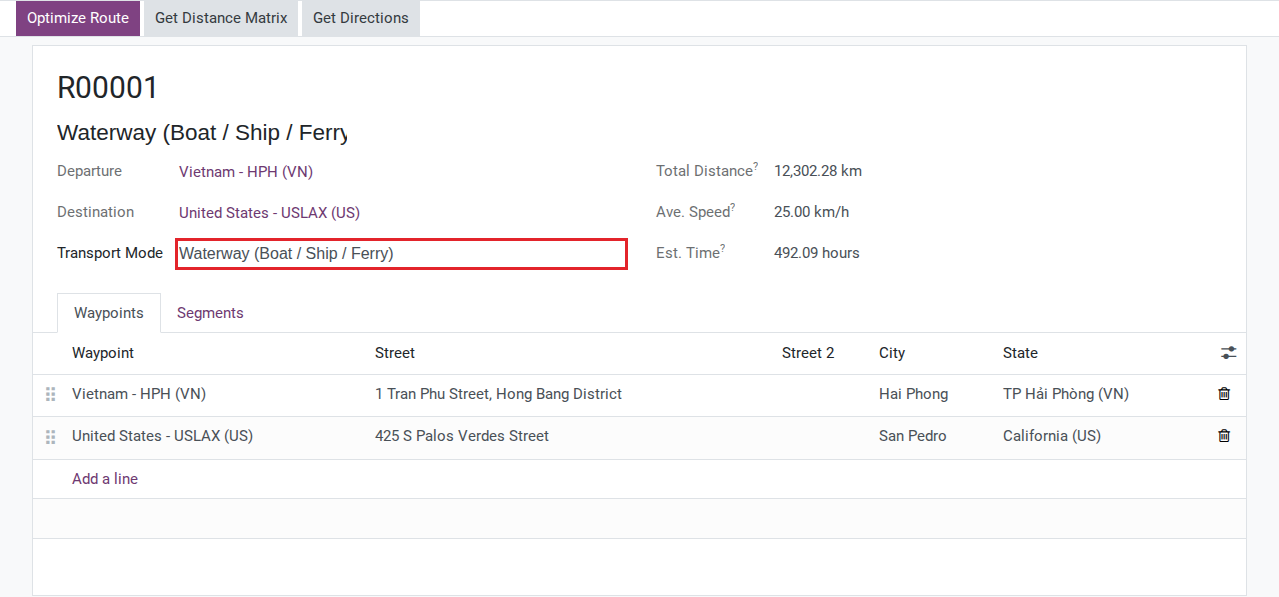
Set Transport Mode: Waterway (Boat / Ship / Ferry).
On the Waypoints tab, add two rows, in this order:
Address: Hai Phong Port.
Address: Port of Los Angeles.
Add any intermediate stop as its own row, in between. Both ports must already exist as contact addresses - do not create new contact records for them.
After the waypoints are set:
Departure and Destination fill in on their own, from the first and the last waypoint - they are not fields you type into directly.
Code and the route’s name are generated automatically.
Note
Code is read-only; Viindoo assigns it from a sequence and it cannot be typed or edited.
Note
The header also has Optimize Route, Get Distance Matrix and Get Directions buttons that call an external map provider to compute distance, duration or turn-by-turn directions. None of them is required to generate a freight product - skip them if no Geo-Direction Provider is configured yet (see Troubleshooting).
Tip
The setup is correct when: the route appears in the Routes list with Departure Hai Phong Port, Destination Port of Los Angeles and Transport Mode Waterway (Boat / Ship / Ferry).
Generate freight products from a route
The wizard turns one or more routes into a single freight product, with one Freight Leg per route selected.
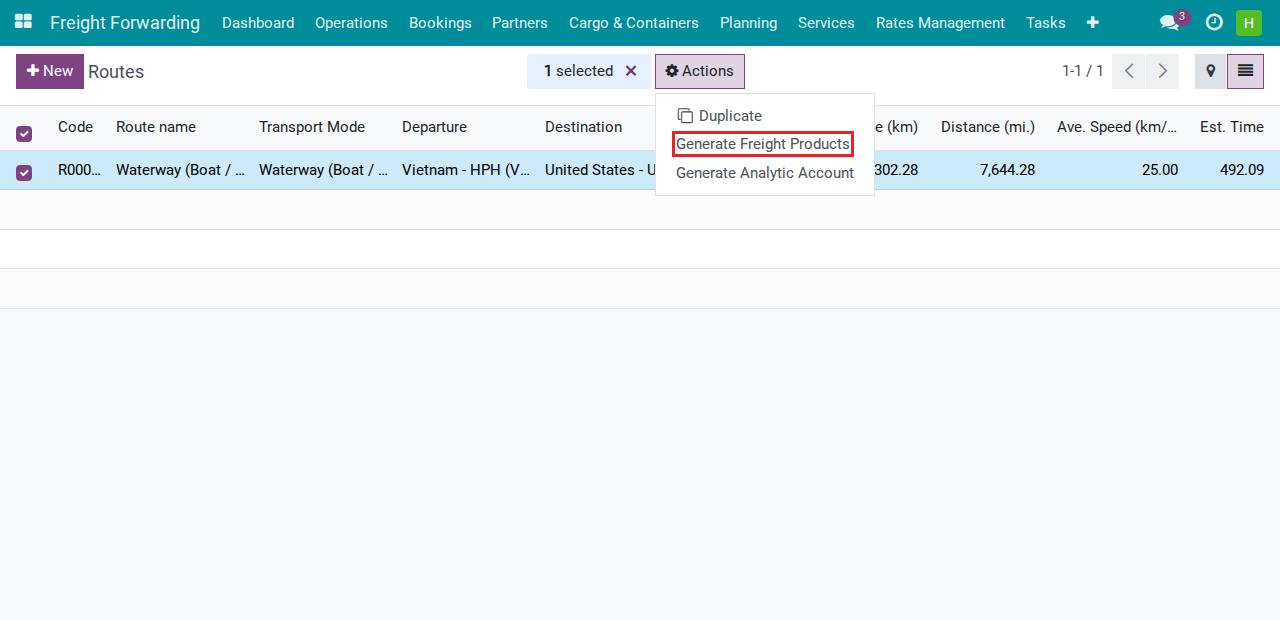
On the Routes list, tick the route (or routes) to convert, open the gear-icon Actions menu and click Generate Freight Products.
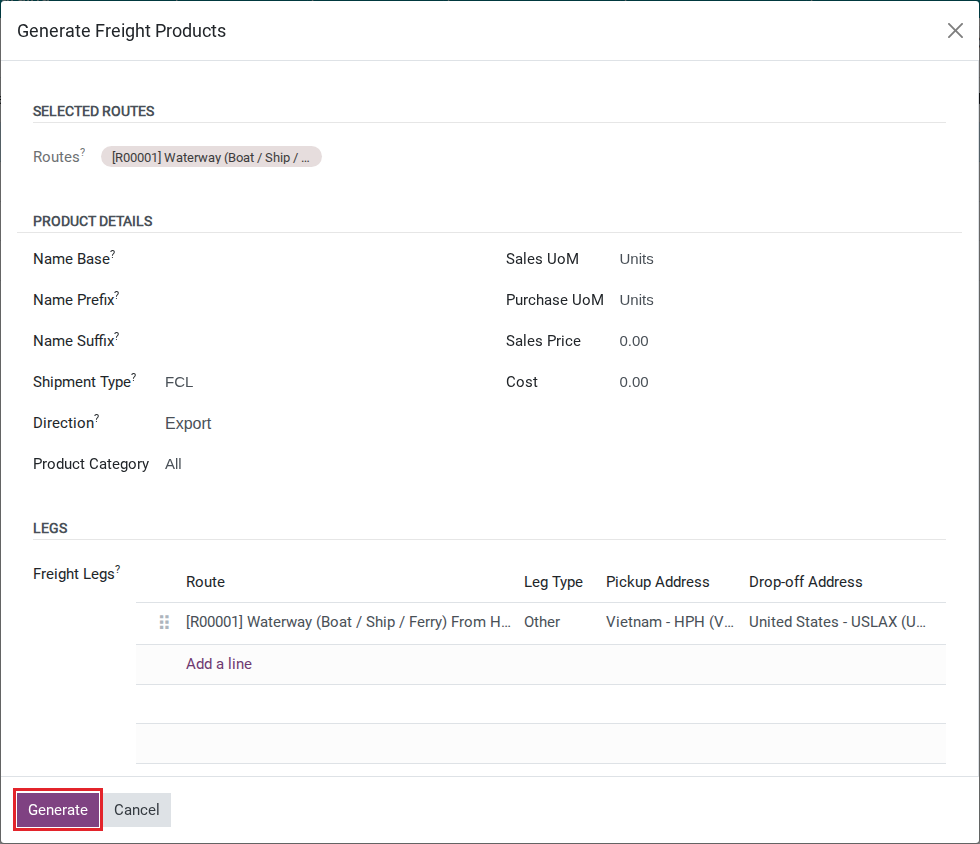
Set Shipment Type: FCL, and Direction: Export.
Leave Name Base, Name Prefix and Name Suffix empty to let Viindoo name the product. Type into them only if your company has its own naming rule.
In the Legs section, review the row already filled in for the route - Pickup Address and Drop-off Address come from the route’s waypoints and cannot be edited here. Change Leg Type if Other is not accurate.
Click Generate.
Note
With the three name fields empty, the product name is built from the direction, the shipment type and the first and last waypoints: [EX][FCL], then Hai Phong Port, an arrow and Port of Los Angeles. If you type into any of the three fields, the name becomes [EX][FCL] followed by your prefix, base and suffix instead, without the port names.
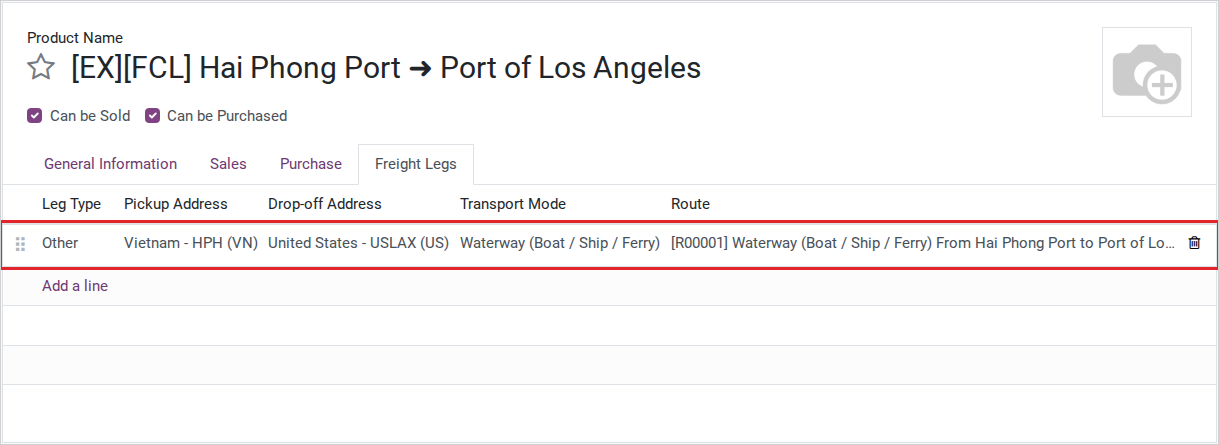
After you click Generate, Viindoo opens the new product’s form. Open its Freight Legs tab to see the leg(s) it just created.
Important
Selecting several routes at once does not create several products. It creates one product with several Freight Legs, one per route selected, in the order of the rows in the Legs section (drag a row by its handle to change the order before clicking Generate). If you want a separate product per route instead, run this wizard once per route.
Tip
The setup is correct when: the new product is named [EX][FCL] followed by Hai Phong Port and Port of Los Angeles, and its Freight Legs tab has as many rows as the number of routes you selected - one row here, from Hai Phong Port to Port of Los Angeles.
See also
Set up freight services and local charges - the freight service actually used to quote a shipment, such as Ocean Freight - FCL.
Decide how many routes to select at once
Option |
Use when |
What changes |
|---|---|---|
Select one route |
You need one freight product for one lane (the common case, as in this example) |
The generated product has exactly one Freight Leg |
Select several routes |
You need one freight product that covers several consecutive legs, for example a door-to-door service across transport modes |
The generated product has several Freight Legs, one per route - still only one product |
Choose the route scope that matches the freight product the company intends to sell: use one route for a single lane and multiple consecutive routes only when one service covers those legs. Confirm the intended product structure with Sales/Pricing before generating products.
Troubleshooting
The route cannot be saved
Symptom: Saving the route shows “You are about to create or update a route that includes the same waypoints as the existing route, ‘<route name>’, which also passes through the following locations: …”.
Cause: Another route with the same Transport Mode already passes through the exact same set of addresses.
Fix: Open the existing route named in the message and reuse it instead of creating a new one, or change Transport Mode if this genuinely is a different route.
Optimize Route or Get Distance Matrix does nothing
Symptom: Clicking Optimize Route or Get Distance Matrix shows “No Geo-Direction Provider enabled for optimizing the route <route name>”.
Cause: No Geo-Direction Provider is configured for this company.
Fix: Skip these two buttons if you only need to generate a freight product - they are not required for that. Configuring a Geo-Direction Provider is outside the scope of this page.
Generate does not create a product
Symptom: Clicking Generate shows either “Please select at least one route to generate freight products.” or “Route <route name> has no leg definition. Please configure legs before generating products.”.
Cause: The first message means the wizard has no route under Selected Routes. The second means no leg could be built for the selected route.
Fix: Close the wizard, check that the route has both its first and last Waypoints, tick it on the Routes list, reopen Generate Freight Products and click Generate again.
See also
Related articles
Optional modules