
Spend limits, usage and audit
Guide Overview
Every call to an AI vendor is recorded. You decide how much AI may cost per person, per company and per run, you read the cost per month, and you can always find what was sent to the vendor. Spend limits are checked before a request leaves Viindoo, so a request above a hard limit is refused and nothing is sent.
Before You Start
You need |
Why |
|---|---|
The Settings access right (system administrator) |
Spend limits and retention are set in , which is reserved for system administrators. |
At least one AI call |
The reports are empty until a call is made. Run Test Connection on a connection (see Get started with Viindoo AI) or ask the assistant a question. |
The AI Operator or API Log Viewer right, for people who only read the records |
See the table in the section on who sees what below. |
Set Spend Limits
Go to .
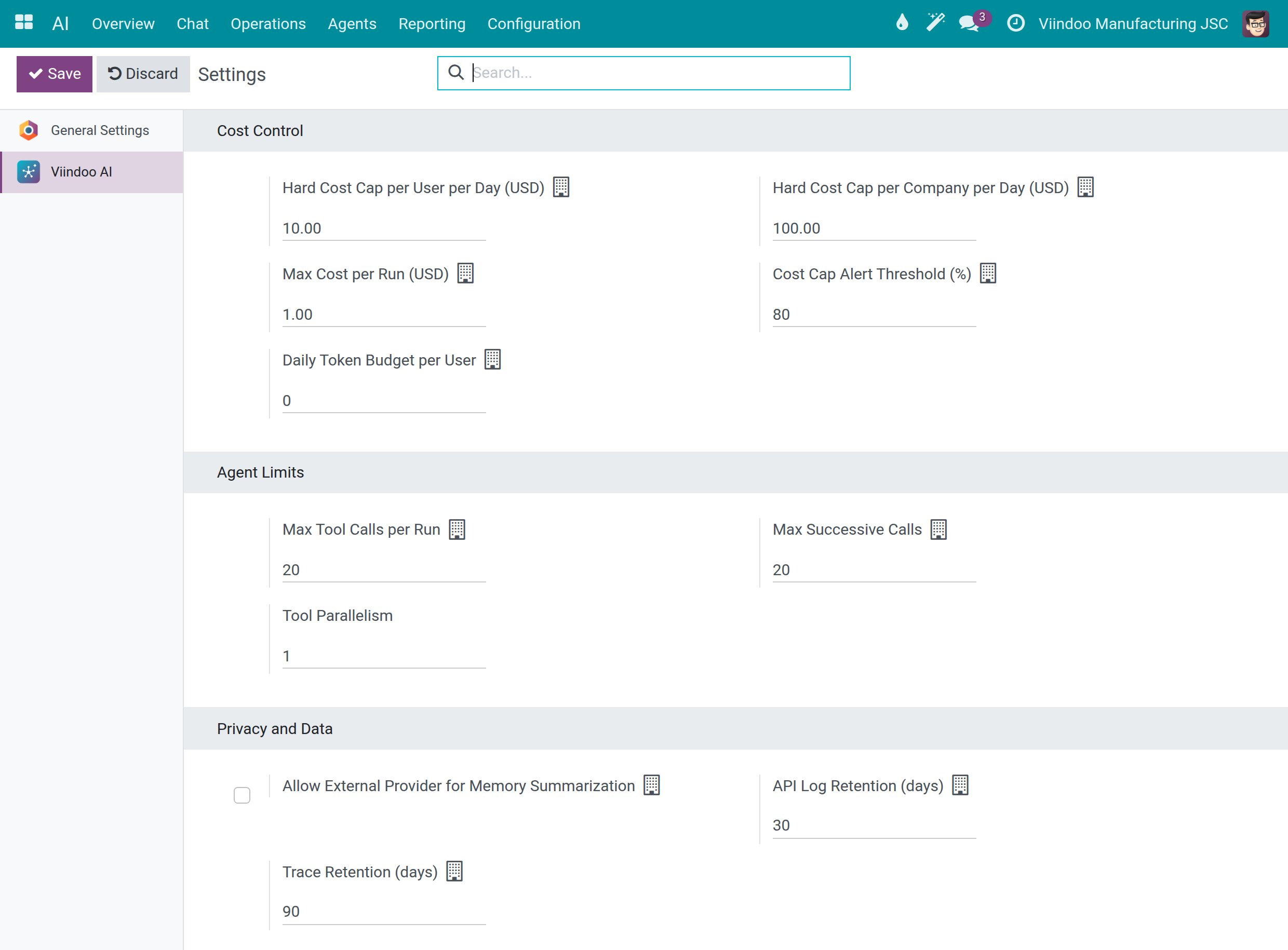
Go to the Cost Control section and change a limit, for example Hard Cost Cap per User per Day (USD).
Click Save. The page reloads and shows the limits as saved.
Setting |
What it does |
Value on a fresh install |
|---|---|---|
Hard Cost Cap per User per Day (USD) |
Blocks requests above this daily spend of one person. |
10.00 |
Hard Cost Cap per Company per Day (USD) |
Blocks requests above this daily spend of the company. |
100.00 |
Max Cost per Run (USD) |
The most an assistant may spend in one run. |
1.00 |
Cost Cap Alert Threshold (%) |
Warns when spending reaches this percentage (0-100) of the hard cap. |
80 |
Daily Token Budget per User |
Warns once a person passes this many tokens in a day. It never blocks. 0 turns it off. |
0 |
Max Tool Calls per Run, Max Successive Calls |
Cap the tool calls and the consecutive AI calls of one run (Agent Limits section). |
20 each |
For the three hard limits, -1 means unlimited and 0 is not accepted. A request that would exceed a hard limit is refused before anything is sent to the vendor, and the person sees a message that the daily cost cap is exceeded.
Note
The Modules section at the bottom of the same screen offers the optional add-on apps Editor AI Assist and Viindoo Brain - Knowledge OS, which you can turn on from there.
Set How Long Records Are Kept
In the Privacy and Data section of :
API Log Retention (days) is how long the raw HTTP records are kept. The default is 30.
Trace Retention (days) is how long AI traces, identified by the Trace ID of a call, are kept. The default is 90.
Records older than these periods are deleted.
See What AI Costs
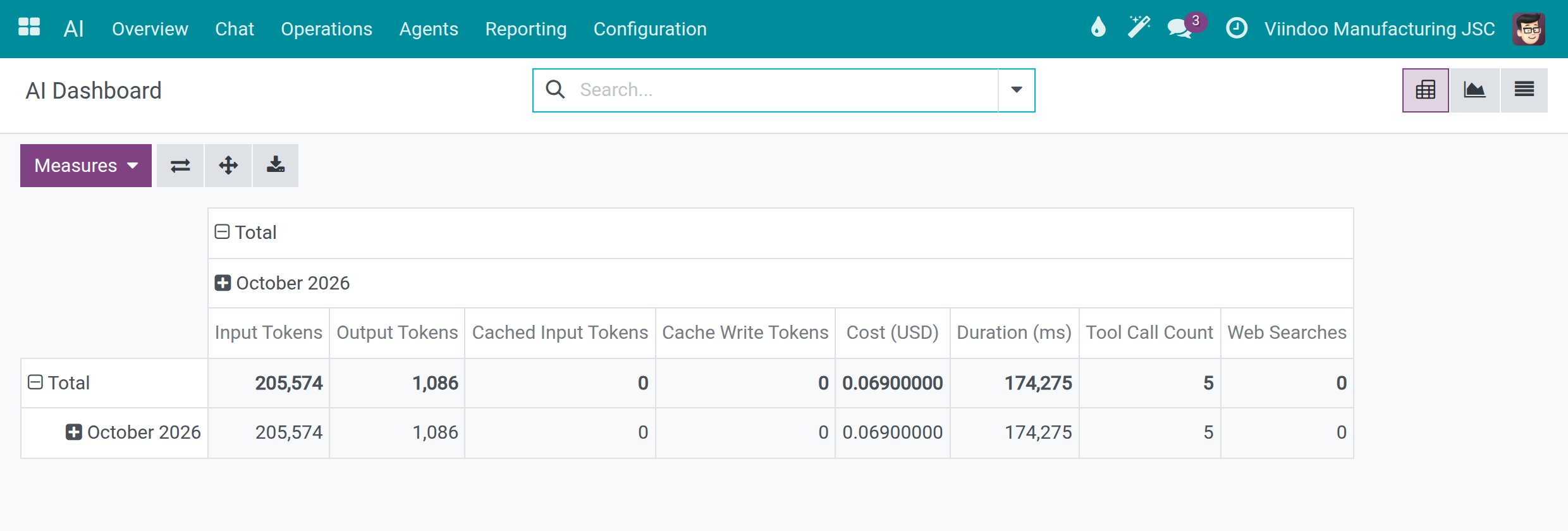
Go to . The table shows input and output tokens and Cost (USD) per month. Use Measures to add more, such as the duration or the number of tool calls.
![The AI Dashboard pivot with input tokens, output tokens and Cost (USD) for the month]()
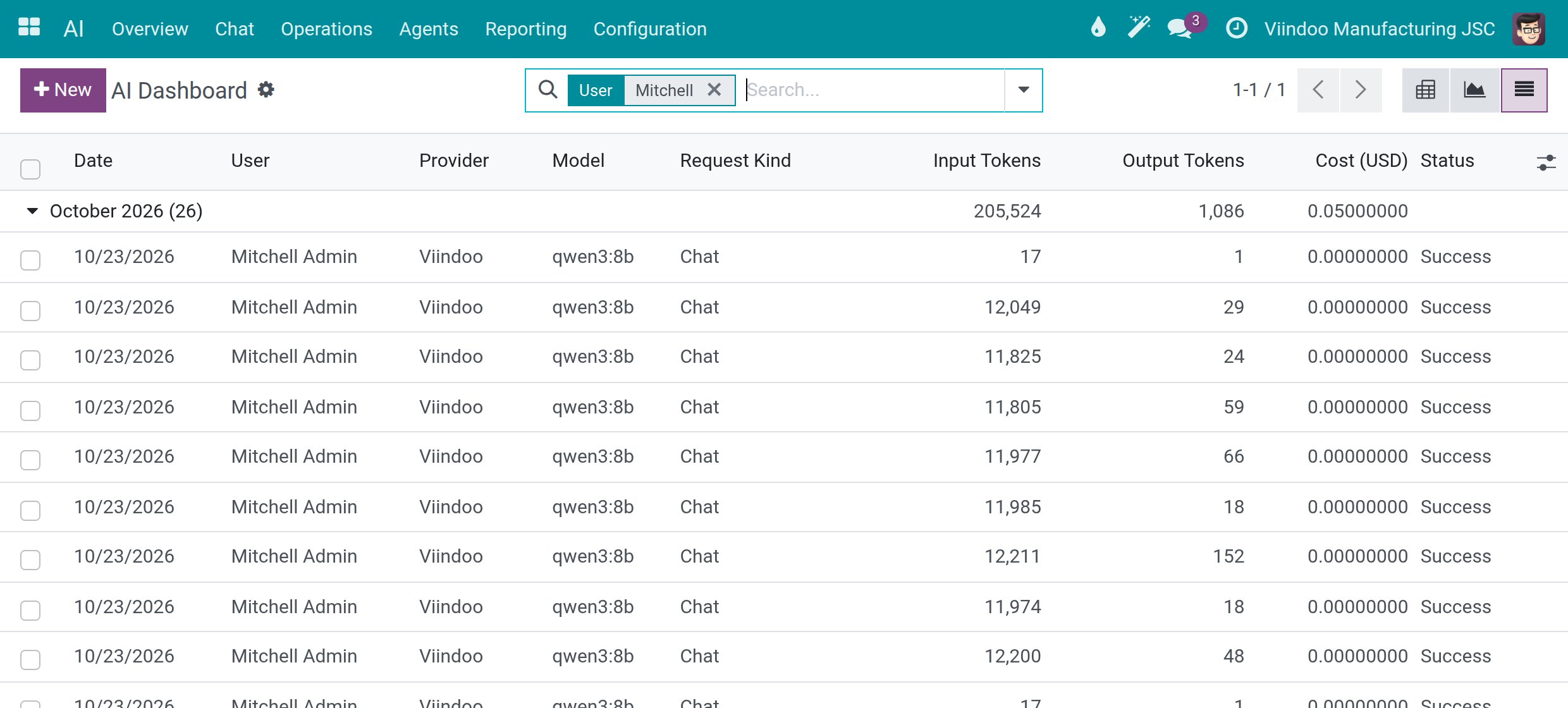
Switch to the List view with the view switcher at the top right and expand the month. Each row is one call to a vendor, with the date, user, provider, model, request kind, tokens, cost and Status (Success or Error). Use the search box to narrow the list, for example by User.
![The AI Dashboard in list view with the calls of the month filtered on one user]()
Compare Cost With Answer Quality
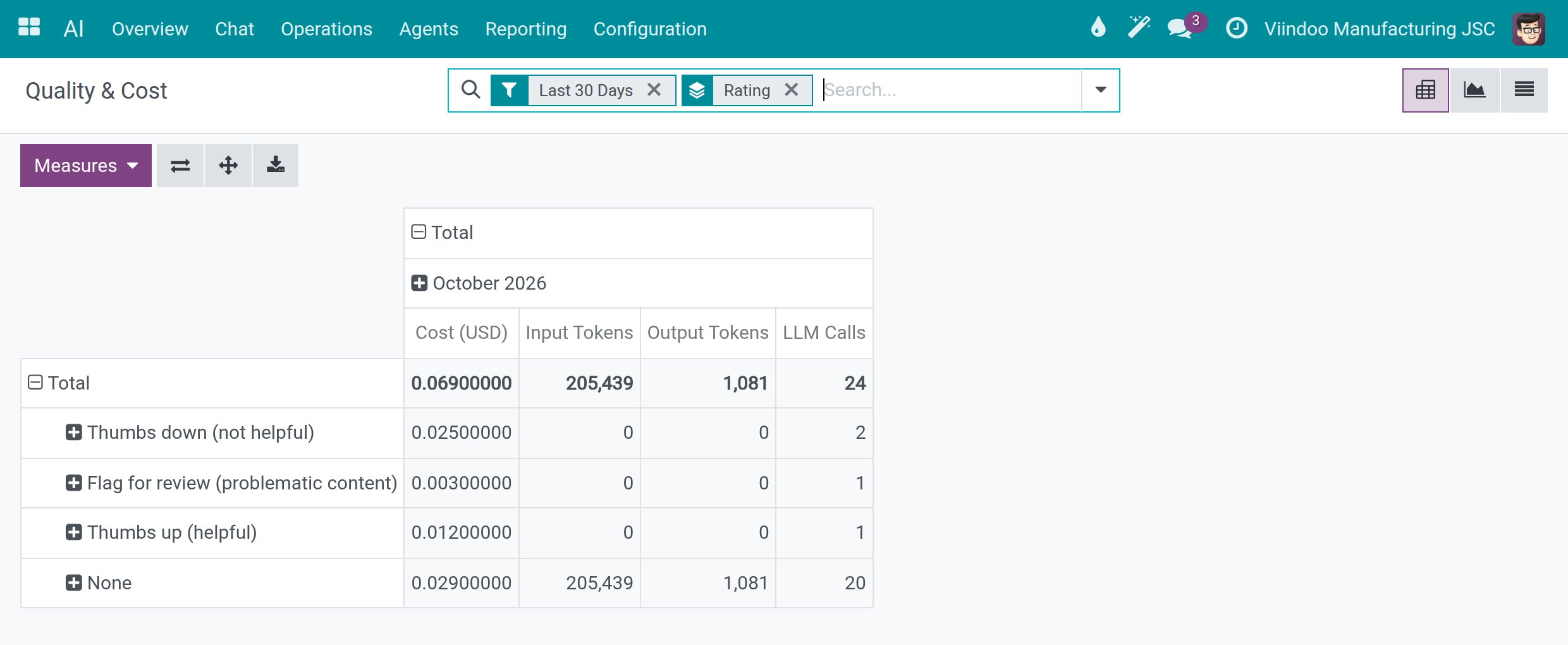
Go to . The table covers the last 30 days and groups cost, input tokens, output tokens and the number of LLM calls by the rating people gave to answers: Thumbs down (not helpful), Flag for review (problematic content), Thumbs up (helpful) or None.
Open the Record of What Was Sent
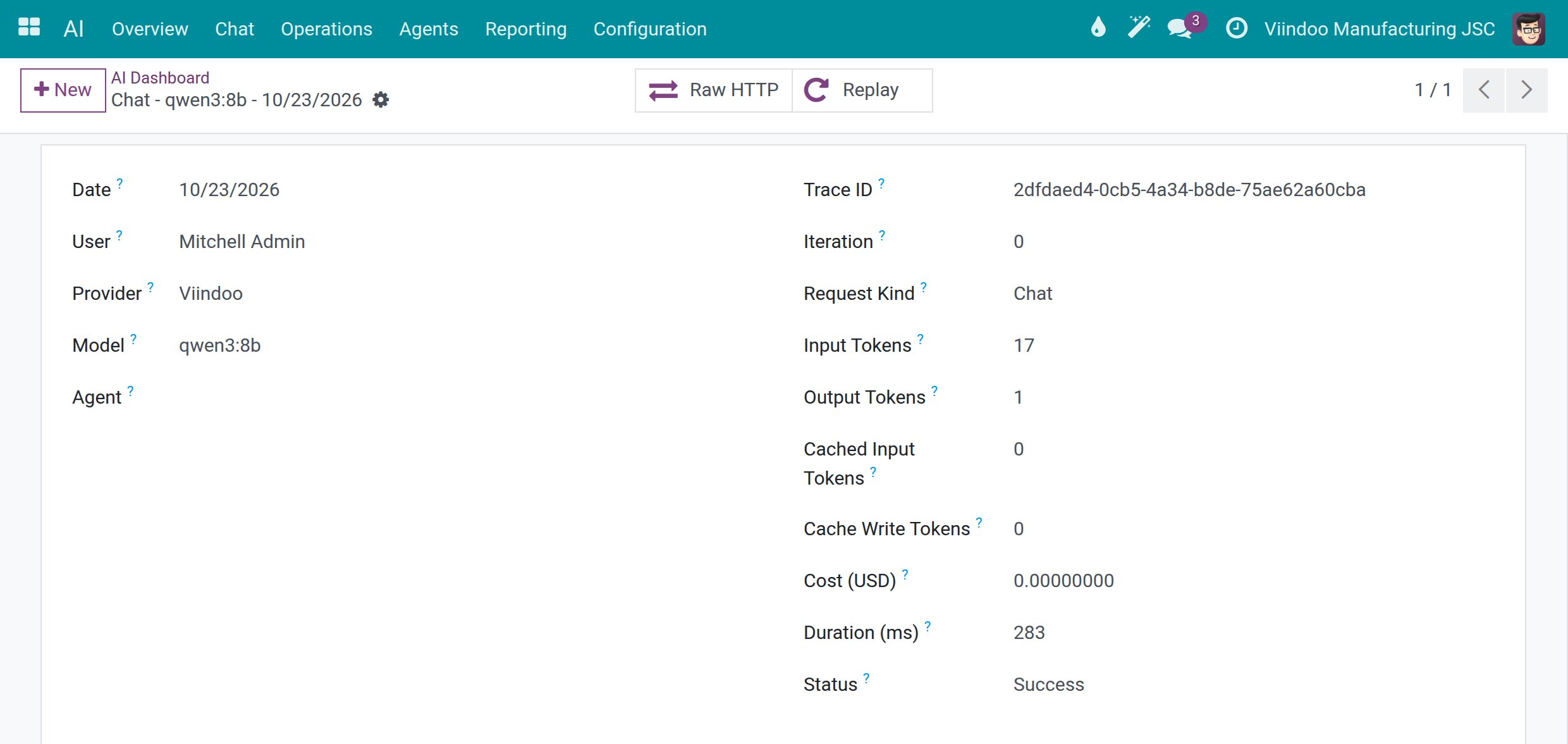
In the List view of the Dashboard, open a row. The form shows who made the call, with which provider and model, the Trace ID, the tokens, the cost and the Status. The Raw HTTP and Replay buttons are at the top.
![A call with the Raw HTTP and Replay buttons, the Trace ID, tokens, cost and status]()
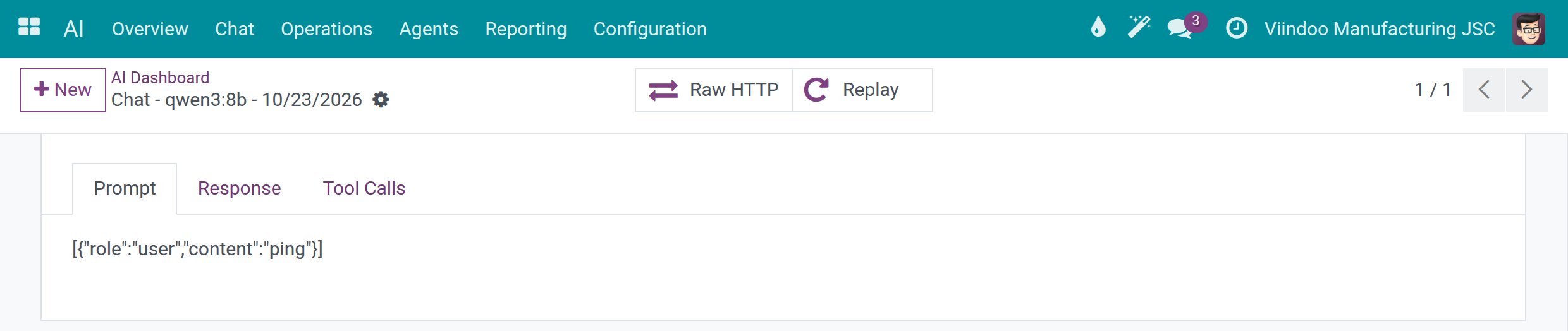
Scroll to the tabs. Prompt shows the exact messages that were sent to the vendor, Response what came back and Tool Calls the actions the assistant ran. A call made by Test Connection sends a single short message.
![The Prompt tab of a call showing the message that was sent to the vendor]()
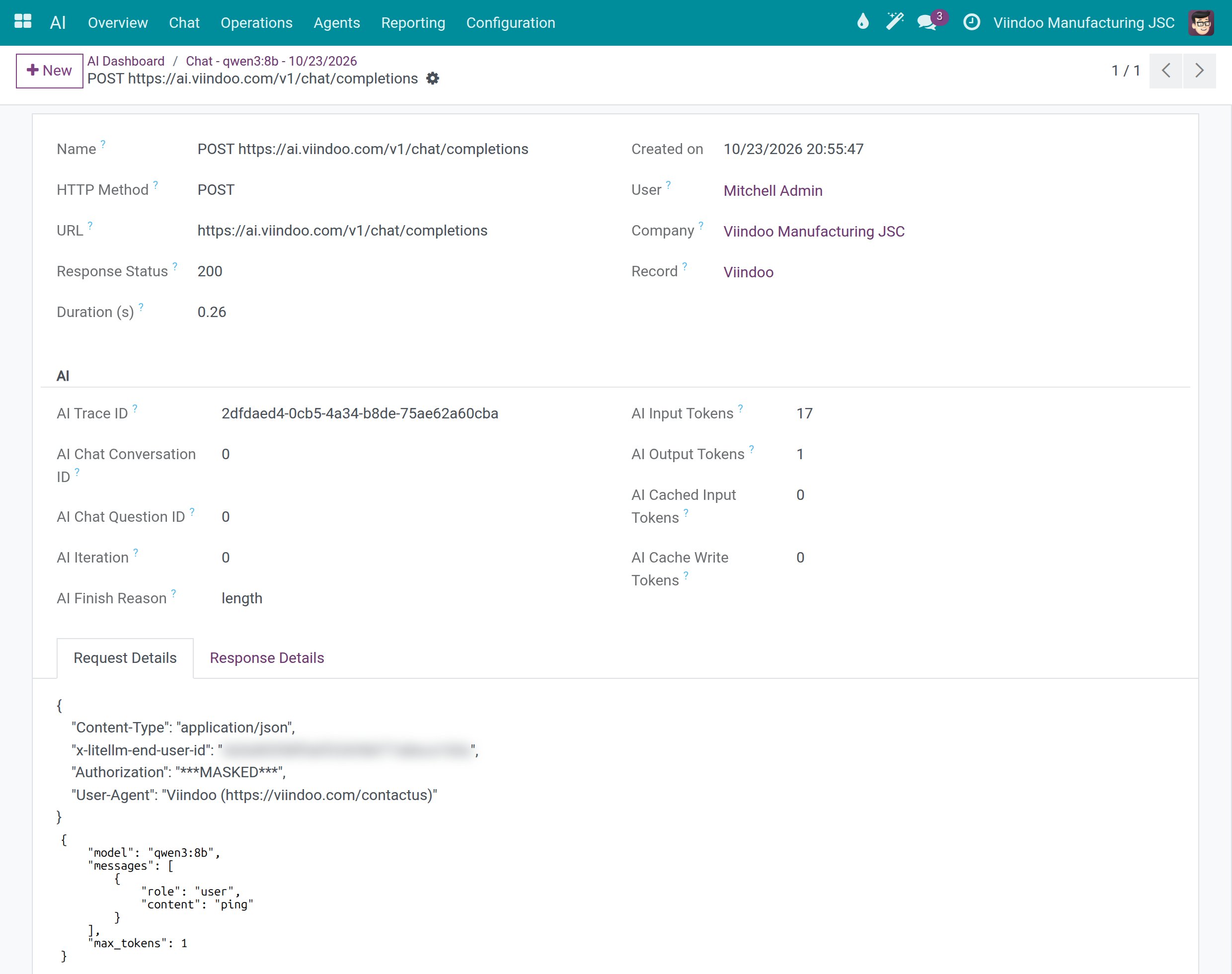
Click Raw HTTP to open the HTTP record of the call: method, address, response status, duration and, in Request Details, the headers and the body. The Authorization header shows
***MASKED***, so keys are never readable here.![The Request Details tab of the raw HTTP record with the Authorization header masked and the user identifier header blurred]()
Note
Raw HTTP opens for a system administrator or a user with API Log Viewer. The Replay button sends the stored request to the vendor again and counts as a new request, which is billed like any other. Only a system administrator sees it.
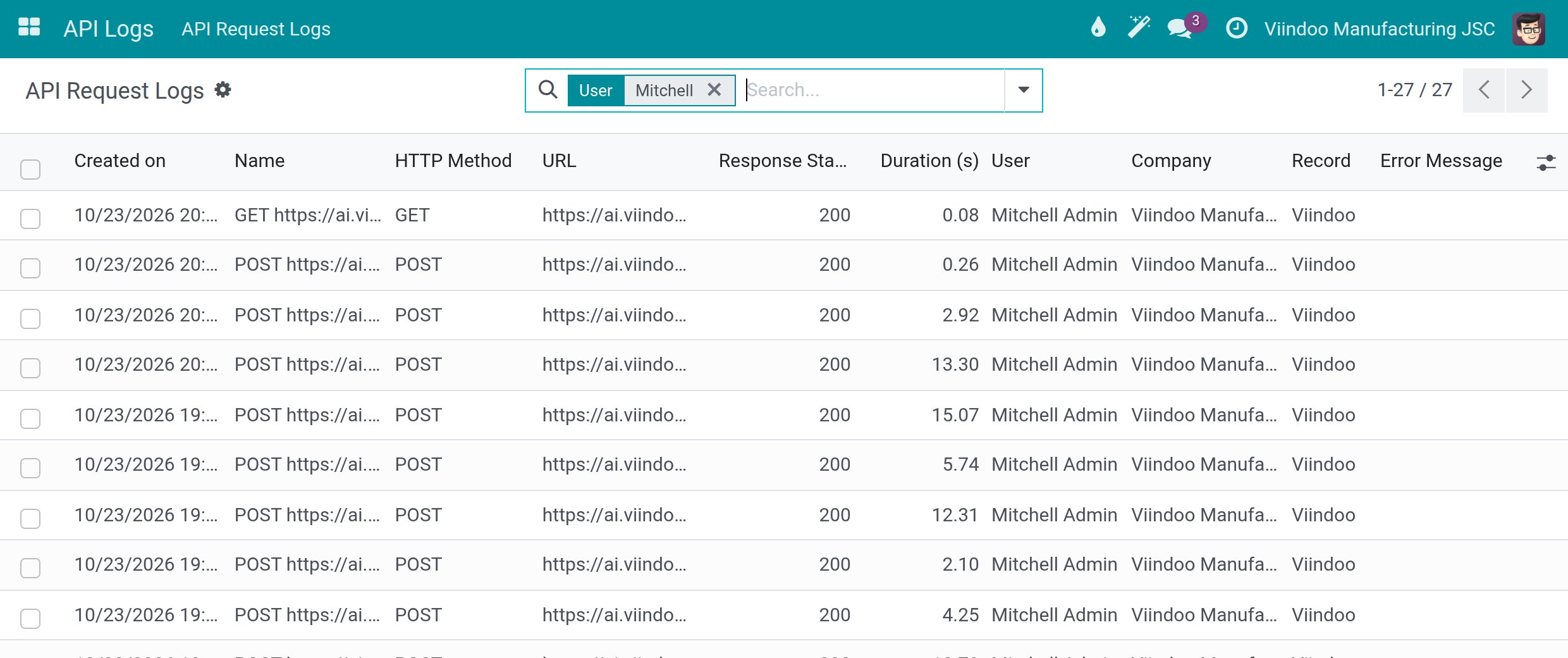
Read the API Request Logs
The API Logs app lists the same HTTP records outside the AI app: go to . Each row shows the date, method, address, response status, duration, user, company and the related record.
Who Sees What
Who |
Sees |
Where |
|---|---|---|
Every internal user |
Their own AI calls and ratings. |
Dashboard, Quality & Cost |
AI Operator, AI Administrator, system administrator |
The calls of the whole company. |
Dashboard, Quality & Cost |
API Log Viewer, system administrator |
The raw HTTP records. |
API Request Logs, Raw HTTP button |
Success Checkpoint
The spend limits in Cost Control show the values you saved.
The Dashboard shows tokens and cost for the month.
You opened a call and read its Prompt and its Raw HTTP record, with Authorization masked.
Common Problems
Problem |
What to do |
|---|---|
A request is refused with a message that the daily cost cap is exceeded. |
The person or the company reached a hard cap. Raise the cap in Settings, or use |
The Dashboard is empty. |
No call has been made yet, or you only see your own calls. Run Test Connection or ask the assistant a question; give reporting users the AI Operator right to see the whole company. |
The Raw HTTP button is missing. |
It opens for a system administrator or a user with API Log Viewer. |
The Replay button is missing. |
Only a system administrator sees it. |
Old records have disappeared. |
They were deleted when they passed API Log Retention (days) or Trace Retention (days). |
Next Steps
Get started with Viindoo AI - install Viindoo AI and assign the access rights.
Connect AI vendors and choose data location - connect your own AI vendor and choose where data may be processed.