
External tools and feedback
Guide Overview
An external tool server gives the assistant extra actions from another service. Nothing is sent to a server until its address is approved, so the safe order is always: approve the service, then connect the server. Feedback is the other half of quality control: people rate answers, and you read the ratings.
Before You Start
You need |
Why |
|---|---|
The Settings access right (system administrator) |
Approving a service, connecting a server, reading the ratings and defining feedback categories are system administrator tasks. An AI Administrator sees Servers and Approved Services but cannot change them. |
The address of the service |
You approve exactly the addresses the service uses, and no more. |
Approve a Service
By default nothing is approved, so no assistant contacts any external tool server.
Go to and click New.
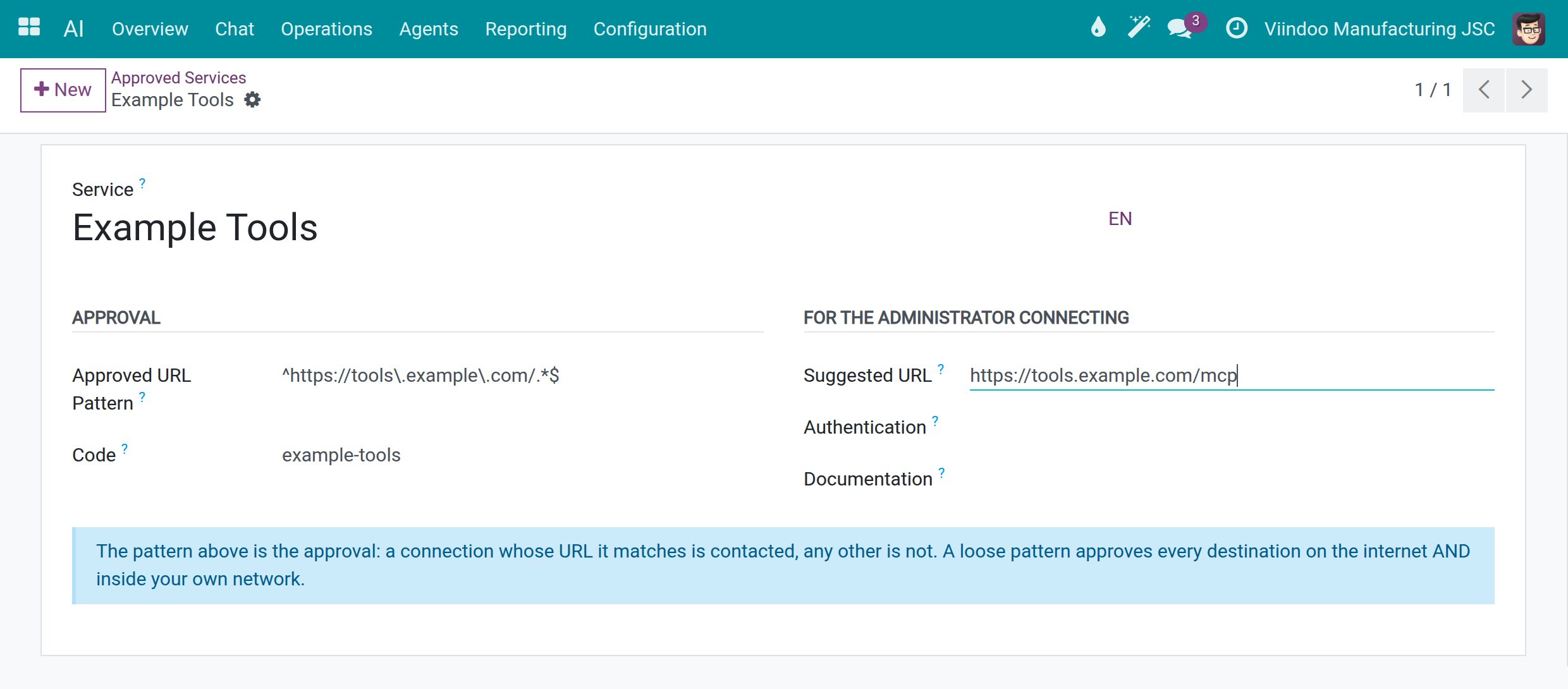
Type the Service name and a Code, and put the address pattern in Approved URL Pattern. The pattern is the approval: a connection whose URL matches it is contacted and any other is not. A loose pattern approves every destination on the internet and inside your own network, so write it as exactly as you can.
Fill Suggested URL, Authentication and Documentation to help whoever connects the service, then click Save.
![An approved service with its approved URL pattern, code and suggested URL]()
Connect a Server
Go to and click New.
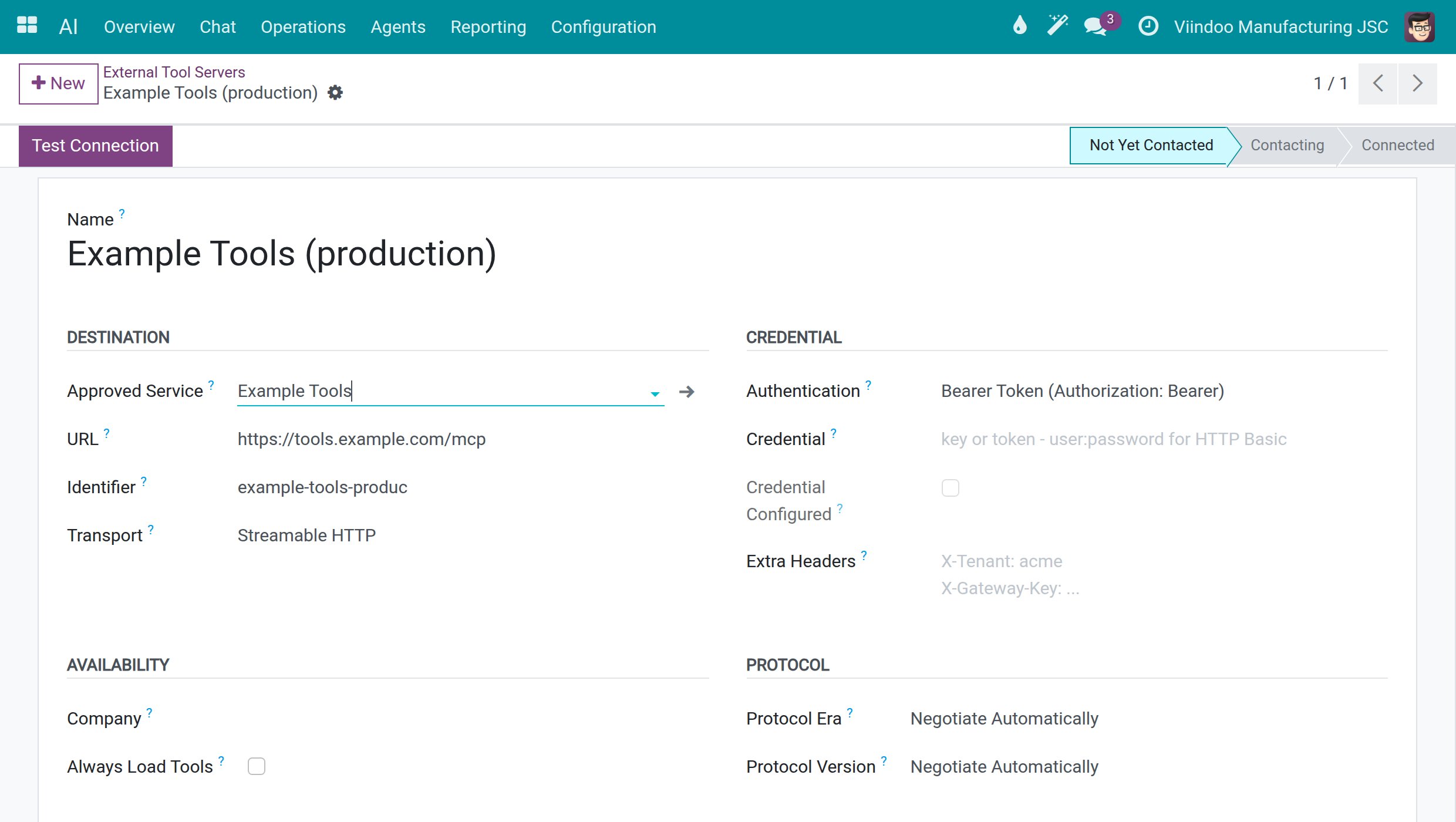
Type the Name and choose the Approved Service that covers the address. The URL and the Identifier are filled in for you from the approved service, and you can correct them. Keep the Transport as proposed unless the service documents another.
In the Credential section, set Authentication to what the service expects: No Authentication, Bearer Token (Authorization: Bearer), API Key Header (X-API-Key), Other Header, HTTP Basic (user:password), or one of the two OAuth 2.1 modes. Type the credential once in the Credential field. Credential Configured only tells you that one is stored.
Click Save, then Test Connection. The status bar goes from Not Yet Contacted to Contacting and Connected. When the address is not covered by an approval, Approve This URL appears on the server and approves exactly that address.
![An external tool server with its destination, credential settings and the status bar showing Not Yet Contacted]()
Note
The server form also holds timeouts, limits and a System Administrator Only section for private networks and confirmation behaviour. Leave them at their defaults unless you have a clear reason to change one.
Define Feedback Categories
People rate an answer with the thumbs up, thumbs down or flag buttons under it, when the assistant has Collect User Feedback ticked. Categories group the reasons.
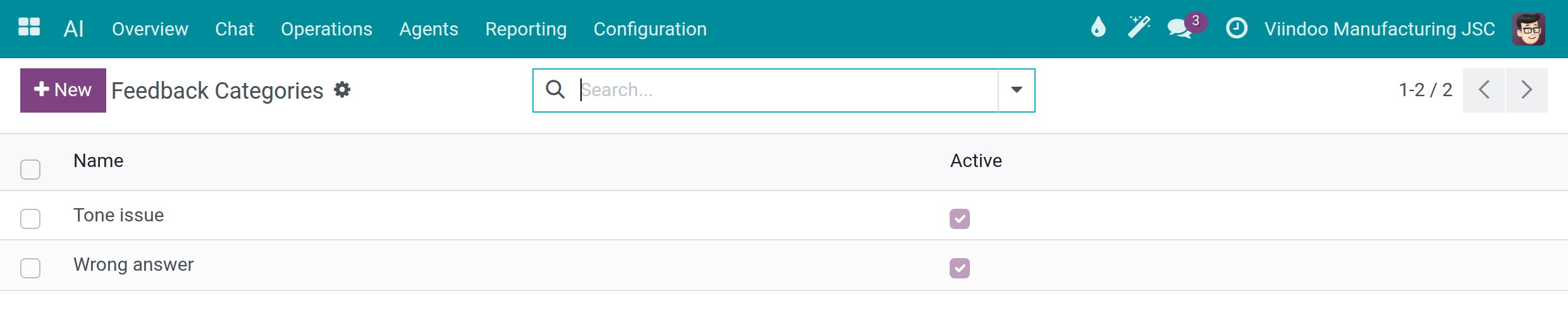
Go to and click New. Type a Name such as
Wrong answerorTone issueand save.![The list of feedback categories with their active flag]()
Untick Active to hide a category from the picker. The feedback already given keeps it.
Find Answers That People Rated Badly
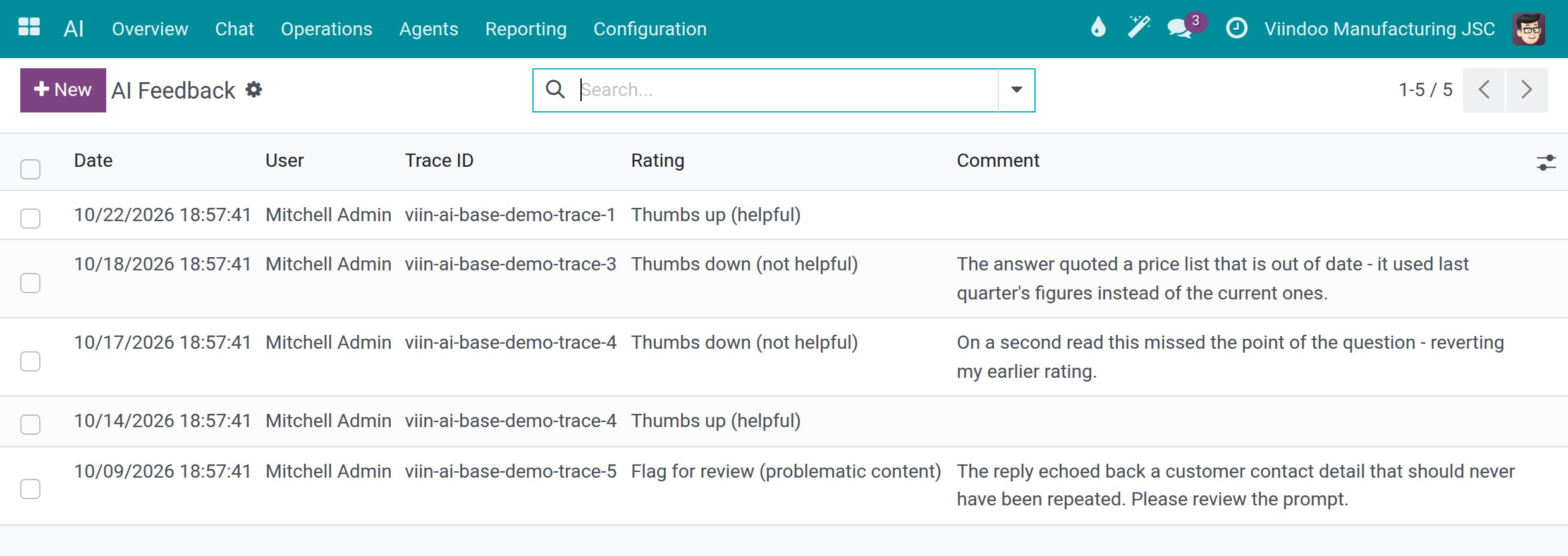
Go to . Each line is one rating, with the Date, User, Trace ID, Rating and Comment.
![The list of ratings with the date, user, trace ID, rating and comment]()
Use the filters Thumbs Up, Thumbs Down and Flagged, or group by Rating, User or Category.
Copy the Trace ID to find the call behind the rating: in , switch to the list view and show the Trace ID column with the optional columns toggle, then open the call (see Spend limits, usage and audit).
Success Checkpoint
The approved service is saved, and its server shows Not Yet Contacted, then Connected once the service answers.
Your feedback categories are listed and active.
The Feedback list shows the ratings, and you can match a Trace ID to a call.
Common Problems
Problem |
What to do |
|---|---|
A server stays Not Yet Contacted. |
Check that the address is approved, then click Test Connection. Use Approve This URL on the server if the approval is missing. |
You cannot see Feedback, Feedback Categories or Knowledge Sources. |
These menus are reserved for system administrators. |
You cannot save a server or an approval. |
Only a system administrator can. An AI Administrator can read these lists. |
Nobody can rate the answers. |
Open the assistant in and tick Collect User Feedback. |
Next Steps
Advanced configuration - the technical lists, and when to leave them alone.
Spend limits, usage and audit - open the call behind a rating.