
Connect AI vendors and choose data location
Guide Overview
The ready-made Viindoo connection is meant for a quick start and evaluation. For production, connect the AI vendor your company has chosen, such as OpenAI, Anthropic or Google, with your own API key. Each connection also declares where its vendor processes data, so you can match your own policy, for example to keep data of European customers with a vendor in the EU or to keep everything on your own servers.
Before You Start
You need |
Why |
|---|---|
The Settings access right (system administrator) |
The API key, the endpoint and the Settings screen are reserved for system administrators. An AI Administrator can maintain the other lists under . |
An API key issued by your AI vendor |
The key is pasted once and is never shown again on screen. |
Know the Vendors and Connections
Two lists work together:
is the catalogue of AI vendors. Each row shows the vendor’s protocol, its default address and the region where it typically processes data.
holds the connections your company actually uses. A connection pairs a vendor with your key and declares its Data Residency.
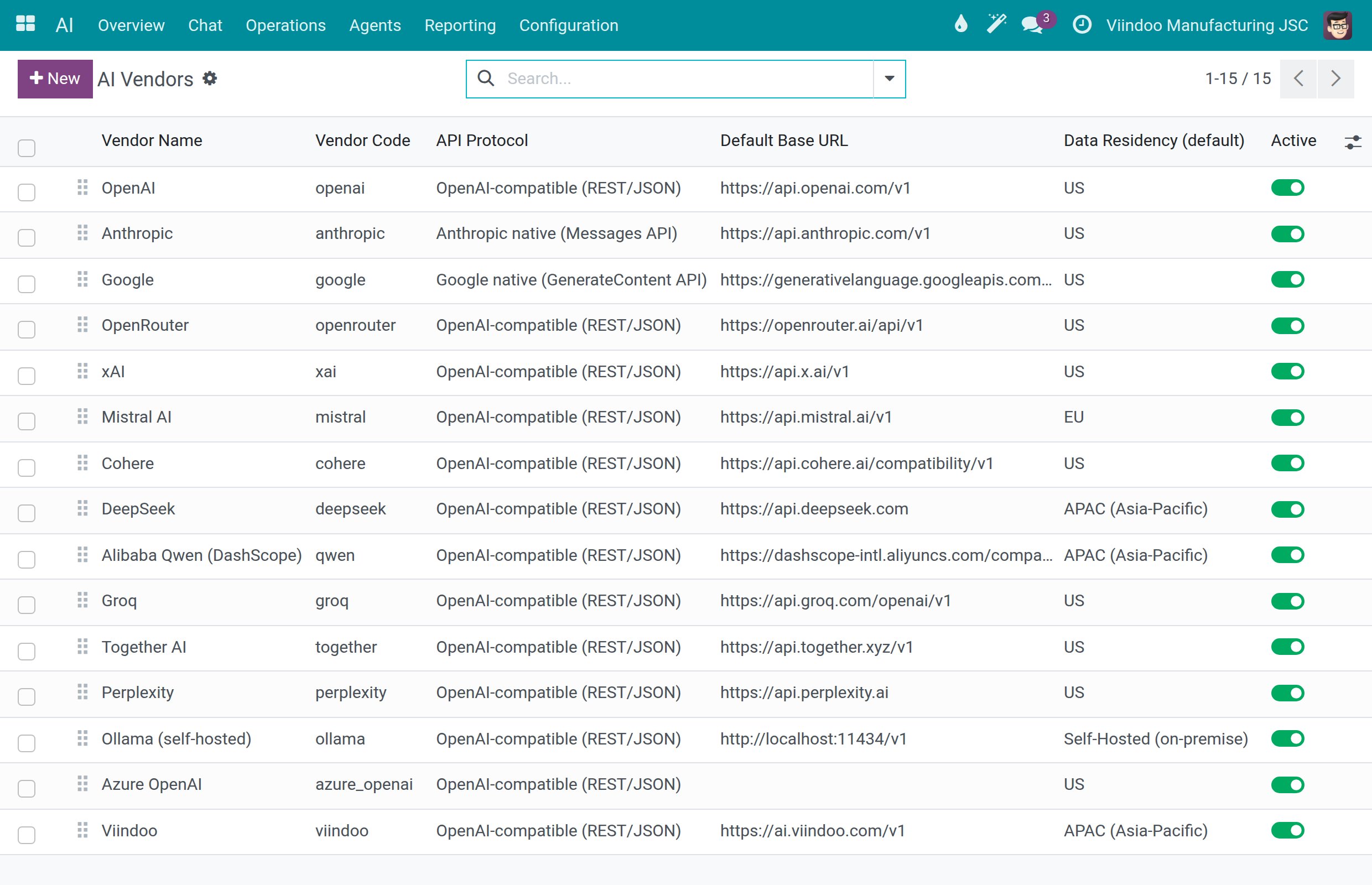
Fifteen vendors are listed. Thirteen of them already have a connection: OpenAI, Anthropic, Google Gemini, OpenRouter, xAI, Mistral AI, Cohere, DeepSeek, Alibaba Qwen (DashScope), Groq, Together AI, Perplexity (Sonar) and Viindoo. Ollama (self-hosted) and Azure OpenAI have no ready connection (see Add a Vendor Without a Ready Connection).
Connect Your Own AI Vendor
Go to .
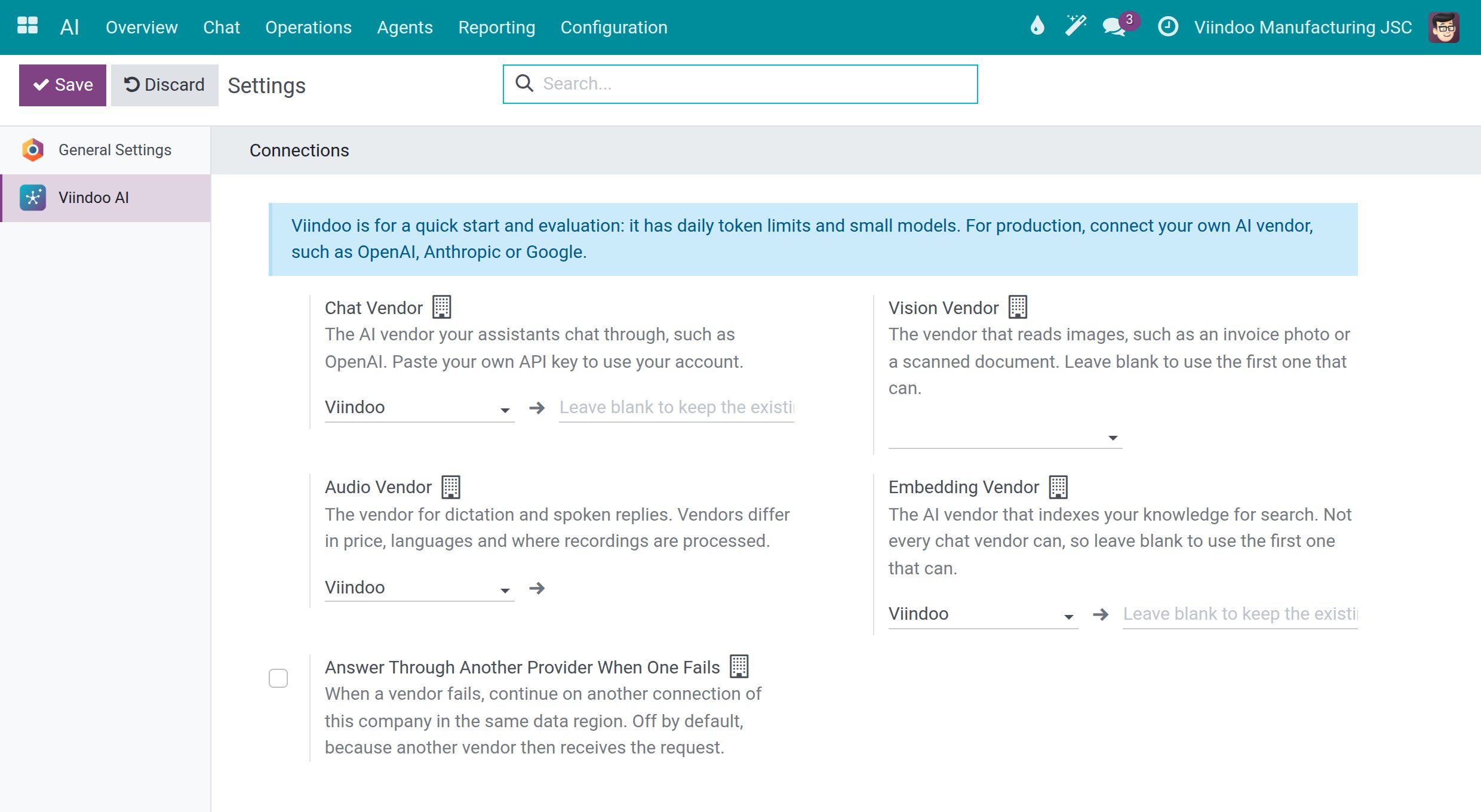
In the Connections section, open Chat Vendor and choose the connection of your vendor, for example OpenAI.
![The Connections section of the AI settings with Chat Vendor, Vision Vendor, Audio Vendor, Embedding Vendor and the switch Answer Through Another Provider When One Fails]()
Paste your API key in the field to the right of Chat Vendor. When a key is already stored, leave the field empty to keep it.
Choose the other vendors if you need them:
Vision Vendor reads images such as an invoice photo or a scanned document. Leave it empty to use the first vendor that can.
Audio Vendor handles dictation and spoken replies.
Embedding Vendor indexes your knowledge for search. Leave it empty to use the first vendor that can.
Optional: in the Chat section, Default Chat Model sets what answers by default, either a model line, which follows its newest model, or one fixed model, which wins over the line. People can still choose another model for their own conversation.
Click Save.
Go to , open your connection and click Test Connection to confirm that the key works. A green Connection successful message appears when it does.
Note
Fields marked with a small building icon apply to the current company, so each company of a multi-company database can use its own vendor.
Add a Vendor Without a Ready Connection
For a vendor such as an Ollama server or Azure OpenAI:
Go to and click New.
Pick the Vendor, fill in Base URL with your own endpoint and enter the key in API Key if the service needs one.
Click Save, then Test Connection.
Choose Where Data May Go
Each connection declares where its vendor processes data. The choices are EU, US, APAC (Asia-Pacific) and Self-Hosted (on-premise).
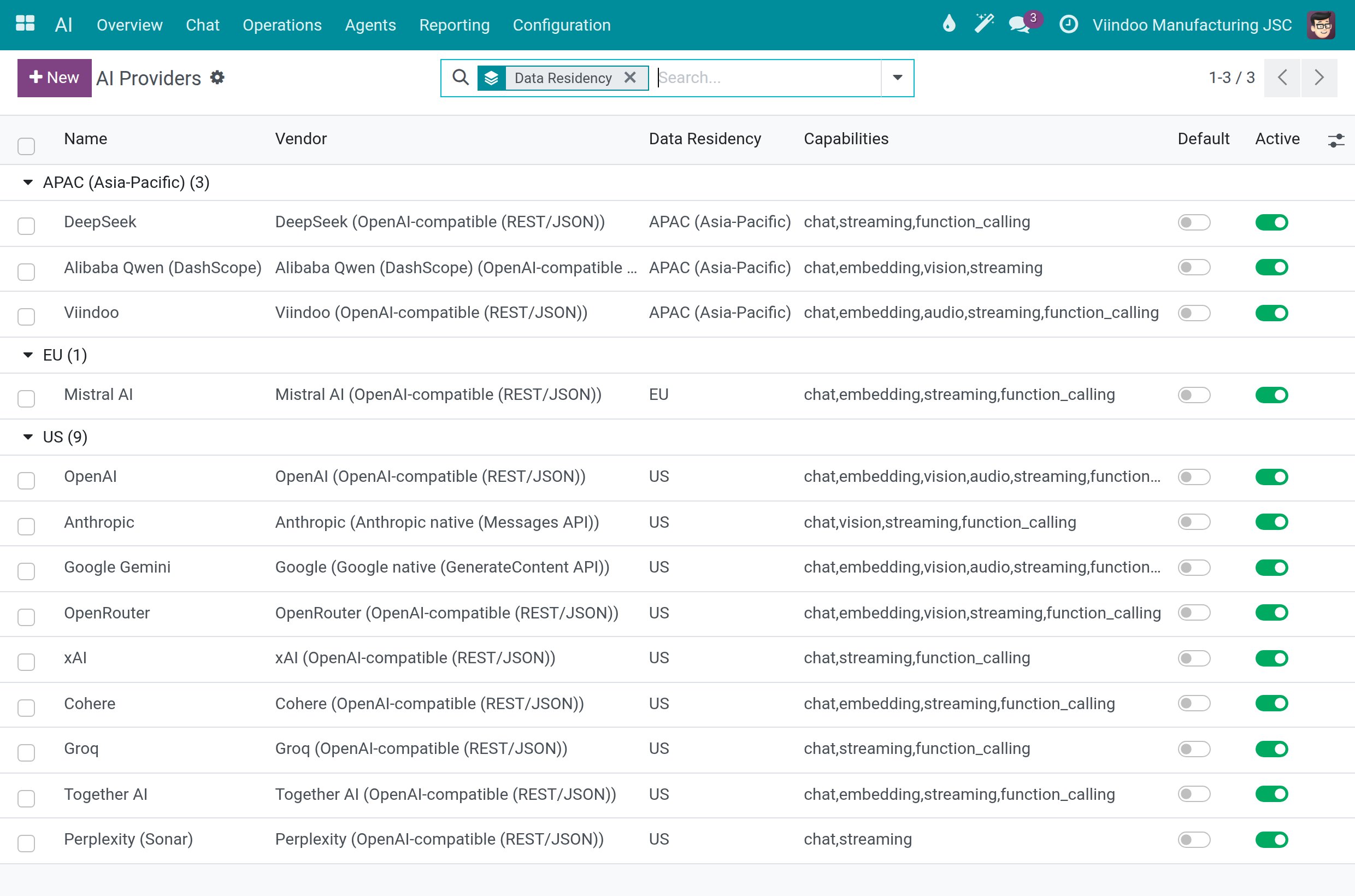
Go to and read the Data Residency column. In the ready-made list, Mistral AI is EU; DeepSeek, Alibaba Qwen (DashScope) and Viindoo are APAC (Asia-Pacific); the other nine are US. To see the list by region, group it by Data Residency in the search options.
![List of AI connections grouped by Data Residency: APAC with three connections, EU with one and US with nine]()
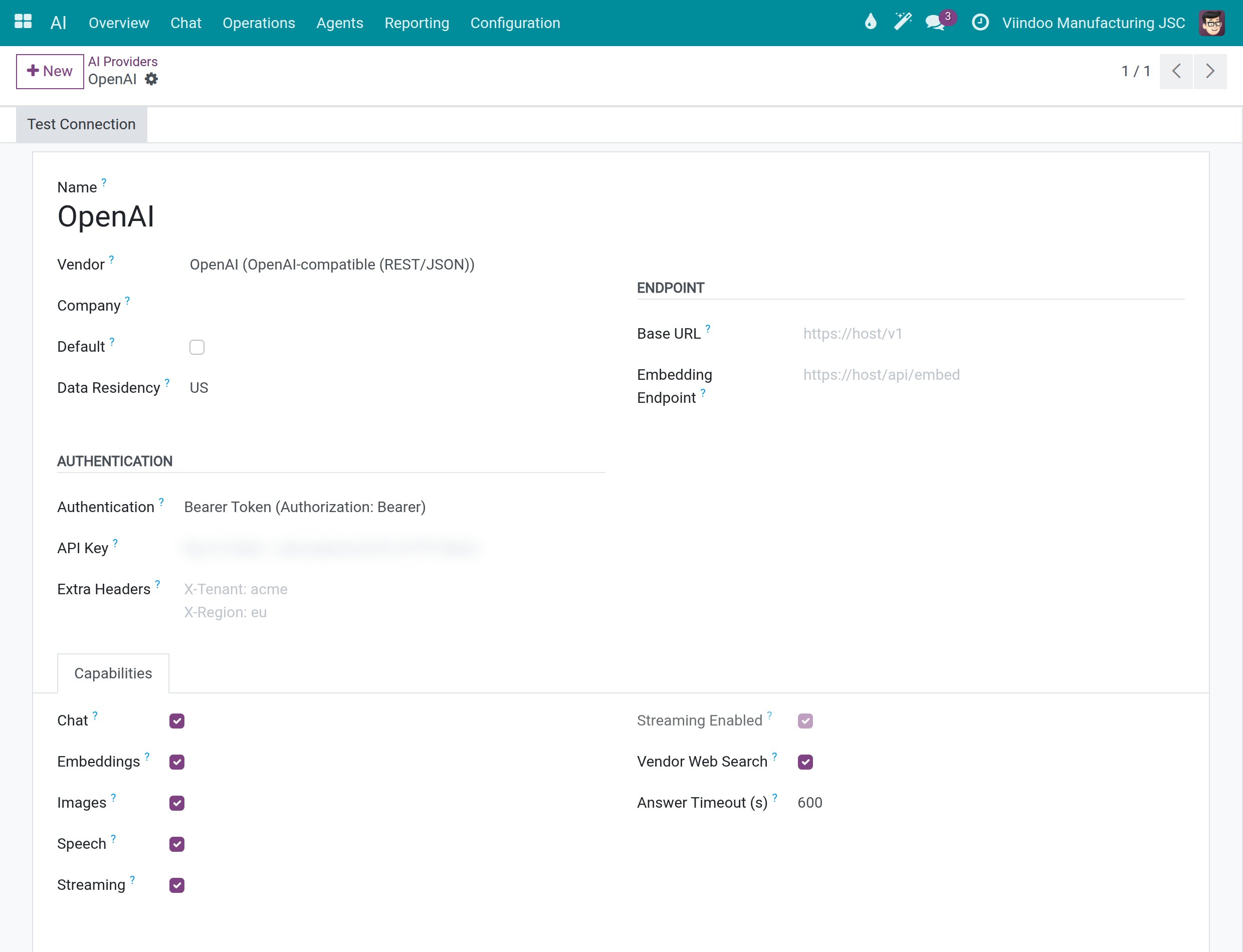
Open a connection to see its Data Residency. Picking a vendor fills it with the vendor’s typical region. You can change it, and your choice is kept. Choose Self-Hosted (on-premise) only for a server on your own infrastructure.
![The connection form of OpenAI with the Data Residency, Authentication and API Key fields, the key blurred]()
For a self-hosted server, fill in Base URL with your own endpoint. A connection set to Self-Hosted (on-premise) with no private endpoint refuses to send requests to the vendor’s public service.
Choose the connection that fits your policy in Chat Vendor (see the section above).
Control Fallback and Memory Summaries
Two switches decide whether a request may ever reach a second vendor:
Answer Through Another Provider When One Fails, in the Connections section of , is off by default. Turn it on to let a failed request continue on another connection of the same company in the same data region. Leave it off when you do not want another vendor to receive the request.
Allow External Provider for Memory Summarization, in the Privacy and Data section of the same screen, is off by default. The daily summary of the assistant’s memory then uses only a self-hosted connection, and that data stays on your infrastructure.
See the Models Behind a Connection
lists the models of each connection with their type, context window (the amount of text a model reads at once, counted in tokens), line and embedding size. groups models into lines that follow the newest model of a vendor family.
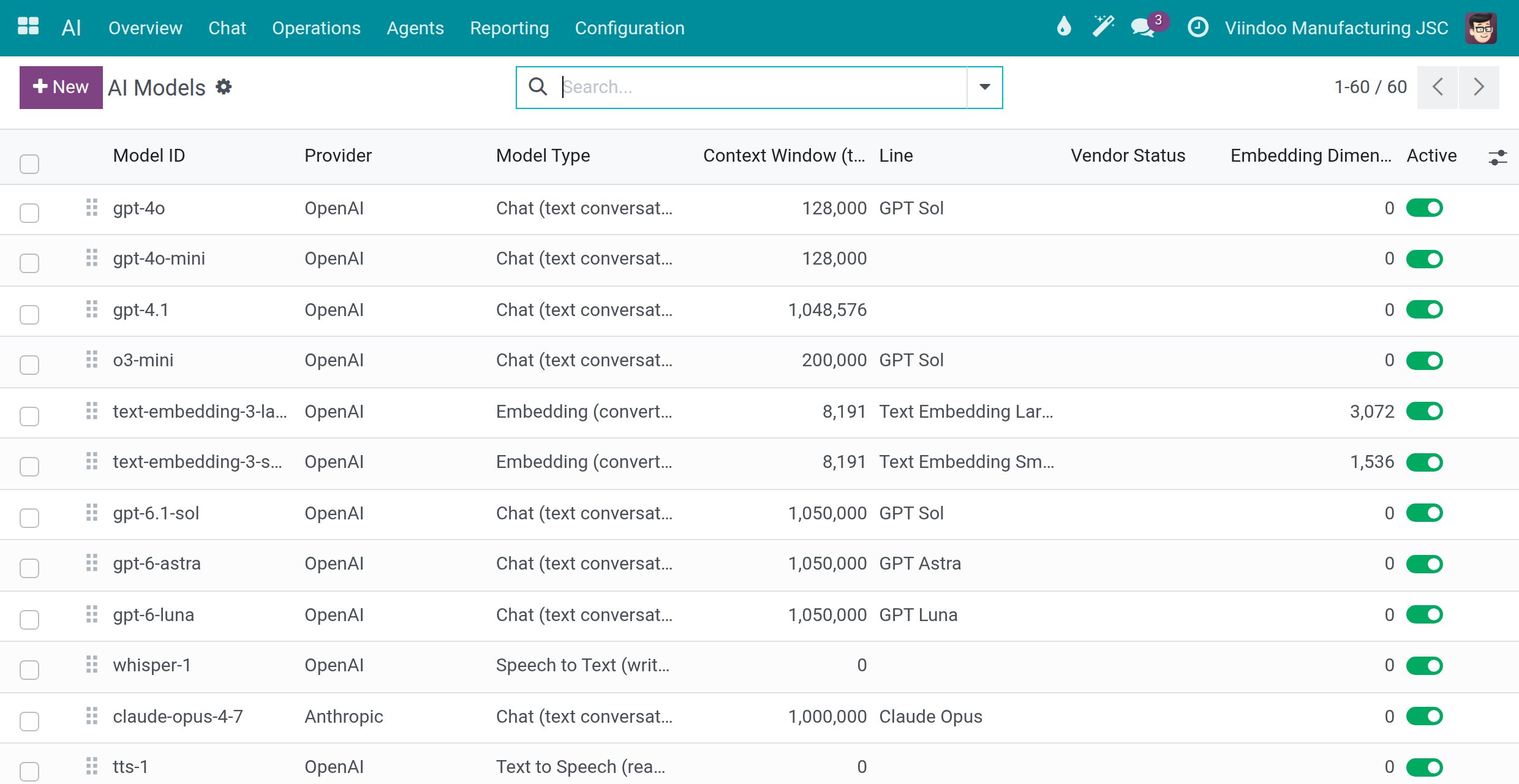
Leave the defaults as they are unless your vendor adds a model you want to use.
Success Checkpoint
Test Connection on your connection shows Connection successful.
Chat Vendor in Settings is your connection.
Each connection in Providers shows the Data Residency that matches your policy.
Common Problems
Problem |
What to do |
|---|---|
A connection set to Self-Hosted (on-premise) refuses to send requests. |
Fill in Base URL with your private endpoint. Without it, the connection would use the vendor’s public service, which a self-hosted connection never does. |
A failed request did not move to another vendor. |
Answer Through Another Provider When One Fails is off by default, and it only moves a request to another connection of the same company in the same data region. |
The vendor you use has no connection in the list. |
Add it with New in Providers (see Add a Vendor Without a Ready Connection). |
An AI Administrator does not see the API Key field and cannot change Base URL. |
Both are reserved for system administrators. Ask one to enter the key or the endpoint. |
Next Steps
Spend limits, usage and audit - set daily spend limits and find the record of every AI call.
Get started with Viindoo AI - install Viindoo AI and assign the access rights.