
Use the AI assistant
Guide Overview
The AI assistant answers in the language of your question. It is available in the AI app and, through one button, on every screen. Every internal user can use it; no extra access right is needed.
Before You Start
You need |
Why |
|---|---|
An internal user account |
Every internal user can open Chat, Overview, Agents, AI Memory, AI Media and the AI Navigation Log. |
An AI connection set up by your administrator |
The assistant answers through the company’s AI connection. Until one is available, the chat shows a message instead of an answer (see When No Answer Comes). |
Ask the Assistant a Question
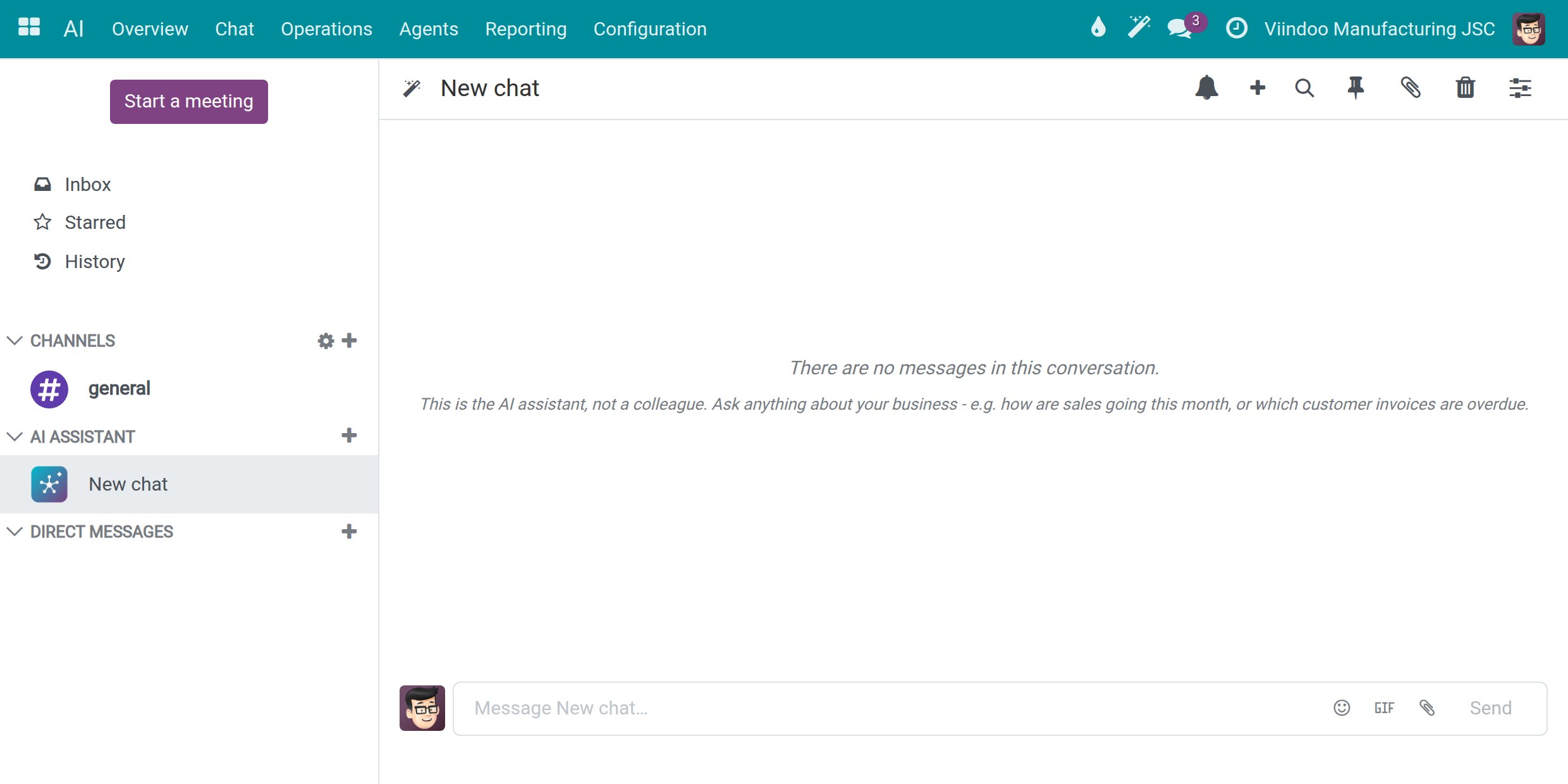
Go to . Discuss opens on a conversation with the assistant. Your conversations are listed under AI ASSISTANT in the left column.
To start a new conversation, click + next to AI ASSISTANT.
![A new empty AI conversation with the hint that this is the AI assistant and not a colleague]()
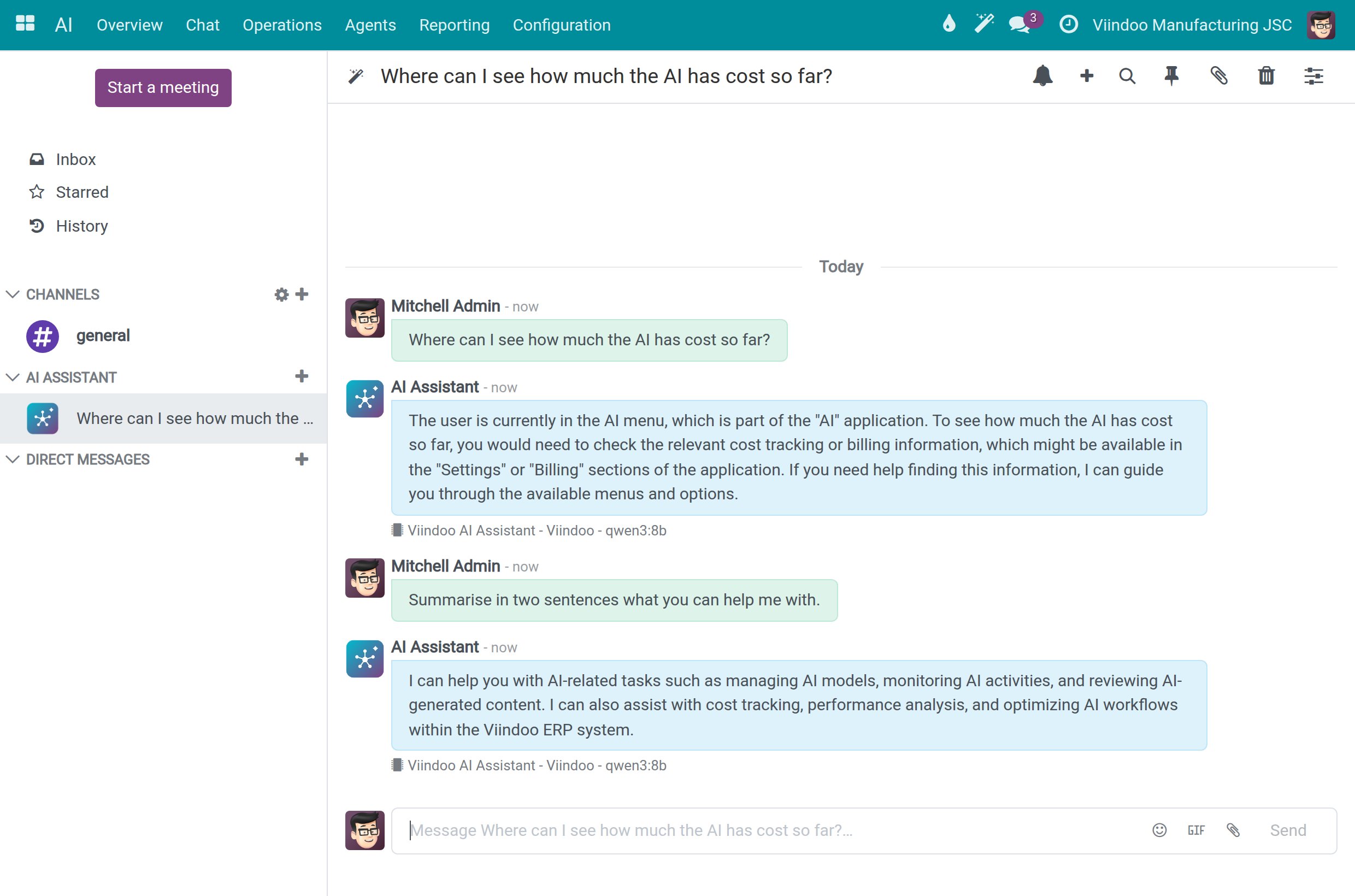
Type your question in the message box and press Enter.
The answer appears under your question. A line below it names the assistant, the connection and the model that answered, for example Viindoo AI Assistant - Viindoo - qwen3:8b. The conversation takes the title of your first question.
![Two questions and the answers of the AI assistant, each with the line naming who answered]()
Note
The ready-made Viindoo connection uses a small model meant for a quick start. Check important answers before you rely on them.
Ask From Any Screen
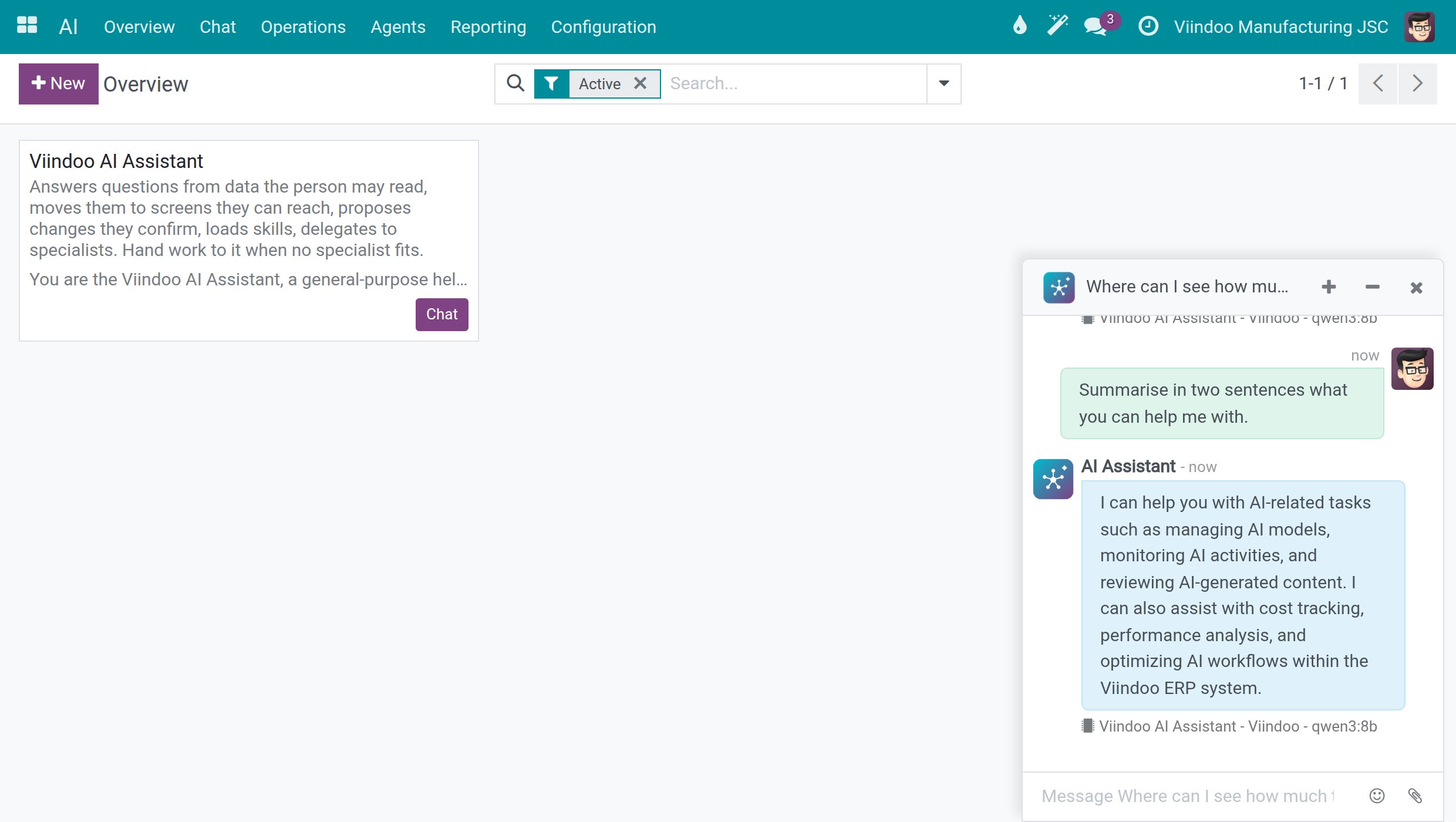
Click the wand button AI Assistant in the top bar of any screen.
A chat window opens at the bottom right with your latest conversation. Type your question there. Fold it with the minus button or close it with the cross.
![The AI chat window open at the bottom right of the AI Overview screen]()
Choose the Model for One Conversation
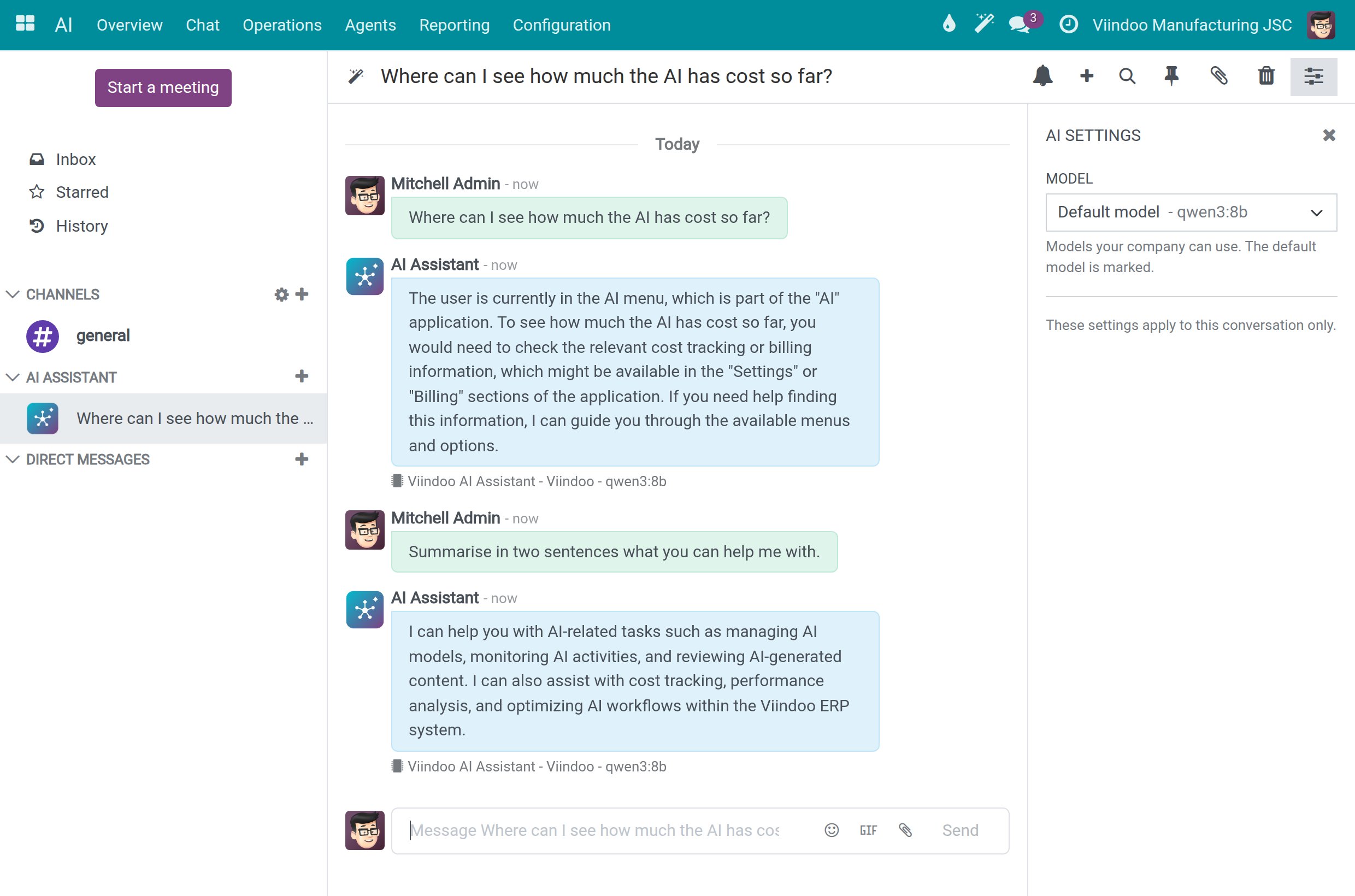
In a conversation, click AI Settings, the right-most icon of the conversation header.
In Model, keep Default model or pick another of the models your company can use. The choice applies to this conversation only.
![The AI Settings panel of a conversation with the list of models]()
When No Answer Comes
When the assistant cannot answer, a red message and the card The assistant could not answer. appear under your question. The message explains why, for example that no AI connection is available to your company.
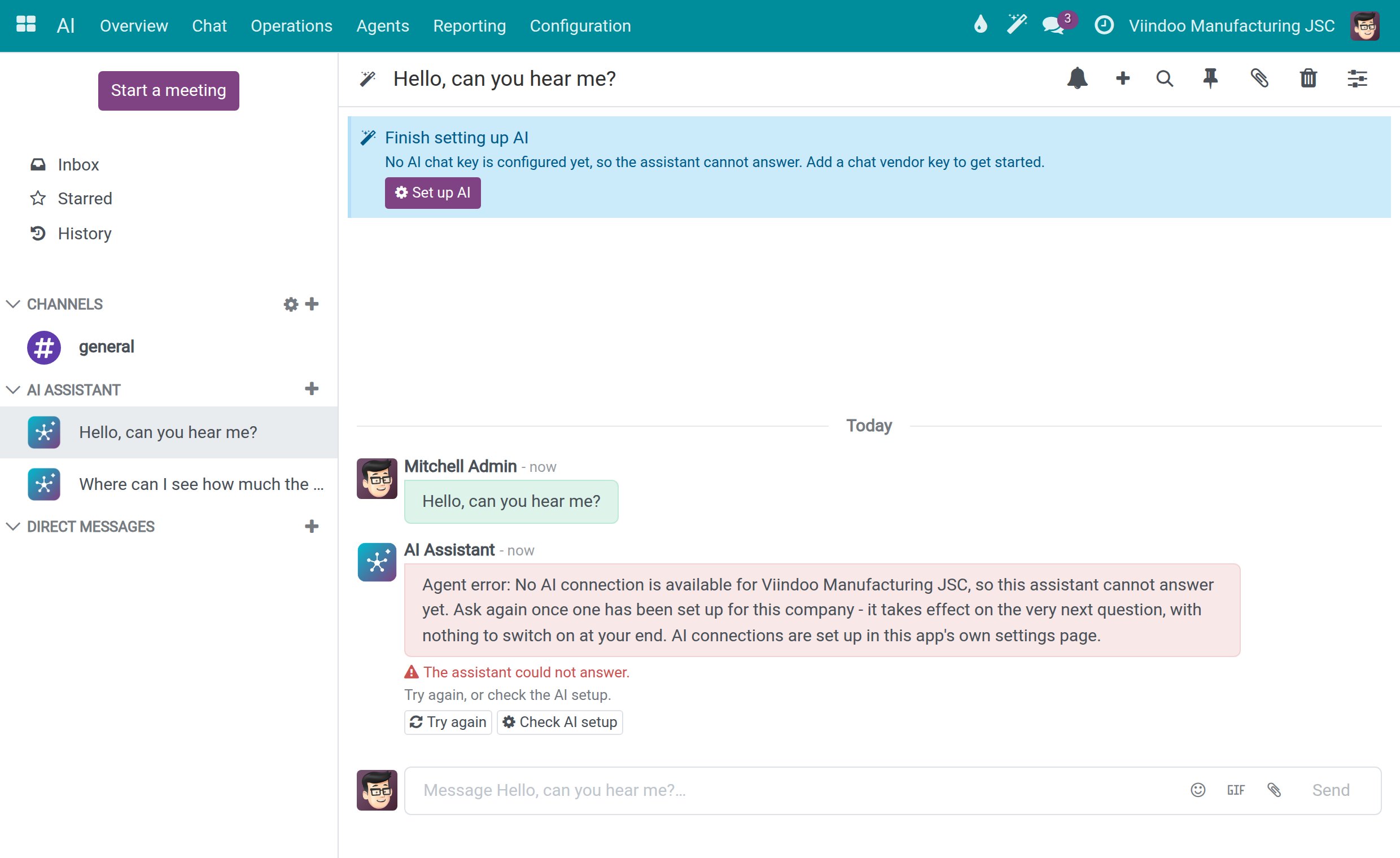
Click Try again after a moment. The next question uses any connection that is available at that time, so once the connection is back, Try again returns the answer.
If it keeps failing, ask your system administrator to check the AI setup (see Get started with Viindoo AI). Administrators also see Check AI setup on the card and a Finish setting up AI notice with a Set up AI button at the top of a new conversation; both open the AI settings.
Choose an Assistant
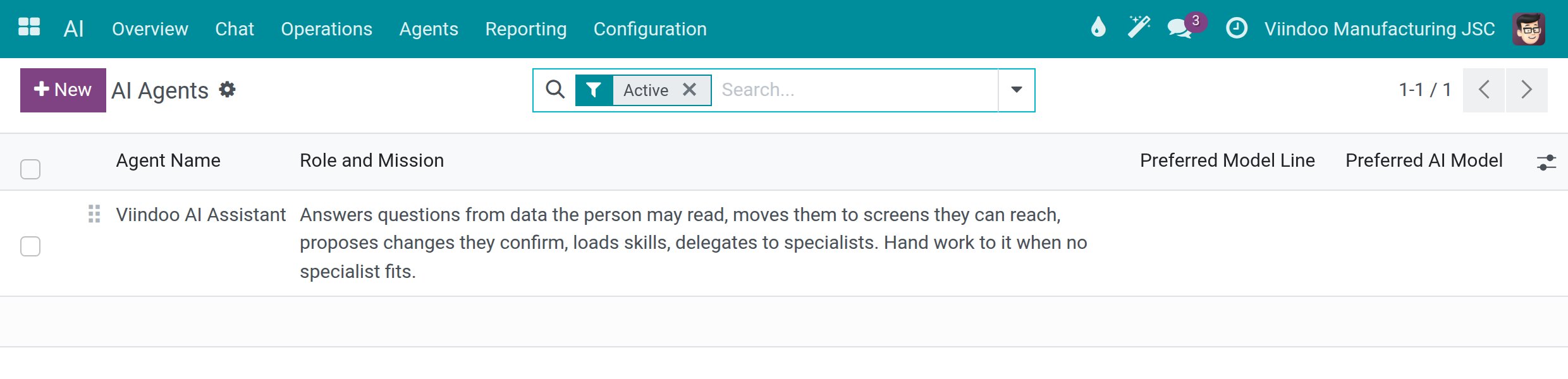
An assistant is a configured helper with its own mission and instructions. A fresh installation has one, Viindoo AI Assistant.
Go to to list the assistants, each with its Role and Mission, Preferred Model Line and Preferred AI Model.
![The list of AI assistants with their role and mission]()
Go to to see the same assistants as cards, and click Chat on a card to continue with that assistant.
See What the Assistant Remembers
The assistant keeps short notes about you so that you do not repeat yourself. The notes are private to you.
Go to . Each line is one note, with its Layer, User, Topic, Summary and Last Referenced. Notes of the L0 - Identity and L1 - Essential layers are given to the assistant with every question.
![The list of AI memory notes with their layer, user and summary]()
Open a note and edit its Summary when it is wrong, then save.
To remove a note, tick it and use . The Archived filter brings archived notes back.

See What the AI Read From a File
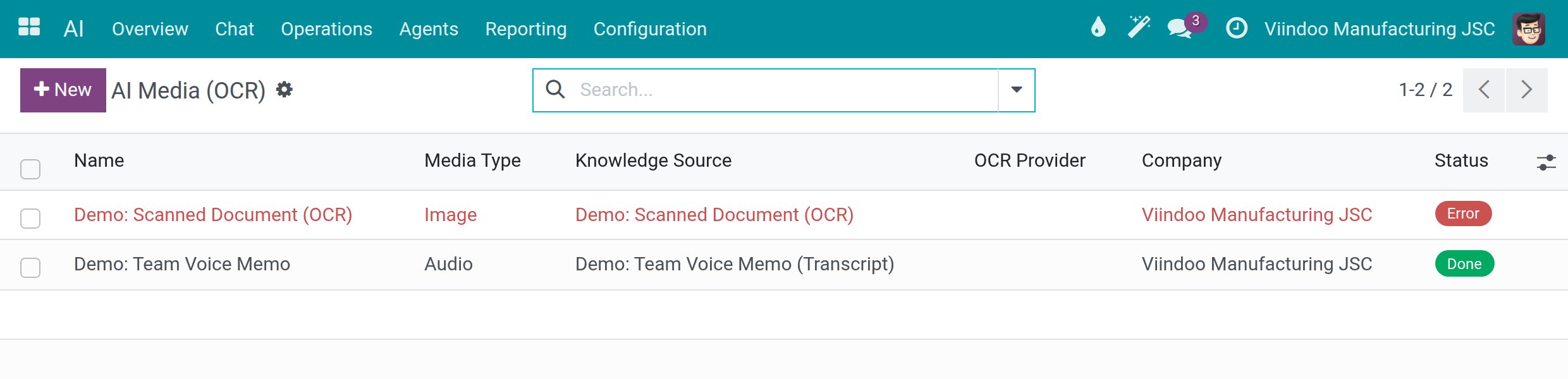
Go to . Each line is a file the AI read, with its Media Type, Knowledge Source, OCR Provider and Status: Pending, Processing, Done or Error. Open a line to see the file and the text the AI extracted. You can read these records; a system administrator can click Re-extract on a line in Error after fixing the cause.
Review Where the Assistant Took You
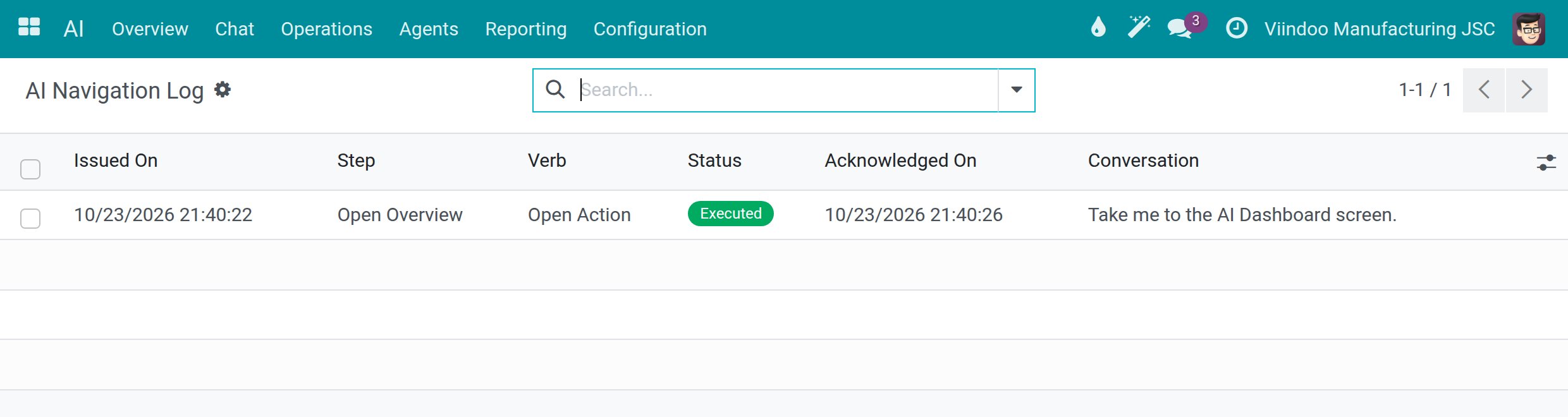
When the assistant opens a screen for you, it writes one line in a private log that only you can read.
Ask the assistant to take you somewhere, for example
Take me to the AI Dashboard screen.Go to . Each line shows Issued On, the Step, the Verb, the Status (for example Executed), Acknowledged On and the Conversation it came from.
![The AI Navigation Log with one executed step and the conversation it came from]()
Success Checkpoint
Your question has an answer under it, with the line naming the assistant, the connection and the model.
The chat window opens from the top bar on any screen.
Your notes appear in AI Memory, and every screen the assistant opened for you is listed in the AI Navigation Log.
Common Problems
Problem |
What to do |
|---|---|
The card The assistant could not answer. appears. |
Click Try again. If it keeps failing, ask your system administrator to check the AI connection. |
You do not see Configuration in the AI app. |
Configuration is for administrators. You can still chat, read your notes and see your own AI calls. |
A note in AI Memory is wrong. |
Open it, correct the Summary and save, or archive it with . |
You cannot change a file in AI Media. |
Employees read these records. A system administrator can re-extract a file that ended in Error. |
Next Steps
Teach the AI assistant - for administrators: add the documents and websites the assistant can draw on.
Spend limits, usage and audit - see your own AI calls and what AI costs.