
Decide how a shipment starts: order or shipment
Guide information
Requirements
This tutorial requires the installation of the following applications/modules:
Freight Sale - required for the sales-order path below. It may install automatically when all its dependencies are present; check Installed Apps before starting.
Every shipment can start in one of two places: Operations opens it directly, or Sales quotes it first and the shipment appears once the customer signs. Neither path is wrong, but a team that never agrees which one to use ends up with duplicate shipments, or a booking confirmed before anyone checked the margin. If a term below is new to you, see the Freight forwarding glossary.
A shipment can include pickup to the origin port or cargo terminal, the main sea, air, or road journey, and delivery from the destination port or terminal. Freight teams often call these pre-carriage, main carriage, and on-carriage. Viindoo shows each part as a route leg on the Schedule & Performance tab. These labels describe where a service sits in the journey; they do not decide which legs your company has agreed to provide.
Running scenario: Hai Long Logistics ships 2 x 40FT HC of footwear for Nhat Long
Footwear from Hai Phong Port to Port of Los Angeles with carrier ONE
(booking ONEYBK204581, HBL HLLHPHLAX2611-001). This shipment starts from a sales order. The
shipment-first screens use Nhat Long Footwear’s next order, which Operations opens directly as
a draft shipment.
The six building blocks of every shipment
Whichever path you start from, the same six pieces of information end up on the shipment. Once you know where each one lives, you can always find your way back to it.
Block |
Where it lives |
What it holds |
|---|---|---|
Shipment |
The shipment record itself |
Customer, direction (Export/Import), Main Transport, shipment type, route, current stage |
Route legs |
Schedule & Performance tab |
Pickup before the main journey, the primary transport service, and delivery after arrival; each leg has its own Transport Mode and carrier |
Milestones |
Containers list on the Cargo & Packages tab |
Empty Picked, Stuffed, Gate-in, Loaded on export; Arrived, Customs Cleared, Gate Out, Empty Returned on import |
Charges |
Charges tab (appears once Confirmed) |
One line per cost, each with a buy and a sell price, feeding Total Revenue, Total Cost and Gross Profit |
Documents |
Bill of Lading section, plus document requests where Freight & Document Integration is installed |
Shipping Instruction, Draft B/L, HBL, D.O, Arrival Notice |
Profit |
Top of the Charges tab |
Total Revenue, Total Cost, Gross Profit, always in the company’s accounting currency (VND for Hai Long Logistics) |
Tip
You can find your way around when: you can open the Hai Long -> Nhat Long Footwear shipment and point to all six blocks above without searching.
See also
Freight Forwarding in Viindoo: solution map and modules - the full map of modules this flow relies on.
Start from the shipment, or from the sales order?
Shipment-First |
SO-First |
|
|---|---|---|
Who opens the job |
Operations |
Sales |
What exists first |
A shipment in Draft, route and container type already known |
A quotation with a rate already picked through the sailing-schedule wizard |
How the other half appears |
Sales clicks Create Quotation on the shipment to hand the price to the customer |
Confirming the sales order creates the shipment automatically, in Draft |
Where the legs come from |
Entered by hand on the shipment |
Copied from the Freight Legs configured on the product that was sold |
Where the charges come from |
Confirming the booking adds the freight line with the buy price only; the sell price and any other charge are entered by hand |
Copied from the sales order line, already priced |
Main risk |
Nobody checks the margin before the booking is confirmed |
A product with no Freight Legs configured leaves the shipment with no route |
If the approved path is unclear, ask the Sales or Operations lead before creating either record. Do not create both: confirming a sales order already creates a shipment.
Warning
A missed cutoff may roll cargo to a later sailing and lead to storage or rebooking charges. The impact depends on the lane and carrier. Whichever path you started from, record the confirmed CY, SI and VGM cutoffs as soon as the booking is confirmed.
Shipment-First: Operations opens the job
Go to (or Import) and create the shipment: Customer, route and Shipment Type, with Main Transport Sea / Waterway.
Add at least one leg on the Schedule & Performance tab, then Confirm. The Charges tab and the Bill of Lading section appear on the shipment.
When the customer needs a formal quotation, click Create Quotation on the shipment header.
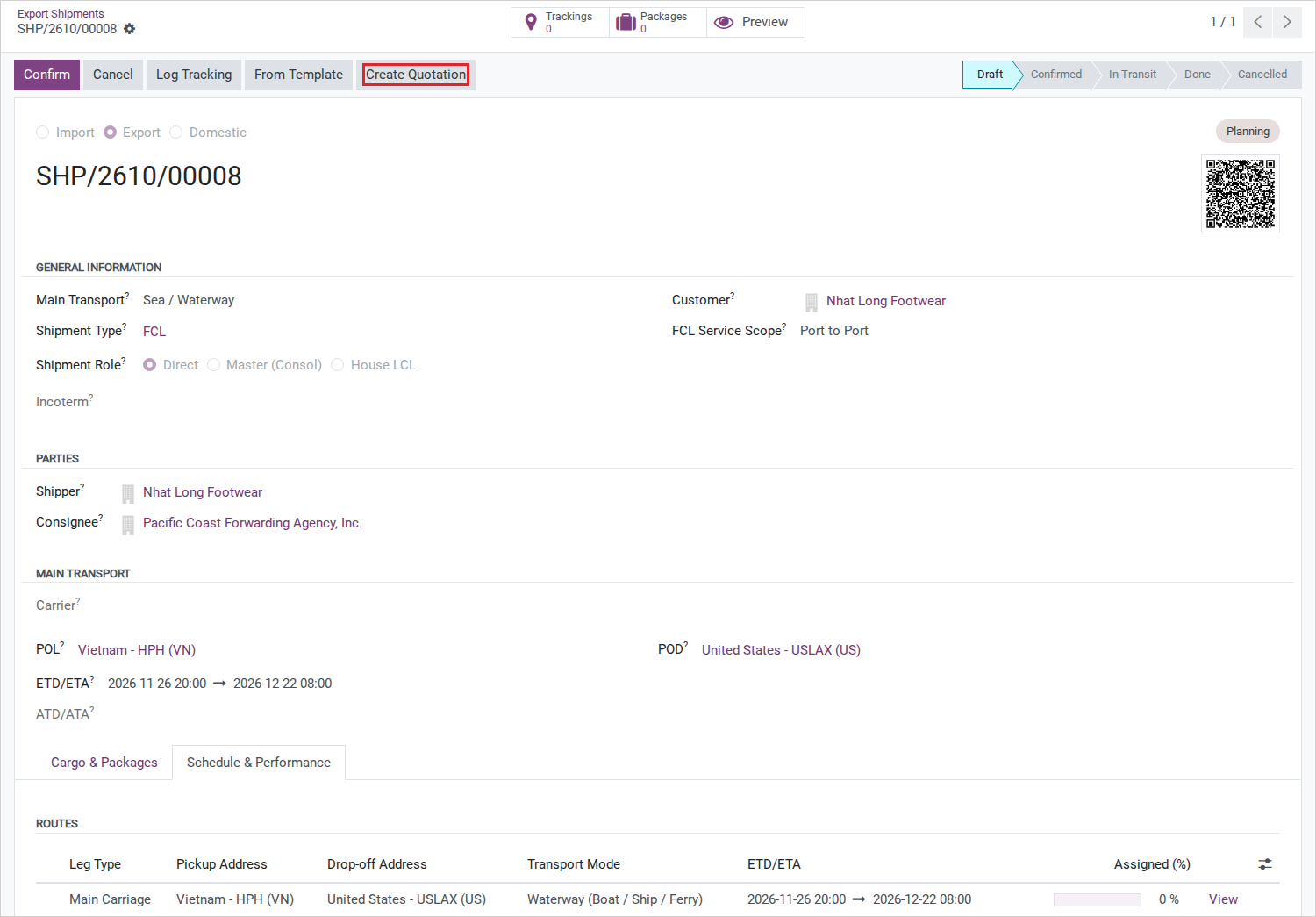
Note
Create Quotation needs a Sales access right (User: Own Documents Only or higher), not a Logistics one - a user with full Logistics access but no Sales group will not see it.
SO-First: the customer signs first
Sales opens a quotation under .
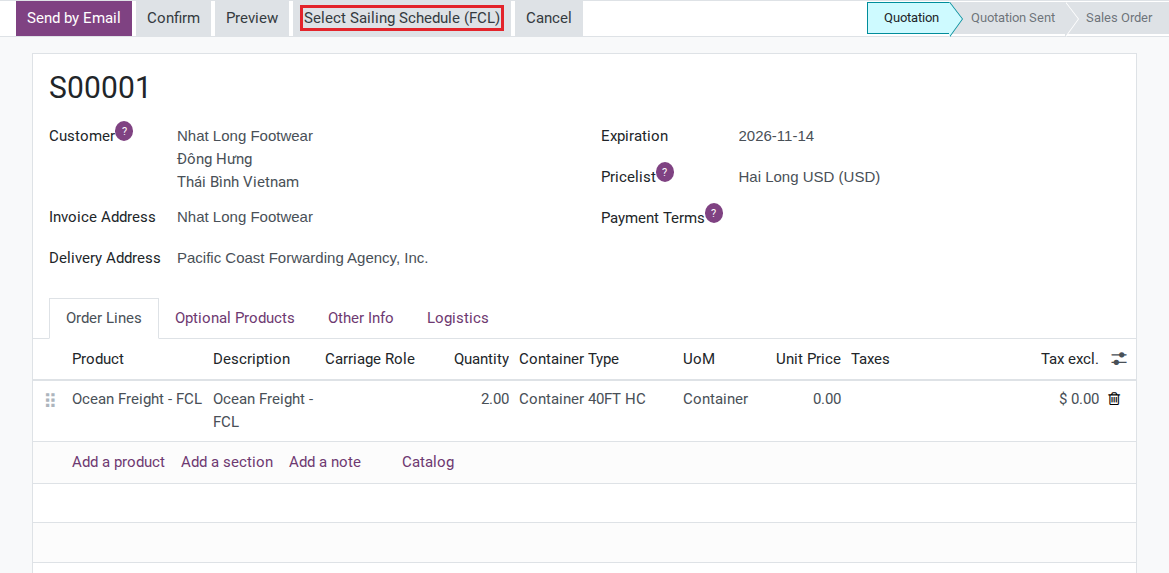
Sales clicks Select Sailing Schedule (FCL) (or the LCL equivalent) to pick a carrier, route and container type, then Apply Quote.
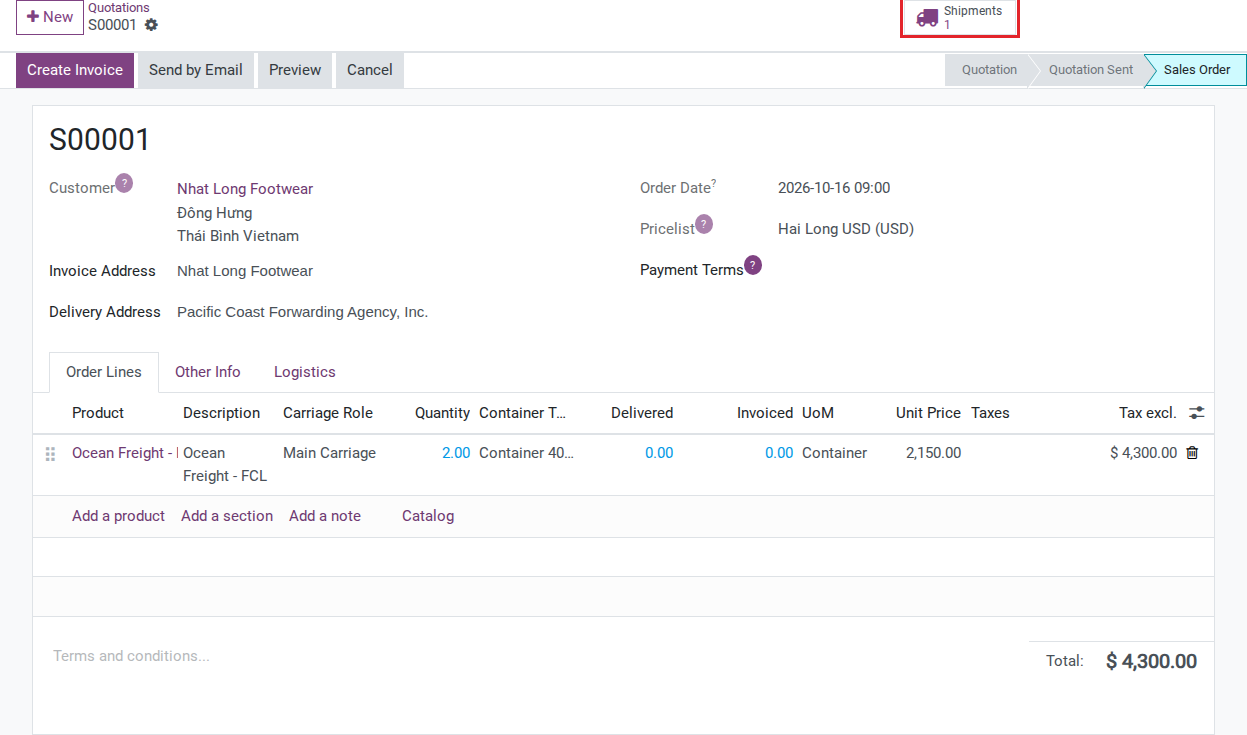
The customer signs, Sales clicks Confirm, and Viindoo creates the shipment automatically, in Draft, with the same carrier, route and container type as the order.
Operations opens the shipment from the Shipments smart button on the order, checks the route and the charge lines, and clicks Confirm - confirming the sales order does not confirm the shipment.
Where each document appears
Document |
Created from |
Typical timing |
|---|---|---|
Shipping Instruction (SI) |
Printed as Blank SI Form, or requested from the shipment’s Required Documents list |
Before SI Cutoff |
Draft B/L |
Requested and approved through the same document-request flow |
Before CY Cutoff |
House Bill of Lading (HBL) |
Printed from the shipment (Print HBL) |
After the shipment is Confirmed |
Delivery Order (D.O) |
Import Operations section of the shipment |
On arrival, before cargo release |
Arrival Notice |
Send Arrival Notice button (import shipments only) |
On or shortly after vessel arrival |
Each document has its own deadline. Missing one does not block the others, but it can incur an amendment fee. Check the required-document deadlines and approval status on the shipment before sending documents to the carrier.
Troubleshooting
The Charges tab is not there
Symptom: The shipment is open, but there is no Charges tab.
Cause: The shipment is still in Draft - the tab only appears once it is Confirmed.
Fix: Check the route and Shipment Type, click Confirm, then enter the cost price and unit price on each charge line.
The sales order is confirmed but the shipment is still Draft
Symptom: The sales order shows Confirmed, but its shipment is still in Draft.
Cause: This is by design - confirming the sales order only creates or links the shipment, it does not confirm it.
Fix: Open the shipment from the Shipments smart button, check the legs and charges against what was sold, then confirm it yourself.
A shipment created from a sales order has no legs
Symptom: A shipment created from a confirmed sales order has an empty route.
Cause: Legs are copied from the Freight Legs configured on the freight product that was sold. A product with no Freight Legs produces a shipment with none.
Fix: Add the legs by hand to keep this shipment moving today, then add Freight Legs to the product so the next sale of it arrives with a route already set.
Select Sailing Schedule does not appear on the quotation
Symptom: The quotation has a freight line, but neither Select Sailing Schedule (FCL) nor the LCL equivalent shows on the header.
Cause: The button only shows on an order that is still a quotation and has a line with a sea freight product. An ordinary service line, or an order already confirmed, does not show it.
Fix: Check that the order is still a quotation, and that the line’s product has Product Type Freight, Transport Mode Waterway (Boat / Ship / Ferry) and an FCL (or LCL) Shipment Type.
See also
Related articles