
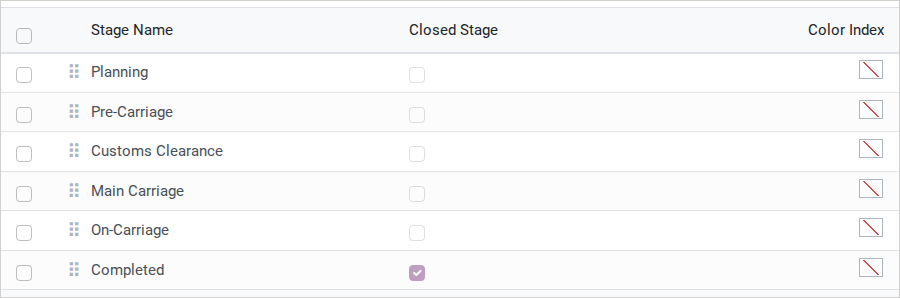
Shipment stages
Label on screen |
What it means |
Where you see it |
Filled by |
|---|---|---|---|
Planning, Pre-Carriage, Customs Clearance, Main Carriage, On-Carriage, Completed (6 default stages) |
The lifecycle steps a shipment moves through, shown as kanban columns. |
Administrator creates/edits the catalog; the system assigns Planning automatically when a shipment is created; Operations moves it forward with Current Stage on the shipment’s Settings tab, or by dragging the card on the kanban view. |
|
Closed Stage (checkbox) |
Marks a shipment at this stage as finished from a business point of view. |
Same form, per stage |
Administrator |
Tip
The setup is correct when: a new shipment opens with Current Stage Planning, and the shipment kanban shows one column per stage, from Planning to Completed.
Shipment types
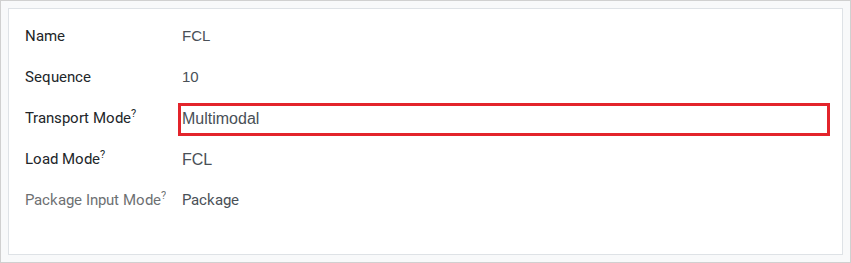
Transport Mode (Sea / Waterway, Air, Road, Rail, Multimodal) and Load Mode (FCL, LCL, FTL, LTL, Loose, Full ULD, Bulk, Break Bulk, RoRo, Consol, Direct, Charter, Express) together decide which shipment types Sales and Operations can pick from - .
Warning
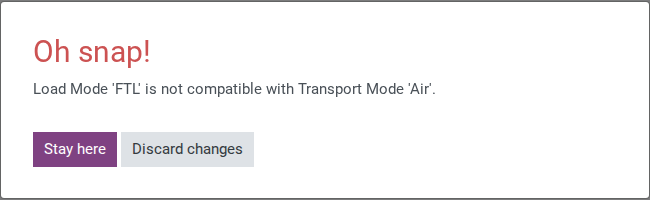
Load Mode must be compatible with Transport Mode - Multimodal accepts every load mode, but Air, for example, only accepts Loose or Full ULD. Saving an incompatible pair is blocked immediately with an error message naming both values.
Note
The default Shipment Type FCL is set to Transport Mode Multimodal, not Sea / Waterway - this lets an FCL shipment also cover the inland trucking leg, and is a deliberate design choice, not a misconfiguration.
Decide the Transport Mode for a new shipment type
Option |
Use when |
What changes |
|---|---|---|
Multimodal |
The shipment can move through more than one transport leg, like FCL at Hai Long (ocean plus inland trucking). |
Accepts every Load Mode. |
Sea / Waterway, Air, Road, Rail |
The shipment only ever uses one transport mode and you want the system to block a mismatched Load Mode. |
Only the Load Modes valid for that Transport Mode can be saved. |
Set Transport Mode to match the services represented by this shipment type. Choose Multimodal when it is intended to cover more than one transport mode; use a single mode when the type is limited to that mode so Viindoo can block incompatible Load Modes. If the business scope is not defined, confirm it with the freight process owner before creating the type.
Tip
The setup is correct when: the Shipment Type list already offers FCL with Transport Mode Multimodal and Load Mode FCL - Hai Long’s FCL export uses it as installed, with no new type created.
See also
Booking Officers assign the confirmed carrier and route on top of the Shipment Type in Book carrier space for a shipment leg.
Package types and container types
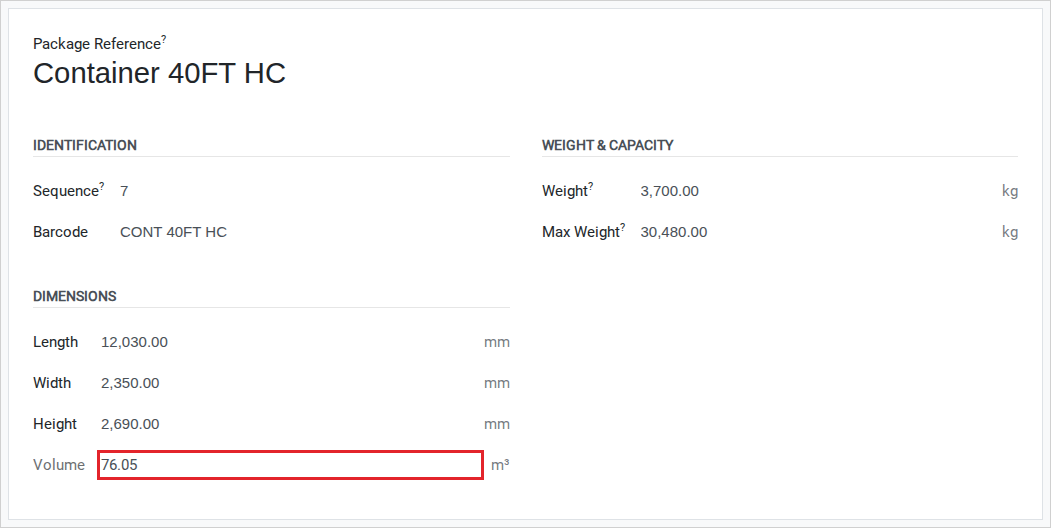
Is Container, Height, Width, Length, Volume, Weight, Max Weight and Barcode describe a package or a container - lists every type, and shows the same catalog already filtered to Is Container = true. The container used throughout this guide is the existing Container 40FT HC.
For the footwear export in this guide, Hai Long adds one package type for the shoe cartons, because the installed Carton (600 x 400 x 400 mm, 0.096 m3) is taller than the real cartons:
Package Reference: Carton 60x40x35.
Length: 600, Width: 400, Height: 350 (mm).
Max Weight: 20 (kg).
Note
Volume computes itself from Length x Width x Height (converted to m3) - it is not a field you type into directly. For Carton 60x40x35 it reads 0.084 m3.
Truck types
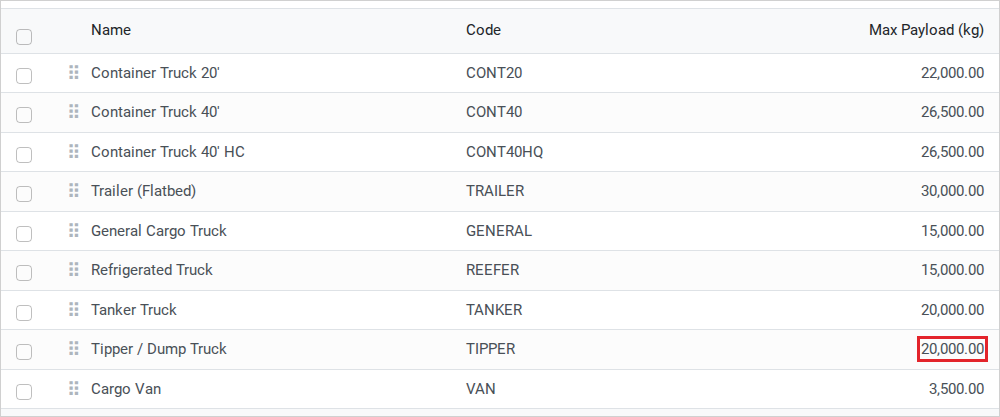
Name, Code and Max Payload (kg) - . Freight Forwarder Management installs 9 truck types, including Tipper / Dump Truck at a 20,000 kg maximum payload - enough for the 18,500 kg bulk load on the Ha Noi -> Con Minh road shipment in this guide. The Truck Types menu itself only shows once Freight Road is installed. Search the list before creating a new one.
Tip
The setup is correct when: the Truck Types list shows Tipper / Dump Truck with Max Payload (kg) 20,000, at least the 18,500 kg of the road export in this guide, without a new truck type being created.
Troubleshooting
Can’t save a new Shipment Type: Load Mode error
Symptom: an error naming a Load Mode value and a Transport Mode value appears when saving.
Cause: the Load Mode you picked is not on the allowed list for the Transport Mode you picked.
Fix: change the Load Mode to one of the values allowed for the current Transport Mode (see Decide above), or switch Transport Mode to Multimodal if you need more flexibility.
A package type doesn’t show up when filtering to Container Types
Symptom: a package type you created is missing from the Container Types menu.
Cause: that menu filters strictly on Is Container = true; the record was saved without this box ticked.
Fix: open the record from the unfiltered Package Types menu, tick Is Container, and save.
The truck you picked can’t carry the load
Symptom: the vehicle turns out too small for the cargo on the day of pickup.
Cause: there is no automatic check tying a Truck Type’s Max Payload (kg) to the cargo weight entered later on a booking - choosing the right truck is a manual judgement call.
Fix: before selecting a Truck Type, open the Truck Types list and compare Max Payload (kg) against the cargo weight (e.g. 18,500 kg needs a truck rated at 20,000 kg or more, such as Tipper / Dump Truck).
See also
Related articles