
Ship cross-border by truck: export
Guide information
Requirements
This tutorial requires the installation of the following applications/modules:
Freight Road (installs Freight Forwarder Management, and in turn Logistics Accounting, automatically)
A Full Truck Load (FTL) shipment commits one truck to a single customer’s cargo for the whole cross-border route, so the truck, the driver and the border crossing you confirm on the booking are the ones that actually cross - a mismatch found at the border cannot be fixed from an office in Hai Phong. Unlike sea or air freight, Viindoo’s own Cargo Manifest and Delivery Note are the forwarder’s primary paperwork for the driver, the border customs officer and the consignee; a customs declaration filed with the wrong details, or a truck that shows up without its cross-border permit, both stop the shipment at the gate, not in the software. If a term below is new to you, see the Freight forwarding glossary.
Running scenario: Hai Long Logistics exports 18,500 kg of bulk minerals (HS 2617.90) for Quảng Ninh Mining Co., Ltd. (Ha Long, Quang Ninh) to Kunming Import Partner Co., Ltd. in Kunming, China, via the Huu Nghi (Lang Son) border crossing, using carrier Đại Phát Logistics’s truck 51F-12345, driven by Nguyễn Văn Tùng. Buy rate VND 9,500,000 and sell rate VND 12,000,000 for the full truck.
Before you start
The carrier Đại Phát Logistics and the border crossing Huu Nghi (Lang Son) already exist: the carrier and location records in Freight Forwarding configuration (add missing records first).
The freight product Road Freight - FTL and the Border / Infrastructure Charge product are set up: the freight and local-charge product settings in Products, including the sale/purchase settings and Project Template.
A buy rate card for Road Freight - FTL with Đại Phát Logistics is set, so the Cost Price fills in on its own: Maintain carrier rates and vessel schedules.
You are in the User: All Shipments group, or you are the Responsible of the shipment with User: Own Shipments - on any other shipment Own Shipments is read-only. See What Own, All and Admin can do inside a shipment; the user’s Freight access is set in Settings > Users & Companies > Users.
Step 1: Agree the full-truck-load rate
For this FTL shipment, Hai Long and Quảng Ninh Mining agree a selling price of VND 12,000,000 for one full truck. Confirm the service scope, pickup/delivery points and who pays any additional costs, such as border waiting or transloading, before arranging the truck.
This guide follows a shipment created directly by Operations. Keep the customer’s written agreement and attach it to the shipment in Step 2; enter the agreed selling price on its Charges tab in Step 4.
Note
If your company starts from a confirmed sales order, open the shipment generated by that order and continue on it. See the confirmed sales order and shipment: check the same customer, route and services before editing. Creating another shipment for the same service would duplicate the operating and billing records.
Tip
Step 1 is done when: the customer has approved VND 12,000,000 for the full truck and the handling of additional costs is recorded in the agreement.
Step 2: Create the shipment
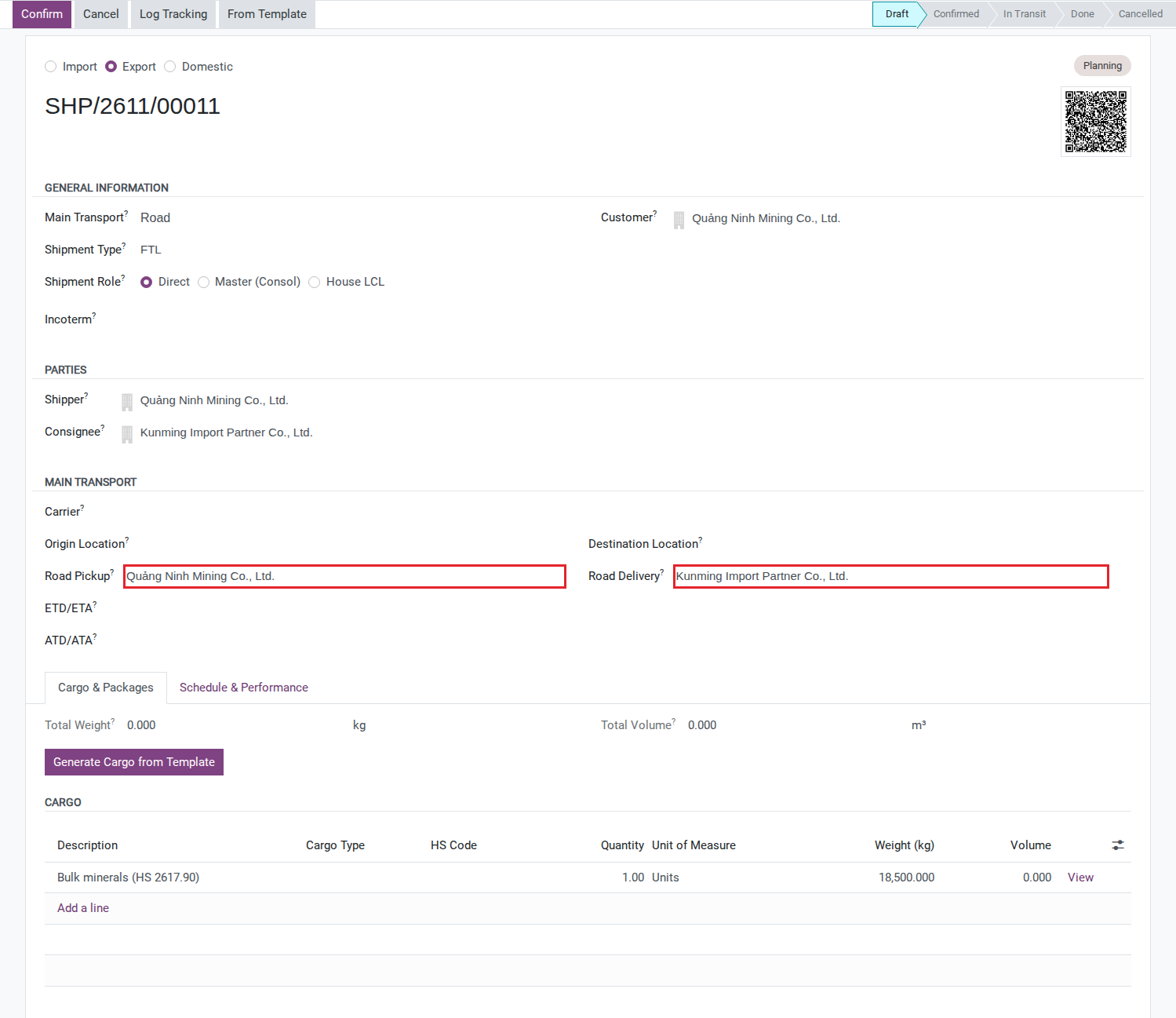
Road Pickup and Road Delivery are the two fields that fix the main-carriage leg’s start and end point for a road shipment. Leaving either one blank, or filling only one of them, means Viindoo has nothing to build a leg from when you try to book the truck.
Go to and click New. Fill in:
Main Transport: Road · Shipment Type: FTL.
Customer: Quảng Ninh Mining Co., Ltd. · Shipper: Quảng Ninh Mining Co., Ltd. · Consignee: Kunming Import Partner Co., Ltd.
Road Pickup: Quảng Ninh Mining Co., Ltd. · Road Delivery: Kunming Import Partner Co., Ltd.
On the Cargo & Packages tab, add one cargo line: Description: Bulk minerals (HS 2617.90), Weight (kg): 18,500.
Warning
Check the truck’s actual load against the 18,500 kg declared here before it leaves the yard - a truck over its permitted weight is stopped and unloaded at the weighing station, which is a far longer delay than double-checking beforehand.
Click Confirm. After you click it: the status bar moves to Confirmed, the route locks, and the Booking button appears in the header.
Tip
Step 2 is done when: the cargo row shows Weight 18,500 kg, and Road Pickup and Road Delivery are filled with two different partners.
Decide how to represent bulk cargo for printing
Option |
Use when |
What changes |
|---|---|---|
Create a representative package |
Any bulk shipment with no containers and no individual packages - this shipment |
You create one package (for example “Bulk load - 18,500 kg”) through the shipment’s Packages smart button and assign it to the Truck Item before printing (Step 3); the Cargo Manifest and the Delivery Note then show the correct kg |
Print without a package |
Never recommended for a bulk shipment handed to a driver or a customer |
The Weight (kg) and Volume (CBM) columns stay blank on both printed documents, even though the cargo row already has a declared weight |
Use weights, volume and package details from the packing list or a verified warehouse measurement. Do not invent a representative package or quantity just to fill the printed columns. If the cargo is bulk and the system needs a package record to print its totals, confirm the representation and figures with Operations before creating it; otherwise resolve the missing cargo data before issuing the manifest or delivery note.
Step 3: Book the truck and record the border crossing
The truck booking is where the physical vehicle, the driver and the border crossing become part of the shipment record - a carrier without a valid cross-border permit is refused entry at the gate, so this is the last point where a wrong choice is still cheap to fix.
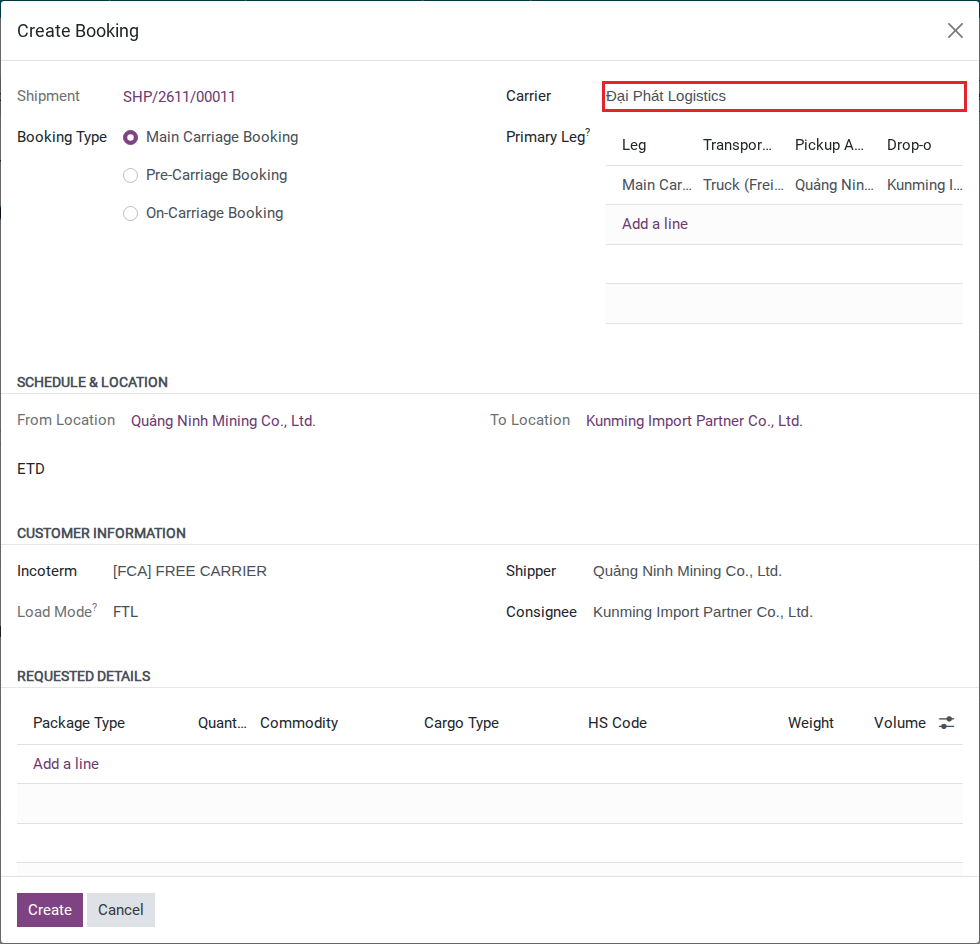
Click Booking in the shipment header to open the Create Booking wizard. Enter Main Carriage Booking (the default radio option) and Carrier: Đại Phát Logistics (required); From Location and To Location show read-only, copied from Road Pickup and Road Delivery. Set Incoterm to [FCA] FREE CARRIER as agreed for this example; search by FREE CARRIER if typing the code FCA returns no records. Click Create.
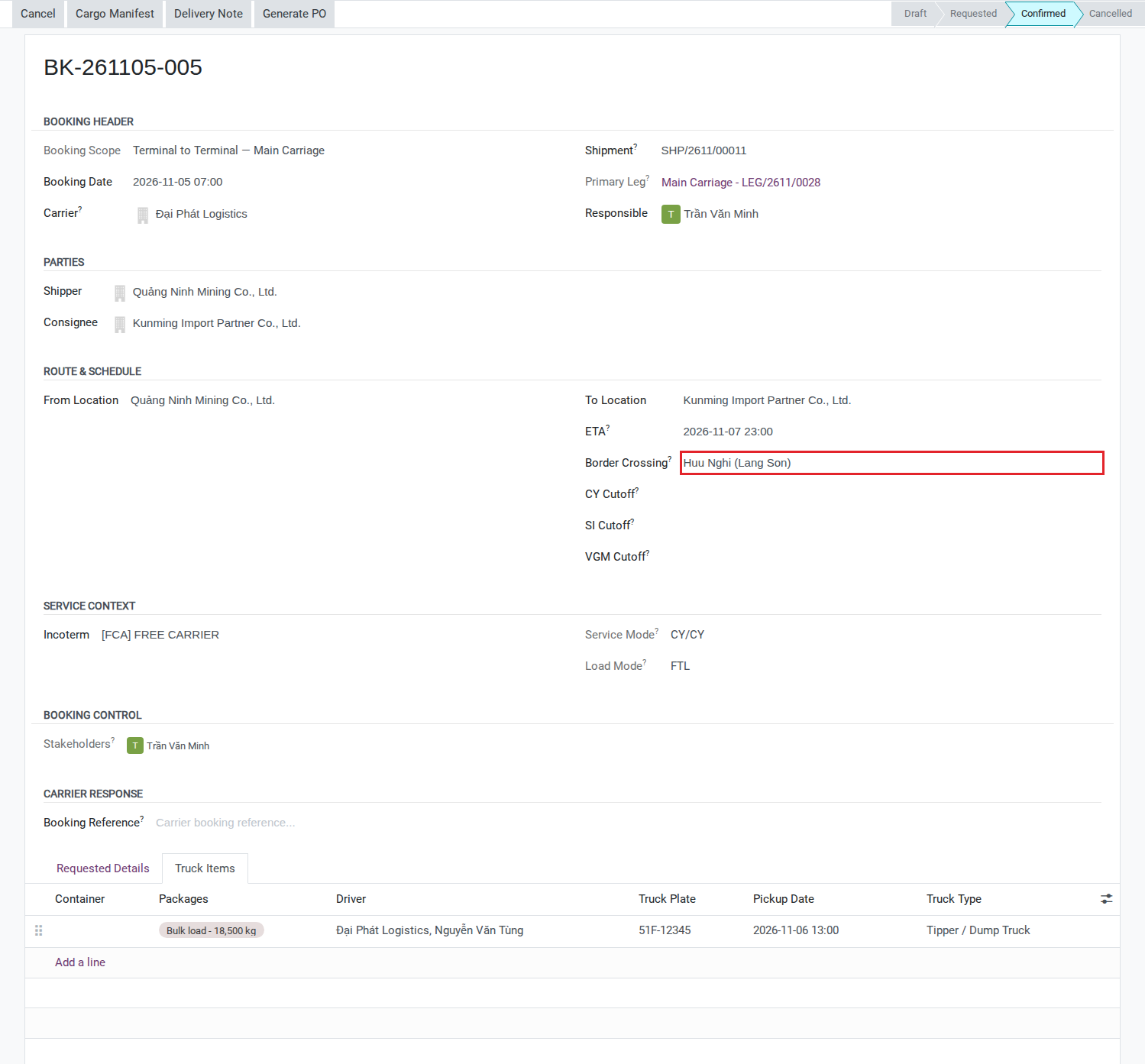
On the booking Viindoo just created, fill in the Truck Items tab: Truck Plate: 51F-12345 · Driver: Nguyễn Văn Tùng · Pickup Date: 2026-11-06 13:00 · Truck Type: Tipper / Dump Truck (rated for 20,000 kg). To get the weight onto the printed documents, open the shipment’s Packages smart button and click New. In the new row, enter Package Reference: Bulk load - 18,500 kg, Weight (kg): 18,500 and Volume (m³): 10 from the verified loading figures, then save the row. Return to the booking, then show the optional Packages column of Truck Items and select it on this line. Then fill ETA: 2026-11-07 23:00 and, right after it, Border Crossing: Huu Nghi (Lang Son) - this field only appears for a truck leg that is not domestic.
Note
Viindoo does not store whether a truck or a carrier holds a valid international cross-border permit. Verify Đại Phát Logistics’s permit yourself, outside the system, before you rely on this booking.
Tip
Step 3 is done when: the booking shows Carrier = Đại Phát Logistics, Truck Plate = 51F-12345, Driver = Nguyễn Văn Tùng, Packages = Bulk load - 18,500 kg, and Border Crossing = Huu Nghi (Lang Son).
Step 4: Load the truck and confirm the booking
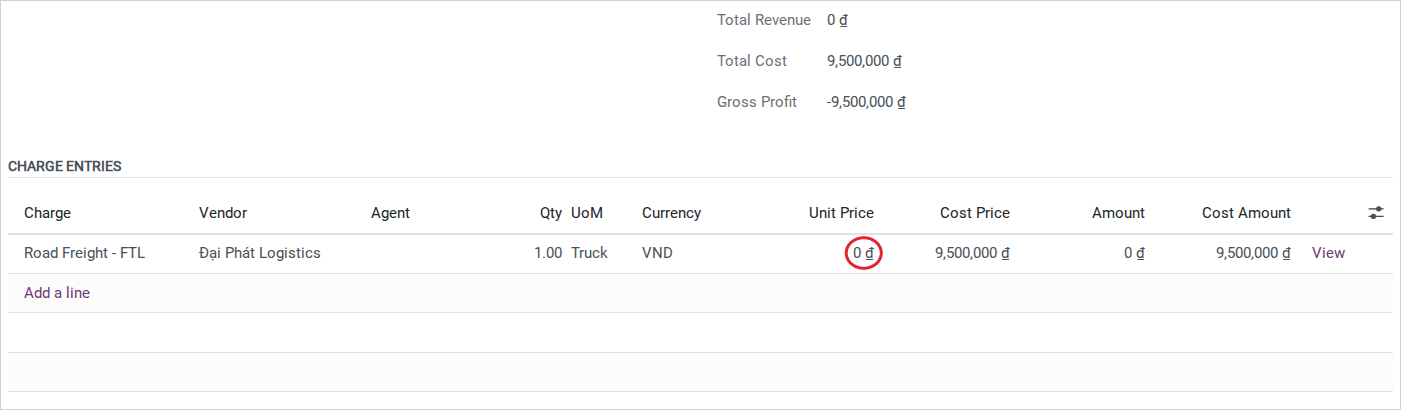
In this example, confirming the booking creates a road freight charge with Unit Price 0.00. Enter the agreed selling price before checking Gross Profit; until then, the shipment shows a loss because only the buying cost has been recorded.
On the booking, click Mark as Requested, then Mark as Confirmed. After Confirm: the booking’s status bar reads Confirmed, and one Road Freight - FTL charge line is created automatically on the shipment’s Charges tab with Unit Price = 0.00 and Cost Price filled in from Đại Phát Logistics’s rate card.
Warning
After Confirm, the person recording the selling price (User: All Shipments) changes Unit Price from 0.00 to the agreed VND 12,000,000 for this shipment. Check the price with the quotation or customer agreement before saving.
Add a second charge line yourself: Border / Infrastructure Charge, Vendor: Lạng Sơn Border Services Co., Ltd., Unit Price: 0, Cost Price: VND 500,000 - this line is not created automatically.
Tip
Step 4 is done when: the Charges tab shows two lines - Road Freight - FTL (Unit Price VND 12,000,000 / Cost Price VND 9,500,000) and Border / Infrastructure Charge (Unit Price 0 / Cost Price VND 500,000) - and Gross Profit reads VND 2,000,000.
Step 5: Handle export customs, the border crossing and China-side clearance
This entire step runs outside Viindoo - it is government paperwork and a foreign partner’s own operation, with nothing to click or fill in anywhere in Freight Road. Skipping it in this guide would leave Operations assuming the system is tracking these milestones when it is not.
Note
The export customs declaration (VNACCS), the physical clearance at Huu Nghi, any transload to a Chinese-side truck (if the route requires one), and the import clearance and inland transport once the cargo is in China all happen entirely outside Viindoo. Log each milestone in the shipment’s chatter if you need a record of when it happened.
Warning
Around Tet (Vietnamese Lunar New Year), the border crossing and the yards on the Chinese side typically suspend customs clearance for a few days - build that into the schedule before you quote or commit a delivery date to the customer for that period.
Tip
Step 5 is done when: the export declaration is cleared before the truck reaches Huu Nghi, any transload handover is documented (if the route required one), and the full set of China-side import paperwork is in hand - all recorded in the chatter or kept outside the system.
See also
Issue an HBL or send an Arrival Notice for storing scanned customs paperwork against the shipment.
Step 6: Deliver the cargo and get it signed for
Without a signed Proof of Delivery, Hai Long has no basis to invoice the customer and no protection if the condition of the cargo is disputed later.
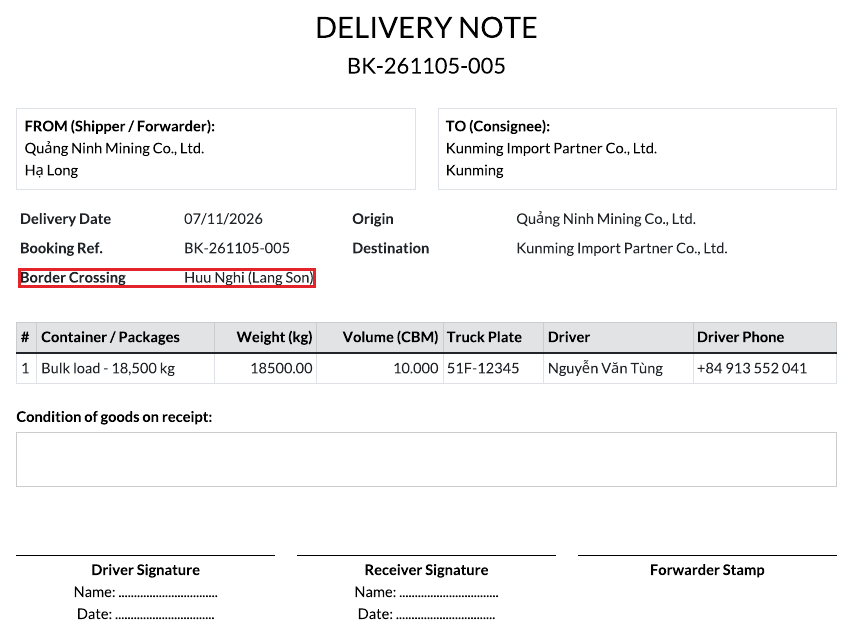
On the booking, click Delivery Note in the header (this button is always visible for a truck leg) to print the PDF. The same header also has a Cargo Manifest button, which prints in the same way and carries the same limitation described below.
Note
The Weight (kg) and Volume (CBM) columns on both the Cargo Manifest and the Delivery Note only show a value when the Truck Item has a container or a package assigned. For this bulk shipment, assign the representative package in Step 3 (see Decide how to represent bulk cargo for printing above) before printing - otherwise both columns print blank even though the cargo row already records 18,500 kg.
Tip
Step 6 is done when: the printed Delivery Note carries the Driver Signature and the Receiver Signature, and the “Condition of goods on receipt” box has been filled in with the cargo’s actual condition.
Step 7: Close the charges and check the gross profit
Missing an unplanned cost before closing the books makes the reported Gross Profit look better than the shipment actually performed.
Accounting (in the User: All Shipments group) opens the shipment’s Charges tab to invoice the customer and pay Đại Phát Logistics and Lạng Sơn Border Services Co., Ltd. - the full invoicing and payment workflow is covered in Record charges, invoice the customer, and bill vendors and is not repeated here.
Tip
Step 7 is done when: Gross Profit reads VND 2,000,000, matching the quote from Step 1, and no charge line is missing a vendor or a price.
See also
Record charges, invoice the customer, and bill vendors for invoicing, vendor bills and other charge scenarios.
Known limitations
Step |
What Viindoo does today |
What you do instead |
|---|---|---|
Declaring the cargo (Step 2) |
There is no Seal Number field for road cargo - it exists only on containers, the FCL model |
Log the seal number in the chatter or on the paper handover slip |
Booking the truck (Step 3) |
No field or checklist records whether the truck or the carrier holds a valid cross-border transport permit |
Verify the permit yourself, outside Viindoo, before you rely on the booking |
Where the border crossing is recorded (Step 3/4) |
Border Crossing is only recorded at Booking level - there is no equivalent field on the Shipment form |
Do not look for this field on the Shipment - open the booking (Bookings smart button) to fill in or check it |
The auto-created charge (Step 4) |
The Road Freight charge line Viindoo creates when you confirm the booking always starts at Unit Price 0.00 |
Correct the Unit Price right after Confirm, before anyone reads the Gross Profit |
Printing the documents (Step 6) |
The Weight (kg) and Volume (CBM) columns on the Cargo Manifest and the Delivery Note are blank when the Truck Item has no container or package assigned |
Create a representative package for the load and assign it to the Truck Item before printing (see Decide how to represent bulk cargo for printing) |
Customs and the China-side leg (Step 5) |
No field anywhere records the export customs declaration, the physical border clearance, a transload to a Chinese-side truck, or China’s own import clearance and inland transport |
Log these milestones in the chatter - there is no way to filter or report them in bulk |
Editing the route once a leg exists |
Once the shipment has a main-carriage leg, Viindoo locks only the field pair the shipment actually used to plan that leg - for a shipment built the way this guide describes, that pair is Road Pickup and Road Delivery |
Delete the existing leg (Schedule & Performance tab) before editing Road Pickup or Road Delivery, then let Viindoo rebuild the leg the next time you go through Create Booking |
Troubleshooting
Booking creation fails: Road Delivery is missing
Symptom: clicking Create in the Create Booking wizard shows:
“Cannot create a Main Carriage Booking for shipment SHP/26xx/000nn. Set Road Delivery before creating the booking.”
Cause: the shipment has Road Pickup filled but Road Delivery left blank, and Origin/Destination are not filled either, so Viindoo has no endpoint to build the leg from.
Fix: go back to the shipment form and fill in both Road Pickup and Road Delivery before opening Create Booking again.
Editing Road Pickup or Road Delivery after Confirm is blocked
Symptom: editing Road Pickup or Road Delivery on a shipment that already has a main-carriage leg shows:
“Cannot change Road Pickup on shipment SHP/26xx/000nn because main-carriage legs already exist. Update the route legs or remove them before replanning.”
Cause: once a leg exists, Viindoo locks the field pair that was actually used to plan it - for a shipment created the way this guide describes, that pair is Road Pickup and Road Delivery.
Fix:
Open the shipment’s Schedule & Performance tab and delete the existing main-carriage leg.
Edit Road Pickup and/or Road Delivery.
Go through Create Booking again so Viindoo rebuilds the leg from the new values.
The Cargo Manifest or Delivery Note prints blank Weight/Volume
Symptom: the printed PDF shows no value in the Weight (kg) column even though the cargo row records Weight 18,500 kg.
Cause: the report reads the Truck Item’s container or package, not the shipment’s cargo line - a bulk Truck Item with neither leaves both columns blank.
Fix: create a representative package for the load, assign it to the Truck Item (see Decide how to represent bulk cargo for printing), then reprint.
Mark as Confirmed does not appear on the booking
Symptom: the Mark as Confirmed button is not visible on a newly created booking.
Cause: the button only appears once the booking is in the Requested state - a new booking starts in Draft.
Fix: click Mark as Requested first; Mark as Confirmed appears immediately after.
See also
Related articles
Ship cross-border by truck: import - the reverse operation, importing an LTL shipment at destination
Let customers track shipments on the portal - what Quảng Ninh Mining Co., Ltd. sees when tracking this shipment online
Book carrier space for a shipment leg - the general booking reference, shared across sea, air and road