
Keep a sales order and its shipment in sync
Guide information
Requirements
This tutorial requires the installation of the following applications/modules:
Logistics Shipment Sale Integration (installed automatically once Sales and the logistics modules are installed)
Freight Sale and Freight - Mixed Container Cost Per Type - Patch 1 - the follow-on order uses per-line Container Type from this extension. Confirm the extension is installed before adding the extra container line.
A shipment and its sales order match each other the moment the order is confirmed and the shipment is created, but nothing keeps them that way afterwards - Operations can reroute a booking, and a customer can ask for another container, entirely independently of the order. Viindoo adds a Shipment Sync Message field on top of the standard Odoo sales order to flag one specific kind of drift - a change in the route structure - but the field says nothing about everything else, so knowing exactly what it checks, and what it does not, is what keeps the commercial paperwork and the physical shipment aligned. If a term such as Incoterm or transshipment is new to you, see the Freight forwarding glossary.
Running scenario: Hai Long Logistics already ships 2 x Container 40FT HC for Nhat Long Footwear on a first order (see Quote a full container load for sea export). This page follows a follow-on order for the same customer - 1 x Container 20FT and 1 x Container 40FT HC, quoted as a mixed-container booking in Quote several container types in one FCL shipment - on the same lane, Hai Phong Port to Port of Los Angeles, carrier ONE Line, sailing ONE COMMITMENT / 026W. Two events reach this order after it is Confirmed: the carrier reroutes the sailing through Kaohsiung Port (TWKHH), and the customer then asks for one more Container 40FT HC.
Before you start
The order already exists, is Confirmed (status Sales Order) and has a shipment linked - this page picks up right after Quote several container types in one FCL shipment hands the order off to Operations. It does not cover creating an order or a shipment for the first time.
You are in the User: Own Shipments group (or higher) to see the Shipment field on the order. Every internal user, not only the freight groups, can see the Shipment Sync Message field once it has something to say.
Only users whose Sales access level is User: Own Documents Only or higher see the Sale Orders smart button on the shipment form - an Operations user without a Sales access level cannot jump from the shipment back to the order.
Important
The mixed-container quotation in this example uses an Ocean Freight - FCL product with no route legs defined on the product. Its Shipment Sync Message stays empty, even after the order and shipment are confirmed. An empty field does not confirm that the route matches: compare the quotation and the shipment’s Schedule & Performance tab manually. The green/yellow messages below apply only when the order’s freight products define route legs ; do not change a shared product just to make a banner appear.
Step 1: Check whether automatic route comparison is available
Check whether the order has a route comparison message before relying on it. In this example the message is absent, so compare the agreed route with the actual shipment route manually.
Go to , open the order for Nhat Long Footwear’s follow-on shipment, and open the Logistics tab. The Shipment Sync Message field is blank for this rate-based order. On orders whose freight products define route legs, it can show the two states described below.
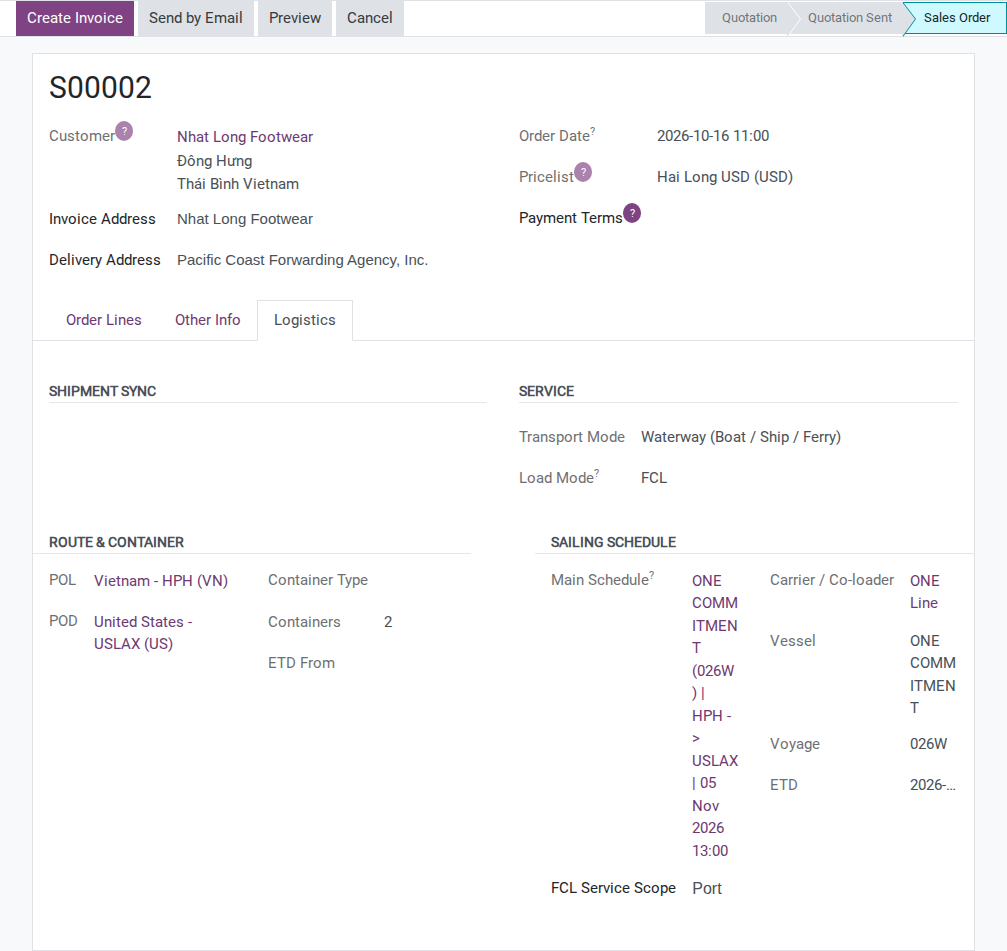
When the order has route legs to compare and they match the shipment, it reads:
“Shipment SHP/26xx/000nn is synchronized with this sales order.”
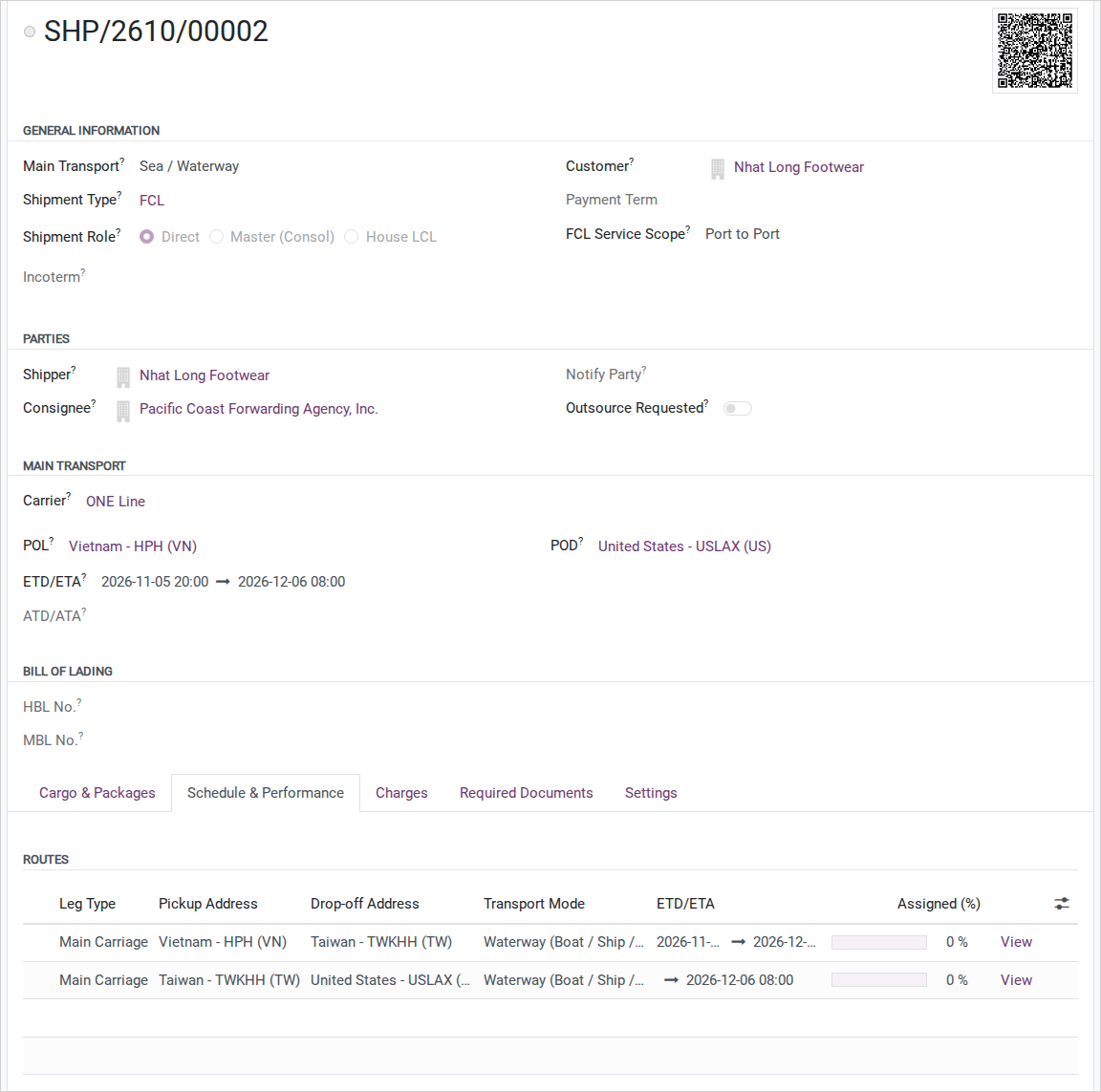
On an order with the original direct route defined by its freight products, rerouting the shipment through Kaohsiung Port produces the following comparison (leg editing belongs to Carrier Booking (Sea)):
“Shipment SHP/26xx/000nn is not synchronized with the order legs.”
Missing legs: Hai Phong Port to Port of Los Angeles (Waterway (Boat / Ship / Ferry))
Extra legs on shipment:
Hai Phong Port to Kaohsiung Port (Waterway (Boat / Ship / Ferry))
Kaohsiung Port to Port of Los Angeles (Waterway (Boat / Ship / Ferry))
For this example, open the linked shipment’s Schedule & Performance tab. Compare the two actual water legs, Hai Phong Port -> Kaohsiung Port -> Port of Los Angeles, with the direct route agreed on the quotation.
Warning
The banner only compares pickup point, drop-off point and transport mode. It does not know that the ETA moved from 2026-12-01 to 2026-12-06, that the reroute carries a USD 45/container transshipment fee, or that the container count changes in Step 3 below - all three have to be checked by hand, through Zalo or email with Operations, not through this field.
Tip
Step 1 is done when: you have checked whether the banner is available. For this rate-based quotation, compare the agreed direct route with the two shipment legs through Kaohsiung manually. On an order where a yellow banner is available, identify which leg is Missing and which are Extra before deciding how to handle the change.
Step 2: Decide whether the change needs a commercial rewrite
This decision determines who ends up paying the USD 45/container transshipment fee and whether the sales order changes at all - getting it wrong means the wrong invoice at Charges and Profitability.
There is no screen for this decision. Compare the agreed route with the shipment route manually for this rate-based order, then review the Incoterm and the contract terms agreed with this customer:
Only notify the customer, do not edit the order - use when the change does not add a real cost to Hai Long, or the cost is one Hai Long absorbs under the agreed terms. This is what happens in this scenario: the reroute is carrier-initiated, so Hai Long absorbs the USD 45/container fee and only informs the customer.
Add a charge line to the order - use when there is a real extra cost the agreed terms let you pass on to the customer. That edit belongs to Charges and Profitability, not to this page.
Note
The message remains blank on this rate-based order. On an order with comparable route legs, neither notifying the customer nor editing the price resolves a route mismatch. A yellow banner turns green only when the routes match again; see Carrier Booking (Sea).
Tip
Step 2 is done when: a decision on who bears the USD 45/container fee is on record (chat or email), before the reply to the customer goes out and before Tuan invoices this shipment.
Decide how to add a container to a confirmed order
Option |
Use when |
What changes |
|---|---|---|
Increase Quantity on the existing Container 40FT HC order line (1 -> 2) |
The addition does not need to stand out as its own line |
The same order line now covers 2 containers; no new row is added |
Add a new order line: same product, Container Type Container 40FT HC, Quantity 1 |
The addition should be easy to match 1-to-1 against the shipment’s Charges tab afterward |
The order gains a 3rd line |
Make the order change that matches the approved commercial agreement: increase the existing line when the same product and price cover the added container, or add a separate line when it needs its own price or billing trace. Check the order total and the shipment’s Charges tab afterward; neither option synchronizes the change to the shipment by itself (see Known limitations below). If the agreement does not specify how to bill the extra container, confirm with Sales/Pricing before changing the order.
Step 3: Add the extra container line to the confirmed order
The customer added a container after the order was already confirmed - the order has to show the right container count for Tuan to invoice correctly, and Minh has to know a real container needs to be added to the shipment.
Before this step, Minh has already confirmed with ONE Line, outside the software, that a slot is still open on sailing ONE COMMITMENT / 026W for a third container.
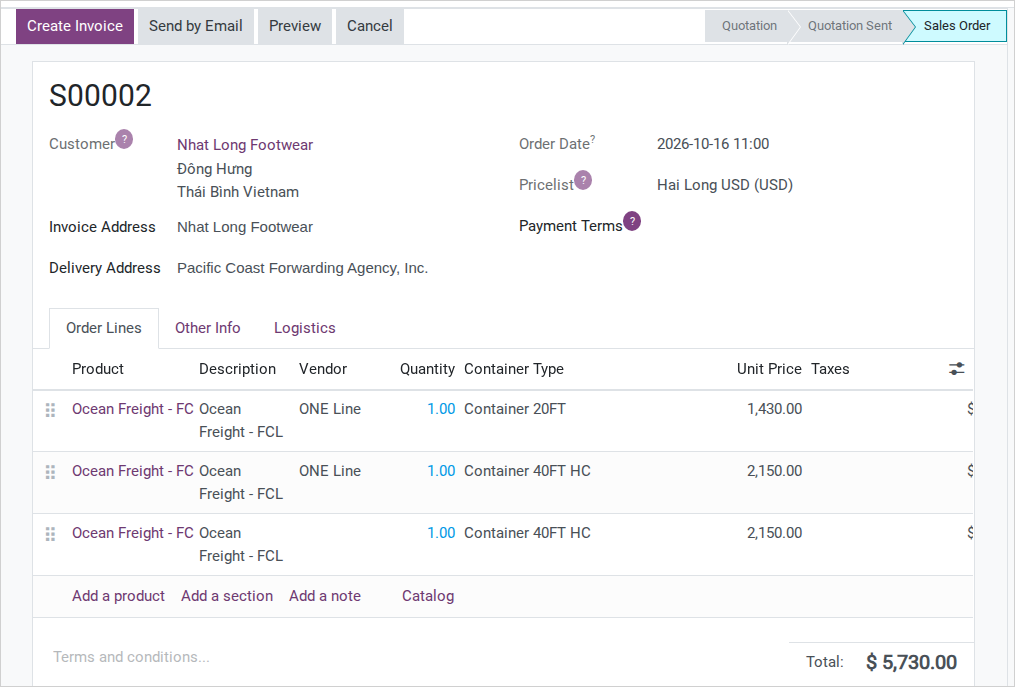
Go to , open the same order (status still Sales Order, no Locked badge) and add a line under Order Lines:
Product: Ocean Freight - FCL.
Container Type: Container 40FT HC.
Quantity: 1.
Unit Price: the approved sell price for this additional container, USD 2,150 in this scenario. Confirm the currency shown on the order before saving.
Click Save - there is no need to Cancel first, the order never leaves Sales Order status.
Important
Vendor is read-only on a confirmed order, including a line you have just added. In this example the new line’s Vendor remains empty. Do not cancel the order just to fill it in: record the approved ONE Line buy rate separately, then enter ONE Line and the confirmed buy price on the shipment charge below. The sales line alone does not prove that the additional container has been bought or booked.
After you save:
If the new line uses the approved USD 2,150 sell price and USD 1,850 buy basis, the order totals USD 5,730.00 to sell against USD 4,950.00 bought - up from USD 3,580 / USD 3,100 before this line. These buy amounts are the approved rate basis for the scenario, not a purchase total recorded by adding the sales line. Verify them against the carrier’s quote and the shipment charges before relying on them.
The shipment does not change: no container, no charge and no link into the shipment’s order lines is created by this save.
The Shipment Sync Message banner still reads its previous state, unaffected by this edit.
Note
The message remains blank because this rate-based product defines no order legs. For products that do define routes, adding another line with the same route does not add a distinct expected leg. In either case, check the container count manually.
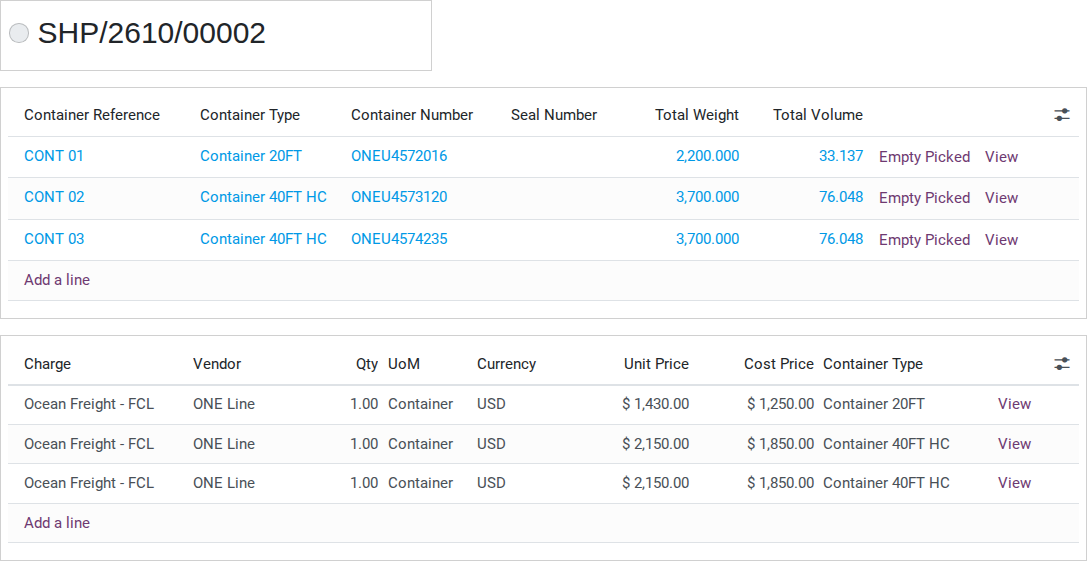
Minh now completes the operations side by hand: add the third container to the shipment’s Cargo & Packages tab and add a matching Ocean Freight - FCL, Container Type Container 40FT HC charge line on the shipment’s Charges tab (see Charges and Profitability). Set Vendor to ONE Line, Currency to USD, Qty to 1, Unit Price to the approved 2,150 and Cost Price to the confirmed 1,850.
Warning
The new SO line and the charge added by hand are not linked. Neither invoice route marks the other item as invoiced, so using both can bill the same container twice. In this scenario, Accounting invoices the additional USD 2,150 from the shipment only and excludes the corresponding new SO line from every invoice created from Sales. Record that billing source and the resulting invoice reference in both records, and check existing draft and posted invoices before creating another one.
The SO line may still appear uninvoiced afterwards; that status is not permission to bill it again. Stop and ask Accounting to reconcile it if the company requires the SO invoice status to close. Adding a matching description or price does not establish a software link.
Note
If the order shows a Locked badge (the “Lock Confirmed Sales” setting is on, or someone locked it by hand), Order Lines cannot be edited until a user with Sales access level Administrator clicks Unlock. This is the one case where the software still blocks the edit shown in this step.
Tip
Step 3 is done when: the order has 3 order lines totalling USD 5,730 to sell against the approved USD 4,950 buy basis, and the shipment shows the matching 3 containers (1 x Container 20FT + 2 x Container 40FT HC) with 3 Charges lines reading USD 1,430 / 2,150 / 2,150 - both sides agree by hand, not because the software linked them. Accounting has recorded shipment-only billing for the added container and will exclude its SO line from Sales invoices.
See also
To tell Nhat Long Footwear about the reroute and the new ETA, record the change on the shipment and send the customer the updated sailing details.
Known limitations
Step |
What Viindoo does today |
What you do instead |
|---|---|---|
Reading the banner (Step 1) |
Compares only pickup point, drop-off point and transport mode; it does not check container count, Incoterm or price |
Cross-check those three by hand, or through Declare cargo, packages and containers and Charges and Profitability |
Ops and Sales notifying each other (Steps 1-2) |
No automatic activity, message or email fires in either direction when the shipment and the order drift apart |
Always tell each other by chat or email; do not assume the system will flag it |
Adding a container to a confirmed order (Step 3) |
The order accepts the edit, but nothing pushes it to the shipment: no container, no charge, and the new line is not added to the shipment’s own list of order lines |
Minh adds the container and the matching charge by hand; Accounting records one billing source and prevents the unlinked SO line from being invoiced a second time |
Cancelling a Locked order (Step 3, Troubleshooting) |
The Cancel button is hidden once the order is Locked |
A user with Sales access level Administrator clicks Unlock first |
Notifying the customer about the reroute (outside this page) |
There is no notify tool on the sales order itself |
Record the change on the shipment and send the customer the updated sailing details |
Troubleshooting
Cannot edit the Shipment field on a confirmed order
Symptom: Changing or clearing the Shipment field on a Confirmed order shows “The shipment of sales order [name] can only be changed or removed while the order is still a quotation. Reset it to draft first.”
Cause: The field is locked once the order leaves draft or sent status - it is the one edit this page’s direct-edit approach does not cover.
Fix: Do not try to change the linked shipment by hand. If the order was really linked to the wrong shipment, click Cancel then Set to Quotation before correcting it, and confirm the order again afterward.
Cannot add a line to the order
Symptom: Order Lines is greyed out on an order in Sales Order status; Step 3’s new line cannot be added.
Cause: The order is Locked - core Odoo only allows editing Order Lines when the order is not cancelled and not locked.
Fix: Ask a user with Sales access level Administrator to click Unlock, add the line, then Lock again if the company policy requires it.
Container count on the shipment does not match the order
Symptom: The order shows 3 containers’ worth of order lines, but the shipment’s Cargo & Packages tab still shows 2 containers and the Charges tab still shows 2 lines.
Cause: Editing a confirmed order’s lines never pushes anything to the shipment - only Quote several container types in one FCL shipment’s first Confirm does that, and only for the lines that existed at that moment.
Fix: Follow Step 3, including the billing-source check. Add the missing container and charge only after checking existing invoices; matching them by hand does not prevent duplicate billing.
Deleting the order fails with a message that reads “sales r”
Symptom: Deleting the order while its shipment is not in draft status shows “You cannot delete the sales r [name] if shipment is not in draft state.”
Cause: A spelling mistake in the underlying error message (missing the word “order” after “sales”) - not a mistake in this guide or in your own work.
Fix: The block itself is correct behaviour - a confirmed shipment should not lose its order. Read “sales order” and leave the order as is; there is nothing to correct in the message itself.