
Keep a sales order and its shipment in sync
Guide information
Requirements
This tutorial requires the installation of the following applications/modules:
Logistics Shipment Sale Integration (installed automatically once Sales and the logistics modules are installed)
Freight Sale - the follow-on order uses the per-line Container Type it provides, and it adds the Add to Sales Order window used in Step 5. Confirm it is installed before adding the extra container line.
Incoterms on Logistics Quotations (installed automatically with Freight Sale)
A shipment and its sales order match each other the moment the order is confirmed and the shipment is created, but nothing keeps them that way afterwards - Operations can reroute a booking, and a customer can ask for another container, entirely independently of the order. Viindoo adds a Shipment Sync Message field on top of the standard sales order to flag one specific kind of drift - a change in the route structure - but the field says nothing about everything else, so knowing exactly what it checks, and what it does not, is what keeps the commercial paperwork and the physical shipment aligned. If a term such as Incoterm or transshipment is new to you, see the Freight forwarding glossary.
Running scenario: Hai Long Logistics already ships 2 x Container 40FT HC for Nhat Long Footwear on a first order (see Quote a full container load for sea export). This page follows a follow-on order for the same customer - 1 x Container 20FT and 1 x Container 40FT HC, quoted as a mixed-container booking in Quote several container types in one FCL shipment - on the same lane, Hai Phong Port to Port of Los Angeles, carrier ONE Line, sailing ONE COMMITMENT / 026W. Two events reach this order after it is Confirmed: the carrier reroutes the sailing through Kaohsiung Port (TWKHH), and the customer then asks for one more Container 40FT HC.
Before you start
The order already exists, is Confirmed (status Sales Order) and has a shipment linked - this page picks up right after Quote several container types in one FCL shipment hands the order off to Operations. It does not cover creating an order or a shipment for the first time.
You are in the User: Own Shipments group (or higher) to see the Shipment field on the order. Every internal user, not only the freight groups, can see the Shipment Sync Message field once it has something to say.
Only users whose Sales access level is User: Own Documents Only or higher see the Sale Orders smart button and the Add to Sales Order button on the shipment form - an Operations user without a Sales access level cannot jump from the shipment back to the order or join a charge to it. In this scenario Lan does that part.
The order lines carry a Pickup Address of Hai Phong Port and a Drop-off Address of Port of Los Angeles, typed by Lan. The mixed-container quotation leaves both columns empty, so type them on the lines first; with empty columns the order has no route and the message stays empty.
Step 1: Check the route on the order and on the shipment
The Shipment Sync Message field is only a prompt to look at the route; the comparison you rely on is the one you make yourself, between what the order promised and what the shipment now does.
Go to , open the order for Nhat Long Footwear’s follow-on shipment, and open the Logistics tab. The Shipment Sync group shows the linked shipment and the Shipment Sync Message field; the other groups show the service, the route and containers and the sailing schedule. The Service group shows Freight Direction (Export here); it is read-only once a shipment is linked, so it tells you which direction the shipment was created in.
The message compares the route the order lines describe - the Pickup Address and Drop-off Address typed on the order lines - with the legs of the shipment. It lists legs that are Missing from the shipment and Extra legs on the shipment, by pickup point, drop-off point and transport mode. An order whose lines carry no pickup and drop-off address has no route to compare, so the field stays empty.
Open the linked shipment and its Schedule & Performance tab. After the carrier reroutes the sailing through Kaohsiung Port (leg editing belongs to Book carrier space for a shipment leg), the real route reads Hai Phong Port -> Kaohsiung Port -> Port of Los Angeles, while the quotation agreed a direct route. This tab, not the message, is where you read the change.
Do not read the message as proof of drift. Once the order lines carry a lane, the message already reads as a yellow banner (the order “is not synchronized with the order legs”), even before the reroute, because the shipment’s default leg is a truck leg and not the route the lines describe. It does not turn green when the route matches, so it cannot tell a reroute from the normal state.
Warning
The message only compares pickup point, drop-off point and transport mode. It does not know that the ETA moved from December 1 to December 6, that the reroute carries a USD 45/container transshipment fee, or that the container count changes in Step 3 below - all three have to be checked by hand, through Zalo or email with Operations, not through this field.
Tip
Step 1 is done when: you have compared the agreed direct route with the two shipment legs through Kaohsiung and know what changed for the customer: the route, the ETA and the fee.
Step 2: Decide whether the change needs a commercial rewrite
This decision determines who ends up paying the USD 45/container transshipment fee and whether the sales order changes at all - getting it wrong means the wrong invoice at Record charges, invoice the customer, and bill vendors.
There is no screen for this decision. Review the Incoterm and the contract terms agreed with this customer:
Only notify the customer, do not edit the order - use when the change does not add a real cost to Hai Long, or the cost is one Hai Long absorbs under the agreed terms. This is what happens in this scenario: the reroute is carrier-initiated, so Hai Long absorbs the USD 45/container fee and only informs the customer.
Add a charge line to the order - use when there is a real extra cost the agreed terms let you pass on to the customer. That edit belongs to Record charges, invoice the customer, and bill vendors, not to this page.
Note
Neither notifying the customer nor editing the price changes the route comparison; the route on the shipment is what it is. Record the decision and move on.
Tip
Step 2 is done when: a decision on who bears the USD 45/container fee is on record (chat or email), before the reply to the customer goes out and before Tuan invoices this shipment.
Decide how to add a container to a confirmed order
Option |
Use when |
What changes |
|---|---|---|
Add a new order line: same product, Container Type Container 40FT HC, Quantity 1 |
The addition should be easy to match 1-to-1 against the shipment’s Charges tab afterward (this page) |
The order gains a 3rd line, with the price you type; the charge joins it in Step 5 |
Increase Quantity on the existing Container 40FT HC order line (1 -> 2) |
The addition does not need to stand out as its own line |
The same order line now covers 2 containers; no new row is added, and a charge joins it while it still has room |
Add the charge on the shipment first and leave the order untouched |
The order line does not exist yet |
Add to Sales Order creates a new order line from the charge, priced from the pricelist, so Sales must type the selling price afterwards |
Make the order change that matches the approved commercial agreement. Check the order total and the shipment’s Charges tab afterward; saving the order does not change the shipment by itself (see Known limitations below). If the agreement does not specify how to bill the extra container, confirm with Sales/Pricing before changing the order.
Step 3: Add the extra container line to the confirmed order
The customer added a container after the order was already confirmed - the order has to show the right container count for Tuan to invoice correctly, and Minh has to know a real container needs to be added to the shipment.
Before this step, Minh has already confirmed with ONE Line, outside the software, that a slot is still open on sailing ONE COMMITMENT / 026W for a third container.
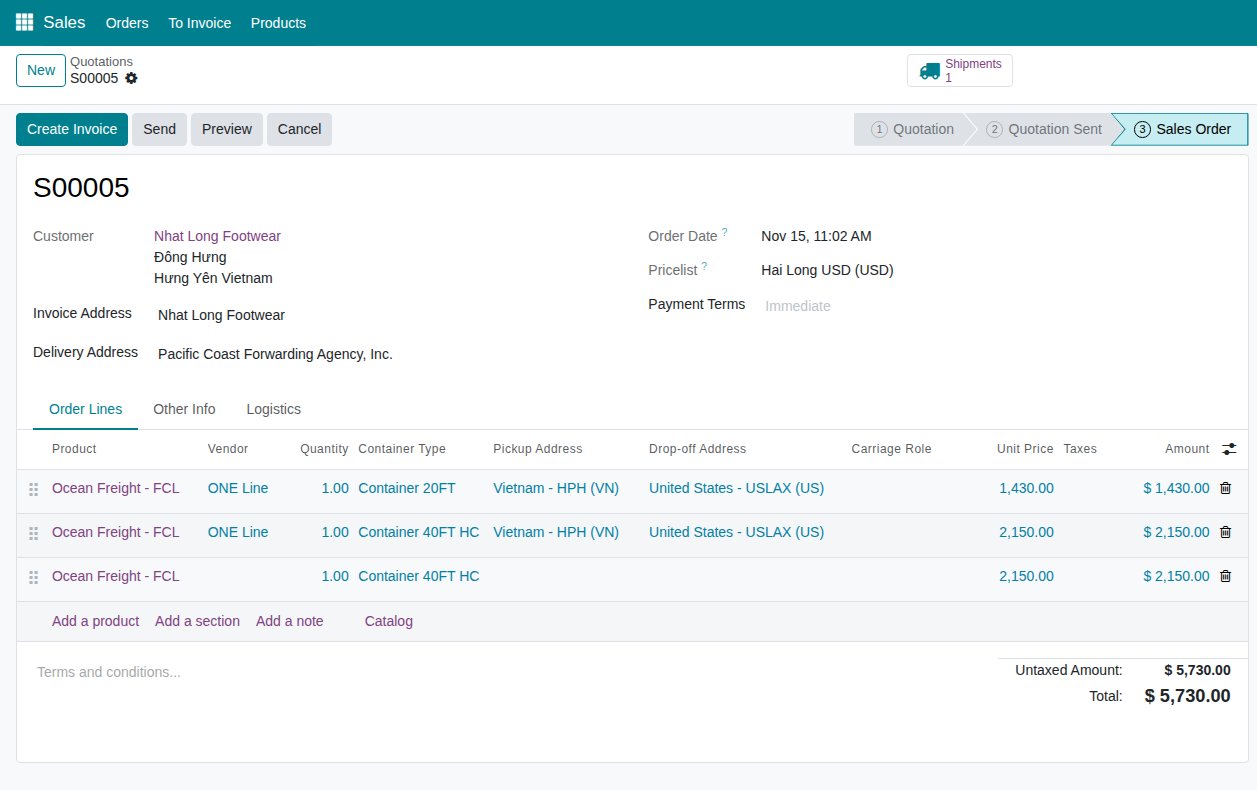
Go to , open the same order (status still Sales Order, no Locked badge) and add a line under Order Lines:
Product: Ocean Freight - FCL.
Container Type: Container 40FT HC.
Quantity: 1.
Unit Price: the approved sell price for this additional container, USD 2,150 in this scenario. Confirm the currency shown on the order before saving.
Click Save - there is no need to Cancel first, the order never leaves Sales Order status.
Important
Vendor is read-only on a confirmed order, including a line you have just added. In this example the new line’s Vendor stays empty. Do not cancel the order just to fill it in: the carrier and the buy price go on the shipment charge in Step 4.
After you save:
The order totals USD 5,730.00 to sell - up from USD 3,580 before this line. The buy amounts of the scenario (USD 1,850 for the new container) are the approved rate basis, not a purchase total recorded by adding the sales line.
The shipment does not change: no container and no charge is created by this save.
Tip
Step 3 is done when: the order has 3 order lines totalling USD 5,730, the third one a Container 40FT HC at USD 2,150, and its status is still Sales Order.
Step 4: Add the container and the charge on the shipment
The order line alone does not prove that the additional container has been booked or bought - Operations records the real container and its buy cost on the shipment.
Minh opens the linked shipment (the Shipments smart button of the order, or ) and:
On the Cargo & Packages tab, adds a third line to the Containers list: Container 40FT HC, with the container number given by ONE Line.
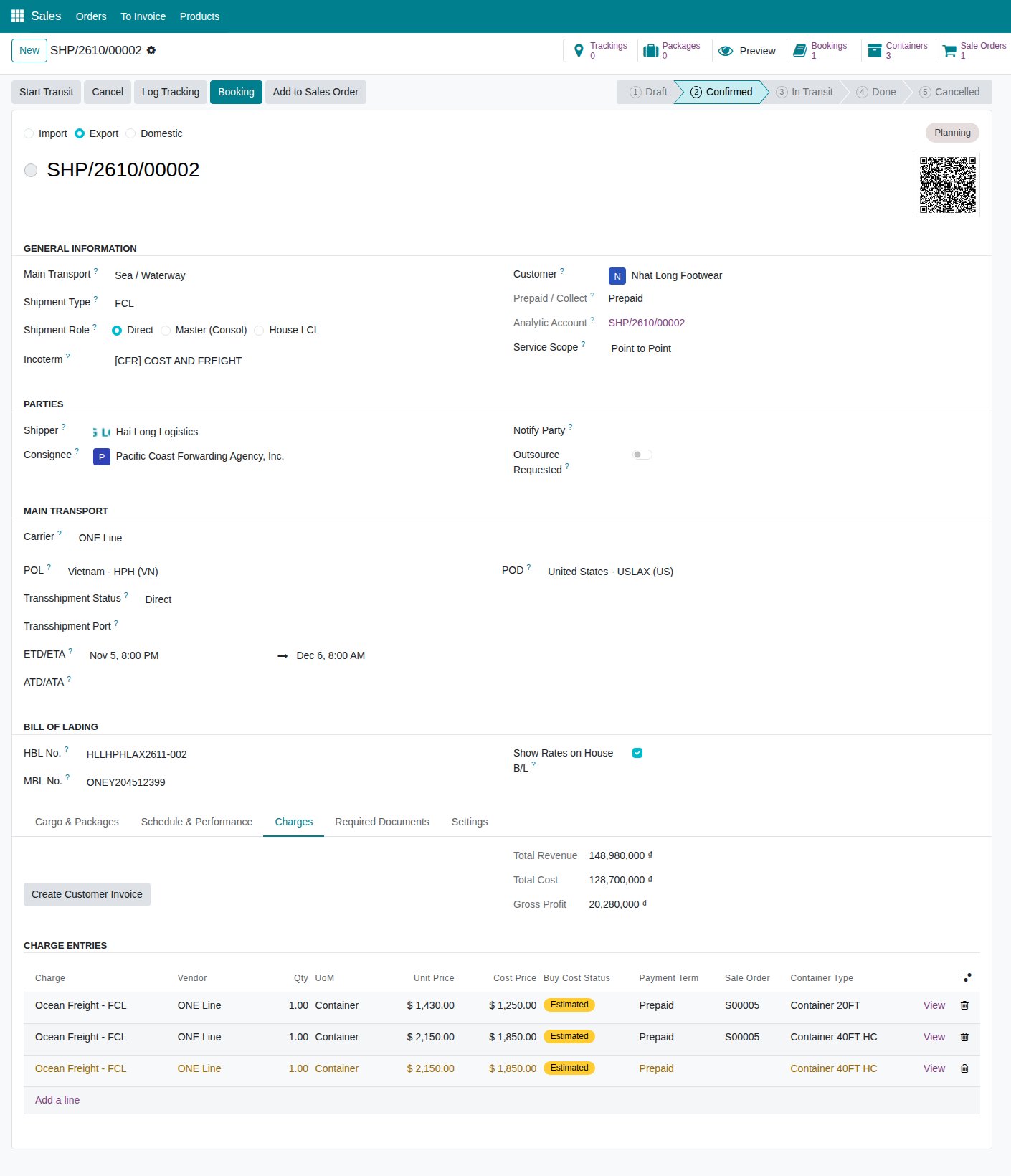
On the Charges tab, adds a charge: Charge: Ocean Freight - FCL, Vendor: ONE Line, Qty: 1, Unit Price: 2,150.00, Cost Price: 1,850.00, Container Type: Container 40FT HC (turn on the optional Container Type column if it is hidden). The Currency is taken from the sales order (USD).
The new charge is highlighted in yellow and its Sale Order column is empty: it is not on the order yet. The Add to Sales Order button appears in the header of the shipment for users with a Sales access level.
Tip
Step 4 is done when: the shipment lists 3 containers and 3 charges, the third one highlighted in yellow with no Sale Order.
Step 5: Join the charge to the order line
Without this step the third charge and the third order line are two separate records, and the same container could be billed once from the shipment and once from the order. Joining them links the charge to the order line so the sales order carries the invoice.
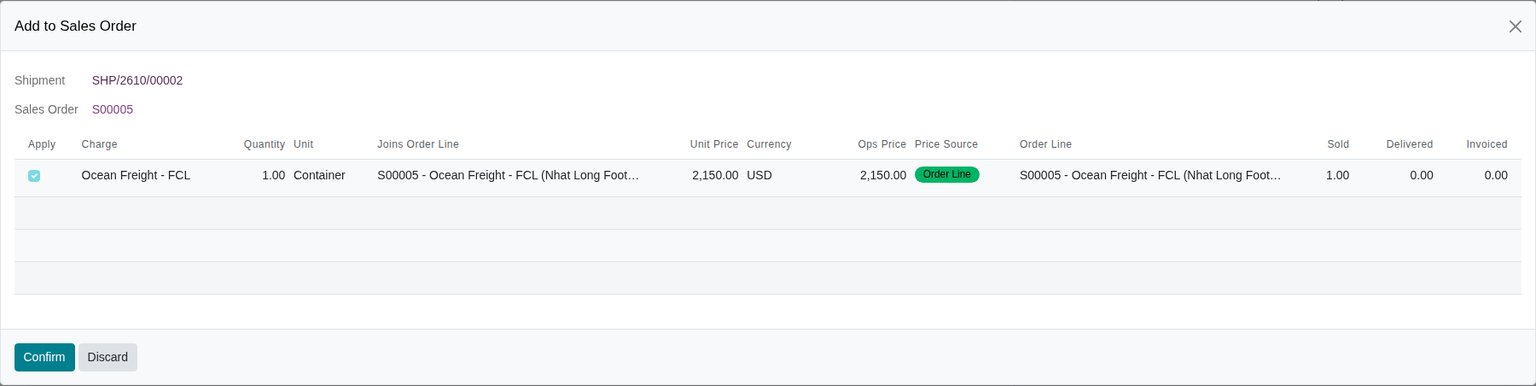
Lan opens the shipment and clicks Add to Sales Order. The Add to Sales Order window lists each charge that is not yet on the order, with Apply ticked:
Joins Order Line shows the order line the charge will join - here the third Ocean Freight - FCL line of S00005 - and Price Source reads Order Line, so the Unit Price (2,150.00 USD) comes from the order line and not from the pricelist.
Ops Price shows the price Operations typed on the charge.
Sold, Delivered and Invoiced show the state of that order line. Check that Invoiced is 0.00 before you confirm.
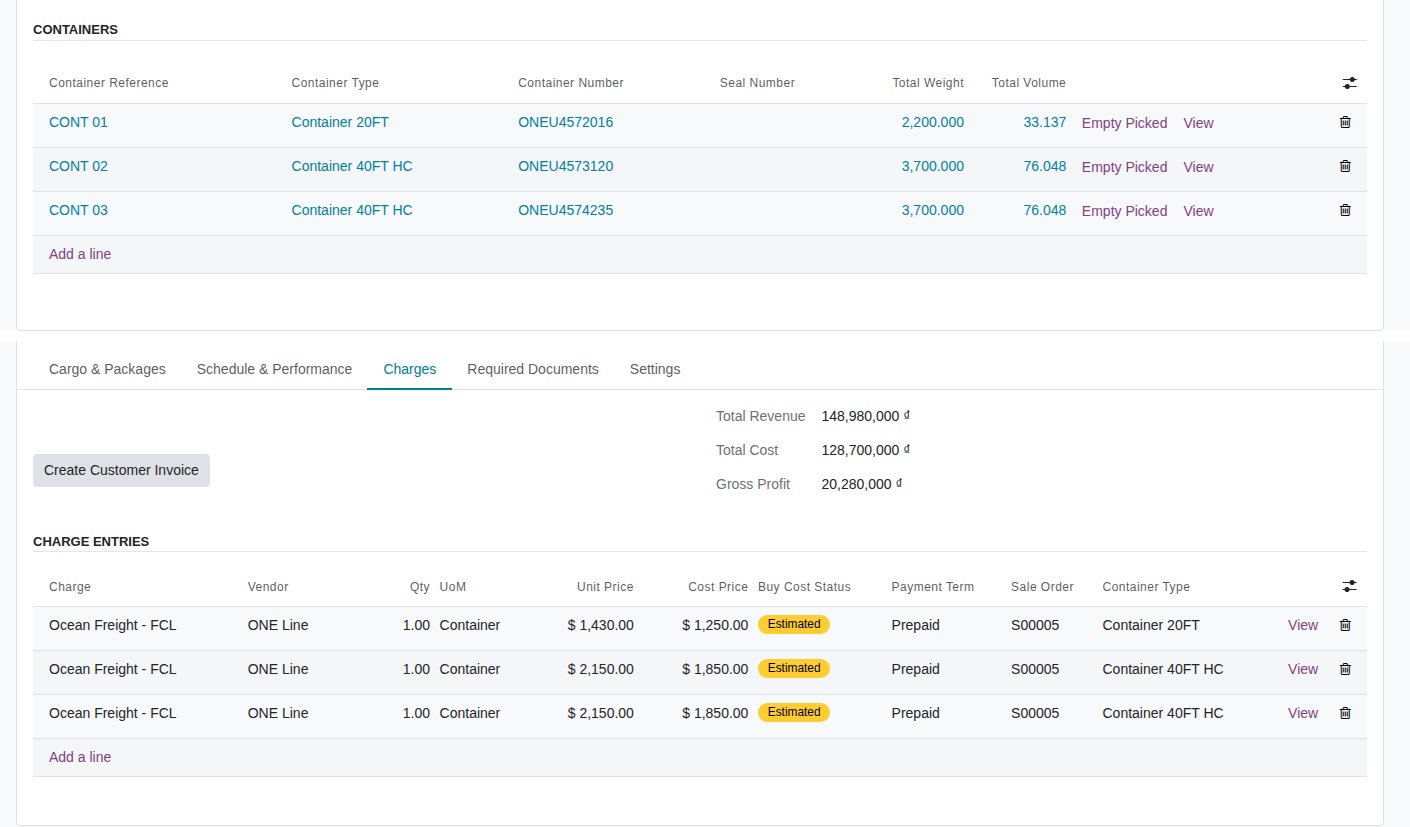
Click Confirm. The order opens again, and on the shipment the third charge now shows the Sale Order S00005, is no longer yellow, and the Add to Sales Order button is gone.
Note
If the order shows a Locked badge (the “Lock Confirmed Sales” setting is on, or someone locked it by hand), Order Lines cannot be edited, and Add to Sales Order stops with a message asking you to unlock the order, until a user with Sales access level Administrator clicks Unlock.
Tip
Step 5 is done when: the order has 3 order lines totalling USD 5,730, the shipment shows the matching 3 containers and 3 charges reading USD 1,430 / 2,150 / 2,150, and every charge carries the Sale Order S00005. Accounting invoices the added container from the sales order; check existing invoices before creating another one.
See also
To tell Nhat Long Footwear about the reroute and the new ETA, record the change on the shipment and send the customer the updated sailing details.
Known limitations
Step |
What Viindoo does today |
What you do instead |
|---|---|---|
Reading the message (Step 1) |
Compares only pickup point, drop-off point and transport mode of order lines that carry a pickup and a drop-off address; it does not check container count, Incoterm or price |
Compare the shipment’s Schedule & Performance tab with the quotation, and cross-check the other three by hand, or through Record charges, invoice the customer, and bill vendors |
Ops and Sales notifying each other (Steps 1-2) |
No automatic activity, message or email fires in either direction when the shipment and the order drift apart |
Always tell each other by chat or email; do not assume the system will flag it |
Adding a container to a confirmed order (Steps 3-4) |
The order accepts the edit, but nothing pushes it to the shipment: no container and no charge is created |
Minh adds the container and the matching charge by hand; Lan then joins the charge with Add to Sales Order (Step 5) |
Cancelling a Locked order (Step 5, Troubleshooting) |
The Cancel button is hidden once the order is Locked |
A user with Sales access level Administrator clicks Unlock first |
Notifying the customer about the reroute (outside this page) |
There is no notify tool on the sales order itself |
Record the change on the shipment and send the customer the updated sailing details |
Troubleshooting
Cannot edit the Shipment field on a confirmed order
Symptom: Changing or clearing the Shipment field on a Confirmed order shows “The shipment of sales order [name] can only be changed or removed while the order is still a quotation. Reset it to draft first.”
Cause: The field is locked once the order leaves draft or sent status - it is the one edit this page’s direct-edit approach does not cover.
Fix: Do not try to change the linked shipment by hand. If the order was really linked to the wrong shipment, click Cancel then Set to Quotation before correcting it, and confirm the order again afterward.
Cannot add a line to the order
Symptom: Order Lines is greyed out on an order in Sales Order status; Step 3’s new line cannot be added. Or Add to Sales Order on the shipment stops with a message that the sales order is currently locked and must be unlocked first.
Cause: The order is Locked - the core Sales app only allows editing Order Lines when the order is not cancelled and not locked.
Fix: Ask a user with Sales access level Administrator to click Unlock, add the line, then Lock again if the company policy requires it.
Container count on the shipment does not match the order
Symptom: The order shows 3 containers’ worth of order lines, but the shipment’s Cargo & Packages tab still shows 2 containers and the Charges tab still shows 2 lines.
Cause: Editing a confirmed order’s lines never pushes anything to the shipment - only Quote several container types in one FCL shipment’s first Confirm does that, and only for the lines that existed at that moment.
Fix: Follow Steps 4 and 5: Minh adds the container and the charge on the shipment, then Lan joins the charge to the order line with Add to Sales Order.
Deleting the order fails with a message that reads “sales r”
Symptom: Deleting the order while its shipment is not in draft status shows “You cannot delete the sales r [name] if shipment is not in draft state.”
Cause: A spelling mistake in the underlying error message (missing the word “order” after “sales”) - not a mistake in this guide or in your own work.
Fix: The block itself is correct behaviour - a confirmed shipment should not lose its order. Read “sales order” and leave the order as is; there is nothing to correct in the message itself.