
How to dispose of an Asset
To remove an asset from your books when it is scrapped or no longer used, open the asset and click Dispose, choose the operation and the disposed date, then click Apply. Viindoo stops the depreciation, sets the asset to Disposed and prepares a draft journal entry that writes the asset off. You can dispose of an asset that is Running (still depreciating) or Close (fully depreciated).
Who does this: an accountant with the Accounting Assets Management access right. Application: Accounting.
Before you start
This tutorial requires the installation of the following applications/modules:
The asset must be confirmed (status Running or Close). To sell an asset instead, see Asset liquidation.
How do I dispose of a fully depreciated asset?
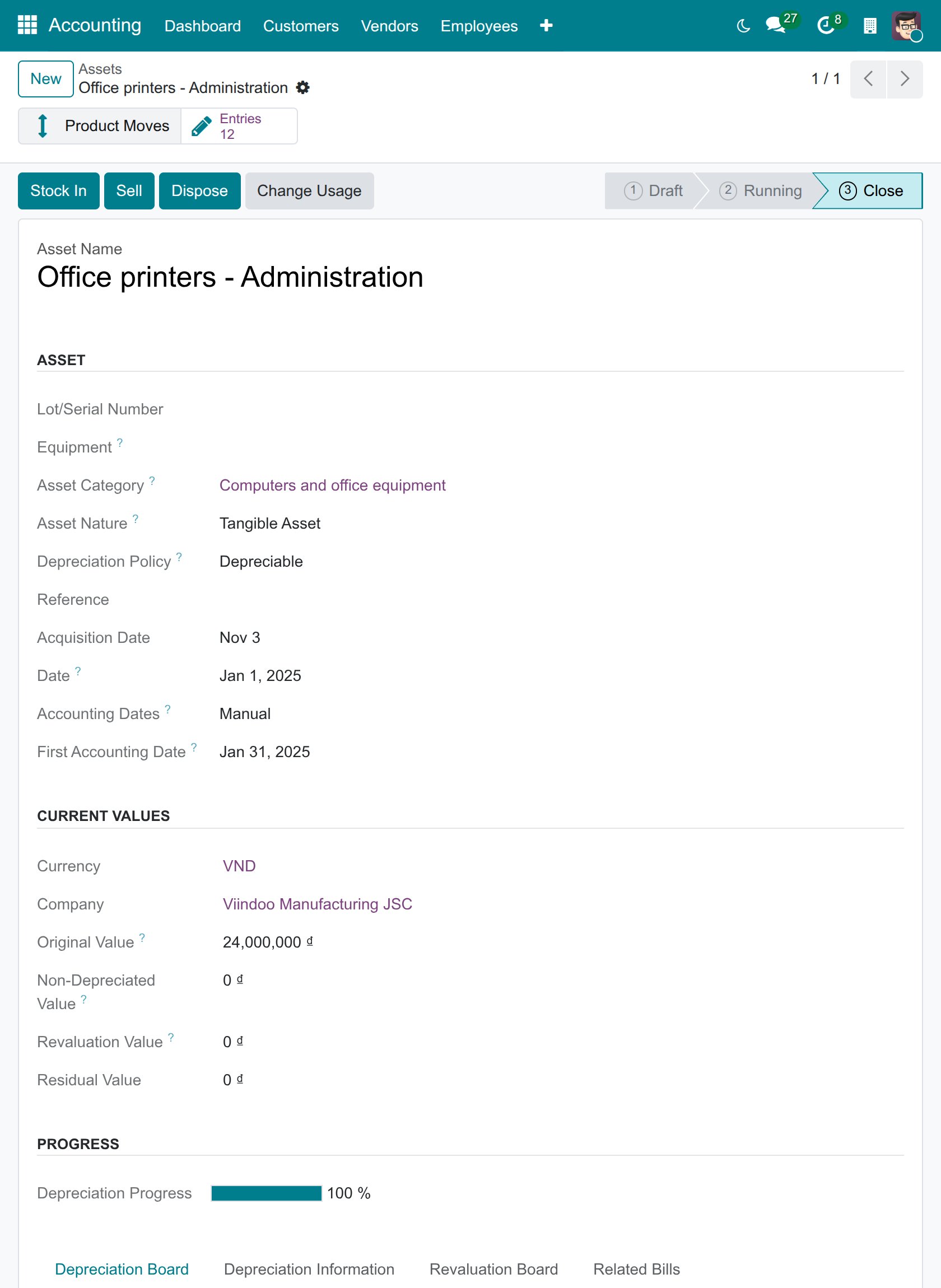
Open the asset (Accounting > Accounting > Assets). Its status is Close. Click Dispose.
![Dispose button on a fully depreciated asset in Viindoo]()
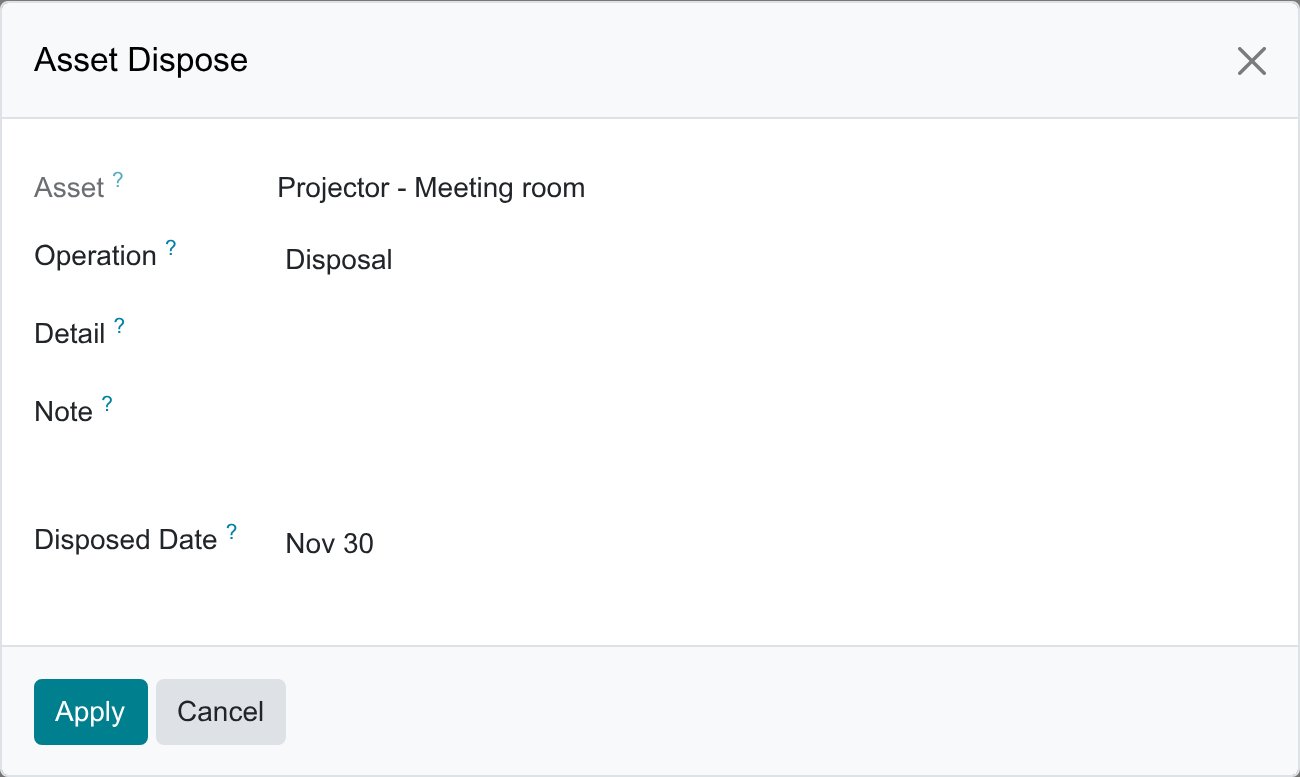
In the Asset Dispose window, check the fields and click Apply.
![Asset Dispose window with the disposed date in Viindoo Accounting]()
Field
What it does
If wrong or empty
Operation
Disposal (the asset leaves service in general) or Scrap (the asset is destroyed or has no usable value). It is stored as the Derecognition Reason of the asset.
Disposal is the default.
Detail, Note
Short description of the event (for example the disposal decision) and a free note. Both are saved on the disposal journal entry.
Optional.
Disposed Date
Accounting date of the disposal entry. Defaults to today.
A date earlier than the first accounting date of the asset is refused.
The asset status changes from Close to Disposed. Viindoo creates the disposal journal entry in Draft and opens the list of the entries of the asset. You can also open it later with the Entries button of the asset.
![Journal entries of an asset in Viindoo accounting app]()
Open the draft entry. It credits the asset account with the original value, debits the accumulated depreciation account with the depreciation recorded and, when value remains, debits the disposal account of the asset category (for example 8111 Expenses from disposal of fixed assets) with it. In the example below, a printer of 24,000,000 that is fully depreciated, the entry credits 211 Property, plant and equipment and debits 2141 Accumulated depreciation with 24,000,000 each, so no disposal expense is recorded. Check the entry, then click Post.
![Disposal journal entry of a fully depreciated asset in Viindoo Accounting app]()


How do I dispose of an asset that is still depreciating?
Open the asset whose depreciation is Running and click Dispose.

Before disposing, every depreciation entry dated before the disposed date must already be posted. The depreciation lines that are not posted yet are removed and depreciation stops at the disposed date. In the example below, a projector of 60,000,000 depreciated over 24 months, the entries up to 10/31/2026 are posted and the next depreciation date is 11/30/2026.

Dispose on the next depreciation date
Enter the date of the next depreciation line (here 11/30/2026) as Disposed Date and click Apply. The asset becomes Disposed and Viindoo creates the disposal entry in Draft.
Open the entry with the Entries button of the asset. It writes the asset off: in the example it credits 211 with 60,000,000, debits 2141 with 9,919,355 (the 7,500,000 already posted plus 2,419,355 for the last period up to the disposed date) and debits 8111 with the remaining 50,080,645. The amounts depend on the depreciation configuration of the asset: compare the accumulated depreciation of the entry with the Depreciation Board before you click Post.
Dispose between two depreciation dates
Enter a date between two depreciation dates (here 11/15/2026, before the next depreciation date of 11/30/2026) and click Apply. Viindoo puts the depreciation of the part of the period that has elapsed in the same disposal entry, so you do not create a separate adjustment entry yourself.
Open the entry with the Entries button. The amounts depend on the depreciation configuration of the asset: compare the accumulated depreciation of the entry with the Depreciation Board before you click Post to complete the disposal.
Expected result
The asset has the status Disposed and its Derecognition Reason is Disposal or Scrap.
The disposal entry is Draft until you click Post.
Common mistakes
The disposed date cannot be set before the first accounting date! - choose a date on or after the first accounting date of the asset.
You have not posted all depreciation lines on the asset ‘…’ before … date. - post the depreciation entries dated before the disposed date, then dispose again.
You cannot perform this action on the asset ‘…’ that contains posted depreciation lines before … date. - the disposed date is earlier than the last posted depreciation line; choose a later date.
Next steps
See also
Related article
Optional module