
How to print checks to pay vendors
To pay vendors by check, turn on Checks in the Vendor Payments section of the invoicing settings, choose a Check Layout, then register a payment with the Checks payment method. Viindoo numbers the checks, lists the ones still to print on the bank journal and lets you void a check that was printed by mistake.
Who |
An accountant who pays vendors and a Viindoo administrator who sets up the bank journal. |
App |
Invoicing |
Before you start
The Checks setting is shown to users who have the Show Full Accounting Features access right. In developer mode it is in the Technical section of the user form.
The Check Printing Base module is installed.
The paper layout of the check comes from a country-specific layout module. Without one, the Check Layout list only offers None and the Print Check button is not displayed: ask your Viindoo consultant which layout fits your bank.
How do I turn on check printing?
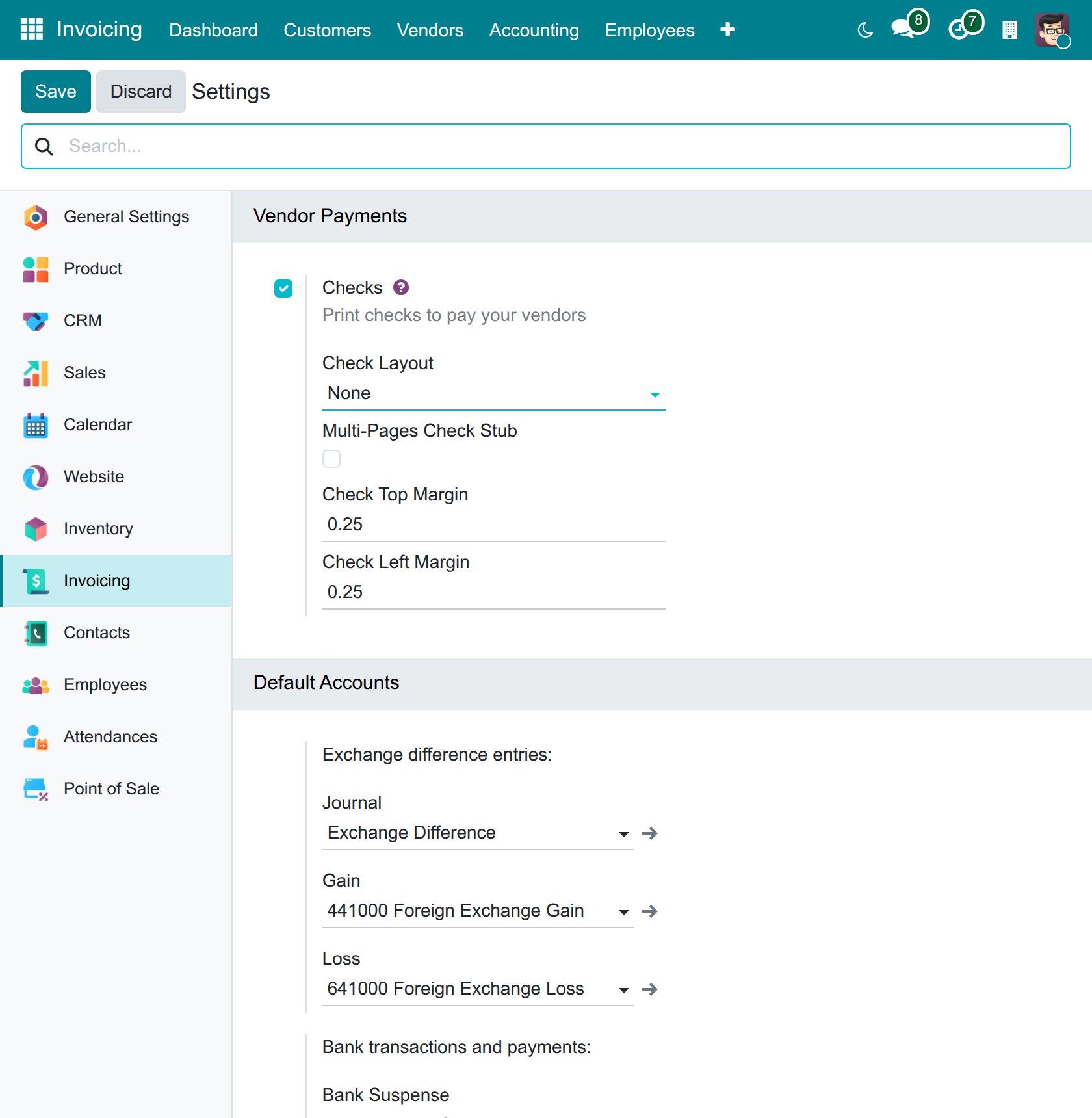
Go to Invoicing ‣ Configuration ‣ Settings and tick Checks in the Vendor Payments section.
Choose the Check Layout that matches your check paper. Tick Multi-Pages Check Stub to print the details of the paid bills on several pages when they do not fit on one stub, and use Check Top Margin and Check Left Margin to adjust the print to your printer. Companies in Canada also see Check Right Margin and Print Date Label.
Click Save.
![Vendor Payments section of the settings with Checks ticked, the check layout, the stub option and the margins]()
How do I set up the bank journal for checks?
Go to Invoicing ‣ Configuration ‣ Journals and open the bank journal that issues the checks.
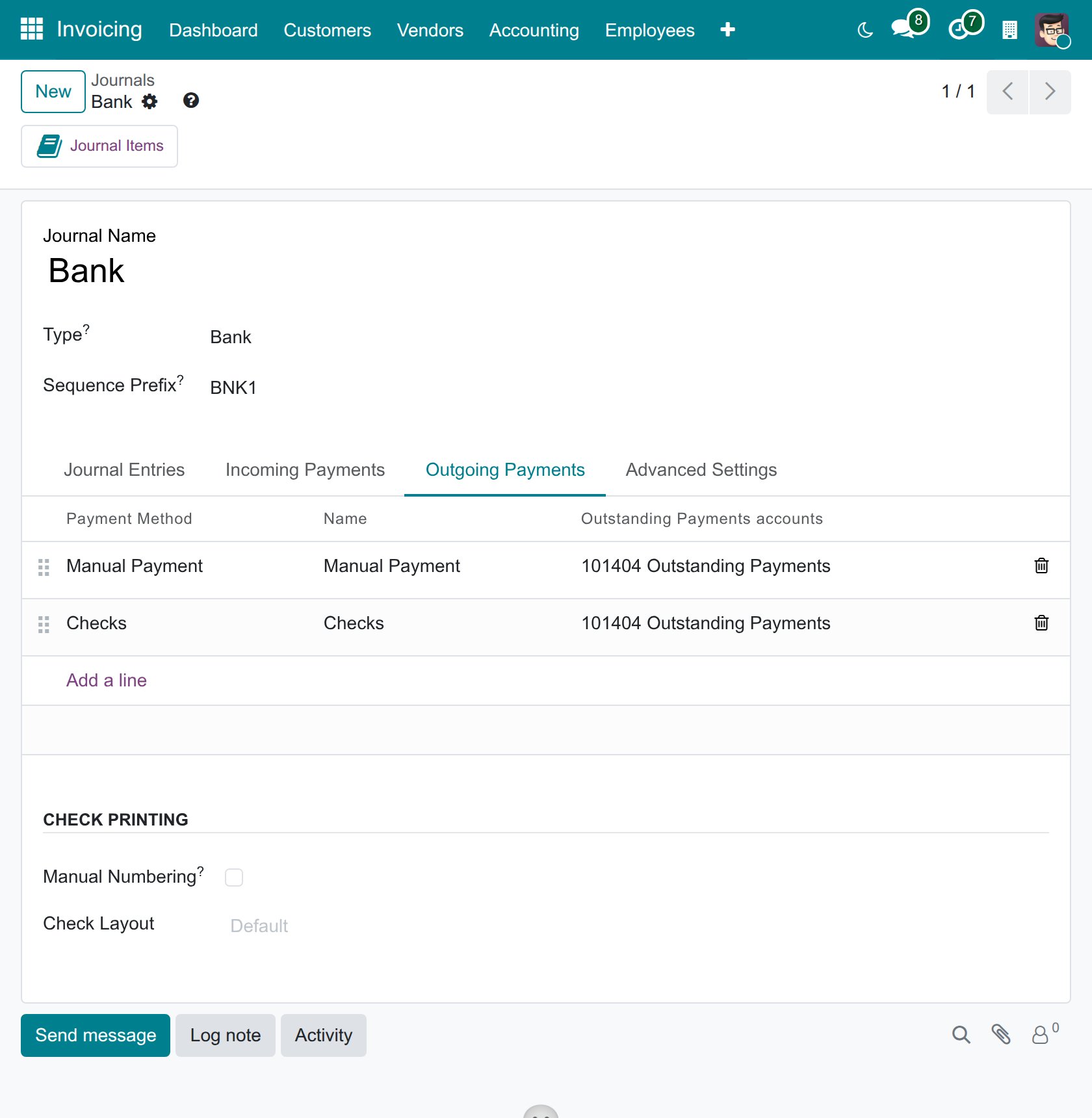
On the Outgoing Payments tab, check that the Checks payment method is listed. Add it with Add a line otherwise. Fill the Outstanding Payments accounts column so that a payment stays In Process until the bank statement confirms it.
In the Check Printing group, choose how the checks are numbered:
Field
What it does
Manual Numbering
Tick it when your pre-printed checks are not numbered. Viindoo gives each check the next number of the journal when the payment is confirmed. Leave it off when the paper is pre-numbered: Viindoo asks for the number of the first check when you print.
Next Check Number
Shown with Manual Numbering. The number of the next check, digits only. It cannot be lower than the last number used, so that the bank never receives two checks with the same number.
Check Layout
Overrides the layout of the company settings for this journal.
![Outgoing Payments tab of the bank journal with the Checks method and the Check Printing group]()
How do I pay a vendor by check?
Open a posted vendor bill in Invoicing ‣ Vendors ‣ Bills and click Pay. To pay without a bill, for example an advance, use Invoicing ‣ Vendors ‣ Payments and click New.
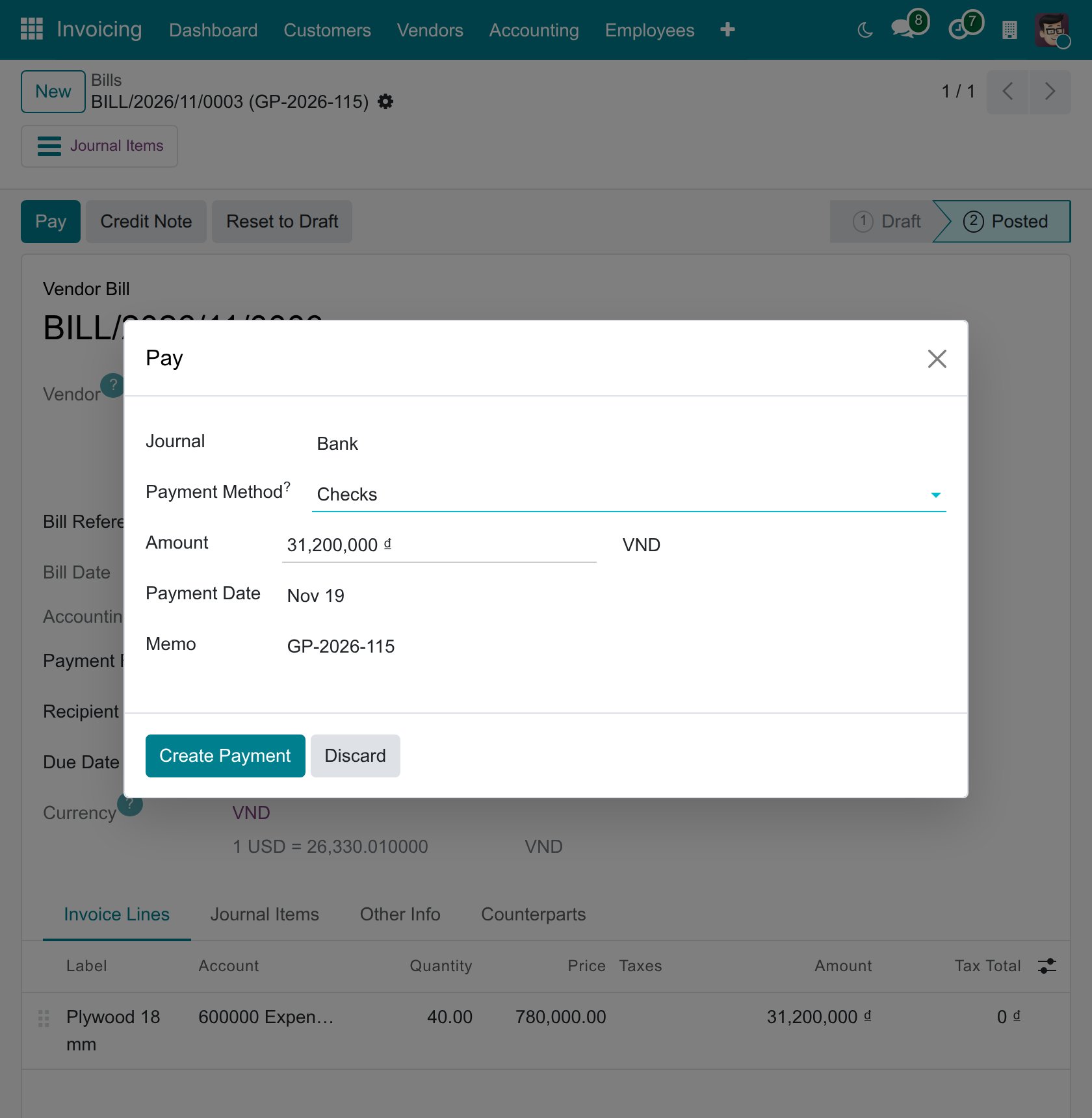
Choose the bank Journal and select Checks as the Payment Method, then click Create Payment.
![Pay window with the bank journal and the Checks payment method]()
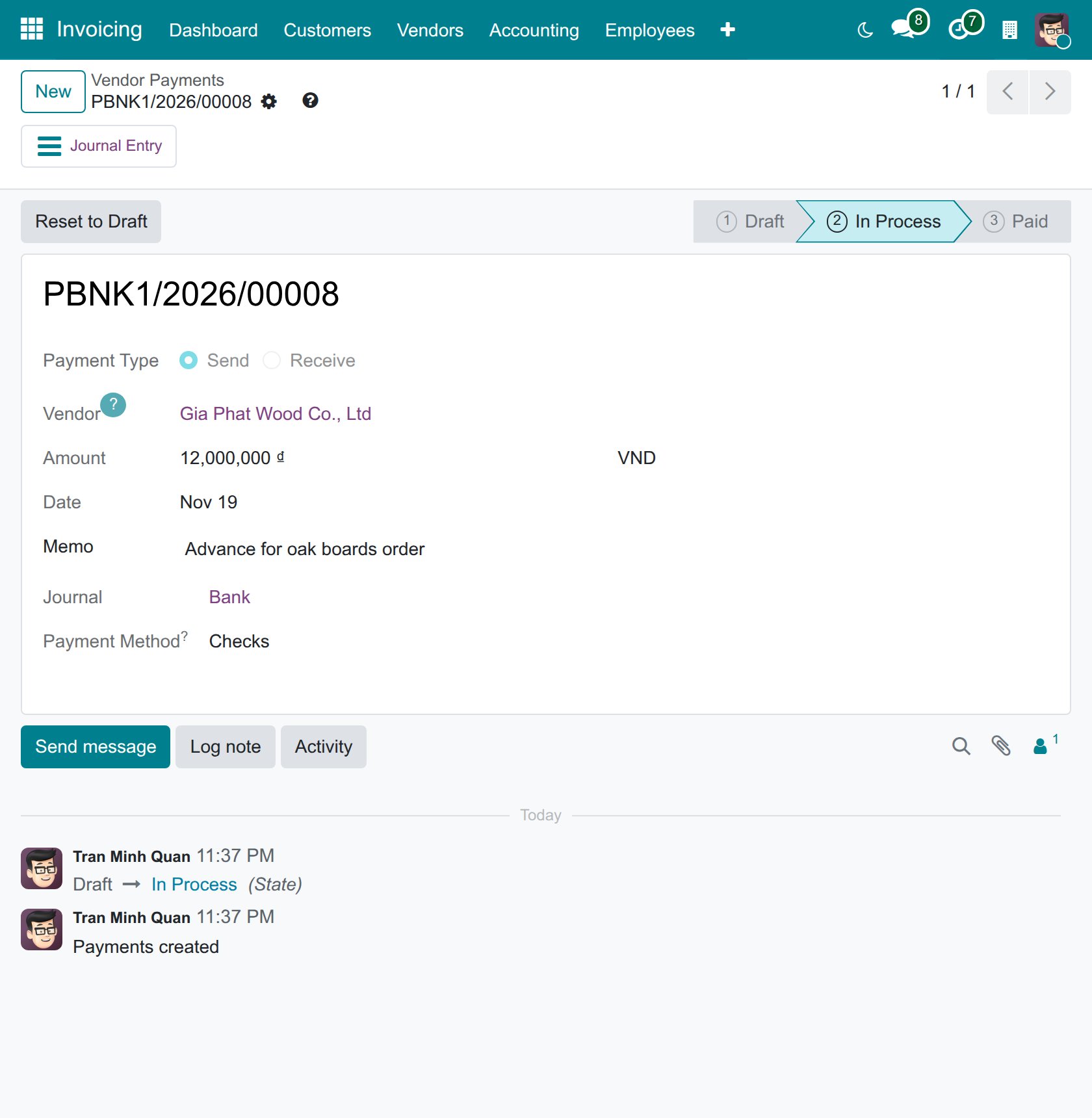
Open the payment. It is In Process while the check is not cashed. A payment that settles its bill completely is shown as Paid at once, but you can still print its check.
![Vendor payment in the In Process status with the Checks payment method]()
How do I print a check?
Open the payment and click Print Check. To print several checks, select the payments in the list and use Actions ‣ Print Checks: they must belong to the same bank journal.
If the journal does not use Manual Numbering, enter the Next Check Number, the number of the first pre-numbered check in the printer, then click Print.
Print the document. The payment gets the Sent ribbon and the check number.
Note
If no check layout is available, Viindoo shows You have to choose a check layout with a button to the settings. Choose a layout there before printing.
How do I find the checks still to print?
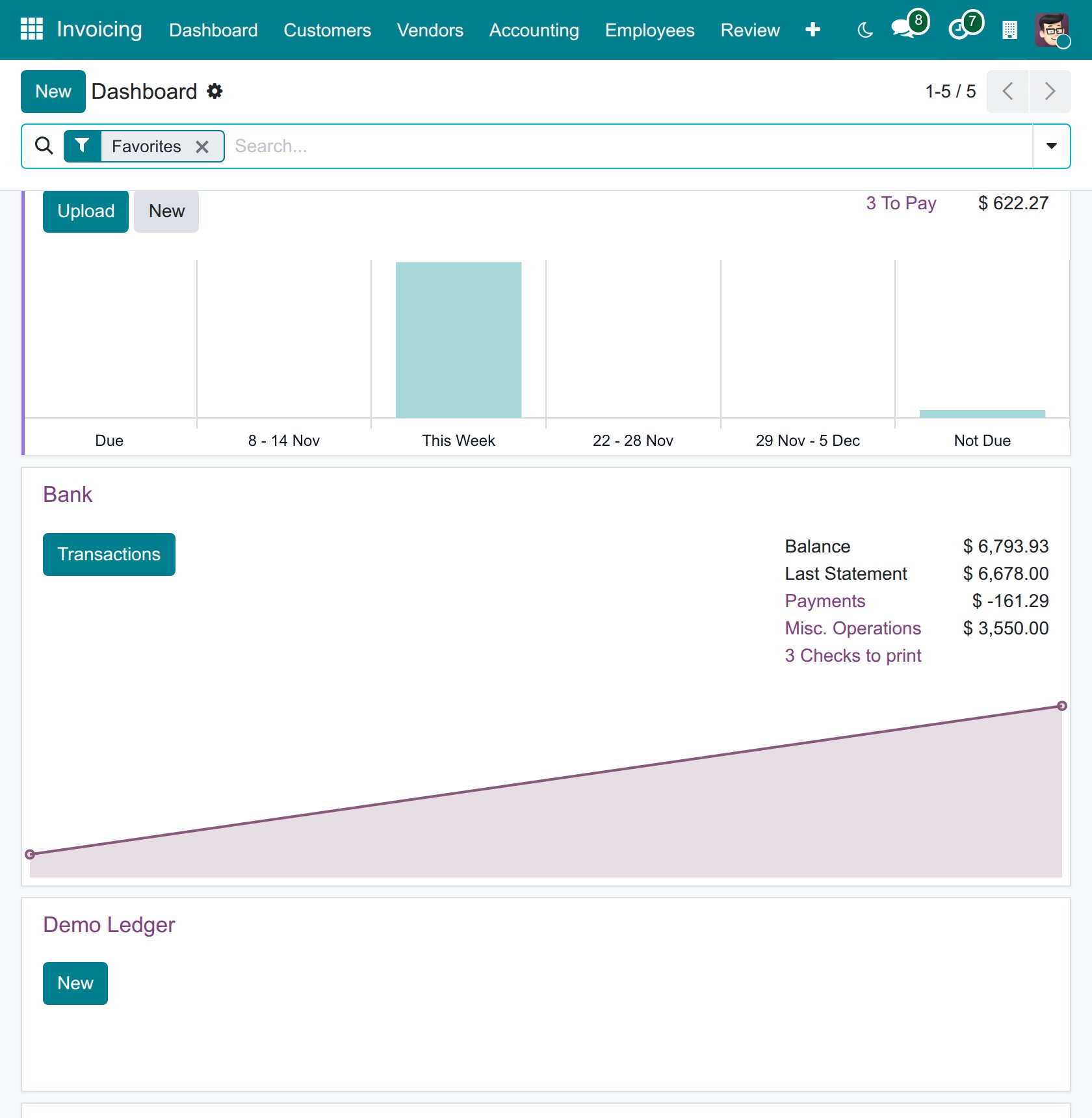
The Bank card of the Dashboard shows a link such as 3 Checks to print. It lists the payments paid by check that are In Process and not yet printed. In a payment list, the filter Checks to Print gives the same result.
How do I void a check?
Open the payment of a check that was printed (Sent ribbon) and click Void Check: Viindoo resets the payment to draft and cancels it. Unmark Sent only removes the Sent ribbon so that you can print the check again.
Common problems
Message or symptom |
What to do |
|---|---|
The Checks setting is not displayed. |
Your user needs the Show Full Accounting Features access right. |
Print Check is not displayed. |
Choose a Check Layout in the settings. The button is hidden while only None exists, and once the check is printed. |
Check numbers can only consist of digits |
Remove the letters and spaces from the number. |
The following numbers are already used |
A posted payment of the same journal already has this check number. Use the next free one. |
In order to print multiple checks at once, they must belong to the same bank journal. |
Print the checks of each journal separately. |