
How to set up Discuss calls with Twilio and your own ICE servers
Calls and meetings in Discuss go directly between the participants. When a participant is behind a strict firewall or a corporate network, the connection needs a relay server (an ICE server, that is a STUN or TURN server). In Settings ‣ General Settings, in the Discuss section, either connect your own Twilio account with Custom ICE Server with Twilio, or list your own servers with Configure ICE Servers.
Who |
A Viindoo administrator, with the details of your Twilio account or of your own servers. |
App |
Settings, Discuss |
Before you start
You can start meetings, see Organize an online meeting in Viindoo.
The steps in Twilio (creating the account and copying the credentials) are done on the Twilio website, outside Viindoo: Viindoo only stores the Account SID and the Account Auth Token you copy from your Twilio console.
The Viindoo labels of this page appear in English in the Discuss section.
How do I use Twilio as ICE server provider?
In your Twilio account, copy the Account SID and the Auth Token from the console.
In Viindoo, go to Settings ‣ General Settings and, in the Discuss section, tick Custom ICE Server with Twilio.
Paste the values in Account SID and Account Auth Token.
Click Save.
![Custom ICE Server with Twilio setting ticked with the Account SID and Account Auth Token fields]()
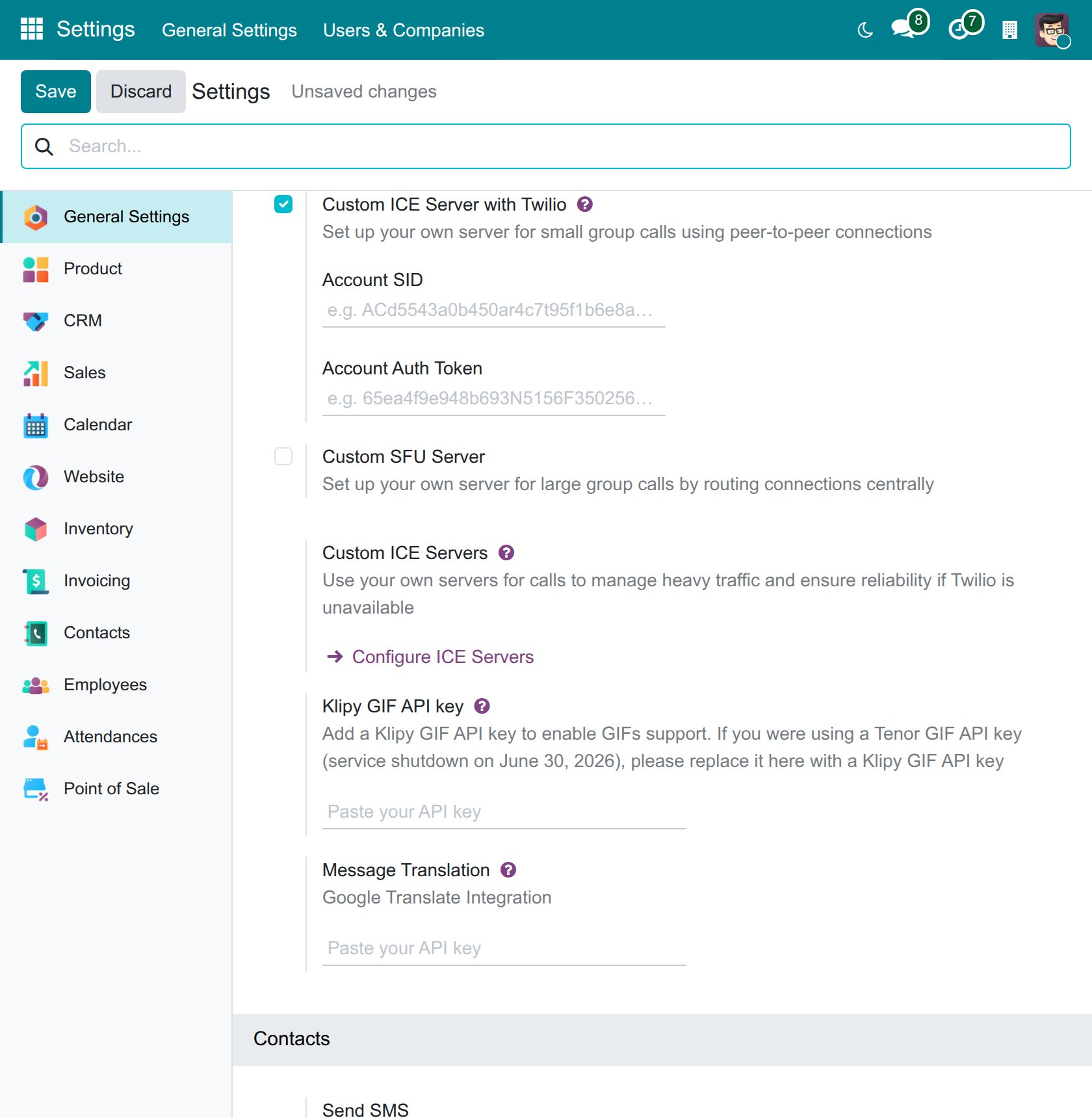
From then on, each time somebody joins a call, Viindoo asks Twilio for temporary STUN and TURN servers with these credentials and gives them to the participants. If Twilio does not answer, Viindoo writes a warning in its log and uses your own list of servers (next section) instead.
Note
Twilio is a paid third-party service and the Auth Token is a secret: store it only here and never copy it into a document or a chat.
How do I list my own ICE servers?
Use this to manage heavy traffic with servers you control, or to keep calls working when Twilio is not available.
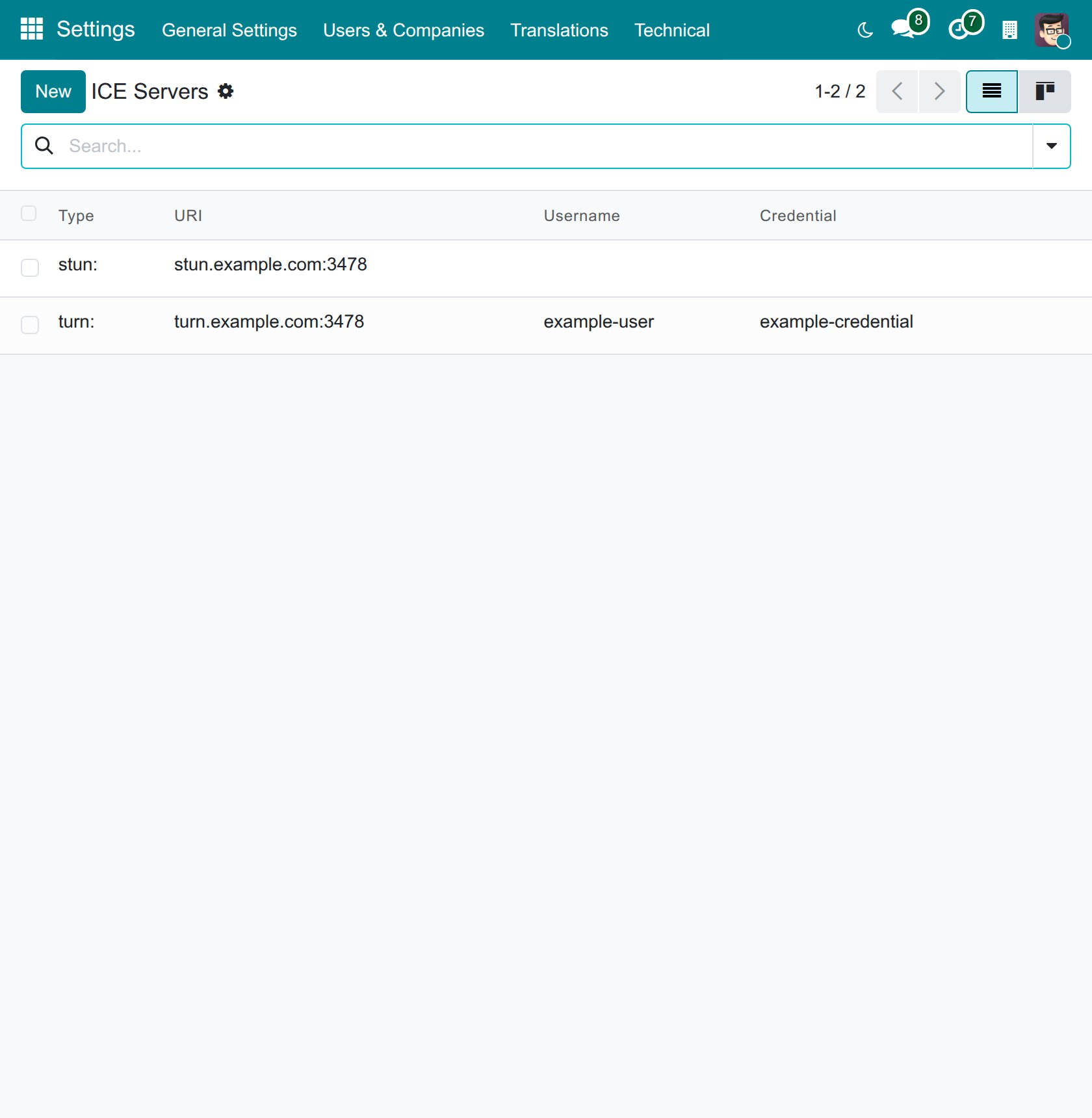
Go to Settings ‣ General Settings, find Custom ICE Servers in the Discuss section and click Configure ICE Servers. In developer mode you can also use Settings ‣ Technical ‣ Discuss ‣ ICE Servers.
![List of ICE servers with the type, the URI, the user name and the credential]()
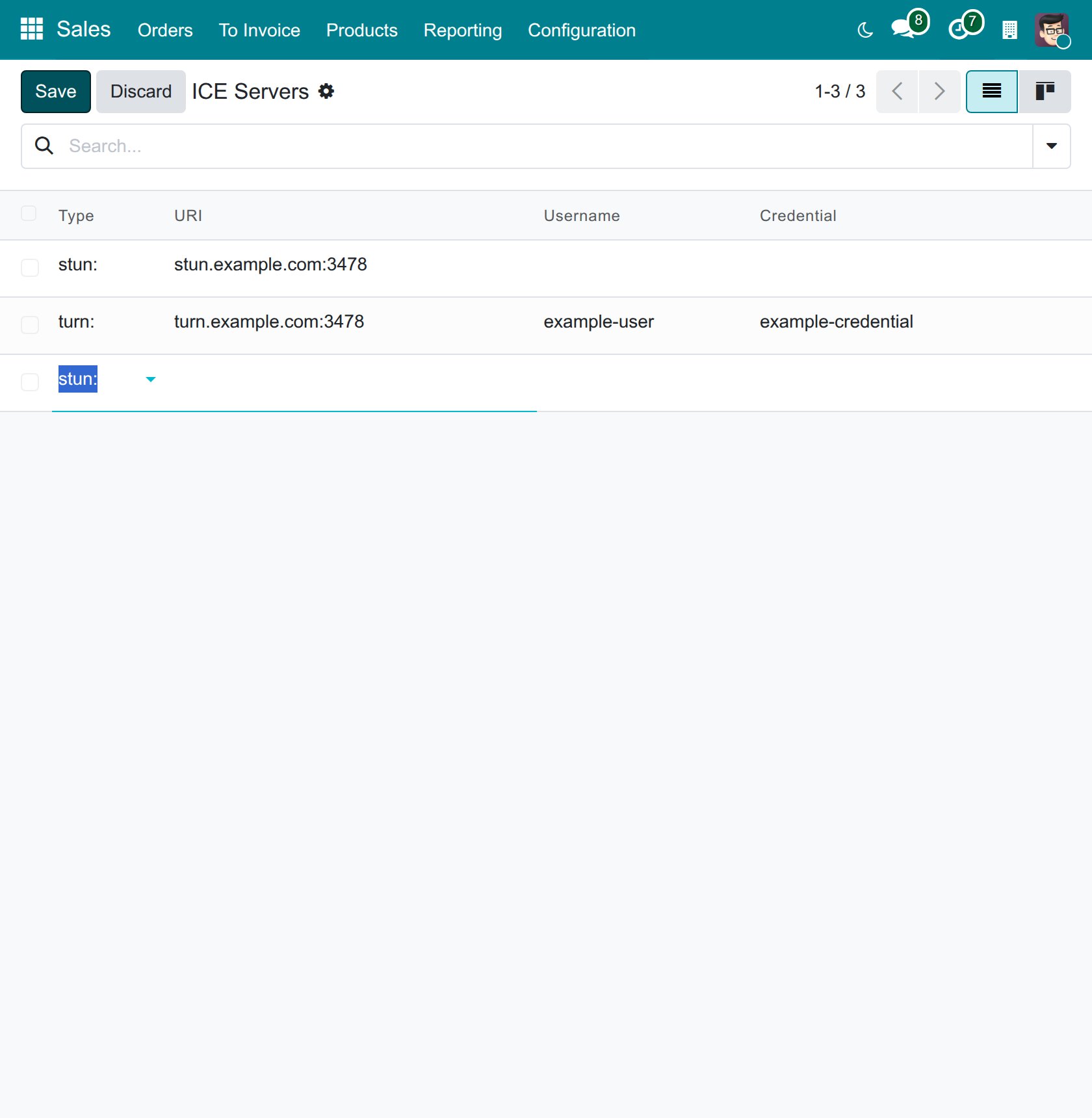
Click New and fill in the line:
Field
What to enter
Type
stun: for a server that only tells a participant its public address, or turn: for a server that relays the call.
URI
The address and the port, without the stun: or turn: prefix, for example stun.example.com:3478: Viindoo adds the type itself.
Username, Credential
The login of a TURN server. A STUN server needs none.
![New line of the ICE server list ready to be filled in]()
Click Save.
Viindoo gives at most five servers to the participants of a call, because some browsers accept no more. Keep the best ones.
Note
Peer-to-peer calls suit small groups. For large groups, the Custom SFU Server setting, next to the ICE settings, routes the calls through a central server.
How do I test a call?
Start a meeting from Discuss with a colleague who is on another network, for example on a mobile connection.
Check that both can hear each other. If the call does not connect, check the Account SID and the token, the address and port of your servers and that your firewall lets the traffic through.
Common problems
Symptom |
What to do |
|---|---|
The call does not connect for people behind a firewall. |
Add a TURN server, with its username and credential, or connect Twilio. |
Twilio is ticked but the calls use your own list. |
Twilio did not answer: check the Account SID and the token in the Twilio console. |
A server of the list is never used. |
Only the first five servers are given to the call. |