
How to serve your website through a CDN
A content delivery network (CDN) keeps copies of the static files of your website, such as images, scripts and style sheets, on servers close to your visitors. When you turn the CDN setting on, Viindoo writes the address of those files with the base URL of your CDN, so visitors download them from the CDN instead of from your Viindoo server.
Who |
Administrators who work in developer mode. |
App |
Website |
Before you start
The setting is only available in developer mode. Turn it on first, for example by adding ?debug=1 to the address of the page you are on.
You need an account with a CDN provider. The provider, not Viindoo, serves the files, bills the traffic and gives you the base URL.
The CDN must be able to fetch the files from your website when it does not have them yet (often called an origin or pull configuration). This is configured on the provider side.
How do I turn the CDN on?
Switch to developer mode, then go to Website ‣ Configuration ‣ Settings and find the Tracking & SEO section.
Tick Content Delivery Network (CDN). Two fields appear.
In CDN Base URL, type the address your CDN provider gave you, for example //cdn.example.com/.
Check the CDN Filters (see below), then click Save.
![The Content Delivery Network (CDN) setting with the CDN Base URL and the CDN Filters]()
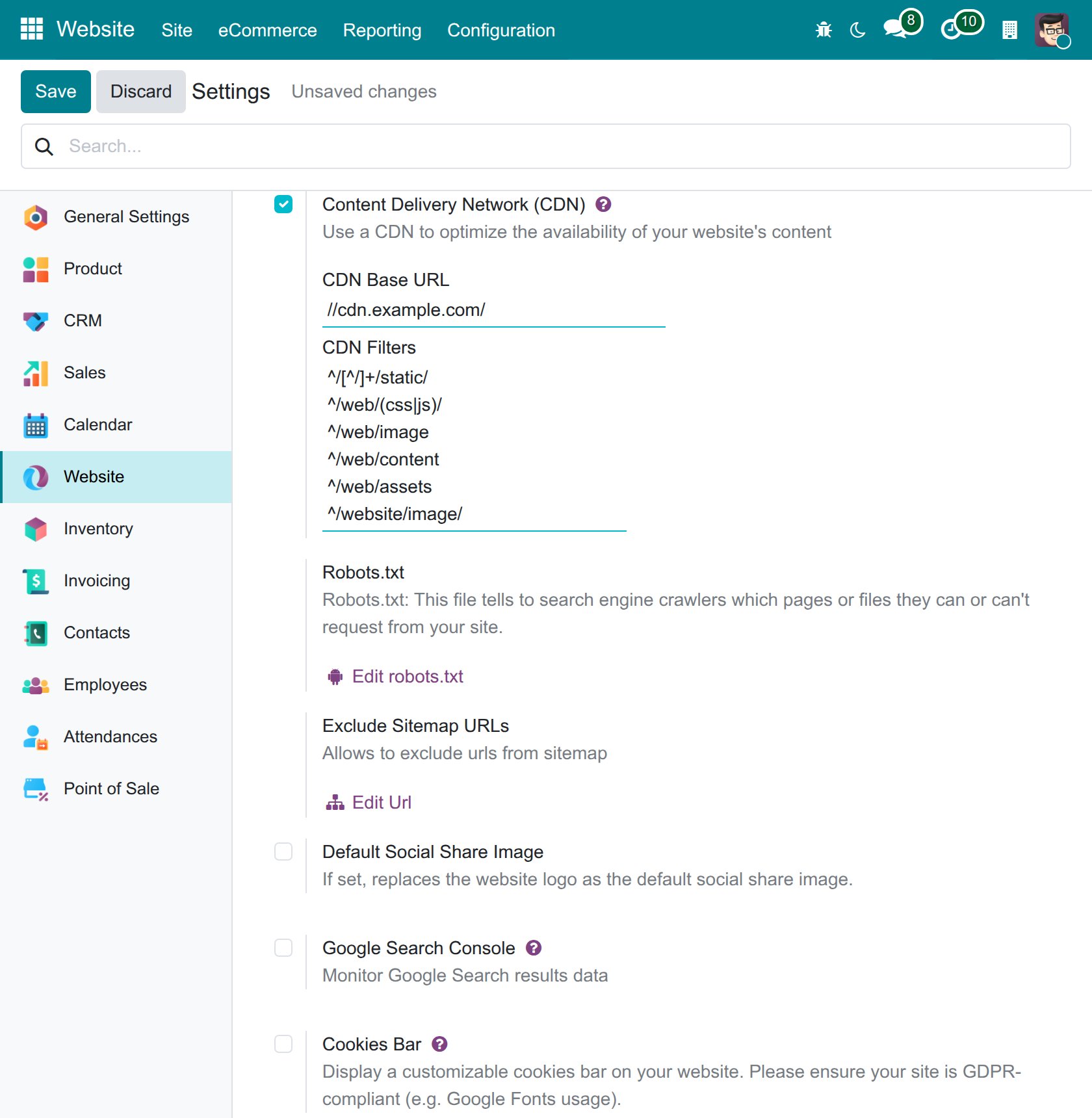
Both fields are required while the CDN is on. The setting belongs to one website: if you run several websites, choose the website first and repeat the steps for each one.
Which addresses go through the CDN?
The CDN Filters field holds one pattern per line. Viindoo rewrites an address only when it matches one of these patterns, and then puts the CDN base URL in front of it. The default filters cover the files that every page uses:
the static files of the applications, for example /website/static/…;
the bundles of style sheets and scripts under /web/css, /web/js and /web/assets;
the images and files stored in Viindoo, under /web/image and /web/content;
the older /website/image/ addresses.
Add a line to send another kind of address through the CDN, or remove a line to keep it on your server. Each line is a regular expression that is compared with the beginning of the address.
Note
With the default filters, the pages themselves are still served by your Viindoo server: only the files they load come from the CDN.
How do I check that it works?
Open your website in a private window, without developer mode.
Look at the address of an image or of a script, for example with the Inspect tool of your browser. It starts with your CDN base URL.
Note
While developer mode or the website editor is on, Viindoo keeps the original addresses so that you can edit and debug your pages. Always check in a normal visit.
Common problems
Problem |
What to do |
|---|---|
I do not see the CDN setting. |
Turn on developer mode, then reload Website ‣ Configuration ‣ Settings. |
Images are broken after I turn the CDN on. |
The CDN cannot reach your website or the base URL is wrong. Check the base URL with your provider, or untick the setting to go back to your own server. |
The addresses did not change. |
You are looking at a page opened in developer mode or in the editor, or the address does not match any filter. |
A file I changed is still the old one. |
The CDN keeps its own copy. Clear its cache from the dashboard of your provider. |