
How to track where your applicants come from
To know which channel brings applicants, open the menu of a job position (the three dots on its card) in Recruitment ‣ Applications ‣ By Job Positions, choose Trackers, and add one line per source (LinkedIn, Facebook, a job fair…). Click Email on a line to generate an email address for that source and post it on the channel: every application that comes through it records the Source. Then group the applications by source to compare the channels.
Who |
Users with the Recruitment ‣ Officer: Manage all applicants access right. Setting the email domain of the database is for an administrator. |
App |
Recruitment |
Before you start
Install the Recruitment app and create the job positions.
To generate email addresses, ask your administrator to set an email domain for your database. Without it, the trackers have no Email column.
To get a tracked link too, turn on Online Posting in the Recruitment settings and publish your positions.
How do I add a source?
Viindoo already has the usual sources (Facebook, LinkedIn, X, Referral…). Add your own only when a channel is missing.
Turn on the developer mode.
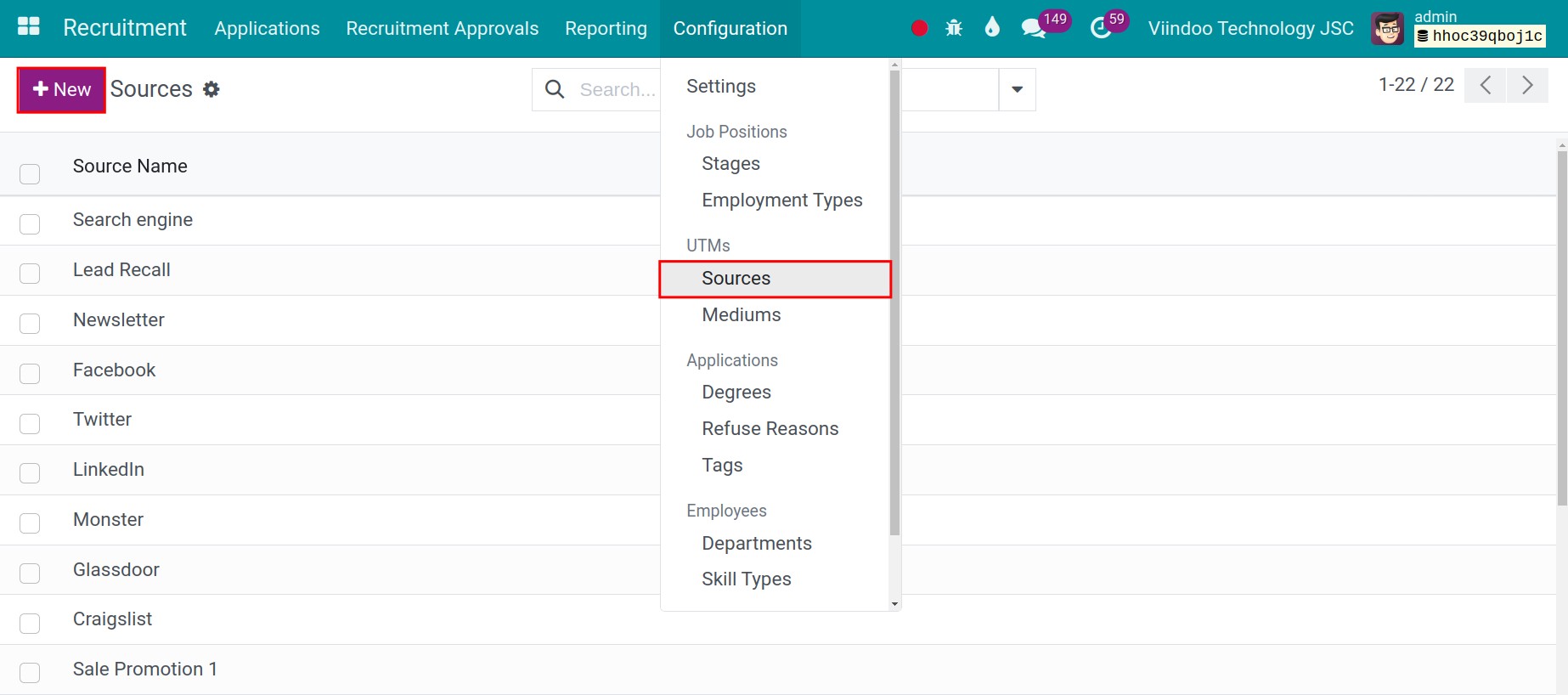
Go to Recruitment ‣ Configuration ‣ UTMs ‣ Sources and click New.
Type the name of the source, for example Job fair, and click Save.
![The list of sources with a new line to type the source name]()
How do I get an email address for a source?
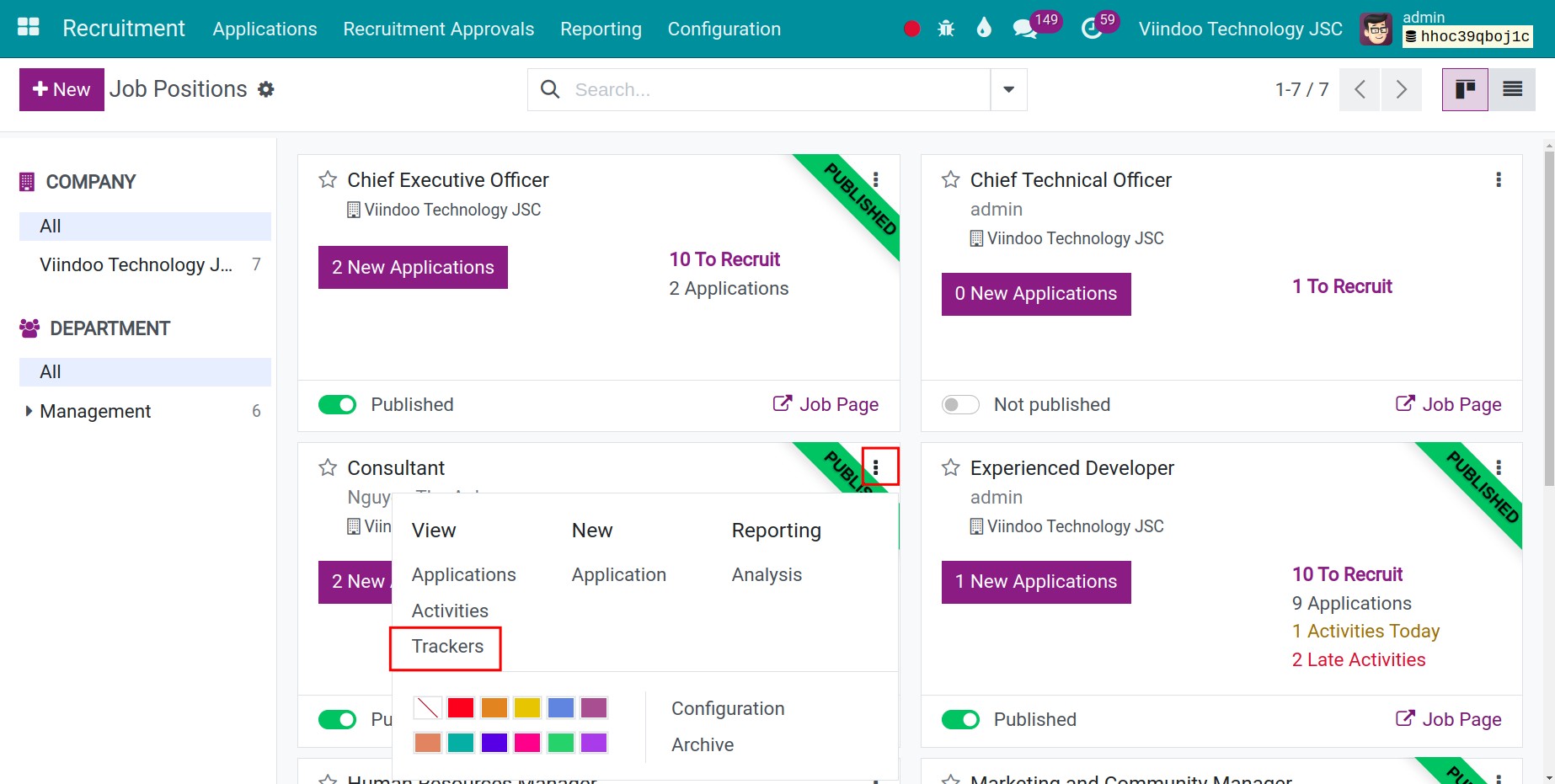
Go to Recruitment ‣ Applications ‣ By Job Positions, open the menu of the position (the three dots on the card) and click Trackers under View.
![The Trackers link in the menu of a job position card]()
Click New and choose the Source. The Job is already the position you opened and the Medium is Website by default. Click Save.
![The trackers of a job position with one line per source and the Email button]()
To receive applications by email, click Email on the line. Viindoo creates an address made of the position and the source, copies it to the clipboard and shows Copied.
![The Email button of a tracker line with the message Copied]()
Paste the address on the channel (job board, social network, flyer).


What happens when the candidate uses it?
A candidate who writes to the generated address creates an application whose Source is the one of the line and whose Medium is Email.
With Online Posting turned on, the trackers also have a URL button that copies the link of the job page with the source in it. A candidate who opens that link and sends the application form creates an application with the same source.
Field |
What it does |
If it is wrong |
|---|---|---|
Source |
The channel of the line. |
A source used twice for the same position gives two lines to choose from. |
Job |
The position that the address leads to. |
Applications go to this position. |
Medium |
The way the candidate arrives. Website by default. |
None. |
The address to post. Click it to generate and copy it. |
No address means no application by email for this source. |
How do I see where the applicants come from?
Open an application: the Sourcing section of the Details tab shows the Source, the Medium and the Campaign. You can type or change them by hand, for example for a person who walked in.
![Source, Medium and Campaign fields in the Details tab of an application]()
To compare the channels, go to Recruitment ‣ Applications ‣ All Applications, switch to the list view, open the search options, and under Add Custom Group choose Source. Each line shows the number of applications of one source.
![Applications grouped by source with the number of applications of each source]()


Common errors
Problem |
What to do |
|---|---|
The trackers have no Email column. |
The database has no email domain. Ask your administrator to set one. |
There is no Sources menu. |
Turn on the developer mode. |
The Source is empty on an application. |
The candidate did not use the generated address or link. Open the application and fill in the source by hand. |
Next steps
How to add an application in Recruitment: see every way to receive an application.
Recruitment Analysis Reports: analyse the recruitment by source and by position.