
How to follow up abandoned carts by email
A customer who is signed in, fills a cart on your website and leaves without paying has an abandoned cart. Viindoo lists these carts and can email the customer a link back to the cart, so the sale is not lost. You can let Viindoo send the email by itself after a delay you choose, or send it by hand from each cart.
Who |
Users who open Website ‣ Configuration ‣ Settings turn on the automatic email. Salespeople who open the Website ‣ eCommerce menu list the carts and send the emails. |
App |
Website (eCommerce) |
Before you start
The customer must be signed in to the website when the cart is filled, and the contact must have an email address: Viindoo cannot write to a visitor it does not know.
Outgoing emails must work in your database, as for any other email sent from Viindoo.
When is a cart abandoned?
A cart is abandoned when all of these are true:
it comes from your website and is still a quotation, not a confirmed order;
it has at least one product line;
it belongs to a customer who is signed in, not to an anonymous visitor;
it was started more than the abandoned delay ago. The delay is 10 hours by default.
You change the delay in the settings, as shown below. A cart that is confirmed or paid is never abandoned.
How do I send the recovery email automatically?
Go to Website ‣ Configuration ‣ Settings and find the eCommerce section.
Turn on Follow up abandoned carts.
In Send after, type the number of hours to wait before a cart is treated as abandoned, for example 10:00 for ten hours.
Click Save.
![The Follow up abandoned carts setting with the Send after delay and the button to customize the email template]()
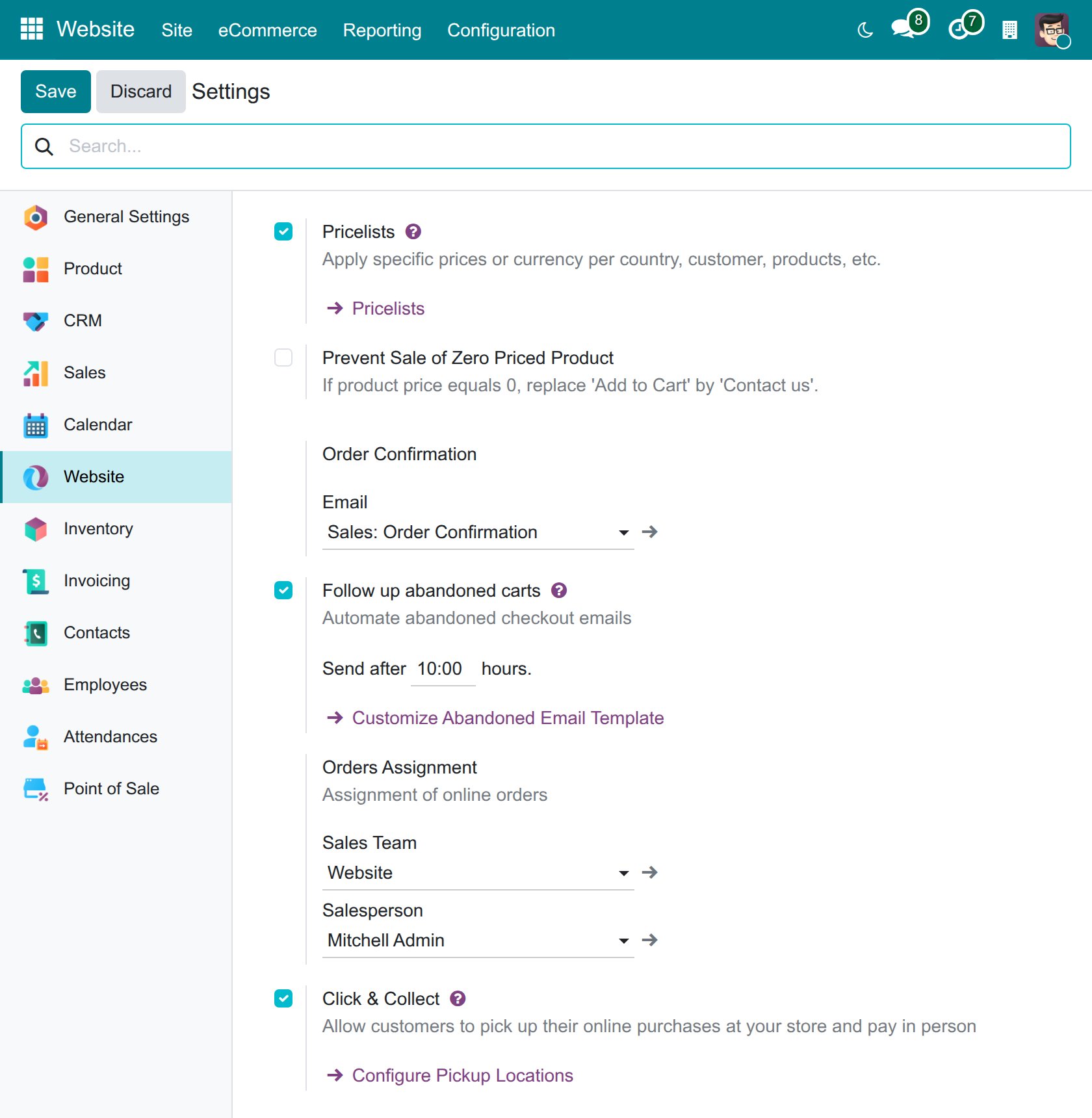
Viindoo checks the carts every hour. It sends the email once per cart, and only for carts created after you turned the setting on. It sends no email, and does not try again, when:
the contact has no email address;
all the lines of the cart are free;
a payment attempt of the cart ended in an error;
the customer has confirmed another order on the same website since the abandoned one.
How do I send the recovery email by hand?
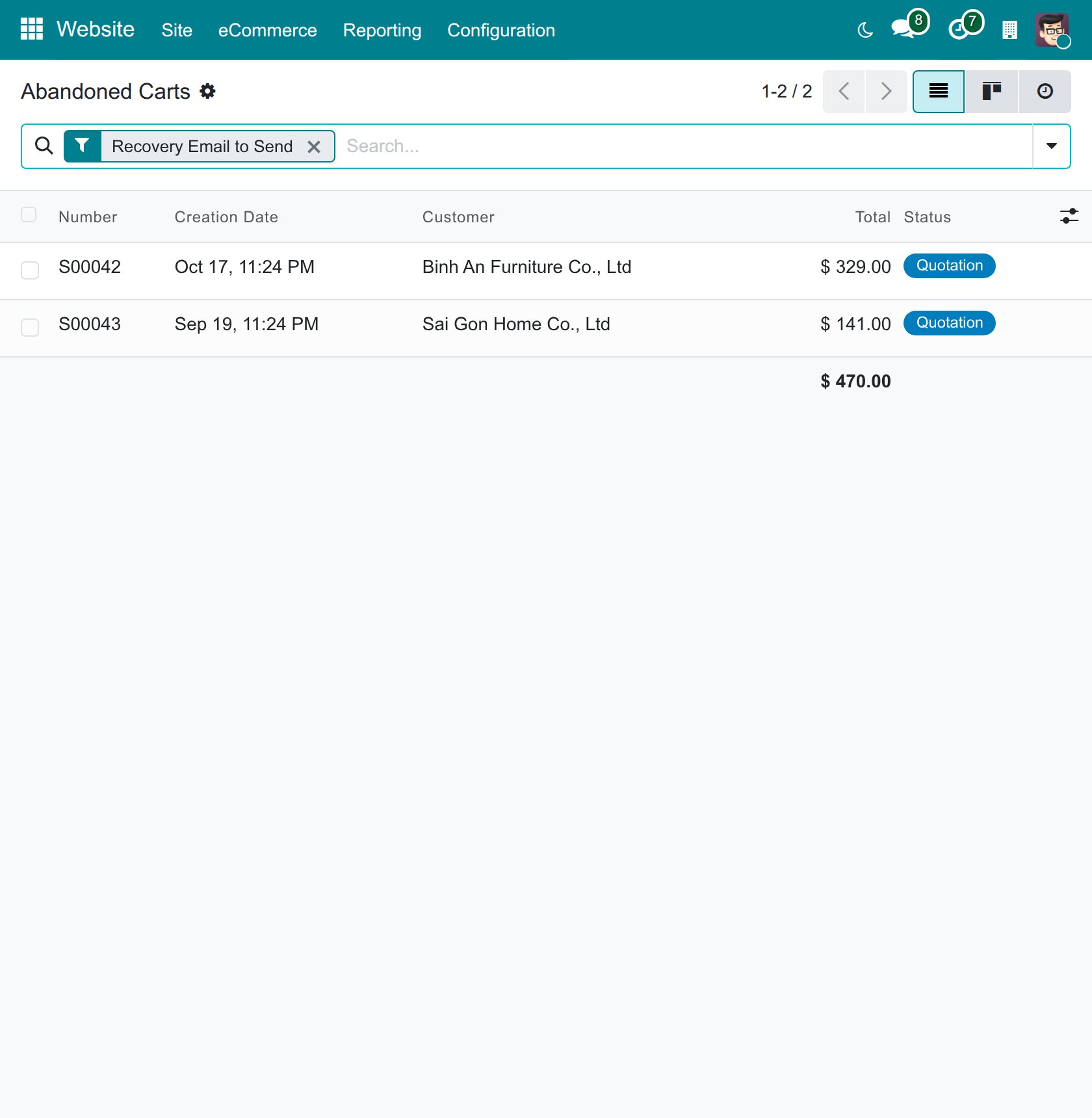
Go to Website ‣ eCommerce ‣ Orders ‣ Abandoned Carts. The list opens on the filter Recovery Email to Send: it shows the abandoned carts that have not been emailed yet. Remove the filter to see all abandoned carts.
![The Abandoned Carts list filtered on the carts whose recovery email is still to send]()
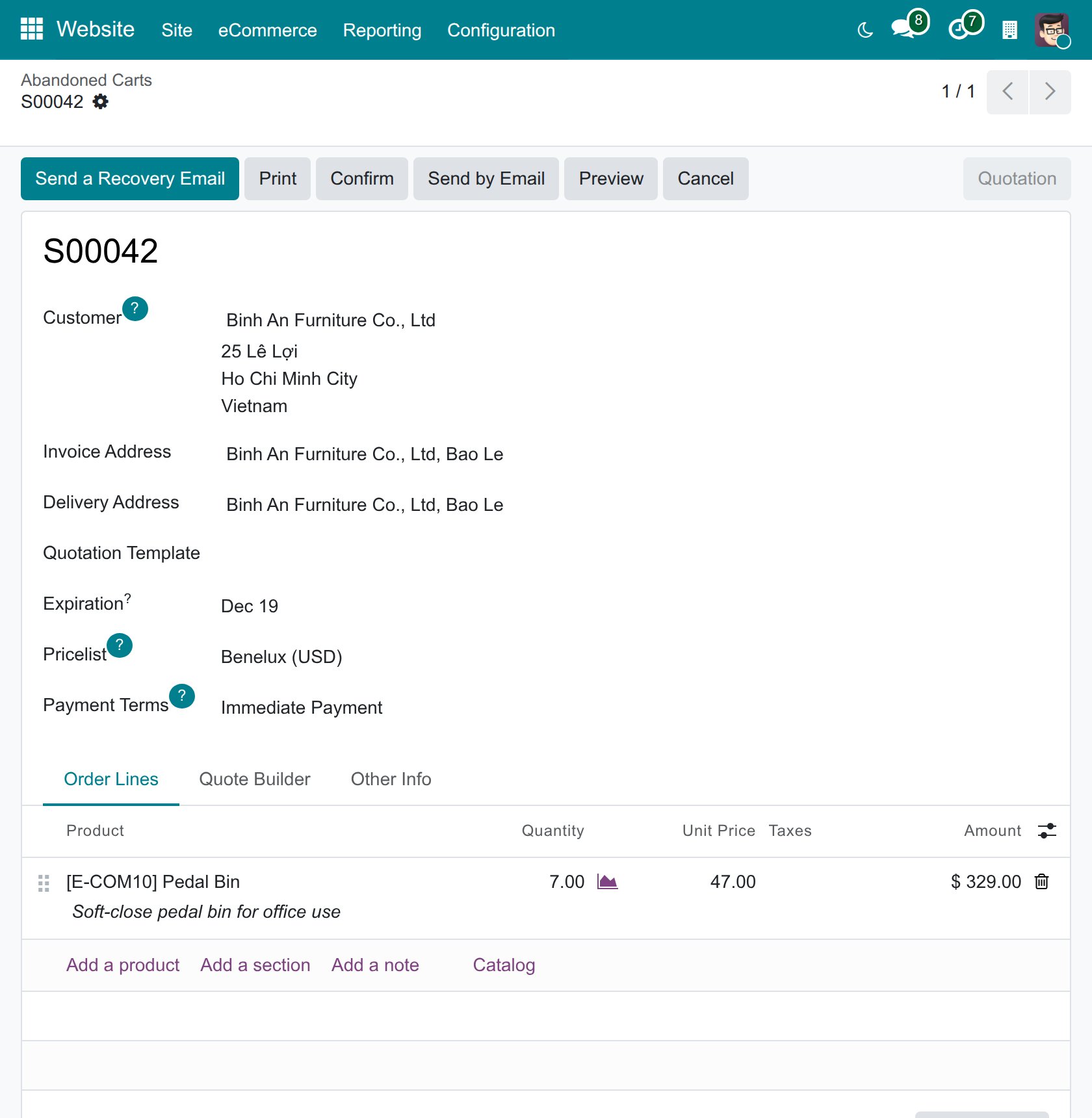
Open a cart. Its content, such as the products and the quantities, is the quotation you know from the Sales app.
Click Send a Recovery Email.
![An abandoned cart with the Send a Recovery Email button]()
Read the message that Viindoo prepares from the cart recovery template: the products of the cart and a Resume order button that opens the cart again. Change the text if you wish, then click Send.
![The email window with the cart recovery message addressed to the customer]()
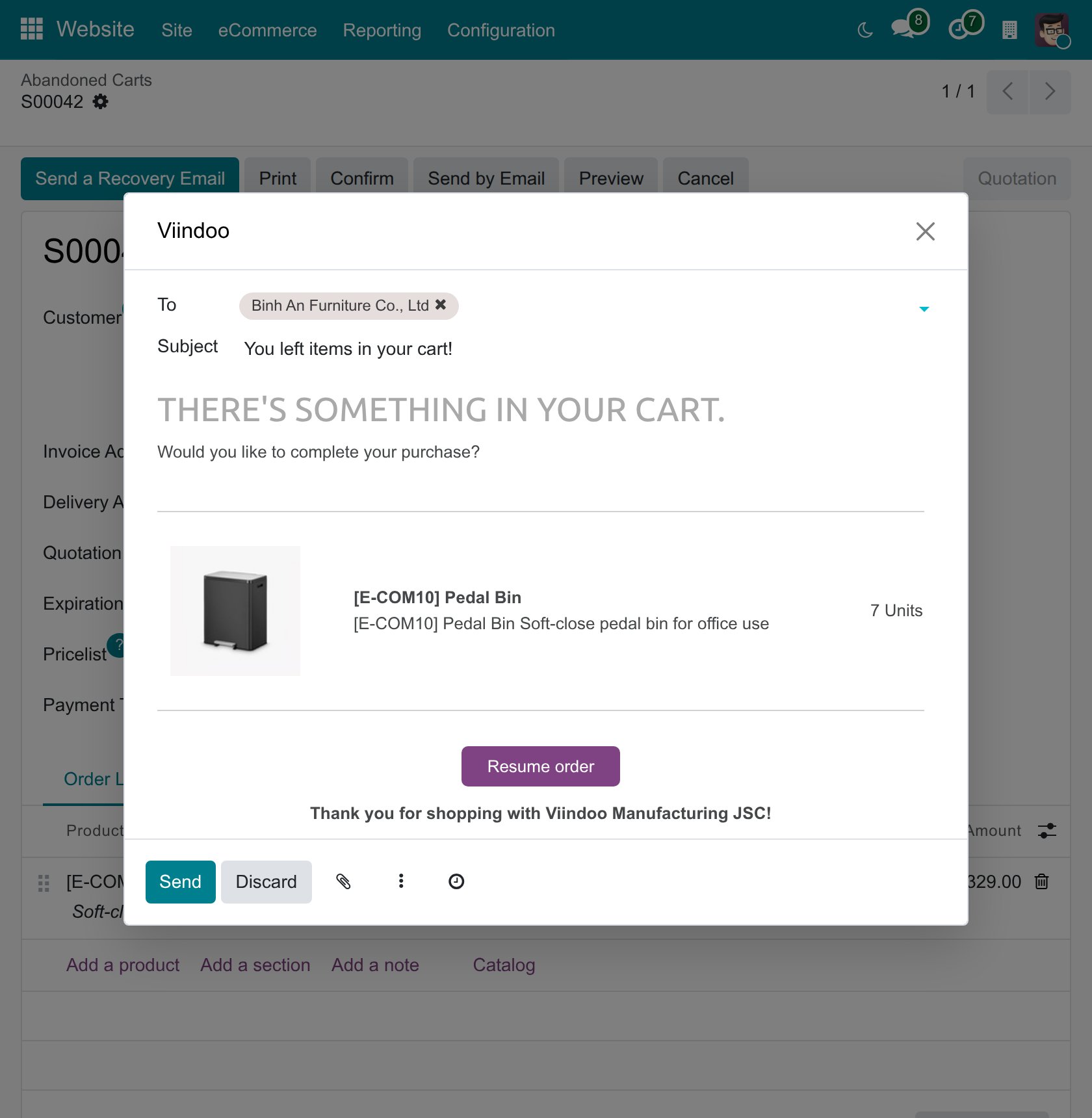
Once the email is sent, the cart no longer shows the Send a Recovery Email button and leaves the Recovery Email to Send filter, so that nobody emails the same customer twice.
How do I change the email?
Turn on Follow up abandoned carts, then click Customize Abandoned Email Template under the setting. The email template opens: change the subject and the body as for any other email template. The template is also the starting point of the email you send by hand.
Common problems
Problem |
What to do |
|---|---|
A cart does not appear in Abandoned Carts |
The cart is younger than the abandoned delay, has no product, or belongs to an anonymous visitor. Wait, or lower the Send after delay. |
A cart appears, but no email left |
Check the list above: the contact needs an email address and the cart needs a priced product. A cart that was created before you turned the setting on is never emailed automatically: send it by hand. |
The Send a Recovery Email button is missing |
The email of this cart was already sent, or the cart is not abandoned yet. |
Next steps
Apply Coupon and Next Order Coupon Program to give the customer a reason to come back.
Apply Promotion and Discount Codes programs for the discount codes of the shop.